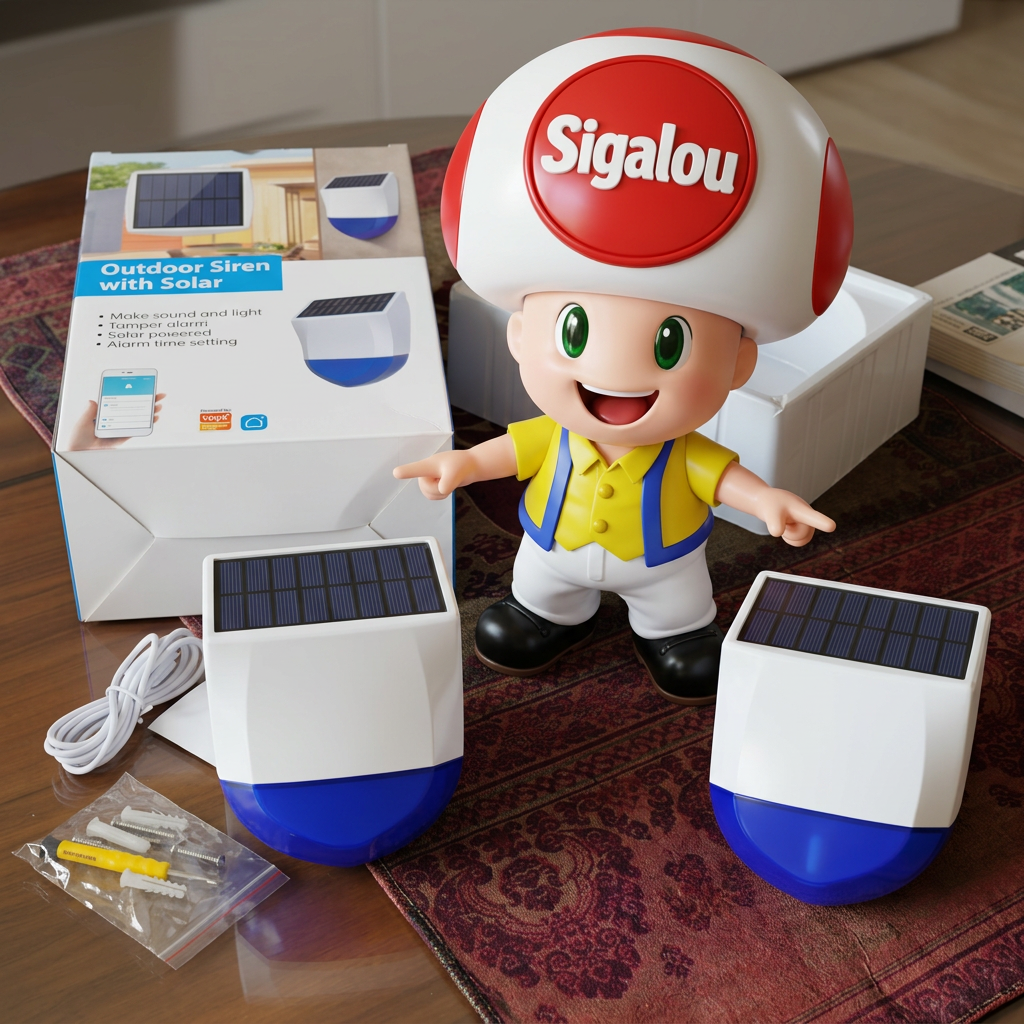
Néo reviews the sealing of its external siren Zigbee NAS-AB06B2

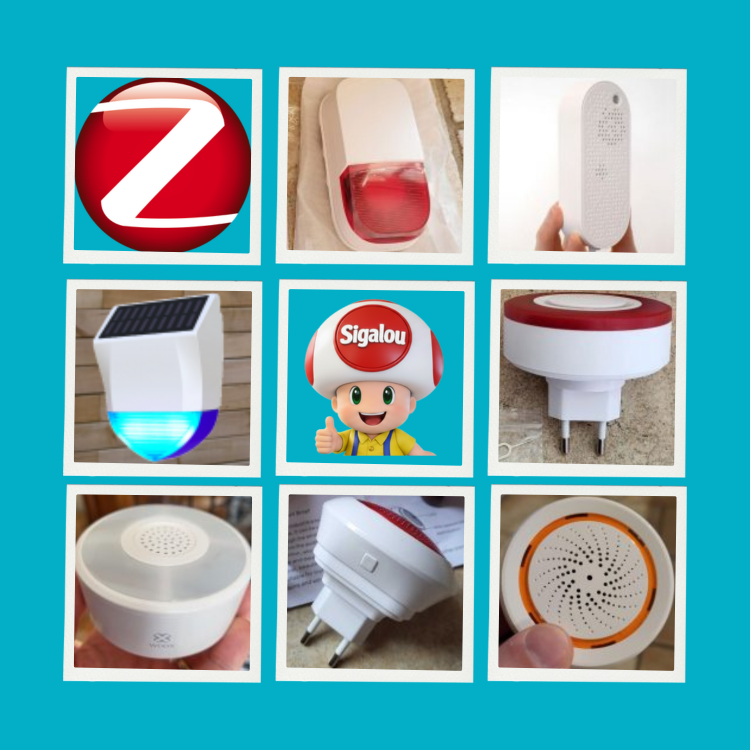
I still remember this early December 2025, my siren Zigbee outdoor NEO NAS-AB06B2, star of my initial test and my Zigbee siren comparison, had gone offline.

I climb the ladder, I dismantle … and there, disaster: full of water, the circuit soaks. I try an emergency resuscitation, nothing to do, the battery works perfectly, it is full, it is the electronic card that does not leave. Rip the mermaid!

More than a year of impeccable service reduced to nothing by inadequate sealing. I was disgusted because it was the only real good outdoor siren Zigbee.

My doubt at its reception was the ability of the solar collector to hold over time, its ability to provide more energy than the siren consumes, it worked perfectly, the fault of the siren was its tightness.

Once the mourning has been done and I admit to many requests from visitors to my blog who asked me for news of my mermaid, as it also came to them to make their souls determined, I order a new one. NAS-AB06B2 to autopsie the problem and offer my loyal readers a tutorial to tweak with putty. And there, total surprise! When I open it, I discover that NEO has reviewed its copy: the manufacturer had to receive tons of returns like mine and upgraded the model without changing the reference. Without indicating anything on the box, but by making some modifications that I will present to you.

Read More

I'm testing Frient's Zigbee HESZB-120 heat detector

🔥 My lenses with this detector

One evening in the kitchen, my smoke detector goes off for the umpteenth time because of the smoke from chopped steaks.

Tired of false alerts, I am looking on home automation forums for a reliable solution.

This is where I discover the Zigbee 3.0 Smart Heat Detector HESZB-120 Frient 's.

It only reacts to excessive heat, which seems perfect for my kitchen, garage and living room with fireplace.

I order from Domadoo because he's on sale.

It seems perfect to me: Reliable push alerts, powerful siren of 85 decibels and long maintenance-free autonomy. I'm testing all this … Read More

I save Home Assistant on my Onedrive Business

I wanted to use OneDrive for Business as a backup destination in Home Assistant.

Official integration allows backups to be sent to OneDrive for Business, but asks to prepare an application in Microsoft Entra beforehand, with a Tenant ID, a Client ID, a Secret Client and a precise redirect URI.

Prerequisite

Before you start, you need to:

  • A functional Home Assistant.
  • A Microsoft 365 / OneDrive for Business account.
  • Access to the Microsoft Entra portal with an account that can create an application. Microsoft indicates that at least one Application Developer role is required.
  • Knowing the redirect URL used by Home Assistant will be: https://my.home-assistant.io/redirect/oauth.

Read More

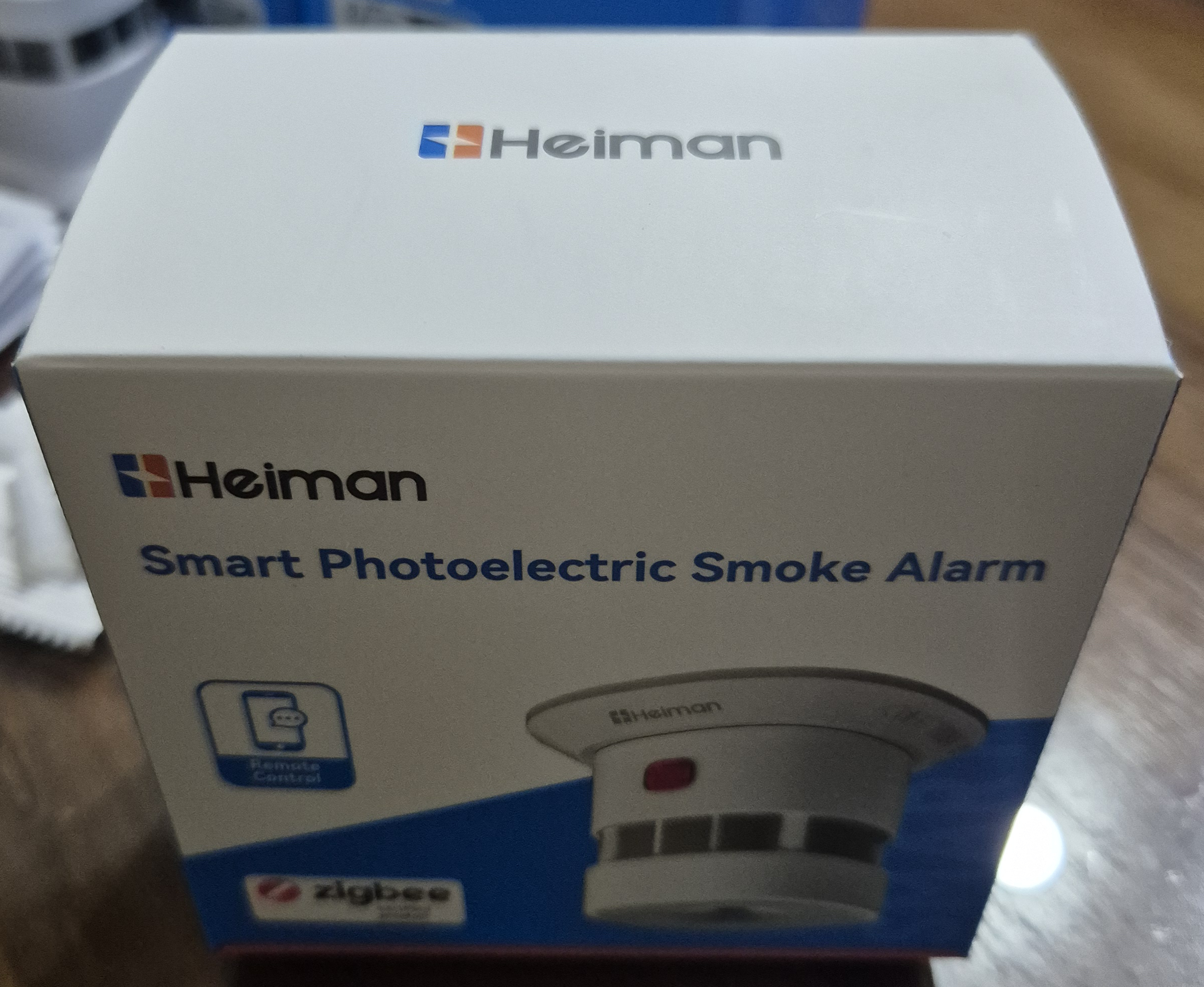
I am testing the NEW smoke detector Zigbee Heimann HS1SA-E-PLUS

🎯 My objectives

I have had smoke detectors for a very long time.  Heimann HS1SA-E to protect my home, this economic module gives me full satisfaction for basic use.

When writing my comparison of Zigbee smoke detectors, I asked Heimann whether they were considering an evolution of that product.

And surprisingly, an update of the HS1SA-E was being developed, they sent me three copies of the new product which should be the HS1SA-E-PLUS with a lot of evolutions in the Zigbee exhibitions, as I will explain later.

Three products because one of the great novelties is the interconnection of detectors, so I will test this.


🔍 HS1SA-E or HS1SA-E-PLUS?
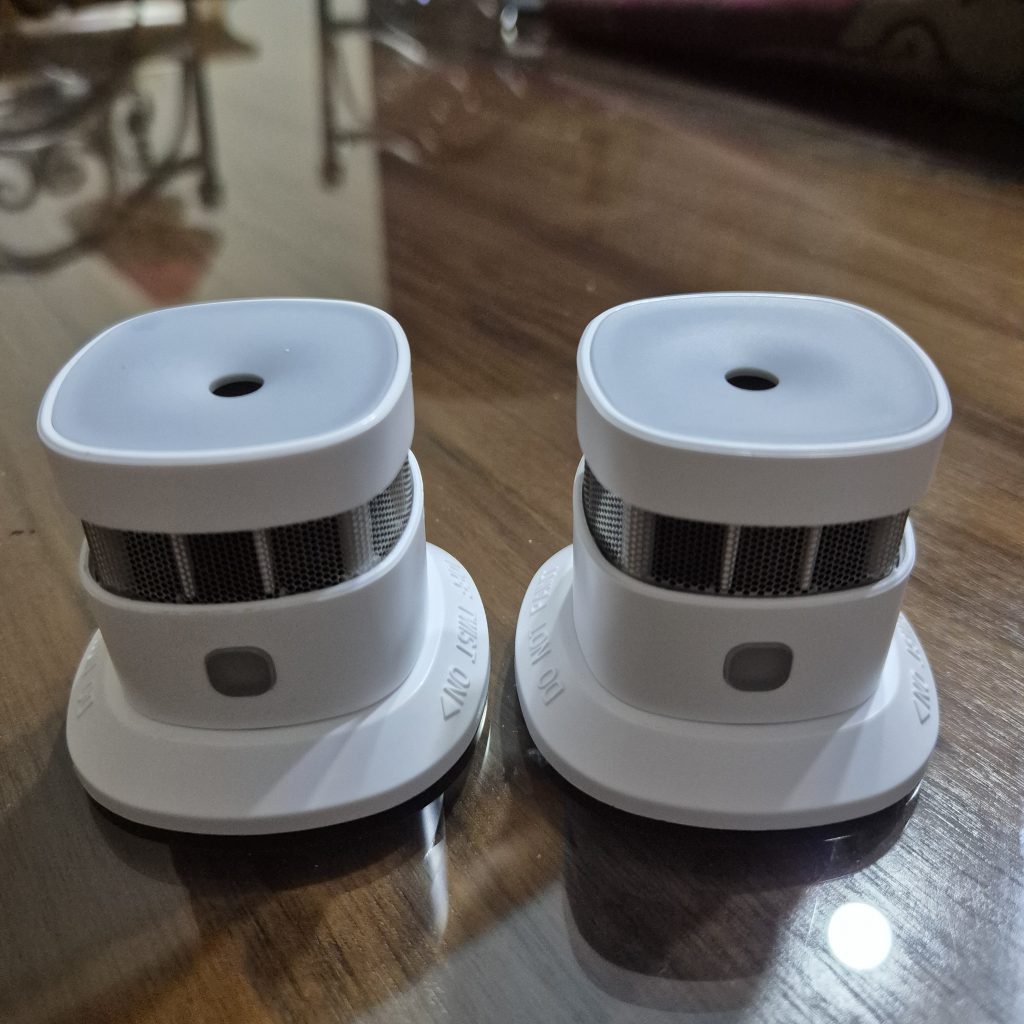
The HS1SA-E is on the left and the HS1SA-E-PLUS is on the right, unless the opposite is the case. I am kidding of course, they are completely identical from the outside.

To find out who is who, you have to compare the labels inside.
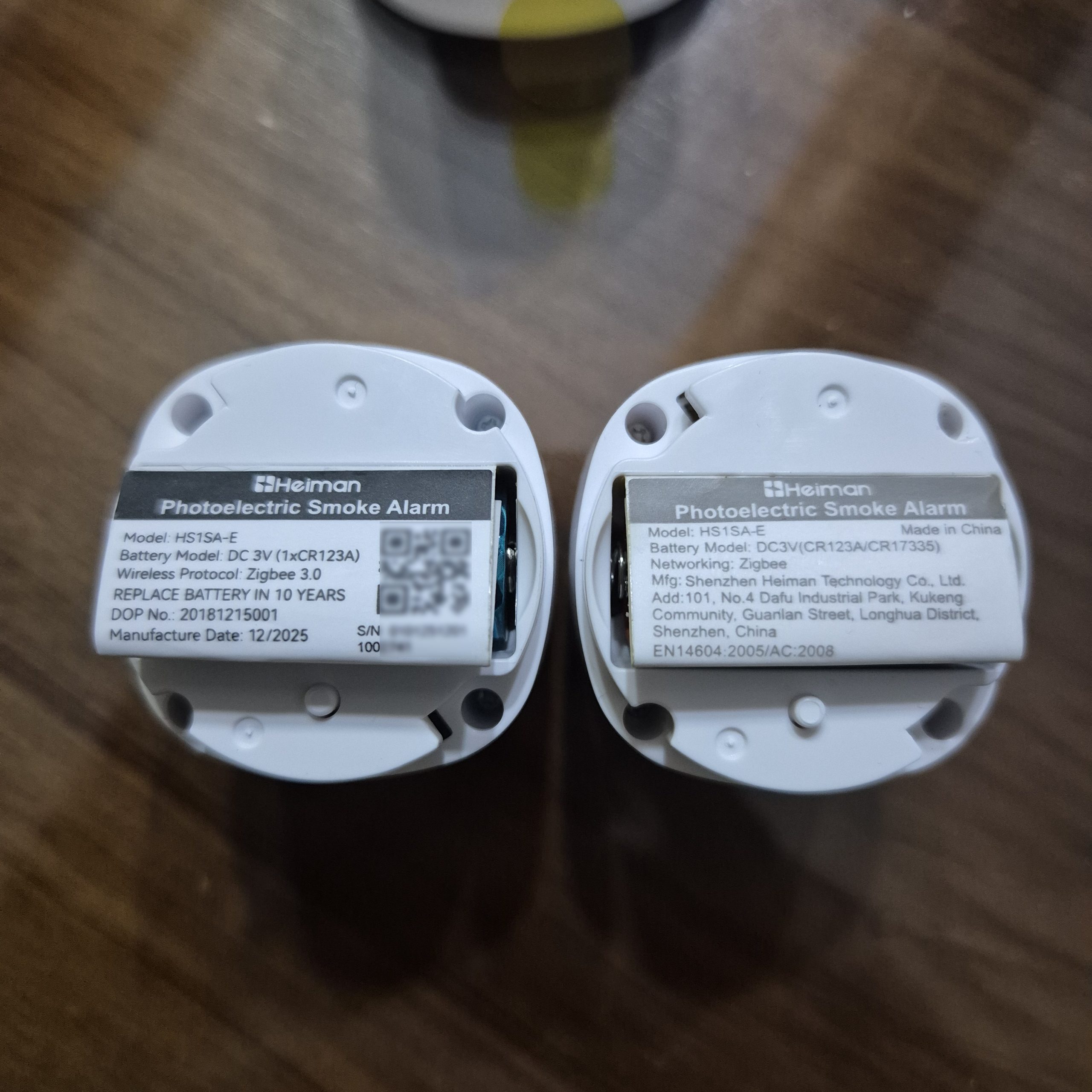
I received a pre-release, both are mentioned HS1SA-E, I think the reference of the new one would be changed in the marketed versions.

In the image, the new one is on the left, with the QR Code, it is mentioned Manufacture Date: 12/2025.

Here is the complete label, once unfolded:

I take the opportunity to raise the certifications present

  • UKCA : Replaces the CE marking in the United Kingdom ‑.

Indicates that the detector complies with UK regulations on product safety, EMC, radio, etc.

Mandatory for placing on the market in Great ‑ Britain (England, Scotland, Wales).

  • Marking house (Building)

Product symbol for residential use (dwellings).

It is often seen on smoke detectors that comply with home safety standards in Europe.

Above all, points to the area of use, rather than an autonomous legal certification.

  • Zigbee : Zigbee logo with "certified product" label.

Attests that the device has passed the Zigbee Alliance compliance tests for Zigbee 3.0 (interoperability, radio protocol, security).

Globally relevant for the home automation ecosystem, not country-specific.

  • EC : Regulatory marking for the EU and EEA countries (Norway, Iceland, Liechtenstein) and often accepted in Switzerland.

Indicates compliance with European directives (safety, EMC, RED radio, etc.), allowing placing on the market in all these countries.

Notified body number ‘2531’

Identifies the body that has assessed conformity (here a European Notified Laboratory for the Radio Equipment/Construction Products Directive).

This number complements the EC and is recognised in the EU/EEA.

  • EN14604:2005/AC:2008 European standard specifying requirements for smoke detectors for household use.

Mandatory or highly recommended in most EU countries for residential smoke detectors (France, Germany, Belgium, etc.).

Recognised also by some non-EU countries that adopt EN standards.

  • DBI Certification (logo eye/flamm e + "DBI CERTIFICATION")

Danish organization ("Dansk Brand- og sikringsteknisk Institut") accredited to certify fire safety products.

Certification especially relevant for Denmark and the Nordic countries where insurance/authorities can value it.

Strengthens the credibility of the product on European markets, without being mandatory everywhere.

  • Barred bin

WEEE (Waste Electrical and Electronic Equipment) symbol.

Indicates that the detector should not be disposed of with household waste but in a specific recycling channel.

Used in the EU, the UK ‑ and more widely in Europe.

🔍 I check the received model

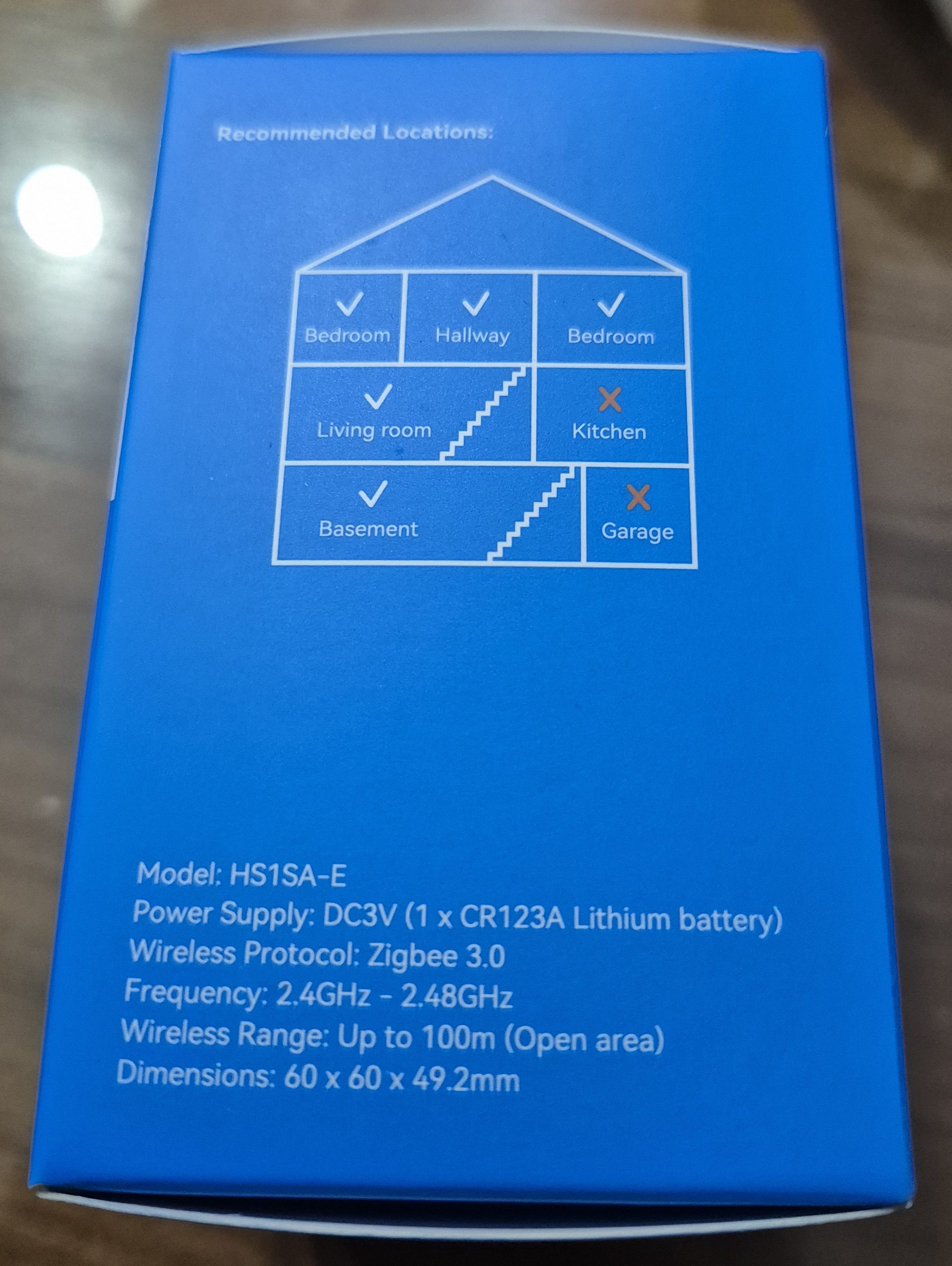
  • On the technical sheet : HS1SA-E (to become HS1SA-E-PLUS) Zigbee 3.0 optical smoke detector ,
  • On the carton : Heimann HS1SA-E (which will become HS1SA-E-PLUS) clearly indicated
  • Type of equipment : Smoke detector
  • Protocol : Zigbee
  • Power supply : CR123A battery (3V), estimated duration 10 years
  • Intended installation : Ceiling, living rooms

📦 Unpacking and First Impressions

📦 Product Description

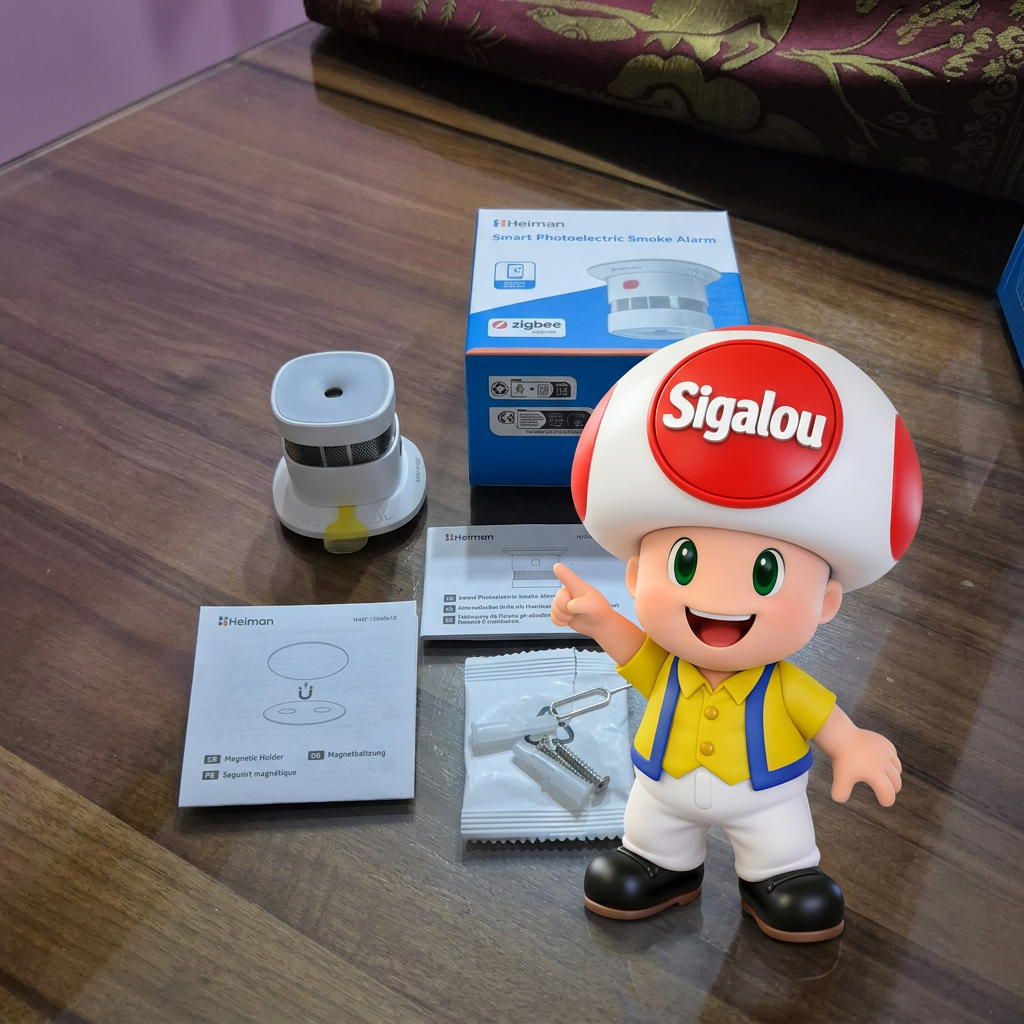
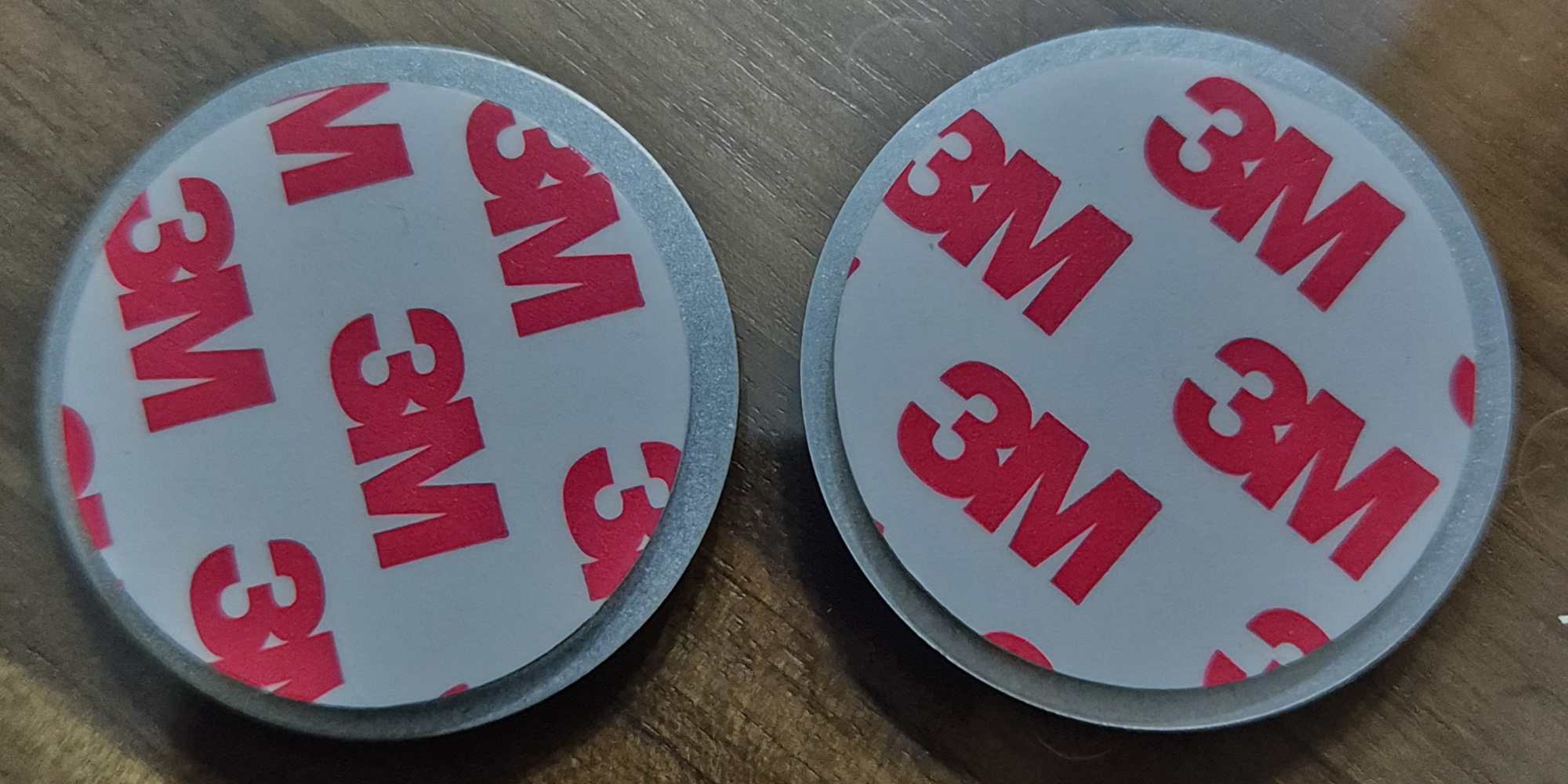
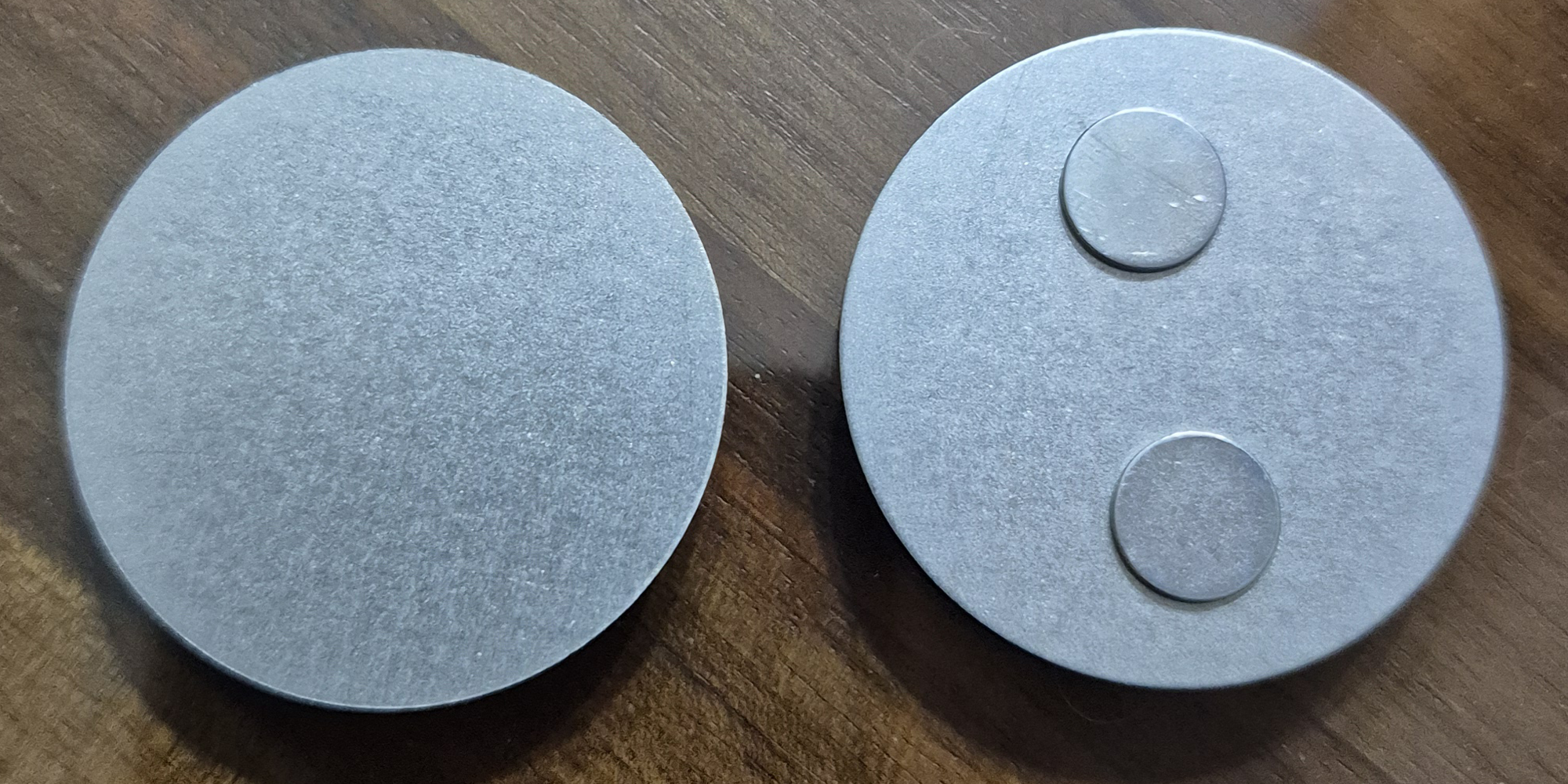
The detector is compact, comes with a bracket to glue or screw to the ceiling. A metal plate system, a set of screws and a reset tool.

The new model offers an awesome magnetic plate system with two magnets and 3M double-sided
 

🛒 Where to buy this equipment?

Here is the link to the page dedicated to HS1SA-E-PLUS. I referenced the sellers and prices.

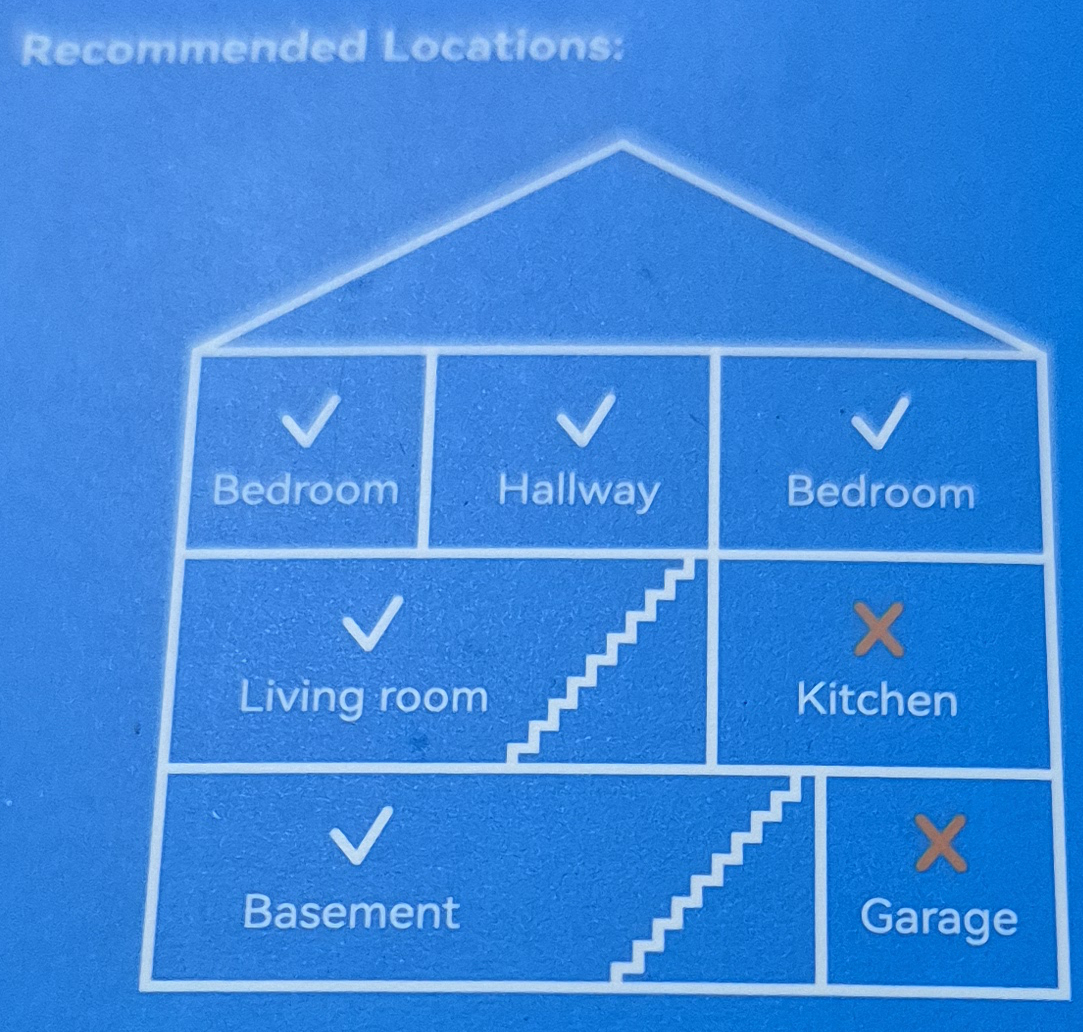
🏡 Where I install it

For reliable measurements, I choose the ceiling in the center of the room. I avoid corners, kitchens or garages for false positives because of kitchen smoke or dust.
🔋 I spot the yellow tab that has to isolate the battery

Yellow tongue insulating the battery I remove the base (just unscrew a few degrees), then I pull the tab to power the detector.

🔗 I integrate this detector with Zigbee2MQTT

I put Zigbee2MQTT in pairing mode when I remove the tab, but nothing happens (this is not automatic on this model).

So I find the small hole on the side, I slide a trombone into it to press for a few seconds until the LED flashes green.
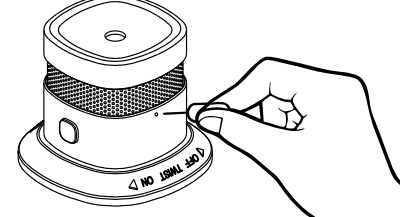
The pairing starts immediately and, in a few seconds, the module is integrated!

Below are the 3 new products detected in HS1SA-E-PLUS and at the top, the previous product recognized in HS1SA-E.

🖊 I am renaming the device

in Heimann Test 01 to continue the tests.


Exhibition details of Zigbee2MQTT
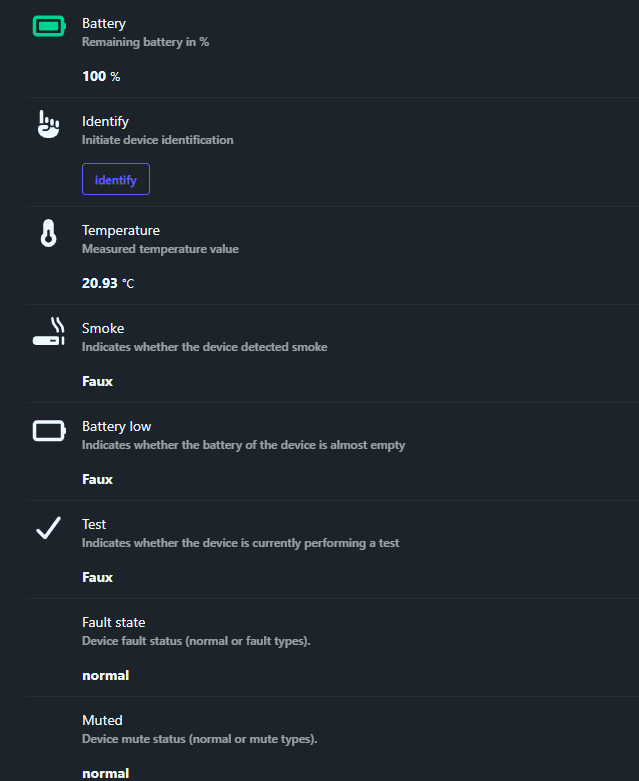
Exhibition details of Zigbee2MQTT

🔋 Battery

The exhibition Battery corresponds to percentage of battery remaining reassembled by the detector. In practice, it is the simplest indicator for monitoring day-to-day autonomy, e.g. 100% Just after installation.

I display it on my Home Assistant dashboard to quickly spot an abnormal drop. When the level passes low (typically under 20%), I plan to replace the CR123A battery before having any unwanted beeps or loss of supervision. One can choose to do a digital test on this exhibition or use the exhibition Battery low which is binary, each its preference, the device gives the choice.

🔎 Identify

The exhibition Identify is used to identify physically the detector. When I trigger this action, the detector starts a flashing LED so I know which one is which.

This is very useful if I install several identical detectors in the house. I can rename them cleanly in Zigbee2MQTT without making a mistake.

🌡 Temperature

The exhibition Temperature goes up a measured temperature by the detector (in °C). This is not the main function of a smoke detector, but it is a practical fact, e.g. 20.9°C.

I can display it on the dashboard, or use it in a simple automation (ventilation, window, heating). I keep in mind that this is not a dedicated precision probe, but rather a bonus for contextualising the environment.

🔥 Smoke

The exhibition Smoke indicates whether the detector has detected smoke as a binary state (True/False). As long as there is nothing to report, I see “False” on the dashboard.

This is the most important exposure for safety, as I use it to trigger notifications and emergency scenarios. For example: immediate push notification, ignition of lights, opening of flaps, and possibly triggering of additional sirens.

🪫 Battery low

The exhibition Battery low is a binary indicator that signals whether the battery is almost empty. Even if the “Battery” value can still show a percentage, this status is an excellent alert trigger as it represents a “critical” threshold on the device side.

I use it to send a priority notification and to avoid delaying battery replacement. The objective is clear: Do not wait until the detector switches to regular beep mode or becomes unstable on the network.

🧪 Test

The exhibition Testing indicates whether the detector is performing a test. It is a binary state (True/False) that becomes “True” during the test phase and then returns to “False” afterwards.

I use it to check that my automations respond correctly to a test without triggering a general panic. This mode is designed to be used in dashboard, notification and automation.

🛠 Fault state

The exhibition Fault state corresponds todefault state of the detector. It indicates whether the device is in a normal state, or whether it is recovering from a type of problem (depending on the possible ‘fault types’).

I display it on my security dashboard because a defect can be as important as an alarm. If this status changes, I plan an on-site check (battery, fouling, positioning) and I monitor Zigbee stability.

🔇 Muted

The exhibition Muted indicates whether the detector is currently in silent mode or in normal condition. The important clarification is that this status is mostly relevant when the detector has been silenced during an alarm state, and not as a mere permanent “silent mode”.

I use it to visually confirm that a mute has been applied after a false positive. It is also very convenient to avoid “believing” that the alarm is switched off when it is not.

✅ Trigger Selftest

The exhibition Trigger selftest triggers a remote self-test of the detector. The idea is simple: I can check periodically that the device is responding, without physically pressing the button.

The self-test lasts long enough (approximately 21 seconds) for the automation to have time to act. In my case, when I run a self-test, I watch that Testing switches to “True”, that Smoke does not switch to “True”, and I listen to the test beeps (2 times 3 beeps) to validate the correct operation.

🤫 Temporary Mute

The exhibition Temporary mute allows for ask the detector to switch to remote mute mode. It is a very useful command when the alarm sounds for a non-dangerous cause, but it must be used with common sense: I always check that there is no real fire start before turning off the sound.

Behavior depends on the context.

  • In low battery status, if I click on Temporary mute, the button can automatically return to its original state: this is normal, as the low-battery warning sound can only be switched off for 12 hours, then the device resumes its warning.
  • In alarm status (smoke), I can activate or deactivate the mute, which is ideal to manage a false positive (steam, dust) while keeping my hand from the dashboard and without pressing the button on the device.

💡 Heartbeat indicator

The exhibition Heartbeat indicator is used to activate or deactivate the indicator light (heartbeat). The aim is to manage the flashing of the LED, which is often useful to confirm that the device is alive, but sometimes annoying in a room.

The documentation recommends not disabling it “blindly”: if I switch off the LED, I compensate with a periodic check (programmed self-test) and an unavailable device detection (offline) in Home Assistant.

🔗 Interconnectable

The exhibition Interconnectable is planned for theinterconnection between detectors (logical “if one detects, the others react”). The explanation provided indicates that this exposure is thought of as an automation trigger, simpler and more flexible than relying solely on “Smoke” or “Test” to control external sirens.

I would use it to create a global alert: if a single detector triggers, I ring other devices (sirens, speakers, other detectors) so that the alert is audible everywhere.

At this stage, I need to test with at least two detectors to test this.

📈 Smoke level

The exhibition Smoke level goes up a measured smoke level as a numeric value (e.g. 0.00 under normal conditions). This is finer information than a simple “Smoke = True/False”.

I can use it for prevention: display the trend on a dashboard, or trigger a ‘pre-alert’ notification if the level rises gradually before the alarm is triggered.

I also have a air quality monitor In the room, I will be able to see if the smoke detector reacts when the air quality monitor informs me that the indoor air quality has become poor.

📏 Smoke unit

The exhibition Smoke unit specifies theunit associated with the measure ‘Smoke level’. In the documentation, this unit is designed to facilitate scripts and automations, especially because the product is intended for international use.

Concretely, it prevents me from making assumptions in my automations. I can also adjust my thresholds if I change my model later, keeping a consistent logic.

🧼 Chamber contamination

The exhibition Chamber contamination indicates the level offouling of the smoke detection chamber.

The possible values are:

  • normal : Clean room, optimal detection.
  • light_contamination : Light contamination, watch.
  • medium_contamination : Medium contamination, clean soon.
  • critical_contamination : Critical contamination, clean or replace immediately.

I can use it to schedule an automatic notification as soon as light_contamination, and a strong alert to critical_contamination. This prevents the dust from rendering the detector inoperative without my noticing it.

📢 Siren for automation only

The exhibition Siren for automation only allows for control the siren via a home automation action.

This feature is just great for home automation enthusiasts. Three buttons can be activated: stop, smokesiren or Cosiren, so we have a choice between two ringtones. Too bad, it is a bit limited, but it is already huge to build scenarios.

I intend to use it only in a controlled setting: tests, scenarios, or interconnection. This allows me, for example, to trigger the siren of a detector from an automation, without waiting for it to detect smoke itself.

📦 Reported packages

The exhibition Reported packages is a meter that indicates how many Zigbee packets the device published over a 24-hour period. This is a very useful diagnostic data if I find that the battery is emptying too quickly.

In this context, “reported” means sent / transmitted : this is the total number of Zigbee packets that the detector sent to the network over a day. These packets correspond to ‘reporting’ messages (automatic states such as battery, temperature, smoke level, link quality, etc.). Each time the detector goes up a state, a change, or a periodic heartbeat, it counts +1 packet.

If this meter becomes abnormally high, I must look for the cause (unstable network, too chatty parameters, radio interference).

🔁 Rejoin count

The exhibition Rejoin count indicates how many times The detector joined the Zigbee network again.

In diagnosis, it is a clear indicator of stability: the more it goes up, the more likely my network is to be limited to where the detector is. If I see frequent joins, I add a Zigbee router (plug, router bulb) nearby or I bring the coordinator closer.

I am gaining both alert reliability and battery life.

🔄 Reboot count

The exhibition Reboot count counts the number of restarts of the apparatus. It is still a purely diagnostic fact, but it can help detect unstable behaviour.

If this meter increases, I suspect a weak battery, a firmware problem, or an unstable internal power supply. In any case, I prefer to investigate quickly, because a smoke detector must remain reliable continuously.

📶 Linkquality

The exhibition Linkquality represents the quality of the Zigbee link (LQI). It is not a direct “safety” indicator, but it is an excellent thermometer to know if the detector communicates easily with the network.

If the LQI is too low or fluctuates a lot, I review the placement or add a Zigbee router. I keep in mind that good Zigbee communications increase the chances of alerts and statuses rising quickly, especially in real-life situations.

Details of Zigbee2MQTT parameters

🧩 Temperature calibration

The exhibition Temperature calibration allows foradjust the absolute temperature reported by the detector. By entering an offset value (e.g. +1.5°C or -0.5°C), I compensate for measured deviations from a reliable reference probe.

I use it to refine the measurements in a specific room, especially if I compare it with other in-house sensors. This calibration is set to within 0.1°C. This is very useful to compensate for the positioning of the sensors, often on the ceiling, and therefore with a few degrees more than the temperature at human height.

Attention: this calibration directly impacts all temperature deferrals, so I test after setting and note the value for reproducibility.

🎯 Temperature precision

This parameter defines the number of decimal places displayed for temperature (e.g. 0 for integer, 1 for 21.0°C, 2 for 21.05°C). It controls the accuracy of the deferral without changing the actual measurement.

I choose 1 or 2 decimal places for a display readable on dashboard without unnecessary overload. More decimals = slightly longer reports (minor impact conso), but increased visual accuracy for fine trends.

⏱ Identify timeout

This setting fixes the duration in seconds during which the detector flashes its LED during an Identify command (range 1 to 30 seconds, default value 3 seconds).

I adapt it to my needs: short (5s) for fast location, long (20s) if I struggle to spot among several detectors. This avoids relaunching the Identifier several times during installation or maintenance.


🏠 I find the detector in Home Assistant

I can find my equipment there right away.

Controls are present.
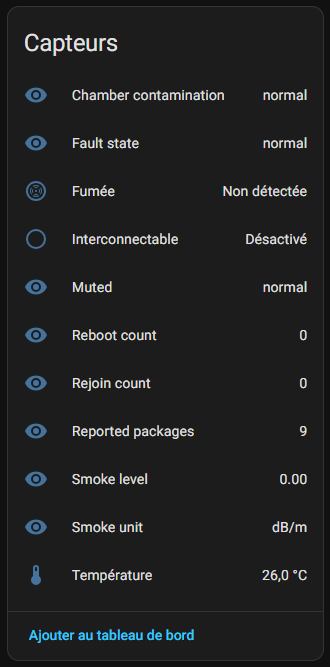
I find all available sensors
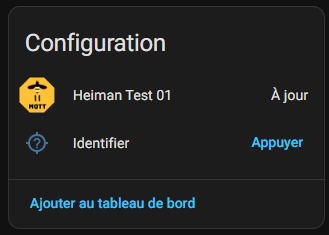
In Configuration, I find the OTA update option (great!) and the identification command that flashes the detector.
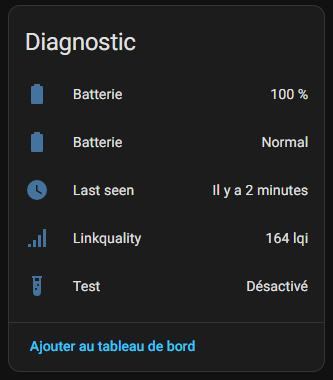
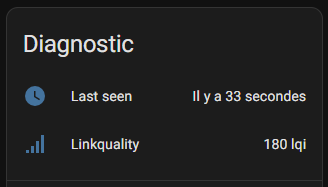
Finally in Diagnosis, I have all the elements. Please note that at home I have automatically activated Linkquality and Last Seen, if it may be of interest, I have produced a Retex which explains this:

I notice that two elements have the same name Battery, I do not know if it is a concern for integration or some other reason, I will have to be careful to rename them so as not to get confused.


📑 For archive: instructions for use


🔗 I pair in Zigbee2MQTT

  • I pass Z2M in peering mode
  • I remove the tongue from the battery 5s, the led flashes green a few times but nothing happens.
  • and put it back for quick pairing
  • Detected as "HS1SA-E" or "smoke _zigbee"
  • Entities: battery, smoke, tamper, linkquality, test
 friendly_name: _fumee _chambre device_class: smoke smoke: binary_sensor.smoke battery_low: binary_sensor.battery_low test: button.test

🏠 Integration in Home Assistant

I can find the device in HA: entities smoke (smoke state), battery, test. Alarm badge with siren and push notification. Everything works perfectly.

📊 My first measurements

Date Smoked state Battery % Testing Notes
02/03/2026 Clear 100% okay Installation
03/03/2026 Clear 100% okay Stable

⚙ Automations I am considering

  • Alert : If smoke detected, siren home + SMS + opening shutters
  • Comfort : Automatic monthly test + low battery alert

📅 Installation and monitoring of batteries

  • Installed on 02/03/2026 (Parental room)

💬 My opinion after commissioning

✅ Forts: Quick detection, perfect Z2M/HA integration, long battery life, affordable price.

❌ Weak: No CO, moderate siren, no outside.

My verdict: Excellent for home automation Zigbee! Recommended for all beginners fire safety.

 

I visually monitor my Zigbee network (Linkquality & Last_seen)

Objective: make visible (and usable) two key pieces of information for each Zigbee device:

  • linkquality (radio health) and
  • last_seen (last communication)

This is to immediately detect a “lost” siren or HS battery, without waiting to discover it by chance.

🧭 Why I put this in place

With 69 Zigbee devices, I had no simple visibility to answer two basic questions: Does the device capture correctly? and has he communicated recently?
On a siren, it is not acceptable to find out “at random”: I want to see immediately if she's mute, off-grid, or in radio trouble.

I have therefore decided to display everywhere:

  • linkquality : Radio Link Quality Indicator (LQI). (This is a useful “photo” to identify weak areas.)
  • last_seen : date/time of last communication (or relative time: 12s, 4m, 2h …).


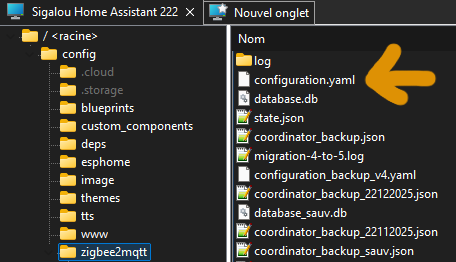
⚠ Trap #1 : there are two “configuration.yaml”

At first, I was told: In Home Assistant, there are two different files.

  • The main file of Home Assistant: /config/configuration.yaml
  • The Zigbee2MQTT file: /config/zigbee2mqtt/configuration.yaml

Important: for last_seen and (in practice) the default exposure/activation, everything is configured sideways Zigbee2MQTT, i.e. in /config/zigbee2mqtt/configuration.yaml.

🧹 Trap #2 : Zigbee2MQTT add-on UI can “clean” options

I have behaved very painfully: I added advanced options, saved … and then the add-on interface seemed to “simplify” the file by deleting what it did not understand.

The reliable method (at home):

  • I edit directly /config/zigbee2mqtt/configuration.yaml (File Editor or SSH)
  • I save
  • I am restarting Zigbee2MQTT

🕒 Activate last_seen in Zigbee2MQTT (mandatory)

By default, Zigbee2MQTT may not publish last_seen (disable value).
To activate it, I add this in the section advanced from /config/zigbee2mqtt/configuration.yaml :

advanced: # Adds "last_seen" in MQTT messages # possible values: disable, ISO_8601, ISO_8601_local, epoch last_seen: ISO_8601 _local

This setting tells Zigbee2MQTT to add the attribute last_seen MQTT messages, with a local time readable format.

Useful formats (to choose)

  • ISO_8601 _local : legible + local spindle (the most practical on a daily basis).
  • ISO_8601 : readable, but in UTC (useful to centralize everything in UTC).
  • epoch : timestamp Unix (practice for scripts/processing).

🧩 Activate last_seen and linkquality “default” in Home Assistant (optional)

Once last_seen activated on the Zigbee2MQTT side, one point remains: in Home Assistant, these entities are often classified as “diagnostic”, so they can be created but disabled automatically.

In order for each new Zigbee device added to arrive directly “ready to supervise”, I add this in /config/zigbee2mqtt/configuration.yaml :

device_options: homeassistant: last_seen: enabled_by_default: true linkquality: enabled_by_default: true

Then I restart Zigbee2MQTT.

Important: impact on devices already installed

This setting especially helps the new devices (or rediscovered devices).
For devices already present, it is often necessary to manually activate the corresponding entities in Home Assistant.

🗄 Database: keep the info visible without “polluting” the history

The “risk” is not so much Zigbee2MQTT (it just adds a timestamp field in the messages), but rather Home Assistant if you save each update of last_seen in the database: It can generate a lot of writing with a lot of sensors.

My choice: I want see these values everywhere, but I do not need minute-by-minute graphs. I therefore exclude those entities from the recorder.

What I put in /config/recorders.yaml

recorder: exclude: entity_globs: - sensor.*_last _seen - sensor.*_linkquality

After that, I restart Home Assistant: the values remain visible in real time, but I strongly limit the creation of unnecessary history.

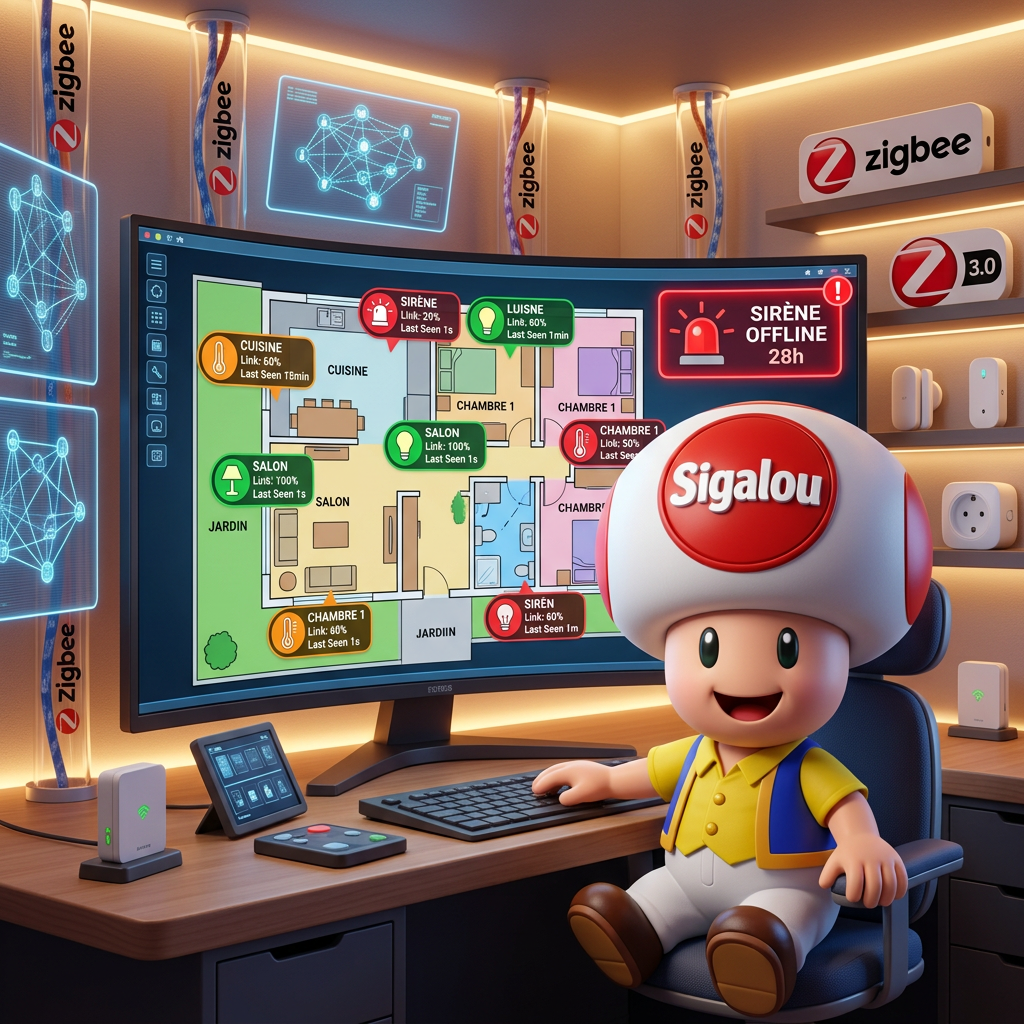
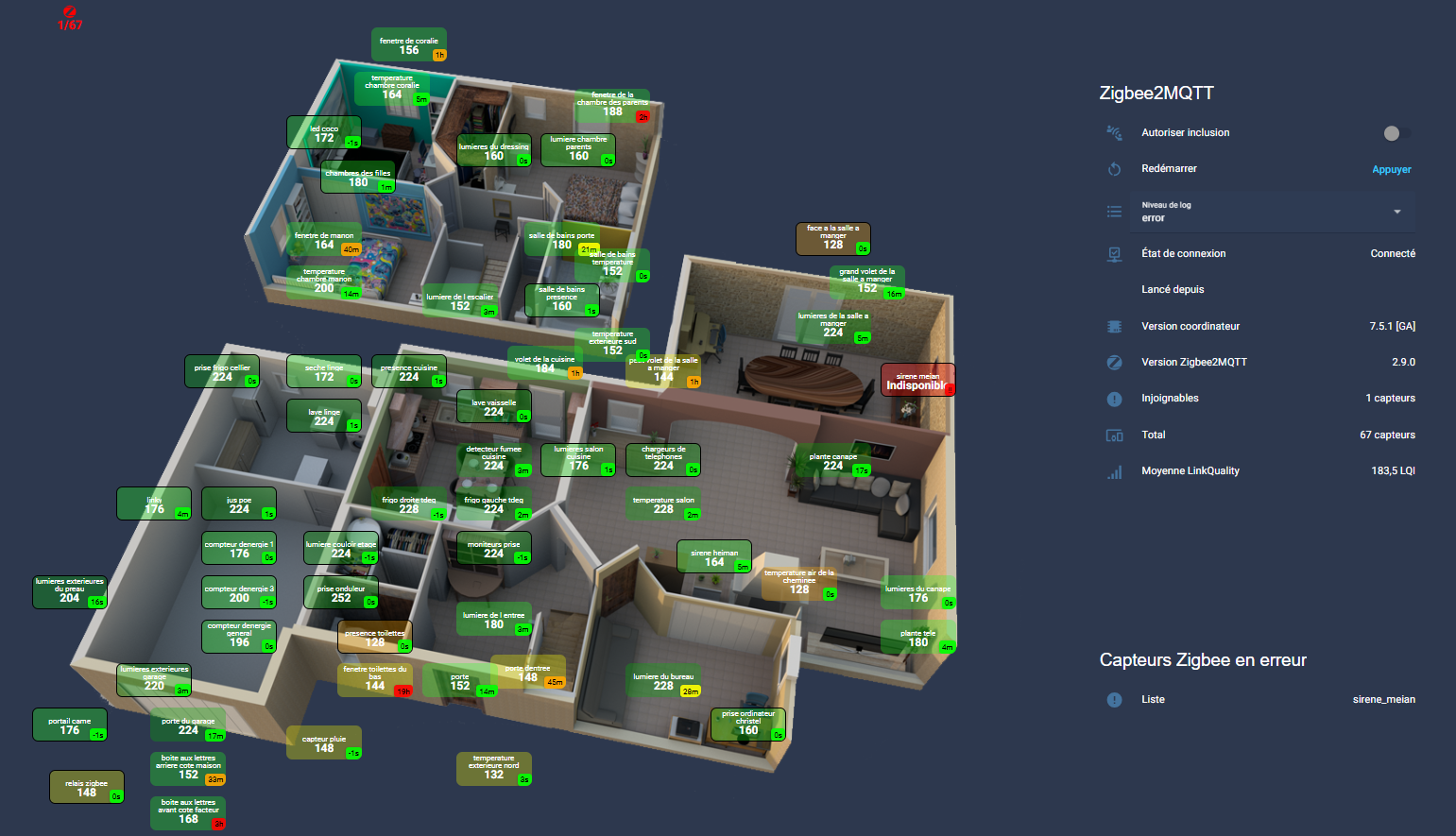
🗺 Visual supervision: a “radio + freshness” plan

I did not want “an entity lost in a list”: I wanted to visual supervision, immediately legible.

Principle:

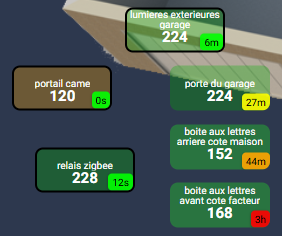
  • Each Zigbee device appears as a small rectangle on a plane.
  • The number displayed in bulk = Linkquality.
  • The time at the bottom right = Last_seen relative (s/m/h/d).
  • The black frame = router (variable router: 1), to quickly recognize routers.

🧰 The decluttering card (reusable)

I use the magic of the decluttering _templates card that I described on this page three years ago:

Thus decluttering _templates + custom:decluttering-card to reuse the same component everywhere, changing only 4 variables.

I simply define four elements that are different for each device:

  • area: it is the sensor that will be processed
  • top: its position from the top
  • left: its position from the left
  • router: 1 if it is a router otherwise 0

Example: very simple Dashboard page

Type: picture-elements image: /local/house/1920x1000/off_0800.png elements: - type: custom:decluttering-card template: linkquality variables: - area: sensor.light_chambre_parents - top: 20% - left: 35% - router: 1 - type: custom:decluttering-card template: linkquality variables: - area: sensor.fenetre_de_la_chambre_des_parents - top: 15% - left: 37% - router: 0

The template linkquality (the “big piece”)

decluttering _templates: linkquality: default: - top: 5% - left: 95% - router: 0 elements: Type: custom:button-card entity: | [[[ return “[[zone]]_linkquality“; ]]] show _icon: false name: | [[ return '[[zone]]]' .replace(/^sensor \./i, '') .replace(/_/g, ' ' ') .trim(); ]]] show _state: true show_units: false custom_fields: lastseen: | [[const obj = states[“[[zone]]_last _seen“]; if (!obj ||!obj.state || obj.state === 'unavailable') return '!!'; const last = new Date(obj.state); if (isNaN(last.getTime()) return '!!'; const now = new Date(); const seconds = Math.floor((now - last) / 1000); if (seconds < 60) return `${seconds}s“; const minutes = Math.floor(seconds / 60); if (minutes < 60) return `${minutes}m“; const hours = Math.floor(minutes / 60); if (hours < 24) return `${hours}h“; const days = Math.floor(hours/24); Return `${days}d“; ]]] styles: card: - border: | [[[ return ([router]] == 1)? '2px solid black': 'none'; ]]] - box-shadow: none - position: relative - border-radius: 8px - min-width: 100px - height: 45px - display: flex - flex-direction: column - justify-content: center - align-items: center - color: white name: - font-size: 10px - line-height: '1' - padding: 0 - margin: 0 - text-align: center - color: white - flex: 1 - max-width: 95px - word-wrap: break-word - overflow: hidden - white-space: normal state: - font-size: 15px - font-weight: bold - line-height: '1' - padding: 0 - margin: 0 - text-align: center - color: white - flex: 1 custom_fields: lastseen: - position: absolute - bottom: 0px - right: 0px - font-size: 10px - color: black - padding: 2px 4px - border-radius: 4px - box-shadow: 0 1px 3px rgba(0,0,0,0.3) - background: | [[const obj = states[“[[zone]]_last _seen“]; if (!obj ||!obj.state) return 'rgba(128,128,128,0.5)'; const last = new Date(obj.state); const now = new Date(); const seconds = Math.floor((now - last) / 1000); if (seconds < 1200) return 'rgba(0.255,0,0.9)'; // Green <20min if (seconds < 1800) return 'rgba(255,255,0,0.9)'; // Yellow 20-30min if (seconds < 7200) return 'rgba(255,165,0,0.9)'; // Orange <2h return 'rgba(255,0,0,0.9)'; // Red >2h ]]] state: -value: unavailable styles: card: - background: rgba(255,0,0,0.3) - operator: '>' value: 200 styles: card: - background: rgba(0,180,0,0.3) - operator: '>' value: 150 styles: card: - background: rgba(34,255,34,0.3) - operator: '>' value: 130 styles: card: - background: rgba(255,255,0,0.3) - operator: '>=' value: 80 styles: card: - background: rgba(255,165,0,0.3) - operator: '<' value: 80 styles: card: - background: rgba(255,107,53,0.3) style: top: '[[top]]' left: '[[left]]'

Simply, what does this code do?

This template defines a unique map template that you reuse for all your Zigbee devices, changing only the [[zone]] variable.

The entity property is built dynamically in JavaScript ([[[ … ]]) to point to the [[zone]] _linkquality entity, which automatically displays the link quality of the device (LQI value returned by Zigbee2MQTT or ZHA).

The name is also generated on the client side: the sensor prefix is removed, the _ is replaced by spaces and a trim() is made, which produces a readable label from the entity ID.

The lastseen custom field reads the entity [[zone]] _last _seen in states[], converts its value to Date object, and then calculates the difference with the current time to display a relative time (s, m, h, d). If the value is empty, unavailable, or an invalid date, it displays !! instead of showing an inconsistent value.

The lastseen badge style at the bottom right uses a JavaScript function that returns a different RGBA colour depending on the age of the last communication (grey if no value, then green → yellow → orange → red depending on the number of seconds elapsed), which visually encodes the freshness of the data.

The section states: the button-card defines several thresholds for the value of LinkQuality: unavailable, then slices >200, >150, >130, >=80, <80, each applying a card-specific color background, which turns a numeric value into an immediately readable radio quality indicator.

The formatting properties (flex, min-width, height, border-radius, absolute badge position, etc.) ensure a compact and uniform rendering, with an optional black border when [[router]] == 1 to visually identify Zigbee routers compared to simple terminals.

🧠 Useful additions: Zigbee2MQTT Global Health Info

Here is the code of this card

Type: picture-elements image: /local/house/1920x1000/off_0800.png elements: - type: custom:mod-card card: Type: entities title: Zigbee2MQTT show _header _toggle: false entities: - entity: switch.zigbee2mqtt _bridge _permit _join name: Allow inclusion - entity: button.zigbee2mqtt _bridge _restart name: Restart - entity: select.zigbee2mqtt _bridge _log _level name: Log level - entity: binary_sensor.zigbee2mqtt _bridge _connection _state name: Connection status - type: custom:template-entity-row name: Launched from state: > {% set e = states.binary_sensor.zigbee2mqtt _bridge _connection _state %} {% if e is not none and e.state not in ['unavailable', 'unknown'] %} {{ ((now() - e.last _changed).total _seconds() / 3600) | round(1) }} h {% else %} Not available {% endif %} - entity: sensor.zigbee2mqtt _bridge _coordinator _version name: Coordinating version - entity: sensor.zigbee2mqtt _bridge _version name: Version Zigbee2MQTT - entity: sensor.number_de _sensors_linkq_en _error name: Unreachable icon: mdi:alert-circle - entity: sensor.number_de _sensors_linkq name: Total icon: mdi:devices - entity: sensor.zigbee _linkquality _mean name: Average LinkQuality icon: mdi:signal style: top: 35% left: 75% width: 450px

I added a sensor to calculate the average of Linkquality

This sensor is added to the templates.yaml file, here is its code:

- name: single _id "zigbee_linkquality_average": zigbee _linkquality _medium unit _of _measurement: "LQI" state_class: measurement state: >- {% set linkqualities = states.sensor | selectattr('entity_id', 'search', '_linkquality') | selectattr('state', 'is_number') | map(attribute='state') | map('float') | list %} {% if linkqualities | length > 0 %} {{ (linkqualities | sum / linkqualities | length) | round(1) }} {% else %} 0 {% endif %}

I added a sensor to calculate the number of sensors

- name: "Number of sensors Linkq" unique _id: sensor.number _sensors _linkq state: >- {% set lq _sensors = states.sensor | selectattr('entity _id', 'search', '_linkquality$') | list %} {{ lq _sensors | count }} icon: mdi:signal-variant unit_of_measurement: "sensors"

I added a sensor to calculate the number of devices in error

- name: "Number of Linkq sensors in error" unique _id: sensor.number _sensors _linkq _ error state: >- {% set lq _sensors = states.sensor | selectattr('entity _id', 'search', '_linkquality$') | selectattr('state', 'in', ['unavailable', 'unknown', 'None']) | list %} {{ lq _sensors | count }} icon: mdi:alert-circle unit_of_measurement: "sensors"

I added an indicator on the main dasboard to report the number in error

First of all this template to display xx in error / yy in total

- name: "zigbee _unreachable _synthese" unique _id: sensor.zigbee _reachable _synthese state: >- {{ states('sensor.number_de _sensors _linkq _en _error') }}/{ states('sensor.number_de _sensors _linkq') }} icon: mdi:alert-circle

And in my picture-elements, I add:

- type: conditional conditions: - condition: state entity: sensor.number _de _sensors _linkq _en _en error state _not: "0" elements: - type: custom:button-card entity: sensor.zigbee _reachable _synthese icon: mdi:zigbee show_name: false show_state: true style: top: 5% left: 5% transforms: translate(-50%, -50%) styles: state: - color: red - font-weight: 700 - font-size: 16px icon: - color: red - width: 20px - height: 20px card: - border-radius: 999px - padding: 4px 6px - background: transparent - box-shadow: none

This block is used to display a small red indicator "Zigbee in error" on the dashboard plan only when there is at least one problematic sensor.

This is a conditional element in a picture-elements card: it shows its contents only if sensor.number _sensors _linkq _en _ error is different from "0" (so if at least one sensor is unreachable or in error from LinkQuality).

When the condition is true, it displays a custom:button-card based on sensor.zigbee _unreachable _synthese, which probably contains "3 in error" or similar text.

The button is placed at the top left of the plane (5 % / 5 %), centered through the transform: translate(-50%, -50%), with a transparent background and no shadows to keep only the Zigbee icon and the text.

The Zigbee icon and status are styled in red, bold and size 16 px, with a border-radius: 999px to give a lozenge/label appearance, making it a discreet but clearly visible visual warning as long as there are sensors in error.

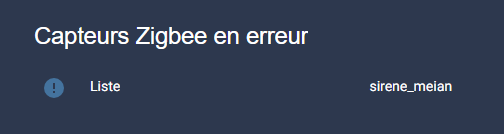
To find out who's wrong

To have a look at the list of equipment in error, here are the necessary codes.

Declaration of templates

- name: "Number of Linkq sensors in error" unique _id: sensor.number _sensors _linkq _ error state: >- {% set lq _sensors = states.sensor | selectattr('entity _id', 'search', '_linkquality$') | selectattr('state', 'in', ['unavailable', 'unknown', 'None']) | list %} {{ lq _sensors | count }} icon: mdi:alert-circle unit_of_measurement: "sensors" - name: Single _id "Linkquality Sensor List in Error": sensor.liste _sensors _linkquality _error state: >- {% set lq _sensors = states.sensor | selectattr('entity _id', 'search', '_linkquality$') | selectattr('state', 'in', ['unavailable', 'unknown', 'None']) | map(attribute='entity _id') | map('regex _replace', 'sensor \\\\\\\\.(.*) _linkquality$', '\\\\\\\\1') | list %} {% set count = lq _sensors | length %} {% if count == 0 %} None {% elif count <= 5 %} {{ lq _sensors | join(', ') }} {% else %} {{ lq _sensors[:5] | join(', ') ~ ' + ' ~ count }} {% endif %} attributes: count: >- {% set lq _sensors = states.sensor | selectattr('entity _id', 'search', '_linkquality$') | selectattr('state', 'in', ['unavailable', 'unknown', 'None']) | map(attribute='entity _id') | map('regex _replace', 'sensor \\\\\\\\.(.*) _linkquality$', '\\\\\\\\1') | list %} {{ lq _sensors | length }} full _list: >- {% set lq _sensors = states.sensor | selectattr('entity _id', 'search', '_linkquality$') | selectattr('state', 'in', ['unavailable', 'unknown', 'None']) | map(attribute='entity _id') | map('regex _replace', 'sensor \\\\\\\\.(.*) _linkquality$', '\\\\\\\\1') | list %} {{ lq _sensors | join(', ') | default('None') }} icon: mdi:alert-circle

And on the Dasboard, always in the picture-elements

Type: picture-elements image: /local/house/1920x1000/off_0800.png elements: - type: custom:mod-card card: Type: entities title: Zigbee sensors in error entities: - type: custom:template-entity-row entity: sensor.liste _sensors _linkquality _en _error name: List state: > {% set s = states('sensor.liste _sensors _linkquality _en _error') %} {% if s not in ['unknown', 'unavailable', ''] %} {{ s.replace(',', '\\\\n') } {% else %} None {% endif %} style: top: 80% left: 75% width: 450px

✅ Simple summary (the 3 essential blocks)

1. Zigbee2MQTT: activate last_seen

advanced: last_seen: ISO_8601 _local

2. Zigbee2MQTT: enable by default in HA (optional but convenient)

device_options: homeassistant: last_seen: enabled_by_default: true linkquality: enabled_by_default: true

3. Home Assistant: not registering these entities in the DB

recorder: exclude: entity_globs: - sensor.*_last _seen - sensor.*_linkquality

🎯 What it changes on a daily basis

  • I see immediately weak areas (linkquality low) and I know what to reinforce (router, placement, channel, etc.).
  • I know exactly When a mermaid stopped talking (last _seen), so I no longer “suppose”.
  • I keep a healthy database (no unnecessary history on sensors that move all the time).


Need clarification ? questions ?

This discussion (if still open) is available:

https://forum.hacf.fr/t/retex-je-surveille-visuellement-mon-reseau-zigbee-linkquality-last-seen/76732

I retrieve my Withings health data on my Dashboard

I integrate Withings with Home Assistant

I decide one day to integrate my Withings devices – my connected scale and my blood pressure monitor – directly into Home Assistant to monitor my health in real time in my home automation.

As a beginner, you may be wondering: How do I get my scale to communicate with my home automation system?

Do not panic, I tell you step by step this adventure as if you were by my side, explaining every click and every reason.

I add the Withings integration

I start by opening Home Assistant on my browser. I access Settings > Devices and Services > Integrations > Add Integration.

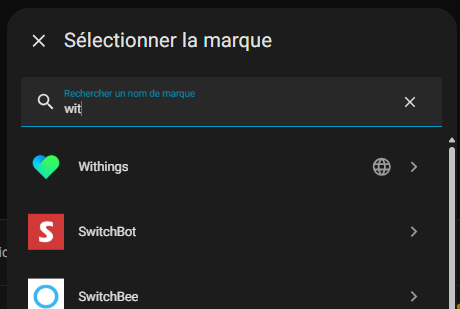
In the search bar, I type ‘Withings’ and select the official integration.

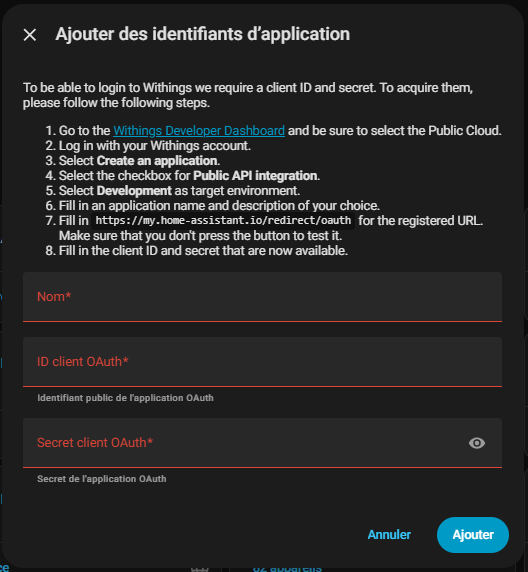
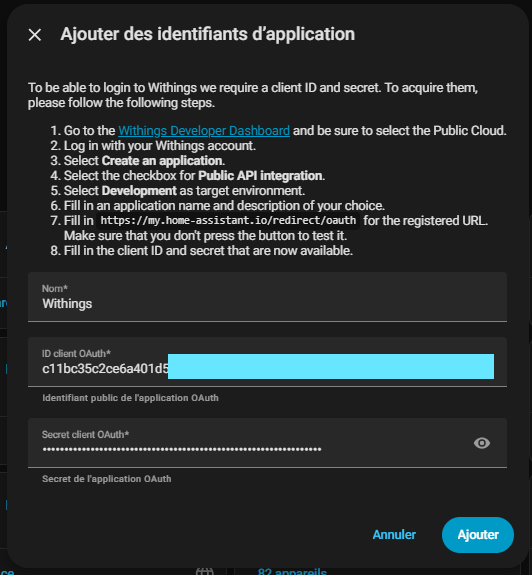
Home Assistant then asks me for a Client ID and a Secret Client – secret codes that I will get from Withings.

It is like registering for an exclusive club so that both systems can chat.

Added Withings integration in Home Assistant

I study the documentation

Before diving head first, I read the documentation provided by Home Assistant.

It tells me exactly where to get these famous keys: on the Withings developer portal.

For a beginner, this is crucial – imagine trying to open a keyless door! The document is clear: direction the Withings Developer Dashboard.

Documentation of the Withings integration

I access the Withings developer portal

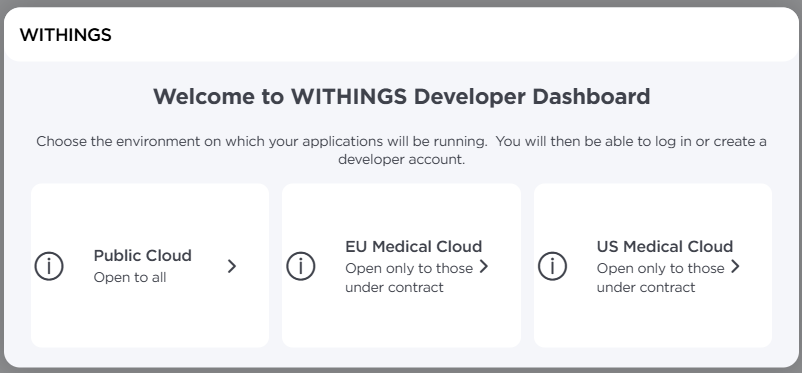
I click on the Link and landed on the developer’s homepage. I select Public Cloud because this is the mode for integrations like Home Assistant – no need for complicated private server. Then I log in with my personal Withings account, the one linked to my health devices.

Developer Homepage Withings

Sign in to the Withings account

I create my new application

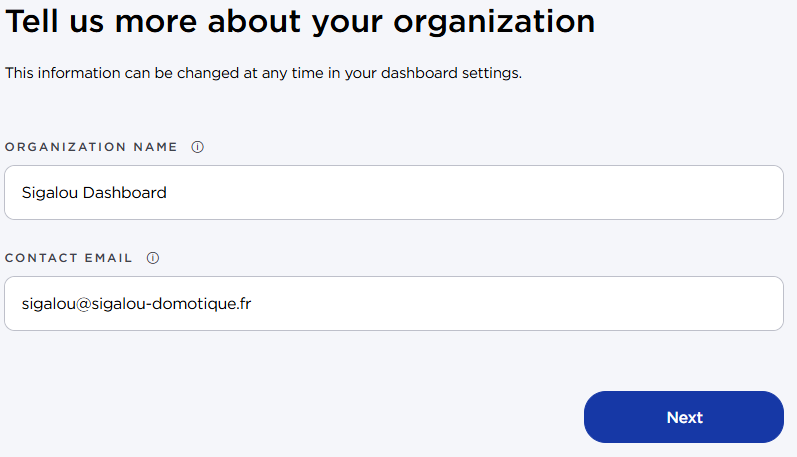
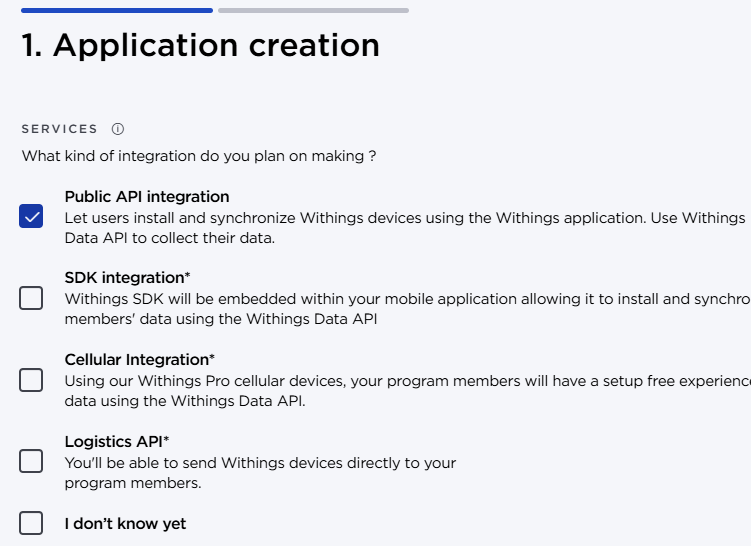
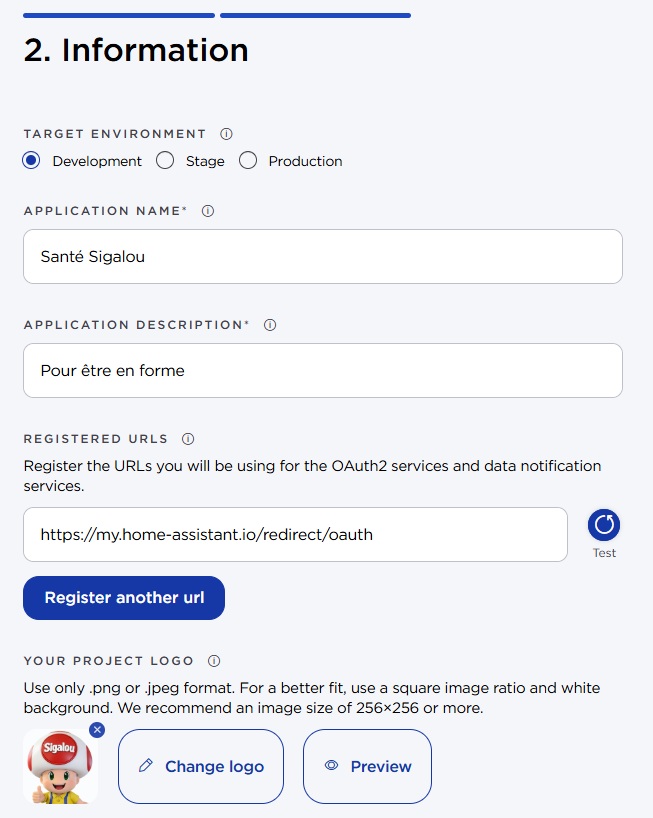
Once logged in, I click on Create a new application. I fill out the form with basic information:


Creation of new application Withings

Application Creation Form

Permissions application Withings

I save and retrieve the keys

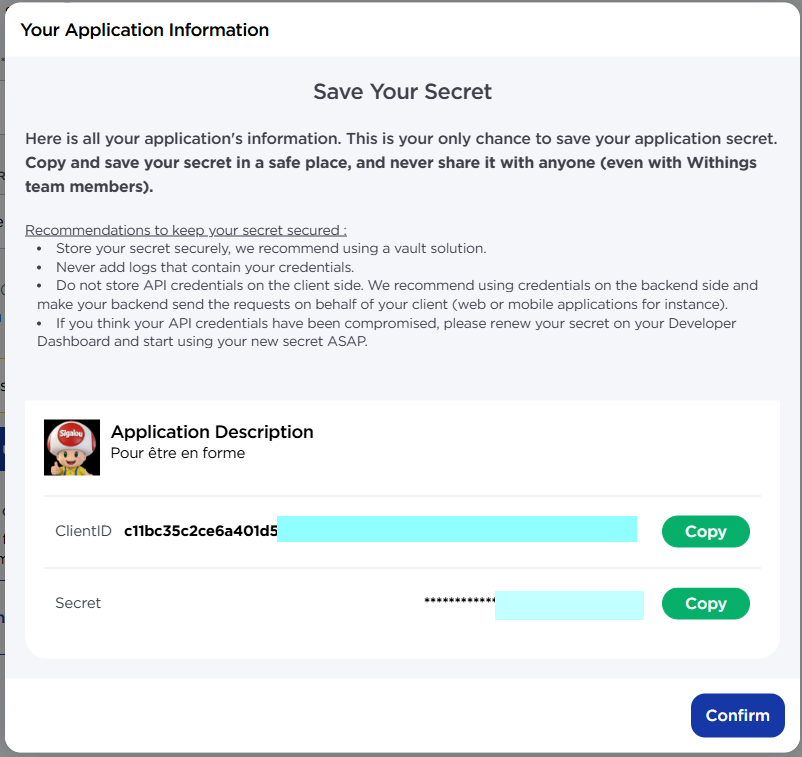
I validate the creation. Withings then generates my Client ID (public) and Secret Client (Secret, never to be shared!).

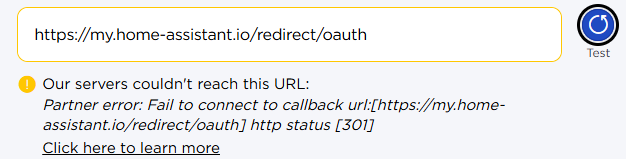
The ‘Test’ button may display an error at this stage – this is normal.

Application Created Withings

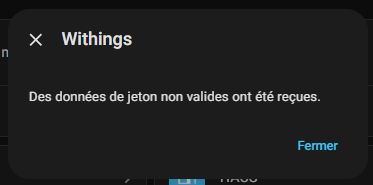
Withings Button Test Error

Mistake test button

Client ID and Secret Withings

I configure Home Assistant with keys

Back in Home Assistant, I paste the Client ID and the Client Secret into the integration fields.

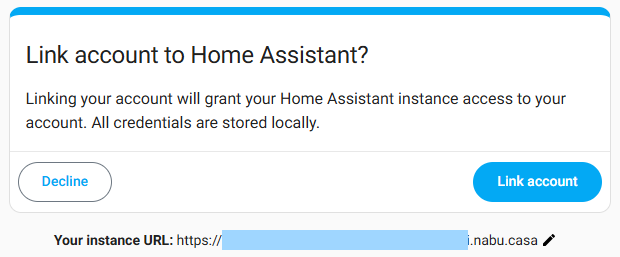
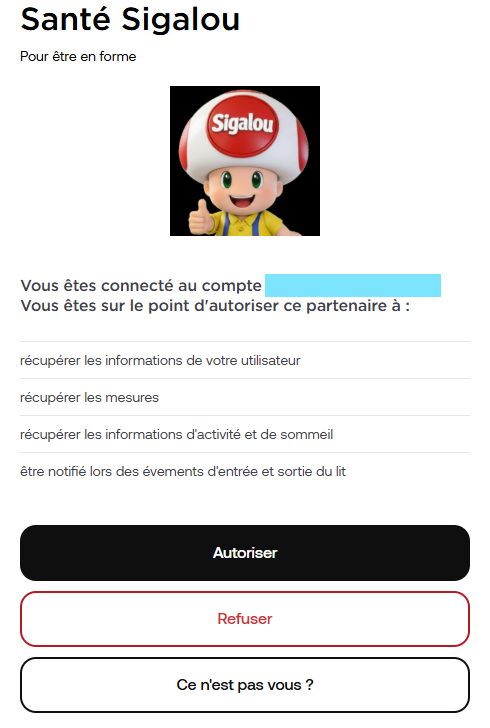
I'm validating. Immediately, it redirects me to Withings to allow access.

Key Configuration in Home Assistant

Authorization Withings

I adjust the external redirect URL

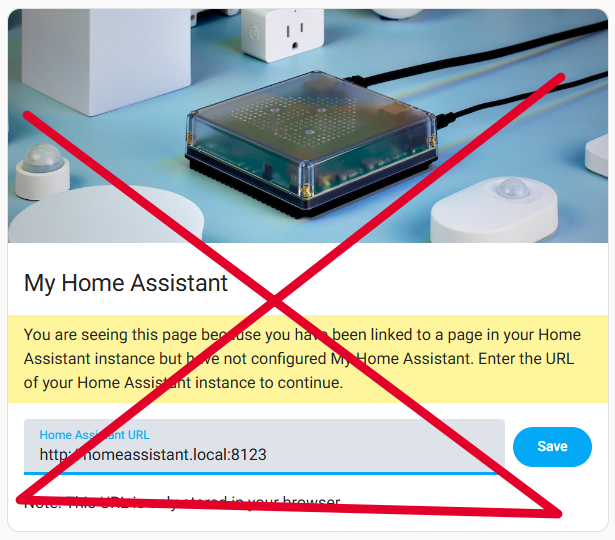
By default, Withings tries to go back to http://homeassistant.local:8123, but this local link is not accessible from the Withings servers (which are far from home). I get a classic mistake:

Local URL error Withings

Local connection error

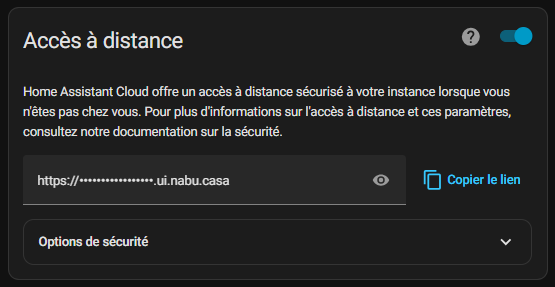
I go back to my Withings app, edit the redirect URL to use my external access via Nabucasa

I save and start the config again. Victory!

URL Nabucasa Withings

Successful Connection Withings

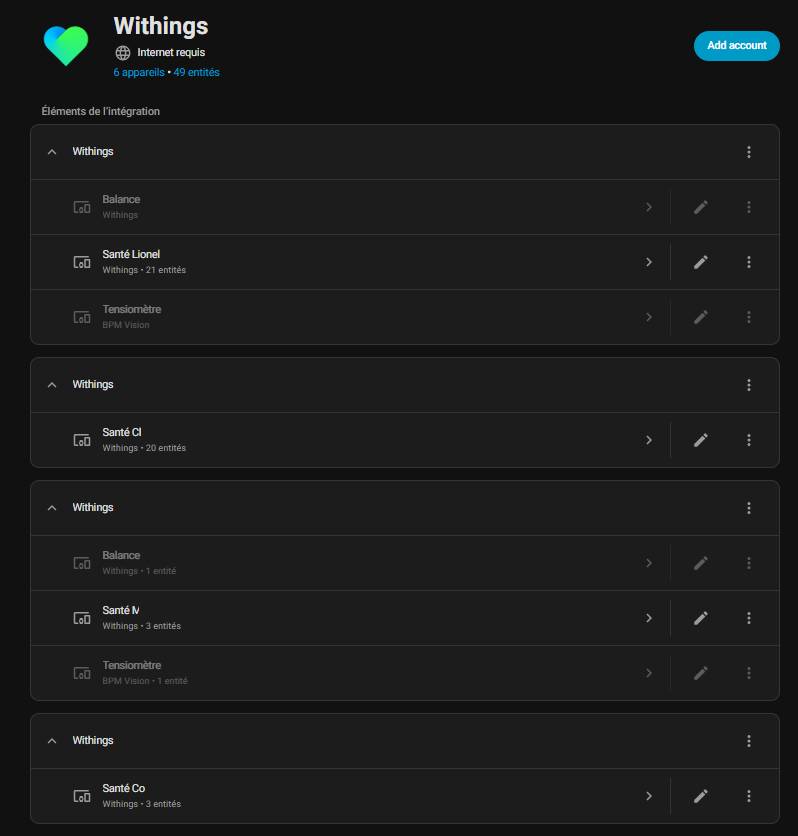
I welcome my devices and profiles

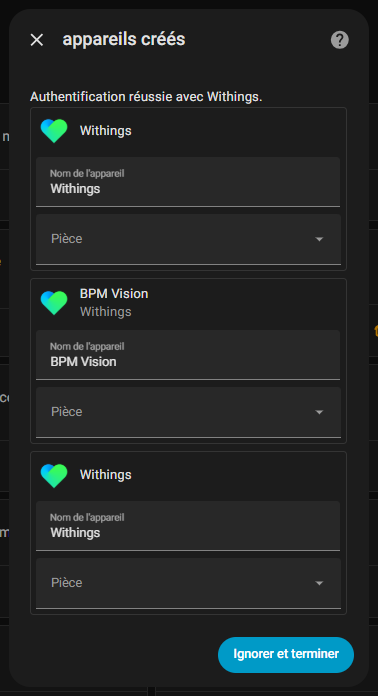
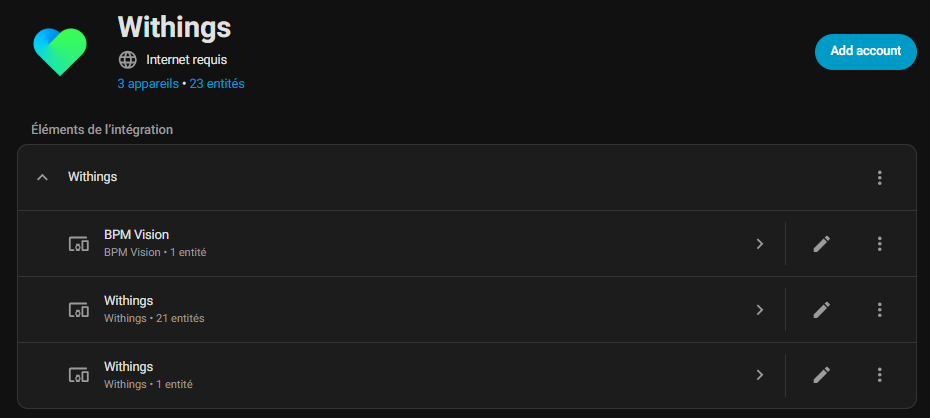
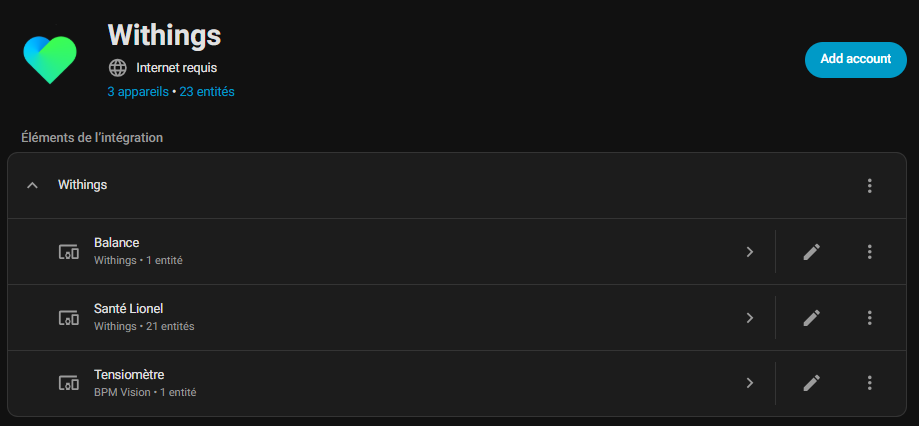
Once connected, Home Assistant automatically detects my devices: "My data", "My balance" and "My tensiometer".

Each appears as a sensor with weight, blood pressure, battery, etc.

I rename for the sake of clarity: "Lionel Health" for my global data, "Balance" and "Tensiometer".

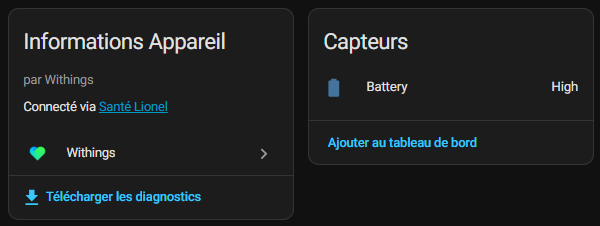
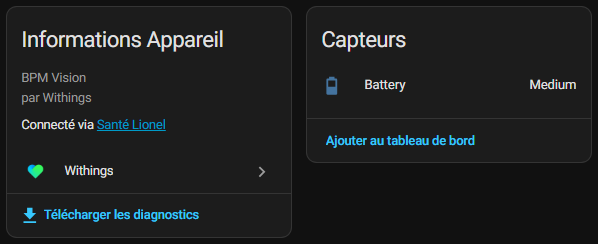
Note that the balance and the tensiometer often have only one useful sensor: the battery.
Devices Detected Withings

Entities Home Assistant Withings

Apparatus renaming

Balance Battery Sensor

Battery Tensiometer Sensor

I add family profiles

For the family, I add the following profiles: my independent daughter (separate profile >16 years), my other daughter (<16 years) on my account, and that of my wife.
Home Assistant list everything neatly.

Attention: batteries can generate unnecessary duplicates, I have deactivated these sensors to avoid data spam.

Family Profiles Withings

Tips to avoid traps

  • Mandatory external URL : Always use Nabucasa or a public reverse proxy.
  • Disable duplicates : ‘Balance/Tensiometer’ devices are used only for the battery. Avoid duplication and disable what is not necessary.

I customize my Dashboard

As soon as I figure out how to do …🤣simplely.


Useful references

If you block, the community helps:

Now my health data is displayed live in Home Assistant – ready for fun automations like alerts if my weight takes off!

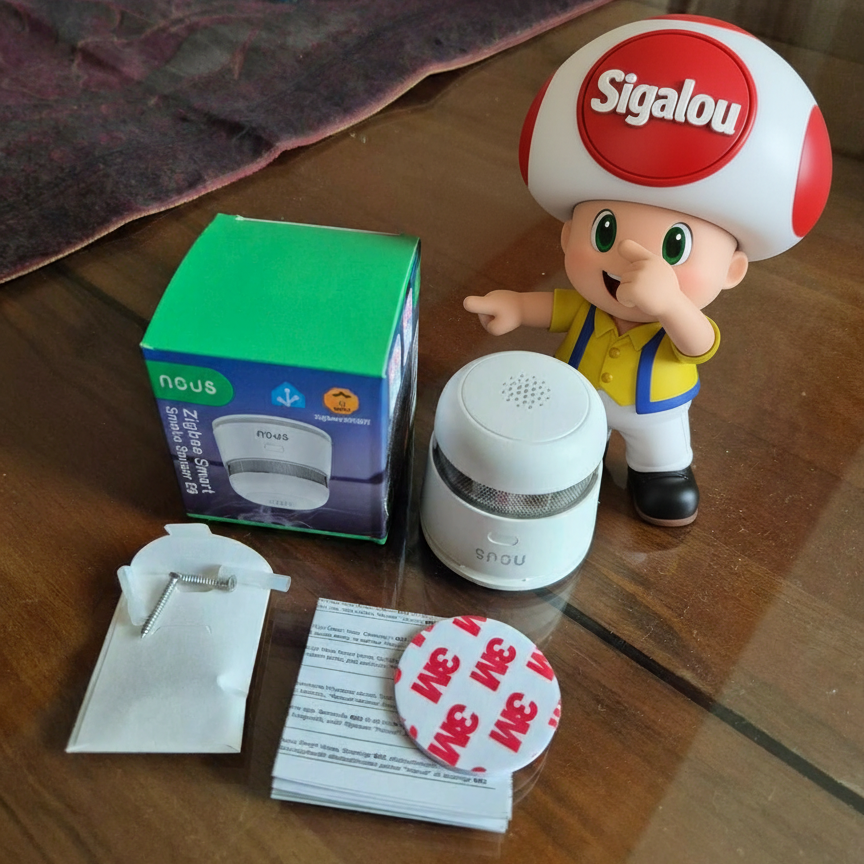
I'm testing the smoke detector Zigbee US E8

🎯 My objectives

I need to monitor my house for fire risks as soon as the first smokes appear.

The Zigbee Smoke Detector We E8 is ideal for this mission, it is part of the 3 Zigbee equipments of the consumer range. In order to decide between them, I made a comparison:

The data of the E8 enable accurate alerts in Zigbee2MQTT and Home Assistant, such as sirens, push notifications and automatic ventilation.

The security of my home is thus strengthened in a simple and effective way.

This device complies with European standards EN14604 for autonomous smoke detectors (DAAF), as well as CE and RoHS certifications, ensuring its compliance with European safety standards.

The Photoelectric Smoke Detector We E8 home ZigBee detects a fire by detecting smoke in the air and triggers an audible and luminous alarm as soon as a certain concentration threshold is reached. It is designed for residential buildings and its single-source detection chamber is protected against false positives caused by dust, insects or moisture.

The internal ‘maze’ design allows for rapid fire detection, while limiting undesirable triggers. The case is made of fireproof plastic with a glossy finish. Read More