I test the temperature/humidity sensor Zigbee ZY-ZTH02Pro

I am particularly curious, I come across a low-cost Zigbee thermometer and humidity sensor with screen.

The model ZY-ZTH02Pro focus on the essentials: temperature, humidity, battery and Zigbee2MQTT integration.

I saw him pass by, is he up to the task of equipping several parts without blowing up the budget?

At this rate, it is a great opportunity to multiply the measuring points.

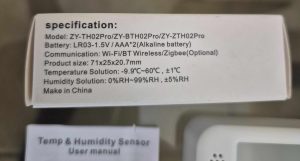
πŸ” I check the received model

  • On the carton : exact model ZY-ZTH02Pro
  • Type of equipment : temperature and humidity sensor with display
  • Protocol : Zigbee 3.0
  • Power supply : 2 AAA batteries not included
  • Intended installation : placed on a piece of furniture or fixed to the wall, with double sided provided
  • Measuring ranges : indoor ambient temperature and humidity
  • Dimensions / IP : compact format for indoor use, no special protection rating

πŸ›’ Where to buy this equipment?

Here is the link to the page dedicated to ZY-ZTH02Pro.

I will refer to the sellers and prices as I find them.

Always beware of imitations on AliExpress and mistranslated cards. Check the exact model name and reviews before ordering.

πŸ“¦ Unpacking and First Impressions

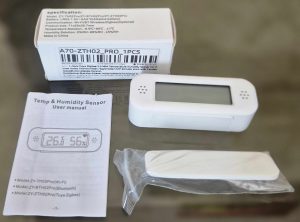
At the reception, I unpack: the Sensor ZY-ZTH02Pro, its package leaflet and its packaging.

Good surprise, the format is really compact and the screen is well readable, even on a table or shelf. The numbers are big, the humidity icon is clear.

Correct plastic, low-end, we are not on the quality of the Sonoff SNZB-02D or an Aqara. But this is not surprising at this price.

This model is minimalist: no battery provided, but a double sided to fix it.

πŸ”§ Opening box and battery

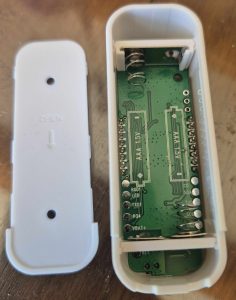
This equipment is not supplied with a battery. On the box, it is indicated 2 x AAA.

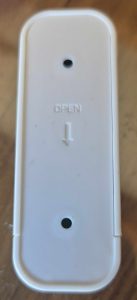
The opening remains classic on this kind of small sensor, with a rear hatch that is easy to remove to access the battery. No screws, just a clip.

I use these batteries. I'll check the meaning before I close.

I always take a few seconds to check the state of the battery before pairing. This avoids many false problems at the time of Zigbee integration.

πŸ”— I pair in Zigbee2MQTT

  • I switch Zigbee2MQTT to peering mode from the interface.
  • The sensor pairing starts as soon as I put the battery on. A small link logo flashes at the top right of the screen.

  • When paired, the icon stops flashing. Perfect, often less than 10 seconds.
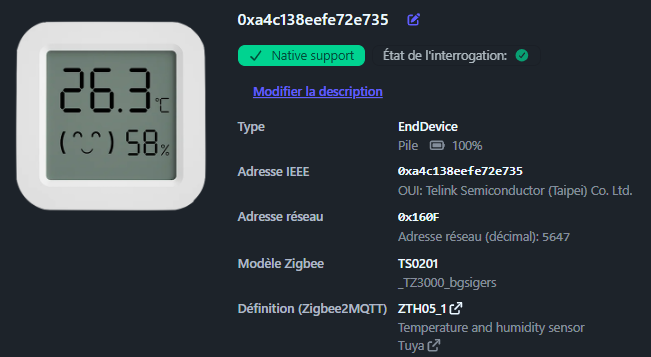
  • Detected as TS0201. It can be inferred that this ZY-ZTH02Pro shares the same firmware base as other business models.
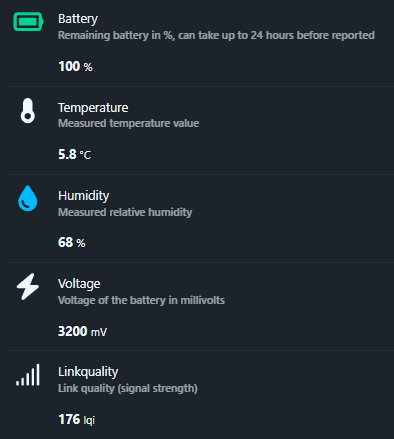
  • Entities detected: battery, temperature, humidity, voltage

The exhibitions available are simple and clean, which suits me very well for basic and efficient home automation use. Just what it takes to historize and display.

The image does not match, it is that of a TH03 or TH05.

🏠 Integration in Home Assistant

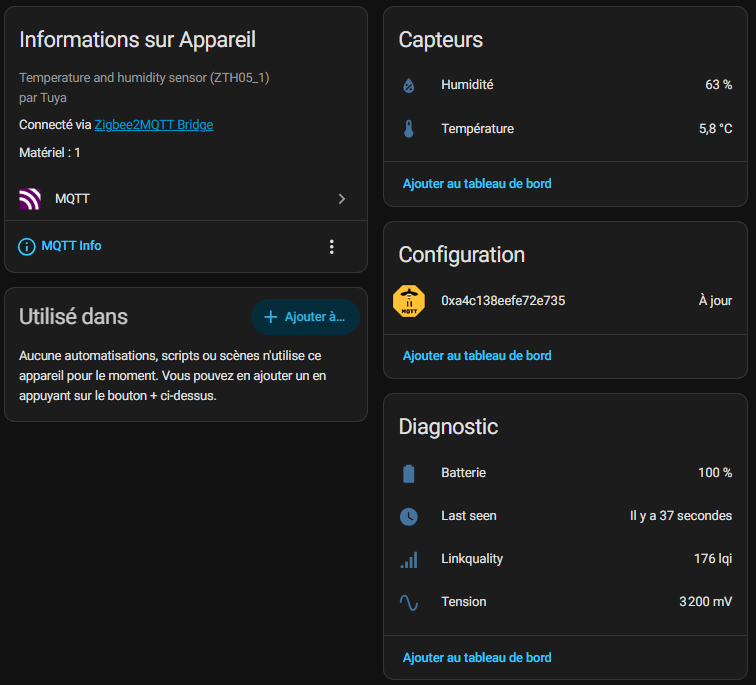
I then find the device in Home Assistant with the usual entities retrieved by Zigbee2MQTT. I therefore have the temperature, humidity, battery level and battery voltage.

What I appreciate here is immediate integration. I do not need a complex trick to start historising the measurements or displaying them on my dashboard.

Formats are good, nothing to do or configure. Units Β°C and % are correct, the graphics are generated without problems.

πŸ“Š My first measurements

I always start by comparing this type of sensor with one or two other devices already in place. This allows me to quickly see if the ZY-ZTH02Pro Tells anything or stays within a credible range.

Well, honestly, he's good at almost nothing. I have several thermometers of several brands, they are not far from each other.

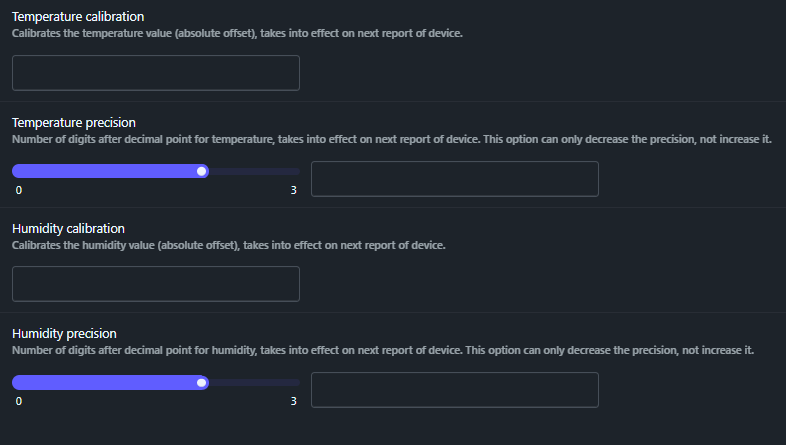
The manufacturer has planned a possible correction thanks to offsets, bravo! Thus, if I am certain that it shifts by 0.2 Β°C, I offset this value in Zigbee2MQTT.

Please note that the offset will be applied to the value displayed in Zigbee2MQTT and Home Assistant, but not on the thermometer screen. The screen remains on the raw sensor measurement.

I even advise to decrease the accuracy to 0.1, so 1 digit after the comma. This saves the battery, you do not need the temperature to the nearest 0.01, 0.1 is more than enough indoors. And no decimal places for humidity.

πŸ“… Installation and monitoring of batteries

  • Installed on : 30/08/2026

As this model works on battery, I always keep an eye on the battery level and the voltage raised. This is often more useful than the simple percentage, especially on small economic sensors.

I note the date of installation in a table or in a note, to be able to estimate the actual lifetime of the battery over time.

πŸ” What communities say

Problems: I went through the community forums, few specific feedbacks on the ZY-ZTH02Pro. This is a good sign, no major bugs reported en masse.

Some messages indicate that the accuracy may vary slightly depending on the location, the battery used and the frequency of data retrieval. Nothing unusual about this type of sensor.

We must therefore avoid comparing it to a high-end weather station. It is designed for ambient monitoring, not for reference measurement.

My tips: I allow the sensor to stabilise a few hours after installation, compare with another known probe, then apply a temperature or humidity calibration in Zigbee2MQTT if necessary.

πŸ’¬ My opinion after commissioning

βœ… Forts: very low price, readable screen, simple Zigbee2MQTT integration, temperature and humidity measurements, battery and voltage tracking, compact format.

❌ Weak: very basic finish, precision to be checked according to use, sensor especially designed for simple ambient monitoring, not for a reference measurement, no battery or double-sided provided.

My verdict: for its price, I find this ZY-ZTH02Pro frankly interesting.

I would gladly use it to equip several rooms in the house on a low budget, especially if I want to multiply the measuring points without exploding the total cost of my Zigbee installation.

I test a Zigbee socket for less than 10 €

⚠ Safety Warning

This test describes the home automation behaviour of a generic Zigbee socket below €10 (integration, measurements, Zigbee traffic, etc.). It does not constitute an electrical safety test bench within the meaning of independent laboratories.

This type of low-cost socket, without a strong brand or clearly verifiable certification, is not not suitable high-consumer or critical appliances (washing machines, tumble dryers, radiators, water heaters, ovens, etc.). For these uses, I recommend products from identified manufacturers, with serious documentation, explicit certifications and reputation to defend.

I now reserve this type of equipment for modest charges, in scenarios where a possible default would remain limited. Everyone remains responsible for their choices: do not take this test as a security validation, but as a home automation feedback.

I am now testing a Zigbee jack for less than €10, a generic model purchased from several different sellers, with no real brand highlighted.

I wanted to check if this type of first prize take could really find its place in Zigbee2MQTT and Home Assistant, without blowing up my budget or degrading my Zigbee network.

At this price, I am mainly looking for a simple socket, able to make on/off cleanly, to reassemble coherent measurements, and to remain reliable over time, for reasonable charges Not for the worst consumers in the house.

🎯 My objectives

I need a connected socket to control a charge and track its power consumption.

I therefore chose this generic model, sold in several very similar forms depending on the shops.

My idea is simple: check if this very economical take can really serve on a daily basis, without complicating my life in Zigbee2MQTT and Home Assistant, limiting it to prudent uses.

I also want to understand how far I can trust him. A connected socket is not just a home automation gadget. It is a device connected to the mains, which must hold the load, measure correctly, and not become a weak point in the house. On this point, I cannot replace laboratory tests: my tests remain those of an informed user, not a certification body.

πŸ” I check the received model

  • On the technical sheet : the reference is not really clear.
  • On the carton : the packaging is identical from one seller to another.
  • Type of equipment : Zigbee wall socket with consumption measurement.
  • Protocol : Zigbee.
  • Power supply : sector.
  • Intended installation : Testing in Home Assistant.
  • Measuring ranges : power, current, voltage, energy.
  • Dimensions / IP : compact format, indoor use.

I also note the presence of a CE marking on the label.

I take it up, of course, but without giving him blind trust. The subject of fake logos or β€˜China Export’ markings very close to the real CE logo reminds us that we cannot just use a pictogram on a cardboard to talk about security.

On this type of first-rate material, I like to remain cautious and look above all at the actual behaviour of the product, bearing in mind that this does not replace tests conducted by independent laboratories.

πŸ›’ Where to buy this equipment?

I cannot speak here of a real trade mark in the classical sense of the word. It is a generic product, visibly distributed by several different sellers with the same photos, the same promises and, ultimately, products that look identical.

The price recorded varies between €8 and €10, depending on the periods, promotions and probably also the mood of the sellers.

This is exactly the type of purchase where a lottery share is accepted.

On sales sites, there is no clear distinction between a good series and a less successful series.

Everything looks the same to the eye. However, behind the same shell, the behavior can vary depending on the batch, firmware or manufacturing quality.

I still give the link to the Sigalou Lab Sheet TS011F to the seller from whom I bought the test.

πŸ“¦ Unpacking and First Impressions

At the reception, the cardboard is at the size of the socket.

The product is properly kept inside, so I cannot say that the packaging is sloppy.

On the other hand, a detail quickly leaps to the eye: the ink on the label is drooling on almost all the models I have received. At first glance, it almost feels like the boxes are coming dirty. In fact, it is above all a print linked to a very average print quality.

The catch, itself, surprises me rather well. Plastic is serious, and I find it close to that of some major brands.

I don’t feel the hollow gadget or ultra-low-end plastic effect at all. This is even one of the first good points of this product.

The instructions for use, on the other hand, frankly deserve the medal of the useless document. There is, so I cannot say that he is absent, but he brings almost nothing. Fortunately, in a Zigbee2MQTT and Home Assistant environment, I do without difficulty.

Comparison with the Nous A7Z

I like the Nous A7Z that I have been using for several years, here is a small physical comparison (La Nous is always on the right in the image).


πŸ”§ Power On

I simply start my test: I'm plugging in the plug.

As soon as the power is turned on, the blue LED on the button starts flashing immediately. This is exactly the behaviour I was hoping to see. This means that the socket enters directly into pairing mode, without complicated manipulation.

I find this important, especially for a generic product. When a low-cost device wastes me time from the first minute, it already leaves with a disability.

This is not the case here. The plug behaves properly from the first connection.

πŸ”— I pair in Zigbee2MQTT

  • I am authorising Zigbee2MQTT to be paired.
  • I'm plugging in the plug.
  • The blue LED flashes immediately.
  • The catch shall be detected without delay.
  • I rename it as Testing.
  • I enable the update of the Home Assistant Entity ID.

The association is going exactly as I had hoped. In a few seconds.

I do not need to start over, unplug, or try exotic manipulations. Everything is done naturally, which is always nice on a generic product without serious documentation.

In Zigbee2MQTT, the socket is recognized as TS011F with the definition TS011F_plug_3.

TS011F is exactly the same Zigbee model as the We Plug A7Z which I like, which I tested here:Β I'm testing the Zigbee We A7Z plug

It appears as a Tuya plug with polling consumption monitoring. This detail is very interesting, because it partly explains its behaviour and some measurement peculiarities.

🏠 Integration in Home Assistant

Once renamed, I go to Home Assistant.

I go through the parameters, then the development tools, then the view of the states. I just type taken, and I'll see you right away Testing. I then click on the equipment sheet to look in detail at everything it sets out.

In Device Information, I find the essential elements: Smart plug (with power monitoring by polling) (TS011F_plug_3), the manufacturer Tuya, connection via Zigbee2MQTT Bridge, firmware 500+TZSKT11RM106 and equipment indicated at 2.

For a generic take, I find the integration clean, readable and reassuring.

I also see maps of controls, sensors, configuration, activity and diagnostics. This view is very useful because it shows that the socket is not just visible in Home Assistant: it is properly integrated, with clearly separated and actionable functions.

πŸ“Š Exhibitions Zigbee2MQTT

I then look at the list of exhibitions in Zigbee2MQTT, because it is she who tells me precisely what I will be able to exploit in Home Assistant and in my automations. And there, the plug turns out to be rather complete for a model sold at this price.

  • State : on/off condition of the socket.
  • Countdown : stop after a defined period of time.
  • Power outage memory : behavior after power outage.
  • Indicator mode : LED management.
  • Power : instant power.
  • Current : instant current.
  • Voltage : measured voltage.
  • Energy : Cumulative energy.
  • Child lock : locking the physical button.
  • Linkquality : Zigbee link quality.

I am always attentive to this point, because some economic catches are much less talkative.

Here I find the essentials for serious use.

I can pilot, measure, diagnose, and adjust some practical behaviors without special DIY.

The catch is also recognized as router. This point counts a lot in a Zigbee installation, because a plug that is permanently connected is not only used to control a load.

It also strengthens the network's network. This is a bonus that I always appreciate.

βš™ Parameters I Set

I like it when a device offers options, but I like it even more when I can keep it simple. On this catch, I do not need to change everything to achieve consistent behaviour. So I keep a deliberately sober configuration.


  • Countdown : I'll leave it at 0.
  • Power outage memory : I put on Restore.
  • Indicator mode : I put on off/on.
  • Child lock : I leave on Off.

  • Calibrations and offsets : I am not touching it.

The setting Restore for the return after cut seems logical to me. If the socket was turned on before a cut, it comes back on. If it was switched off, it remains switched off. This is exactly the behaviour I expect in a serious home automation installation.

I also leave the Child lock disabled. My daughters have grown up, so I no longer need to lock the physical button. This detail may seem anecdotal, but it is also this kind of option that shows that a catch like this can adapt to very different life contexts.

As for the calibration parameters, I prefer not to touch them as long as the measurements seem consistent to me. I'm not here trying to turn this socket into a laboratory instrument. Above all, I want a simple, usable and reliable device for everyday home use.

🧠 What the reference TS011F _plug _3 hides

The reference TS011F_plug_3 is not an unimportant detail. Zigbee2MQTT describes it as a take with consumption measurement by polling.

Clearly, it is not always the catch that spontaneously pushes all its measures. It is often questioned by Zigbee2MQTT at regular intervals to recover voltage, current, power and energy.

This point explains the presence of the parameter measurement poll interval in the specific parameters. It makes it possible to define the frequency of querying the measurements. By default, the logic remains reasonable (60s), and in my case I prefer to keep this standard behavior rather than wanting to force more aggressive updates. It should be noted that this can be deactivated if it is not useful. This saves Zigbee network traffic.

I read that this reference also has a small reputation in home automation communities. Some series work perfectly. Others go back from blocked measurements to zero, or behave less cleanly depending on the firmware or versions of the integration. This is exactly the kind of important nuance to know before buying multiple copies of the same model.

In my case, with the firmware 500+TZSKT11RM106, the socket behaves correctly. Measurements go back up, the on/off works, and the overall integration is clean. So I obviously came across a good series, which further reinforces the good surprise side of this test.

⚠ My Doubt About First Prize Takes

I also prefer to remain honest on one point: this type of catch at very low prices is still a source of concern.

The CE marking is present, but it is not enough for me to resolve all the questions. I cannot know, at the time of purchase, whether I come across a perfectly controlled production or a more approximate batch.

So I always keep simple questions in mind: How will the socket behave if I go up in amperage? Will it heat up? Staying well in time? Getting safe? Aging properly?

Without concrete proof of default on my copy, I will not play the alarmist, but I find it healthy to keep this reasonable doubt.

I am also wary of overly simplistic speeches. We are often told that you have to buy more locally to avoid these risks, while many more expensive products are also made in China.

In my view, the real issue is not only the country of manufacture. It is above all the level of control, the specification and the consistency between the series. And now, who can know?

Probably not the final buyer, but independent laboratories and serious brands that pay for real checks.

In the end, I simply conclude that this doubt persists without it having to turn into paranoia.

I test, I observe, I keep common sense, and I no longer use this type of socket on the most demanding or critical devices. This is probably the most reasonable position on this kind of product.

πŸ”Œ I'm testing the physical button

I then check the physical button. He does exactly what I expect: a real local on/off. I press, the plug turns on or off. It is not a simple configuration button disguised as a command. It is a real manual control, usable on a daily basis.

For me, this point is very important. A connected socket that remains usable locally retains a form of common sense. In case of network problems, maintenance or just to go fast, I can always act directly on it.

⚑ I look at the electrical measurements

I then move on to the first values raised by the plug. When empty, I find a tension around 221 to 222 V, a power to 0 W, a current at 0 A and an energy to 0 kWh at the time of start-up. All this seems to me to be consistent.

I am obviously not comparing this socket to a professional metrology device, but for domestic use, the readings look clean and credible.

This is exactly what I expect from a consumption tracking plug in Home Assistant. When I want to know if my refrigerator is running or not, this is more than enough.

My feeling at this stage is pretty good: the measurements are consistent, the display is clear, and I don’t need to touch the calibrations to get something workable. At this price, it is already a very good basis.

🩺 I check the health of the Zigbee network

As this plug works with measurements taken by polling, I also wanted to check that it does not spam my Zigbee network. This is important because some sockets or settings can quickly add unnecessary traffic to an already loaded network.

To do this, I use the functionality Health by Zigbee2MQTT. It allows me to look at the total number of messages processed, as well as the number of messages per second. I just filter on Testing to observe his actual behavior.

The result is good. On my capture, I see 89 messages and approximately 0.0557 message per second. For me, it is very good. I don't see any signs of network spam or abnormal behavior. It will have to be confirmed with longer use.

This is reassuring, as it confirms that this catch can remain in production without visibly degrading the health of the Zigbee network.

🧹 I keep a clean record in Home Assistant

Once the tests have been completed, I disable the entities I no longer need in Home Assistant. I prefer to keep a clean, readable interface, and avoid multiplying unnecessary sensors or controls in my daily life. If I need to reactivate them one day, I can always adjust this afterwards in Zigbee2MQTT.

On the final view, I find a clear sheet with the information on the device, the main control, the useful sensors, the configuration retained, the recent activity and the diagnostic part. I really like this step, because it turns a simple technical test into a real clean integration for sustainable use.

This is also a point that is often missing in home automation product testing. Many show the pairing, but not the final state in production. However, it is often here that we see whether a device is really pleasant to live with or not.

πŸ” What communities say

Issues raised: some TS011F series no longer correctly expose measurements, remain stuck at zero, or behave differently depending on the firmware and versions of the Zigbee integration.

What I get from it: with this type of Tuya jack first prize, there is always a bit of chance. When buying, there is really nothing to distinguish between a good series and a bad one. My copy behaves correctly, but this variability is part of the game.

My tips: I always start with a unit test, I check the exposures, I monitor the measurements, I look at the health of the network, and I never buy in large quantities until I have validated a first copy. And now, I reserve the tests with strong loads for products from identified brands, designed for this and accompanied by clear certifications.

πŸ’¬ My opinion after commissioning

βœ… Forts: very low price, immediate pairing, correct plastic, consistent measurements, physical on/off button, Zigbee2MQTT integration and own Home Assistant, useful router role, reasonable Zigbee traffic.

❌ Weak: no real brand, ridiculous notice, poorly printed label, quality difficult to judge at the time of purchase, reasonable doubt about the consistency between the series and the actual performance over time, lack of solid safety guarantees for high loads.

My verdict: I find this catch frankly interesting for its price for modest uses.

This is a good surprise, especially because she does the work without complicating my life. I still have an important reserve, as always with the first prize catches without real traceability or solid certification.

Without becoming paranoid, I simply prefer to remain lucid.

As long as you know what you are buying, that you are testing properly, and that you keep common sense, this can find its place in a low-budget home automation installation. but not on the most critical devices or the heaviest loads.

I add a Door Sensor to my Nuki Smart Lock Ultra

πŸ“˜πŸ” Special file: Nuki Smart Lock Ultra

This article is part of my complete file from installation to accessories to home automation.

When I installed the Nuki Smart Lock Ultra on my front door, I have already made a leap forward comfort side: More key to look for, opening from the smartphone, integration into Home Assistant (my home automation platform) … in short, everyday life has become much more fluid.

Then I added the Keypad 2 NFC, Here, the family definitively adopted the lock: Each one has its own code, its own logic, its own habits.

But there was one question that I asked myself a little too often:

β€œOK, the lock is locked … but is ‑ what the door Is it really closed?”

That is when I decided to add the Nuki Door Sensor.

🧲 Why a Door Sensor on an already connected lock?

Without Door Sensor, the Nuki Ultra knows very well in which position the lock is located: locked, unlocked, in action.

On the other hand, it does not know nothing of the State physics of the door: Closed, open … all this remains invisible without a dedicated sensor.

As a result, you can end up with:

  • a Door poorly closed but locked (yes, it is possible …);
  • automatisms that lock when the door is not stopped;
  • zero alert if the door remains open β€œa little too long”.

The Door Sensor brings this missing information to the Smart Lock: it allows Nuki to know if the door is closed or open, and to take this into account in the app, notifications and integrations (Home Assistant, other systems).

πŸšͺ Why not a Zigbee or Matter door/window sensor?

That was my first idea: I could have checked that the door was closed with a Zigbee or Matter home automation sensor, connected to Home Assistant (or any other home automation box), as I already do for other doors and windows.

And Yes, it works. But the real difference with the Door Sensor Nuki’s position is that this equipment is part of theNuki Ecosystem :

  • the Door Sensor communicates continuously with the lock;
  • the Lock adapts his behavior depending on the condition of the door (open/closed);
  • everything is configured in the same place, in theNuki App, without going through Home Assistant.

For example, the lock will not move until the door is closed, and conversely, as soon as the door is closed, the lock can lock automatically.

Obviously, all this is configured via the Nuki app, in an integrated and independent way, without the need to open Home Assistant. For a beginner, it is much simpler: a single app, a single universe.

🧩 What does the Nuki Door Sensor look like?

Door Sensor Nuki

The Door Sensor It consists of two components:

  • one Magnetic Sensor (the β€œbig” module), to be fixed on the framework the door;
  • one magnet discreet, to be fixed directly on the door.

Both are mounted on the inner side, like the Smart Lock. The sensor measures the magnetic field issued by the magnet and, based on this measurement, determines whether the door is considered closed or open.

⚠ Important:

  • the Door Sensor is planned for the wooden or plastic doors ;
  • the metal doors and sliding doors are not supported (the metal disrupts the measurement, and the sliding doors are completely out of the intended geometry).

If your front door is made of metal, this sensor is not suitable: it will then be necessary to start on another solution (classic home automation sensor + logic in Home Assistant, for example).

πŸ§ͺ Nuki sensor vs β€œclassic” aperture sensors (binary ON/OFF)

This is where Nuki makes a choice technological very different from our famous small door/window sensors Zigbee/Z-Wave at 10–20 €.

πŸ”Œ How does a conventional magnetic contact (Reed) work?

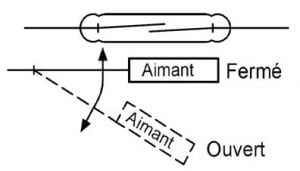
Conventional door/window sensors are usually based on a Reed Switch :

  • the magnet is close β†’ the metal slats of the Reed touch β†’ the circuit is closed ;
  • the magnet moves away β†’ the slats separate β†’ the circuit is open.

Reed switch

This is binary, ultra simple, very robust … but limited:

  • the sensor only β€œincludes” ON/OFF (near/not close);
  • He can't tell the difference between slightly ajar and wide open door : as soon as the tipping distance is exceeded, it is β€œopen”, point.

It is perfect for many uses (perimeter alarm, simple opening info), but we remain on a logic all or nothing which does not take into account the small mechanical nuances of the door.

πŸ’Ά What Nuki does more (and why it's more expensive)

The Door Sensor Nuki’s switch is not limited to a simple binary Reed switch: he uses a Magnetic Sensor more sophisticated measuring theMagnetic field strength generated by the magnet.

Nuki does not specify whether it is a Hall effect sensor or a magnetoresistive sensor.

During calibration, the sensor records the signal value in different positions:

  • door closed ;
  • door open (with a gradual shift between the two).

Next, Nuki defines internal thresholds to decide whether, at a moment T, the door should be considered as closed or open. You only see β€œclosed/open” in the application, but behind it the logic takes into account several intermediate values.

The system is therefore finer a simple gross ON/OFF: it takes into account a range of values, which improves the tolerance to micro‑variations (door play, expansion, slight position deviations, etc.).

I had the feeling that this sensor has a form of Learning capacity : the first tests were average and, little by little, it seems to β€œunderstand” the state of the door more and more.

Specifically, the technology chosen and the intelligence behind it explain:

  • the higher price from Door Sensor compared to a simple alarm contact;
  • the fact that it is thought of as β€œintegrated” accessory the Nuki ecosystem (in terms of design, app, notifications, Matter, etc.), and not as a generic 2-wire sensor.

For a beginner, this can be summarised as follows: a conventional Reed sensor answers just β€œyes/no”, Door Sensor Nuki observes a little more finely what happens, and in addition he discusses directly with the lock.

πŸ›  Installation on my door: simple, but to be treated

Installation wizard

As for the Smart Lock Ultra, Nuki offers a very well done assistant in the app. But there are still some subtleties that deserve to be well respected.

🧽 1. Surface preparation

Nuki recommends:

  • from cleanse the bonding area (alcohol/soft cleaner);
  • check that the surface is flat and dry, so that the sensor mounting plate adheres properly.

A sensor that has a slight play on its base is the door open to false positives … (in every sense of the word).

πŸ“ 2. Positioning of sensor and magnet

Official rules:

  • the sensor attaches to the framework ;
  • l’magnet on the door, inner side.

Two large possible configs :

  • Door and frame at same level β†’ mounted magnet in parallel the sensor;
Mounting variant A Mounting variant A - other view
  • Door recessed or protruding β†’ magnet mounted at 90Β° on the song of the door, but always in front of the sensor.
Mounting variant B Mounting variant B - other view

And above all:

the distance between the sensor and the magnet shall be between 0.5 and 3 cm, door closed.

Door Sensor mounting diagram

Nuki also gives a visual cue with the LED and the small mark on the sensor to align the bottom of the magnet in the right place. For a beginner, really follow the diagram: Do not place β€œeye”, follow the markers.

πŸ”‹ 3. Powering on and pairing

The sensor works on a battery ER14250. When it is first put into service (withdrawn tongue), it is put into service. maintenance mode, ready to be added.

From the Nuki app:

  • Menu β†’ Manage devices β†’ Accessories β†’ Nuki Door Sensor ;
  • the assistant is followed, the lock detects the sensor using Bluetooth;
  • once paired, we clips the sensor on its mounting plate.

If you want to reset/modify the installation later, you can use the anti-‑sabotage button on the back to return it to maintenance mode. To put it simply: If you change the place of the sensor, remember to put it back in this mode before starting the procedure again.

πŸ” Calibration: the step where you don’t have to rush

Calibration screen

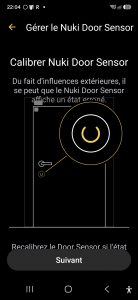
Calibration is the moment when the Door Sensor β€œlearns” what a door is closed and a door open on YOUR specific installation.

The assistant asks you, step by step:

  1. from close the door β†’ sensor records the β€˜closed door’ value;
  2. dopen the door according to the instructions β†’ the sensor records the values associated with the open position.

Nuki insists very clearly on one point in his doc:

it is necessary move the door slowly during these steps, so that the sensor correctly detects variations in the magnetic field.

For a beginner: Do not skip this step, take the time to follow exactly what the app is asking for, without forcing or going too fast.

πŸ˜… My galleys (and how I got away with it)

I'm not going to lie: I did not behave perfectly at first.

For example, I had:

  • physically closed door, displayed β€œopen” in the app;
  • or a state that took time to update.

Going to see la Nuki Troubleshooting Doc, the main common causes are:

  • sensor/magnet distance a little too limited (I have often been too close);
  • Boiled Door too fast when calibrating (yes, it is written in the doc and everywhere and I was going too fast);
  • light mechanical play in the door;
  • sensor badly plated on its support (yes, I moved the sensor several times and the double-sided one needed to be redone).

On this last point, there is a trap with a small sensor anti-snapping (or β€œanti-sabotage”).

Anti-snapping sensor

If the double-sided is not nickel, this small sensor blocks everything and a special state appears:

Door Sensor removed

β€œRemoved” is very clear: the sensor no longer touches its base completely, it is necessary to redo the holding of the double-sided to have instead, on this screen, the normal state of the Door Sensor and battery:

Door Sensor OK

If Nuki has provided for this status to be displayed β€œremoved”, is that many users have had the concern. Well thought out, but it surprises the first time.

What I did to stabilise all this:

  • relaunch a recalibration since: Smart Lock β†’ Settings β†’ Manage Door Sensor β†’ Calibrate Door Sensor ;
  • be much more slow in door movements (yes, really slow);
  • adjust the position of the magnet a little to stay well within the 0.5–3 cm range;
  • check that the sensor was properly clipped without play.

Once this combo was respected, the behavior became frankly reliable.

πŸ“± What it changes in the Nuki app

Once the Door Sensor operational, the Nuki app no longer merely displays:

  • πŸ”’ locked / unlocked (state of the lock),

but also:

  • πŸšͺ Closed door / Open Door (Door condition).

Door state in the Nuki app

Combinations of the following type can therefore be seen:

  • Door closed + lock locked β†’ perfect;
  • Door closed + lock unlocked β†’ someone is at home;
  • Door open + lock locked β†’ to be monitored;
  • Door open + lock unlocked β†’ door really open.

πŸ”” Notifications and Alerts

Door Sensor Notifications

The app allows you to configure notifications related to the condition of the door:

  • alerts if the door remains open too long;
  • alerts if the lock tries to lock while the door is not closed.

For a front door, this is exactly the kind of detail that ends up counting on a daily basis. Everyone can choose what they want to do: be notified all the time, only in absence mode, or not at all.

πŸ€“ And on the home automation side, what does it look like?

As I explained in I connect the Nuki Smart Lock Ultra to my home automation :

Nuki Entities in Home Assistant

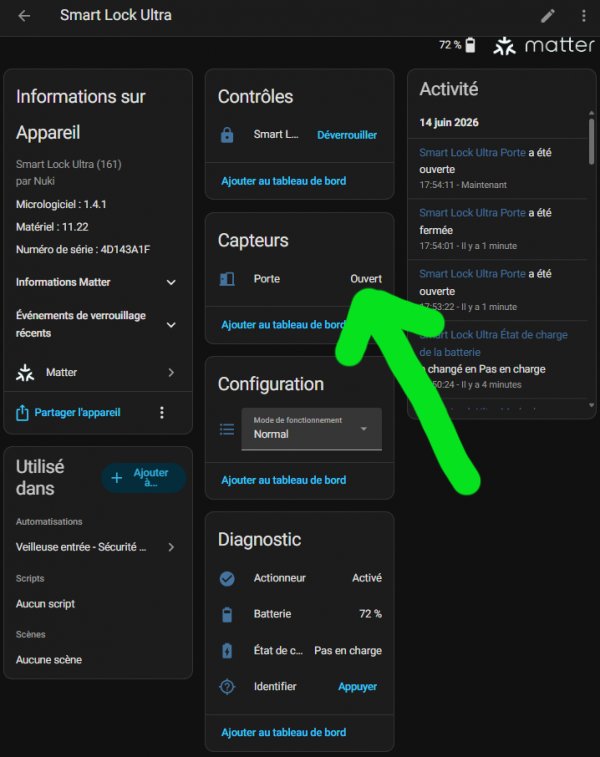
The status of the door (Open or Closed) can be found in Home Assistant, whether in MQTT or Matter.

Indeed, on the side of home automation integrations (Nuki Hub, MQTT, Home Assistant), we see that the Door Sensor is exposed as separate entity, in addition to the lock:

  • an entity lock.xxx for the Smart Lock;
  • an entity binary_sensor.xxx_door (or equivalent) for the condition of the door.

Some Matter/SmartThings drivers consider that anything that is not β€œclosed” is treated as β€œopen”. In other words, if it is not explicitly closed, it is considered open.

From there, we can imagine scenarios in Home Assistant:

  • prevent an automatism from locking if doorState!= closed ;
  • trigger an alert if the door switches to β€œopen” while the house is in β€œAbsent” mode;
  • turn on the β€˜closed β†’ open’ transition input lighting after dark.

For beginners: You don't have to get into this from day one. The Door Sensor already works very well with the Nuki app alone. The Home Assistant part is a second stage to go further.

βœ… My opinion after installation

After a few weeks of use, my feeling is clear:

  • The Door Sensor is the brick that was missing for the Nuki Smart Lock Ultra to have a coherent view of the whole lock + door.
  • The technological difference with a simple magnetic contact explains the price : we are no longer in the small generic binary sensor, but in an integrated module, calibrated, designed to work hand in hand with the lock.
  • On the usage side, the β€˜door remained open’ notifications and the possibility to exploit the state of the door in Home Assistant bring a real plus in comfort and security.
  • The real plus is that the lock lock locks a few seconds after the door is closed: it’s impressive, totally brilliant … and you get used to it way too quickly!

I control the temperature of my fridges

🌑 Why I monitored my fridges in Home Assistant

With the summer heatwave, I wanted to monitor my fridges and freezer for a very simple reason: Avoid the unpleasant surprise.

A poorly closed door, a drifting probe or a device that starts to tire, and you can quickly lose all the content without realising it.

I chose to set up a full follow-up in Home Assistant, with sensors, notifications, a dedicated screen and a visual alert on the dashboard.

The idea was not just to read a temperature, but to see right away if something was out of the ordinary.

🧊 The sensors I retained

I separated the surveillance into several areas to keep something legible and easy to maintain.

I have a sensor for the freezer, one for the fridge on the left, one for the fridge on the right and one for the fridge in the pantry.

The entities I use are the following, they are inherited from the different temperature sensors. I did not bother to make them homogeneous because they are used elsewhere:

  • sensor.temperature _freezer _temperature
  • sensor.frigo_left _tdeg _temperature
  • sensor.frigo_right _tdeg _temperature
  • sensor.frigo_cellier_temperature_frigo_cellier

For fridges, I have chosen an alert threshold of 10Β°C. For the freezer, I have chosen -5Β°C.

This is not a β€œgeneric” logic, it is really adapted to what I want to monitor at home.

πŸ“ˆ The screen I created

I then put all this together in a dedicated view in Home Assistant. I called this page Controls, with a fridge icon, to have all my cold equipment in one place.

On this screen, I put 7-day temperature charts and a chart of the day.

It allows me to quickly see if a temperature variation corresponds to abnormal behavior or a simple door opening.

I also have a β€˜warn me’ button, I explain this right after.

πŸ—“ Temperature charts

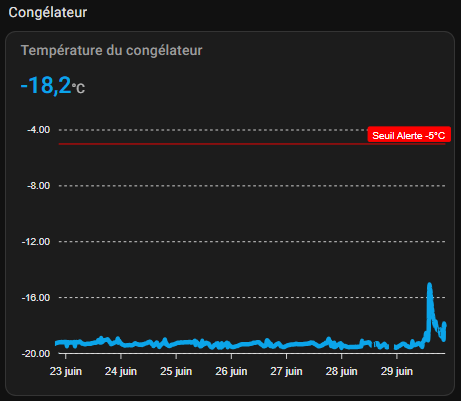
For each fridge and freezer, I added a temperature graph with a red annotation at the threshold. This is very convenient because you immediately see when the curve approaches the limit.

I use custom:apexcharts-card for this, with two different views: one over 7 days and one over the current day. The whole thing remains legible, even when I compare several days in a row.

Type: custom:apexcharts-card header: show: true title: Freezer temperature show_states: true colorize _states: true graph_span: 7d series: - entity: sensor.temperature _freezer _temperature color: "#0ba4e9" show: name_in _header: false apex _config: yaxis: - min: -4 max: -20 annotations: yaxis: - y: -5 borderColor: "#FF0000" strokeDashArray: 0 label: borderColor: "#FF0000" style: color: "#FFF" background: "#FF0000" text: Alert threshold -5Β°C

🧩 I started by creating my helpers

Before I even took care of the alert buttons, I created my helpers in Home Assistant. I used input_boolean under the heading Entries, to have one switch per device.

I wanted something simple: if the alert is activated, Home Assistant notifies me; If it's turned off, it doesn't bother me.

It also allows me to temporarily disable the notification if a message has already been sent.

It allows me to stay in control, without touching the automation itself.

πŸ”˜ Alert buttons

I have also added one button per device to enable or disable notifications. This corresponds to the input_boolean created just before.

I wanted to be able to temporarily cut off alerts when I know I'm going to open the door for a long time, or when I do a cleaning.

The button simply displays β€œEnabled” or β€œDisabled”, which avoids getting lost in the technical states. It is a detail, but for everyday use it makes the screen clearer.

Type: tile entity: input_boolean.prevenir_si_souci_de_temperature_freezer name: Notify me if temperature alert threshold exceeded features_position: vertical bottom: false tap_action: Action: toggle icon_tap_action: Action: toggle state _display: >- {% if is_state('input_boolean.prevenir_si_souci_de_temperature_freezer', 'on') %} Activated {% else %} Disabled {% endif %}

πŸ”” The notifications I have put in place

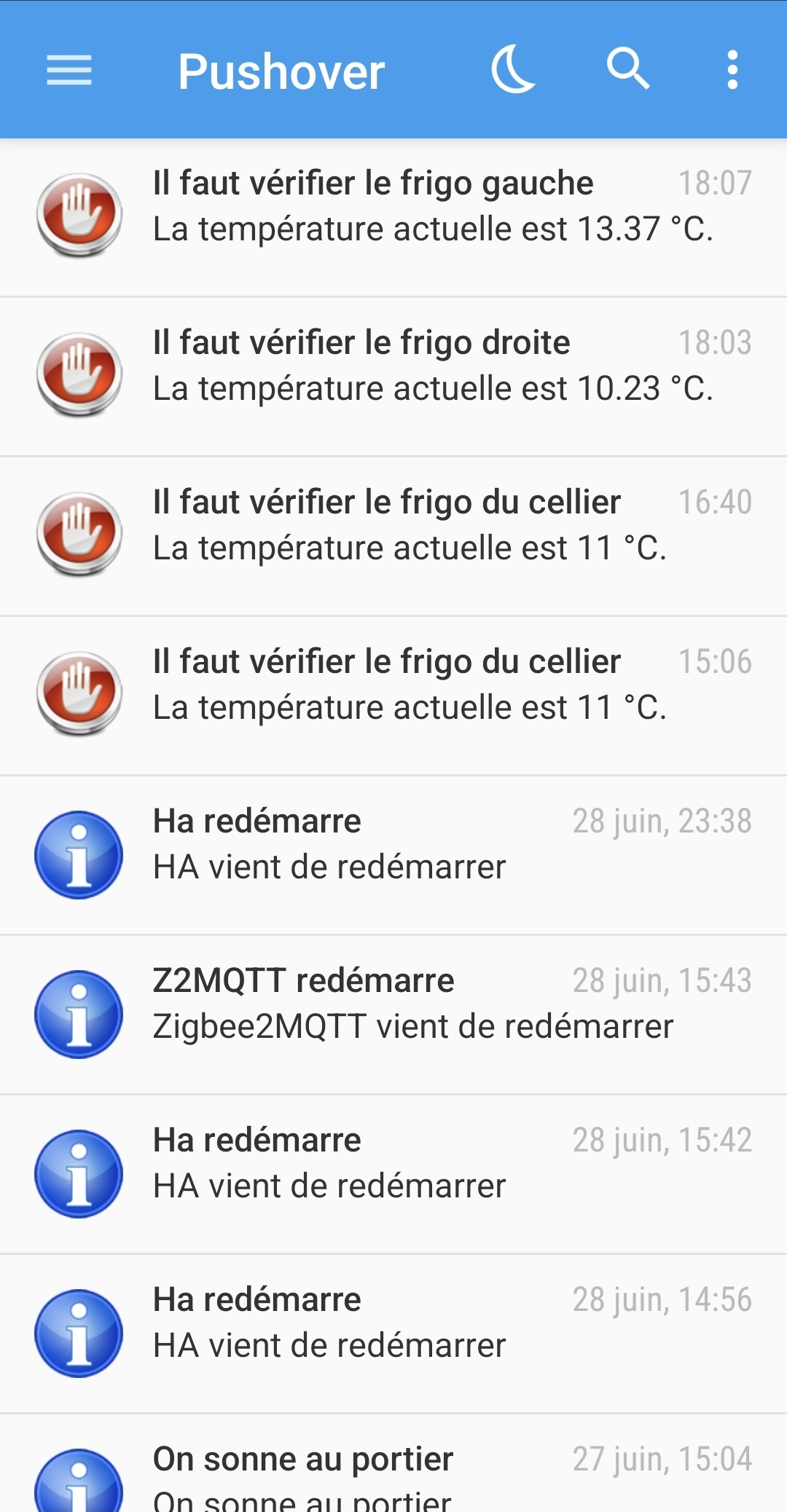
When the temperature exceeds the threshold, I send two types of notifications: a visual notification and an SMS.

I wanted something reliable, because a fridge or freezer problem deserves to be seen quickly.

I only trigger the alert if the input_boolean corresponding is activated. Then the automation cuts the same button to avoid receiving a flood of notifications until the problem is solved.

I'm not documenting my notifications here. I use Pushover to warn me with notify.icone _rouge and my wife is on Free, so notify.sms _christel _via _free.

🧾 The automation of the freezer

The freezer operates on a slightly different logic from the refrigerators, with a threshold set at -5Β°C. As soon as the temperature rises above this value, the alert is triggered if monitoring is activated.

alias: Control Temperature Freezer Description: "" Triggers: - trigger: state entity _id: - sensor.temperature _freezer _temperature conditions: - condition: and conditions: - condition: state entity _id: input_boolean.prevenir_si_souci_de_temperature_freezer state: "on" - condition: numeric _state entity _id: sensor.temperature _freezer _temperature above: -5 actions: - action: notify.icone _rouge data: Message: >- The current temperature is {{ states('sensor.temperature _freezer _temperature') }} Β°C. title: Check the freezer - action: notify.sms _christel _via _free data: Message: >- The current temperature is {{ states('sensor.temperature _freezer _temperature') }} Β°C. title: >- The current temperature is {{ states('sensor.temperature _freezer _temperature') }} Β°C. - action: input_boolean.turn_off target: entity_id: input_boolean.prevenir_si_souci_de_temperature_freezer mode: single

🌑 Automation of the left fridge

I made exactly the same logic for the left-hand fridge, with a threshold of 10Β°C. Again, the idea is to prevent it only if the surveillance is active.

alias: Control Temperature Fridge Left Description: "" Triggers: - trigger: state entity _id: - sensor.frigo_left _tdeg _temperature conditions: - condition: and conditions: - condition: state state: "on" entity _id: input_boolean.prevenir_si_souci_de_temperature_frigo_left - condition: numeric _state entity _id: sensor.frigo_left_tdeg_temperature above: 10 actions: - action: notify.icone _rouge data: Message: >- The current temperature is {{ states('sensor.frigo_left _tdeg _temperature') }} Β°C. title: Check the left fridge - action: notify.sms _christel _via _free data: Message: >- The current temperature of the left fridge is {{ states('sensor.frigo_left _tdeg _temperature') }} Β°C. title: >- The current temperature of the left fridge is {{ states('sensor.frigo_left _tdeg _temperature') }} Β°C. - action: input_boolean.turn_off target: entity_id: input_boolean.prevenir_si_souci_de_temperature_frigo_left mode: single

πŸšͺ The right fridge and the pantry

I have reproduced the same structure for the fridge on the right and for the fridge in the pantry. The principle is always the same: a sensor, a threshold, an alert button, a notification, and then an automatic shutdown to avoid duplication.

alias: Control Temperature Fridge Right Description: "" Triggers: - trigger: state entity _id: - sensor.frigo_right _tdeg _temperature conditions: - condition: and conditions: - condition: state state: "on" entity _id: input_boolean.prevenir_si_souci_de_temperature_frigo_right - condition: numeric _state entity _id: sensor.frigo_right _tdeg _temperature above: 10 actions: - action: notify.icone _rouge data: Message: >- The current temperature is {{ states('sensor.frigo_droite _tdeg _temperature') }} Β°C. title: Check the right fridge - action: notify.sms _christel _via _free data: Message: >- The current temperature of the right fridge is {{ states('sensor.frigo_droite _tdeg _temperature') }} Β°C. title: >- The current temperature of the right fridge is {{ states('sensor.frigo_droite_tdeg _temperature') }} Β°C. - action: input_boolean.turn_off target: entity_id: input_boolean.prevenir_si_souci_de_temperature_frigo_right mode: single
alias: Control Temperature Fridge Cellier Description: "" Triggers: - trigger: state entity _id: - sensor.frigo_cellier_temperature_frigo_cellier conditions: - condition: and conditions: - condition: state state: "on" entity _id: input_boolean.prevenir_si_souci_de_temperature_frigo_cellier - condition: numeric _state entity _id: sensor.frigo_cellier_temperature_frigo_cellier above: 10 actions: - action: notify.icone _rouge data: Message: >- The current temperature is {{ states('sensor.frigo_cellier _temperature _frigo_cellier') }} Β°C. title: It is necessary to check the fridge of the pantry - action: notify.sms _christel _via _free data: Message: >- The current temperature of the cellar fridge is {{ states('sensor.frigo_cellier _temperature _frigo_cellier') }} Β°C. title: >- The current temperature of the cellar fridge is {{ states('sensor.frigo_cellier _temperature _frigo_cellier') }} Β°C. - action: input_boolean.turn_off target: entity_id: input_boolean.prevenir_si_souci_de_temperature_frigo_cellier mode: single

πŸŸ₯ Conditional cards on the dashboard

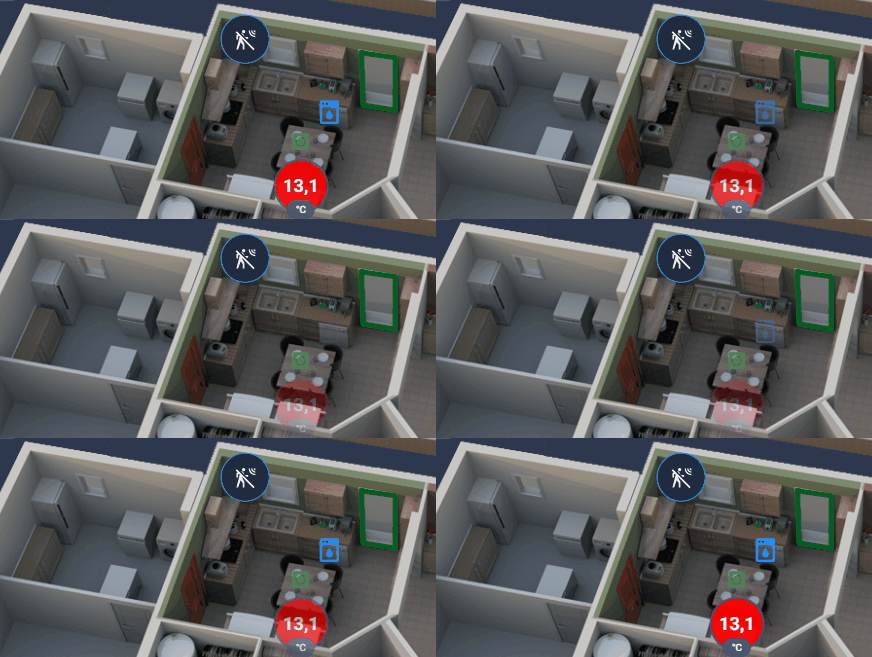
I wanted to go a little further than just notifications. On my main view of the dashboard, I also display a red badge flashing directly on the plan when a fridge exceeds its threshold.

The principle is simple: as long as everything is fine, nothing appears. As soon as a sensor passes above the threshold, the card is displayed at the intended location and immediately catches the eye.

🧩 The decluttering template I use

To avoid repeating the same block for each device, I created a template decluttering. It allows me to reuse the same structure with only the sensor, name, position and threshold changing.

decluttering _templates: fridge: element: Type: conditional conditions: - condition: numeric _state entity: "[[sensor]]" above: "[[threshold]]" style: top: "[[top]]" left: "[[left]" elements: - type: state-badge entity: "[[sensor]]" name: "[[name]]" style: font-size: 15px text-align: center font-weight: bold color: white "--label-badge-text-color": white "--label-badge-background-color": red "--ha-label-badge-label-color": white

Then I simply call it with the variables of each device:

- type: custom:decluttering-card template: Variable fridges: - sensor: sensor.frigo_left_tdeg_temperature - name: Left - top: 62% - left: 29% - temperature threshold: 10 card_mod: style: | @keyframes blinker { 50% { opacity: 0; } } :host { animation: blinker 2s linear infinite; }

Note that I did not manage to integrate card_mod in the decluttering. I therefore reproduced it directly on the dashboard.

I took up the same principle for the right-hand fridge, the pantry and the freezer, with their respective positions on the plan.

For the freezer, of course, the threshold remains at -5Β°C, since the monitoring logic is not the same as for fridges.

βœ… What I won with this implementation

In the end, I now have a clear, visual and useful monitoring of my cold equipment.

I see the history, I get an alert if needed, and I have an immediate visual indicator in general if something exceeds the threshold.

What I like most is that everything is easy to read on a daily basis.

I do not need to go to the menus to find out if a fridge is starting to heat: either I see it on the dashboard, or I receive a notification.

πŸ›  Small choices that make a difference

The mix of graphics, notifications and conditional badges works really well for this use case.

It is not a gadget: it is a real supervision of comfort and safety for the home.

And since I kept a reusable structure, I can easily add another device later without doing it all over again.

🎯 Conclusion

I did not try to do anything complicated.

I simply wanted to know at all times whether my fridges and freezer remained in the right temperature range, and to be notified as soon as a threshold was exceeded.

With Home Assistant, a few sensors, well-thought-out automations and a clear dashboard, I now have a system that speaks to me right away when action is needed.

And for me, this is exactly what is expected of good home automation: be useful, discreet and reliable.

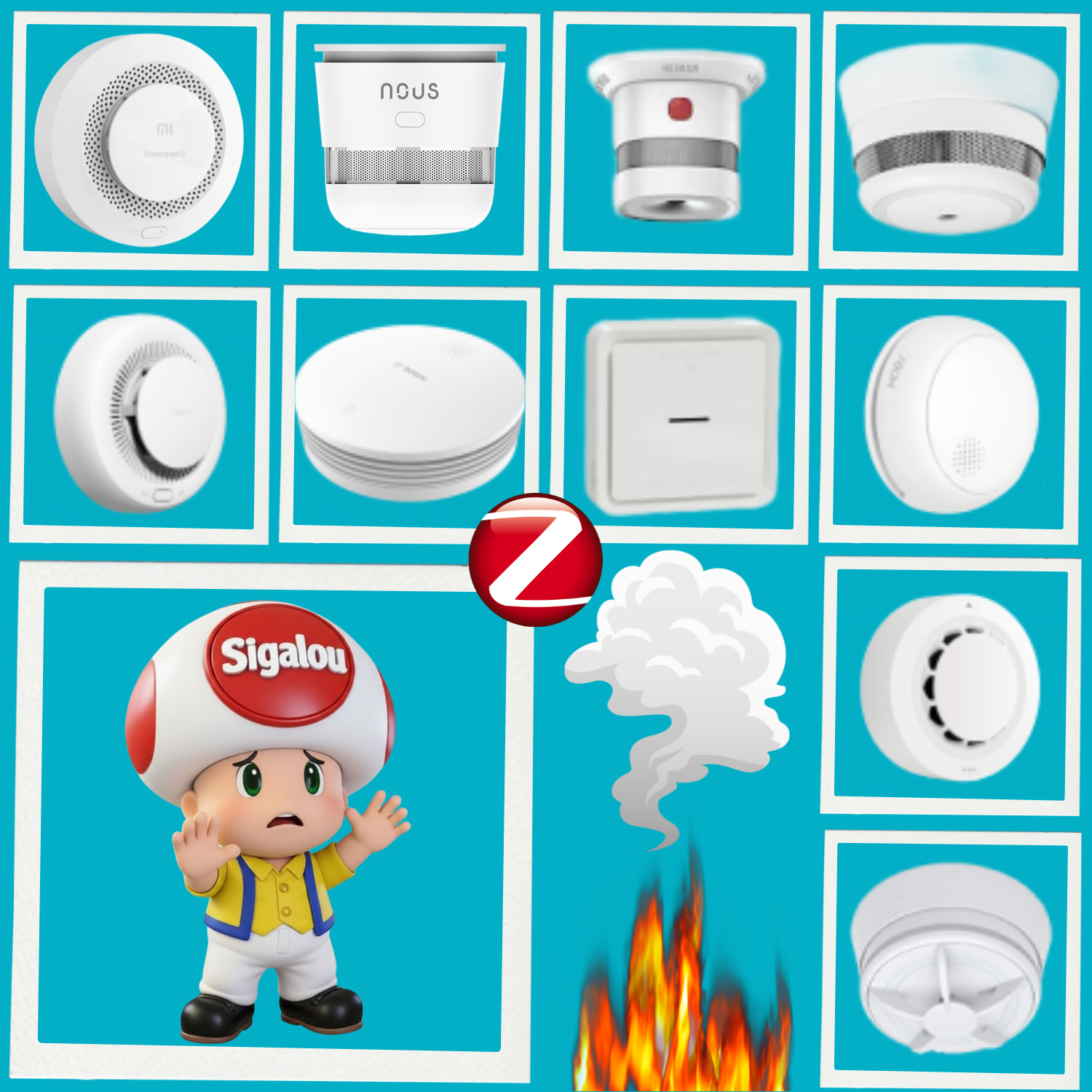
Comparative Smoke detectors/heat Zigbee – June 2026

Introduction and objectives

In a world where home automation transforms our homes into smart and secure spaces, Zigbee smoke and heat detectors are indispensable allies.

Compatible with Home Assistant via Z2M or ZHA, these devices combine reliable detection (smouldering smoke or anti-false positive heat) with smooth integration for instant alerts, push notifications and life-saving automations.

Objectives of the Comparative

This guide, based on tests carried out mid-2026, evaluates 10 consumer models according to price (11-120€), autonomy (3-10 years), EN14604/CE standards mandatory in France, and advanced features such as smoke density, hush, tamper or OTA.

Priority: legal security and HA supervision, eliminating non-compliant.

Read More

I connect the Nuki Smart Lock Ultra to my home automation

πŸ“˜πŸ” Special file: Nuki Smart Lock Ultra

This article is part of my complete file from installation to accessories to home automation.

When I installed the Smart Lock Ultra At home, I quickly had this pleasant feeling: β€œOkay, there I switched to another category of connected lock”.

With the Keypad 2 NFC, I settled the question of everyday life: how to enter the house without taking out your phone, without a key, without instructions for use.

There was one outstanding point, the most interesting for me: How can I make sure that my lock is not β€œjust” connected, but really integrated into all my home automation? How do I get her to talk with my scenarios, my sensors, my automations, in short, everything I have already built around Home Assistant and my ecosystem?

This is exactly what this article is about: the three possible paths, what I tested, what I kept … and what I will not do again.

🧭 Three paths for a single lock

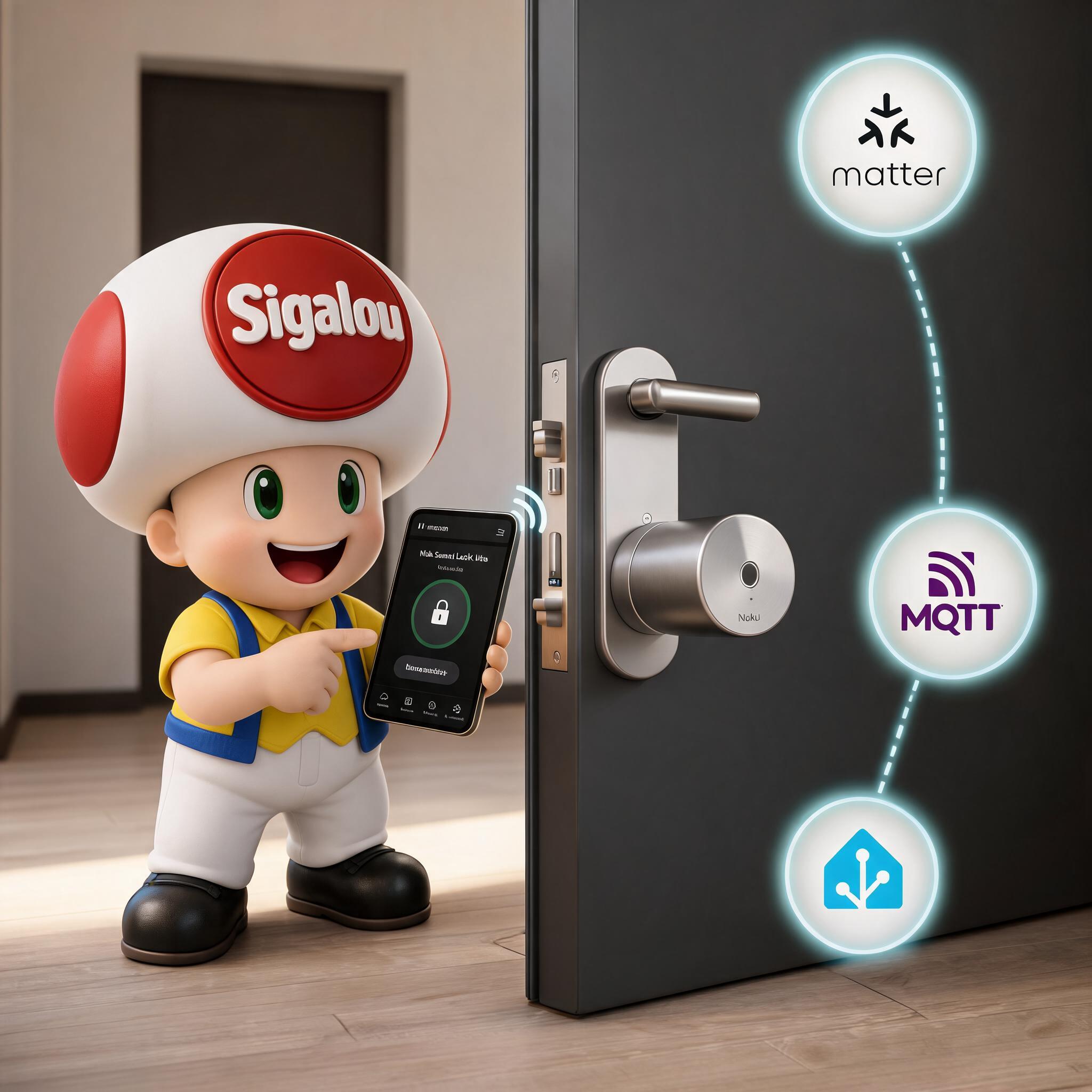
When you go into the lock settings, into β€œFunctions & Configuration” and then β€œSmart Home”, Nuki offers three main integration families:

  • Connection via Matter (Apple Home, Google Home, Amazon Alexa, Samsung SmartThings, Homey, Home Assistant…)
  • Local integration via MQTT, for advanced home automation platforms (Home Assistant, Homebridge, Jeedom, Loxone, OpenHAB, etc.)
  • Integration web via Nuki Web, initially designed for old hubs and some cloud integrations

On paper, Nuki ticked all the boxes: open standard (Matter), home automation geek protocol (MQTT) and more β€œclassic” web integration.

In real life, these three paths do not make the same experience at all. I therefore decided to approach them one by one, with one question in mind: β€œdoes it fit neatly into my ecosystem, and does it remain consistent with my search for local-first and sovereignty?”

🏠 Matter: the β€œofficial” multi-ecosystem pathway

✨ Why I started with Matter

Matter is the new grand standard meant to unify Apple Home, Google Home, Alexa, SmartThings and others.

The Smart Lock Ultra supports it natively, via Thread, with the following idea: a single integration, and behind all ecosystems know how to speak to the lock.

On the Home Assistant side, Nuki even joined the Work with Home Assistant programme, which means that the Matter integration has been tested and validated by the HA team.

For someone like me who has:

  • Home Assistant in the heart of the house,
  • some connected speakers,
  • one-off uses with Google / Alexa,

So Matter looks like the natural way to start.

πŸ”ŒConnection via Matter

The Matter pairing is done globally as for any other equipment: one activates Matter/Thread in the Nuki app, one goes through the compatible hub (Home Assistant, Apple Home, Google Home, etc.) and the lock appears with its entities (state, locked/unlocked, battery, door sensor according to configuration).

I check my hub Matter

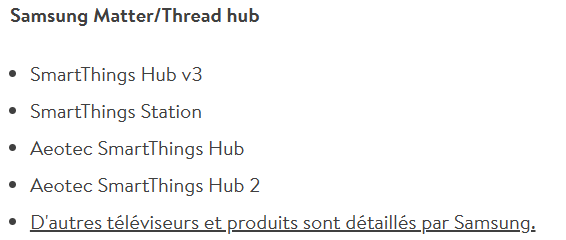
I check that my hub is compatible, the List of compatible hubs is given in the documentation.

I have a ZBT-1, it is perfect, I am surprised that the ZBT-2 is not present in this table.
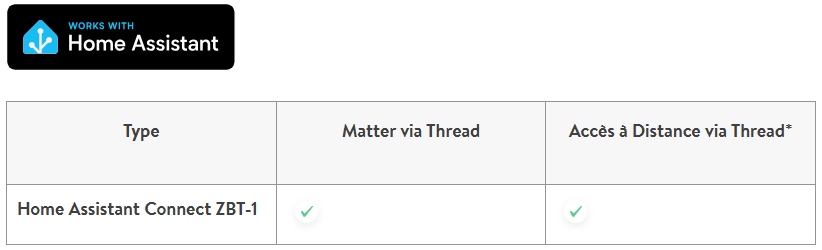
There are two modes of dialogue, as the table shows, I take two minutes to understand.

🏠 Matter via Thread: integrate the lock into my home automation

The first mode is the one I really use to bring Nuki into my home automation world.

Matter via Thread allows me to attach the lock to Home Assistant and see it as a full-fledged piece of equipment in the house.

The interest is simple: I can control the lock, know its condition, integrate it into my automations and have it interact with the rest of my installation.

This is the most logical solution if integration is to be clean, standardised and compatible with several ecosystems.

πŸ“‘ Remote Access via Thread: more direct remote access

The second mode is remote access via Thread.

In principle, it does not serve to better integrate the lock into the home automation, but to make it reachable remotely without going through the built-in Wifi of the lock.

Interest is a more direct, modern and potentially energy-efficient architecture, with Thread as the basis for communication.

On the other hand, this method imposes certain technical conditions:Β Nuki requested that the hub provide internet access and support NAT64. Nuki even states that Thread devices will only have access to the Internet if NAT64 is activated on the hub.

In practical terms, this means that Home Assistant must not only manage the lock locally: it must also be able to act as a Thread border router and bridge the gap between the Thread network, which runs on IPv6, and the necessary Internet access for the remote service.

This requires installing the OpenThread Border Router add-on in Home Assistant, enabling NAT64, and verifying that the correct border router is being used by the lock.

Attention should also be paid to the network itself: if more than one Thread border router is present, the lock may be associated with the wrong one, which may block access to the Internet.

In practice, therefore, it requires a clean configuration, a single active Thread router or at least clearly defined as the preferred network, and a network stack that correctly accepts IPv6 and NAT64 translation.

⏳ What I do now

For my part, I have decided not to go further than Matter via Thread for the time being.

I would like to finish the three-mode test before going deeper into Matter.

I prefer to keep this evolution for later, when I will have more time to put it in place properly and above all to derive a real concrete benefit from it.

The Nuki application

On the Remote Access switch button, I understood that it corresponds to Remote Access via Thread, it is really not easy to understand if you do not dive into this issue.

When I try to activate it, the button returns to the disabled state, so the conditions for activating Remote Access via Thread are not met.

On Home Assistant

The equipment has therefore arrived well in the list of Matter Devices.
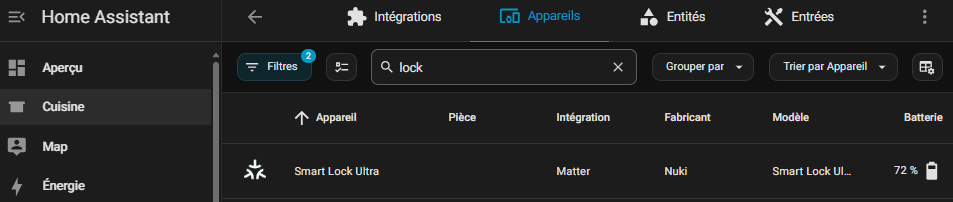
The sensor proposal is complete.
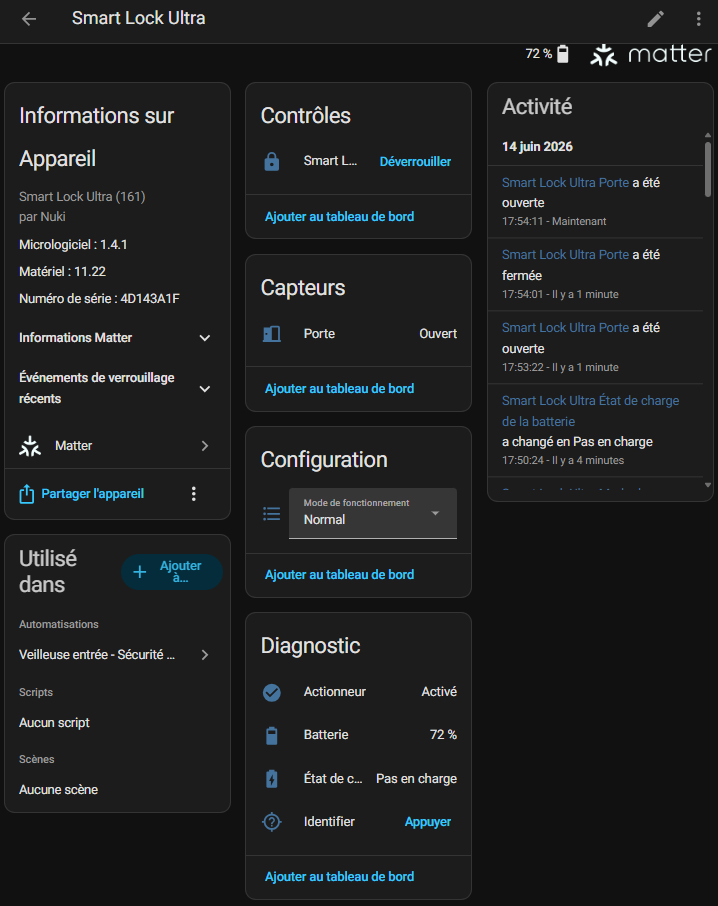
The main sensor that drives the lock was created in lock.smart _lock _ultra, I will rename it and turn the sensor into lock.smart _lock entere

I have a Nuki sensor Door Sensor which makes it possible to know if the door is open or not. I don’t mention it here either, but I can see the state of the (open/closed) door here.

The select.smart _lock _ultra_mode_de_functioning sensor is a particularly relevant configuration parameter, bravo to developers. For those who do not want to be able to unlock their lock remotely, simply change this sensor.

Both options speak for themselves, I tested and quickly understood. I'll leave it to normal. As I will not touch this configuration, I disable this sensor in HA.
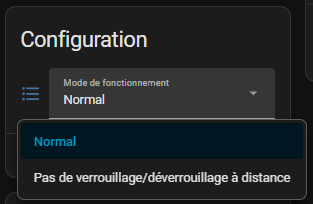
Finally, the diagnostic tools framework will be able to create automations or notifications if something goes wrong.

I played with the button Identifier, the sensor button.smart _lock _ultra _identifier at home, which flashes the lock, it is just a pity that the flashing does not reflect the state of the lock. This would allow the status to be visually checked via this command.

Benefits that I quickly noticed:

  • Everything is managed locally, no need for Nuki cloud to control the lock from my home automation server.
  • The integration in Home Assistant is clean, recognised, and the entities go back correctly.
  • Voice assistants can follow, each on their own, without me having to multiply the specific integrations.

In short, Matter does what he promises: it simplifies multi-ecosystem integration, with a β€œonce and for all” logic.

βš– Where Matter shows its limits

For mainstream integration and for the WAF, Matter is fine. But for a homebuilder who likes to drive everything by the millimetre, it is less flexible:

  • The granularity of events is more limited than what can be achieved with MQTT (e.g. the last precise action, some fine states, etc.).
  • We remain dependent on how each hub implements Matter and exposes entities and events.
  • Advanced diagnostics, for debug or fine-tuning of automations, are more difficult to obtain than with a detailed MQTT flow.

To sum up, I kept Matter as a β€œuniversal” compatibility layer (and for voice uses), but this is not where I found the finest finesse for my advanced home automation.

πŸ“‘ MQTT: the Path of Demanding Domoticians

πŸ” Why I turned to MQTT

Alongside Matter, Nuki offers MQTT integration directly from the lock, via Wi-Fi or Thread. The idea is simple: the lock publishes its status (locked, unlocked, open door, battery, etc.) on MQTT topics, and accepts commands to open or close.

The advantages, on the home automation side:

  • Widespread protocol, supported by Home Assistant, Jeedom, Homebridge, Loxone, OpenHAB and company.
  • Local integration, real-time, without going through the Nuki cloud.
  • Automatic discovery in Home Assistant possible (auto-discovery), which makes integration much simpler than you might initially imagine.

On forums and blogs, there is also a lot of very positive feedback: Some have even built 100 installations. % local with Nuki + MQTT + Home Assistant, without ever opening any port to the outside.

βš™ How I integrated it into my installation

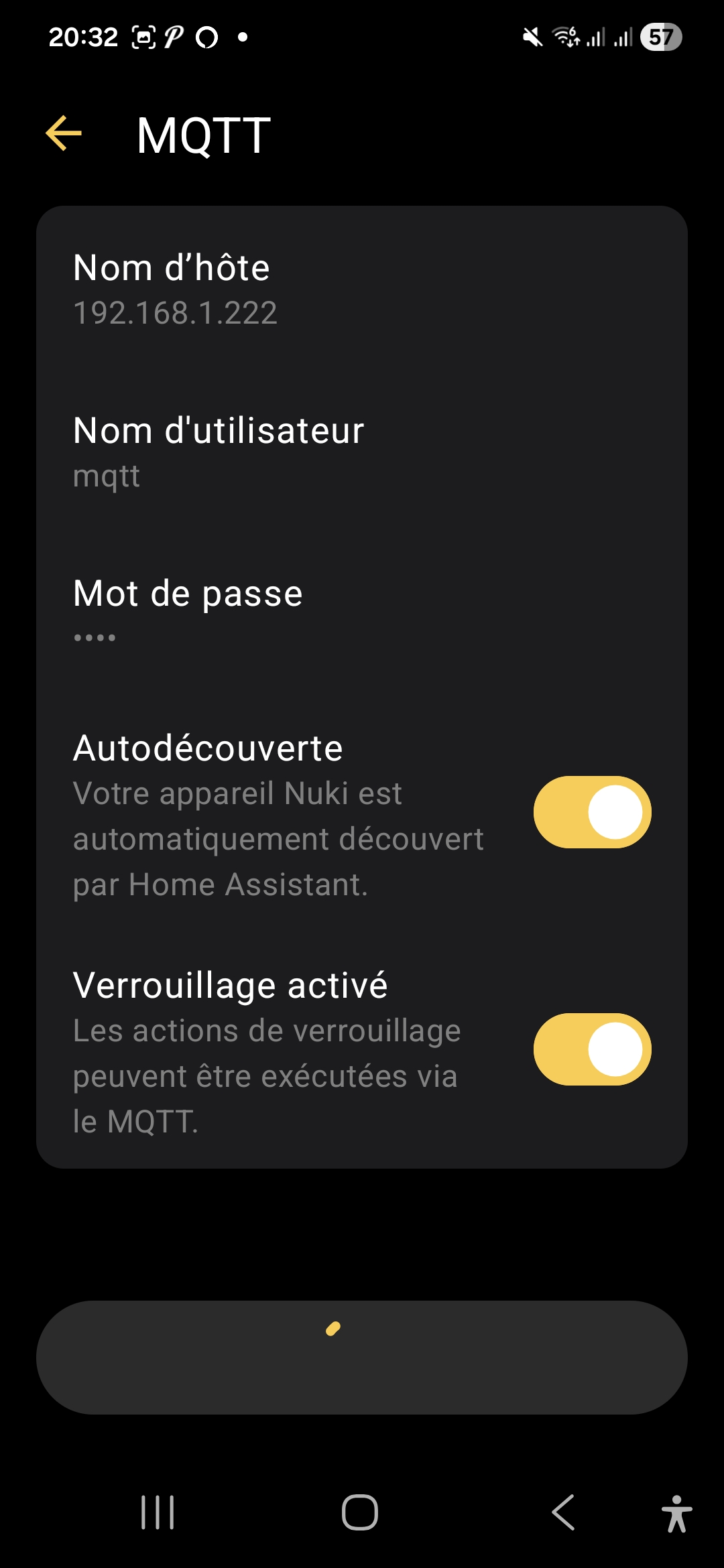
In the Nuki App, activation takes place via:
β€˜Lock settings’ β†’ β€˜Functions & Configuration’ β†’ β€˜Integrations’ β†’ β€˜Smart Home’ β†’ β€˜Configure MQTT’.


On the Home Assistant side, with the auto-discovery enabled, the lock goes up on its own as an MQTT entity, just like a Zigbee2MQTT module for example.

To check this, I used to use MQTT Explorer, here is the result.
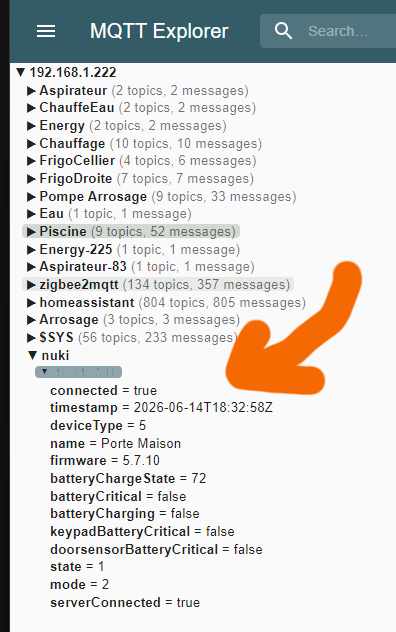
The name sent to MQTT is the one I put on the β€˜Door House’ lock, which is how the new MQTT device was named. I note that there are 11 entities that date back.
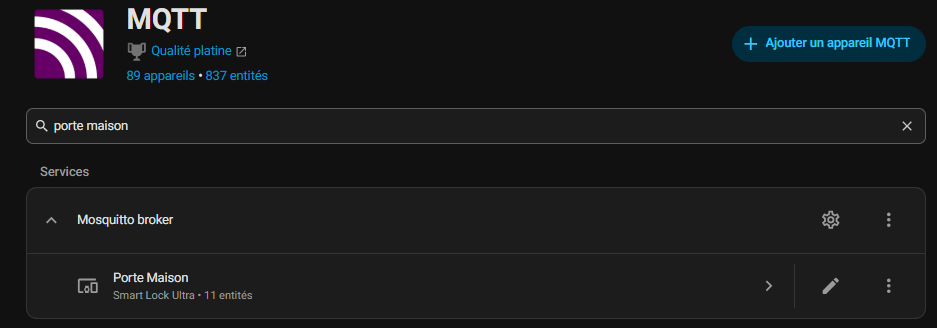
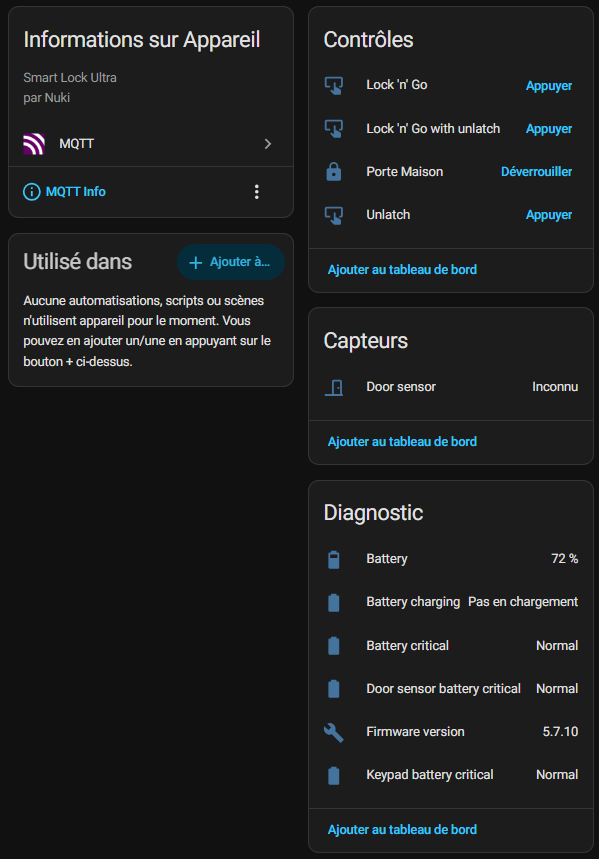
πŸ”§ The 4 controls

When I open the MQTT integration of my Nuki in Home Assistant, I find 11 entities, including 4 commands.

These first 4 commands are not all useful for all users.

They depend mainly on how the door opensΒ andΒ the Exterior Hardware StoreΒ : handle, knob, bar, or other configuration.

Nuki explains that the behaviour changes depending on the type of external handle:

  • with a handle, Nuki unlocks the door and you still have to press the handle to enter;
  • with aΒ button / knob / bar, Nuki can also pull the bolt and open the door more completely.

πŸšͺ Gate House

lock.porte _maison

This is the main action of the lock. This is the one I use every day to lock or unlock the door normally. If I had to take only one check, it would be that one.

πŸƒ Lock 'n' Go

button.door _house _lock _n _go

This mode serves me when I leave home. I trigger the action, the lock lets me out, then it automatically locks again after a few seconds. It’s convenient when I want to make sure I don’t forget to close behind me.

πŸšͺ Lock 'n' Go with unlatch

button.porte_maison_lock_n_go_with_unlatch

This is the fuller version of the previous mode. There, the lock does not only automatically lock after exit, it also releases the door during action. This is useful when a clearer opening is needed, depending on the configuration of the door.

πŸ”“ Unlatch

button.door _maison _unlatch

This action is used to open the door β€œfor real”, releasing the mess. It is not just a simple unlock: it is the mode that allows the door to open immediately, without any additional effort.

πŸ”§ The Sensor

πŸšͺ Door sensor

It is the sensor that tells me whether the door is open, closed or in an uncertain state. This is very useful because it allows me to know not only if the lock is locked, but also if the door is actually closed.

πŸ”§ Diagnosis

πŸ”‹ Battery

This one simply indicates the battery level of the lock. This is basic information, but essential to avoid unpleasant surprises.

⚑ Battery charging

This entity tells me whether the lock is charging or not. It is useful to quickly check if the feeding is going well.

🚨 Battery Critical

It is an alert indicator. If it turns red or critical, it means that the battery is too low and must be intervened.

🚨 Door sensor battery critical

Same logic, but this time for the battery of the door sensor. If this sensor is battery powered, this entity warns me when it becomes too weak.

🧠 Firmware version

This entity displays the firmware version of the lock. This is especially useful for technical monitoring, updates and diagnosis.

🚨 Keypad battery critical

This concerns the battery of the keypad. If I use an input keyboard, this entity lets me know when its batteries start to fade.

πŸ›‘ Limits and Precautions on the MQTT Side

Not everything is perfect either, and there are a few things to keep in mind:

  • The MQTT communication is not encrypted by default: it is based on network security (Wi-Fi / Thread) and user/password authentication.
  • The MQTT broker must be considered as a sensitive point of the infrastructure, to be seriously protected (no broker open on the Internet, management of ACLs, network segmentation, etc.).

However, for a house already equipped with an MQTT broker and a well-established Home Assistant, this is probably the best compromise between flexibility, performance and sovereignty.

☁ Web integration: the β€˜Historical Cloud’ mode

🌐 Nuki Web, what's the point?

Before Matter and MQTT, Nuki already offered Nuki Web, a cloud gateway to remotely control the lock, have access logs and integrate certain external services (Alexa, Google Home, some older hubs, etc.).

πŸ§ͺ Why I chose to keep it in the background

Web integration remains interesting for:

  • certain remote management functions (journal consultation, management of users on the move),
  • environments where you do not want to enter MQTT or where Matter is not available.
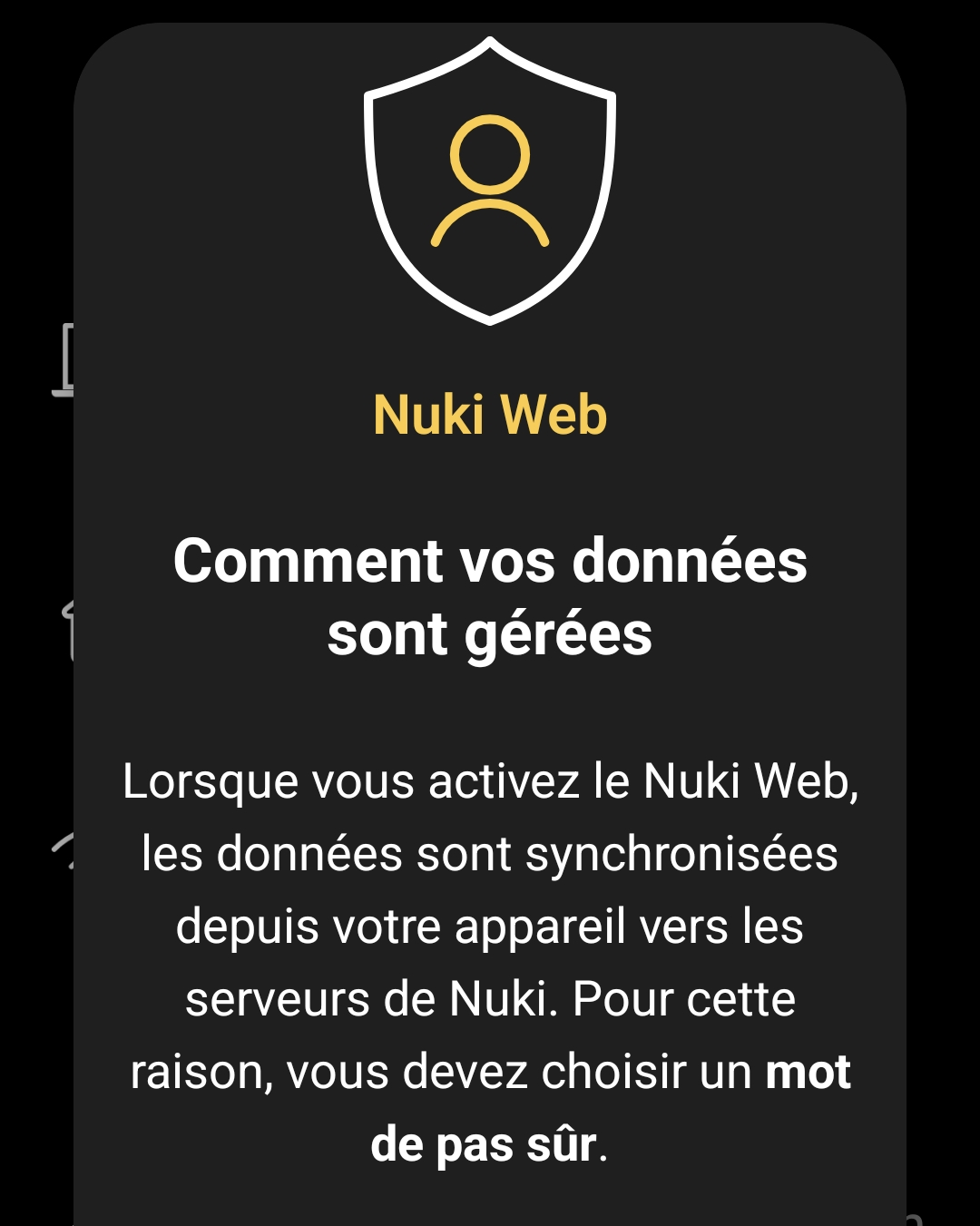
This message makes it clear that my data will go to Nuki’s cloud server when that is precisely what I am trying to avoid.

So, in my case, there are two things that make me treat it more like a spare wheel:

  • I prefer mostly local control, with as little dependence as possible on a third-party cloud service.
  • Matter and MQTT already cover most of my integration and automation needs.

As a result, Nuki Web remains disabled at home, but I think my architecture as if everything should continue to work even if the Nuki cloud is cut, so that nothing can be sent outside.

πŸ§ͺ I compare Matter and MQTT

πŸ“‘ Sensors available

For this part, I mainly look at what each integration actually goes back to in Home Assistant, because this is often where the difference can be seen right away.
Matter gives me the essential information to control the lock and track its condition, while MQTT reassembles more diagnostic sensors and technical information.

Sensor / Entity πŸ₯ˆ Matter πŸ₯‡ MQTT Reading
Door βœ… βœ… Both integrations can be traced back to the opening or closing state of the door.
Battery βœ… βœ… In both cases, I find the battery level of the lock.
State of charge βœ… βœ… Both solutions indicate whether the lock is loaded or not.
Critical battery βœ– βœ… MQTT exposes a finer level of diagnosis on the state of the battery.
Critical Door Sensor Battery βœ– βœ… MQTT also raises an alert dedicated to the door sensor.
Firmware version βœ– βœ… MQTT provides useful technical information for monitoring and diagnosis.
Critical Keypad Battery βœ– βœ… MQTT also tracks the critical state of the keypad battery.
Mode of operation βœ… βœ– Matter exposes here an interesting configuration parameter directly in Home Assistant.
Identify βœ… βœ– Matter also allows the lock to react visually to identify it.

On a daily basis, Matter is more than enough for simple, clean and immediate use.

On the other hand, MQTT clearly goes further as soon as I want to monitor the lock in detail, recover more complete diagnoses or exploit ancillary information such as that of the keypad or door sensor.

⚑ The speed of reaction

Historically, the difference between Matter and MQTT is quite telling.
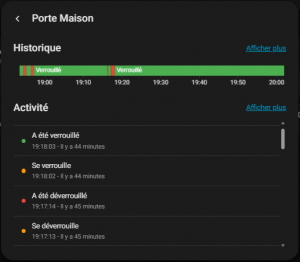
Matter mostly goes back to the final state, while MQTT also displays intermediate transitions such as β€œlocks” and β€œunlocks”, giving a finer reading of the lock’s behaviour.
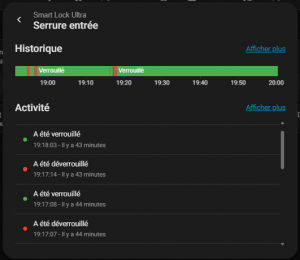
Event πŸ₯ˆ Matter πŸ₯‡ MQTT Reading
Locks β€” 19:18:02 MQTT displays the transition first, before the final state.
Has been locked 19:18:03 19:18:03 Both then go back to the final state at the same time.
Unlocks β€” 19:17:13 MQTT displays the transition first, before the final state.
Has been unlocked 19:17:14 19:17:14 Both then go back to the final state at the same time.
Unlocks β€” 19:17:04 MQTT displays an additional transition at the same second.
Is open 19:17:06 19:17:06 Both go up the state of the door at the same time.
Has been unlocked 19:17:04 19:17:04 Both then go back to the final state at the same time.
Locks β€” 19:16:22 MQTT displays the transition first, before the final state.
Has been locked 19:16:23 19:16:23 Both then go back to the final state at the same time.
Unlocks β€” 18:56:28 MQTT displays the transition first, before the final state.
Has been unlocked 18:56:29 18:56:29 Both then go back to the final state at the same time.
Locks β€” 18:55:09 MQTT displays the transition first, before the final state.
Has been locked 18:55:10 18:55:10 Both then go back to the final state at the same time.

🏁 My verdict

What I remember most of all is that Matter is clean and legible, but MQTT gives a more talkative and lively history.
On transitions, MQTT reveals a level of detail that Matter does not show, which makes it more interesting if I want to analyze precisely the reaction of the lock.
But the difference is really minimal, both are immediate and give full satisfaction. Neither protocol is ahead of the other.

🧭 What I keep

For my part, I will keep Matter and MQTT in parallel for a while. The idea is simple: compare the speed of reassembly of states, fluidity on a daily basis, and see which protocol suits me best over time.

In substance, the two approaches are close, and that is precisely what makes the choice interesting. Matter gives me a clean and standardised integration, while MQTT retains the advantage of a finer and more advanced home automation-oriented approach.

So I prefer not to decide too quickly. As long as both work well, I'll let them co-exist to observe what suits me best in my actual setup.

🎯 My Feeling

Honestly, at this point, both Matter and MQTT solutions are close enough for everyday use.

The real difference will be in the comfort of use, perceived responsiveness and how each fits into my Home Assistant automations.

Nuki Web remains an option, but clearly in the background for my use. I keep it as a backup solution or for more cloud / remote access needs, without making it the heart of my installation. Simply sending my personal information to a cloud blocks me at this stage.

In the immediate future, I therefore retain this dual local approach, with a slight advantage for the one that will seem to me the most natural to use.

And if the deviations remain minimal, I will probably choose mainly according to the simplicity of maintenance and the evolution of my installation.

🏁 Conclusion

In the end, the Nuki Smart Lock Ultra ticks exactly what I expect from a modern connected lock: real local integration, several communication options, and above all the possibility of adapting it to an already well-built home automation system.

What I appreciate most is not being locked in a single model.

Matter and MQTT give me the freedom to test, compare, and then keep the solution most consistent with my usage and my vision of the connected home.

Nuki Web completes the table, but for my use it remains in the background, as a complementary option rather than an integration base.

For now, I do not want to go too fast: I let both work, I observe, and then I will see which one will remain as the main solution.

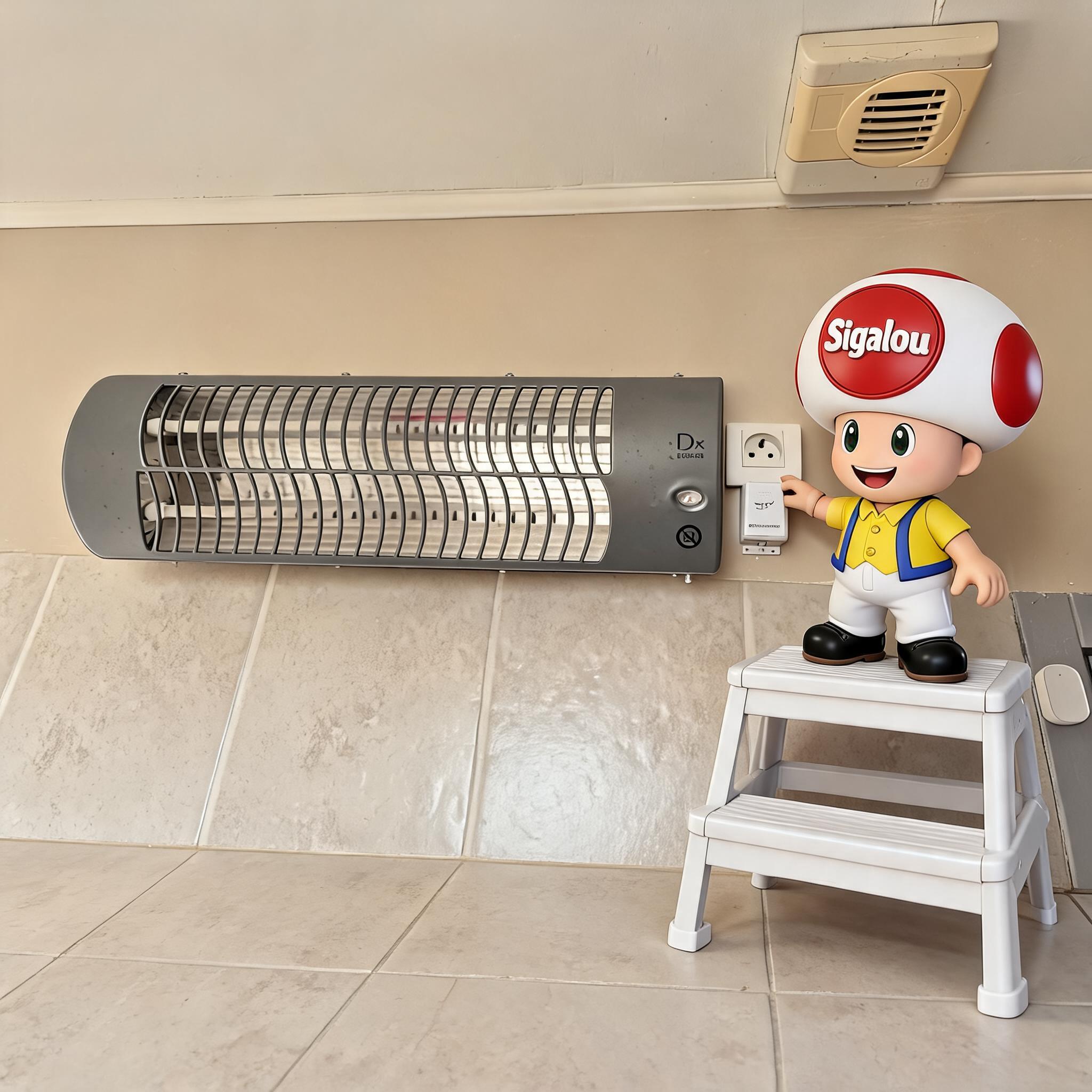
I domotised my bathroom heater with a SONOFF BASIC-1GS (Matter)

πŸ”₯ Why I rebuilt this installation

There are home automation installations that are made for the first time, They serve for years, and then we end up revisiting them because the ecosystem around them has evolved.

This is exactly what happened here: I already had domotized the heating of my bathroom several years ago, but this time I wanted to start with something simpler, more modern and, above all, better integrated with Home Assistant.

The original idea has not changed: be able to start heating when I need it, switch it off easily, and integrate it properly into my automation systems.

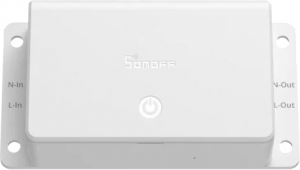
On the other hand, the equipment has changed: for this new version, I chose to use a SONOFF BASIC-1GS, a Matter-compatible Wi‑Fi module that Sonoff presents as a 10A connected switch designed for simple, local use in Matter and Home Assistant-compatible ecosystems.

Read More

I add a Nuki Keypad 2 NFC to my Smart Lock Ultra

πŸ“˜πŸ” Special file: Nuki Smart Lock Ultra

This article is part of my complete file from installation to accessories to home automation.

When I installed the Nuki Smart Lock Ultra At home, I immediately felt that I had reached a milestone.

Here is the direct link to the previous article: I replace my Danalock V3 with a Nuki Smart Lock Ultra

The lock is faster, more discreet, more pleasant to use on a daily basis, and I finally feel like I have a modern solution.

But after a few days, I realised that I was still missing a link: a simple, immediate and universal way to enter the home, without systematically depending on a smartphone or a physical key.

That's exactly why I added the Nuki Keypad 2 NFC to my installation.

On paper, it is β€œjust” a remote keyboard with fingerprint reader and NFC.

In practice, it is this small accessory that transforms a very successful connected lock into a real family solution, immediately adopted by everyone at home.

πŸ€” Why I added a Keypad 2 NFC

With the Smart Lock Ultra alone, the experience was already excellent.

I could open with the app, automate scenarios, manage my access and integrate the lock into my home automation installation.

But in real life, there were always the same questions: How does my wife do if she doesn't want to take out her phone? How do my daughters do it? How can I give someone simple access without explaining my home automation? And above all, how can the opening of the door be made as natural as a gesture of everyday life?

The Keypad 2 NFC responds precisely to this need.

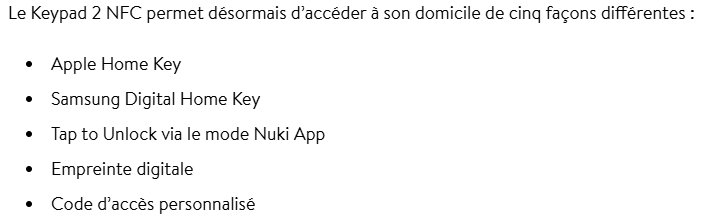
Nuki offers several access modes on a single product: code, fingerprint and β€˜Tap to Unlock’ via NFC with a compatible smartphone or watch.

πŸ‘¨β€πŸ‘©β€πŸ‘§β€πŸ‘§ A real product designed for the family

The product can handle up to 200 codes, 20 unique fingerprints and 35 NFC keys.

In other words, we are not facing a geek gadget, but rather a system designed for a family, guests, relatives or temporary access.

✨ What this product actually does

What I like about Nuki Keypad 2 NFC, it does not replace the lock: He completes it intelligently.

Installed outdoors, it becomes the easiest entry point for everyone.

You can type a code, put your finger on the fingerprint reader, or approach your phone as you would with a contactless payment.

Apple Home Key or Samsung Digital Home Key can also be used.

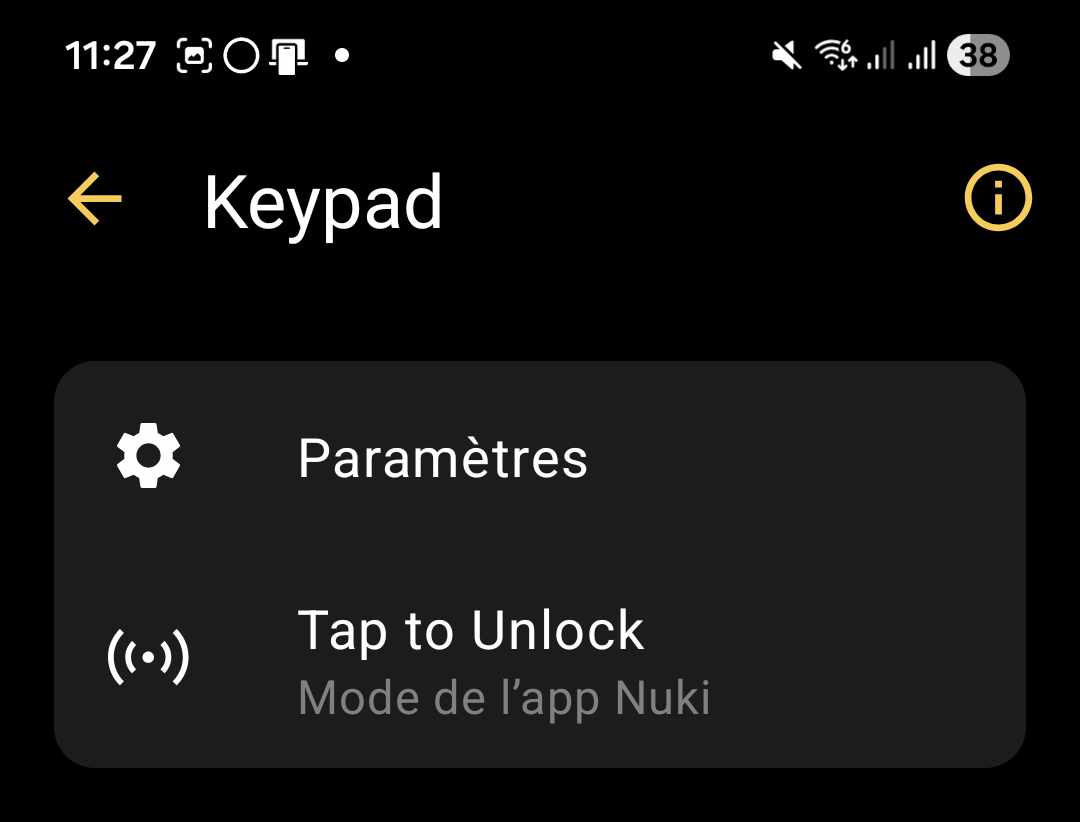
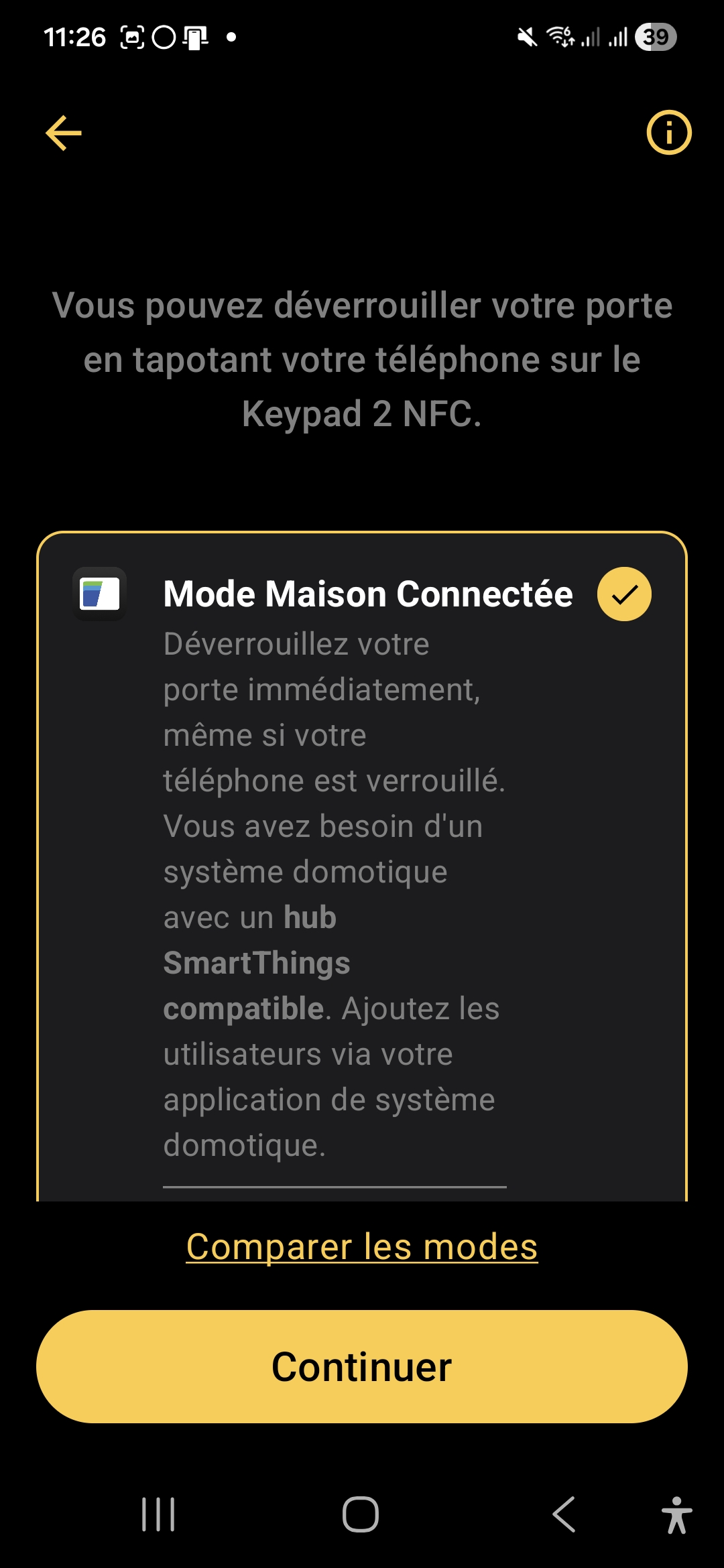
And even without a Matter hub, the Nuki app mode already allows NFC to be opened with a compatible smartphone, but with certain usage limits.

πŸ“± Several opening methods

  • Opening by code.
  • Fingerprint opening.
  • NFC opening with compatible smartphone.
  • NFC opening with compatible watch depending on the ecosystem used.
  • Access management directly from the Nuki application.

It is this mixture that makes the product interesting.

Not everyone has the same habits. My wife prefers what is immediate and obvious. My daughters immediately understand the principle of a code or a fingerprint.

For my part, I especially appreciate having several ways to get into the house without ever being dependent on a single method.

πŸ›  A really simple installation

As is often the case with Nuki, installation is probably the most reassuring thing.

The manufacturer announces a installation in a few minutes, without tools, with a fixation designed for the outside and a guided configuration in the application.

This is exactly the impression I had: the location is chosen, the keypad is fixed, the association is launched in the app, and then the access configuration is set up directly.

πŸ“ The choice of location

I took the time to choose a convenient, visible but discreet location at your fingertips when you arrive in front of the door.

I wanted the use to be obvious from day one, without having to aim for a specific place or make an unnatural gesture.

Once in place, the Keypad 2 NFC integrates very well visually. It remains compact and does not give the impression of a cumbersome technical housing.

βš™ The association with the Smart Lock Ultra

The association with the Smart Lock Ultra was uncomplicated.

The application guides the steps, followed by the creation of access codes, the registration of fingerprints and the setting of rights.

Nuki also provides temporary and individualized access, which allows you to reason quickly in real use.

πŸ‘¨β€πŸ‘©β€πŸ‘§β€πŸ‘§ The test of everyday life at home

The real test was not technical. The real test was the house.

This is always where a connected product reveals its real value: Does it simplify life or add complexity?

On this point, the Keypad 2 NFC clearly surprised me in the right direction.

Acceptance was immediate, and this is probably the best indicator.

πŸ’‘ An excellent WAF

My wife immediately understood the operation, without explanation. My daughters found the principle obvious, almost playful.

You put your finger down, type a code, approach a phone, and the door opens.

There is no learning curve, no complicated interface, no dependency on an application.

The product disappears behind its use.

πŸšͺ The Uses That Really Change Life

πŸ”’ The Code

The code remains perfect for occasional access or for people who do not want to use an app.

Important point: this is the basis of the operation. You can't configure anything without creating at least one code.

In the Nuki app, I go to Keypad and use:

then

Once the 6-digit code is set, it works immediately.

🧩 Temporary Codes

Nuki makes it possible to create up to 200 codes with precise rules:
– opening hours,
– days,
– repetitions,
– Limited duration.

This is extremely convenient for managing ad hoc access.

Just check "Limited time access" when adding the code.

You can define an hour, a day of the week, a repetition, it is really well thought out.

πŸ‘† Fingerprint

This is the simplest method on a daily basis.

For my youngest daughter, who has neither a smartphone nor a connected watch, it is ideal: more key, more risk of forgetting.

With regard to the elderly (grandparents), I have not been able to register certain fingerprints.

πŸ‘΄ Why fingerprints can be a problem?

With age:
– the skin becomes drier (less conductive),
– the reliefs of the footprints are less marked,
– the sensor captures information less well.

Result: the registration may fail.

In this case, the code remains the most reliable solution.
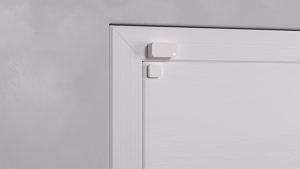
πŸ“² The NFC

NFC is the most β€œspectacular” feature: We approach his phone as if to pay contactless.

Nuki calls it Tap to Unlock.

πŸ“² The two modes proposed by Nuki

The official documentation is clear: You have to choose a mode.

Nuki app mode Connected Home Mode
It's just a phone call. Smartwatch or phone.Β 
It must support either the Apple Home key or Samsung Home digital keys.
Unlock your phone first.Β 
Unlock your phone, then tap it on the Keypad. On iOS, you also need to type a notification. The Nuki app will then unlock your door. No need to open the app manually.
Tap to Unlock instantly.
Unlock using the Home digital key in your wallet. In Express mode, your phone can stay locked.
Nuki app required. Home automation system required.Β 
You need a Matter-compatible home automation hub. It works with Apple Home and Samsung SmartThings.
Adjust settings and manage users via the Nuki app. Adapt settings and manage users via the Connected Home and Wallet app.
For all users of the Nuki app. For users of the Connected House.Β 
Must be added via your Connected Home app. iOS users can only add other iOS users, and Samsung users can only add other Samsung users.

NFC πŸ“² in Nuki Application Mode

I have configured this option: it worked … then non… then again … then more.

This mode requires unlocking the phone, which breaks the experience.

Conclusion: Inconvenient, I give up, especially since it is random.

πŸ“² NFC in Connected Home Mode

When switching to this mode, the Nuki application gives us these indications:

When I click on Open SmartThings, this switches me to the application SmartThings which was already installed on my smartphone.

And now I'm looking for what I have to do … I can't find, I'm going back to look the Nuki Documentation.

I am told to check that:

  • my lock is compatible, it is ok, it is a Smart Lock Ultra βœ…
  • my smartphone must be an Apple, that is not my case, or a mobile device Samsung with Samsung Wallet and SmartThings App. I discover this and I am finally lucky, my Samsung is compatible And I have Samsung Wallet and SmartThings App βœ….
  • I also need a Samsung Matter/Thread hub, This is the β›” 😰 cold shower.

I don’t have any of the 4 hubs on offer and the link is failing.

While I had read everywhere, on all Nuki’s publications, the information Matter Hub (see image below), for the first time I am being told about SmartThings Hub. I am concerned about that.

I review the documentation and understand that I have confused two things : Hub Matter and Tap to Unlock compatibility, two very different things.

Now I'm a little lost. I have a Nabucasa hub configured in Matter and at this point I do not know if it will be compatible.

The Nuki Help Page is no longer of much help to me.

During my search, I come across this Declaration : "One of Nuki's core principles is to make the new features accessible to all users, regardless of manufacturer," said JΓΌrgen Pansy, co-founder and Chief Innovation Officer.

At this point, this is at odds with what I just discovered because I understand that Apple and Samsung share the cake together.

The last 3 are the modes I have already tested. But here the technique used is precise. It is therefore necessary to Samsung Digital Home Key.

πŸ“² Samsung Digital Home Key – what is it?

Recently, Samsung launched a feature that really transforms the experience: the Samsung Digital Home Key. This is the Samsung equivalent of Apple Home Key on iPhone.

In practice, it is revolutionary: Imagine the typical situation where you arrive at your door, with your hands full:

– Phone locked : no need to unlock it
– Without application : No need to open the Nuki app
– NFC : you're just approaching your phone from the keyboard
– Fast : 1-2 seconds

This is automatic, invisible, and that really feels like a digital key.

The Samsung Digital Home Key is based on the standard Aliro 1.0.

Security is maximum :
– The keys are stored in the Samsung Knox Safe Box
– Protection by biometrics or PIN
– We can Disable remote key
– The key is limited to your lock

πŸ”’ Samsung Digital Home Key with Nabu Casa Matter?

Short answer: NO, I can't. β›”

Without SmartThings app + SmartThings Hub β†’ Digital Home Key IMPOSSIBLE.

πŸ›‘ Conclusion on Tap to Unlock

It's time to close on this Tap to Unlock mode, finally, I finish these essays by disabling it.

In the end, I understand Nuki's logic quite well. By relying on the security mechanisms of Apple and Samsung, the brand clearly seeks to provide a smoother, more modern and arguably more reassuring experience.

It is regrettable, however, that moving in this direction is a step away from the idea of digital sovereignty.

In my case, I did not test further, so I do not know if the information remains only on the equipment, or if some data also transits through cloud services.

And it is precisely this point that, in my view, deserves clarification.

πŸ”’ What opening methods do I finally choose?

Finally, on the Keypad, I will use two modes of opening the lock:

βœ… The Code, it is in any case essential, I give a permanent 6-digit code.

βœ… The fingerprints, two or three fingers per person in my household, we can add 20.

These two modes are mostly used by my daughters when they come home from middle school or high school.

As far as I am concerned, I have activated Auto Lock mode, which automatically unlocks when I arrive close to home. This mode does not use the Keypad.

πŸ›‘ Security: the point I didn't want to neglect

On this type of product, the issue of safety is central.

The Keypad 2 NFC is not a simple generic NFC reader or a basic keyboard.

Nuki says it applies end-to-end encryption for every NFC interaction, fingerprint, and code.

πŸ” Why it is not just a clonable badge

Concretely, this means that one does not follow the logic of a rudimentary badge that one would easily copy.

πŸ‘€ The case of fingerprints

Fingerprints are managed locally on the equipment.

⚠ What you need to know before you crack

πŸ“΅ The question of compatibility

The Keypad 2 NFC is very convincing, but we must keep in mind that if we do not want to sign an exclusivity agreement with Apple or Samsung, we will be really very limited.

πŸ› Finally which model of Keypad to choose at Nuki?

  • Between the Keypad and Keypad 2, there is no photo: If I want the opening with the fingerprints, it is imperative to take the Keypad 2.
  • Between Keypad 2 and Keypad 2 NFC, the NFC functionality appeared. The price difference is β€˜only’ €20. Which can make you hesitate.

βœ… My Feeling After Installation

On a daily basis, the Nuki Keypad 2 NFC brings exactly what was missing from the Smart Lock Ultra : Simplicity of immediate access, without dependence on the smartphone.

It is clearly this small element that transforms a high-performance connected lock into a truly family-friendly solution.

In my use, the code + fingerprint duo is more than enough and covers 100 % needs. The NFC, although very promising on paper, remains today too dependent on closed ecosystems.

On the security side, Nuki’s approach is reassuring and consistent, although some areas would deserve more transparency.

In the end, the Keypad is not a gadget accessory, it is almost an indispensable element.

Without him, the Smart Lock Ultra remains an excellent technological solution. With him, it becomes simply obvious.

πŸ’­ What I would have liked with this product

Despite its high quality, it lacks some features that would make the Keypad 2 NFC even more successful:

πŸ”“ A universal NFC aperture, without being forced to choose between Apple or Samsung. Ideally, a fully Matter/Aliro-compatible implementation with any Matter hub (such as Nabu Casa), without a locked ecosystem. This is probably not a matter for Nuki, but rather for Samsung or Apple, which I am asking to open their doors to ….

πŸ“Š A more detailed usage history: know who opened the door, at what time, and with what method (code, fingerprint, NFC). This would be very useful for tracking college feedback, managing speakers, or simply having more traceability.

πŸ”” Real-time notifications when a fingerprint or code is used, with the ability to receive an alert if temporary access expires or if a fingerprint is attempted multiple times without success.

βš™ Finally, I would have just loved to be able to use the Keypad 2 to open the portal for example. It is ideally placed on my porch, a particular code could trigger a home automation action!!

These developments would make the product not only more universal, but also more suitable for users who want to remain independent of large ecosystems.

I cut my last Tuya from the cloud to keep it local

This is the last Tuya equipment I have left in my entire home automation ecosystem, and it is not just any: It feeds the grip of the straightener and the hairdresser of my wife. In other words, I never took it lightly.

I don’t like Tuya, and I say it bluntly: too many unpredictable behaviours, too many small malfunctions that happen without warning, and, on some Zigbee equipment, a way of doing things that often leads me to think that they are interpreting the protocol a bit to their liking.

For years, this switch has done its job without flinching.

Then one day, nothing on the Home Assistant side. Smart Life, on the other hand, continued to drive it without worry. No clear error, no big alert message, just a device that seemed to ignore me in the wrong place.

πŸ”Ž I see the concern

The first clue is that the Smart Life app was still working. I could turn on, turn off, test, check: Everything answered. On the other hand, in Home Assistant, nothing. No obvious mistake, no clear message, just a switch that seemed to go on vacation while the rest of the house continued to live.

I tried the classics: reload the integration, delete and repair, start over cleanly. Nothing was done about it.

On Tuya’s Dev platform, the equipment was offline while it was online on my smartphone.

The most frustrating thing is that you feel like you are dealing with a blurred bug, when in reality the problem was elsewhere.

🧠 I understand why it's blocking

When I looked more closely, I came to understand why. I had just reorganised my local network and split my IP ranges: one party could go out on the internet, the other could not.

The switch had just landed in the blocked slice. Result: more connection to the Tuya cloud, and therefore more correct visibility in Home Assistant.

The decisive test was simple. From my smartphone, while I was on Wi‑Fi, I could still control the switch. As soon as I cut Wi‑Fi and switched to 4G, it became inaccessible.

There, I had the click: Local piloting worked well, but cloud addiction sabotaged everything else.

πŸ”Œ I switch to Tuya Local

From then on, the decision was immediate: This last Tuya device was going to come out of the cloud. I no longer wanted to rely on an external service for such sensitive equipment in the house, especially when it directly touches my wife’s hairdresser and straightener.

When a device is used every day, we want it to be simple, stable and, above all, predictable.

So I decided to move permanently out of the traditional Tuya integration to move on to Tuya Local, so that Home Assistant speaks directly to the switch, without going through the Tuya servers for each order.

βš™ I configure the integration

I have installed Tuya Local in Home Assistant, then I launched the Add wizard. And this is where I found the approach rather pleasant: the integration offers a configuration supported by the Smart Life cloud, or manual input if you prefer to control everything yourself.

Installation is very simple, the custom repository of https://github.com/make-all/tuya-local is added via HACS

I then chose Tuya Local integration and let the assistant guide me. I took the first choice that does the job for me.

For my model, Home Assistant automatically proposed a type profile Dual switch with timers, which fit perfectly with the functions of the device.

Just that reassured me: we were not facing a mysterious device, but a double switch with a timer, well understood by the integration.

Next, the technical information had to be checked: the device ID, l’IP address, the local key and the Protocol version.
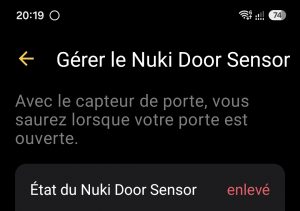
The assistant did everything, he recovered everything and it took me 2 minutes. I went step by step, and once the fields were filled in, all that remained was to validate.

βœ… I turn the switch back on

The result was immediate: the device is reassembled correctly in Home Assistant. The two switches are there, the timers too, and the whole thing finally responds as I expected.

I must say that it feels good to see Tuya equipment finally live its life in my local network, without having to ask for permission from an external cloud for each action.
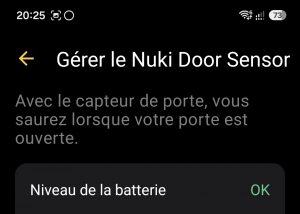
This is even more satisfying when we know that the latter device was also the most sensitive in the house, the one that we do not want to see become capricious at the wrong time.
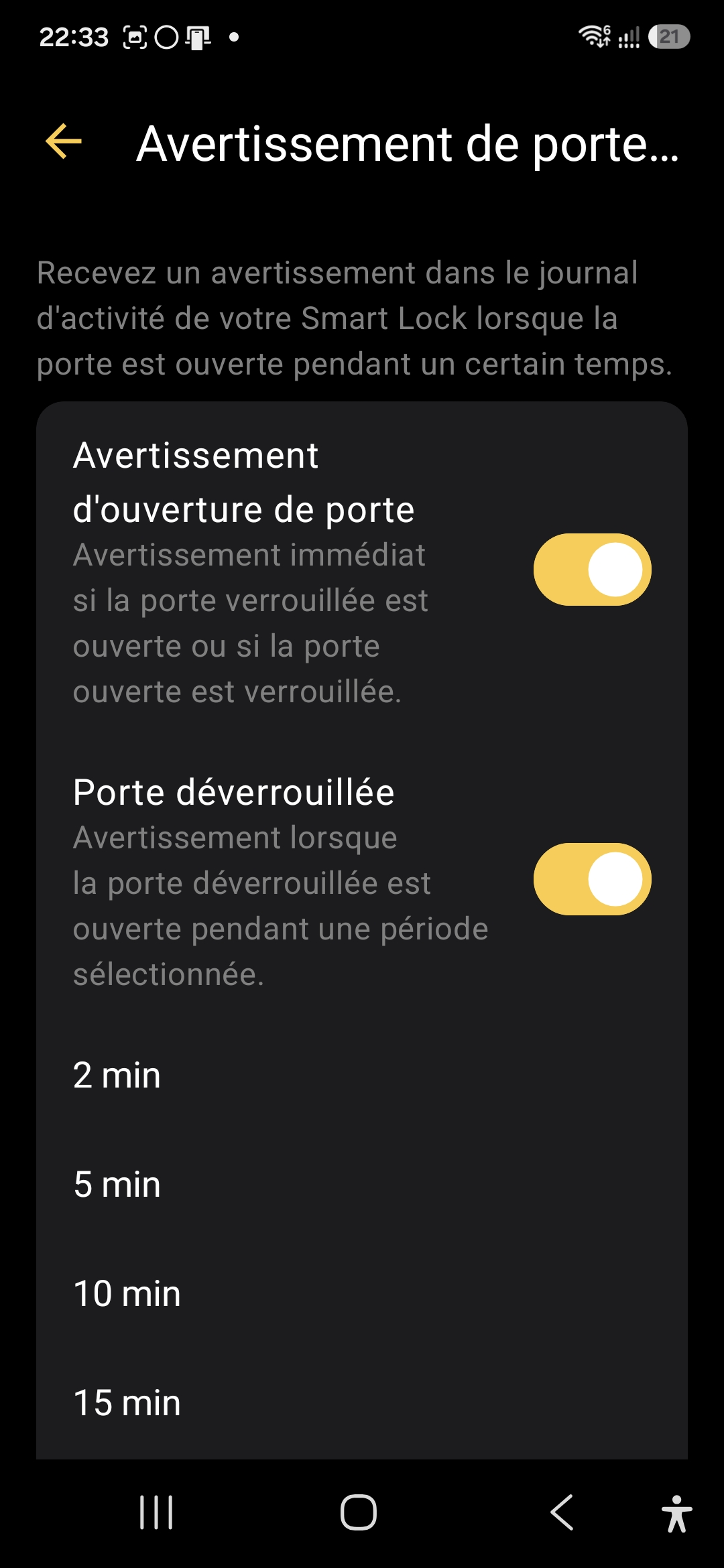
Obviously, I am removing the Tuya integration which no longer serves any purpose.

🧩 I learn from history

In essence, this story confirmed to me what I have been thinking for a while: I prefer by far local, simple and predictable solutions.

With Tuya, I have always been wary, because too often I have seen integrations that fail, states that go wrong, or Zigbee devices that load the network instead of serving it.

I am not saying that everything is bad at Tuya, but in my house I have clearly made my choice.

This last switch is now in Home Assistant, locally, under control, and especially far from the whims of the cloud. It was the last Tuya in the house. He held on, but he ended up losing the cloud battle but stays alive locally.