I add a Door Sensor to my Nuki Smart Lock Ultra

📘🔐 Special file: Nuki Smart Lock Ultra

This article is part of my complete file from installation to accessories to home automation.

When I installed the Nuki Smart Lock Ultra on my front door, I have already made a leap forward comfort side: More key to look for, opening from the smartphone, integration into Home Assistant (my home automation platform) … in short, everyday life has become much more fluid.

Then I added the Keypad 2 NFC, Here, the family definitively adopted the lock: Each one has its own code, its own logic, its own habits.

But there was one question that I asked myself a little too often:

“OK, the lock is locked … but is ‑ what the door Is it really closed?”

That is when I decided to add the Nuki Door Sensor.

🧲 Why a Door Sensor on an already connected lock?

Without Door Sensor, the Nuki Ultra knows very well in which position the lock is located: locked, unlocked, in action.

On the other hand, it does not know nothing of the State physics of the door: Closed, open … all this remains invisible without a dedicated sensor.

As a result, you can end up with:

  • a Door poorly closed but locked (yes, it is possible …);
  • automatisms that lock when the door is not stopped;
  • zero alert if the door remains open “a little too long”.

The Door Sensor brings this missing information to the Smart Lock: it allows Nuki to know if the door is closed or open, and to take this into account in the app, notifications and integrations (Home Assistant, other systems).

🚪 Why not a Zigbee or Matter door/window sensor?

That was my first idea: I could have checked that the door was closed with a Zigbee or Matter home automation sensor, connected to Home Assistant (or any other home automation box), as I already do for other doors and windows.

And Yes, it works. But the real difference with the Door Sensor Nuki’s position is that this equipment is part of theNuki Ecosystem :

  • the Door Sensor communicates continuously with the lock;
  • the Lock adapts his behavior depending on the condition of the door (open/closed);
  • everything is configured in the same place, in theNuki App, without going through Home Assistant.

For example, the lock will not move until the door is closed, and conversely, as soon as the door is closed, the lock can lock automatically.

Obviously, all this is configured via the Nuki app, in an integrated and independent way, without the need to open Home Assistant. For a beginner, it is much simpler: a single app, a single universe.

🧩 What does the Nuki Door Sensor look like?

Door Sensor Nuki

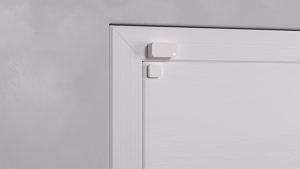
The Door Sensor It consists of two components:

  • one Magnetic Sensor (the “big” module), to be fixed on the framework the door;
  • one magnet discreet, to be fixed directly on the door.

Both are mounted on the inner side, like the Smart Lock. The sensor measures the magnetic field issued by the magnet and, based on this measurement, determines whether the door is considered closed or open.

⚠ Important:

  • the Door Sensor is planned for the wooden or plastic doors ;
  • the metal doors and sliding doors are not supported (the metal disrupts the measurement, and the sliding doors are completely out of the intended geometry).

If your front door is made of metal, this sensor is not suitable: it will then be necessary to start on another solution (classic home automation sensor + logic in Home Assistant, for example).

🧪 Nuki sensor vs “classic” aperture sensors (binary ON/OFF)

This is where Nuki makes a choice technological very different from our famous small door/window sensors Zigbee/Z-Wave at 10–20 €.

🔌 How does a conventional magnetic contact (Reed) work?

Conventional door/window sensors are usually based on a Reed Switch :

  • the magnet is close → the metal slats of the Reed touch → the circuit is closed ;
  • the magnet moves away → the slats separate → the circuit is open.
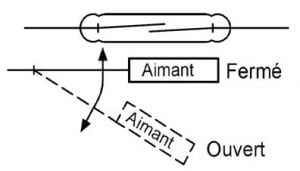
Reed switch

This is binary, ultra simple, very robust … but limited:

  • the sensor only “includes” ON/OFF (near/not close);
  • He can't tell the difference between slightly ajar and wide open door : as soon as the tipping distance is exceeded, it is “open”, point.

It is perfect for many uses (perimeter alarm, simple opening info), but we remain on a logic all or nothing which does not take into account the small mechanical nuances of the door.

💶 What Nuki does more (and why it's more expensive)

The Door Sensor Nuki’s switch is not limited to a simple binary Reed switch: he uses a Magnetic Sensor more sophisticated measuring theMagnetic field strength generated by the magnet.

Nuki does not specify whether it is a Hall effect sensor or a magnetoresistive sensor.

During calibration, the sensor records the signal value in different positions:

  • door closed ;
  • door open (with a gradual shift between the two).

Next, Nuki defines internal thresholds to decide whether, at a moment T, the door should be considered as closed or open. You only see “closed/open” in the application, but behind it the logic takes into account several intermediate values.

The system is therefore finer a simple gross ON/OFF: it takes into account a range of values, which improves the tolerance to micro‑variations (door play, expansion, slight position deviations, etc.).

I had the feeling that this sensor has a form of Learning capacity : the first tests were average and, little by little, it seems to “understand” the state of the door more and more.

Specifically, the technology chosen and the intelligence behind it explain:

  • the higher price from Door Sensor compared to a simple alarm contact;
  • the fact that it is thought of as “integrated” accessory the Nuki ecosystem (in terms of design, app, notifications, Matter, etc.), and not as a generic 2-wire sensor.

For a beginner, this can be summarised as follows: a conventional Reed sensor answers just “yes/no”, Door Sensor Nuki observes a little more finely what happens, and in addition he discusses directly with the lock.

🛠 Installation on my door: simple, but to be treated

Installation wizard

As for the Smart Lock Ultra, Nuki offers a very well done assistant in the app. But there are still some subtleties that deserve to be well respected.

🧽 1. Surface preparation

Nuki recommends:

  • from cleanse the bonding area (alcohol/soft cleaner);
  • check that the surface is flat and dry, so that the sensor mounting plate adheres properly.

A sensor that has a slight play on its base is the door open to false positives … (in every sense of the word).

📍 2. Positioning of sensor and magnet

Official rules:

  • the sensor attaches to the framework ;
  • l’magnet on the door, inner side.

Two large possible configs :

  • Door and frame at same level → mounted magnet in parallel the sensor;
Mounting variant A Mounting variant A - other view
  • Door recessed or protruding → magnet mounted at 90° on the song of the door, but always in front of the sensor.
Mounting variant B Mounting variant B - other view

And above all:

the distance between the sensor and the magnet shall be between 0.5 and 3 cm, door closed.

Door Sensor mounting diagram

Nuki also gives a visual cue with the LED and the small mark on the sensor to align the bottom of the magnet in the right place. For a beginner, really follow the diagram: Do not place “eye”, follow the markers.

🔋 3. Powering on and pairing

The sensor works on a battery ER14250. When it is first put into service (withdrawn tongue), it is put into service. maintenance mode, ready to be added.

From the Nuki app:

  • Menu → Manage devices → Accessories → Nuki Door Sensor ;
  • the assistant is followed, the lock detects the sensor using Bluetooth;
  • once paired, we clips the sensor on its mounting plate.

If you want to reset/modify the installation later, you can use the anti-‑sabotage button on the back to return it to maintenance mode. To put it simply: If you change the place of the sensor, remember to put it back in this mode before starting the procedure again.

🔁 Calibration: the step where you don’t have to rush
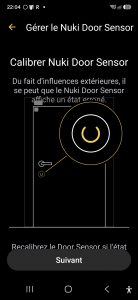
Calibration screen

Calibration is the moment when the Door Sensor “learns” what a door is closed and a door open on YOUR specific installation.

The assistant asks you, step by step:

  1. from close the door → sensor records the ‘closed door’ value;
  2. dopen the door according to the instructions → the sensor records the values associated with the open position.

Nuki insists very clearly on one point in his doc:

it is necessary move the door slowly during these steps, so that the sensor correctly detects variations in the magnetic field.

For a beginner: Do not skip this step, take the time to follow exactly what the app is asking for, without forcing or going too fast.

😅 My galleys (and how I got away with it)

I'm not going to lie: I did not behave perfectly at first.

For example, I had:

  • physically closed door, displayed “open” in the app;
  • or a state that took time to update.

Going to see la Nuki Troubleshooting Doc, the main common causes are:

  • sensor/magnet distance a little too limited (I have often been too close);
  • Boiled Door too fast when calibrating (yes, it is written in the doc and everywhere and I was going too fast);
  • light mechanical play in the door;
  • sensor badly plated on its support (yes, I moved the sensor several times and the double-sided one needed to be redone).

On this last point, there is a trap with a small sensor anti-snapping (or “anti-sabotage”).

Anti-snapping sensor

If the double-sided is not nickel, this small sensor blocks everything and a special state appears:
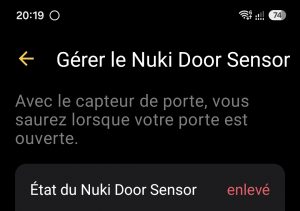
Door Sensor removed

“Removed” is very clear: the sensor no longer touches its base completely, it is necessary to redo the holding of the double-sided to have instead, on this screen, the normal state of the Door Sensor and battery:
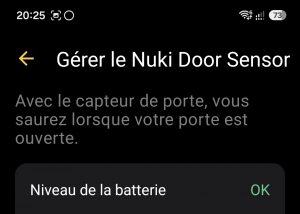
Door Sensor OK

If Nuki has provided for this status to be displayed “removed”, is that many users have had the concern. Well thought out, but it surprises the first time.

What I did to stabilise all this:

  • relaunch a recalibration since: Smart Lock → Settings → Manage Door Sensor → Calibrate Door Sensor ;
  • be much more slow in door movements (yes, really slow);
  • adjust the position of the magnet a little to stay well within the 0.5–3 cm range;
  • check that the sensor was properly clipped without play.

Once this combo was respected, the behavior became frankly reliable.

📱 What it changes in the Nuki app

Once the Door Sensor operational, the Nuki app no longer merely displays:

  • 🔒 locked / unlocked (state of the lock),

but also:

  • 🚪 Closed door / Open Door (Door condition).

Door state in the Nuki app

Combinations of the following type can therefore be seen:

  • Door closed + lock locked → perfect;
  • Door closed + lock unlocked → someone is at home;
  • Door open + lock locked → to be monitored;
  • Door open + lock unlocked → door really open.

🔔 Notifications and Alerts
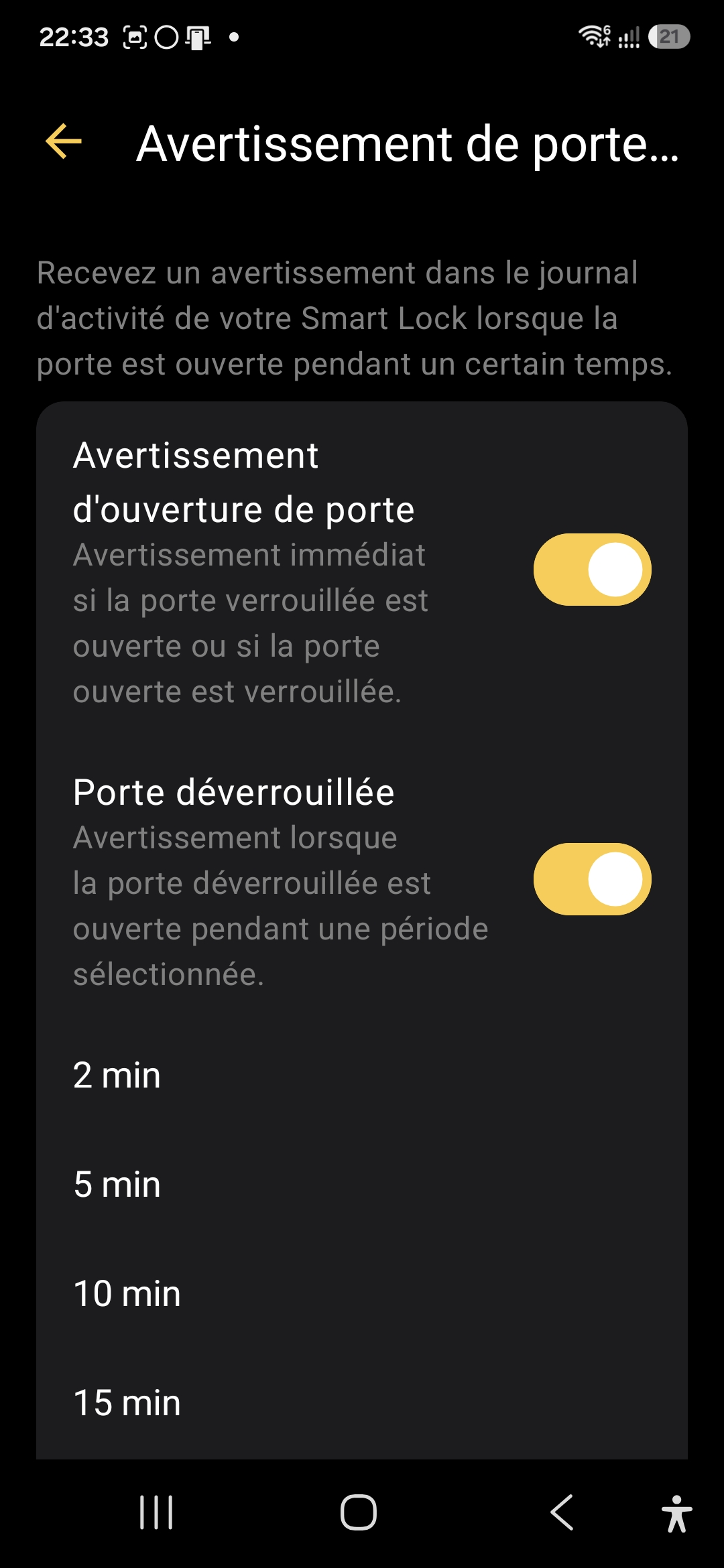
Door Sensor Notifications

The app allows you to configure notifications related to the condition of the door:

  • alerts if the door remains open too long;
  • alerts if the lock tries to lock while the door is not closed.

For a front door, this is exactly the kind of detail that ends up counting on a daily basis. Everyone can choose what they want to do: be notified all the time, only in absence mode, or not at all.

🤓 And on the home automation side, what does it look like?

As I explained in I connect the Nuki Smart Lock Ultra to my home automation :
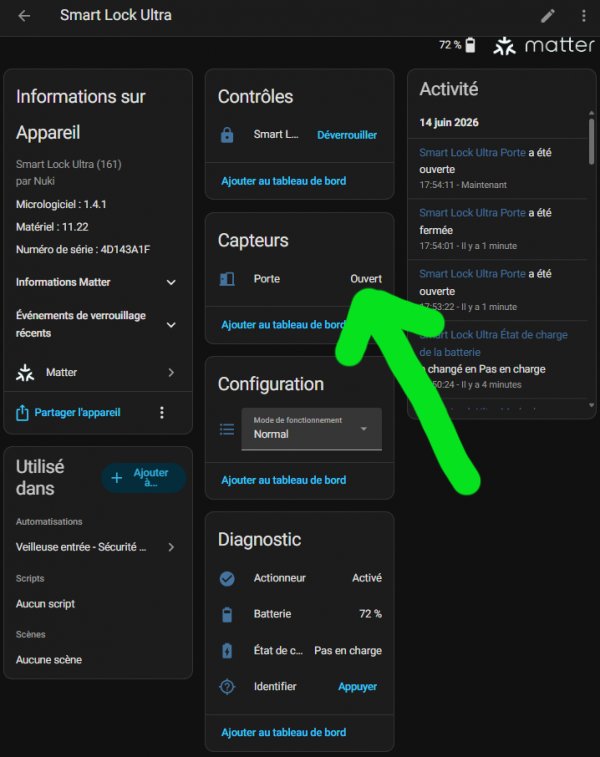
Nuki Entities in Home Assistant

The status of the door (Open or Closed) can be found in Home Assistant, whether in MQTT or Matter.

Indeed, on the side of home automation integrations (Nuki Hub, MQTT, Home Assistant), we see that the Door Sensor is exposed as separate entity, in addition to the lock:

  • an entity lock.xxx for the Smart Lock;
  • an entity binary_sensor.xxx_door (or equivalent) for the condition of the door.

Some Matter/SmartThings drivers consider that anything that is not “closed” is treated as “open”. In other words, if it is not explicitly closed, it is considered open.

From there, we can imagine scenarios in Home Assistant:

  • prevent an automatism from locking if doorState!= closed ;
  • trigger an alert if the door switches to “open” while the house is in “Absent” mode;
  • turn on the ‘closed → open’ transition input lighting after dark.

For beginners: You don't have to get into this from day one. The Door Sensor already works very well with the Nuki app alone. The Home Assistant part is a second stage to go further.

✅ My opinion after installation

After a few weeks of use, my feeling is clear:

  • The Door Sensor is the brick that was missing for the Nuki Smart Lock Ultra to have a coherent view of the whole lock + door.
  • The technological difference with a simple magnetic contact explains the price : we are no longer in the small generic binary sensor, but in an integrated module, calibrated, designed to work hand in hand with the lock.
  • On the usage side, the ‘door remained open’ notifications and the possibility to exploit the state of the door in Home Assistant bring a real plus in comfort and security.
  • The real plus is that the lock lock locks a few seconds after the door is closed: it’s impressive, totally brilliant … and you get used to it way too quickly!
I connect the Nuki Smart Lock Ultra to my home automation

📘🔐 Special file: Nuki Smart Lock Ultra

This article is part of my complete file from installation to accessories to home automation.

When I installed the Smart Lock Ultra At home, I quickly had this pleasant feeling: “Okay, there I switched to another category of connected lock”.

With the Keypad 2 NFC, I settled the question of everyday life: how to enter the house without taking out your phone, without a key, without instructions for use.

There was one outstanding point, the most interesting for me: How can I make sure that my lock is not “just” connected, but really integrated into all my home automation? How do I get her to talk with my scenarios, my sensors, my automations, in short, everything I have already built around Home Assistant and my ecosystem?

This is exactly what this article is about: the three possible paths, what I tested, what I kept … and what I will not do again.

🧭 Three paths for a single lock

When you go into the lock settings, into “Functions & Configuration” and then “Smart Home”, Nuki offers three main integration families:

  • Connection via Matter (Apple Home, Google Home, Amazon Alexa, Samsung SmartThings, Homey, Home Assistant…)
  • Local integration via MQTT, for advanced home automation platforms (Home Assistant, Homebridge, Jeedom, Loxone, OpenHAB, etc.)
  • Integration web via Nuki Web, initially designed for old hubs and some cloud integrations

On paper, Nuki ticked all the boxes: open standard (Matter), home automation geek protocol (MQTT) and more “classic” web integration.

In real life, these three paths do not make the same experience at all. I therefore decided to approach them one by one, with one question in mind: “does it fit neatly into my ecosystem, and does it remain consistent with my search for local-first and sovereignty?”

🏠 Matter: the “official” multi-ecosystem pathway

✨ Why I started with Matter

Matter is the new grand standard meant to unify Apple Home, Google Home, Alexa, SmartThings and others.

The Smart Lock Ultra supports it natively, via Thread, with the following idea: a single integration, and behind all ecosystems know how to speak to the lock.

On the Home Assistant side, Nuki even joined the Work with Home Assistant programme, which means that the Matter integration has been tested and validated by the HA team.

For someone like me who has:

  • Home Assistant in the heart of the house,
  • some connected speakers,
  • one-off uses with Google / Alexa,

So Matter looks like the natural way to start.

🔌Connection via Matter

The Matter pairing is done globally as for any other equipment: one activates Matter/Thread in the Nuki app, one goes through the compatible hub (Home Assistant, Apple Home, Google Home, etc.) and the lock appears with its entities (state, locked/unlocked, battery, door sensor according to configuration).

I check my hub Matter

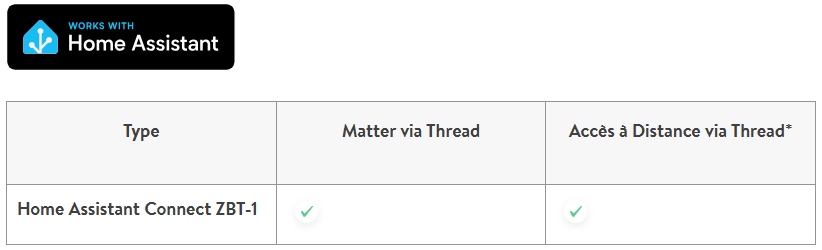
I check that my hub is compatible, the List of compatible hubs is given in the documentation.

I have a ZBT-1, it is perfect, I am surprised that the ZBT-2 is not present in this table.

There are two modes of dialogue, as the table shows, I take two minutes to understand.

🏠 Matter via Thread: integrate the lock into my home automation

The first mode is the one I really use to bring Nuki into my home automation world.

Matter via Thread allows me to attach the lock to Home Assistant and see it as a full-fledged piece of equipment in the house.

The interest is simple: I can control the lock, know its condition, integrate it into my automations and have it interact with the rest of my installation.

This is the most logical solution if integration is to be clean, standardised and compatible with several ecosystems.

📡 Remote Access via Thread: more direct remote access

The second mode is remote access via Thread.

In principle, it does not serve to better integrate the lock into the home automation, but to make it reachable remotely without going through the built-in Wifi of the lock.

Interest is a more direct, modern and potentially energy-efficient architecture, with Thread as the basis for communication.

On the other hand, this method imposes certain technical conditions: Nuki requested that the hub provide internet access and support NAT64. Nuki even states that Thread devices will only have access to the Internet if NAT64 is activated on the hub.

In practical terms, this means that Home Assistant must not only manage the lock locally: it must also be able to act as a Thread border router and bridge the gap between the Thread network, which runs on IPv6, and the necessary Internet access for the remote service.

This requires installing the OpenThread Border Router add-on in Home Assistant, enabling NAT64, and verifying that the correct border router is being used by the lock.

Attention should also be paid to the network itself: if more than one Thread border router is present, the lock may be associated with the wrong one, which may block access to the Internet.

In practice, therefore, it requires a clean configuration, a single active Thread router or at least clearly defined as the preferred network, and a network stack that correctly accepts IPv6 and NAT64 translation.

⏳ What I do now

For my part, I have decided not to go further than Matter via Thread for the time being.

I would like to finish the three-mode test before going deeper into Matter.

I prefer to keep this evolution for later, when I will have more time to put it in place properly and above all to derive a real concrete benefit from it.

The Nuki application

On the Remote Access switch button, I understood that it corresponds to Remote Access via Thread, it is really not easy to understand if you do not dive into this issue.

When I try to activate it, the button returns to the disabled state, so the conditions for activating Remote Access via Thread are not met.

On Home Assistant

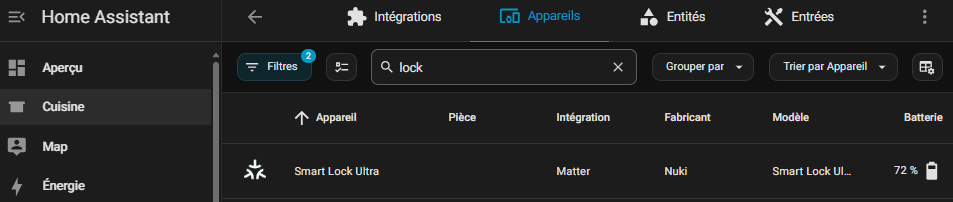
The equipment has therefore arrived well in the list of Matter Devices.

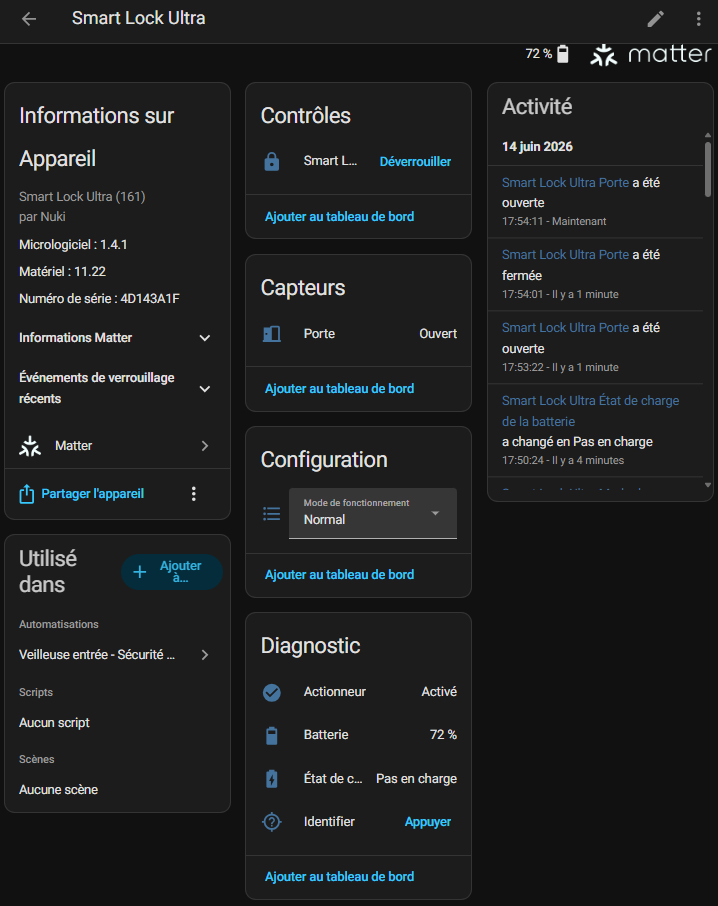
The sensor proposal is complete.

The main sensor that drives the lock was created in lock.smart _lock _ultra, I will rename it and turn the sensor into lock.smart _lock entere

I have a Nuki sensor Door Sensor which makes it possible to know if the door is open or not. I don’t mention it here either, but I can see the state of the (open/closed) door here.

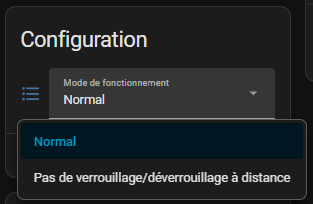
The select.smart _lock _ultra_mode_de_functioning sensor is a particularly relevant configuration parameter, bravo to developers. For those who do not want to be able to unlock their lock remotely, simply change this sensor.

Both options speak for themselves, I tested and quickly understood. I'll leave it to normal. As I will not touch this configuration, I disable this sensor in HA.

Finally, the diagnostic tools framework will be able to create automations or notifications if something goes wrong.

I played with the button Identifier, the sensor button.smart _lock _ultra _identifier at home, which flashes the lock, it is just a pity that the flashing does not reflect the state of the lock. This would allow the status to be visually checked via this command.

Benefits that I quickly noticed:

  • Everything is managed locally, no need for Nuki cloud to control the lock from my home automation server.
  • The integration in Home Assistant is clean, recognised, and the entities go back correctly.
  • Voice assistants can follow, each on their own, without me having to multiply the specific integrations.

In short, Matter does what he promises: it simplifies multi-ecosystem integration, with a “once and for all” logic.

⚖ Where Matter shows its limits

For mainstream integration and for the WAF, Matter is fine. But for a homebuilder who likes to drive everything by the millimetre, it is less flexible:

  • The granularity of events is more limited than what can be achieved with MQTT (e.g. the last precise action, some fine states, etc.).
  • We remain dependent on how each hub implements Matter and exposes entities and events.
  • Advanced diagnostics, for debug or fine-tuning of automations, are more difficult to obtain than with a detailed MQTT flow.

To sum up, I kept Matter as a “universal” compatibility layer (and for voice uses), but this is not where I found the finest finesse for my advanced home automation.

📡 MQTT: the Path of Demanding Domoticians

🔍 Why I turned to MQTT

Alongside Matter, Nuki offers MQTT integration directly from the lock, via Wi-Fi or Thread. The idea is simple: the lock publishes its status (locked, unlocked, open door, battery, etc.) on MQTT topics, and accepts commands to open or close.

The advantages, on the home automation side:

  • Widespread protocol, supported by Home Assistant, Jeedom, Homebridge, Loxone, OpenHAB and company.
  • Local integration, real-time, without going through the Nuki cloud.
  • Automatic discovery in Home Assistant possible (auto-discovery), which makes integration much simpler than you might initially imagine.

On forums and blogs, there is also a lot of very positive feedback: Some have even built 100 installations. % local with Nuki + MQTT + Home Assistant, without ever opening any port to the outside.

⚙ How I integrated it into my installation

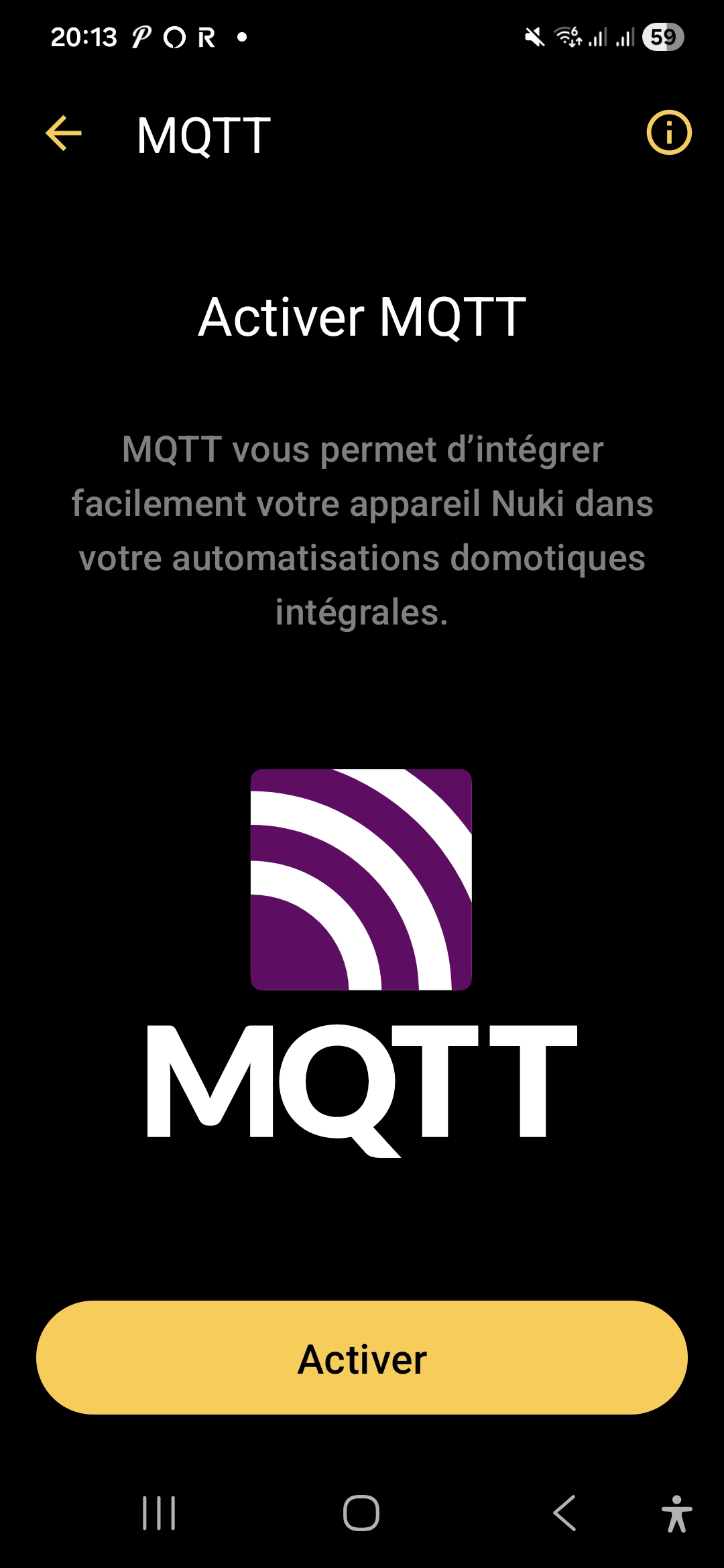
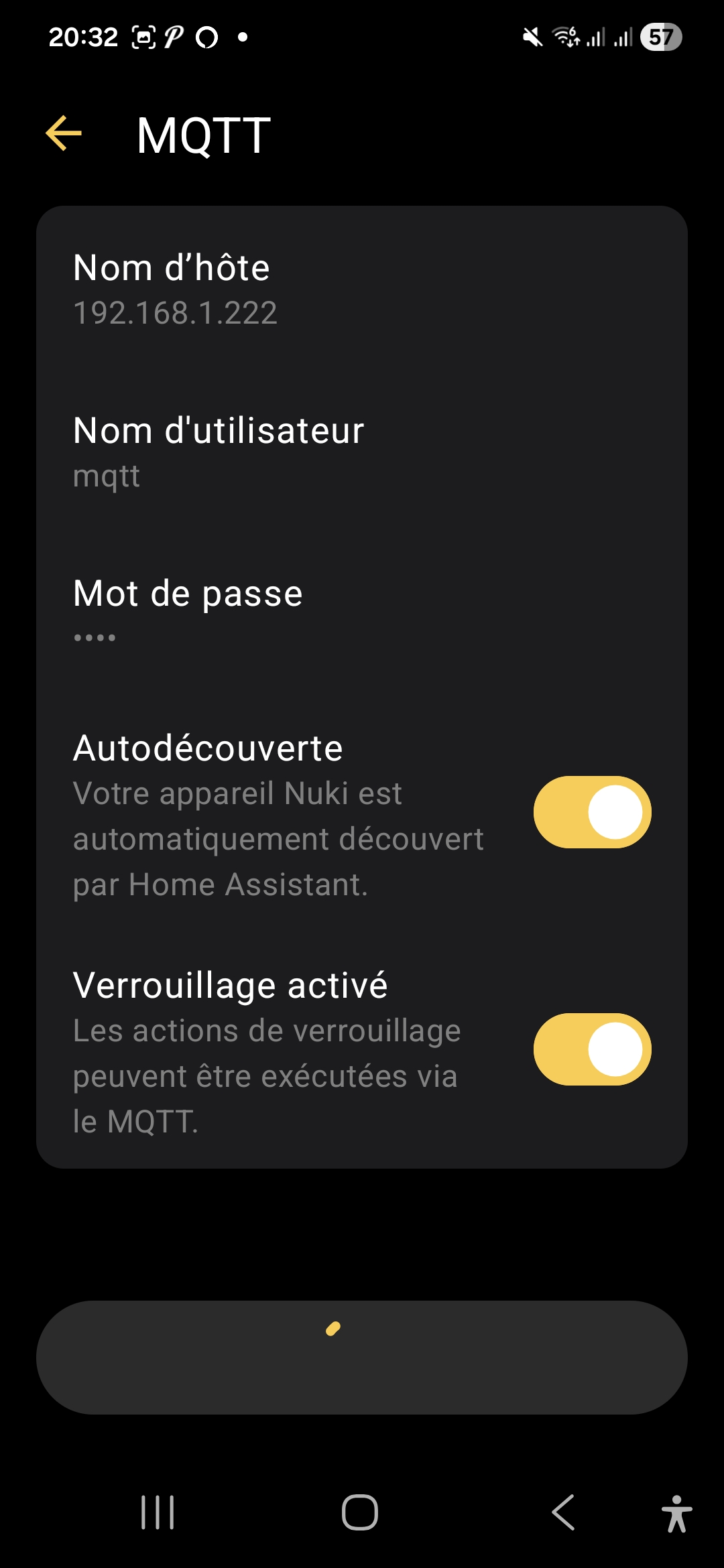
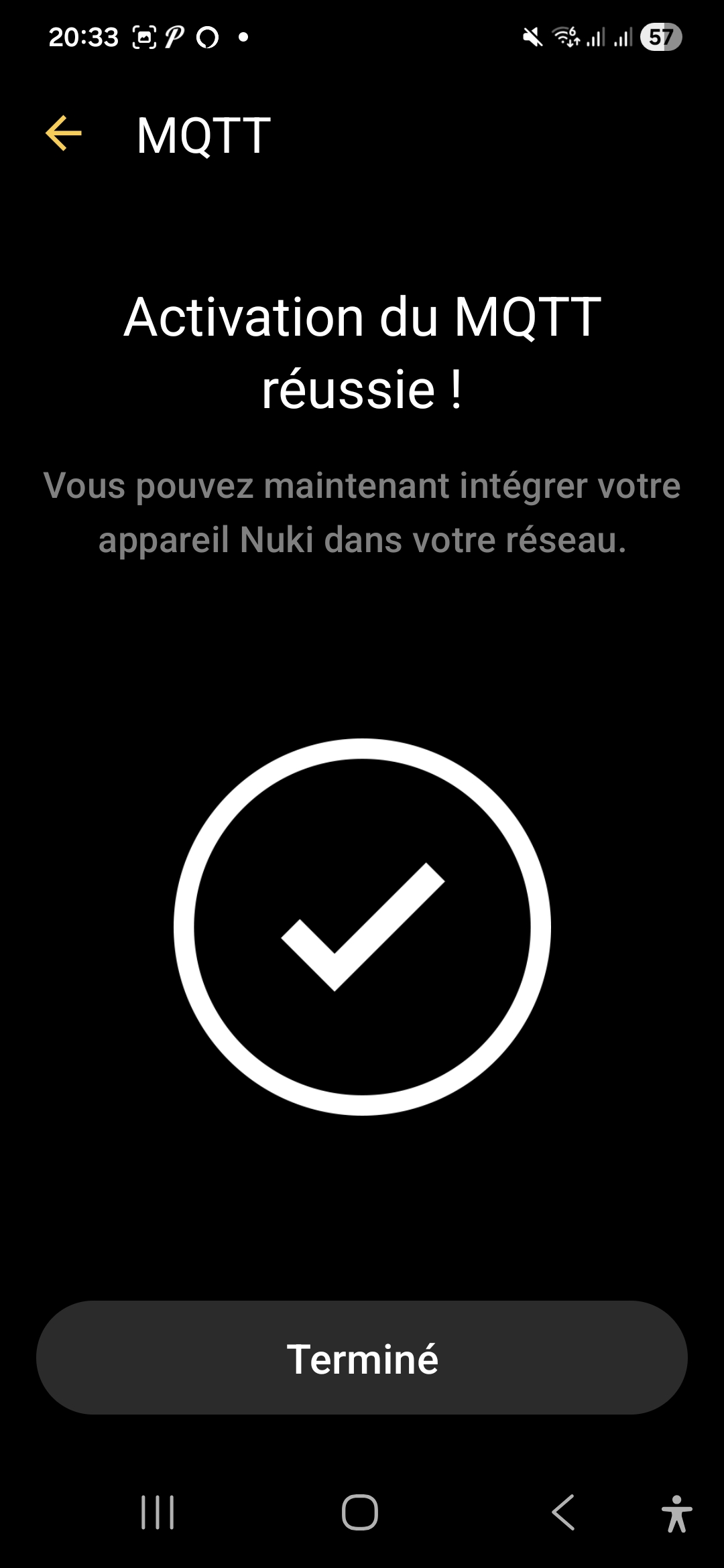
In the Nuki App, activation takes place via:
‘Lock settings’ → ‘Functions & Configuration’ → ‘Integrations’ → ‘Smart Home’ → ‘Configure MQTT’.


On the Home Assistant side, with the auto-discovery enabled, the lock goes up on its own as an MQTT entity, just like a Zigbee2MQTT module for example.

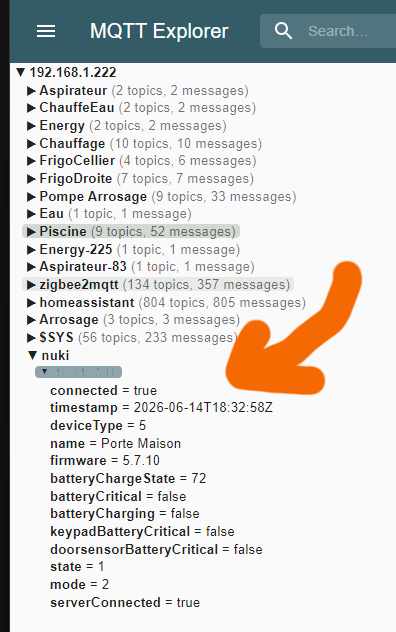
To check this, I used to use MQTT Explorer, here is the result.

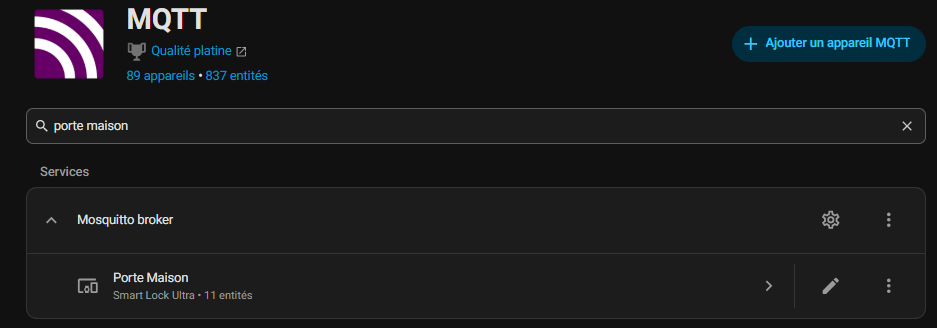
The name sent to MQTT is the one I put on the ‘Door House’ lock, which is how the new MQTT device was named. I note that there are 11 entities that date back.

🔧 The 4 controls

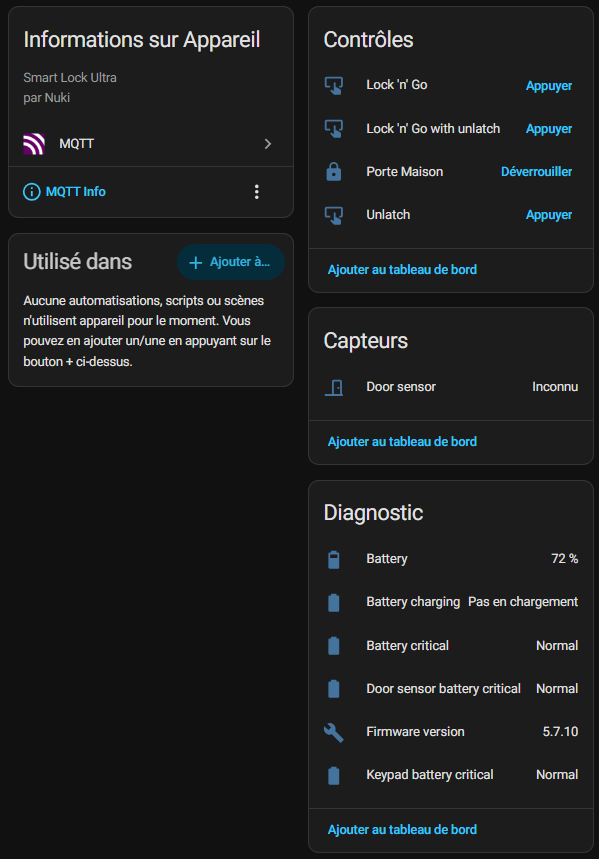
When I open the MQTT integration of my Nuki in Home Assistant, I find 11 entities, including 4 commands.

These first 4 commands are not all useful for all users.

They depend mainly on how the door opens and the Exterior Hardware Store : handle, knob, bar, or other configuration.

Nuki explains that the behaviour changes depending on the type of external handle:

  • with a handle, Nuki unlocks the door and you still have to press the handle to enter;
  • with a button / knob / bar, Nuki can also pull the bolt and open the door more completely.

🚪 Gate House

lock.porte _maison

This is the main action of the lock. This is the one I use every day to lock or unlock the door normally. If I had to take only one check, it would be that one.

🏃 Lock 'n' Go

button.door _house _lock _n _go

This mode serves me when I leave home. I trigger the action, the lock lets me out, then it automatically locks again after a few seconds. It’s convenient when I want to make sure I don’t forget to close behind me.

🚪 Lock 'n' Go with unlatch

button.porte_maison_lock_n_go_with_unlatch

This is the fuller version of the previous mode. There, the lock does not only automatically lock after exit, it also releases the door during action. This is useful when a clearer opening is needed, depending on the configuration of the door.

🔓 Unlatch

button.door _maison _unlatch

This action is used to open the door “for real”, releasing the mess. It is not just a simple unlock: it is the mode that allows the door to open immediately, without any additional effort.

🔧 The Sensor

🚪 Door sensor

It is the sensor that tells me whether the door is open, closed or in an uncertain state. This is very useful because it allows me to know not only if the lock is locked, but also if the door is actually closed.

🔧 Diagnosis

🔋 Battery

This one simply indicates the battery level of the lock. This is basic information, but essential to avoid unpleasant surprises.

⚡ Battery charging

This entity tells me whether the lock is charging or not. It is useful to quickly check if the feeding is going well.

🚨 Battery Critical

It is an alert indicator. If it turns red or critical, it means that the battery is too low and must be intervened.

🚨 Door sensor battery critical

Same logic, but this time for the battery of the door sensor. If this sensor is battery powered, this entity warns me when it becomes too weak.

🧠 Firmware version

This entity displays the firmware version of the lock. This is especially useful for technical monitoring, updates and diagnosis.

🚨 Keypad battery critical

This concerns the battery of the keypad. If I use an input keyboard, this entity lets me know when its batteries start to fade.

🛡 Limits and Precautions on the MQTT Side

Not everything is perfect either, and there are a few things to keep in mind:

  • The MQTT communication is not encrypted by default: it is based on network security (Wi-Fi / Thread) and user/password authentication.
  • The MQTT broker must be considered as a sensitive point of the infrastructure, to be seriously protected (no broker open on the Internet, management of ACLs, network segmentation, etc.).

However, for a house already equipped with an MQTT broker and a well-established Home Assistant, this is probably the best compromise between flexibility, performance and sovereignty.

☁ Web integration: the ‘Historical Cloud’ mode

🌐 Nuki Web, what's the point?

Before Matter and MQTT, Nuki already offered Nuki Web, a cloud gateway to remotely control the lock, have access logs and integrate certain external services (Alexa, Google Home, some older hubs, etc.).

🧪 Why I chose to keep it in the background

Web integration remains interesting for:

  • certain remote management functions (journal consultation, management of users on the move),
  • environments where you do not want to enter MQTT or where Matter is not available.

This message makes it clear that my data will go to Nuki’s cloud server when that is precisely what I am trying to avoid.

So, in my case, there are two things that make me treat it more like a spare wheel:

  • I prefer mostly local control, with as little dependence as possible on a third-party cloud service.
  • Matter and MQTT already cover most of my integration and automation needs.

As a result, Nuki Web remains disabled at home, but I think my architecture as if everything should continue to work even if the Nuki cloud is cut, so that nothing can be sent outside.

🧪 I compare Matter and MQTT

📡 Sensors available

For this part, I mainly look at what each integration actually goes back to in Home Assistant, because this is often where the difference can be seen right away.
Matter gives me the essential information to control the lock and track its condition, while MQTT reassembles more diagnostic sensors and technical information.

Sensor / Entity 🥈 Matter 🥇 MQTT Reading
Door ✅ ✅ Both integrations can be traced back to the opening or closing state of the door.
Battery ✅ ✅ In both cases, I find the battery level of the lock.
State of charge ✅ ✅ Both solutions indicate whether the lock is loaded or not.
Critical battery ✖ ✅ MQTT exposes a finer level of diagnosis on the state of the battery.
Critical Door Sensor Battery ✖ ✅ MQTT also raises an alert dedicated to the door sensor.
Firmware version ✖ ✅ MQTT provides useful technical information for monitoring and diagnosis.
Critical Keypad Battery ✖ ✅ MQTT also tracks the critical state of the keypad battery.
Mode of operation ✅ ✖ Matter exposes here an interesting configuration parameter directly in Home Assistant.
Identify ✅ ✖ Matter also allows the lock to react visually to identify it.

On a daily basis, Matter is more than enough for simple, clean and immediate use.

On the other hand, MQTT clearly goes further as soon as I want to monitor the lock in detail, recover more complete diagnoses or exploit ancillary information such as that of the keypad or door sensor.

⚡ The speed of reaction

Historically, the difference between Matter and MQTT is quite telling.
Matter mostly goes back to the final state, while MQTT also displays intermediate transitions such as “locks” and “unlocks”, giving a finer reading of the lock’s behaviour.

Event 🥈 Matter 🥇 MQTT Reading
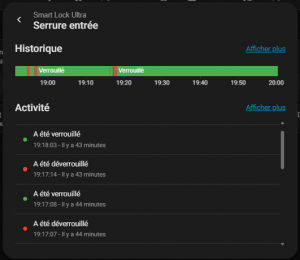
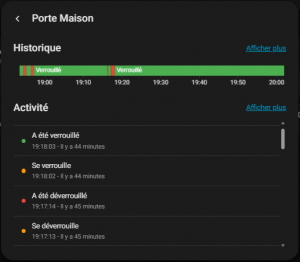
Locks — 19:18:02 MQTT displays the transition first, before the final state.
Has been locked 19:18:03 19:18:03 Both then go back to the final state at the same time.
Unlocks — 19:17:13 MQTT displays the transition first, before the final state.
Has been unlocked 19:17:14 19:17:14 Both then go back to the final state at the same time.
Unlocks — 19:17:04 MQTT displays an additional transition at the same second.
Is open 19:17:06 19:17:06 Both go up the state of the door at the same time.
Has been unlocked 19:17:04 19:17:04 Both then go back to the final state at the same time.
Locks — 19:16:22 MQTT displays the transition first, before the final state.
Has been locked 19:16:23 19:16:23 Both then go back to the final state at the same time.
Unlocks — 18:56:28 MQTT displays the transition first, before the final state.
Has been unlocked 18:56:29 18:56:29 Both then go back to the final state at the same time.
Locks — 18:55:09 MQTT displays the transition first, before the final state.
Has been locked 18:55:10 18:55:10 Both then go back to the final state at the same time.

🏁 My verdict

What I remember most of all is that Matter is clean and legible, but MQTT gives a more talkative and lively history.
On transitions, MQTT reveals a level of detail that Matter does not show, which makes it more interesting if I want to analyze precisely the reaction of the lock.
But the difference is really minimal, both are immediate and give full satisfaction. Neither protocol is ahead of the other.

🧭 What I keep

For my part, I will keep Matter and MQTT in parallel for a while. The idea is simple: compare the speed of reassembly of states, fluidity on a daily basis, and see which protocol suits me best over time.

In substance, the two approaches are close, and that is precisely what makes the choice interesting. Matter gives me a clean and standardised integration, while MQTT retains the advantage of a finer and more advanced home automation-oriented approach.

So I prefer not to decide too quickly. As long as both work well, I'll let them co-exist to observe what suits me best in my actual setup.

🎯 My Feeling

Honestly, at this point, both Matter and MQTT solutions are close enough for everyday use.

The real difference will be in the comfort of use, perceived responsiveness and how each fits into my Home Assistant automations.

Nuki Web remains an option, but clearly in the background for my use. I keep it as a backup solution or for more cloud / remote access needs, without making it the heart of my installation. Simply sending my personal information to a cloud blocks me at this stage.

In the immediate future, I therefore retain this dual local approach, with a slight advantage for the one that will seem to me the most natural to use.

And if the deviations remain minimal, I will probably choose mainly according to the simplicity of maintenance and the evolution of my installation.

🏁 Conclusion

In the end, the Nuki Smart Lock Ultra ticks exactly what I expect from a modern connected lock: real local integration, several communication options, and above all the possibility of adapting it to an already well-built home automation system.

What I appreciate most is not being locked in a single model.

Matter and MQTT give me the freedom to test, compare, and then keep the solution most consistent with my usage and my vision of the connected home.

Nuki Web completes the table, but for my use it remains in the background, as a complementary option rather than an integration base.

For now, I do not want to go too fast: I let both work, I observe, and then I will see which one will remain as the main solution.

I domotised my bathroom heater with a SONOFF BASIC-1GS (Matter)

🔥 Why I rebuilt this installation

There are home automation installations that are made for the first time, They serve for years, and then we end up revisiting them because the ecosystem around them has evolved.

This is exactly what happened here: I already had domotized the heating of my bathroom several years ago, but this time I wanted to start with something simpler, more modern and, above all, better integrated with Home Assistant.

The original idea has not changed: be able to start heating when I need it, switch it off easily, and integrate it properly into my automation systems.

On the other hand, the equipment has changed: for this new version, I chose to use a SONOFF BASIC-1GS, a Matter-compatible Wi‑Fi module that Sonoff presents as a 10A connected switch designed for simple, local use in Matter and Home Assistant-compatible ecosystems.

Read More

I add a Nuki Keypad 2 NFC to my Smart Lock Ultra

📘🔐 Special file: Nuki Smart Lock Ultra

This article is part of my complete file from installation to accessories to home automation.

When I installed the Nuki Smart Lock Ultra At home, I immediately felt that I had reached a milestone.

Here is the direct link to the previous article: I replace my Danalock V3 with a Nuki Smart Lock Ultra

The lock is faster, more discreet, more pleasant to use on a daily basis, and I finally feel like I have a modern solution.

But after a few days, I realised that I was still missing a link: a simple, immediate and universal way to enter the home, without systematically depending on a smartphone or a physical key.

That's exactly why I added the Nuki Keypad 2 NFC to my installation.

On paper, it is “just” a remote keyboard with fingerprint reader and NFC.

In practice, it is this small accessory that transforms a very successful connected lock into a real family solution, immediately adopted by everyone at home.

🤔 Why I added a Keypad 2 NFC

With the Smart Lock Ultra alone, the experience was already excellent.

I could open with the app, automate scenarios, manage my access and integrate the lock into my home automation installation.

But in real life, there were always the same questions: How does my wife do if she doesn't want to take out her phone? How do my daughters do it? How can I give someone simple access without explaining my home automation? And above all, how can the opening of the door be made as natural as a gesture of everyday life?

The Keypad 2 NFC responds precisely to this need.

Nuki offers several access modes on a single product: code, fingerprint and ‘Tap to Unlock’ via NFC with a compatible smartphone or watch.

👨‍👩‍👧‍👧 A real product designed for the family

The product can handle up to 200 codes, 20 unique fingerprints and 35 NFC keys.

In other words, we are not facing a geek gadget, but rather a system designed for a family, guests, relatives or temporary access.

✨ What this product actually does

What I like about Nuki Keypad 2 NFC, it does not replace the lock: He completes it intelligently.

Installed outdoors, it becomes the easiest entry point for everyone.

You can type a code, put your finger on the fingerprint reader, or approach your phone as you would with a contactless payment.

Apple Home Key or Samsung Digital Home Key can also be used.

And even without a Matter hub, the Nuki app mode already allows NFC to be opened with a compatible smartphone, but with certain usage limits.

📱 Several opening methods

  • Opening by code.
  • Fingerprint opening.
  • NFC opening with compatible smartphone.
  • NFC opening with compatible watch depending on the ecosystem used.
  • Access management directly from the Nuki application.

It is this mixture that makes the product interesting.

Not everyone has the same habits. My wife prefers what is immediate and obvious. My daughters immediately understand the principle of a code or a fingerprint.

For my part, I especially appreciate having several ways to get into the house without ever being dependent on a single method.

🛠 A really simple installation

As is often the case with Nuki, installation is probably the most reassuring thing.

The manufacturer announces a installation in a few minutes, without tools, with a fixation designed for the outside and a guided configuration in the application.

This is exactly the impression I had: the location is chosen, the keypad is fixed, the association is launched in the app, and then the access configuration is set up directly.

📍 The choice of location

I took the time to choose a convenient, visible but discreet location at your fingertips when you arrive in front of the door.

I wanted the use to be obvious from day one, without having to aim for a specific place or make an unnatural gesture.

Once in place, the Keypad 2 NFC integrates very well visually. It remains compact and does not give the impression of a cumbersome technical housing.

⚙ The association with the Smart Lock Ultra

The association with the Smart Lock Ultra was uncomplicated.

The application guides the steps, followed by the creation of access codes, the registration of fingerprints and the setting of rights.

Nuki also provides temporary and individualized access, which allows you to reason quickly in real use.

👨‍👩‍👧‍👧 The test of everyday life at home

The real test was not technical. The real test was the house.

This is always where a connected product reveals its real value: Does it simplify life or add complexity?

On this point, the Keypad 2 NFC clearly surprised me in the right direction.

Acceptance was immediate, and this is probably the best indicator.

💡 An excellent WAF

My wife immediately understood the operation, without explanation. My daughters found the principle obvious, almost playful.

You put your finger down, type a code, approach a phone, and the door opens.

There is no learning curve, no complicated interface, no dependency on an application.

The product disappears behind its use.

🚪 The Uses That Really Change Life

🔢 The Code

The code remains perfect for occasional access or for people who do not want to use an app.

Important point: this is the basis of the operation. You can't configure anything without creating at least one code.

In the Nuki app, I go to Keypad and use:

then

Once the 6-digit code is set, it works immediately.

🧩 Temporary Codes

Nuki makes it possible to create up to 200 codes with precise rules:
– opening hours,
– days,
– repetitions,
– Limited duration.

This is extremely convenient for managing ad hoc access.

Just check "Limited time access" when adding the code.

You can define an hour, a day of the week, a repetition, it is really well thought out.

👆 Fingerprint

This is the simplest method on a daily basis.

For my youngest daughter, who has neither a smartphone nor a connected watch, it is ideal: more key, more risk of forgetting.

With regard to the elderly (grandparents), I have not been able to register certain fingerprints.

👴 Why fingerprints can be a problem?

With age:
– the skin becomes drier (less conductive),
– the reliefs of the footprints are less marked,
– the sensor captures information less well.

Result: the registration may fail.

In this case, the code remains the most reliable solution.

📲 The NFC

NFC is the most “spectacular” feature: We approach his phone as if to pay contactless.

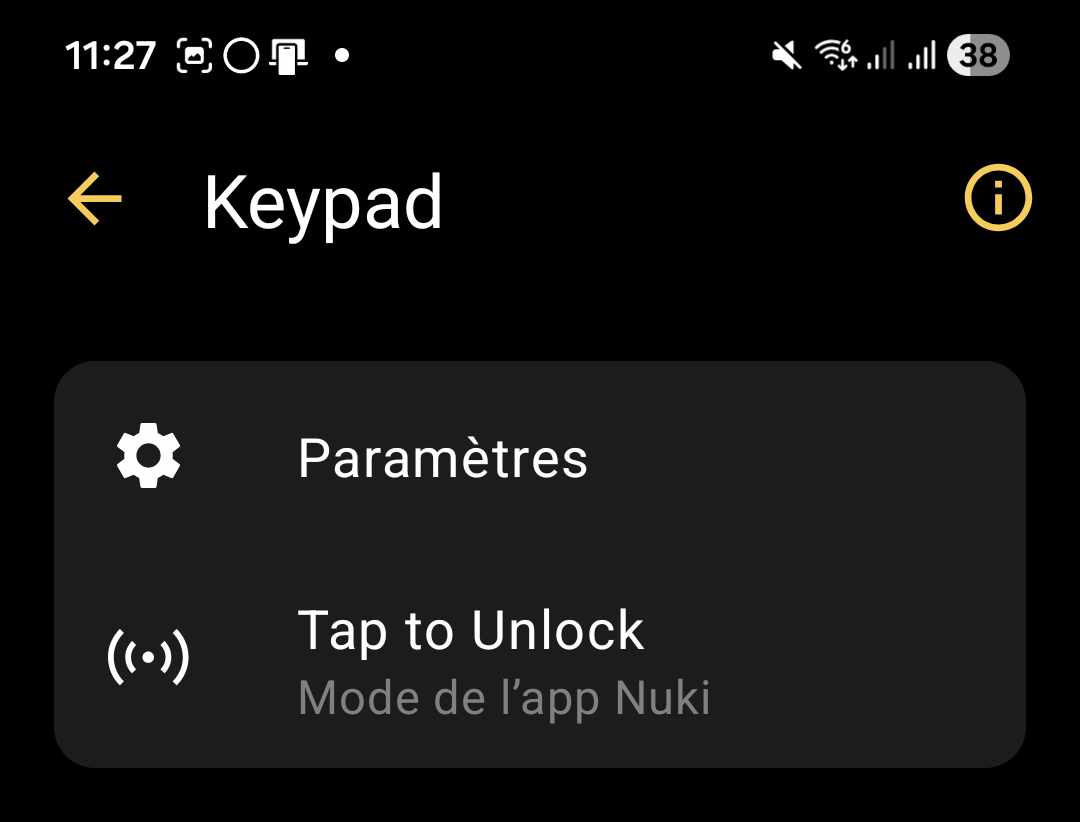
Nuki calls it Tap to Unlock.

📲 The two modes proposed by Nuki

The official documentation is clear: You have to choose a mode.

Nuki app mode Connected Home Mode
It's just a phone call. Smartwatch or phone. 
It must support either the Apple Home key or Samsung Home digital keys.
Unlock your phone first. 
Unlock your phone, then tap it on the Keypad. On iOS, you also need to type a notification. The Nuki app will then unlock your door. No need to open the app manually.
Tap to Unlock instantly.
Unlock using the Home digital key in your wallet. In Express mode, your phone can stay locked.
Nuki app required. Home automation system required. 
You need a Matter-compatible home automation hub. It works with Apple Home and Samsung SmartThings.
Adjust settings and manage users via the Nuki app. Adapt settings and manage users via the Connected Home and Wallet app.
For all users of the Nuki app. For users of the Connected House. 
Must be added via your Connected Home app. iOS users can only add other iOS users, and Samsung users can only add other Samsung users.

NFC 📲 in Nuki Application Mode

I have configured this option: it worked … then non… then again … then more.

This mode requires unlocking the phone, which breaks the experience.

Conclusion: Inconvenient, I give up, especially since it is random.

📲 NFC in Connected Home Mode

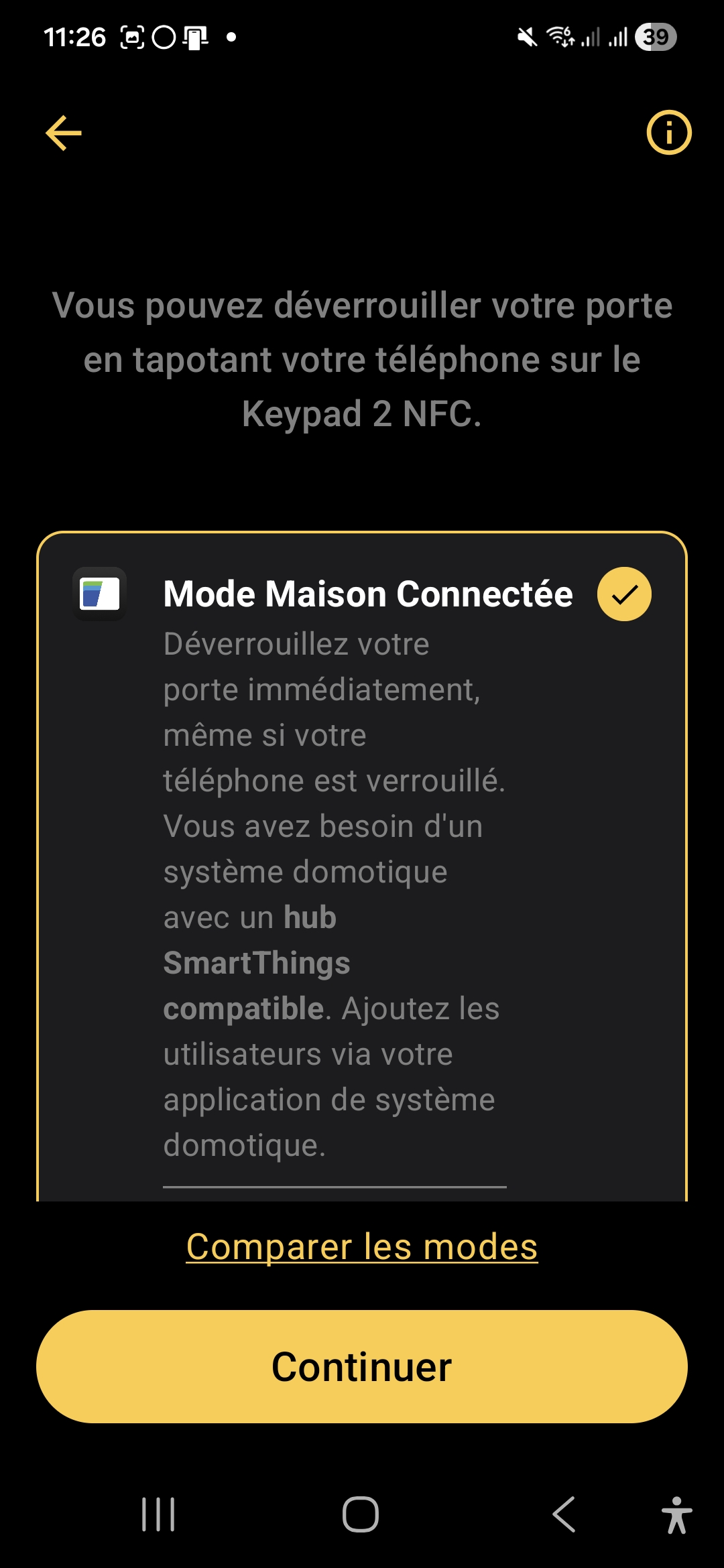
When switching to this mode, the Nuki application gives us these indications:

When I click on Open SmartThings, this switches me to the application SmartThings which was already installed on my smartphone.

And now I'm looking for what I have to do … I can't find, I'm going back to look the Nuki Documentation.

I am told to check that:

  • my lock is compatible, it is ok, it is a Smart Lock Ultra ✅
  • my smartphone must be an Apple, that is not my case, or a mobile device Samsung with Samsung Wallet and SmartThings App. I discover this and I am finally lucky, my Samsung is compatible And I have Samsung Wallet and SmartThings App ✅.
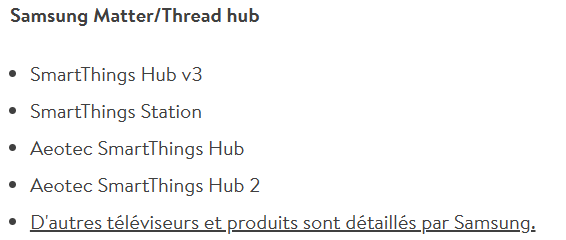
  • I also need a Samsung Matter/Thread hub, This is the ⛔ 😰 cold shower.

I don’t have any of the 4 hubs on offer and the link is failing.

While I had read everywhere, on all Nuki’s publications, the information Matter Hub (see image below), for the first time I am being told about SmartThings Hub. I am concerned about that.

I review the documentation and understand that I have confused two things : Hub Matter and Tap to Unlock compatibility, two very different things.

Now I'm a little lost. I have a Nabucasa hub configured in Matter and at this point I do not know if it will be compatible.

The Nuki Help Page is no longer of much help to me.

During my search, I come across this Declaration : "One of Nuki's core principles is to make the new features accessible to all users, regardless of manufacturer," said Jürgen Pansy, co-founder and Chief Innovation Officer.

At this point, this is at odds with what I just discovered because I understand that Apple and Samsung share the cake together.

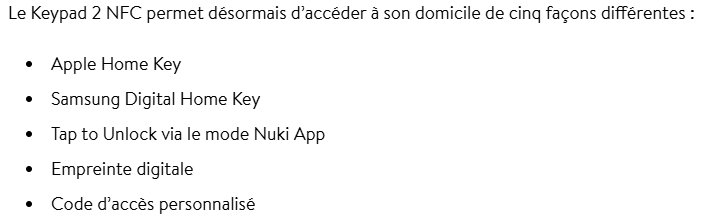
The last 3 are the modes I have already tested. But here the technique used is precise. It is therefore necessary to Samsung Digital Home Key.

📲 Samsung Digital Home Key – what is it?

Recently, Samsung launched a feature that really transforms the experience: the Samsung Digital Home Key. This is the Samsung equivalent of Apple Home Key on iPhone.

In practice, it is revolutionary: Imagine the typical situation where you arrive at your door, with your hands full:

– Phone locked : no need to unlock it
– Without application : No need to open the Nuki app
– NFC : you're just approaching your phone from the keyboard
– Fast : 1-2 seconds

This is automatic, invisible, and that really feels like a digital key.

The Samsung Digital Home Key is based on the standard Aliro 1.0.

Security is maximum :
– The keys are stored in the Samsung Knox Safe Box
– Protection by biometrics or PIN
– We can Disable remote key
– The key is limited to your lock

🔒 Samsung Digital Home Key with Nabu Casa Matter?

Short answer: NO, I can't. ⛔

Without SmartThings app + SmartThings Hub → Digital Home Key IMPOSSIBLE.

🛑 Conclusion on Tap to Unlock

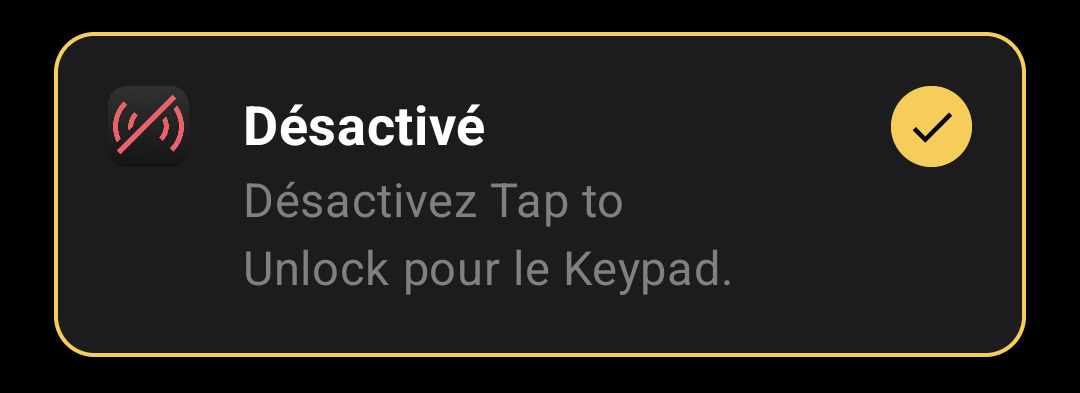
It's time to close on this Tap to Unlock mode, finally, I finish these essays by disabling it.

In the end, I understand Nuki's logic quite well. By relying on the security mechanisms of Apple and Samsung, the brand clearly seeks to provide a smoother, more modern and arguably more reassuring experience.

It is regrettable, however, that moving in this direction is a step away from the idea of digital sovereignty.

In my case, I did not test further, so I do not know if the information remains only on the equipment, or if some data also transits through cloud services.

And it is precisely this point that, in my view, deserves clarification.

🔒 What opening methods do I finally choose?

Finally, on the Keypad, I will use two modes of opening the lock:

✅ The Code, it is in any case essential, I give a permanent 6-digit code.

✅ The fingerprints, two or three fingers per person in my household, we can add 20.

These two modes are mostly used by my daughters when they come home from middle school or high school.

As far as I am concerned, I have activated Auto Lock mode, which automatically unlocks when I arrive close to home. This mode does not use the Keypad.

🛡 Security: the point I didn't want to neglect

On this type of product, the issue of safety is central.

The Keypad 2 NFC is not a simple generic NFC reader or a basic keyboard.

Nuki says it applies end-to-end encryption for every NFC interaction, fingerprint, and code.

🔐 Why it is not just a clonable badge

Concretely, this means that one does not follow the logic of a rudimentary badge that one would easily copy.

👤 The case of fingerprints

Fingerprints are managed locally on the equipment.

⚠ What you need to know before you crack

📵 The question of compatibility

The Keypad 2 NFC is very convincing, but we must keep in mind that if we do not want to sign an exclusivity agreement with Apple or Samsung, we will be really very limited.

🛍 Finally which model of Keypad to choose at Nuki?

  • Between the Keypad and Keypad 2, there is no photo: If I want the opening with the fingerprints, it is imperative to take the Keypad 2.
  • Between Keypad 2 and Keypad 2 NFC, the NFC functionality appeared. The price difference is ‘only’ €20. Which can make you hesitate.

✅ My Feeling After Installation

On a daily basis, the Nuki Keypad 2 NFC brings exactly what was missing from the Smart Lock Ultra : Simplicity of immediate access, without dependence on the smartphone.

It is clearly this small element that transforms a high-performance connected lock into a truly family-friendly solution.

In my use, the code + fingerprint duo is more than enough and covers 100 % needs. The NFC, although very promising on paper, remains today too dependent on closed ecosystems.

On the security side, Nuki’s approach is reassuring and consistent, although some areas would deserve more transparency.

In the end, the Keypad is not a gadget accessory, it is almost an indispensable element.

Without him, the Smart Lock Ultra remains an excellent technological solution. With him, it becomes simply obvious.

💭 What I would have liked with this product

Despite its high quality, it lacks some features that would make the Keypad 2 NFC even more successful:

🔓 A universal NFC aperture, without being forced to choose between Apple or Samsung. Ideally, a fully Matter/Aliro-compatible implementation with any Matter hub (such as Nabu Casa), without a locked ecosystem. This is probably not a matter for Nuki, but rather for Samsung or Apple, which I am asking to open their doors to ….

📊 A more detailed usage history: know who opened the door, at what time, and with what method (code, fingerprint, NFC). This would be very useful for tracking college feedback, managing speakers, or simply having more traceability.

🔔 Real-time notifications when a fingerprint or code is used, with the ability to receive an alert if temporary access expires or if a fingerprint is attempted multiple times without success.

⚙ Finally, I would have just loved to be able to use the Keypad 2 to open the portal for example. It is ideally placed on my porch, a particular code could trigger a home automation action!!
These developments would make the product not only more universal, but also more suitable for users who want to remain independent of large ecosystems.

I replace my Danalock V3 with a Nuki Smart Lock Ultra

📘🔐 Special file: Nuki Smart Lock Ultra

This article is part of my complete file from installation to accessories to home automation.

📌 Why this change of home automation lock?

For several years I have been using a Danalock V3 Zigbee on my front door. It had itself replaced an old Danalock in Z-Wave, when I switched my home automation installation from Z-Wave to Zigbee.

She is still doing the job very well, but I wanted to move to a more modern solution and above all better suited to my current installation, especially with Matter in mind. I also wanted to forget the physical keys without multiplying the modules for it. And, quite honestly, I also wanted to get rid of 😇 battery management.

With the Nuki Smart Lock Ultra, What immediately interested me was the promise of a more mature package: Built-in Wi‑Fi, Matter over Thread compatibility, rechargeable battery, universal cylinder supplied and guided installation.

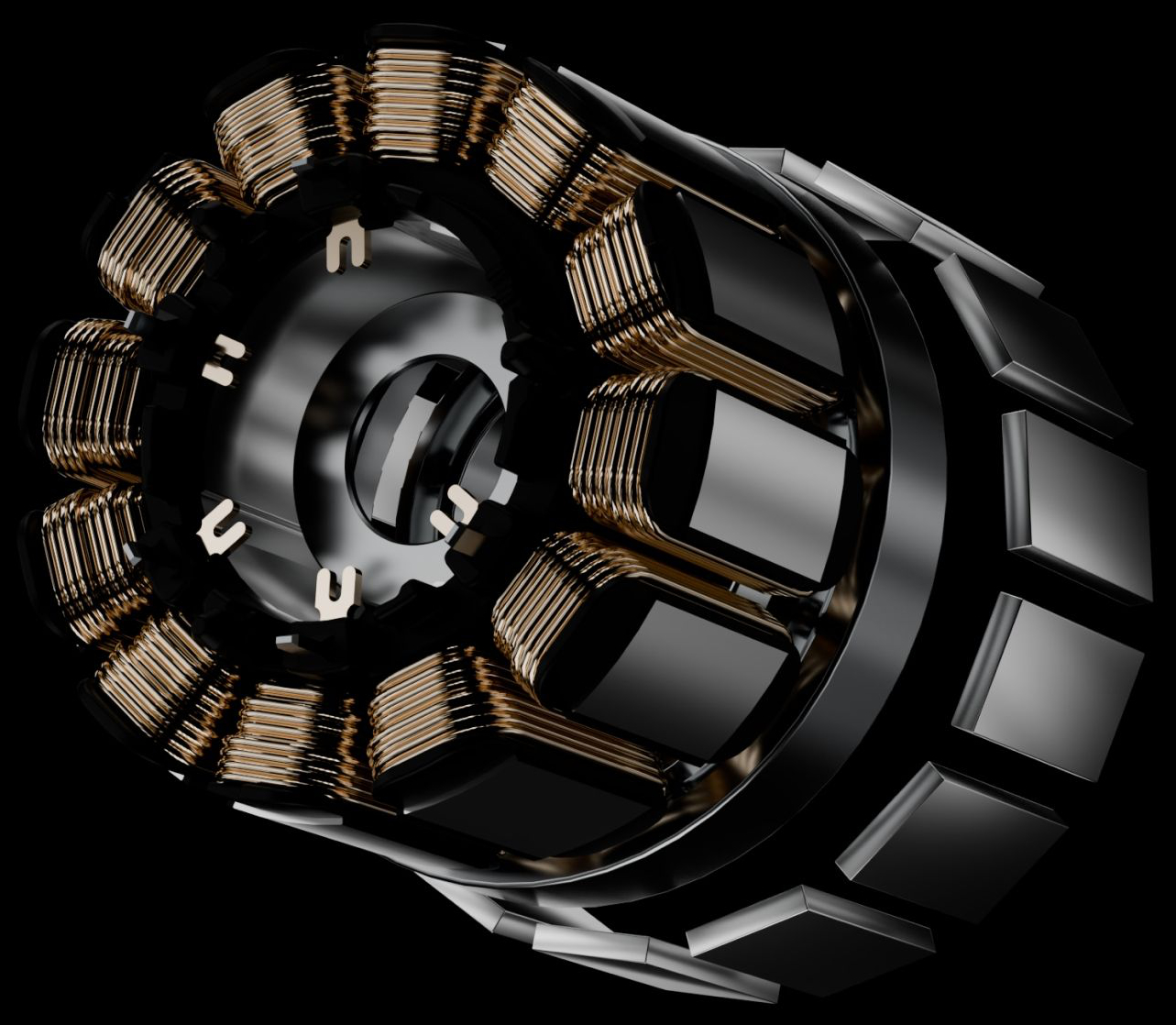
Looking through the official documentation, I also understood that Nuki had not simply sought to make a lock look prettier or smaller. The Ultra introduces a brushless motor, presented as more efficient and sustainable, with a technological approach that the brand brings closer to what is already known in other sectors such as electric vehicles.

In this article, I tell how I went from my Danalock V3, installed in 2023, to the Nuki Smart Lock Ultra, from the removal of the old connected lock to the first tests in the application. I will document in other articles the different modes of home automation connection as well as the interface in Home Assistant.

To tell you the truth, I discovered the Nuki Lock thanks to an opportunity to loan the equipment, I did not know the Smart Lock Ultra, I only knew the Smart Lock Go, the one with a white case under the lock. It was never compatible with my front door, because of the relief/reinforcement on the leaf between the lock and the edge of the door. Read More

I turned my SkyConnect Zigbee into a Thread for Matter

In Home Assistant, a Nabucasa coordinator (SkyConnect, ZBT-1, ZBT-2, …) can either Zigbee, or Thread, but not as a universal radio to do everything at once. In this test, a first key remained dedicated to the Zigbee in production, and a second key was reconfigured for Thread to prepare a Matter over Thread network without breaking the existing one.
Here is the full HTML code of the article, already written in the first person and with the descriptive titles:

📌 Context

My goal was simple: check if a second SkyConnect could become a Thread adapter directly from Home Assistant, without plugging the key into a PC and without touching the already operational Zigbee. I chose this cautious approach because my home automation installation was already working properly, and I did not want to shake everything up.

To avoid any risk, I left the Zigbee key intact. The new key served as a test bed for me, which allowed me to clearly document the behaviour of Home Assistant and to keep my own feedback.

💡 Difference Between Thread and Matter

Thread and Matter They don't mean the same thing. Thread is the radio network used by some low-power devices, while Matter is the standard that allows these devices to speak the same language in Home Assistant. SkyConnect therefore does not “do” Matter on its own: it provides the Thread radio layer, and Home Assistant then manages the Matter integration.

🚦 I start from a SkyConnect already in production

Initially, a SkyConnect was already in service for the Zigbee. I had a second, new key that had never been used before. It was this second key that I plugged into my Home Assistant machine for the experiment.

The choice to separate roles allowed me to clearly compare behaviours: on the one hand the production Zigbee, on the other a radio dedicated to Thread. It was also, in my view, the safest way to test a protocol change without a service interruption.

🔎 I let Home Assistant detect the new key

Once plugged in, Home Assistant detected my new SkyConnect in the Integrations page, in the Discoveries section. The card displayed “Home Assistant SkyConnect / Home Assistant Connect ZBT-1” with a button Add.

At the same time, the other SkyConnect remained present in the configured integrations. This confirmed to me that production was not impacted and that Home Assistant already managed the two instances as two separate devices.

🖱 I start adding from the dashboard

The new map appeared in the ‘Discoveries’ area. I clicked on Add to launch the configuration wizard for this second key.

We can see with this simplicity invented by Nabucasa, I did not need to go through a manual flash or an external tool. The configuration started directly from the Home Assistant web interface.

🧭 I choose the protocol of the key

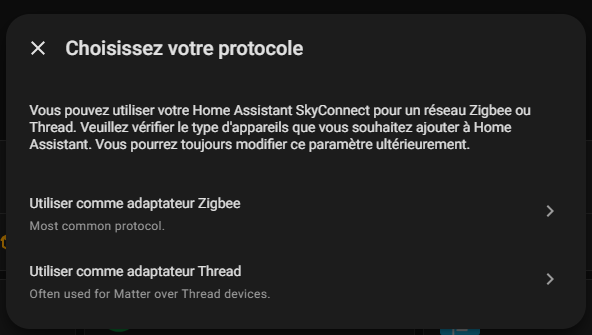
After clicking on Add, Home Assistant asked me to choose the protocol of the key. Two options were proposed: Use as Zigbee Adapter and Use as Thread Adapter.

This choice confirmed an important point for me: The SkyConnect is assigned to a specific role. I had to choose either Zigbee for a classic network or Thread to prepare Matter over Thread.

🧵 Why I choose Thread

I chose Thread to test the Matter over Thread use case. My objective was not to replace the existing Zigbee, but to validate the creation of a dedicated Thread radio in Home Assistant.

It is also, in my view, the right logic if we want to maintain a stable installation: one dongle keeps the Zigbee in production, the other serves as the basis for Thread.

⚙ I let Home Assistant install OpenThread

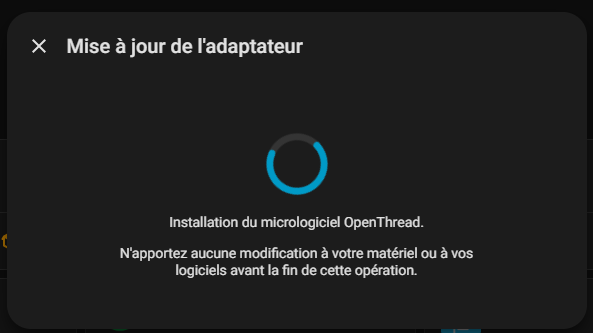
Once Thread was selected, Home Assistant launched the adapter update.

At this point, my key was being transformed into a Thread adapter. The procedure advanced in Home Assistant without outside intervention.


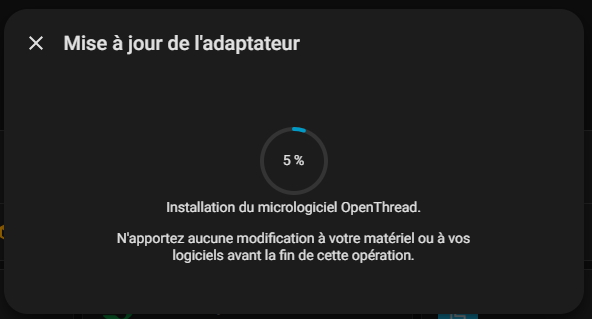
📈 I monitor the progress of the flash

The progress bar showed the progress of the installation, in particular at 5 %. This confirmed to me that the key was indeed being flashed with the OpenThread firmware.


🛠 I complete the configuration of Thread

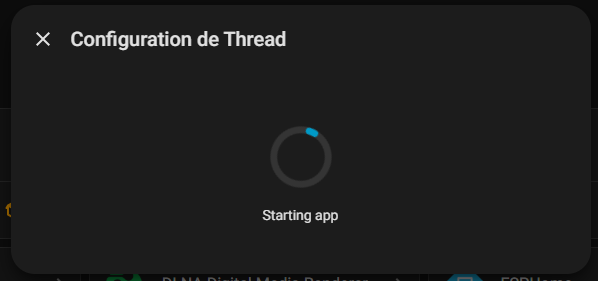
After the flash, Home Assistant went to the “Configuration of Thread” step.

I then saw messages like “Installing app” and then “Starting app”, signs that the Thread stack was being deployed.

This is when Home Assistant orchestrates the OpenThread Border Router service. In practice, my key becomes the system’s Thread radio, and Home Assistant takes care of the associated network layer.

The Thread network is not just a cosmetic setting. This is a real network setup, with a radio adapter that becomes able to play the role of border router for Matter-enabled Thread devices.

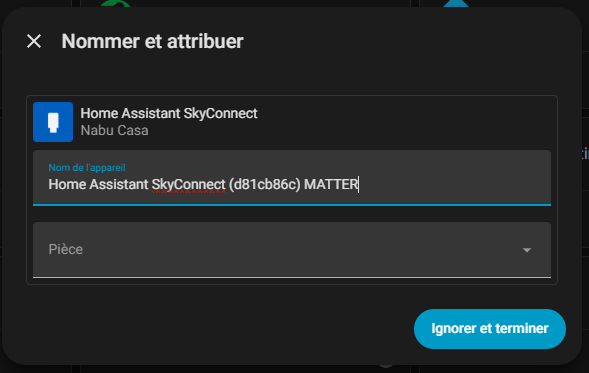
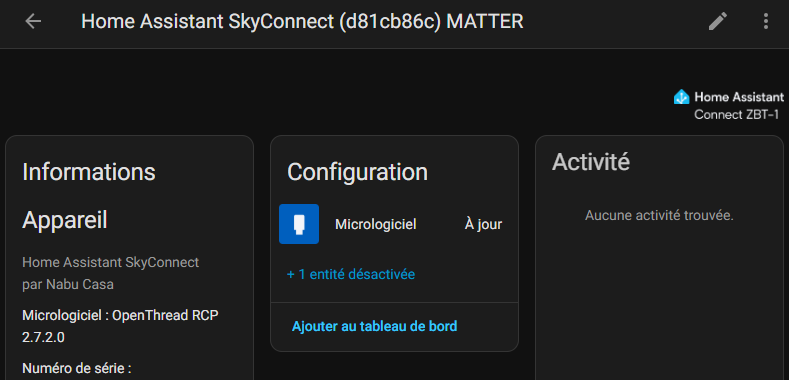
At the end of the procedure, I add the MATTER information so as not to confuse the keys.

My new key appeared with the firmware OpenThread RCP 2.7.2.0. This confirmed that the Thread reconfiguration was successful.

Home Assistant then displayed two separate devices in the Devices tab: a classic ‘Home Assistant SkyConnect’ and a ‘Home Assistant SkyConnect MATTER’. The integration map also indicated “2 devices”.

🧠 I read what it teaches me

This separation is convenient because it visually shows both roles. One key remains associated with historical use, the other becomes the radio dedicated to Thread/Matter.

For feedback, this is a strong point: The reader immediately understands that the migration created a second logical instance in Home Assistant, without breaking the first use.

🔬 What this test proves to me

This experience has shown me that it is possible to convert a second SkyConnect to a Thread adapter directly from Home Assistant. The procedure is integrated, guided, and does not require complex manipulations outside the interface.

She also showed me that Home Assistant knows how to manage the separation between Zigbee and Thread in a clear way. This is particularly reassuring when a Zigbee plant is already in production.

⚠ I keep a limit in mind

However, it should be borne in mind that a SkyConnect does not become a stand-alone hub Matter. Matter remains managed by the Matter integration of Home Assistant; The key here provides Thread connectivity, not all Matter logic alone.

In other words, SkyConnect fulfils for Thread the role that a coordinator fulfils for Zigbee: It opens and connects the network to Home Assistant. The difference is that Zigbee talks about a coordinator, while Thread relies on a border router, and Home Assistant then manages Matter above.

📝 Review and conclusion

Perhaps the most interesting thing about this test is the simplicity of the flow. I kept a key in Zigbee for stability, added the second one as a discovery, then reconfigured it into Thread with just a few clicks.

For someone who wants to test Matter over Thread without touching their existing installation, it is a clean and reassuring method. It avoids disassembly, manual flash and the risk of shutdown on the main Zigbee network.

In the end, the transformation worked as expected. Home Assistant detected my new SkyConnect, offered me the choice of Zigbee or Thread, installed OpenThread, and then showed me a key switched to MATTER/Thread mode with OpenThread RCP firmware.

Above all, this feedback shows me that it is possible to organise your radio roles properly in Home Assistant: one key for Zigbee production, another for experimenting with Thread and preparing Matter over Thread.