I save my Home Assistant on my Synology NAS (HA>2023.6) via NFS

This is great news, since the version 2023.6, the network storage becomes archi-simple, it is managed by the core of Home Assistant. Congratulations to the developers, it was missing.

In my previous Retex, I described how to configure the backup via Samba, in this one I will configure the backup via NFS.

I have had some disconnections from Samba that I do not explain yet and on a local network, if NFS is well configured, it is a simple tool that does not require creating a user, so I will only keep a user protected by double authentication on my NAS.
Read More

I save my Home Assistant on my Synology NAS (HA>2023.6) via Samba

This is great news, since the version 2023.6, the network storage becomes archi-simple, it is managed by the core of Home Assistant. Congratulations to the developers, it was missing.

So I will give up my backups via Samba Backup. They worked perfectly but required the installation of the Samba Backup add-on, I can now uninstall it and delete my Retex on its configuration.

  • December 2023 update: I had some problems with Samba, I switched my HA Backup via NFS

Read More

Using a Synology VM to Automate a Powerautomated Stream under W10

  • In the tutorial Automate local newspaper delivery on Teams I used a home automation computer (the one in my kitchen) that displays Jeedom all the time, but when I go on vacation, I turn that computer off, I wanted the log recovery to continue working.
  • having a Synology NAS, so I decided to use its VMs to retrieve the log

Here are my notes to create this VM

On Synology, we use Virtual Machine Manager

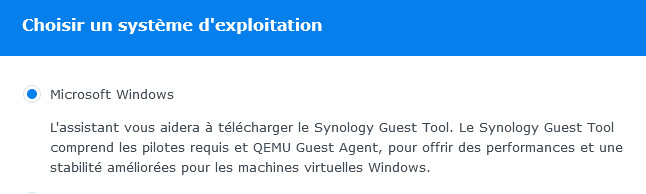
  • Creating the VM is very simple

Then we follow this Tuto very well done.

Once launched, we do a big cleaning to delete everything that is useless, just read the paragraph optimisation the Tuto Reinstall Windows 10


  • Download and install Setup.Microsoft.powerAutomate.exe
  • For theautolog of the windows session (since it is imperative to have a password), here is the Microsoft Tuto

If services UIFlowService and UIFlowAgentLauncherService do not start, make a small bat with:

  • Net start UIFlowService 
  • Net start UIFlowAgentLauncherService 

and launch it at the start of the VM


Install Jeedom on Synology NAS VM

This manipulation is already documented but I have adapted my method, everyone will be able to follow his own, here are some references:

I chose to use the SynologyVirtual Machine Manager application

Installing the latest version of Jeedom on the VM

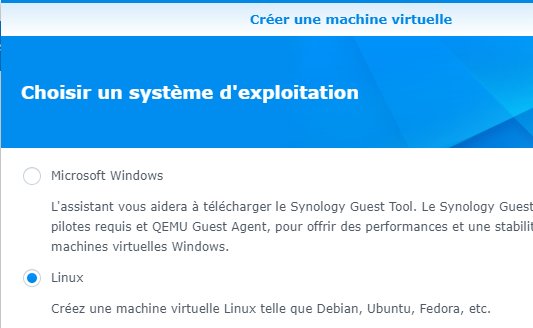
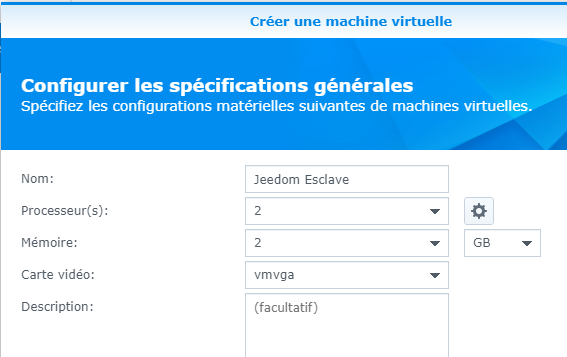
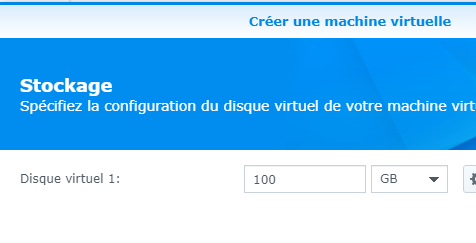
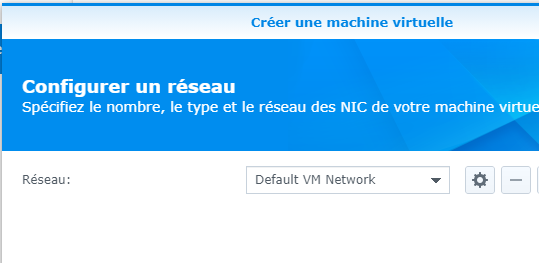
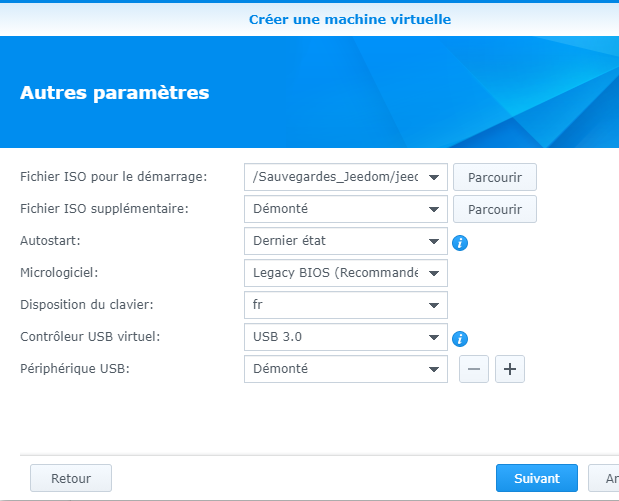
Here are, in order, the screens and what I chose to use


It was on the next screen that I chose to send the image of Jeedom.

The most recent ISO file should be downloaded from:

Copy it to a folder on the NAS and fetch it in the "ISO Startup File" field.
At this point, I leave USB device disassembled, I will mount it later.

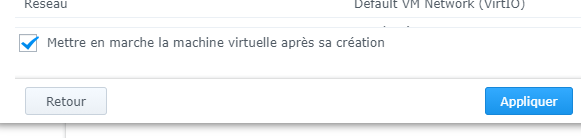
On the next screen, give the rights to your Syno users and then validate the installation

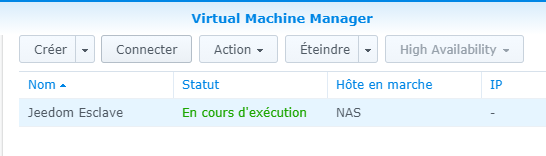
Click on the "Connect" button

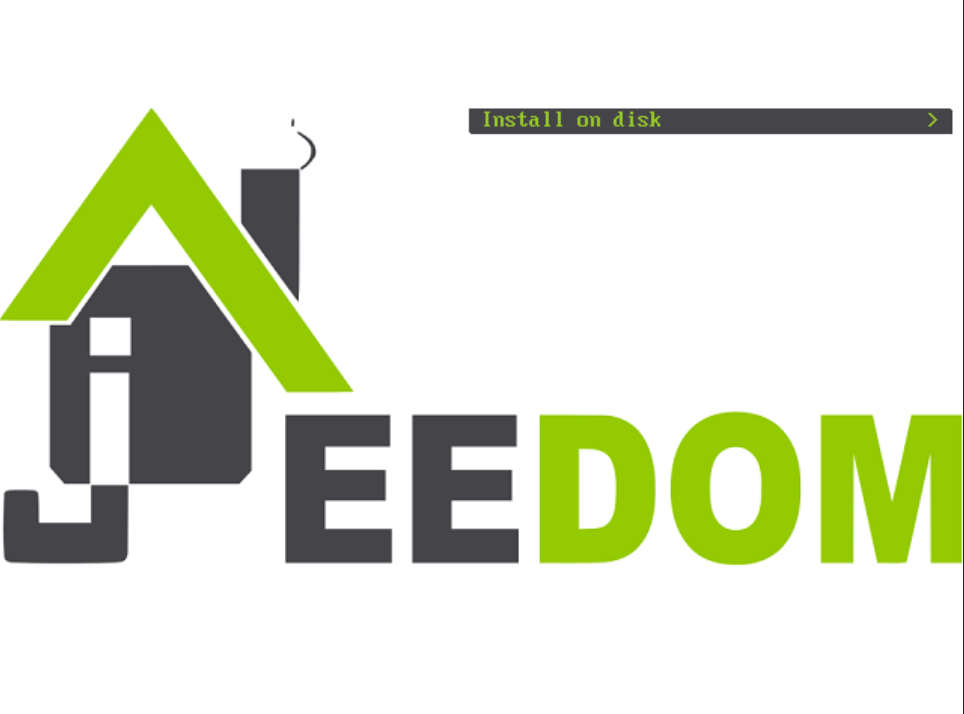
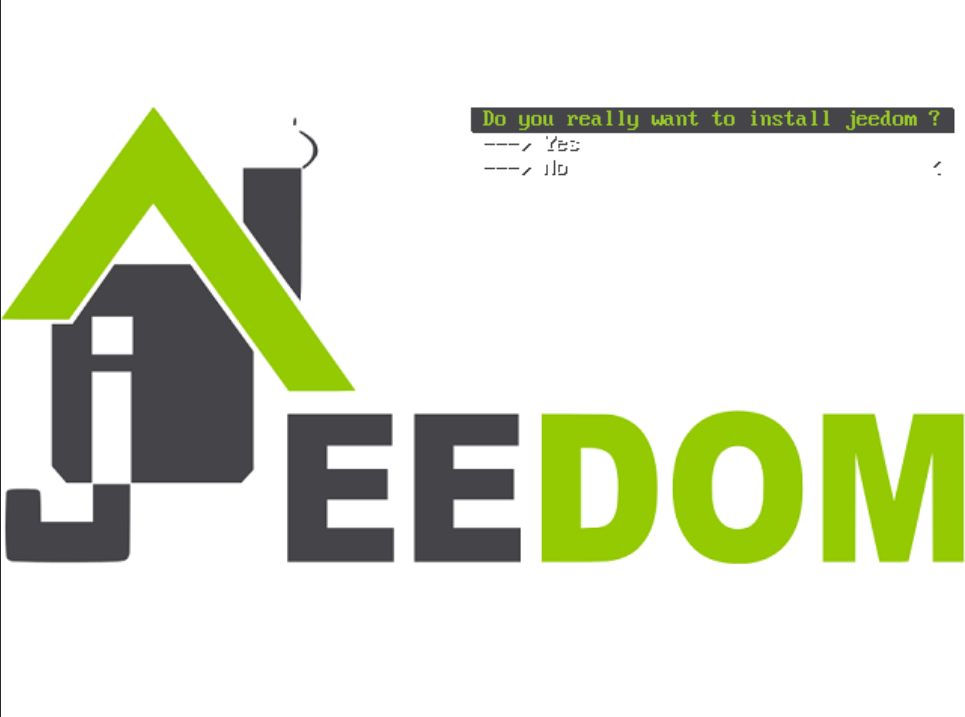
The installation screen appears:


Let's let … turn

IP address recovery and first connection

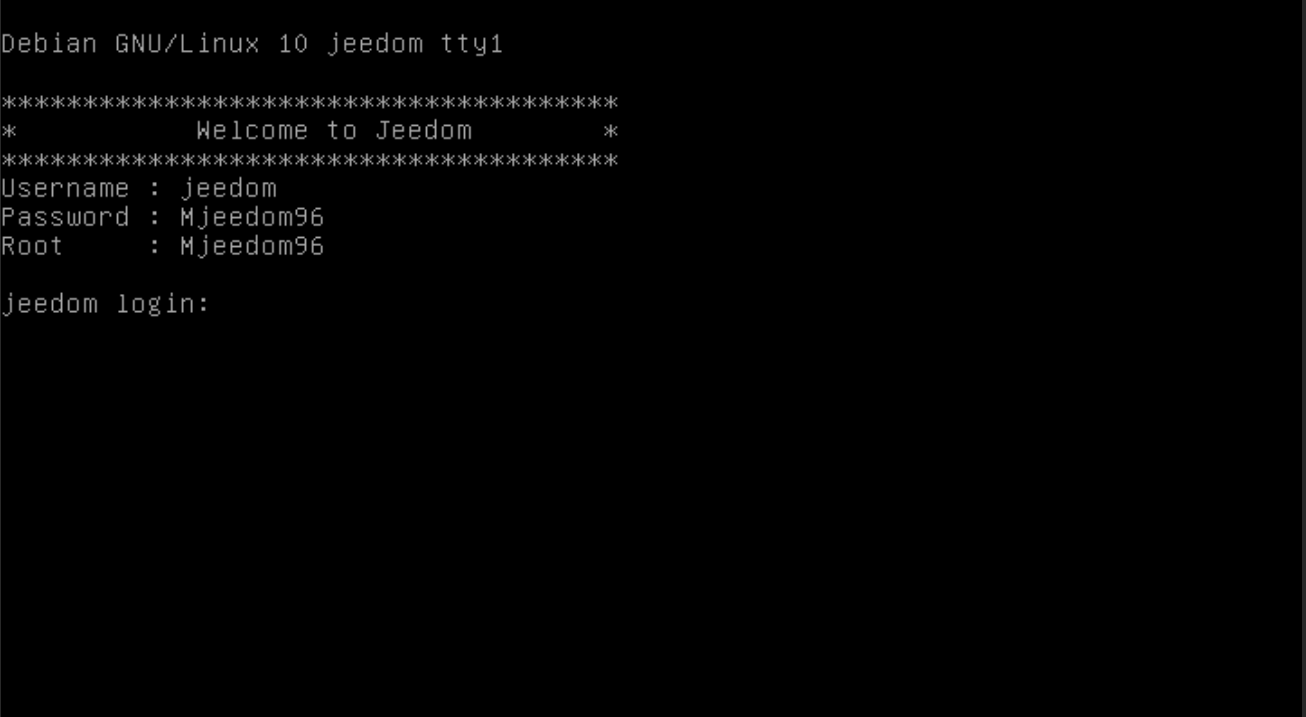
Once the installation is complete, the IP must be found in the router, and the DHCP will give it an address.

By habit, once the VM is detected I freeze the address on 192.168.1.180

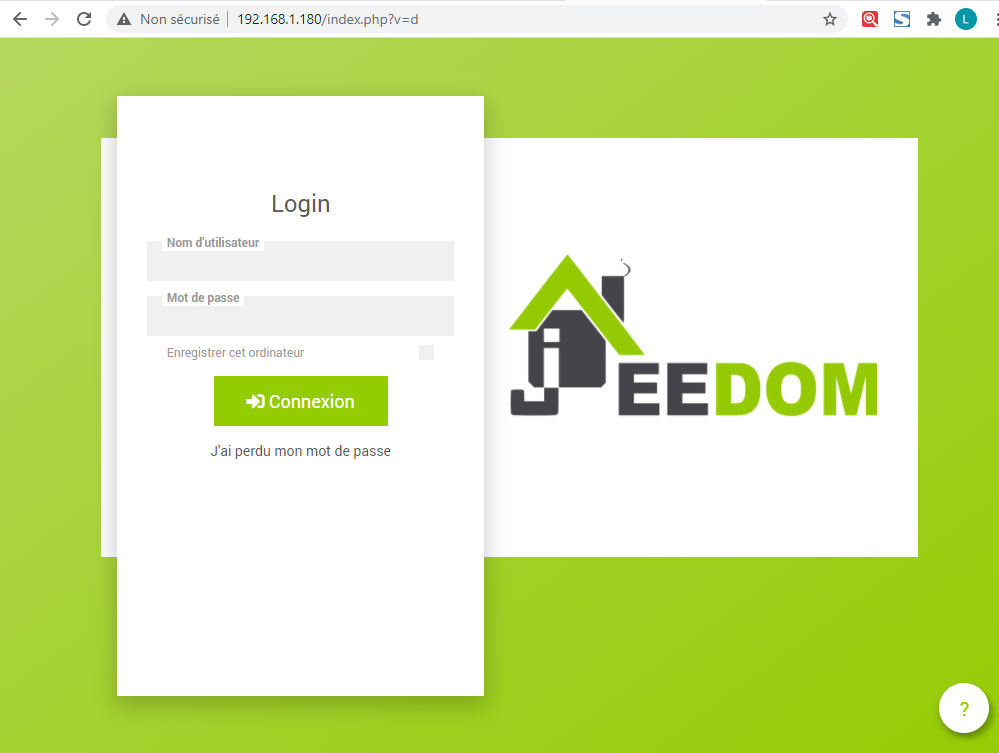
Then Jeedom can be accessed via IP in the browser

And send orders on the order line: