

I wanted to use OneDrive for Business as a backup destination in Home Assistant.
Official integration allows backups to be sent to OneDrive for Business, but asks to prepare an application in Microsoft Entra beforehand, with a Tenant ID, a Client ID, a Secret Client and a precise redirect URI.
Prerequisite
Before you start, you need to:
- A functional Home Assistant.
- A Microsoft 365 / OneDrive for Business account.
- Access to the Microsoft Entra portal with an account that can create an application. Microsoft indicates that at least one Application Developer role is required.
- Knowing the redirect URL used by Home Assistant will be: https://my.home-assistant.io/redirect/oauth.
The starting point in Home Assistant
I started directly in Home Assistant, in Settings > Devices and Services, then I added integration OneDrive for Business. The first window asked me for the identifier of the Entra tenant in which the account to be used with the integration was located.
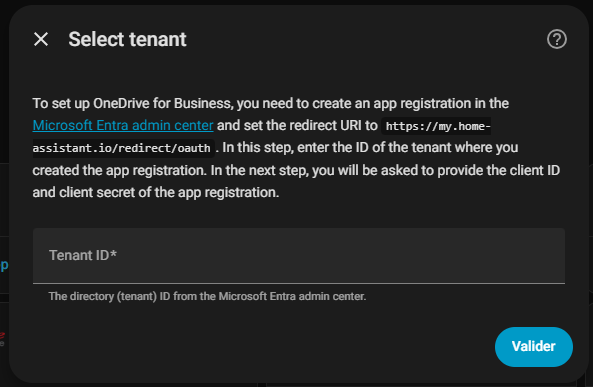
At that time, I did not yet have the necessary identifiers. So I left Home Assistant aside to go and prepare the application on the Microsoft Entra side. [page:116]
The detour by Microsoft Entra

I'm going to: https://entra.microsoft.com/
and I log in with an administrator account or otherwise an Application Developer profile.
When I arrived at Microsoft Entra, I first thought that I had to go through the Enterprise applications. In fact, this was not the right place for this type of configuration.
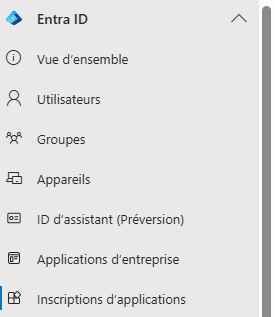
To create the credentials expected by Home Assistant, you had to go to Entra ID > Application registrations.
This is where I opened the screen to create a new registration.
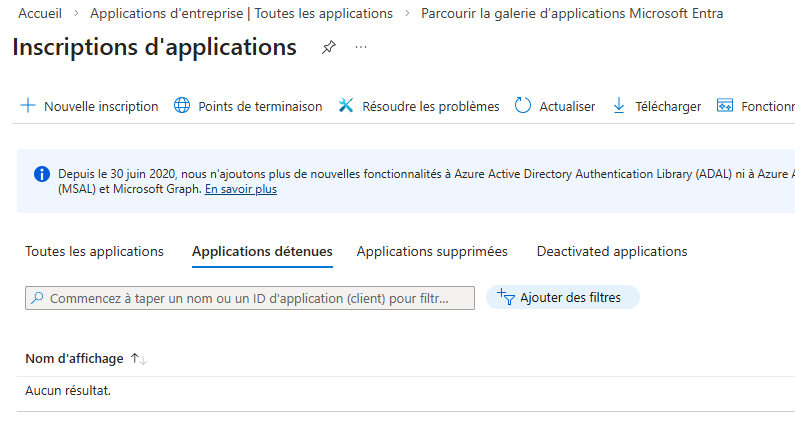
Microsoft explains, moreover, that an application must be registered in order to obtain the credentials necessary for authentication.
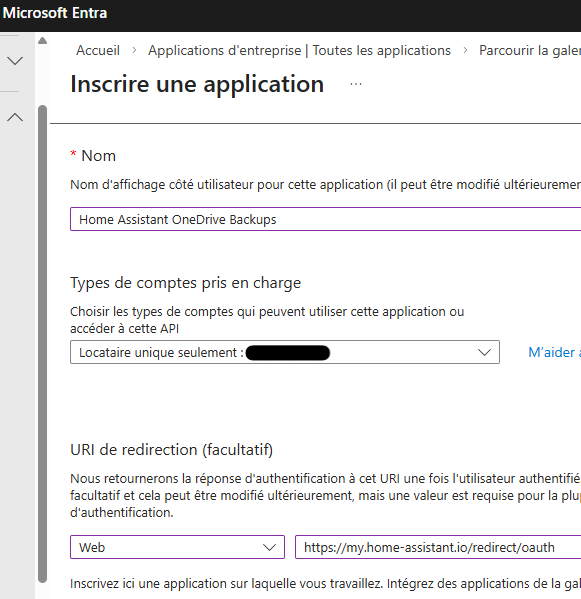
- The name is free, I put Home Assistant OneDrive Backups
- The account type is Single tenant only
- the redirect URL is Web https://my.home-assistant.io/redirect/oauth
The recovery of identifiers
Once the registration was done, I arrived at the overview page. I found the two most important information for the future: l’Directory ID (tenant), which corresponds to Tenant ID, andApplication ID (customer), which corresponds to Client ID.

I immediately noted these two values, as Home Assistant requests them during the installation wizard.
The creation of customer secrecy
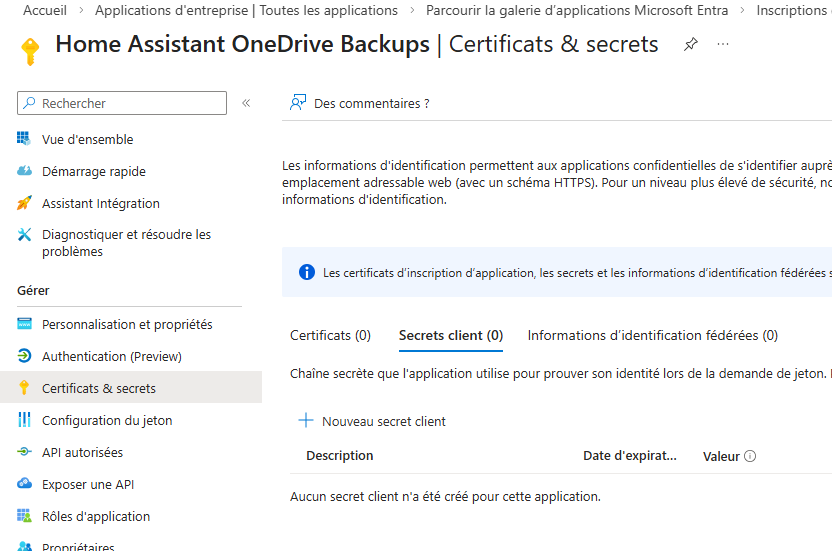
The last missing data was the application secret. In the app menu, I opened Certificates & secrets, and then I created a New Customer Secret. Microsoft allows you to add a description and choose a period of validity.
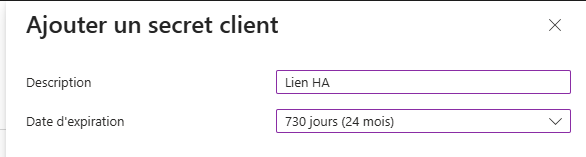
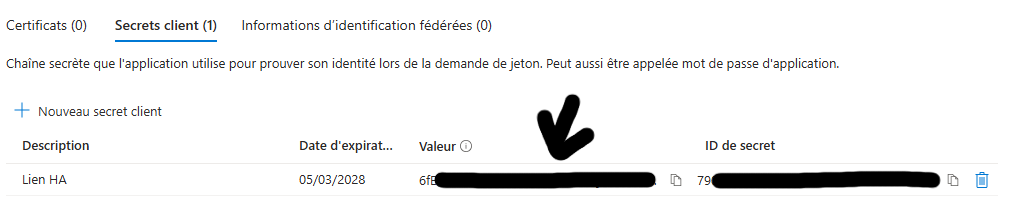
Once the secret was generated, I copied its value immediately. This step is important because it is this value that needs to be pasted into Home Assistant, not the secret identifier.
The necessary permissions
Before leaving Entra, permission must be given for the entry that has just been added.
The following permissions are required:
Files.ReadWrite.All: allows the application to read and write in any folder of OneDrive. Unlike personal OneDrive, OneDrive for Business does not support permissionsFiles.ReadWrite.AppFolder, so these are the minimum possible permissions.offline_access: allows the application to automatically renew its authentication token without manual intervention.openid: allows the app to read the basic information, for example if I had a OneDrive.
So I'm going into APIs allowed
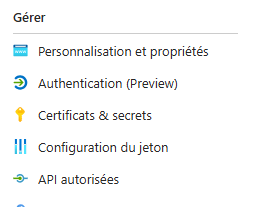
At the moment there is nothing but Microsoft Graph User.read.
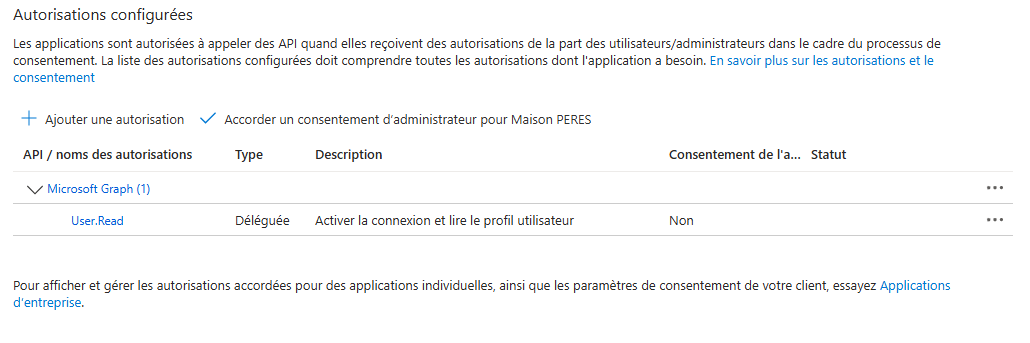
I'm going on Add Authorization
In the window that opens, I keep Delegated authorisations
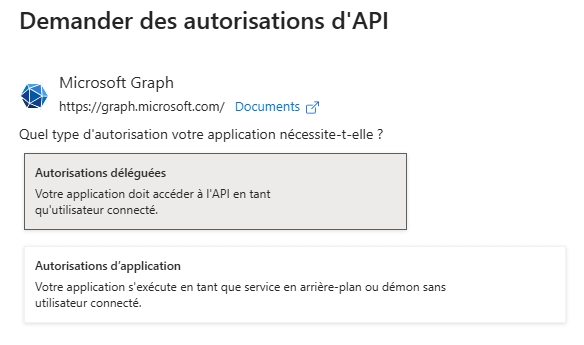
and below, I will fetch the 3 permissions in the search engine to check them one by one:
Files.ReadWrite.Alloffline_accessopenid
I'm validating.
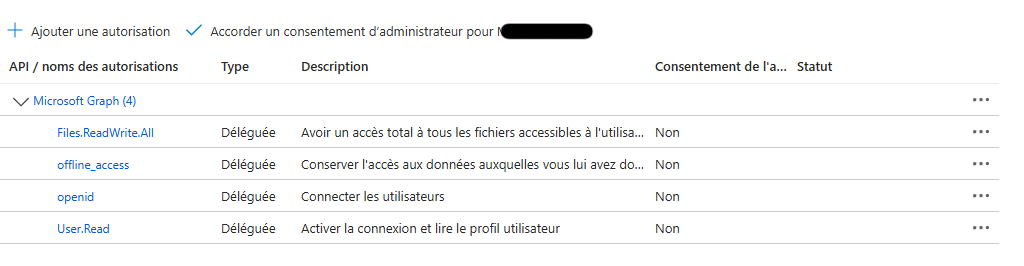
It lacks administrator consent, I rely on Grant administrator consent
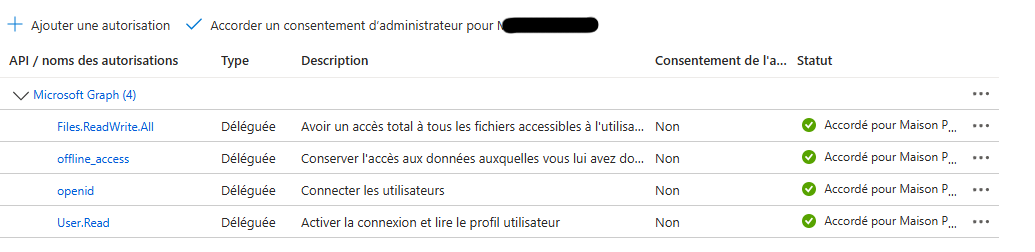
This is complete for the configuration on the Microsoft admin panel.
Return to Home Assistant
Back in Home Assistant, I took over the OneDrive for Business setup wizard. I first referred the matter to the Tenant ID, i.e. the ID of the renter directory retrieved in Entra.
Then Home Assistant asked me for the OAuth credentials of the app.
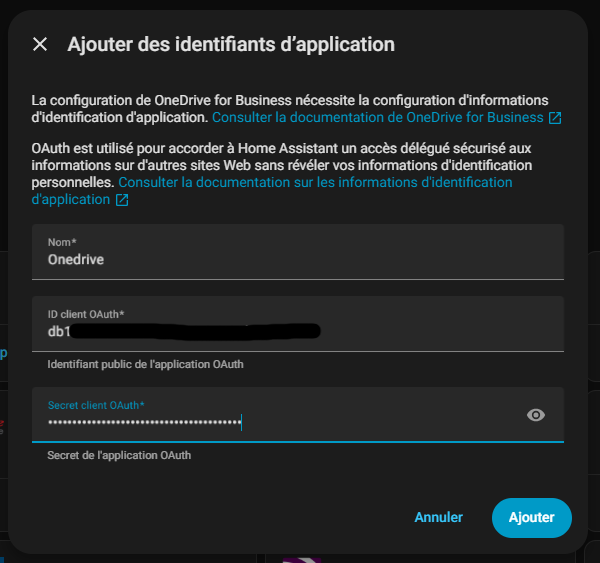
The fields to be filled in
In the Add Application IDs window, I entered a free name to easily identify this connection (e.g. Onedrive) and then pasted theOAuth Client ID corresponding to the application ID (customer), as well as the OAuth Customer Secret corresponding to the value of the secret created in Entra.
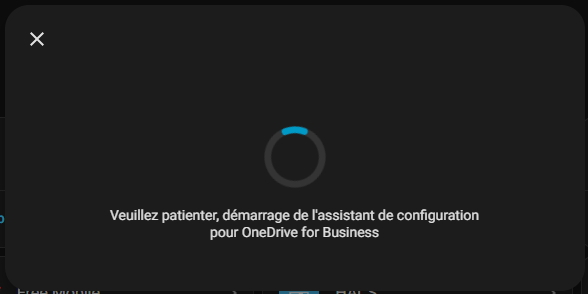
Once these fields were validated, Home Assistant launched the Microsoft Authentication Wizard.
The special case of administrator approval
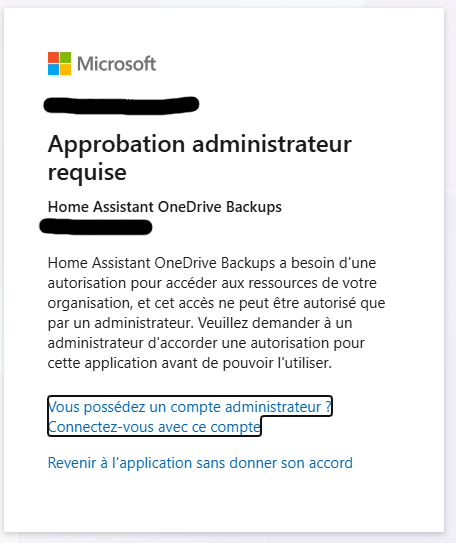
At one point, I came across this window because I had misconfigured the API permissions. By repeating what explained above, everything worked.
The choice of the account actually used
I also noticed an important point during the configuration: the account actually linked to the integration is the one that completes the OAuth authentication.
Creating the application with an admin account does not necessarily mean that OneDrive from the admin account will be used, provided that the relevant consent is correctly granted and final authentication is done with the correct user account.
I strongly advise against using the administrator account for anything other than configuration, Home Assistant must be linked to a user account.
The destination folder for backups
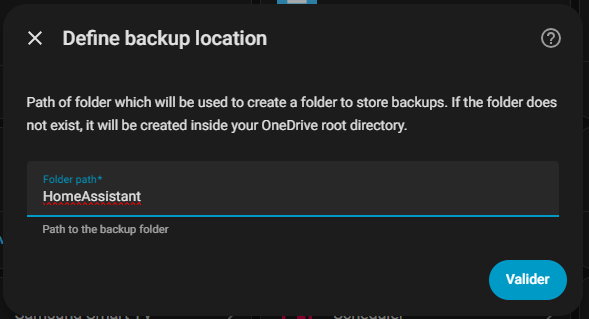
Once the authentication was complete, Home Assistant asked me the path of the folder where the backups would be stored. The documentation specifies that if this folder does not exist, it will be created at the root of the selected OneDrive.
I was able to choose a simple path like Backups, HomeAssistant or a tree like HomeAssistant/Backups.
The result in Home Assistant
After validation, the OneDrive for Business integration was successfully added to Home Assistant.
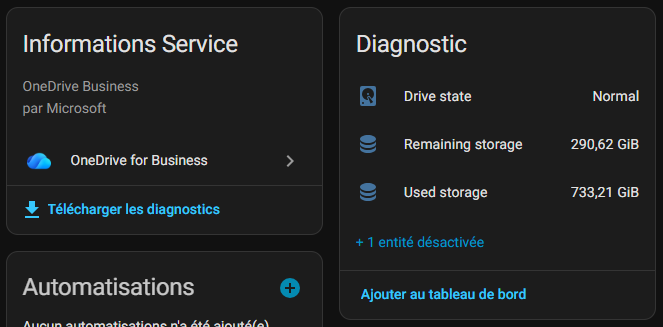
I was able to see his integration sheet and the sensors exposed, including the space used, the space remaining and the state of the drive.
Moreover, the documentation indicates that the integration provides storage sensors and a state of the drive such as Normal, Nearing limit, Critical or Exceeded.
At this point, the installation of the integration was complete and OneDrive for Business was ready to be used as a backup location for Home Assistant.
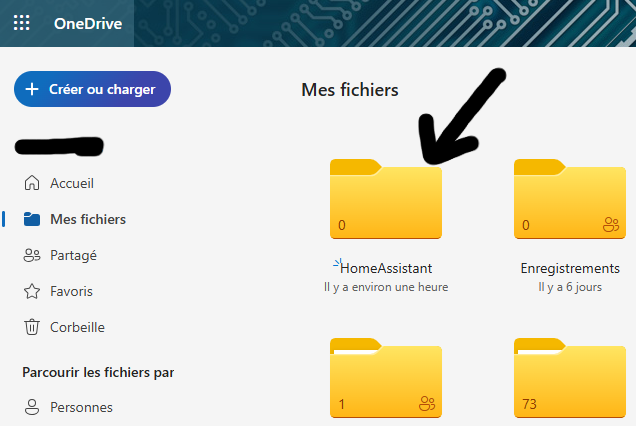
I will check if the folder was created in OneDrive (optional)
Out of curiosity, I connect to my OneDrive and I see that the folder Homeassistant is present, empty for now, but present is perfect.
I configure Home Assistant backups to OneDrive for Business
The OneDrive for Business integration was now installed and functional in Home Assistant. All that remained was to use it to send backups to my OneDrive for Business.
Setting up backups
I opened the backups page in Settings > System > Backups.
I then go into the frame Backup settings then Save to x remote locations
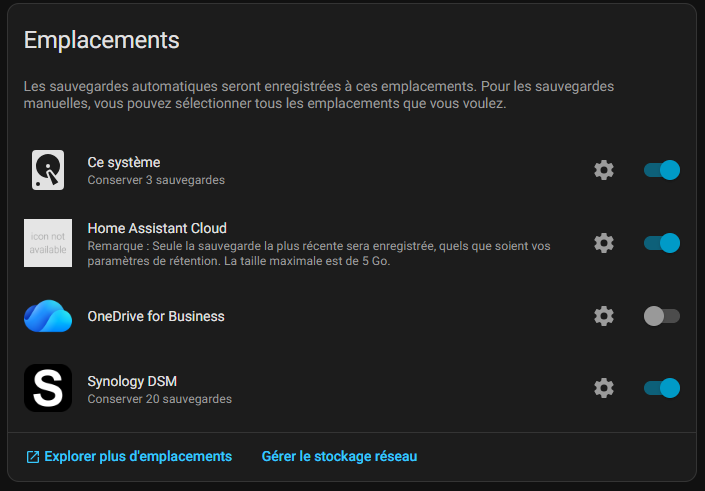
In the list of available locations, OneDrive for Business now appeared. I activated the switch corresponding to this integration to make it an active destination for automatic backups.
Retention options
I have configured the number of backups to keep on OneDrive in the ⚙/2008/parameters. I have chosen to keep 10 backups per type, but this value is free depending on the storage needs and the frequency of backups.

I also left the encryption option enabled because the backups contain sensitive data from the Home Assistant installation.
The first backup test
To make sure everything worked, I created a manual backup. On the backups page, I clicked on + Save Now, I took automatic to simplify the task.

I validated the creation.
Verification in OneDrive
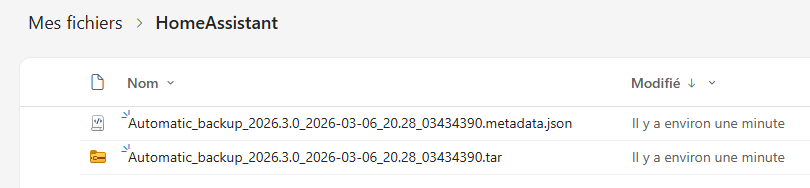
A few minutes later, I opened OneDrive for Business in a browser. In the folder I configured when installing the integration (e.g. HomeAssistant), the new backup was present.
Configure automatic backups
To automate backups, I activated the option Automatic backups in the settings. I chose a weekly frequency, with a full backup every Sunday and partial backups on weekdays.
With OneDrive for Business enabled as a destination, all these backups automatically moved to the cloud without manual intervention.
Supervision of backups
Thanks to the sensors provided by the integration, I added a diagnostic card to my main dashboard. This map displays the space used on OneDrive, the remaining space, and the storage status (Normal, Nearing limit, Critical, Exceeded).
This allows me to easily monitor if there is a risk of missing the OneDrive space.
Good practices
Since the installation, backups are done without any problems. I kept a local backup as an extra precaution, but OneDrive for Business is now my main destination to avoid data loss in case of hardware issues on the Home Assistant server.
I recommend testing a backup regularly and checking its recovery to make sure everything is working properly.
 English
  French
  Spanish
  Chinese
  German