

 |
Presentation of the plugin
This plugin will allow you to order your Sonoff-DIY equipment without any flashing of the module.
The Sonoff (Itead) brand launches a new range of DIY (Do It Yourself) labeled products.
This specialised range for home automation no longer needs ‘flashing’, the positioning of a rider switches these modules to DIY mode. The new products no longer even have a rider, everything is done without disassembling anything.
The products are extremely cheap.
Without having to pull out the soldering iron or flash the module, this plugin (and the corresponding documentation) will make it very easy for the less experienced , of us to use these modules with Jeedom.
Some products are currently being launched, but others will come:
| Model | Sonoff has integrated DIY Mode | Supported by Sonoff-DIY |
| Mini and Mini R2 |  |
|
| Mini R3 New | (without s-Mate) |
since 14/02/2022 |
| Basic R3 | |
|
| 4CH 4CH Pro R3 |  |
|
| RF R3 | |
|
| D1 | |
|
| POW R2 | |
|
| POW R3 New | |
|
| Dual R3 | |
|
| SPM New | |
since 22/01/2022 |
The Sonoff page of supported equipment is not up to date but is a good indication.
No radio or home automation protocol is essential, the modules are placed on the wifi network and work thanks to the plugin.
The status return works and the ON and OFF commands work very well, they are extremely fast.
The Sonoff SPM gives consumption in real time (active, reactive and apparent power + voltage + current).
Plugin developed in php, JS No daemon or dependency, everything is in the plugin.
Installation of the Sonoff-DIY Plugin
Install the Plugin from the Market
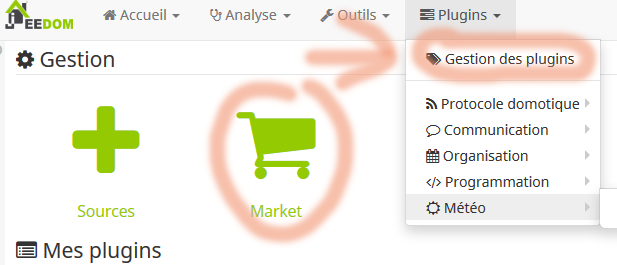 |
Then go to the Market and select Sonoff-DIY
Then Activate the plugin
Video presentation of SONOFF-DIY
Switch to DIY mode and then integration with Jeedom
- Jeedom integration of Sonoff Mini and Mini R2
- Jeedom integration of the Sonoff Mini R3
- Jeedom integration of the Sonoff SPM
Orders available
On / Off
These commands operate the relay of the module,
- ON = on
- OFF = off
Note: The info commade Relay status allows you to retrieve this information.
Pulse On/Off
The modules are equipped with a ‘Pulse’ option.
If this option is set to ON and a number of milliseconds is specified, when the user switches the module to On, it will turn off at the end of the specified tempo.
- To disable the option, run the command “ Pulse Off‘
- To activate the option, run the command “ Pulse On » with a number of milli-seconds (5000 for example for 5 seconds)
The number of multiseconds must be a multiple of 500 (1/2 second).
These commands must be programmed once and for all according to the use of your model, this must not be sent every time you change your status. This is a parameter value of the module and remains saved in the module.
Note: The info commade Power-on state allows you to retrieve this information.
Initial state
Modules are equipped with a ‘Startup’ option.
This corresponds to the state (on/off) on which the module is placed when it is switched on.
- For the module to turn on, choose We're
- In order for the module to remain switched on, choose Off
- To keep the module in its last state when powered on, choose Stay
These commands must be programmed once and for all according to the use of your model, this must not be sent every time you change your status. This is a module setting value and remains saved in the module
Note that these commands (which are used very little once the module is in service) must be programmed via a scenario.
If this command is launched from the ‘test’ button on the device’s command screen, this is the status Stay which is sent (Updated version 10/05/2020)
Note: The info commade Status of the Pulse function and Tempo of the Pulse function allows you to retrieve this information.
Refresh
This command updates the module states.
Note: This command will be used very little since the states are updated automatically and instantly.
Available information
In order to allow users to make the most of all the possibilities and options of the modules, a lot of information is available.
Note that this information is updated automatically and instantly.
The device widget will be based on this information.
To use them (or not), you can check ‘Show’ to find them on the equipment widget.
Relay status
This information (1 or 0) corresponds to the on or off state of the module

Power-on state
This information corresponds to the configuration chosen by the Startup option, see ‘Initial status’ command.
Status of the Pulse function
This information corresponds to the configuration chosen by the Pulse option, see ‘Pulse’ command.
Tempo of the Pulse function
This information corresponds to the tempo in milliseconds chosen for the Pulse option, see Pulse command.
Note: this information is ignored if Pulse is on Off
SSID
This information corresponds to the SSID of your Wifi network
CISO
This information corresponds to the strength of the Wifi network
This signal value is measured in decibels from 0 to -120. The closer the value is to 0, the stronger the signal will be.
- Between 0 and -50, this is extremely rare.
- Between -50 and -80 is correct.
- Between -80 and -100 is bad.
Bonus, create a toggle on/off
Usually, the device appears in this form:
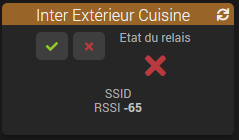
So we have an On button, an Off button and a widget indicating the status of the relay
The plugin has been improved, we can now have a single button representing the light, a press on it turns on, another press on it off. This is really convenient for integration into a Design and avoids going through a Virtual.
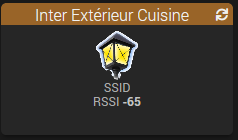
To achieve this, you have to put the same widget on the On command and on the Off command and then uncheck the Show relay status box, everything else is managed by the plugin.
Addition of Sonoff-DIY MINI R3 (Jan 2022)
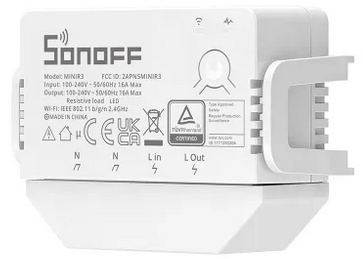
The Sonoff Mini R3 has been released and has just been integrated into the plugin.
A special page is dedicated to him here
This module is not yet documented by Sonoff on their official page, so I tried to find … taton controls and overall it is operational.
- On/Off obviously work
- The Status returns work
- The order Refresh operates
- The configuration of the Pulse andinitial state Not yet implemented (as of 08/01/2022)
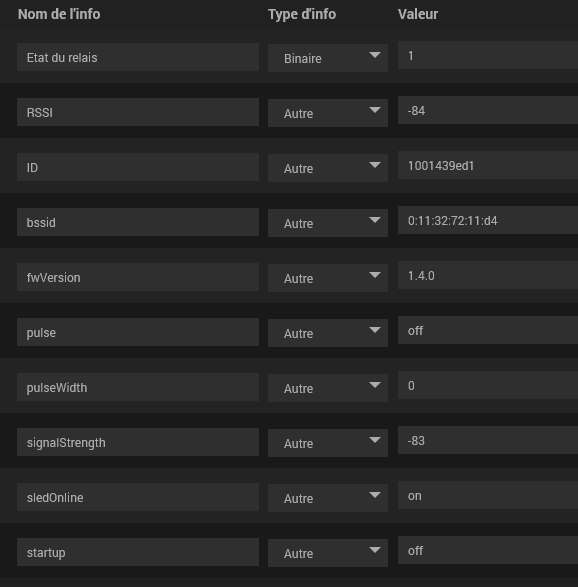
- The following data are well recovered:
Examples of use
- Install a home automation switch, connect it to Jeedom and control it with Alexa
- Order a light by voice
- The connected doorbell of juandelavega
Frequently Asked Questions FAQ
FAQ1: The widget on my equipment does not change state when I use it manually
This is because the device ID of this equipment is not filled in or is not accurate, follow this procedure to solve the problem
FAQ2: I have an error 400 when I want to use the ‘Initial state’ command with the value Off or Stay
There was a small error slipped into the May 2020 version, fixed since the July 2020 update. To no longer have the error, simply go to the commands of the device in question, on the command Initial state and remove the spaces after the commas, to achieve this:

 English
  French
  Spanish
  Chinese
  German