I'm testing the Zigbee Button 22WZ

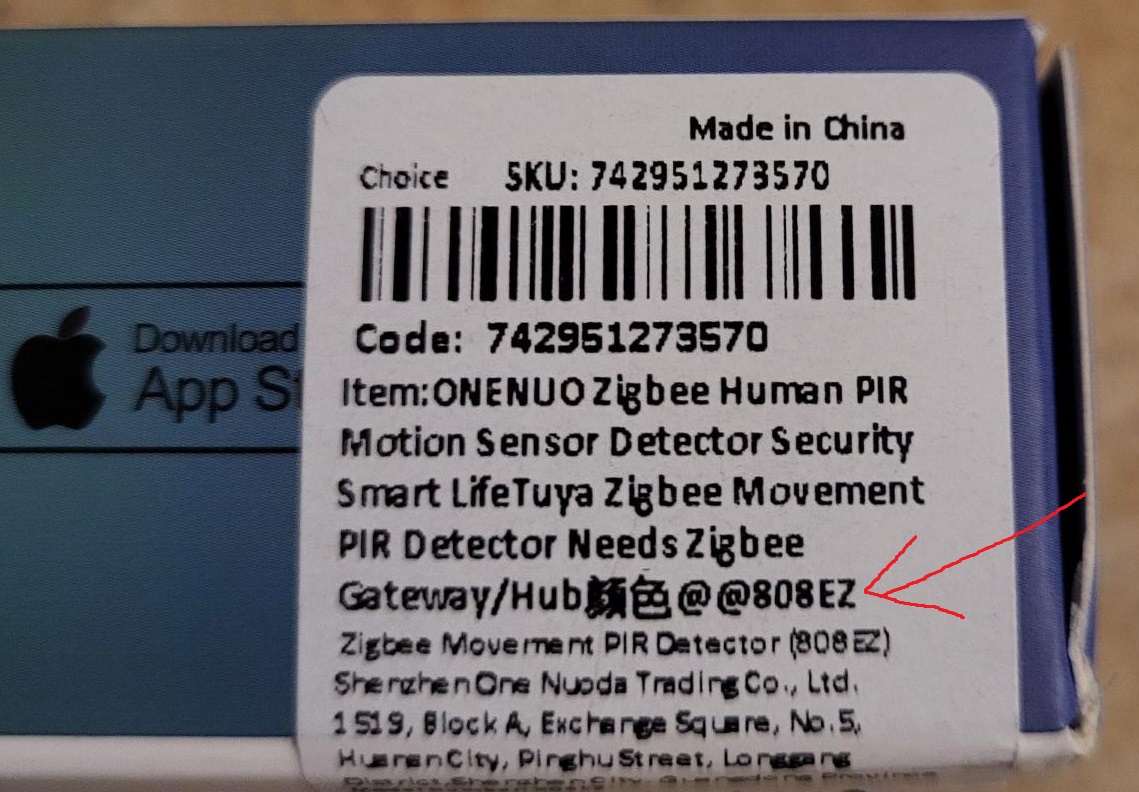
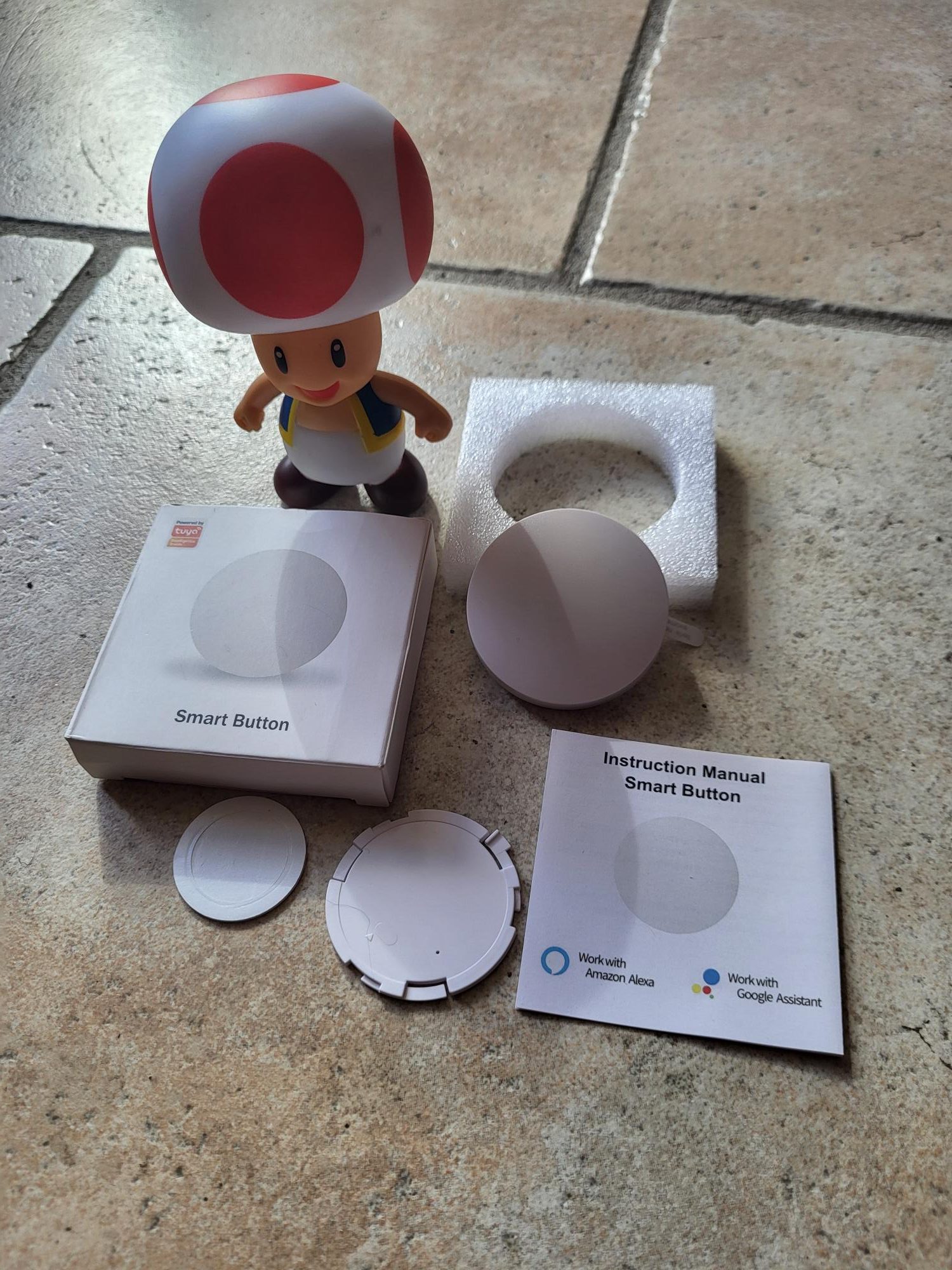
The Zigbee Tuya button that I received comes in a single carton marked only ‘Tuya’, with no obvious technical details. A small label on the side confirms the Zigbee and Zigbee2MQTT compatible model, avoiding cloud-only WiFi versions. This immediate verification reassures because Zigbee2MQTT allows a complete local integration, without constant internet connection or privacy risks related to the remote Tuya cloud. Here I explain how to identify a real Zigbee model for secure and responsive home automation.
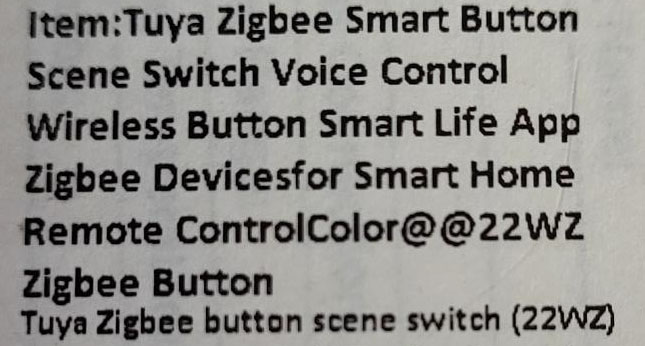
Zigbee button box with model label confirming compatibility
Label confirming the Zigbee model on the button box.

I distinguish Zigbee button versions

This type of button exists in several variants according to Chinese manufacturers. The one tested previously shares the same compact shape and functions: single, double and long pressures. In the world of low-cost home automation, copies are very similar, but Zigbee2MQTT compatibility remains the decisive criterion. Always check the exact reference to avoid WiFi disguised as Zigbee.

Where to order this reliable Zigbee button?

1established Domadoo 🔗 ❌
2established Amazon 🔗 ❌
3established AliExpress 🔗 ✅ 6,30 €
➡ Vide-Grenier of Sigalou 🔗 ✅ Purchase price in batch (link ‘verify available’)

I prefer Domadoo for its reliable and responsive French service, or Amazon for 24-48h delivery with easy returns. On AliExpress, I check three key points: the precise reference in the description, the actual photos of the seller (not generic), and an evaluation rate >98% on +100 sales. This protects against mislabeled counterfeits or WiFi models.

I integrate the button into Zigbee2MQTT step by step

I start Zigbee2MQTT in pairing mode via the web interface accessible at the IP address of the Zigbee coordinator. I then open the button by gently removing the plastic tab that blocks the included CR2032 battery. This standard 3V button battery provides 1 to 2 years of battery life depending on the frequency of use, and is replaced without tools by simply lifting the rear cover.
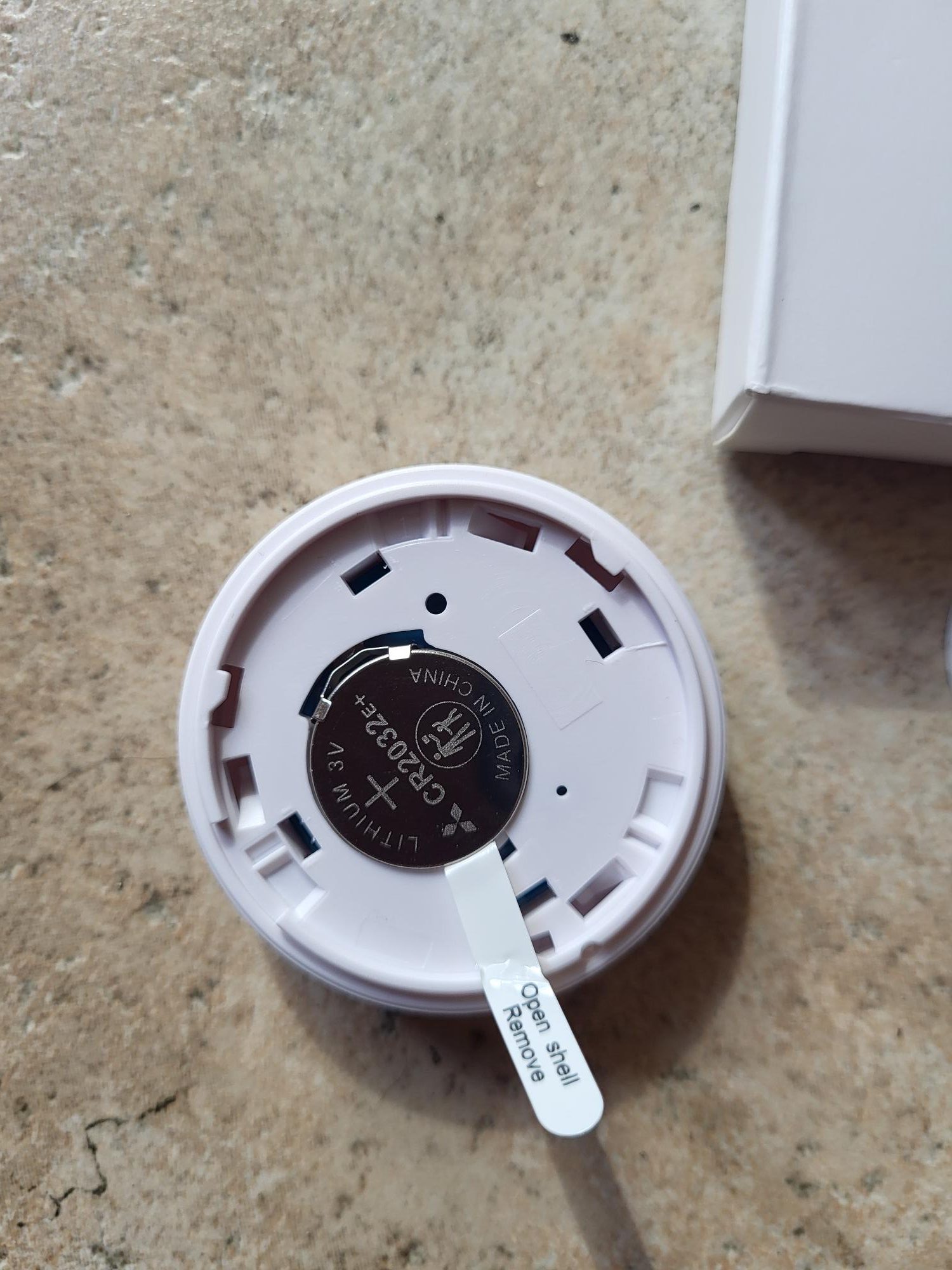
Removal of the CR2032 battery plastic tab from the Zigbee button
Simple removal of the tab to activate the CR2032 battery.

To open the case if necessary, I rotate the rear cover 2-3 mm counterclockwise. Attention: the clip system is fragile, excess force breaks the bindings. When inserting the battery, a red LED flashes 5-10 seconds to signal automatic pairing. Without visible reset, just press firmly in the center of the battery 5 seconds to force the pair mode if nothing happens.
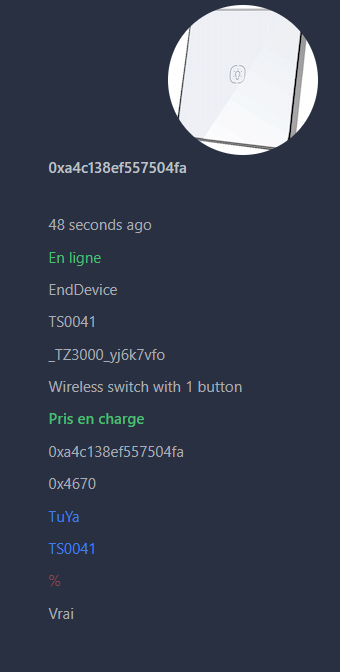
Zigbee2MQTT interface showing successful pairing of the Zigbee Tuya button
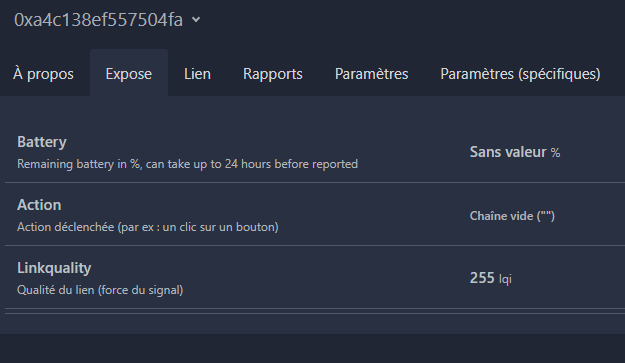
Zigbee button details in Zigbee2MQTT with Reactive Action field
On the left: successful pairing in less than 30s. On the right: "Action" field reacts to single, double, long press.

The pairing finishes in less than 30 seconds, the button is displayed with a generic icon but perfect functions. Single, double or long pressures are displayed instantly in ‘Action’. The battery level is not reported, typical of basic Chinese firmware: schedule a change every 18 months or note the date of installation.

The button works natively in Home Assistant

Once in Zigbee2MQTT, the button automatically synchronizes in Home Assistant via the MQTT integration. No extra adjustment is required: the "Action" sensor exposes all events ready for automation.
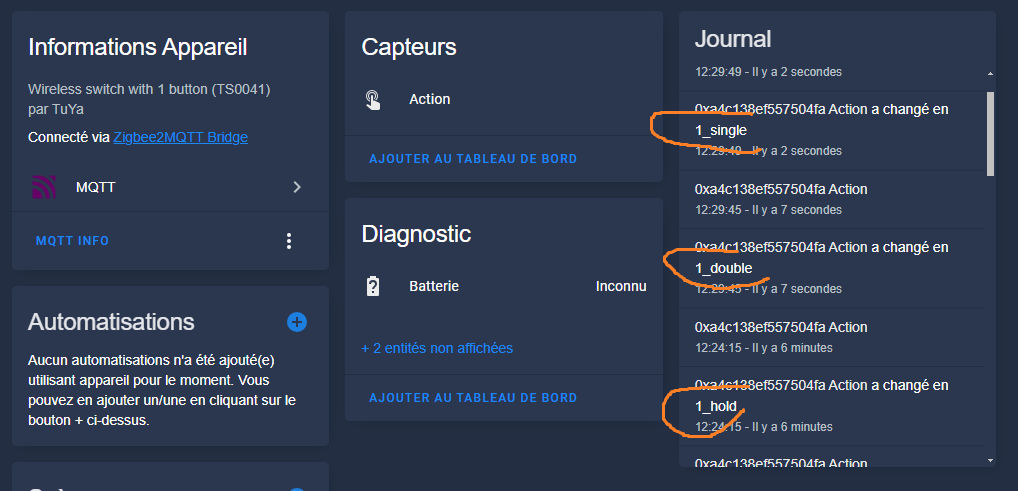
Functional Zigbee Tuya Button Action Sensor in Home Assistant
Single, double, hold states recognized natively for rapid local automations.

Single, double and long pressure triggers are ideal for turning on groups of lights, throwing scenes or multi-equipment scripts. Latency remains below 200 ms in Zigbee LAN, much higher than slow and internet-dependent Tuya cloud solutions.
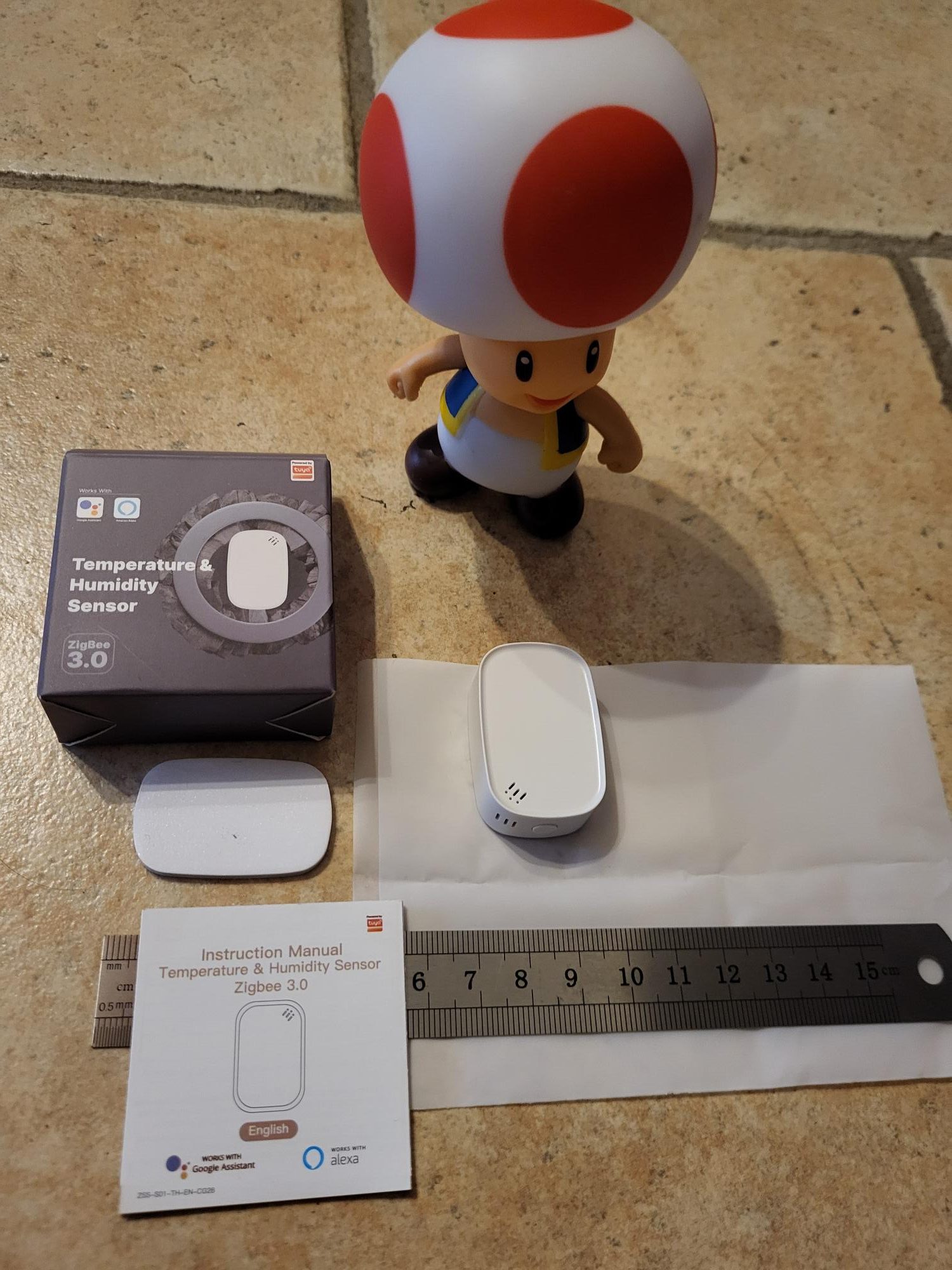
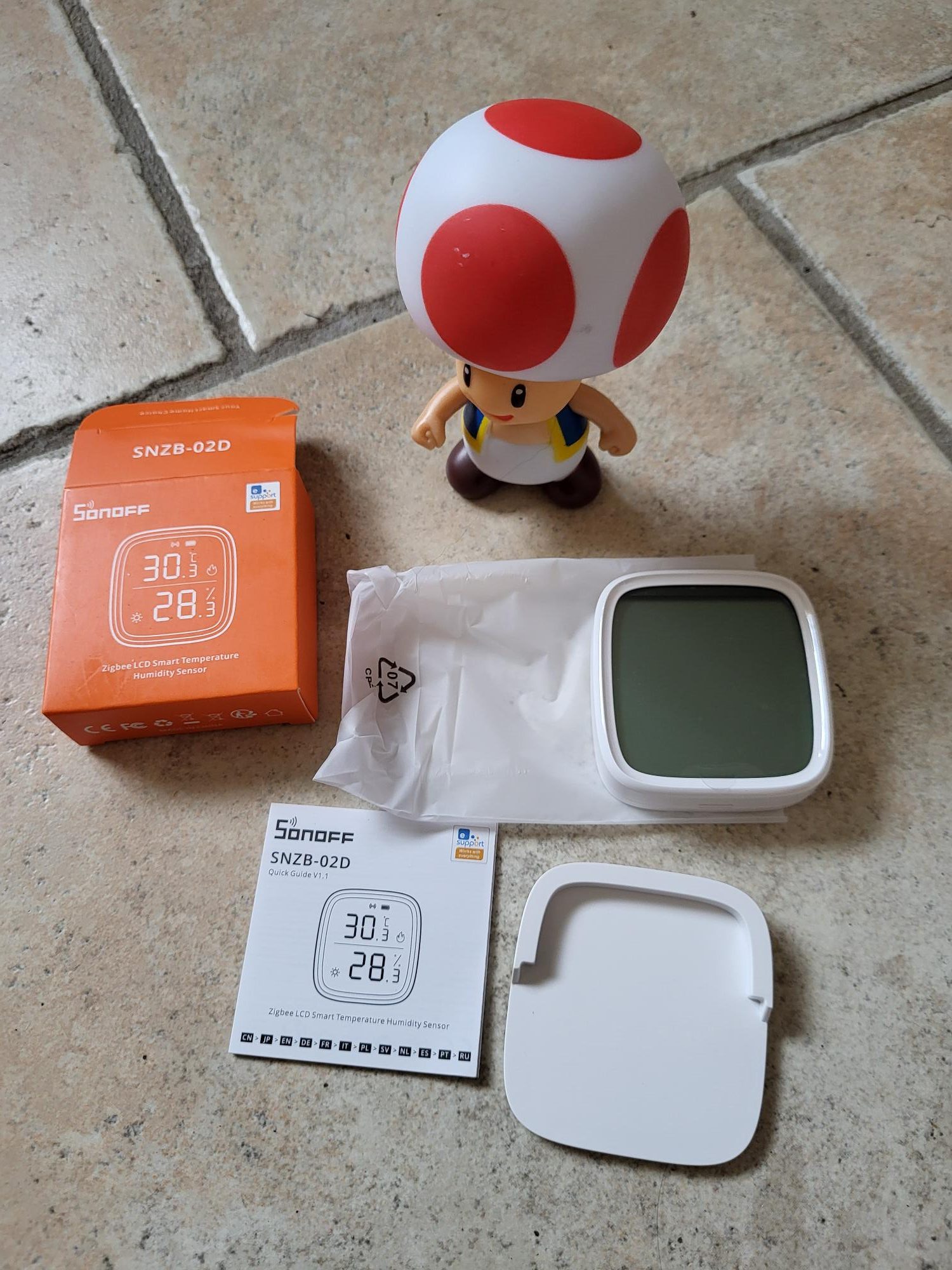
I'm testing the Girier JR-ZDS01 switch

Installation Girier JR-ZDS01 Zigbee in 5 steps

The Girier JR-ZDS01 is a compact and reliable Zigbee 1 gang switch for home automation. This article details my complete installation with Zigbee2MQTT and Home Assistant, from unboxing to integration. Follow these precise steps to reproduce the installation without error, even without experience in electricity or home automation.

I check the model JR-ZDS01 received

Several references coexist at Girier, but my copy clearly bears the mark JR-ZDS01 on the case. This model is a single 1-gang switch with no built-in energy monitor, unlike other more advanced versions.

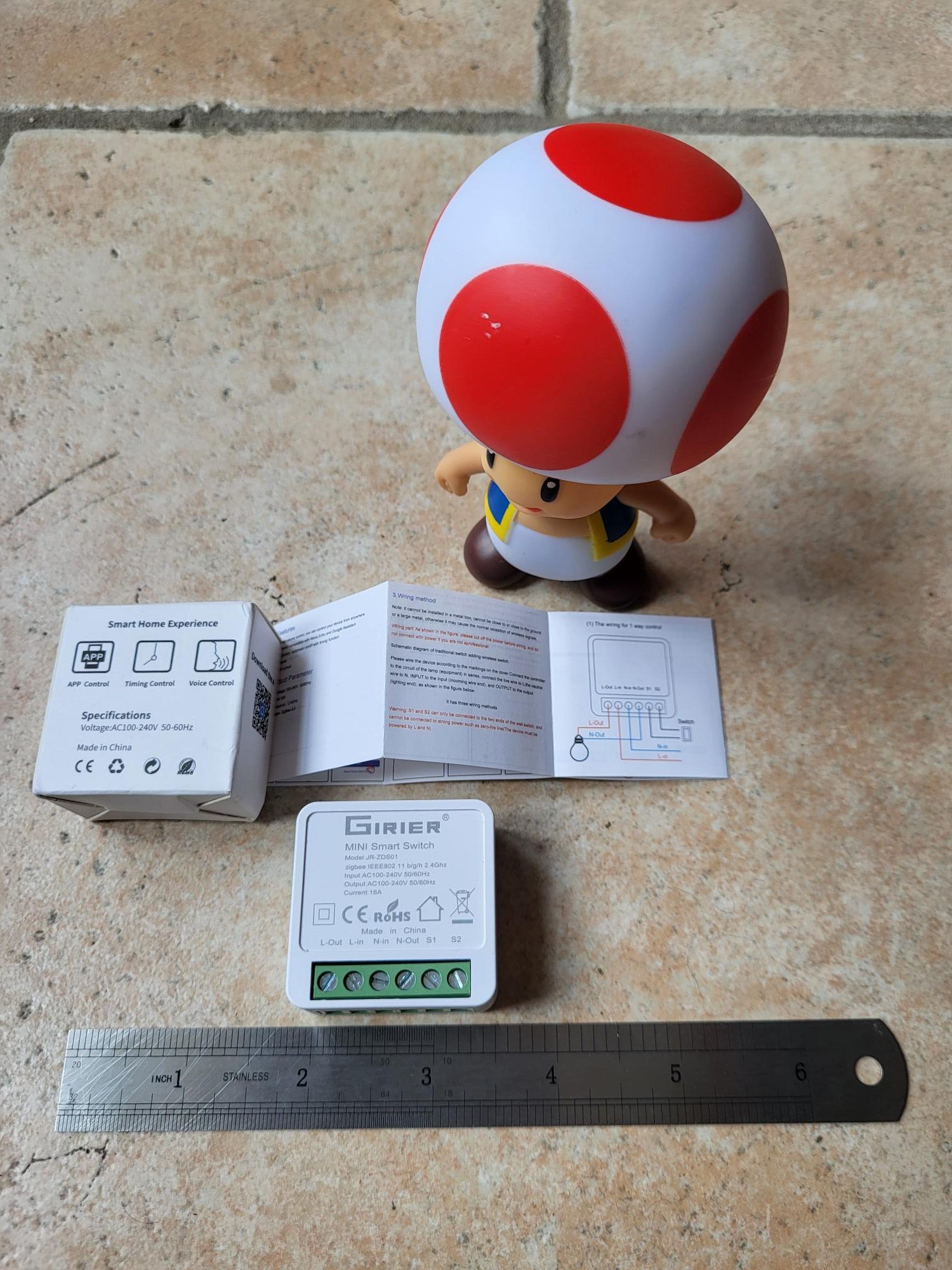
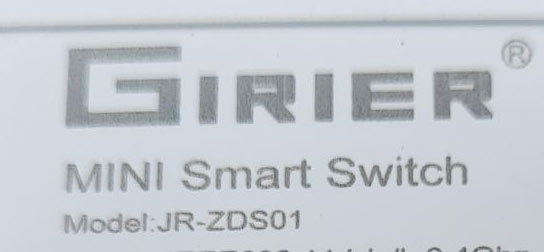
Girier case JR-ZDS01 with model marking

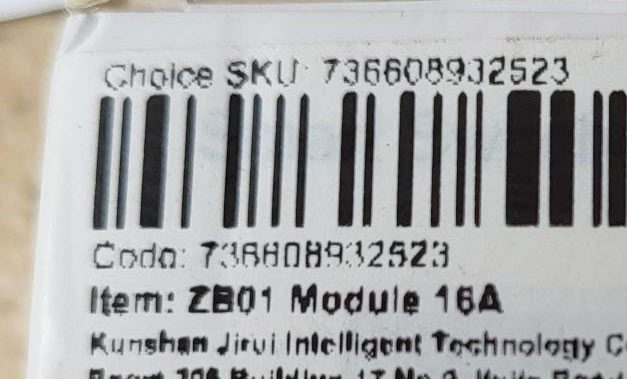
There is another reference on the packaging: ZB01, which probably refers to the generic version or a variant. Always check the inscriptions on the main case to accurately identify your device.

Packaging Girier with reference ZB01

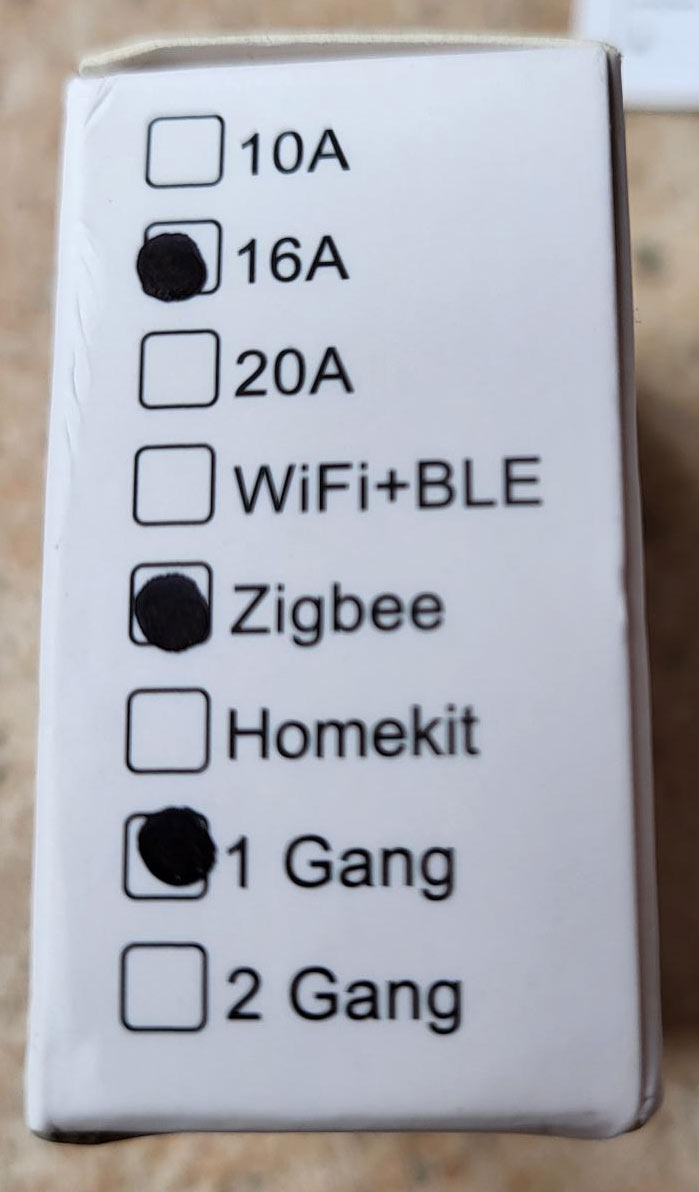
The Girier brand offers several ranges. The sticker on the box lists other models such as 2 or 3 gang switches, confirming the diversity of their catalogue.

List of Girier models on the packaging

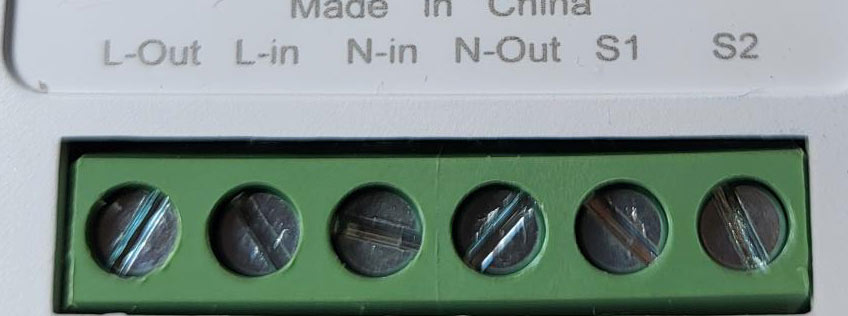
I connect L-in and N-in

This model uses conventional screw connectors for power supply: L-in for phase (brown or black thread under 230V) and N-in for neutral (blue thread). Firmly tighten the screws without excess to avoid damaging the wires, typical of Zigbee built-in modules.

Girier JR-ZDS01 L-in and N-in connectors

I launch the Zigbee2MQTT pairing

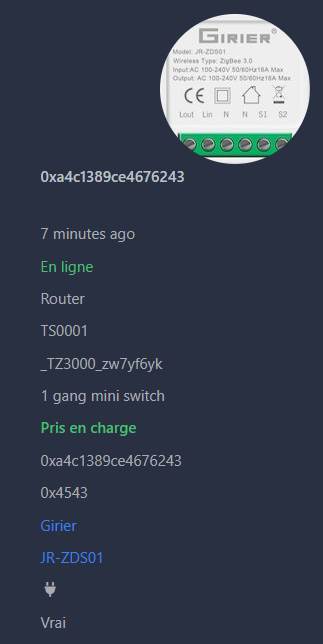
In Zigbee2MQTT, enable the pairing mode ("Permit Join" button). The equipment automatically connects within seconds. It appears as JR-ZDS01, even if the displayed image does not match exactly – this does not impact the operation.

Detection Girier JR-ZDS01 in Zigbee2MQTT
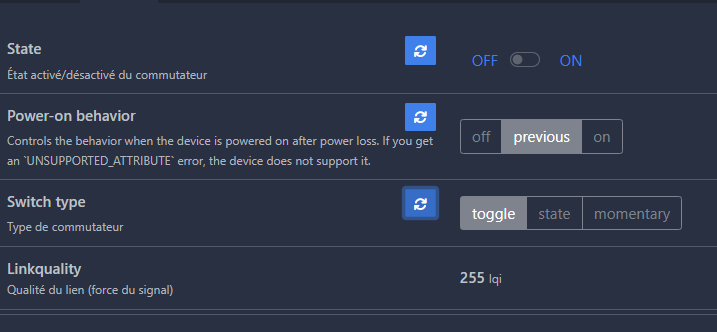
Exposed configuration of the Girier JR-ZDS01

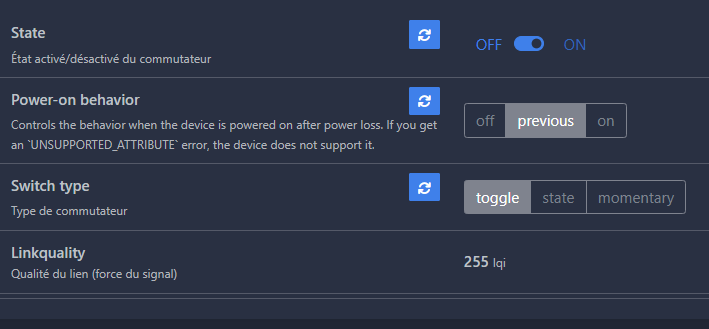
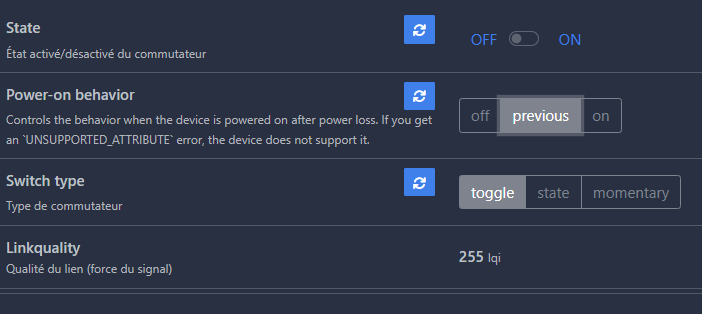
Available presentations include switch (state: ON/OFF/TOGGLE), power_on _behavior (off/previous/on) and switch_type (toggle/state/momentary). Test the orders immediately: the switch shall respond without delay. For a timed ignition, send {"state": "ON", "on _time": 300} (300 seconds).

I configure in Home Assistant

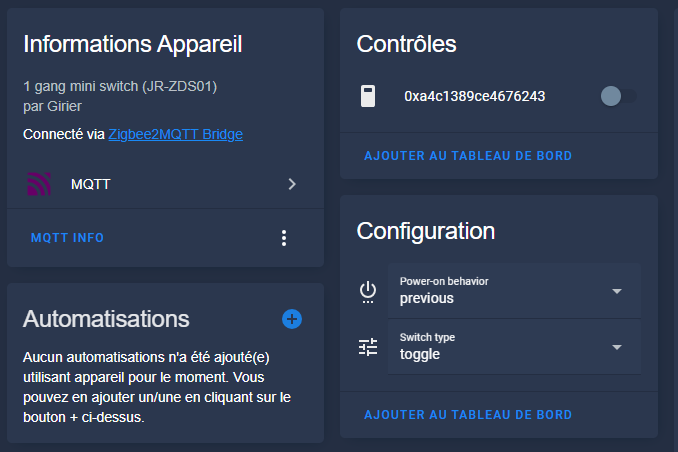
Restart Home Assistant to integrate the equipment via Zigbee2MQTT. It automatically appears as a switch entity with the name JR-ZDS01, ready to use in automations or the dashboard.

Integration of Girier JR-ZDS01 in Home Assistant

The switch works perfectly: switch on/off, toggle, and real-time status boost. No additional configuration is required for basic use.


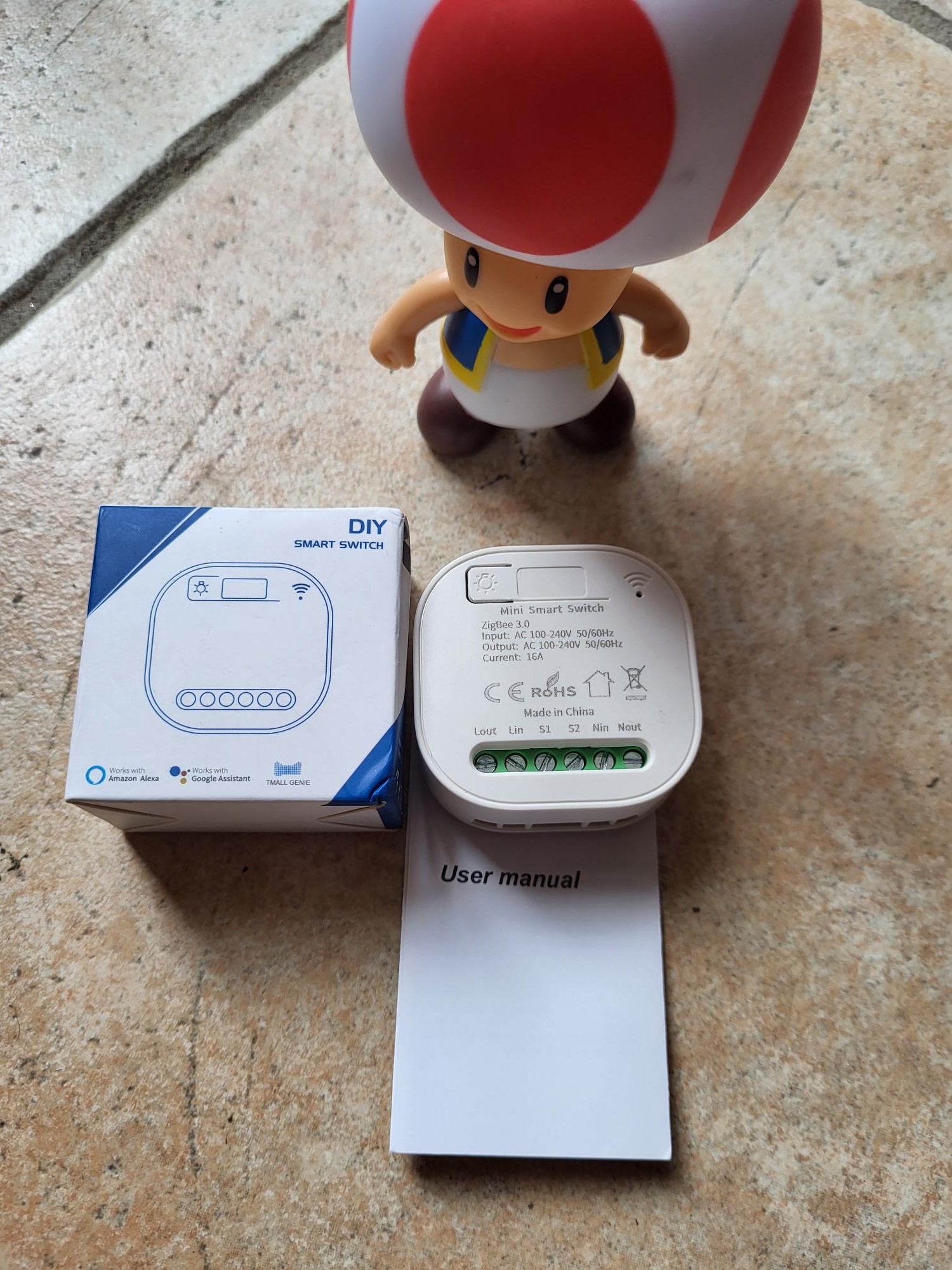
I am testing the Zigbee switch compatible WHD02

Zigbee WHD02 integration: 5 simple steps

The Zigbee WHD02 module easily connects Lin and Nin for a reliable leakage break. This detailed guide explains each step of checking, connecting and integrating with Zigbee2MQTT and then Home Assistant. A non-specialist reproduces the installation in less than 30 minutes with these precise instructions and complete photos.

I check the received model

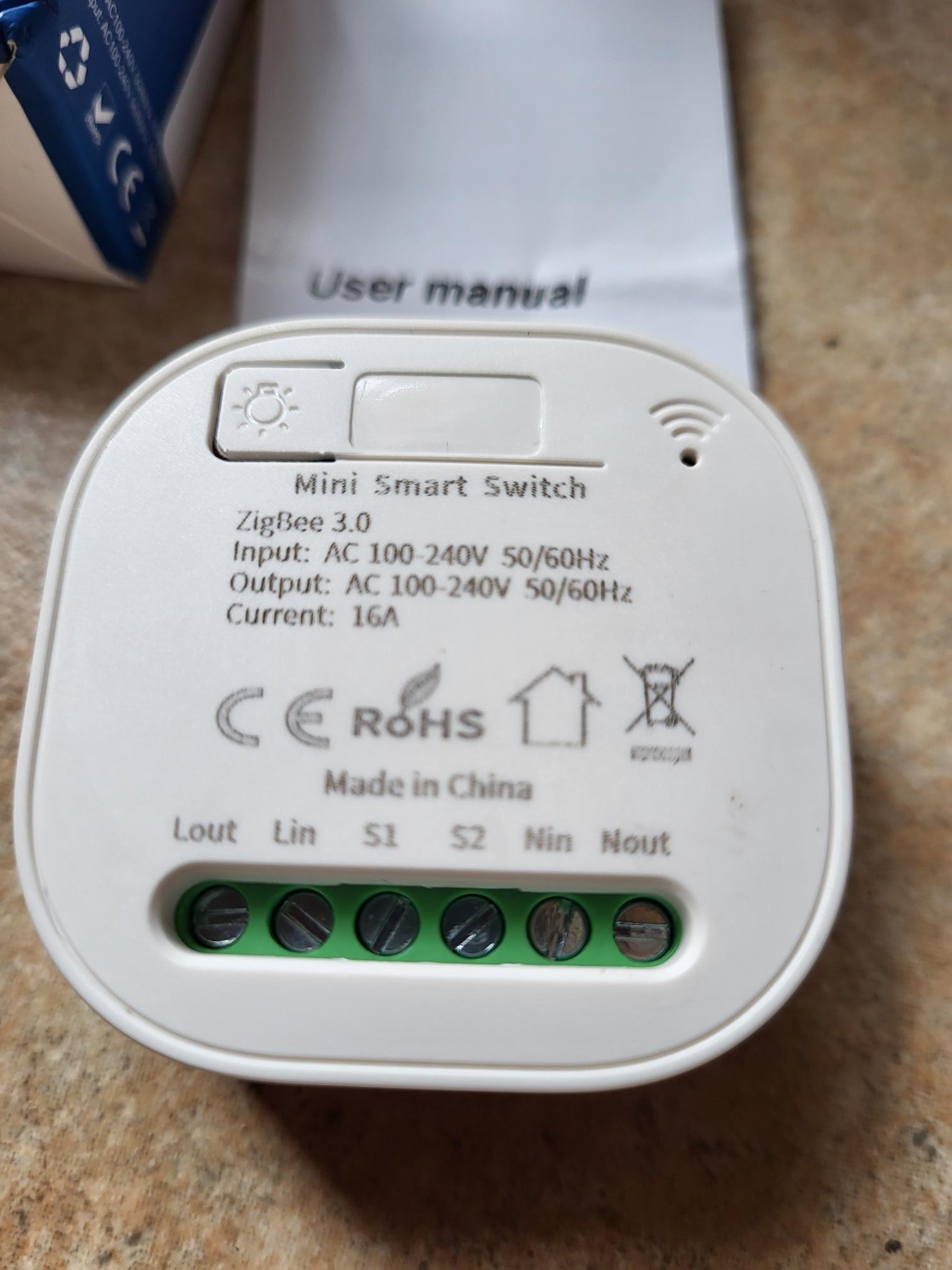
The module arrives without a clear reference on the packaging, unlike standard models. The distinctive form helps to identify it: compact rectangular housing with Lin and Nin connectors, central button and blue LED. This lack of marking is common among some generic Chinese manufacturers.

Full view of received Zigbee WHD02 module

I connect Lin and Nin

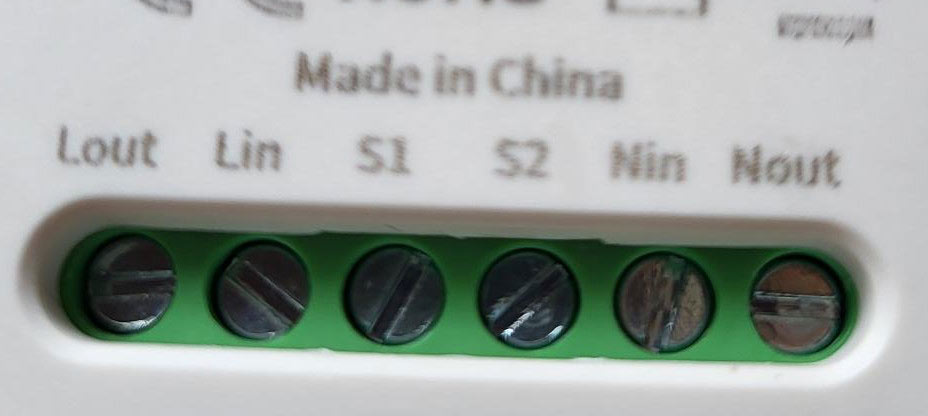
Lin and Nin connectors use standard European sockets such as C14. Connect Lin to the active phase (brown or black thread) and Nin to the neutral phase (blue thread). Check that there is no voltage with a tester before connection to avoid any electrical risk. The module then detects leaks between 30mA and 300mA according to the DIP switch setting.

Connection diagram Lin and Nin of the module WHD02

I integrate this box with Zigbee2MQTT

When powered on, the module remains silent. First activate the pairing mode in Zigbee2MQTT via the web interface (‘Permit Join’ button). Then press the center button of the module for 5 seconds until the blue LED flashes quickly, indicating that the pairing starts.

Zigbee2MQTT interface: Discovery of the WHD02 module

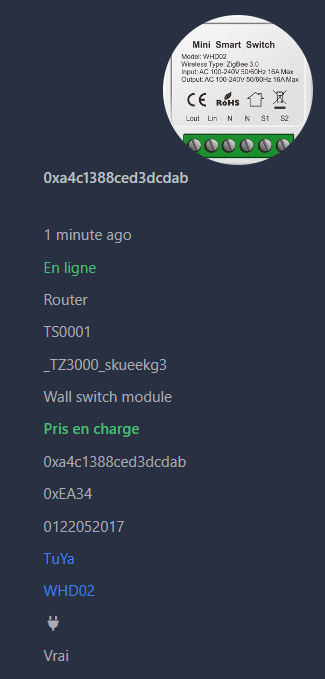
The module appears as “WHD02” despite an inadequate illustration image in the interface. Orders go up perfectly: circuit breaker status, leakage level detected, manual reset button. Test by simulating a leak with a defective device to validate operation.

Orders available WHD02 in Zigbee2MQTT

I'm going to Home Assistant.

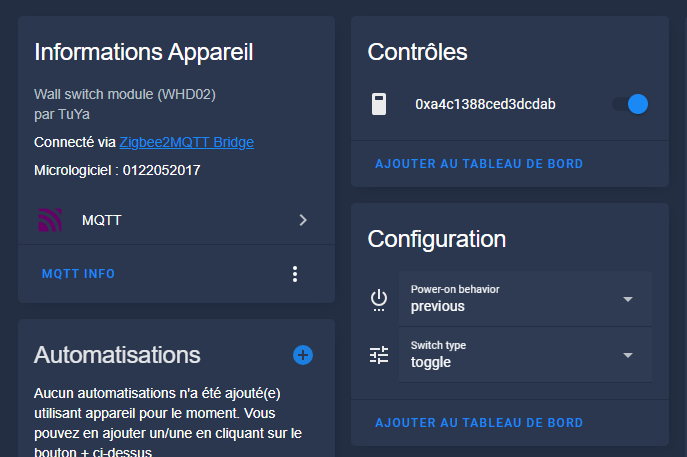
The equipment automatically migrates via the MQTT integration. It appears in the list of Zigbee devices with all the entities: main switch, leak sensor, armament button. Configure automations for push notifications or group break in case of a detected leak.

WHD02 module perfectly integrated in Home Assistant

The integration is immediate and complete, with no additional configuration required.

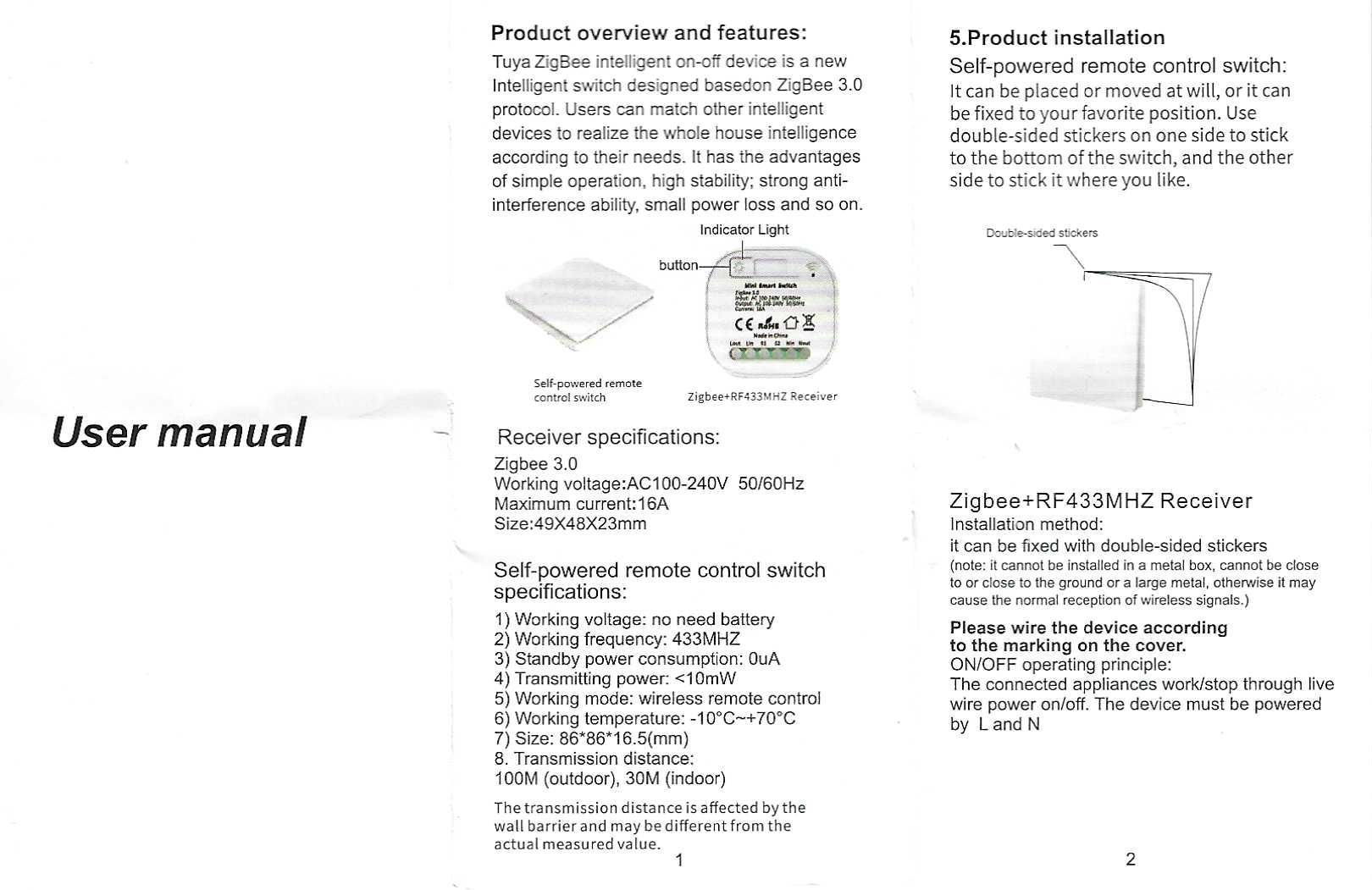
For archive: the complete instructions for use

Two-sided instructions with wiring diagram and technical characteristics:

Instructions for use duplex module WHD02

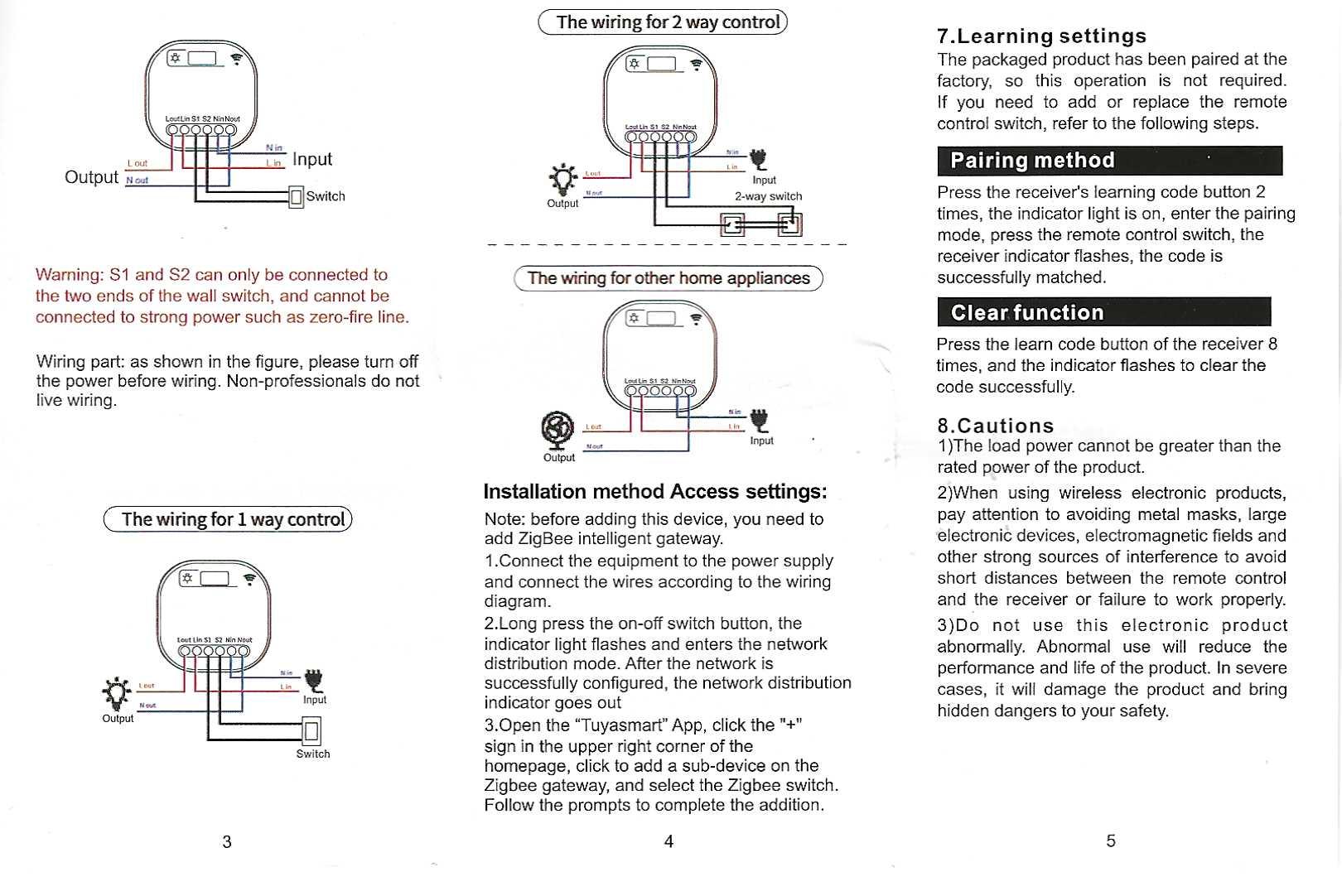
Reverse notice with DIP switch settings and table of detection thresholds:

Operating instructions back module WHD02 thresholds DIP switch


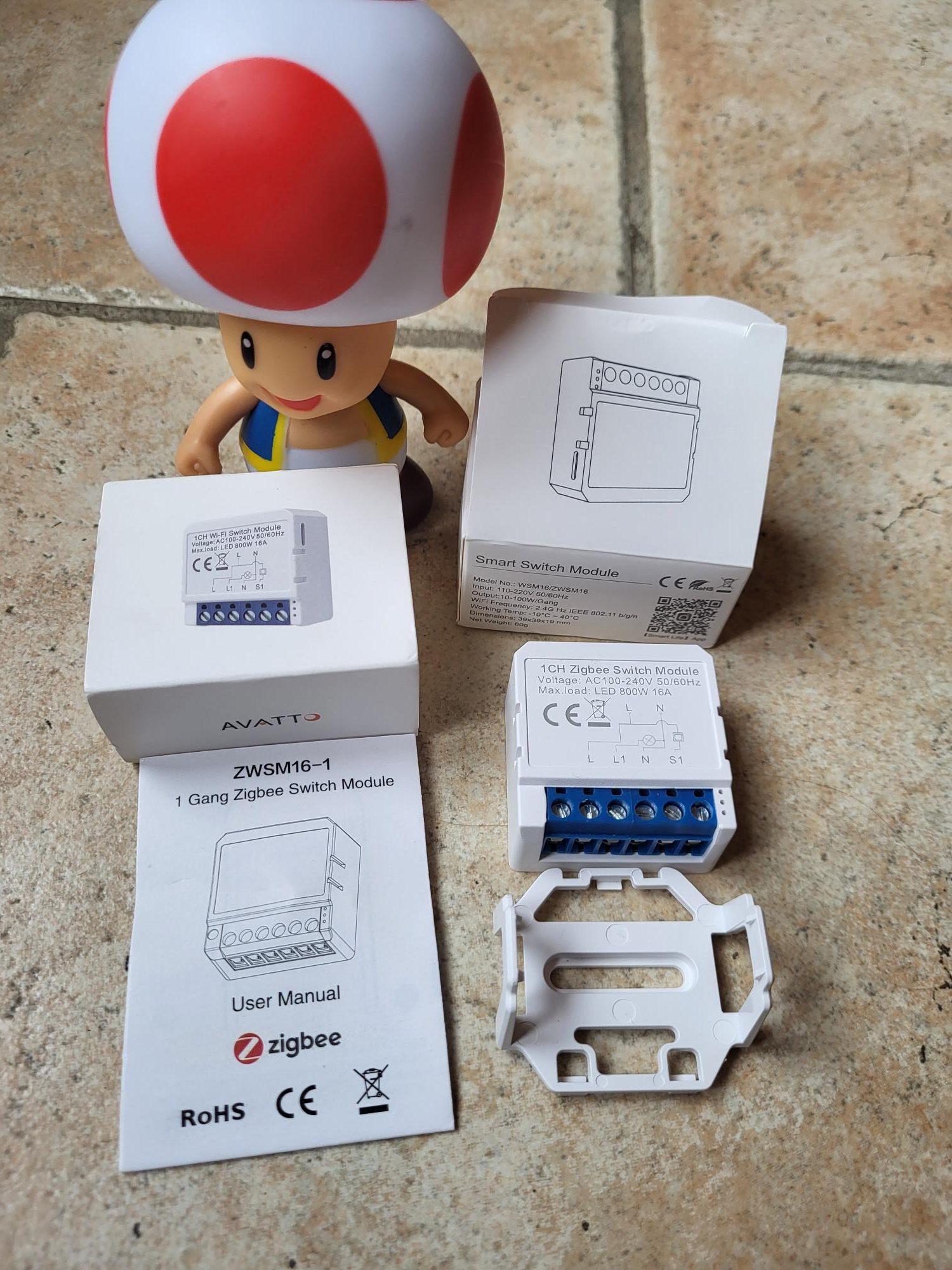
I am testing the switch Lamp Zigbee ZWSM16-1 brand AVATTO

Installation ZWSM16-1 Zigbee without neutral

The ZWSM16-1 module is a neutral Zigbee switch for home automation. I explain step by step its installation, pairing and integration in Zigbee2MQTT and Home Assistant. Even inexperienced, follow these precise instructions for a perfect result.

I check the model ZWSM16-1 received

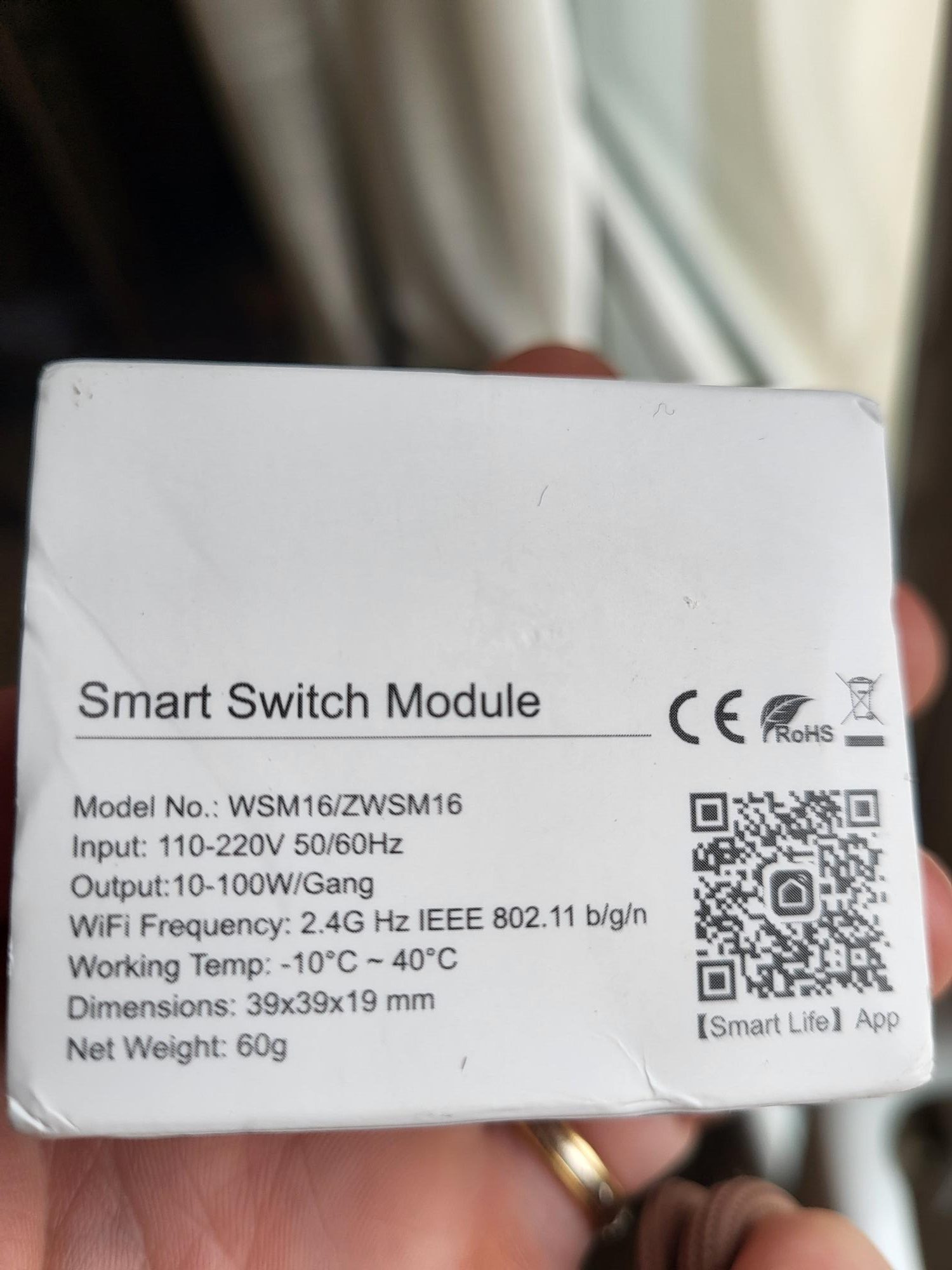
The module arrives stamped ZWSM16-1, a specific reference for neutral wireless installations. This version works on phase and return phase, ideal for standard non-neutral flush-mounted housings available.

It does not contain a capacitor in the box. This component is not always necessary, but in some installations with LEDs or low consumption lamps, a capacitor from 0.1µF to 470nF in parallel with the load avoids flickering or residual brightness due to the residual current.

ZWSM16-1 module view received

I connect L and L1 correctly

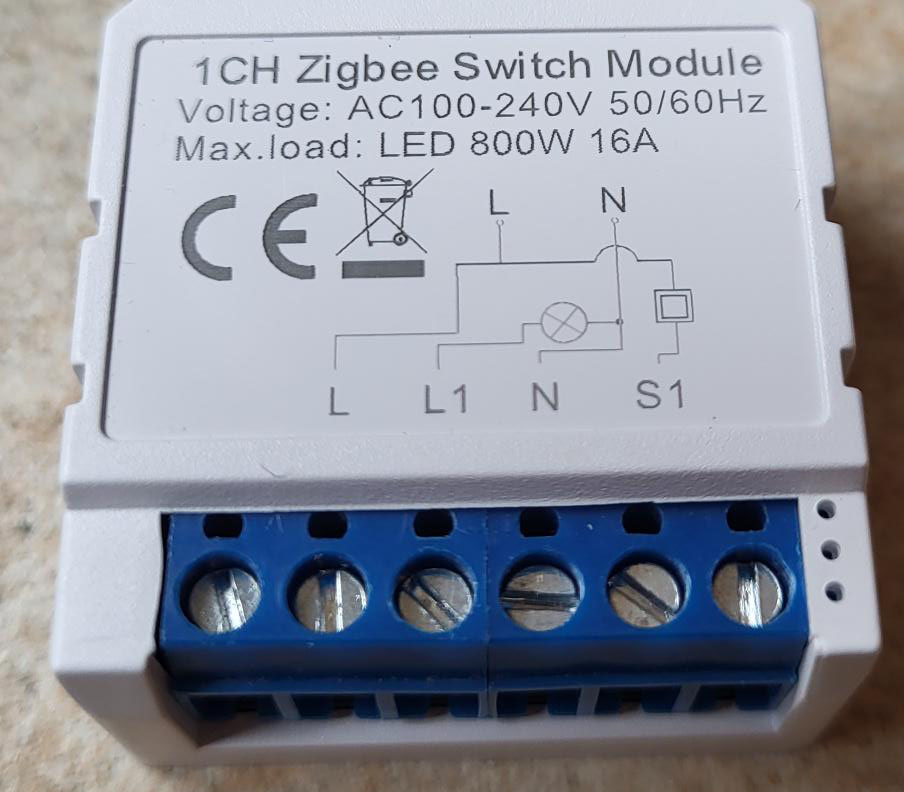
The connectors are classic: Soft screws for easy and secure clamping. Plug L on the incoming phase (230V), L1 on the back to the load (lamp or socket). Check the absence of neutral and make sure the earth is present if necessary.

ZWSM16-1 module L and L1 connectors

I pair the module to Zigbee2MQTT

When power is turned on, nothing appears. Enable pairing mode in Zigbee2MQTT (Permit Join button). Then press the button at the top of the module for 5 to 10 seconds: the blue LED flashes rapidly, indicating that the pairing starts.

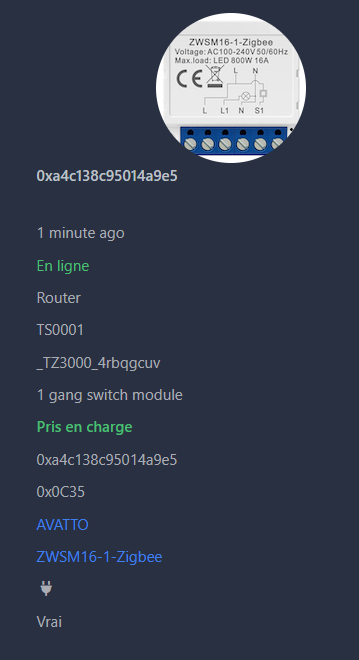
Successful pairing ZWSM16-1 in Zigbee2MQTT

The module appears as ZWSM16-1, with the corresponding image. The states (on/off, linkquality) and commands (state) go up perfectly and meet the tests.

States and orders ZWSM16-1 in Zigbee2MQTT

I integrate into Home Assistant

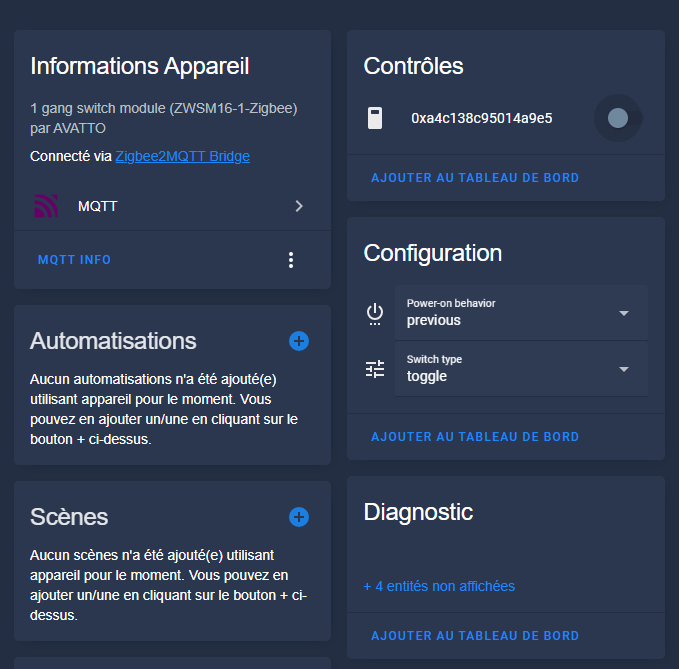
In Home Assistant, the equipment automatically migrates via the MQTT integration. It appears with its entities: switch to turn on/off, and sensors for link quality.

ZWSM16-1 integration in Home Assistant

The switch is fully functional, ready for automations or dashboards.

Archives: Full instructions for use

Here is the official manual in high resolution images for future reference. Consult it for detailed diagrams and safety precautions.
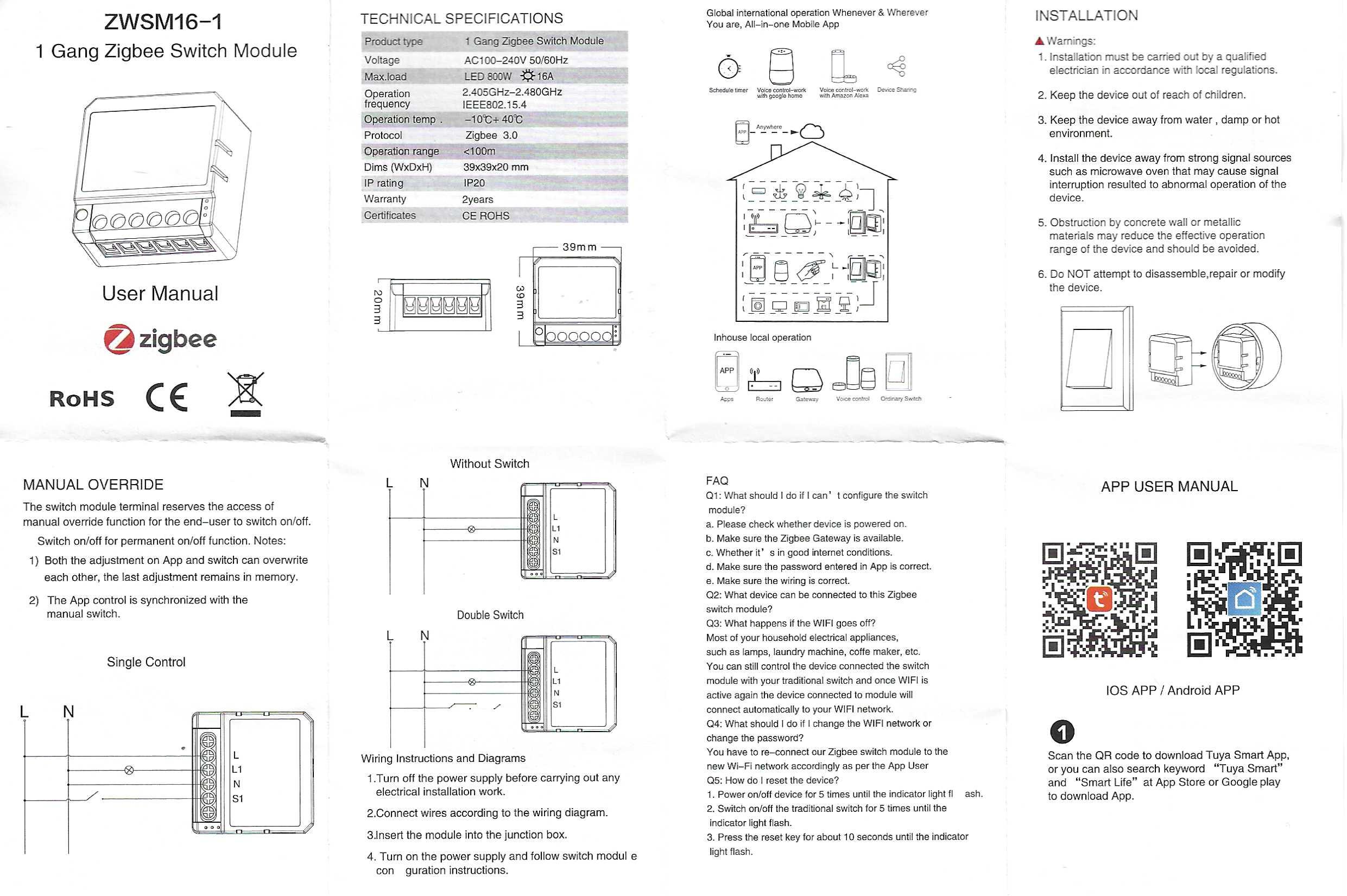
Front of the manual ZWSM16-1

Back of user manual ZWSM16-1

I am testing the Zigbee Switch Lamp "ZB Switch 1CHL"

The market for Zigbee sensors and modules has seen a significant rise in prices for popular models in recent years. This 1CHL ZB Switch module remains an affordable option to control a lamp or circuit from an existing switch, without neutral in the built-in box. My tests are independent: I buy the modules with my own money, sometimes financed by the resale of equipment via my garage sale.

Zigbee 3.0 Certification of ZB Switch 1CHL Module
Official Zigbee 3.0 certification, a guarantee of reliable compatibility.

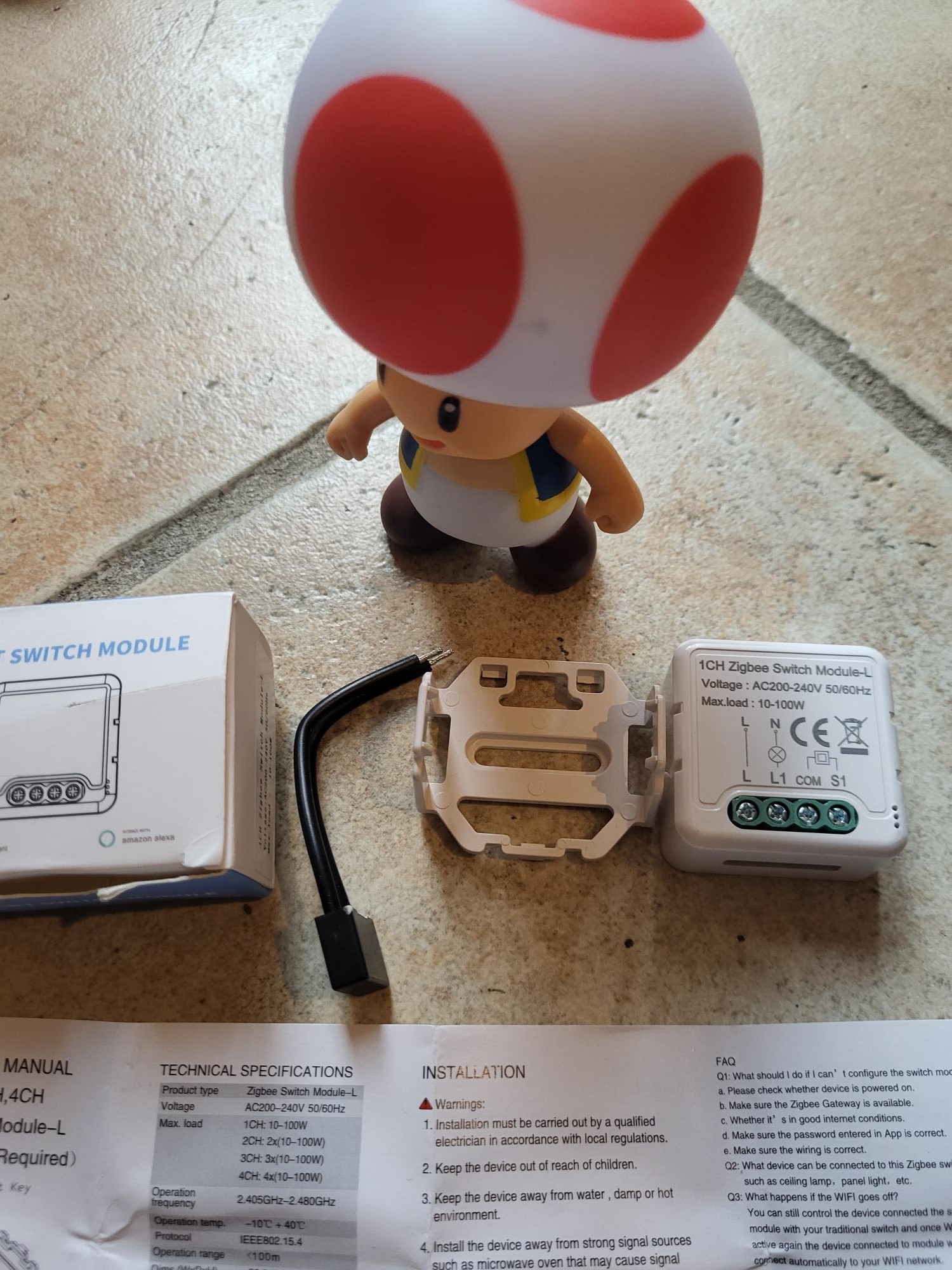
I check the model ZB Switch 1CHL received

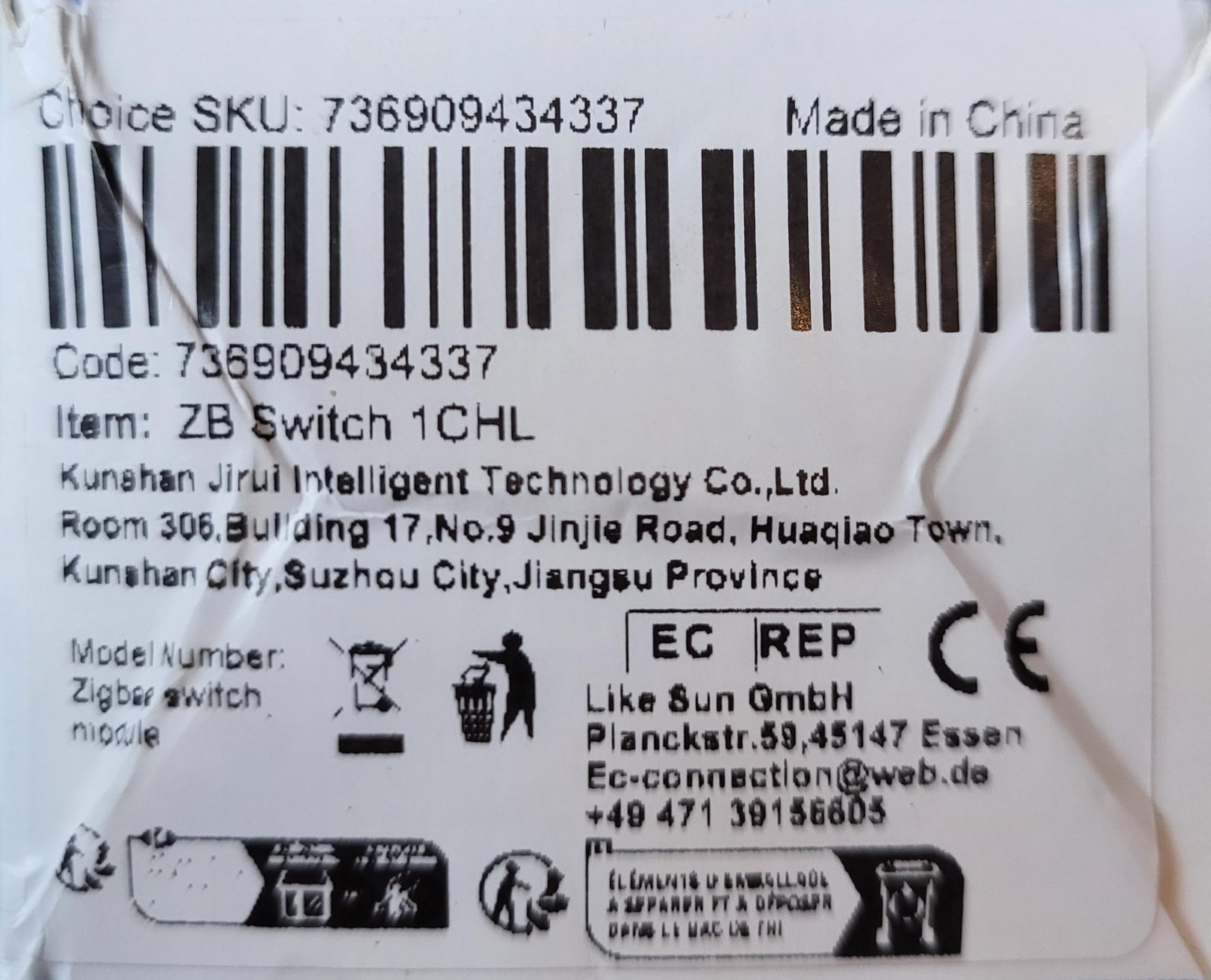
Many references of Zigbee modules circulate, often confused. My copy is marked "ZB Switch 1CHL", without more precise code. Important: it is a version specifically designed for neutral-free switches, which means that it works on circuits where no neutral wire arrives at the bypass box.

Zigbee ZB Switch 1CHL Module Overview
The ZB Switch 1CHL module, compact and ready to use.

This model comes with a capacitor, rare but useful element. Place it in parallel with the lamp if you observe flicker or a residual glow once the lamp is turned off. This stabilizes the residual current typical of modern LEDs, avoiding malfunctions.
Capacitor supplied with the Zigbee module to avoid flickering
The capacitor included, to be connected if necessary to sensitive LEDs.

Update: change of packaging, same module

For an additional order of the same model, I received a different box. Module, package leaflet and capacitor remain the same at 100%. Only the outer packaging changes, probably a new supplier or a cosmetic update from the manufacturer.

New box of Zigbee ZB Switch 1CHL module
New box received, but content unchanged.

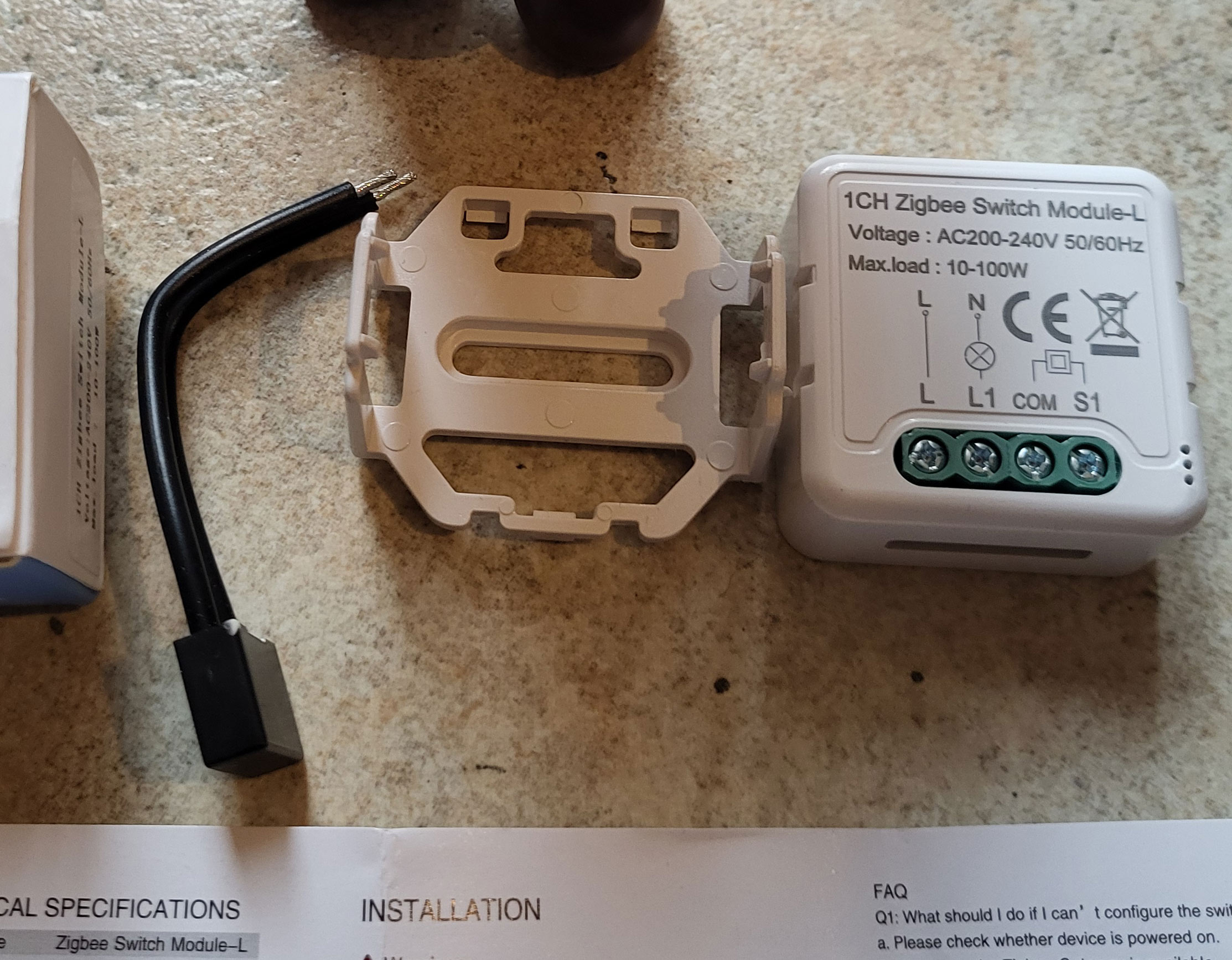
I connect L and L1 simply

The connectors follow a classic pattern for this type of module. Connect phase L (current inlet) to terminal block L, and charge L1 to the lamp. Always turn off the general current before any electrical intervention for your safety.

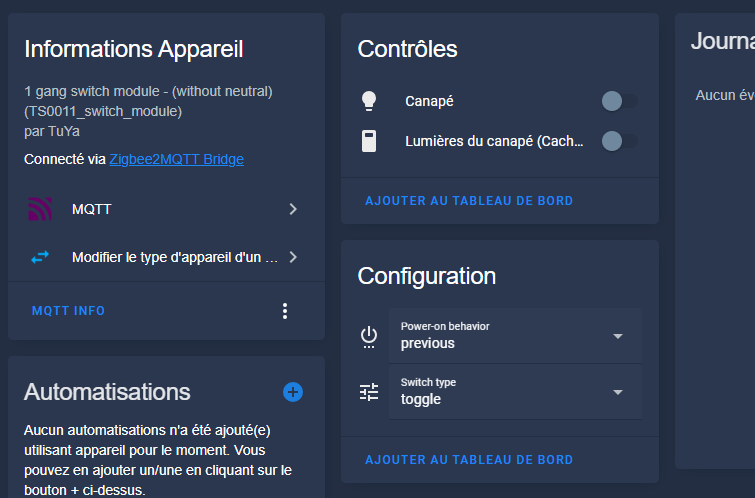
Connection diagram L and L1 of the Zigbee module
Conventional connections: L for phase, L1 for load.

I launch the Zigbee pairing easily

Enable pairing mode in Zigbee2MQTT via the web interface. Put the power back on: the lamps are initially switched on. Press the reset button of the module for 10 seconds, or perform 5 fast on/off cycles with the wall switch. The blue LED flashes, indicating that the pairing starts.

Automatic module detection in Zigbee2MQTT
Perfect detection in Zigbee2MQTT, faithful image to the module.

The state and brightness commands work immediately. Give the equipment a user-friendly name for easy identification in your network.

Functional controls in Zigbee2MQTT: state and brightness
Operational state (on/off) and brightness (intensity) commands.

I integrate it into Home Assistant

The equipment automatically appears in Home Assistant via the MQTT integration. It is ready to be used in automations, dashboards or scripts. The integration is smooth, with no additional configuration required.

Zigbee module integrated in Home Assistant
Present in Home Assistant, perfectly functional.

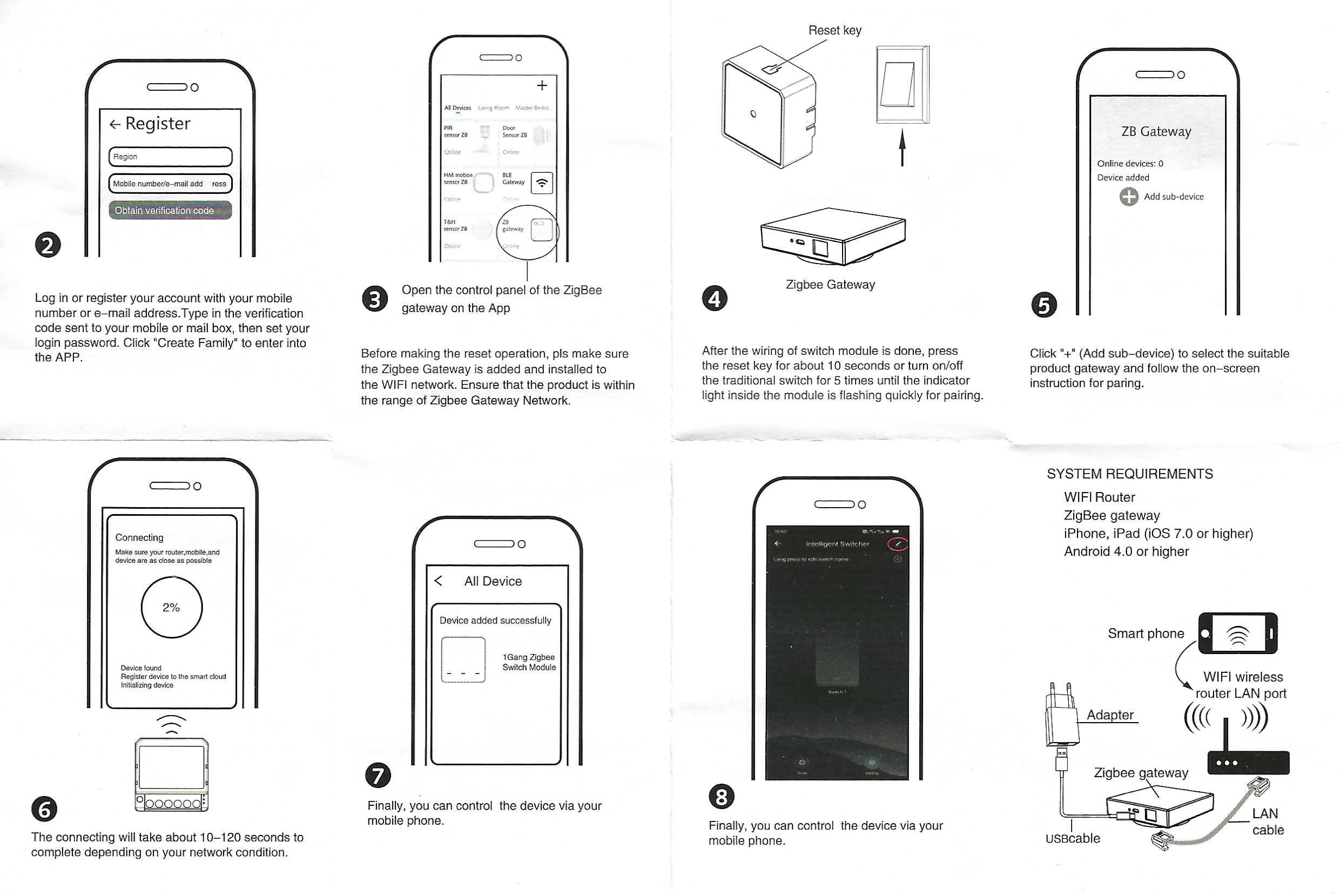
Archives: the complete instructions for use

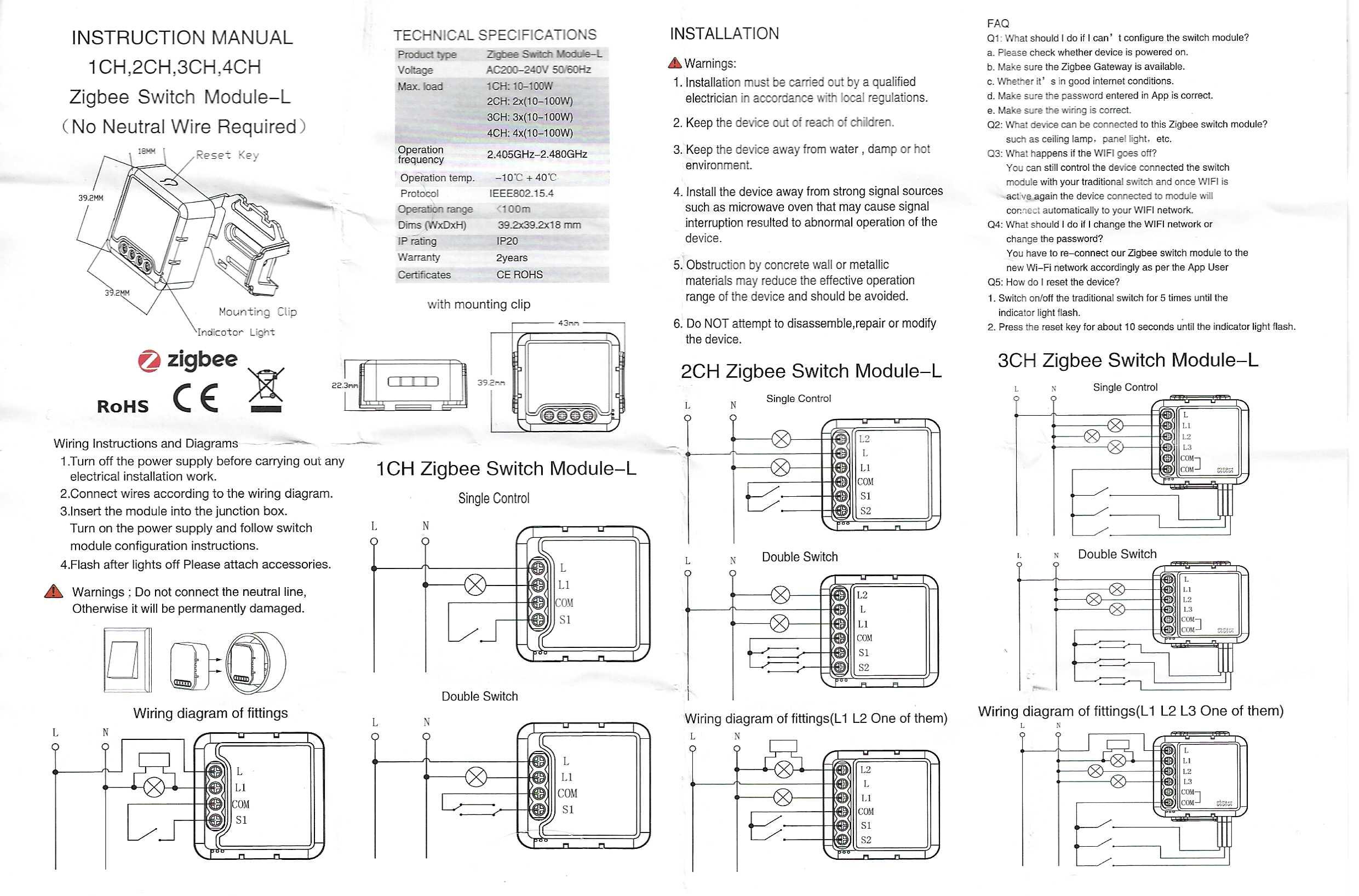
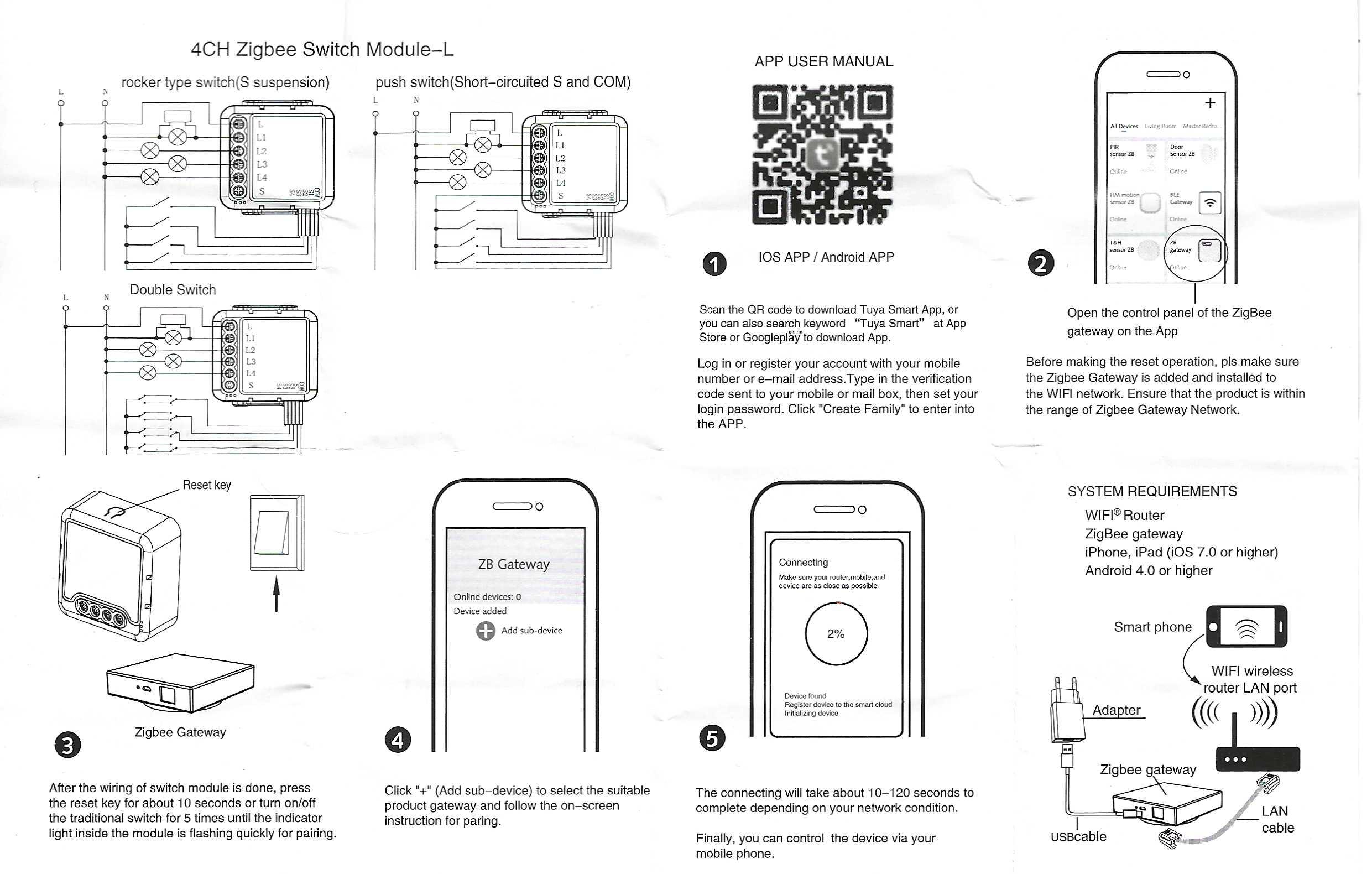
Here are the two-sided scans of the package leaflet provided, for future reference when reinstalling or troubleshooting.

ZB Switch 1CHL Zigbee Duplex Operating Instructions
Two-sided notice: detailed instructions.
ZB Switch 1CHL Zigbee module reverse manual
Reverse notice: connection diagrams.