
Objective
The aim is to be notified in the event of a power cut and the return of the juice.
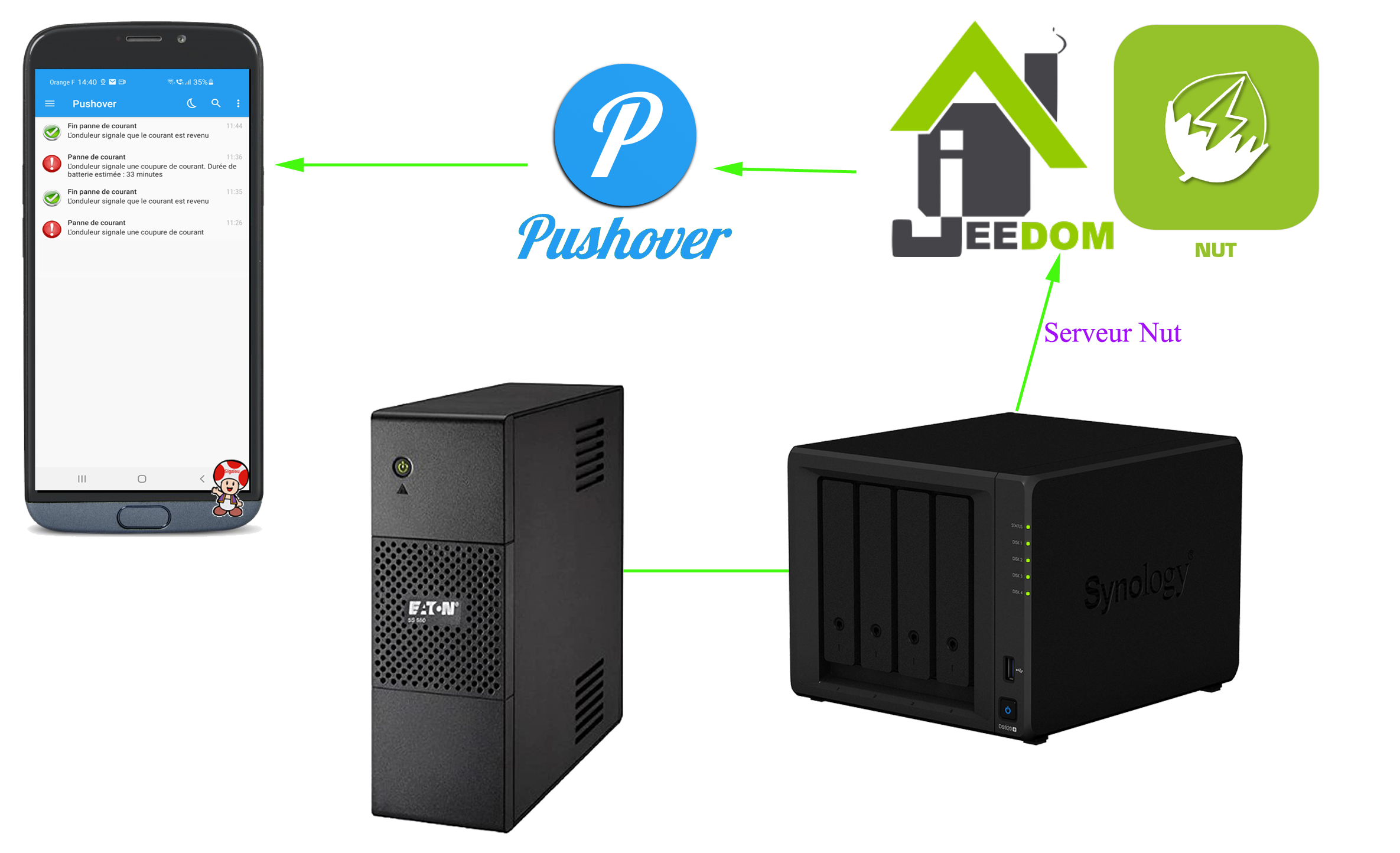

The aim is to be notified in the event of a power cut and the return of the juice.
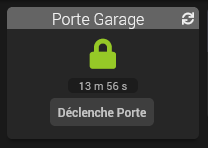
My garage door is already motorised, I will adapt a control module to domotise it, the objective is for example to say ‘Alexa opens the garage’ or that at 9 p.m., Jeedom checks that the garage is closed, otherwise she informs me that she closes it.

If like me you synchronize your Repository GitHub with your Jeedom development, you encounter since August 13, 2021 a new error.
On my salt electrolyser, I have a blue LED that indicates that production is ongoing, if it goes out, I would like my home automation system (Jeedom or Home Assistant) to know to warn me.
I was not going to disassemble the electrolyser to recover a power supply or not from the LED, even if I was itchy, I looked at how to recover rather the ‘visual’ info of the LED on or off.
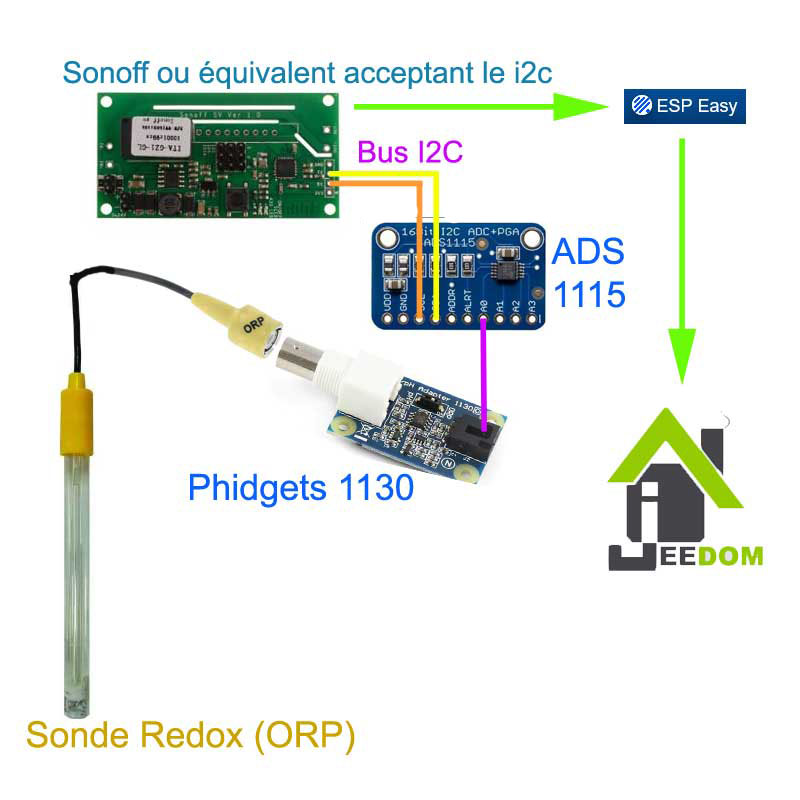
My idea was to find out if there was a brightness detector, which was simple to interface on my computer. Existing control management system for my pool. My system using an I2C port, I looked for this type of chip and it had to be interfacing on Esp Easy for simplicity.
For the past two years, I have been trying to understand how the data retrieved from a Redox probe works and how it is interpreted. I have a salt pool and controlling the Redox seems like a good way to monitor water disinfection.
The page Redox (ORP) or Ph home automation control from a pool to Jeedom described my installation and the management of the Redox was missing because when I created my installation, I had not been able to understand it despite the many forum and tutorial readings. Each using its own formula. Thanks also to the support of Phidgets who directed me to the right method.
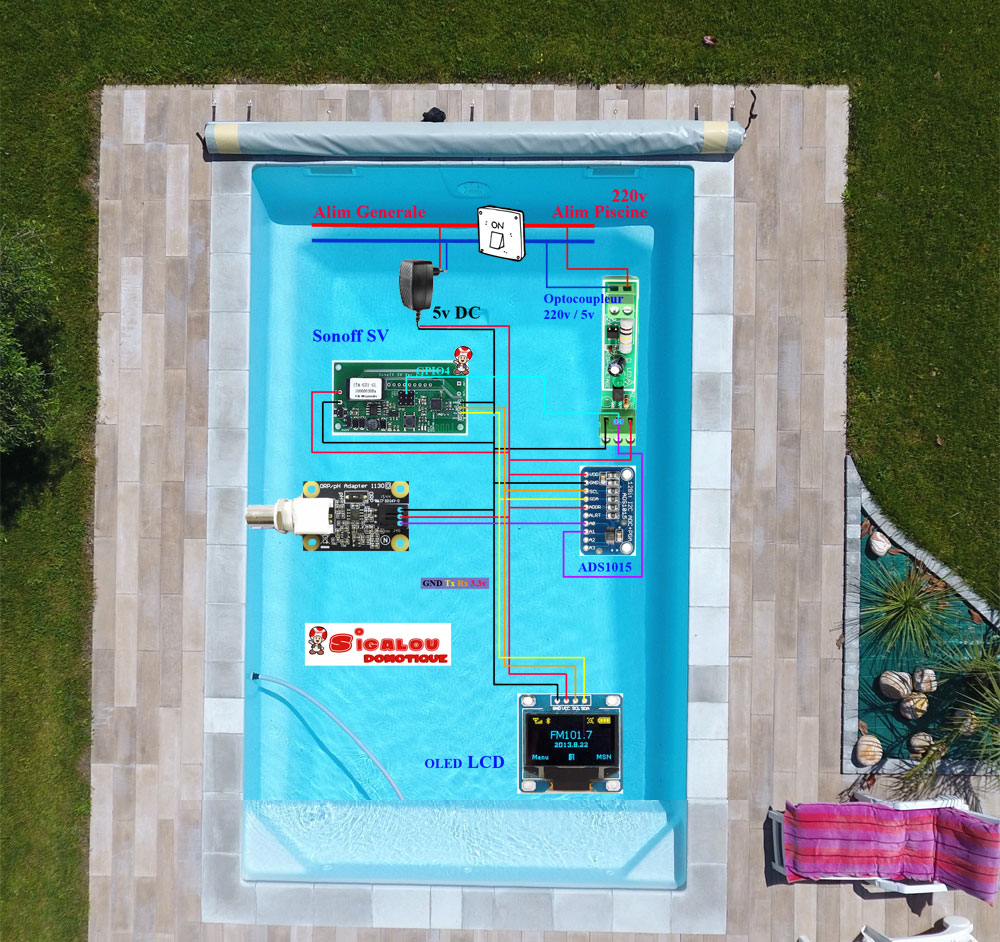
A pattern that is always better than a long speech, here is the installation
This manipulation is already documented but I have adapted my method, everyone will be able to follow his own, here are some references:
I chose to use the SynologyVirtual Machine Manager application
Here are, in order, the screens and what I chose to use
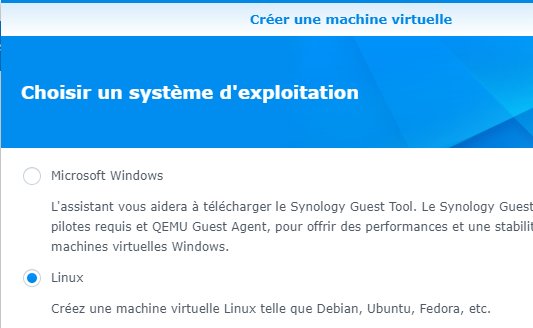
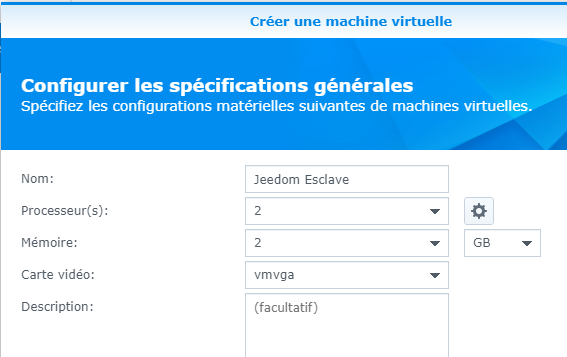
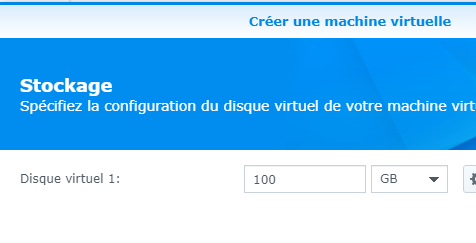
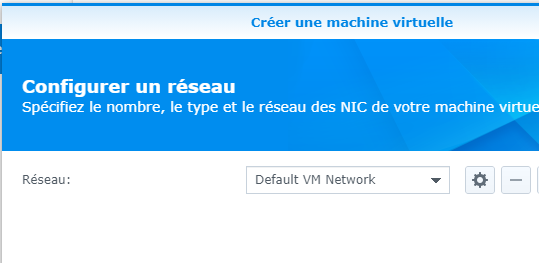
It was on the next screen that I chose to send the image of Jeedom.
The most recent ISO file should be downloaded from:
Copy it to a folder on the NAS and fetch it in the "ISO Startup File" field.
At this point, I leave USB device disassembled, I will mount it later.
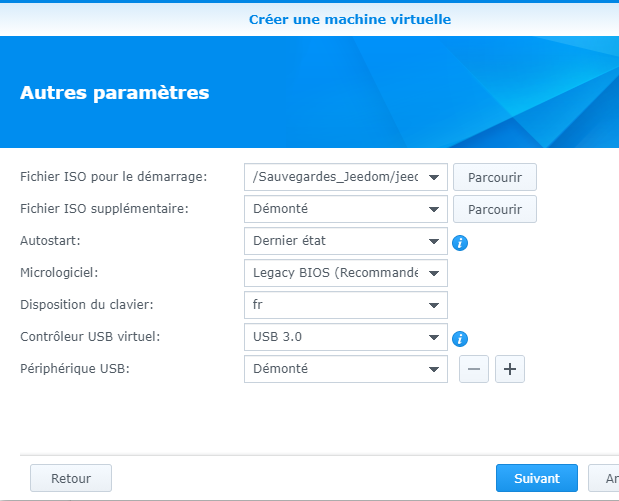
On the next screen, give the rights to your Syno users and then validate the installation
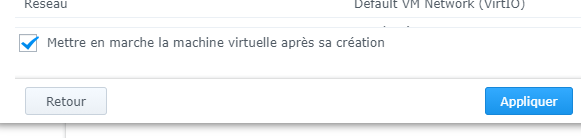
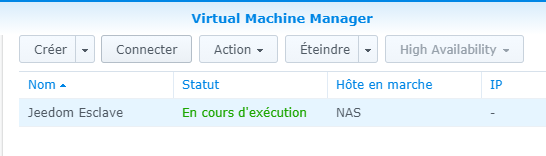
Click on the "Connect" button
The installation screen appears:
 |
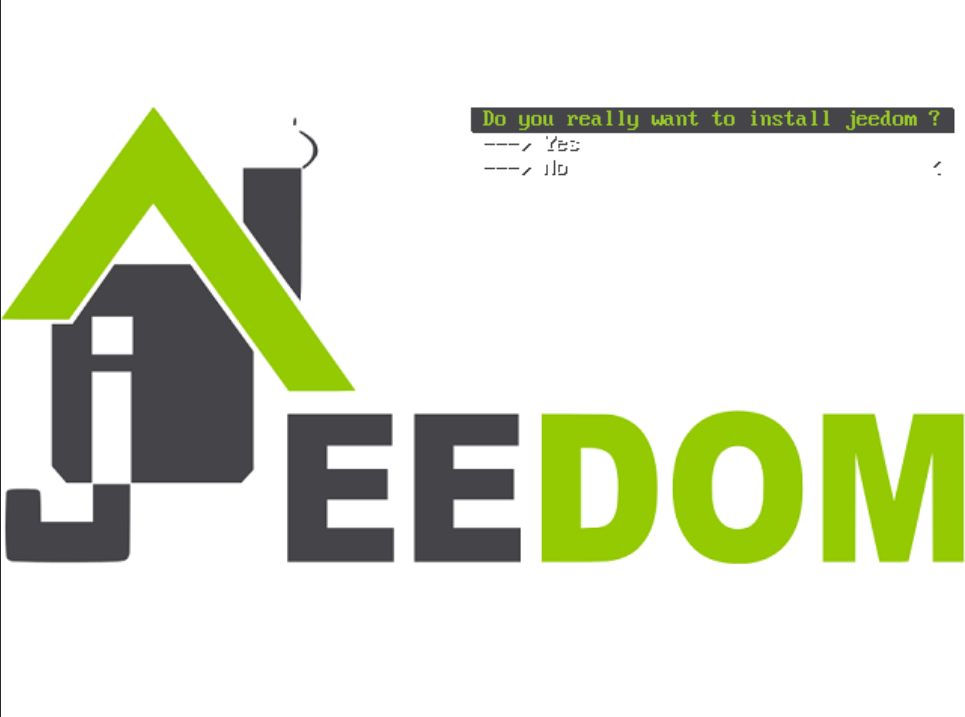 |
Let's let … turn
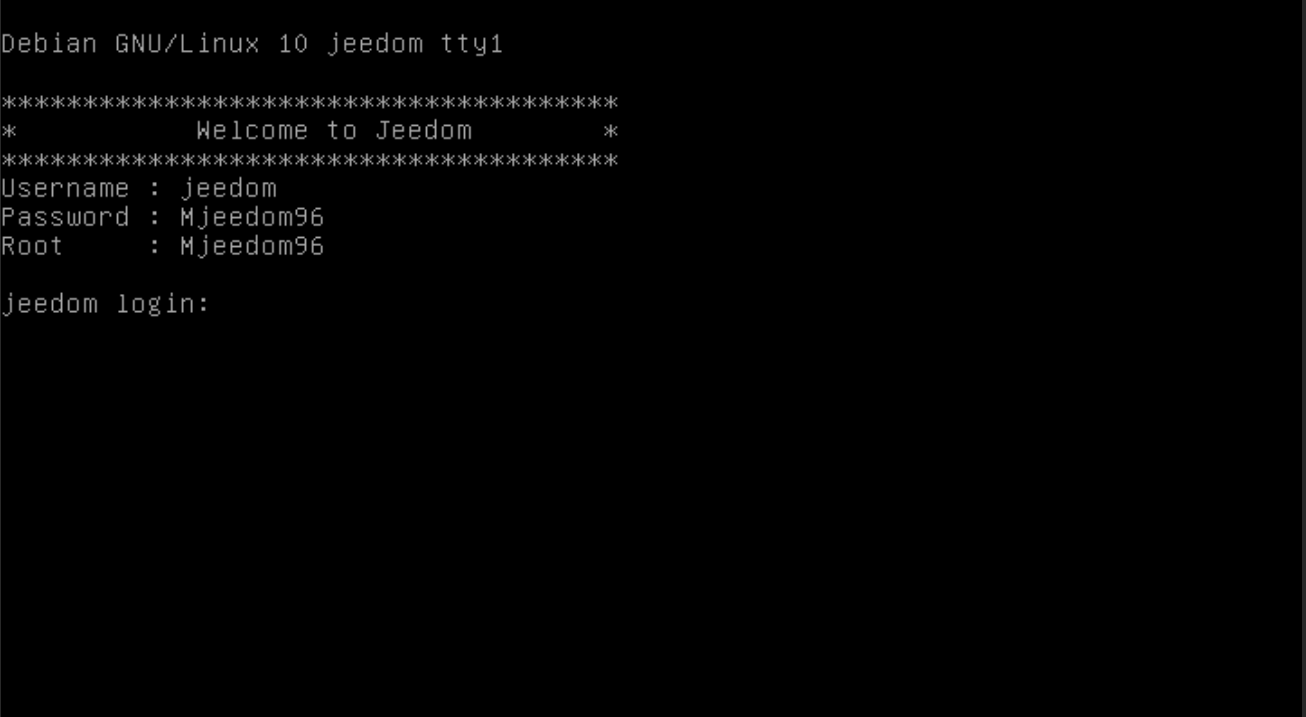
Once the installation is complete, the IP must be found in the router, and the DHCP will give it an address.

By habit, once the VM is detected I freeze the address on 192.168.1.180

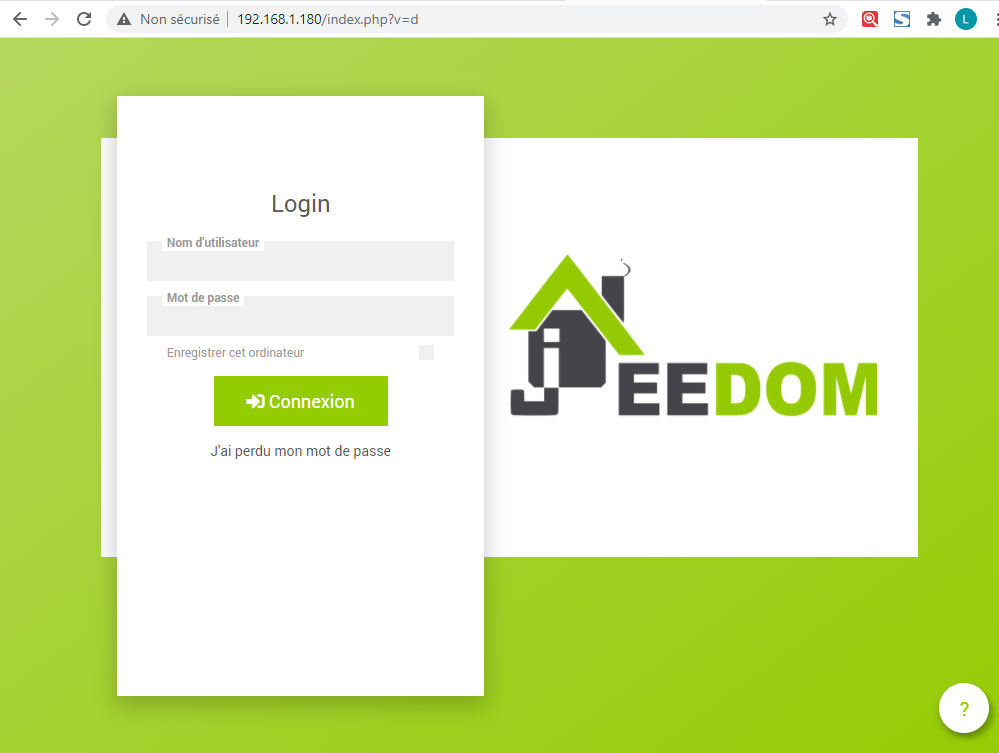
Then Jeedom can be accessed via IP in the browser
And send orders on the order line:
The aim here is to be able to manage the brightness and warmth of the whites of all the hue bulbs from a single interaction.
NB : To enlarge the images: right-click / open the image in a new tab
/!\ ATTENTION /!\ below 30% battery displayed on Jeedom there is a decrease in the reliability of the info, around 20% a LOW BATTERY display is visible on the LCD with loss of Bluetooth
When we start home automation, we start groping and our choices quickly turn to the cheapest products. Many of us start with a brand that is not (too) expensive and with a good reputation, Xiaomi!
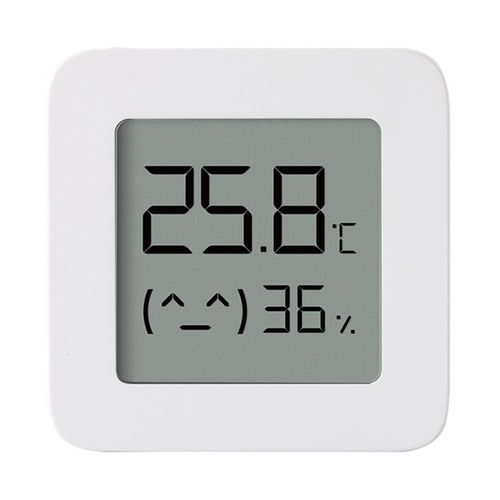
Given the price, many of us choose this product:
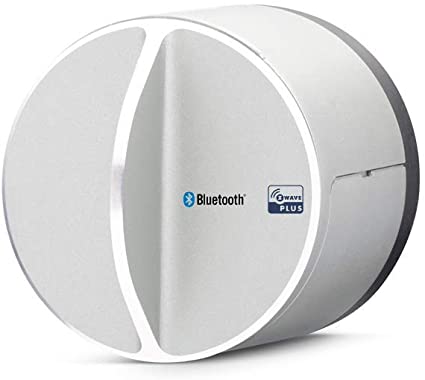
The lock is not new but it resists the market well, it is z-Wave and it is not easy to find a competing lock, compatible zWave and integrable with Jeedom.
My goal is to make a recap so that the happy processors can have the "balls" to install this Lock. Read More
 English
  French
  Spanish
  Chinese
  German