

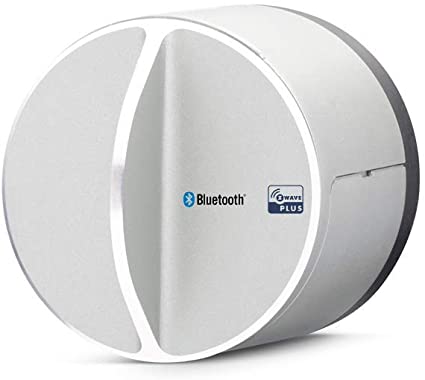
Objective
The lock is not new but it resists the market well, it is z-Wave and it is not easy to find a competing lock, compatible zWave and integrable with Jeedom.
My goal is to make a recap so that the happy processors can have the "balls" to install this Lock.
Concerns
I have encountered several undocumented concerns and here it will be a small summary of what you need to know to integrate this lock into Jeedom.
Physical description of the lock
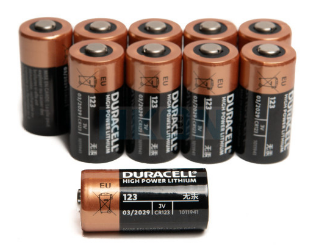
It is equipped with 4 batteries 4 CR 123A batteries, if you have integration problems, start by putting 4 new batteries, it solves a lot of problems.
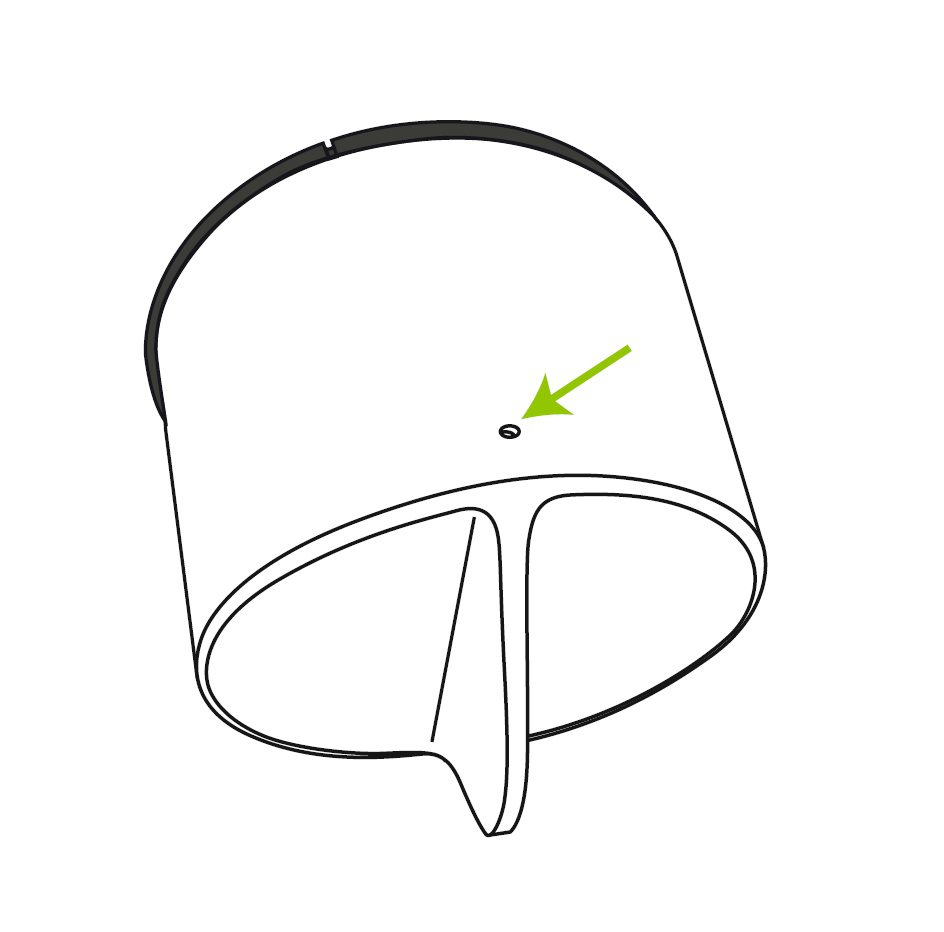
It has a very small button on top, it will be used with a trombone, and will launch reset, inclusion or exclusion.
Firmware Update
I wrote this post following the update of the Firmware, for some reason I don’t know, I had to do something stupid or reset the lock after the update, in any case I started installing again from the beginning following the update to Firmware 0.17.5
The Danalock's page is undated but I think this update is recent.
Exclusion of the lock
It is a habit of zWave users, always thinking about excluding equipment to better include them afterwards, it is much cleaner and avoids having ghost devices.
To exclude the Lock, nothing simpler, put yourself in exclusion on the plugin and press once with a trombone on the small hole described above.
Reset of the Lock
Once the lock was excluded, I preceded a Reset, I had just updated the Firmware, it seems cleaner to me.
To do this, simply press 10 times, always on the same small hole with a trombone, the lock will flash red and reset.
Inclusion of the Lock
After cleaning up his network, relaunching zWave cleanly and dusting his desk, it is time to include the lock.
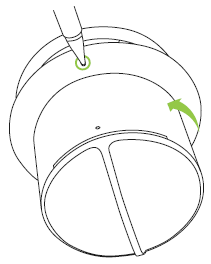
To do this, it is important to disconnect it from the door (by pressing the small hole against the door with a screwdriver and turning gently) and approach it as close as possible to the zWave key.
Launching inclusion
Put Jeedom in inclusion, and press the small button once, as for exclusion.
The inclusion will take place, at least the key type must be recognised, i.e. ‘Danalock V3 BTZE’, as regards orders and associations, it is very random and I never managed to have everything at first.
Once the inclusion has been made, do not put the lock back in place, keep it close to the zWave key, this will be necessary for associations.
Take a break
Remove the batteries from the lock and go to the small corner, this will allow time for the lock to reset.
Put back the batteries
Recreate commands
In Jeedom, on the right device, click on:

This should make it possible to regenerate the orders, there must be the 4 main ones (the others I delete, I have never found it useful).

Check associations
Associations, for some unknown reason seem not to happen, it is important to have the lock in the lifeline.
To do this, leave the lock close to the zWave key and then add the zWave key in Lifeline.
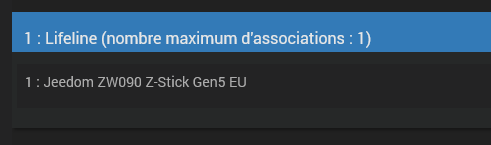
If it runs in a vacuum, you have to start again, I had to relaunch the zWave daemon and it worked at home. This sometimes seems to give some users concern. As soon as you have the image above, it wins.
It’s over
The Widget is created and your lock works.
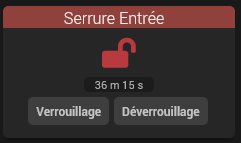
Remember to cleanly recalibrate the lock with the Danalock app.
Integration in Alexa
All that remains is to configure this lock in the Alexa plugin and there you go, you can control the lock with the voice ‘Alexa opens the front door’ when you see that mother-in-law is coming and you have your hands taken …

Backup
Remember to make a backup of your modules
I don’t know if it’s useful, but here a backup of my modules.
Docs or biblio
https://danalock.com/support/danalock-v3-click-commands/?customize_changeset_uuid=#gotoclickcommands
https://community.jeedom.com/t/serrure-danalock-et-firmware-0-17-5/56308
https://community.jeedom.com/t/probleme-z-wave-avec-une-serrure-danalock-v3/19009/10
Danalock V3 Connected Lock Integration on Jeedom
 English
  French
  Spanish
  Chinese
  German