

⚠ This page was updated in September 2025.
For a more recent and optimised method: I flash an ESP Sonoff POW R3 with ESPHome.
Flashing the Sonoff POW R3 is truly arch-simple, especially when compared to other modules that do not make the GPIO0 accessible. Here's how to proceed step by step, even for beginners.
Open the module, nothing to weld
The developers of Sonoff have thought of everything: the 4 connection pads are already original welded, which greatly facilitates flashing. No need to weld, just open the housing to access the connectors.
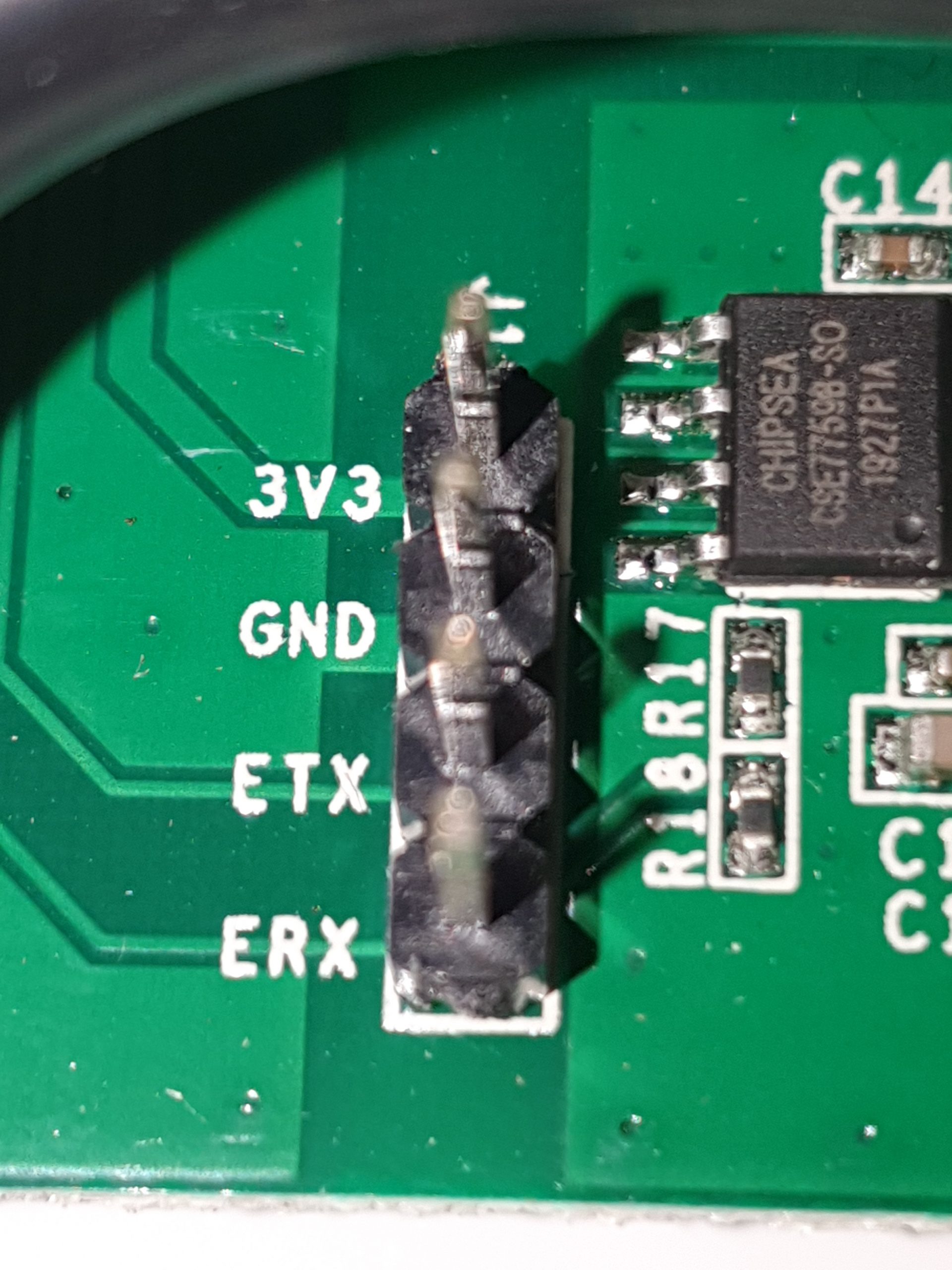
Prepare the FTDI232 before connecting it to the computer
The FTDI232 allows your computer to communicate with the Sonoff via a serial port. Here is how to prepare it:
Step 1: Place the rider on 3.3V (as shown in the image below).
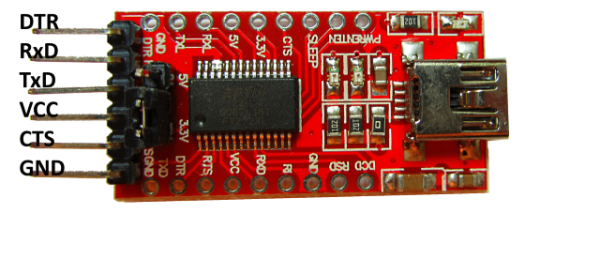
Step 2: To connect the Sonoff POW R3 to the FTDI232, respect the following correspondence:
- 3V3 → VCC
- GND → GND
- ETX → Rx
- ERX → Tx
Important: Do not plug in the wire yet VCC/3V3. First connect the FTDI232 to your computer for it to be recognised and a COM port to appear.
Prepare flashing software
Attention: This Sonoff is equipped with an ESP8266. Here is how to prepare the flashing software:
Step 1: Download the latest version of ESPEasy from the official page:
- Link to ESPEasy releases
- Download the file ESPEasy_ESP82xx_mega-xxxxxxxx.zip (most recent).
- Save the ZIP file, unzip it into a folder.
- Go to the folder bin and copy the file ESP_Easy_mega_xxxxxx _hard_SONOFF_POW_4M1M.bin in the file containing FlashESP8266.exe.
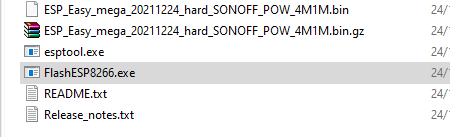
Step 2: Launch FlashESP8266.exe, select the COM port corresponding to your FTDI232 and choose the file ESP_Easy_mega_xxxxxx _hard_SONOFF_POW_4M1M.bin. Do not click on "Flash" yet.
Step 3: Press and hold the small button to the left of the Sonoff POW R3. While holding the button, connect the wire VCC/3V3. This puts the module in programming mode.
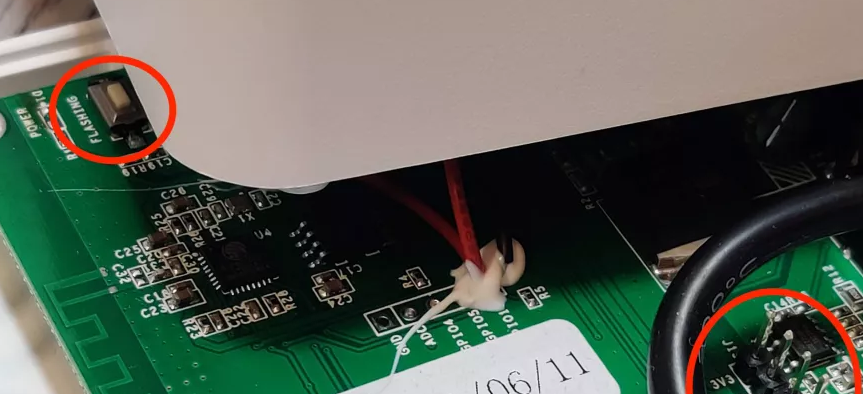
Step 4: Launch the flashing by clicking on Flash.
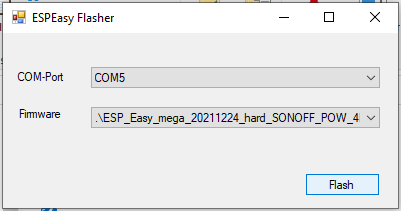
If an error message appears, repeat the operation. Otherwise, the flashing starts:
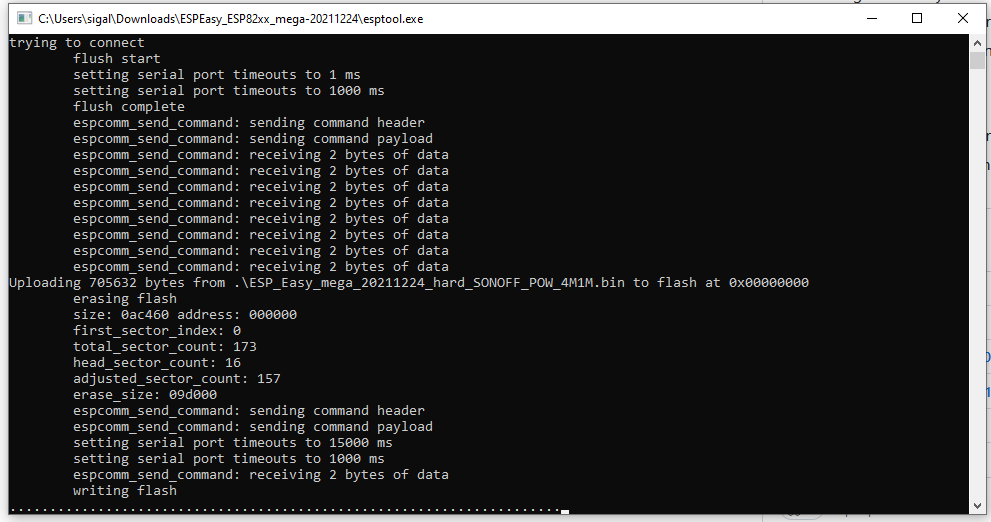
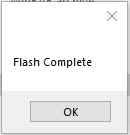
Step 5: Once the flashing is complete, a confirmation message is displayed:
Connect the Sonoff to the Wi-Fi network
Once the flashing is complete, the Sonoff must be connected to your Wi-Fi network. The procedure is the same for all Sonoff modules. For more details, see this article:
After flashing, connect a Sonoff to the Wi-Fi network and link it to Jeedom
Other resources for the Sonoff POW R3
 English
  French
  Spanish
  Chinese
  German