

Several articles on this site explain how to flash Sonoff, each model has its own procedure for setting to ‘programming’ mode, but once ESP_Easy is installed, the configuration of the Wifi network and the creation of the link to Jeedom is identical. Here it is:
Connecting the Sonoff to the Wifi network
With a mobile phone for example, connect to ESP_Easy_0:
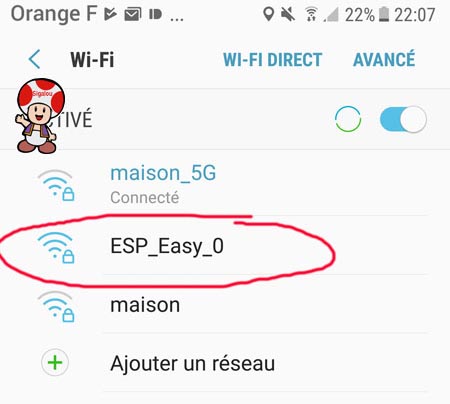
- The password is configesp
- Then set up your own Wi-Fi network:
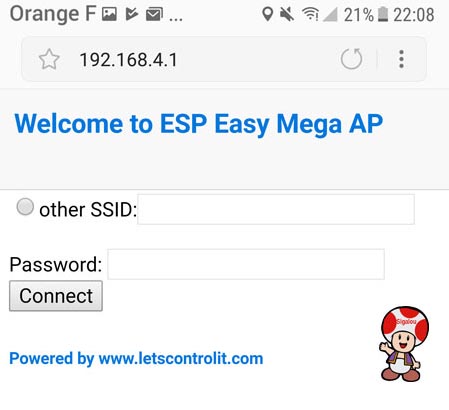
- The Sonoff restarts or switches it off and on again, it must connect to the local network and be visible.
- To find the IP, I access my router to see what is the last IP assigned (I take advantage of it for the) and type this IP in a browser.
Setting up ESP Easy
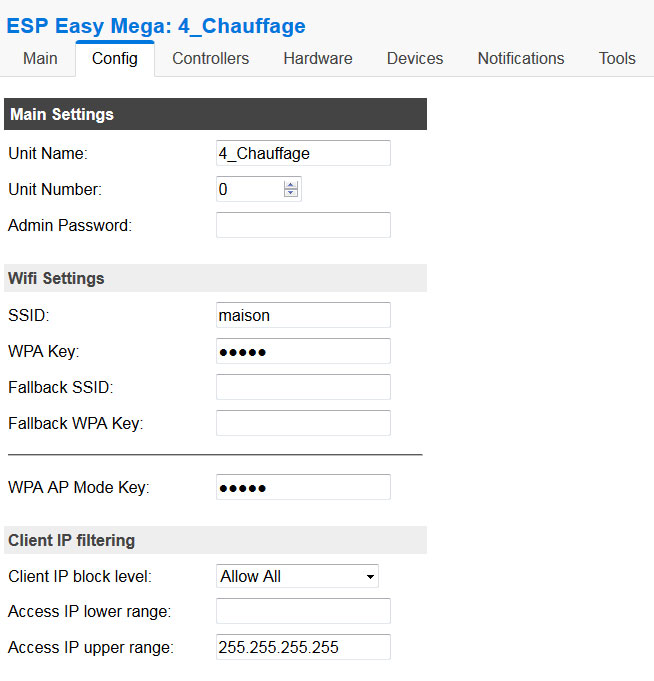
Config
- In Config, I just change the name of my Sonoff (4_Heating), the rest is unchanged, I am in DHCP:
Controllers
- In Controllers, I configure the link with Jeedom :
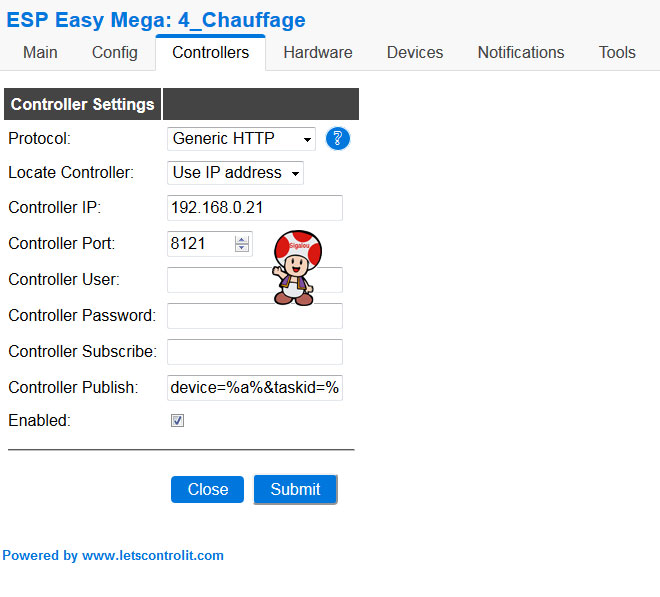
In Controller Publish, put: device=%a%&taskid=%id%&cmd=%valname%&value=%value%
Integration in Jeedom
Integrating into Jeedom is child’s play
* Go to plugins, install plugin ESPeasy
* In ESPeasy, get into Inclusion Mode, modules that change state are automatically created and module devices are found as commands in Jeedom.
 English
  French
  Spanish
  Chinese
  German