

… then generate a locally hosted photo album

We are all overwhelmed by the photos taken on Mr.’s mobile phone, on the holiday SLR, on Ms.’s phone, on the tablet, all this is not synchronised, archived, classified and when you want to get started it is so insurmountable that you drop it.
And it’s a shame because having the photo album of ‘his life’ and the life of his family is so nice …
Technology can and should help us.
This tutorial is a topo of years of testing and experience with tools such as OneDrive, Amazon Photos and others, each abandoned for different reasons. The presentation below is adaptable to everyone.
Prerequisite:
- The core of the synchro is managed by a Synology NAS via the new DMS7 version and the Synology Photos app.
- The photo album management software is jAlbum which I have been using for more than 15 years and it has progressed enormously especially since version 19 and the last 24.
- For the Cloud backup, I use a synchro with OneDrive.
- finally, for hosting the site (photo album) locally, Synology’s Web Station application
Synology Photos
Presentation of Synology Photos

Synology, the global NAS specialist, has been very hesitant about how to manage photos on its DSM operating system.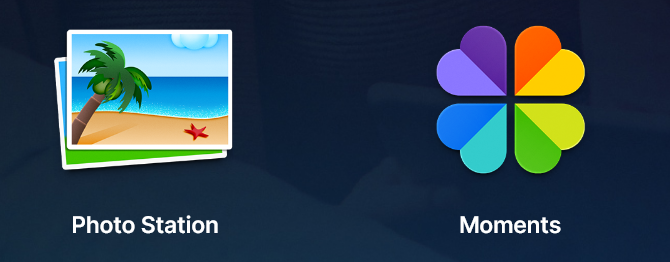
For years, they have developed two parallel systems with different purposes, Photo Station on the one hand and Moments on the other. For trying both, I stopped for a while on Moments but since DSM 7, Synology Photos has made its appearance taking the best of the two previous apps, it is this app that gives me total satisfaction today.
So I use Synology Photos to synchronize the mobile phone and the NAS, synchronization is fast, efficient, so simple for the user. Everything works perfectly unlike other tests done previously with OneDrive, Amazon Photos or other …
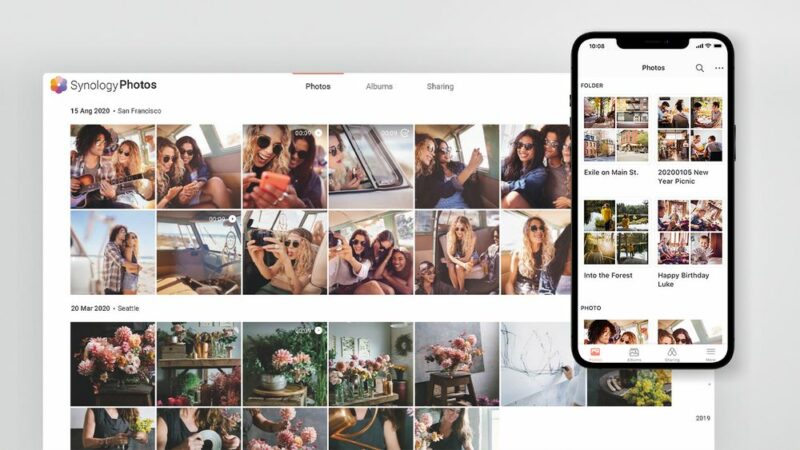
The Synology Photos app syncs with the phone in real time via the Synology Photos mobile app. Many features are present, but I only use it here for syncing and then recovering the files. To complete this tutorial, here are some features offered in Synology Photos:
- Creation of custom albums
- Creation of conditional albums (e.g.: an album that brings together all the photos where all the people in your family are identified)
- Share photos, albums, with other people even without having an account on the NAS
- Generate sharing links externally and internally. Password protected access
- Smart search filters (place, date, person, target type, etc.) based on EXIF data
File and organization of Synology Photos
- On the smartphone
There are no duplicates on the smartphone, the mobile application displays the thumbnails of the images present on your NAS, for example, photos that are not synchronised but are present on your smartphone will not be displayed on the app screen. This is destabilising at first, but in the end it is really well done, as we know that a photo is well synchronized when we see it on the screen.
Settings :
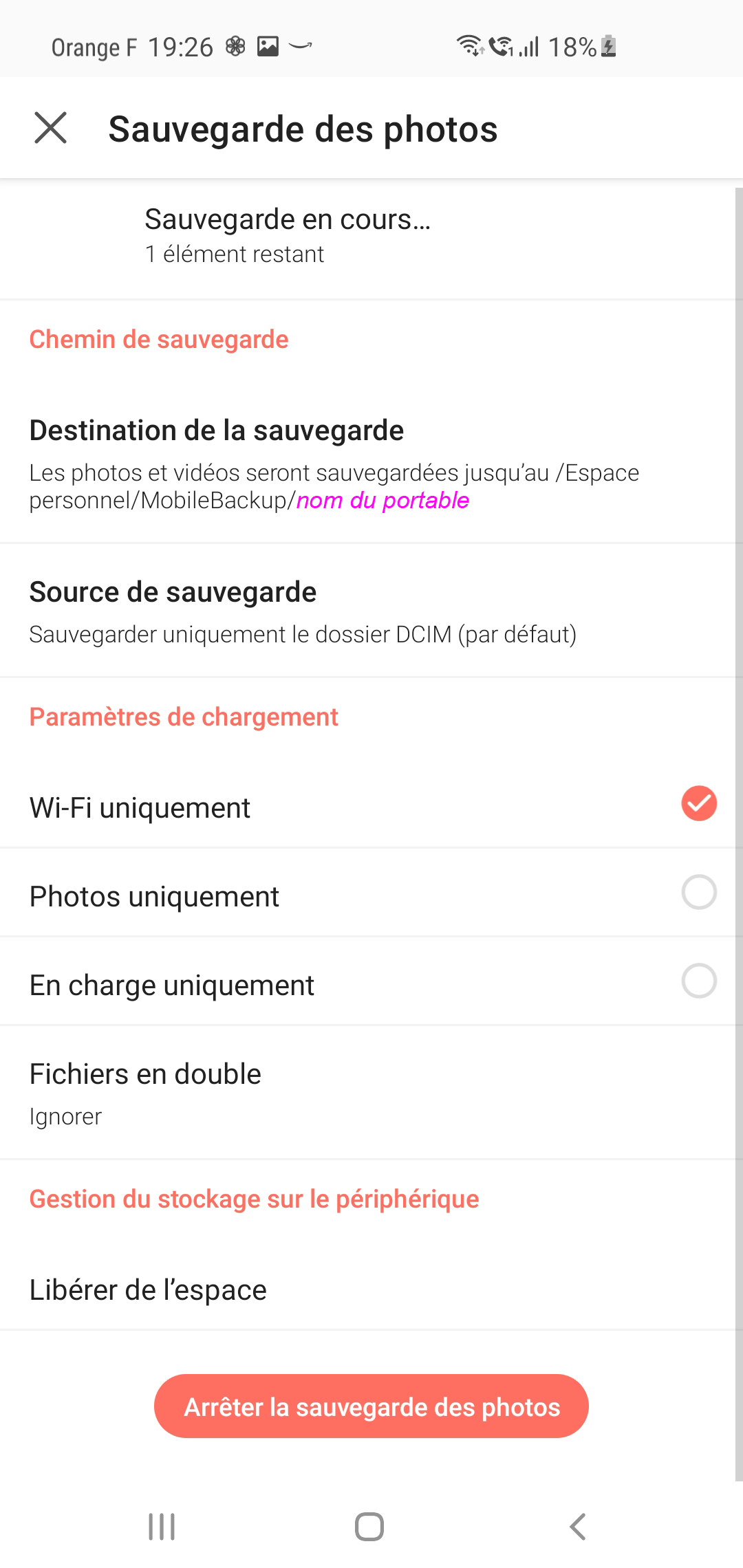
There are very few, and so much the better, the application manages everything automatically, here are the two screens:
 |
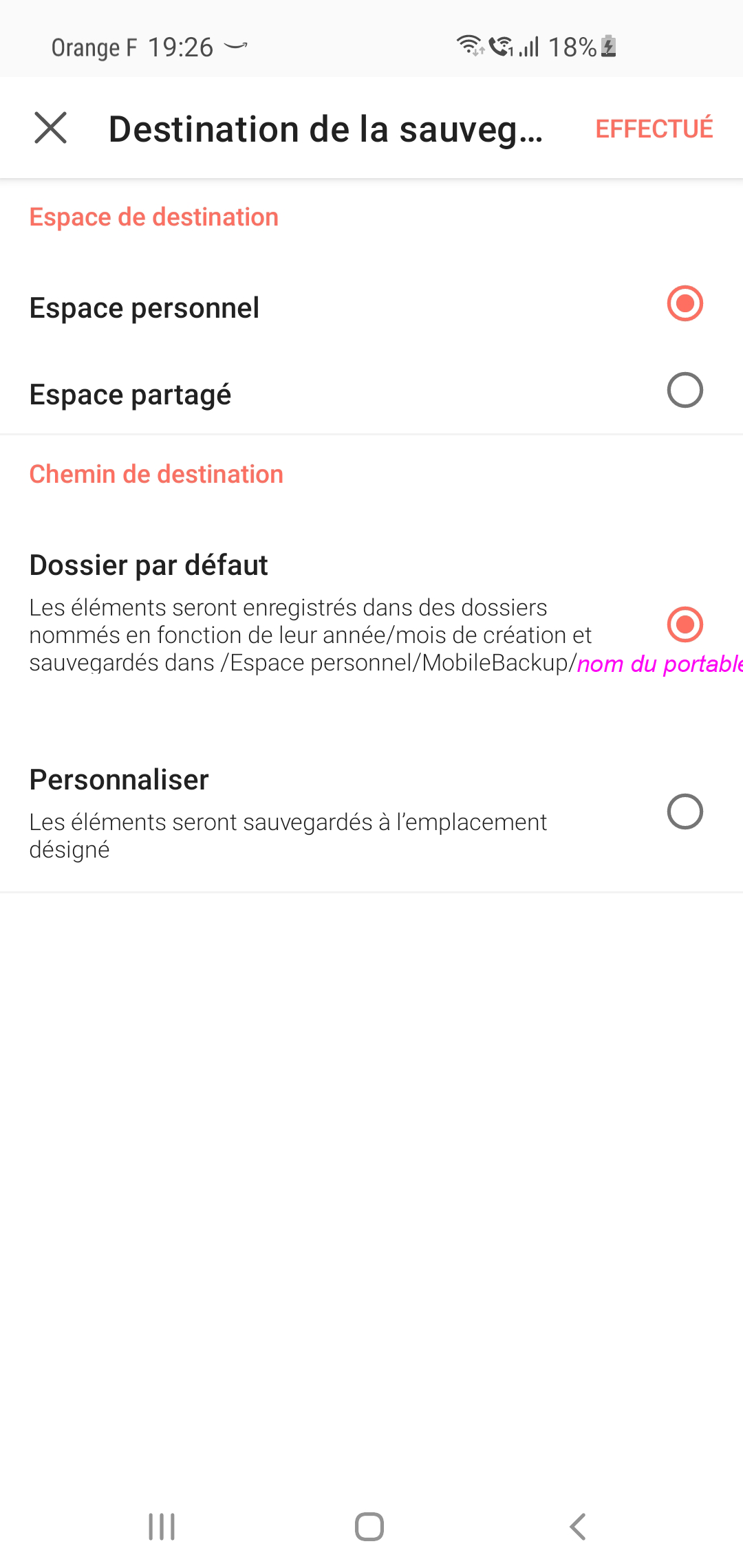 |
You can therefore customize the directory that will contain the photos on the NAS, I left the default configuration and select which folders on the smartphone are saved. Everyone will choose to include the folders of Whatsapp, Messenger, Faceboook or only the folder of the camera which is DCIM.
The option Wifi only seems the best not to spend the 4G folder for photo synchronization.
Finally, it should be noted that you can choose to send the photos of your smartphone to your personal space or in theshared space, it depends on the use you want to use in Synology Photos. For my part, I finally don’t use the other features of Synology Photos, so the personal folder suits me well.
- On the Synology NAS
The image files are automatically synchronized with the \\ folderYourNAS\home\Photos\MobileBackup\xxx of xxx\DCIM
with, for example, several files:
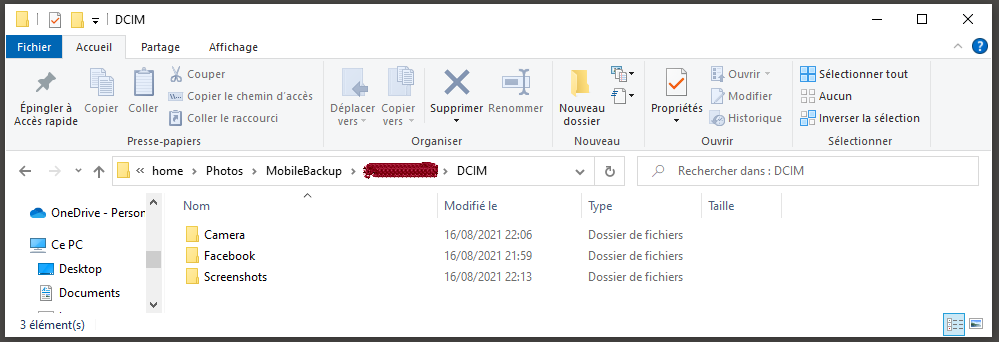
As far as I am concerned, I use the files for the months in Camera/Year:
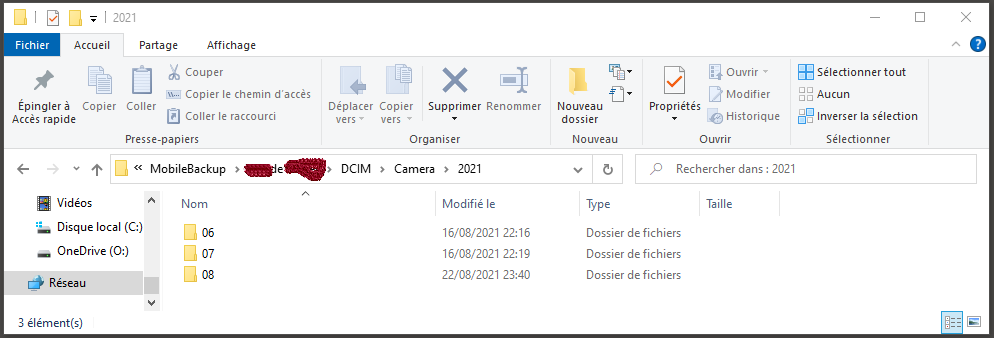
jAlbum and OneDrive
Presentation of jAlbum

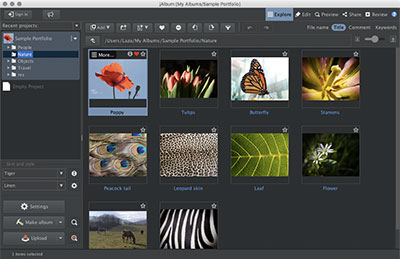
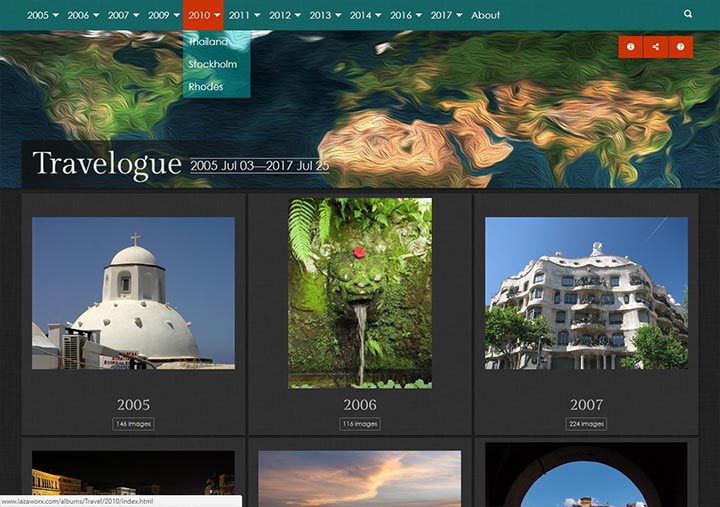
It is very simple. jAlbum is the application that makes it possible to transform a folder full of sub-folders that are filled with photos into a very practical and elegant photo album website. Everything is customizable, it is a product that I have been a part of for many years. There is a full version, 30 days free, if you want to test.
JAlbum folder and its synchro with OneDrive
I voluntarily created the jAlbum data folder in a folder synchronized by OneDrive. This allows for every addition of photos or videos to be backed up in real time to Microsoft’s cloud.
To create an album, nothing is easier, File/New project, and we put this in a synchronized folder OneDrive.
For you to know everything, I have a hard drive (or partition) dedicated to OneDrive, so I know that everything saved on it is synchronised. This record, I called it O: (strange, isn't it?)
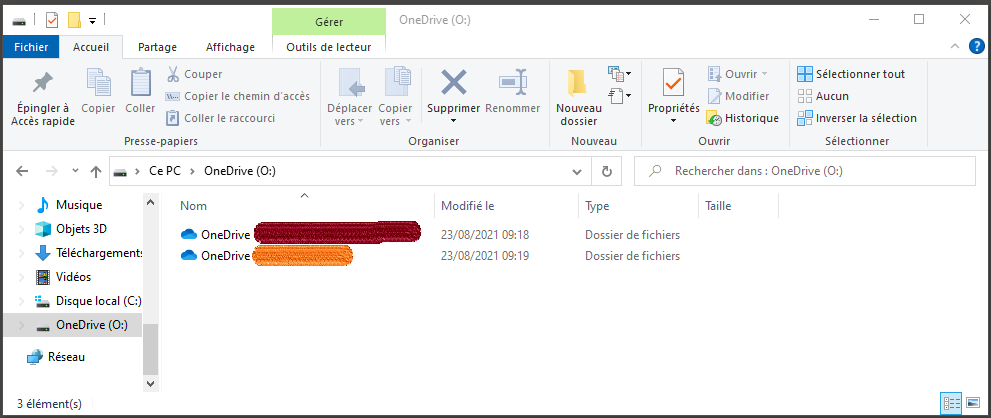
Under the red highlight, it is the job file, under the orange highlight, it is the personal file.
Within the selected OneDrive folder, there is therefore the JAlbums Albums folder, which is very important: it shall be in mode " Always keep on this device ’, i.e. with the full green circle with white check mark:
 |
Inside Albums JAlbums, you can put all your albums there, at one time, I had made albums per year and then connected to each other, it became a gas factory, so I only have one album called All photos and inside, year by year then months per month, all photos and videos:
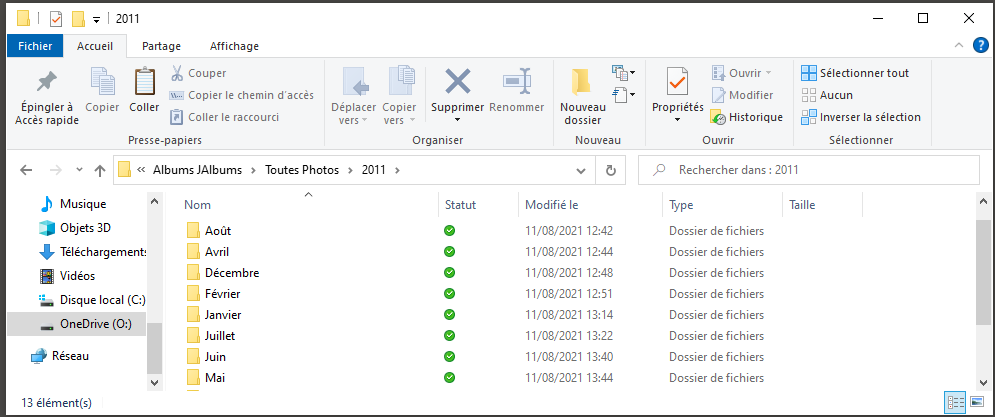
At this point, we abandon the explanations on OneDrive, everything synchronizes itself, we will fill in the files of the photos.
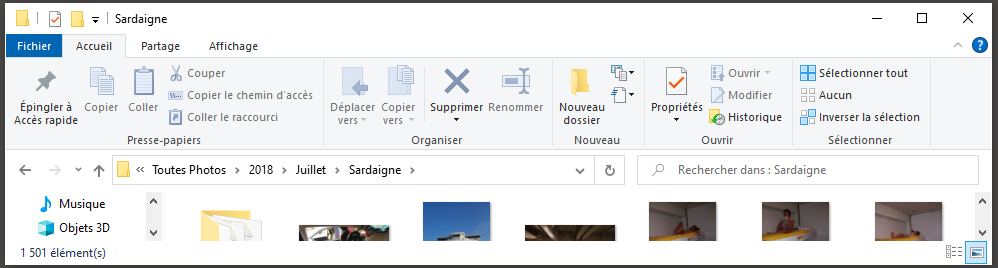
jAlbums allows several types of automatic rankings, it can do the distribution by year/month on its own, but I did not make this choice there, I chose the mirror mode (album=folders).
Sometimes, within a month, there are also trips, it will be very well organised by jAlbum, so it is sometimes easy to group a trip or an event:
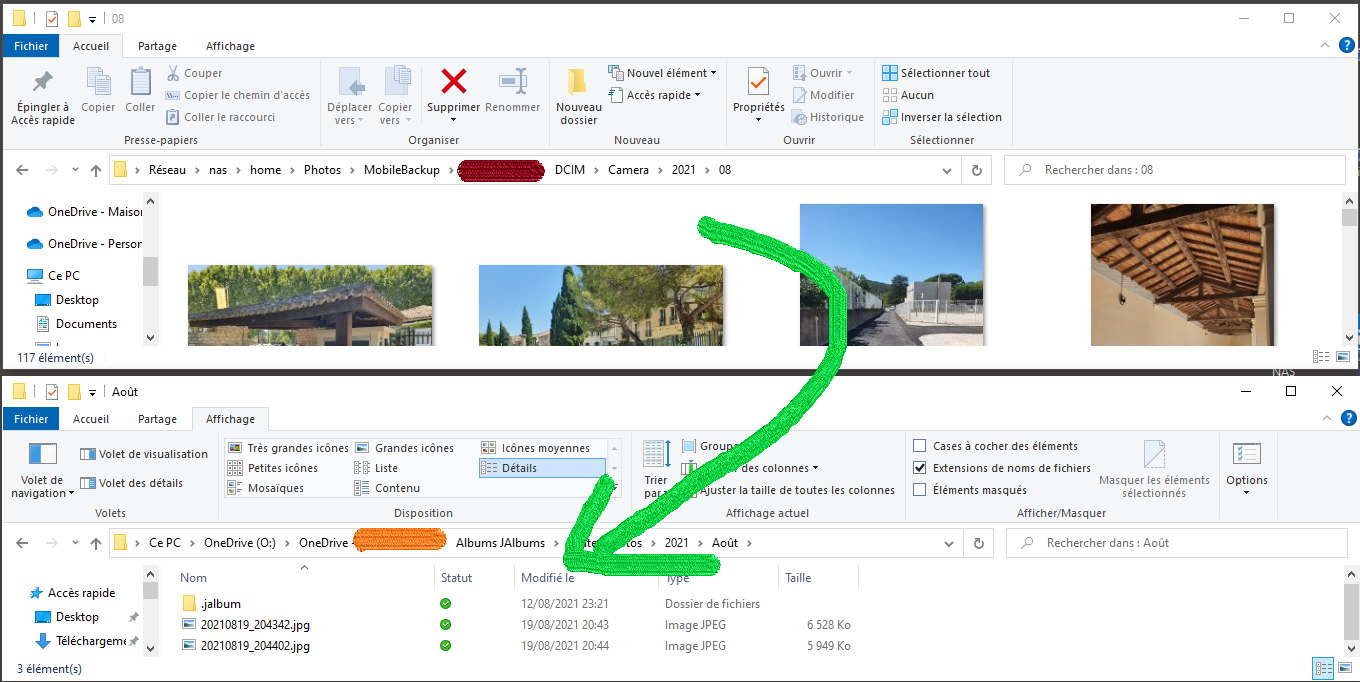
SIN Transfer Operation (Photos) to Disk O: (jAlbum)
I gave up any idea of automation because I like to filter and see the photos that I switch to the jAlbum folder, so I manually move the photos, it purges the NAS and feeds the O disk: (and OneDrive).
For a few years now, I've been moving, or I'm getting lost. The Synchro on OneDrive allows me to back up.
Generation of the Album-photos in the form of a website
In jAlbum, all year files are recognised.
I chose the Tiger theme which seems to me to be the best, but all tastes are in nature …
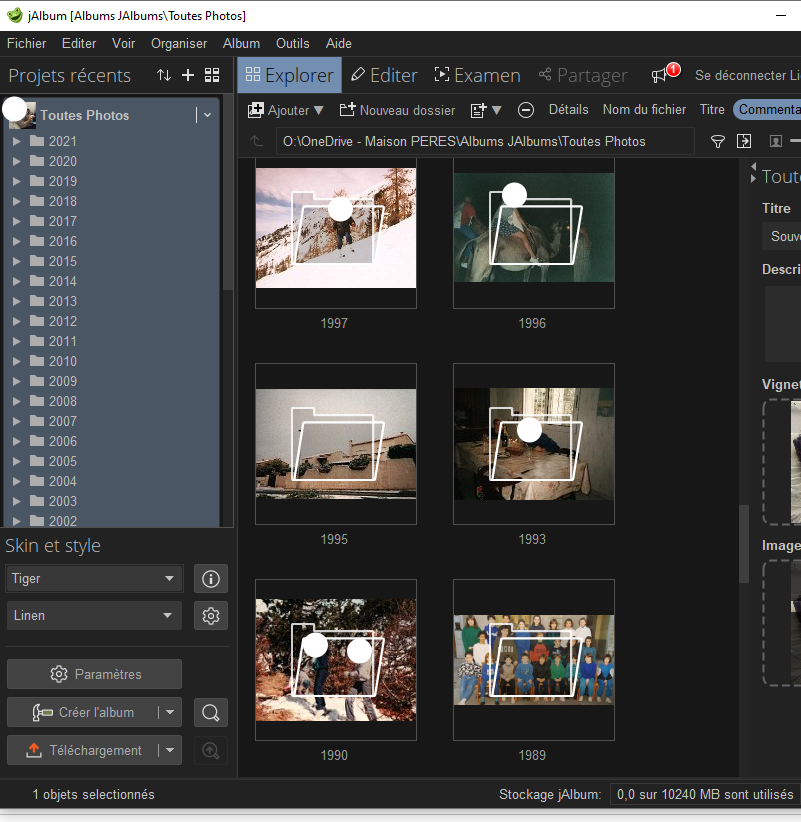
You set all the options, you can spend a lot of time there, the default values are in principle very good. We're correcting the files.
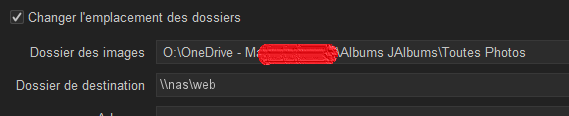
The explanation of the destination file is given below.
Click on the ‘Create album’ button

The album is generated. It is a local ‘website’ with all these photos. It is quite bluffing, even the videos are converted and work. The usual files are found including the base file index.html
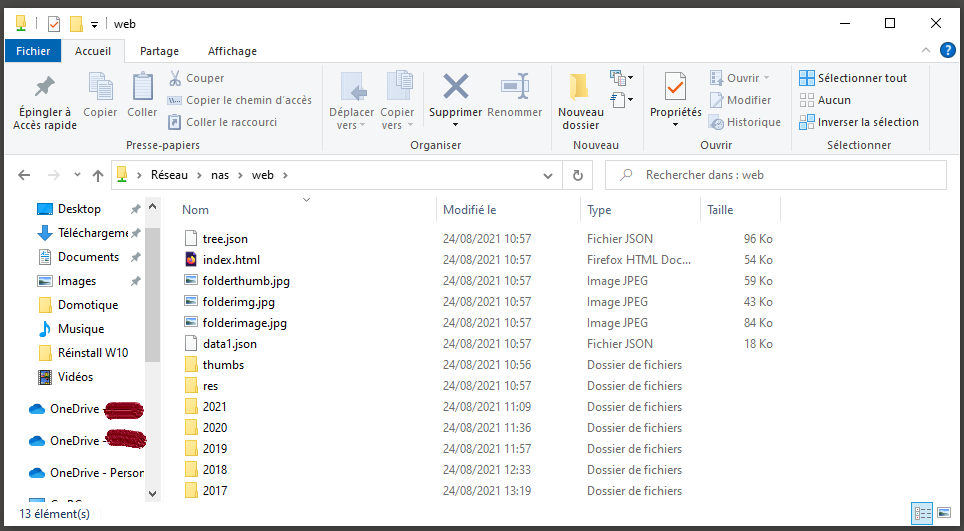
Web Publishing on Web Station

The web station application is made to create a personal website, hosted by its NAS
If there is only one site to host, the default configuration is sufficient, otherwise it will be necessary to play with users’ personal sites.
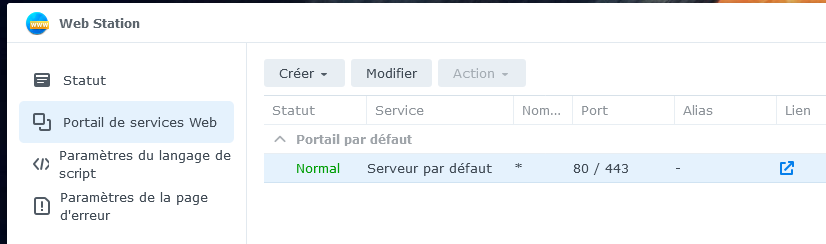
It is therefore no coincidence that in the jAlbum configuration, the album is sent to the network folder:
\\nas \web, Indeed, this corresponds to the Web Station web server folder. Thus, each time the album is updated, the site will be updated without the need for FTP or other transfers.
Protect access with a password (option)
Note: Details of the original explanations are available on the Synology website.
As this protection is provided for in Apache, it must be verified that Apache is used:
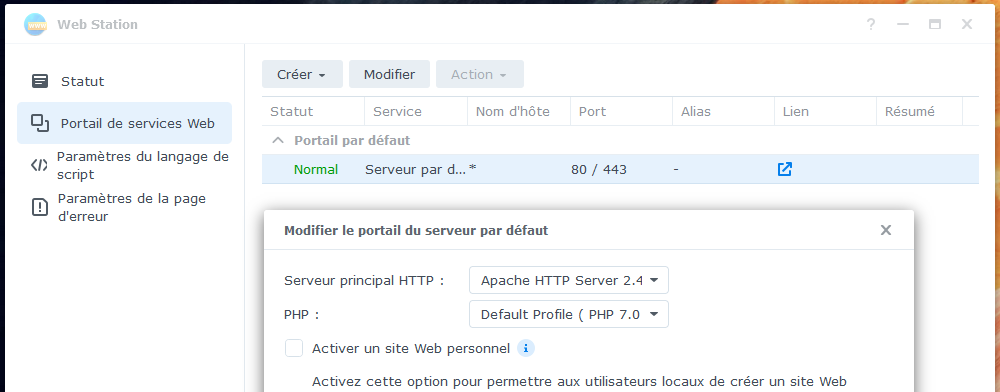
- Create a named folder passwd in the shared folder web
- Create a .htaccess file in the folder \web \passwd and add the following parameters to the file:
AuthName "Controlled Access"
AuthType Basic
AuthUserFile "/volume1/web/passwd/normal.pw"
Require valid-user
- Use the site https://www.web2generators.com/apache-tools/htpasswd-generator to generate a login password.
- Add a file normal.pw in the file passwd containing the result given by the above site, it looks like login:$apr1$ijwa2e47$B7OmBCKEZrQHAtZGglyAA/
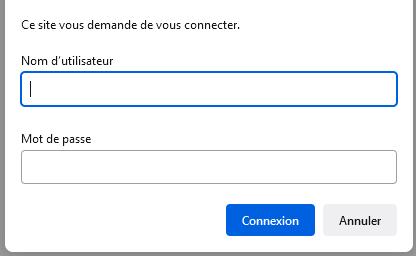
There you have it, a request for authentication appears when the album is opened:
Configuring a port forwarding (option)
Hosting a website is really an option for me, port 80 of my reverse DNS arrives on Jeedom, it allows to have a certificate in SSL and a synchro with the Alexa plugin.
So I'm going to use another port (34) and redirect that port on the router to port 80 on my NAS.
The configuration on the router is as follows:
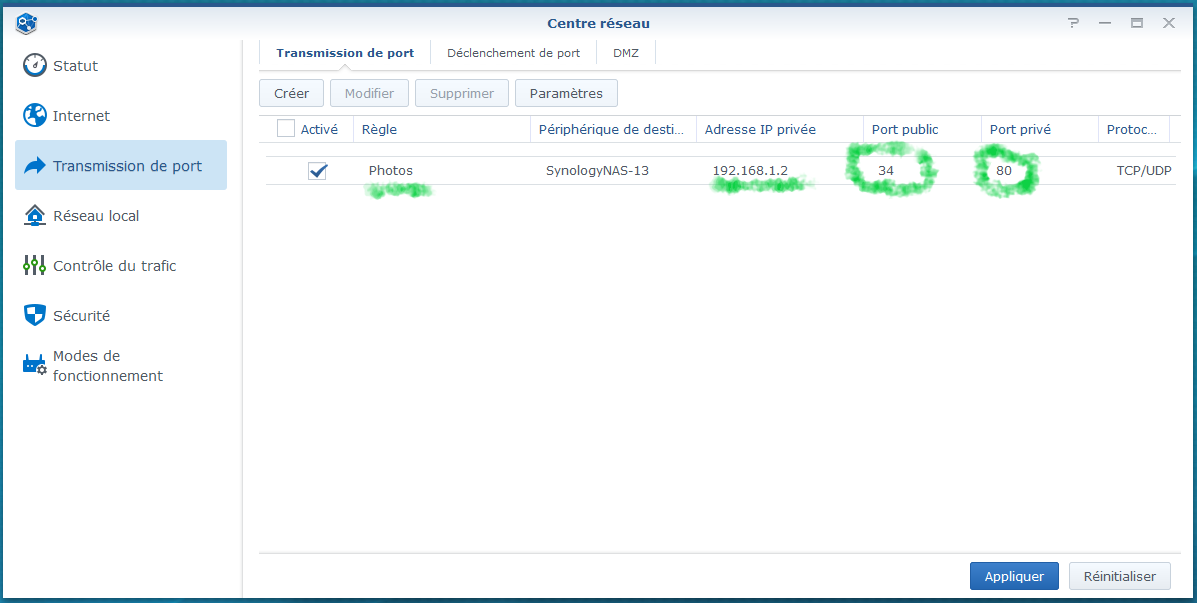
Thus, when you type http://xxxxx.hd.free.fr:34, it will look for the web server of Web Station whose files are in nas\web
Setting up a web redirect (option)
Another option.
I have a family domain name that only serves me for emails and for the Microsoft 365 platform, so no hosting on that domain name.
I will use this domain name which is ultimately easier to remember to redirect it to the reverse DNS configured just before, itself redirected to the Synology web server.
This is configured directly in OVH DNS.
- In the DNS area of the client interface

- Two entries are added, one in A and the other in TXT
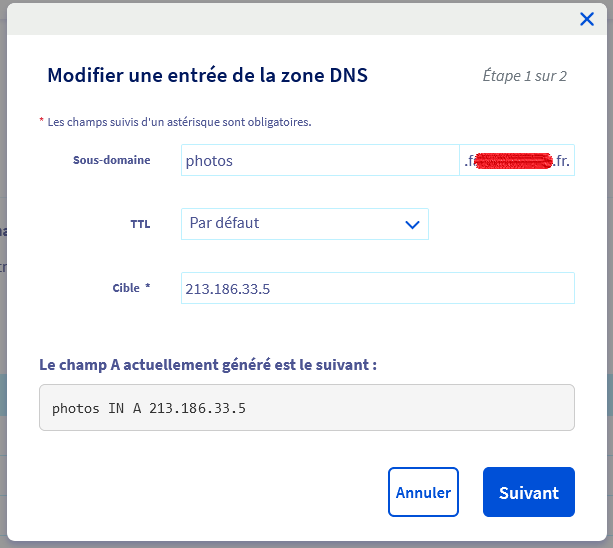
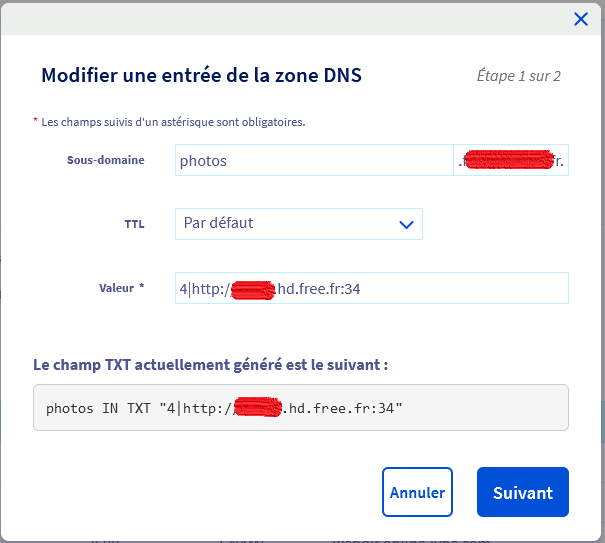
With these two entries, to consult the photo album, the whole family can be given the following link:
http://photos.familletrucchose.fr
this will fetch the album that enters my home at http://xxxx.hd.free.fr:34
which is then redirected by the router to Web Station, i.e. \\nas \web files.
Conclusion, Summary
To sum up:
- Photos/videos are taken by mobile phones, they are supported by Synology Photos
- The Synology Photos mobile app sends the photos to the folder \\YourNAS\home\Photos\MobileBackup\xxx from xxx\DCIM\Camera
- Manually to be able to sort them, I move the images from the above folder to the folder O:\OneDrive – xxx\JAlbums\All Photos, all this is classified year by year and then month by month.
- The jAlbum Software transforms the folder O:\OneDrive – xxx\JAlbums\All Photos as a web album, this album is generated in \\nas \web
- The Synology Web Station app makes the \\nas \web folder accessible from the outside, the album can be consulted from anywhere on the internet with an address such as http://photos.familletrucchose.fr
 English
  French
  Spanish
  Chinese
  German