

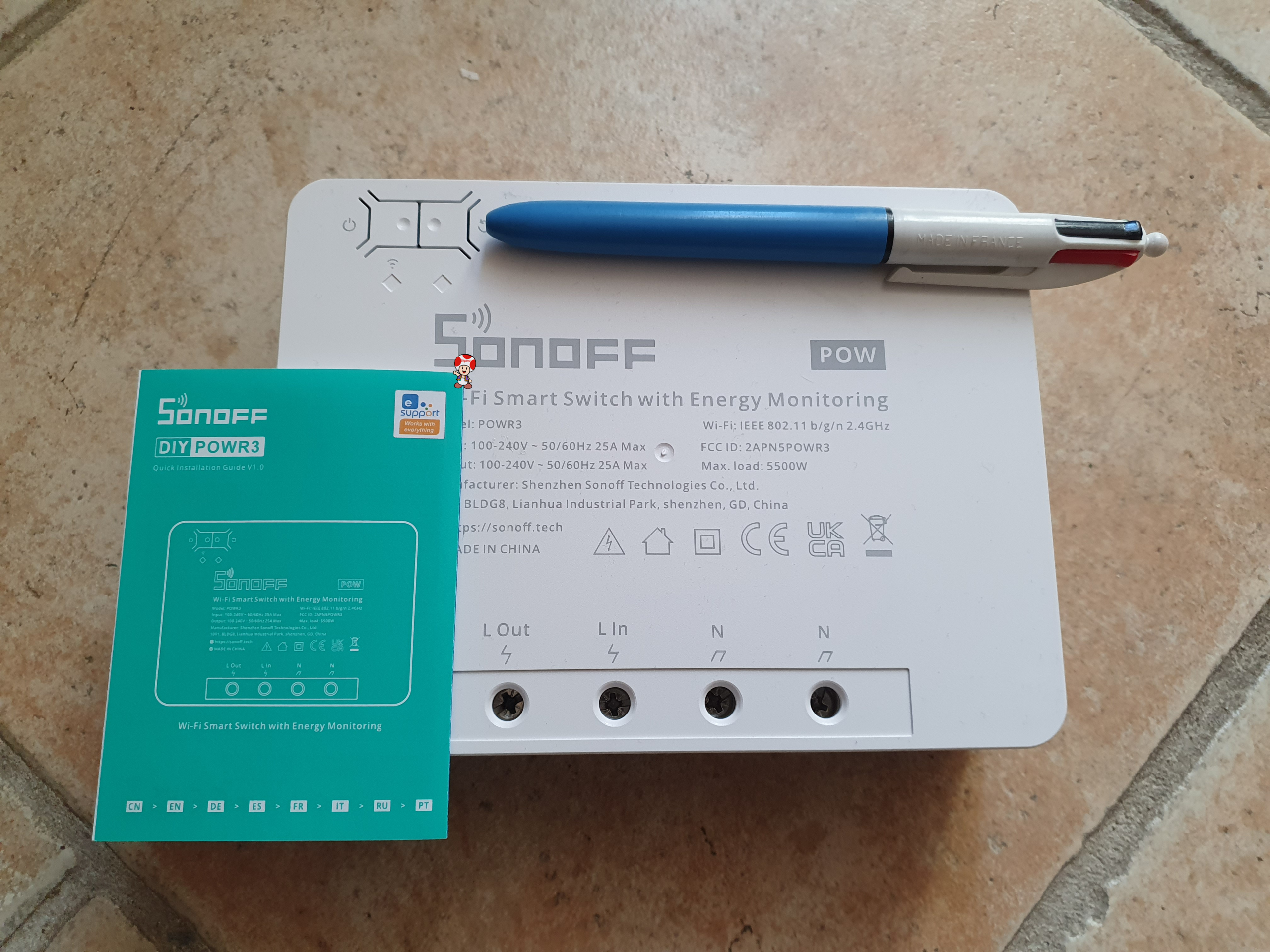
I wanted to get the information Energy (kWh) on my Sonoff POW R3, initially flashed with ESP Easy. By reflashing it with ESPHome, I was able to simplify its integration into Home Assistant and access all energy data. Here is how I did it step by step.
Where to buy this equipment?
Here is the link to his page dedicated to the POWR3. I referenced the sellers and prices.
Checking connectors
In a previous feedback, I had detailed the procedure for flashing this equipment with ESP Easy:
On that occasion, I noticed that the designers of the Sonoff POW R3 had already welded the 4 connectors needed (3.3V, Rx, Tx, GND), which greatly facilitates the flashing process.
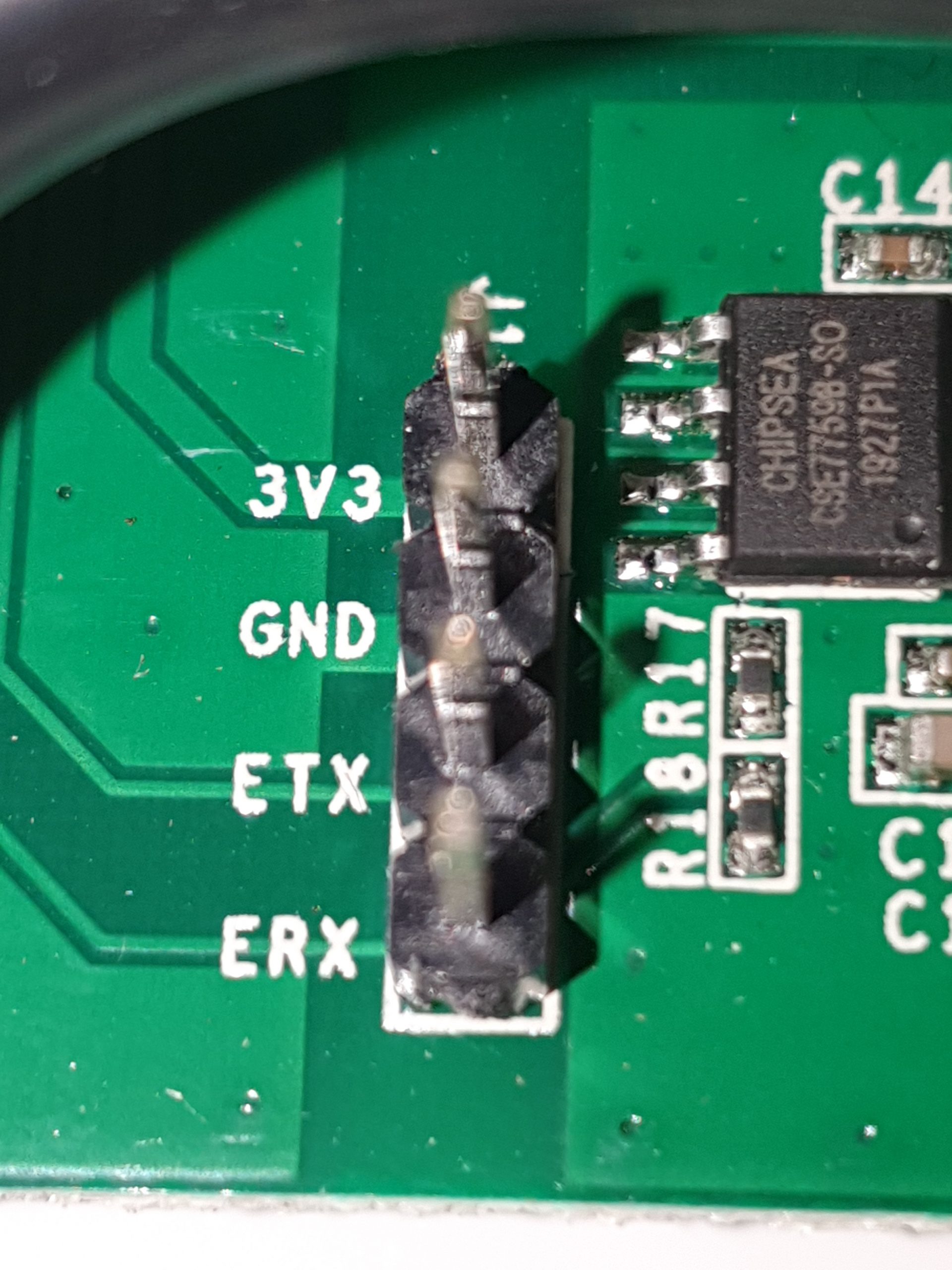
These connectors allow you to connect a USB-series adapter to flash the firmware.
Connecting CP2102
Contrary to what is often documented, I used a CP2102 rather than an FTDI232. This module plugs directly into USB and is very simple to use.
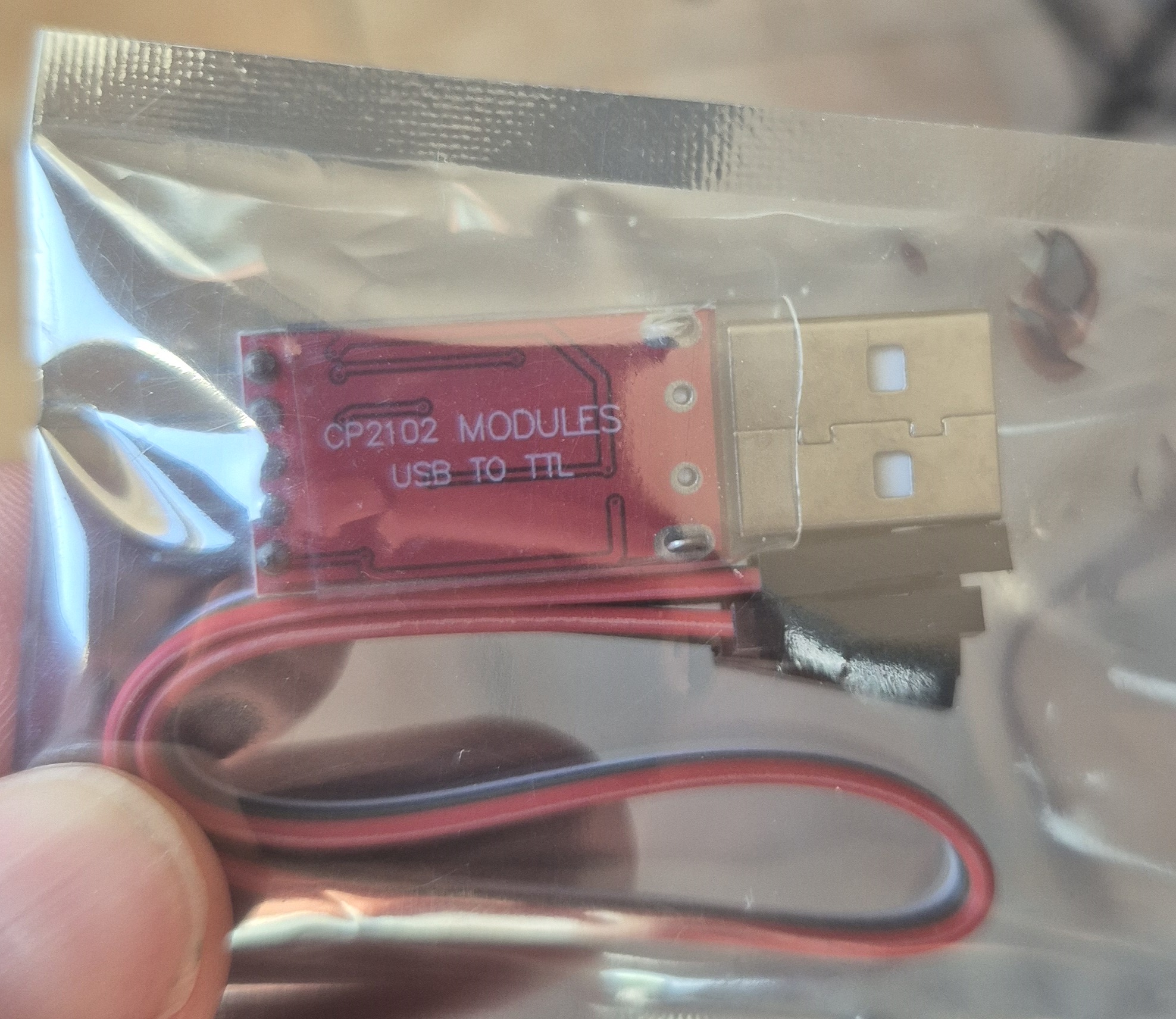
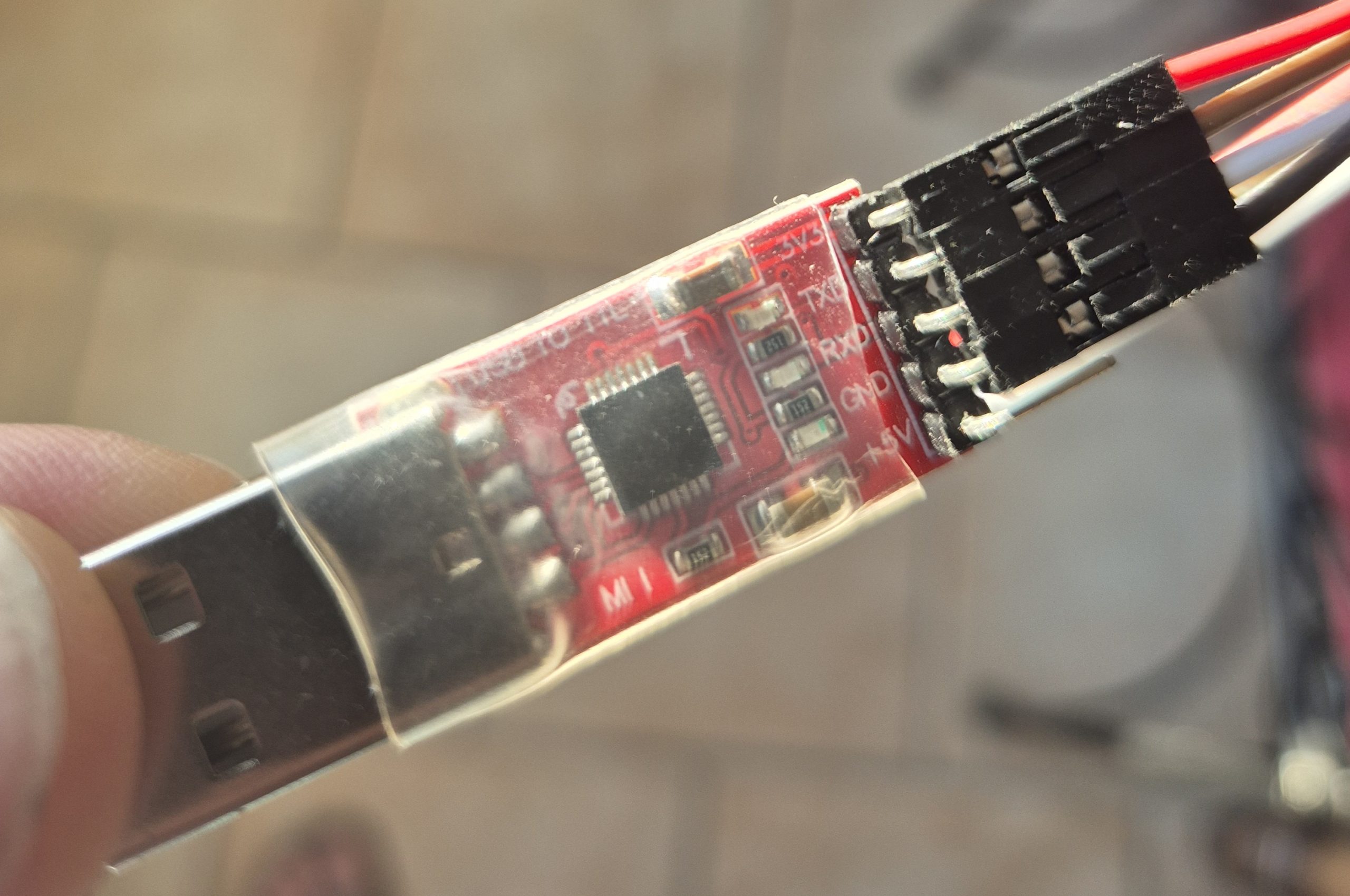
Here is how I made the connections:
- Red thread → 3.3V
- Black thread → GND
- White wire → TXD
- Brown thread → RXD
Note: If communication is not established, it may be necessary to reverse the white and brown wires (Rx and Tx).
Connecting the Sonoff POW R3
I then connected the CP2102 wires to the Sonoff POW R3 connectors:
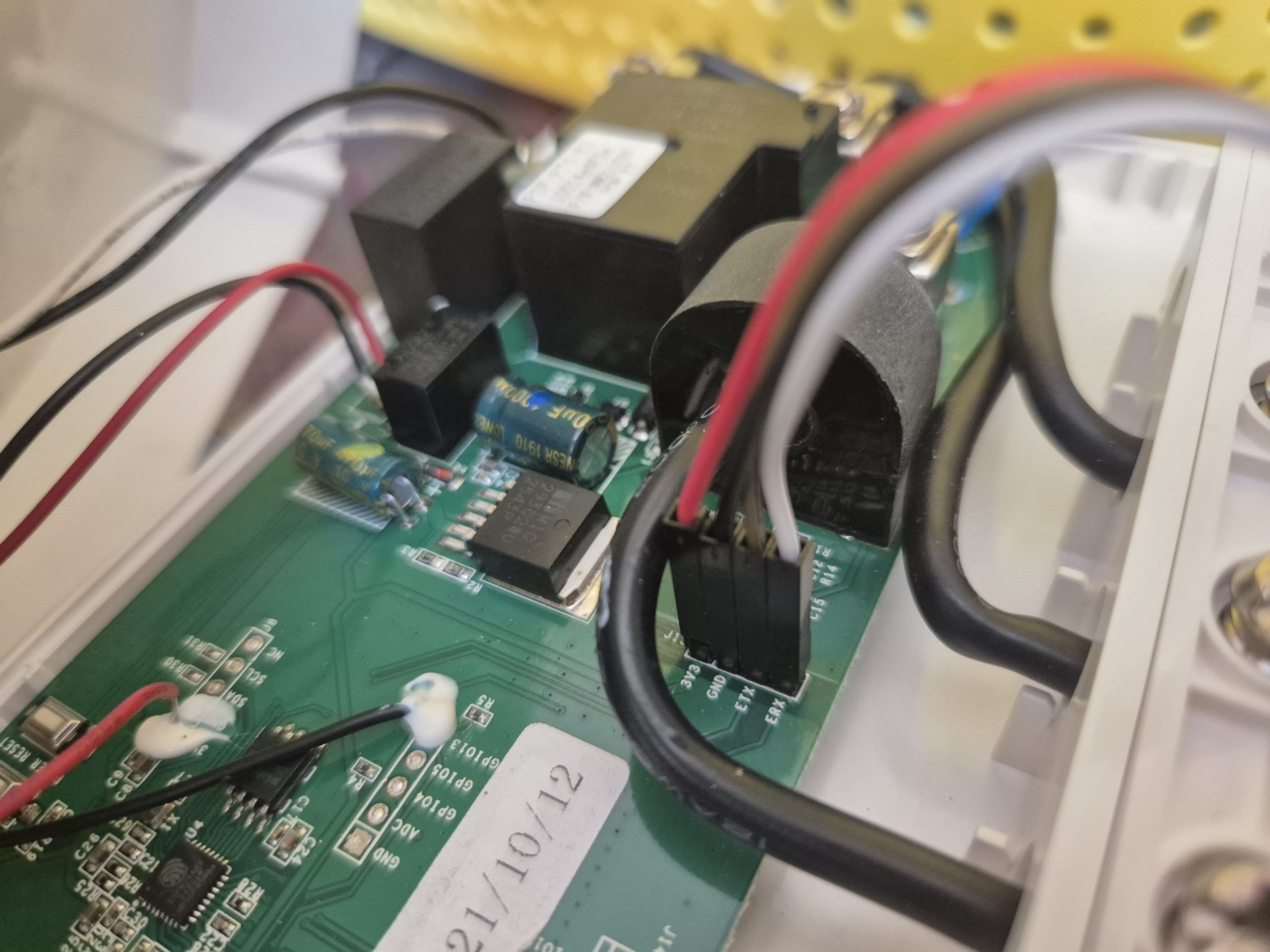
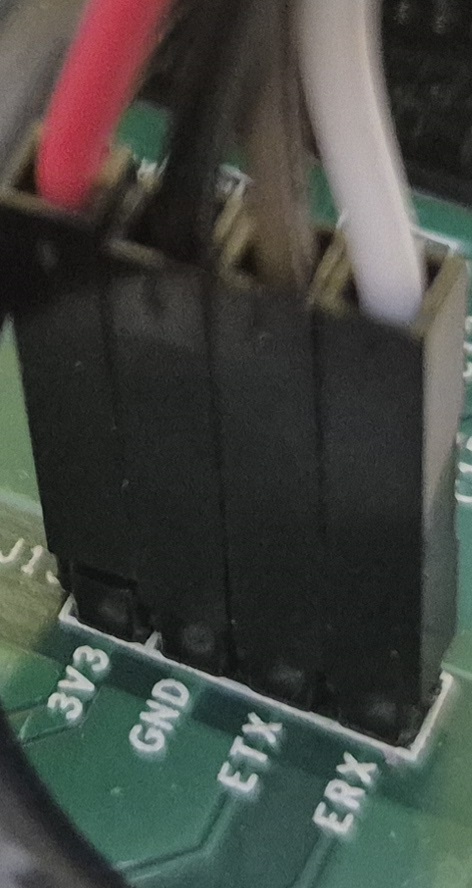
- Red thread → 3.3V
- Black thread → GND
- White wire → ERX
- Brown thread → ETX
Flashing with ESPHome Builder
To flash the Sonoff POW R3 with ESPHome, I followed these steps:
- Launch ESPHome Builder.
- Click on New Device to add new equipment.
- Provide basic information (name, type of card, etc.).
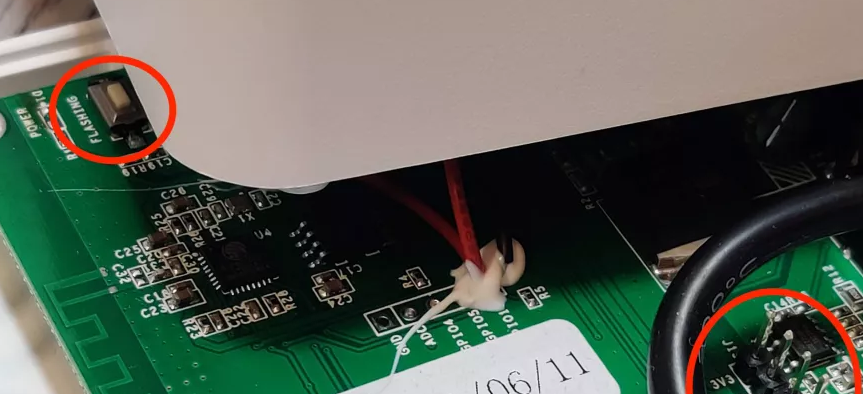
- Plug the CP2102 into USB while holding down the Sonoff POW R3 button (see image below). The LEDs must be switched off, indicating that the programming mode is activated.
- Start flashing via the ESPHome interface.
Configuring Sensors in ESPHome
The configuration of the Sonoff POW R3 in ESPHome is based on a YAML file. Be careful, there are several models of Sonoff POW R3 (Elite 16A, Elite 20A, Origin 16A, etc.), and their configuration may vary. I used the official documentation for the Sonoff POW R2 and adapted it.
Here is the YAML code I used for my Sonoff POW R3:
substitutions: update_interval: 10s name: "sphome-heater" esphome: name: "${name}" friendly_name: ESPHome Chauffeau esp8266: board: esp01_1m logger: baud_rate: 0 API: ota: - platform: esphome password: "b91495d666ba78dd3d0120f6a364e8b1" # Replace with your OTA wifi password: ssid: !secret wifi _ssid password: !secret wifi _password ap: ssid: "Esphome-Chauffeau" password: "coucoucoucou" # Replace with a secure password captive_portal: uart: rx_pin: RX baud _rate: 4800 parity: EVEN binary _sensor: - platform: gpio pin: number: GPIO0 mode: INPUT_PULLUP inverted: True name: "Bouton" on _press: - switch.toggle: relay_template sensor: - platform: cse7766 current: name: "Current" filters: - multiply: 0.98 # Adjusts the current to reduce the deviation by 2% - sliding _window _moving _average: window_size: 80 send _every: 32 voltage: name: "Tension" filters: - sliding _window _moving _average: window_size: 80 send _every: 32 power: name: "Power" filters: - sliding _window _moving _average: window_size: 80 send _every: 32 energy: name: "Energy Wh" id: energy_wh filters: - throttle: ${update _interval} # Virtual sensor to convert Wh to kWh - platform: template name: "Energy kWh" unit _of _measurement: "kWh" lambda: |- return id(energy _wh).state / 1000; update_interval: 60s accuracy_decimals: 3 switch: - platform: template name: "Jus" positive: true id: relay_template turn_on_action: - switch.turn_on: relay - light.turn_on: pow_blue_led turn_off_action: - switch.turn _off: relay - light.turn _off: pow_blue_led - platform: gpio id: pin relay: GPIO12 inverted: true light: - platform: status_led name: "Blue LED" id: pow_blue_led pin: number: GPIO13 inverted: trueExplanations of the code:
- substitutions : Sets reusable variables, such as update interval and equipment name.
- esphome : Configures the name and user-friendly name of the equipment.
- esp8266 : Specifies the type of card used (ESP01 1M).
- logger : Disables serial logs to avoid conflicts with UART communication.
- wifi : Configures the Wi-Fi connection and a backup access point.
- uart : Sets the serial communication parameters for the CSE7766 sensor (current measurement, voltage, power, energy).
- binary_sensor : Configures the physical button on the Sonoff to switch the relay state.
- sensor : Defines current, voltage, power and energy sensors. A virtual sensor converts Wh to kWh.
- switch : Manages the relay and the blue LED to indicate the status (on/off).
- light : Controls the blue LED of the Sonoff.
Note: Wi-Fi passwords and credentials should be replaced with your own values.
Result in Home Assistant
Once the flashing is complete and the equipment restarted, it will automatically appear in Home Assistant with all the sensors configured:
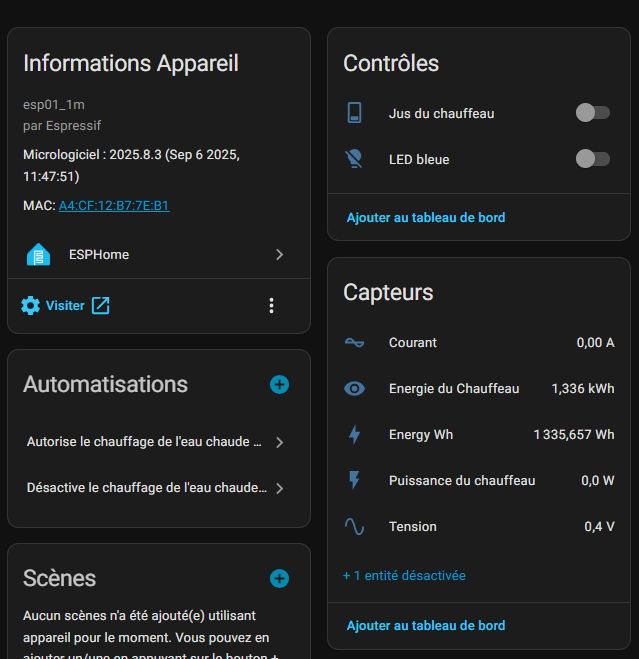
You can now monitor real-time power consumption, voltage, power and energy (kWh) directly from your Home Assistant dashboard.
Reference pages
(attention to nonsense in some forums)
- https://community.home-assistant.io/t/flashing-sonoff-pow-r3-to-esphome/475802/4
- https://devices.esphome.io/devices/Sonoff-POW-R2
 English
  French
  Spanish
  Chinese
  German