

Explanations, prerequisites
In this feedback, I use my DNS Reverse from Free. I imagine it is even easier to use a domain name, but with the functionality offered by Free, the domain is not indispensable.
In the rest of this page, I will use the following reverse DNS: sigalou.hd.free.fr. Please note that this name is an example and does not exist; For security reasons, I do not give here the reverse DNS that I actually use.
I have 3 Jeedoms installed on my local network:
- Jeedom Master in 192.168.0.100 (the main production Jeedom)
- Jeedom Slave in 192.168.0.21 (the Secondary Jeedom of Development)
- Jeedom Heating in 192.168.0.150 (a Jeedom dedicated to heating)
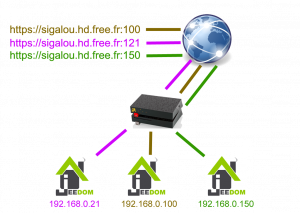
My goal is to access the 3 Jeedoms from outside via HTTPS.
So for example:
- https://sigalou.hd.free.fr:100
- https://sigalou.hd.free.fr:121
- https://sigalou.hd.free.fr:150
Generate the certificate on a Raspberry Pi OS
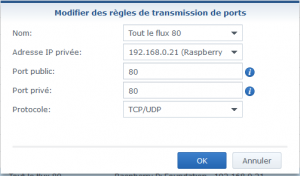
Redirect all the flow from port 80
Before generating the certificate, you must redirect the entire stream from port 80 to the Raspberry in question.
In the router (or box), add a port forwarding rule.
Generate certificate
You have to connect in SSH (of 192.168.0.21 in this example) Raspberry, then launch:
Replace sigalou by your reverse DNS or adapt to your domain
sudo su cd /etc/ wget https://dl.eff.org/certbot-auto chmod a+x certbot-auto ./certbot-auto --apache -d sigalou.hd.free.fr
– – – – – – – – – – – – – – – – – – – – – – – – – – – – – – – – – – – – – – – –
Congratulations! You have successfully enabled https://sigalou.hd.free.fr
– – – – – – – – – – – – – – – – – – – – – – – – – – – – – – – – – – – – – – – –
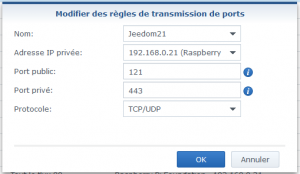
Recreate Port Redirection
Result
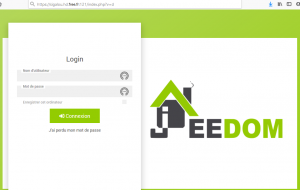
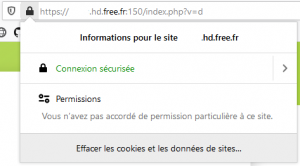
And the other Jeedoms in the same network
Renewal
sudo certbot renew
On the command line
root@maitre:/etc# sudo certbot renew
Saving debug log to /var/log/letsencrypt/letsencrypt.log– – – – – – – – – – – – – – – – – – – – – – – – – – – – – – – – – – – – – – – –
Processing /etc/letsencrypt/renewal/peres.hd.free.fr.conf
– – – – – – – – – – – – – – – – – – – – – – – – – – – – – – – – – – – – – – – –
Renewing an existing certificate for peres.hd.free.fr
Reloading apache server after certificate renewal– – – – – – – – – – – – – – – – – – – – – – – – – – – – – – – – – – – – – – – –
Congratulations, all renewals certified:
/etc/letsencrypt/live/peres.hd.free.fr/fullchain.pem (successful)
– – – – – – – – – – – – – – – – – – – – – – – – – – – – – – – – – – – – – – – –
References, Bibliography
- https://jeedomiser.fr/article/acceder-a-jeedom-depuis-lexterieur-et-en-https-avec-lets-encrypts-sur-son-raspberry-pi/
- https://easydomoticz.com/forum/viewtopic.php?t=4702&start=30
 English
  French
  Spanish
  Chinese
  German