

Since the last versions of Windows 10, the installation that is intended to be simple has finally become quite complex. This tutorial summarizes the steps to have an installation as operational as possible (and as clean as possible).
Create a bootable USB flash drive with Windows 10
With the proliferation of pirated (and often checked) versions, Microsoft has finally decided to offer a complete tool for creating an installation usb key, no need to provide original CDs or iso files, everything is done on its own in the installer.
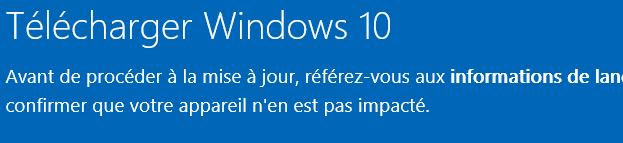
Everything happens on this link: https://www.microsoft.com/fr-fr/software-download/windows10
then

The tool is so simple that I do not explain any more, just be careful that not all USB keys are bootable, change the key if boot on key hassle.
Start starting the computer on the USB stick
Since each computer is different, everyone has their own key to start the setup (F1 or Sup, or other …) at home, it is F12 (Dell-Optiflex) that allows you to choose how to start:
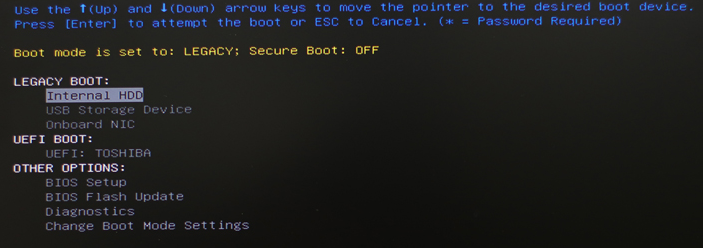
When this menu appears, I take USB Storage Device, the USB key starts flashing and the Windows logo appears.
Installation starts
The screens are simple to follow:
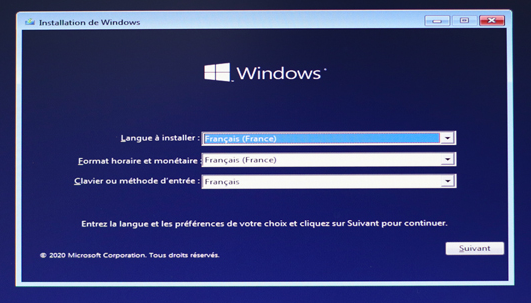
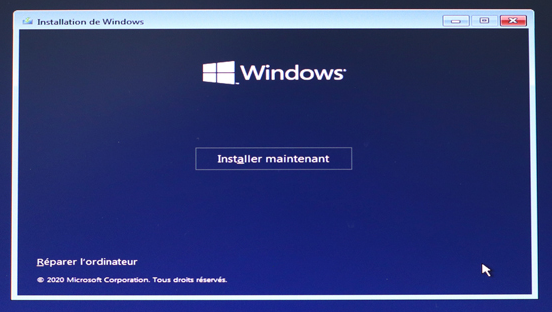
If you have a product key, enter it if not:
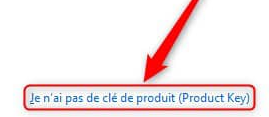
then
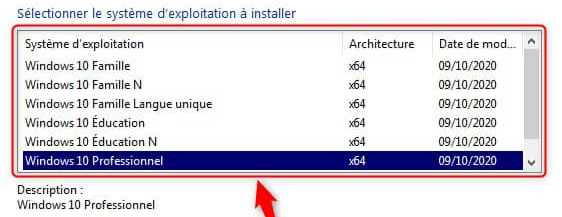
Note added on 03/04/2022
In the latest versions, Microsoft has removed the option to choose the version you want to install.
To avoid this, an ei.cfg file must be added to the source folder of the installation key.
Edit this file and put:
[Channel] Retail
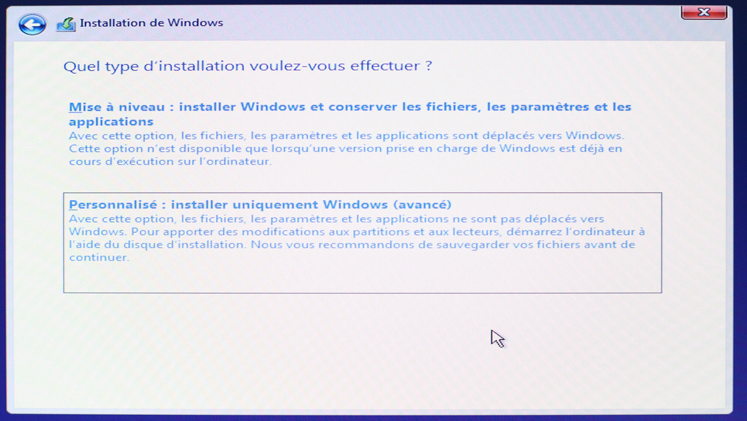
The option must be taken Customized, Indeed, when you reinstall, you have to start again, the first option is only DIY.
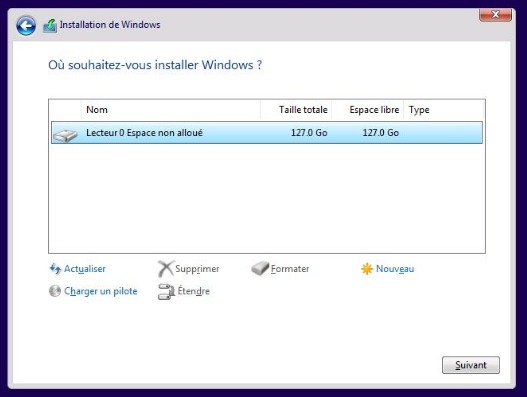
On the hard disk screen, I made a habit, I delete everything, all partitions to leave only an unallocated space, I do not click on New, I let the installer do the work, so once the screen complies with the image above, click on Next.
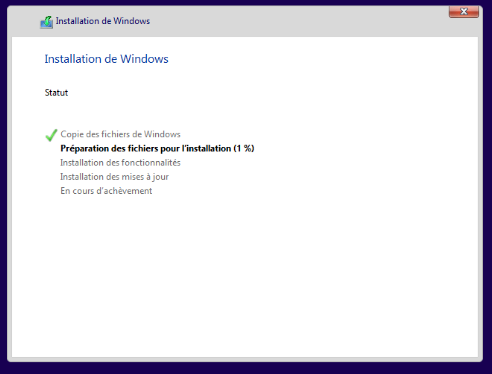
Installation settings
The settings screens do not pose any particular concern, only this one requires our attention:
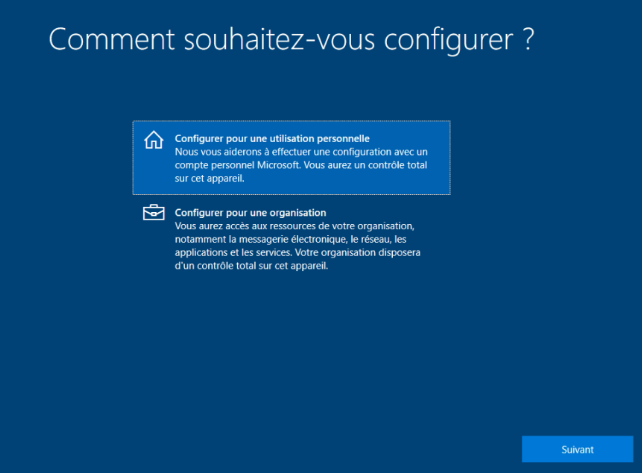
Most users will use the ‘personal use’ option at home, I prefer to use ‘configure for an organisation’ because I have a Microsoft 365 SME account (with two accounts, my wife and I) but Microsoft identifies it as a professional.
In any case, once the installation of Windows is complete, it is better to switch to a Local Account.
Please note that on the latest versions of the W10 installation, the local account option is no longer available in the installer; this must be done manually when the installation is complete.
There is combinations to create a local account during installation, it is easier to create it after installation, each its own method. I use a firstname.name@outlook.com account to take the step.
Installation completed
Windows 10 Optimization
This is by far the most interesting part
If, like me, you can no longer stand the gigantic amount ofcommercial and useless applications that Microsoft imposes on you, continue this tutorial, you are in the right place.
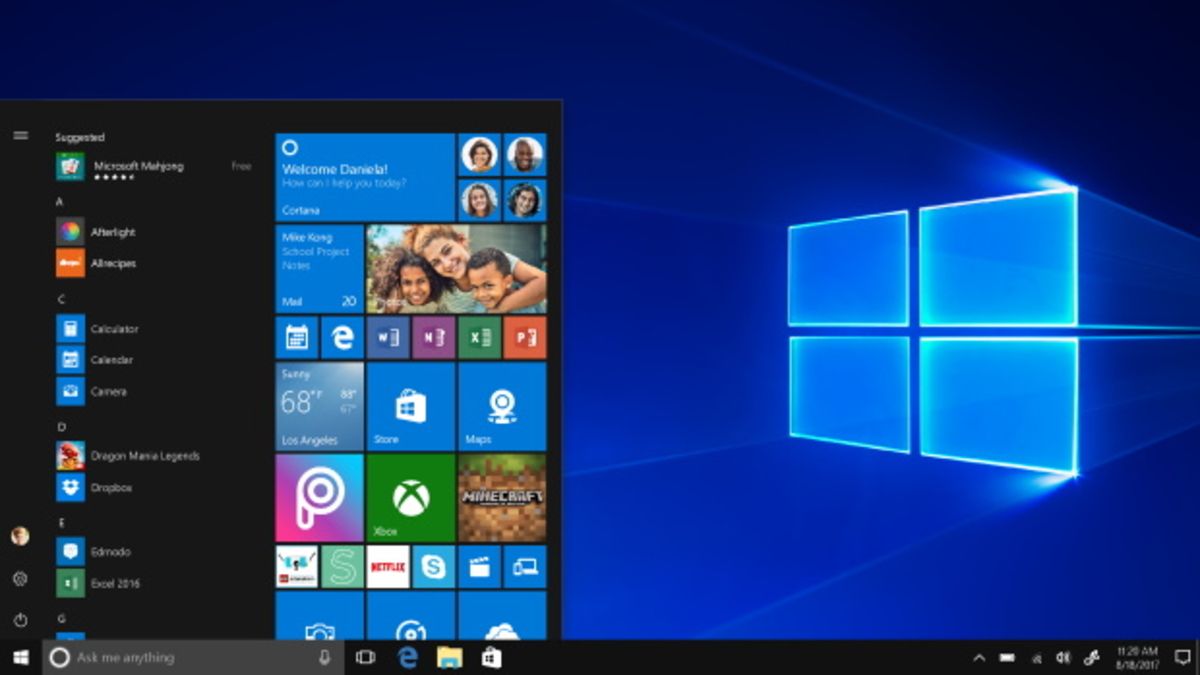
I read and reread a lot, my goal was to find a quick system to remove everything that is useless. Obviously Microsoft has planned the move, most of the applications I want to remove do not sound uninstallable easily (no uninstaller for example)
Bibliography
To understand the services Windows, I helped myself with the documentation and this summary:
Disable Unnecessary Windows 10 Services
For command lines and ways of delete software, I have covered, among other things:
- https://github.com/bitlog2/DisableWinTracking
- https://gist.github.com/jonathanmorley
- https://www.reddit.com/r/pcmasterrace/comments/736tfh/skype_is_officially_bloatware_uninstalled_it/dno65sy/
- https://gist.github.com/JosiahSiegel/269bf67f295033e5f85ed008831f5b02
- https://gist.github.com/snorpey/ee0e15ad877fbbdb36ea0746850d5001
Other Win10 functionalities:
- https://www.malekal.com/restaurer-visionneuse-photos-windows-10/
Synthesis and Bash to launch
In the end, I concatenated several files thanks to the docs I found.
This Bash file may not be perfect yet, but it works well at home.
What was a problem for me or not working, I left but commented so that it could be used later or for others.
I do not encourage its launch on a PC in prod that is not saved but rather on a PC that has just been formatted on which the Windows 10 installation is very fresh.
You will admire the legendary shaping of Sigalou which ensures all its reputation. It is a bit loose, but it is better that it is in gold-plated letters and does not work.
- The .bat file
- The same in text format:
rem DESACTIVATION OF NON-USE SERVICES FOR WINDOWS 10
rem SOURCES: https://www.sia-informatique.com/deactivate-services-inutiles-windows-10/
rem SC | name _service start= disabled | request

rem Configuring Remote Desktop Services
SC config SessionEnv start= disabled

rem Manager of automatic remote access connections
SC config RasAuto start= disabled

rem Manager of downloaded maps
SC config MapsBroker start= disabled

rem Remote Access Connection Manager
SC config RasMan start= disabled

rem Secondary session opening
SC config seclogon start= disabled

rem Internet Connection Sharing (ICS)
SC config SharedAccess start= disabled

rem Automatic time zone update program
SC config tzautoupdate start= disabled

rem Remote registry
SC config RemoteRegistry start= disabled

rem Routing and remote access
SC config RemoteAccess start= disabled

rem Service of the Program Compatibility Assistant
SC config PcaSvc start= disabled

rem Geolocation Service
SC config lfsvc start= disabled

rem Windows Biometrics Service
SC config WbioSrvc start= disabled

rem Net.Tcp Port Sharing Service
SC config NetTcpPortSharing start= disabled

rem Platform service of connected devices
SC config CDPSvc start= disabled

rem Touch keyboard and handwriting pane service
SC config TabletInputService start= disabled

Rem Hands-Free Bluetooth Service
SC config BthHFSrv start= disabled

rem Service Windows Media Player Network Sharing
SC config WMPNetworkSvc start= disabled

Rem Telephone service: Manages the phone status of the device
SC config PhoneSvc start= disabled

rem Superfetch: Manages and improves system performance over time. This service is useless if you have an SSD hard drive.
SC config SysMain start= disabled

rem Fax: Allows you to send and receive faxes, use the fax resources available on this computer or the network.
SC config name _service start= disabled

Rem Telephony
SC config Fax start= disabled

rem WebClient
SC config WebClient start= disabled

rem Windows Search
SC config WSearch start= disabled

rem Smart Card
SC config SCardSvr start= disabled

rem Smart card device enumeration service
SC config ScDeviceEnum start= disabled

rem Smart Card Removal Strategy
SC config SCPolicySvc start= disabled

rem Xbox Live Authentication Manager
SC config XblAuthManager start= disabled

rem Game saved on Xbox Live
SC config XblGameSave start= disabled

rem Xbox Live Networking Service
SC config XboxNetApiSvc start= disabled

rem Hyper-V Guest Services Interface
SC config vmicguestinterface start= disabled

rem Microsoft Hyper-V VSS Service Request
SC config vmicvss start= disabled

rem Service Shutdown of Microsoft Hyper-V Guest
SC config name _service start= disabled

rem Hyper-V virtual machine session service
SC config vmicshutdown start= disabled

rem Service Microsoft Hyper-V Data Exchange
SC config vmickvpexchange start= disabled

rem Service Pulsation Microsoft Hyper-V
SC config vmicheartbeat start= disabled

rem Service Router SMS Microsoft Windows
SC config SmsRouter start= disabled

rem Service Sync date/time Microsoft Hyper-V
SC config vmictimesync start= disabled


rem ------------------------------------------------------------------------------------
rem Services to be put in manuals

timeout /T 1
rem IP Support
SC config iphlpsvc start= demand

rem Distributed Link Tracking Client
SC config TrkWks start= request

rem Offline files
SC config CscService start= request

rem IKE and AuthIP key generation modules
SC config IKEEXT start= request

rem Microsoft Diagnostic Concentrator Standard Collector Service (R)
SC config name _service start= request

rem Windows Error Reporting Service
SC config diagnosticshub.standardcollector.service start= request

rem Diagnostic Strategy Service
SC config DPS start= demand

rem Host service WDIServiceHost
SC config WdiServiceHost start= request

@REM *** Disable Cortana & Telemetry ***
REG ADD "HKEY_LOCAL_MACHINE\SOFTWARE\Policies\Microsoft \Windows \Windows Search" /f
REG ADD "HKEY_LOCAL_MACHINE\SOFTWARE\Policies\Microsoft\Windows \Windows Search" /V AllowCortana /T REG_DWORD /D 0 /F


@rem *** Disable Some Service ***
sc stop DiagTrack
sc stop diagnosticshub.standardcollector.service
sc stop dmwappushservice
sc stop WMPNetworkSvc
sc stop WSearch

sc config DiagTrack start= disabled
sc config diagnosticshub.standardcollector.service start= disabled
sc config dmwappushservice start= disabled
REM sc config RemoteRegistry start= disabled
REM sc config TrkWks start= disabled
sc config WMPNetworkSvc start= disabled
sc config WSearch start= disabled
REM sc config SysMain start= disabled

REM *** SCHEDULED TASKS tweaks ***
REM schtasks /Change /TN "Microsoft \Windows \AppID \SmartScreenSpecific" /Disable
schtasks /Change /TN "Microsoft \Windows \Application Experience \Microsoft Compatibility Appraiser" /Disable
schtasks /Change /TN "Microsoft \Windows \Application Experience\ProgramDataUpdater" /Disable
schtasks /Change /TN "Microsoft \Windows \Application Experience \StartupAppTask" /Disable
schtasks /Change /TN "Microsoft \Windows \Customer Experience Improvement Program \Consolidator" /Disable
schtasks /Change /TN "Microsoft \Windows \Customer Experience Improvement Program \KernelCeipTask" /Disable
schtasks /Change /TN "Microsoft \Windows \Customer Experience Improvement Program \UsbCeip" /Disable
schtasks /Change /TN "Microsoft \Windows \Customer Experience Improvement Program \Uploader" /Disable
schtasks /Change /TN "Microsoft \Windows \Shell \FamilySafetyUpload" /Disable
schtasks /Change /TN "Microsoft \Office \OfficeTelemetryAgentLogOn" /Disable
schtasks /Change /TN "Microsoft \Office \OfficeTelemetryAgentFallBack" /Disable
schtasks /Change /TN "Microsoft \Office \Office 15 Subscription Heartbeat" /Disable

REM schtasks /Change /TN "Microsoft \Windows \Autochk \Proxy" /Disable
REM schtasks /Change /TN "Microsoft \Windows \CloudExperienceHost \CreateObjectTask" /Disable
REM schtasks /Change /TN "Microsoft \Windows \DiskDiagnostic \Microsoft-Windows-DiskDiagnosticDataCollector" /Disable
REM schtasks /Change /TN "Microsoft \Windows \DiskFootprint \Diagnostics" /Disable *** Not sure if should be disabled, possibly related to S.M.A.R.T.
REM schtasks /Change /TN "Microsoft \Windows \FileHistory \File History (maintenance mode)" /Disable
REM schtasks /Change /TN "Microsoft \Windows \Maintenance \WinSAT" /Disable
REM schtasks /Change /TN "Microsoft \Windows \NetTrace \GatherNetworkInfo" /Disable
REM schtasks /Change /TN "Microsoft \Windows \PI \Sqm-Tasks" /Disable
REM The stubborn task Microsoft \Windows \SettingSync \BackgroundUploadTask can be Disabled using a simple bit change. I use a REG file for that (attached to this post).
REM schtasks /Change /TN "Microsoft \Windows \Time Synchronization \ForceSynchronizeTime" /Disable
REM schtasks /Change /TN "Microsoft \Windows \Time Synchronization \SynchronizeTime" /Disable
REM schtasks /Change /TN "Microsoft \Windows \Windows Error Reporting \QueueReporting" /Disable
REM schtasks /Change /TN "Microsoft \Windows \WindowsUpdate \Automatic App Update" /Disable

@rem *** Remove Telemetry & Data Collection ***
reg add "HKLM \SOFTWARE \Microsoft \Windows \CurrentVersion \Device Metadata" /v PreventDeviceMetadataFromNetwork /t REG_DWORD /d 1 /f
reg add "HKLM\SOFTWARE\Microsoft\Windows\CurrentVersion\Policies\DataCollection" /v "AllowTelemetry" /t REG_DWORD /d 0 /f
reg add "HKLM\SOFTWARE\Policies\Microsoft\MRT" /v DontOfferThroughWUAU /t REG_DWORD /d 1 /f
reg add "HKLM\SOFTWARE\Policies\Microsoft\SQMClient\Windows" /v "CEIPEnable" /t REG_DWORD /d 0 /f
reg add "HKLM \SOFTWARE \Policies \Microsoft \Windows \AppCompat" /v "AITEnable" /t REG_DWORD /d 0 /f
reg add "HKLM \SOFTWARE \Policies \Microsoft \Windows \AppCompat" /v "DisableUAR" /t REG_DWORD /d 1 /f
reg add "HKLM \SOFTWARE \Policies \Microsoft \Windows \DataCollection" /v "AllowTelemetry" /t REG_DWORD /d 0 /f
reg add "HKLM\SYSTEM\CurrentControlSet \Control\WMI\AutoLogger \AutoLogger-Diagtrack-Listener" /v "Start" /t REG_DWORD /d 0 /f
reg add "HKLM\SYSTEM\CurrentControlSet\Control\WMI\AutoLogger\SQMLogger" /v "Start" /t REG_DWORD /d 0 /f

@REM Settings -> Privacy -> General -> Let apps use my advertising ID...
reg add "HKCU\SOFTWARE\Microsoft\Windows\CurrentVersion\AdvertisingInfo" /v Enabled /t REG_DWORD /d 0 /f
REM - SmartScreen Filter for Store Apps: Disable
reg add "HKCU\SOFTWARE\Microsoft\Windows\CurrentVersion\AppHost" /v EnableWebContentEvaluation /t REG_DWORD /d 0 /f
REM - Let websites provide more...
reg add "HKCU\Control Panel\International\User Profile" /v HttpAcceptLanguageOptOut /t REG_DWORD /d 1 /f

@REM WiFi Sense: HotSpot Sharing: Disable
reg add "HKLM \Software \Microsoft \PolicyManager \default \WiFi \AllowWiFiHotSpotReporting" /v value /t REG_DWORD /d 0 /f
@REM WiFi Sense: Shared HotSpot Auto-Connect: Disable
reg add "HKLM \Software \Microsoft \PolicyManager \default \WiFi \AllowAutoConnectToWiFiSenseHotspots" /v value /t REG_DWORD /d 0 /f

@REM Change Windows Updates to "Notify to schedule restart"
reg add "HKLM\SOFTWARE\Microsoft\WindowsUpdate\UX\Settings" /v UxOption /t REG_DWORD /d 1 /f
@REM Disable P2P Update downlods outside of local network
reg add "HKLM\SOFTWARE\Microsoft\Windows\CurrentVersion\DeliveryOptimization\Config" /v DODownloadMode /t REG_DWORD /d 0 /f


REM *** Hide the search box from taskbar. You can still search by pressing the Win key and start typing what you're looking for ***
REM 0 = hide completely, 1 = show only icon, 2 = show long search box
reg add "HKCU\SOFTWARE\Microsoft\Windows\CurrentVersion\Search" /v "SearchboxTaskbarMode" /t REG_DWORD /d 0 /f

REM *** Disable MRU lists (jump lists) of XAML apps in Start Menu ***
reg add "HKEY_CURRENT_USER\SOFTWARE\Microsoft\Windows\CurrentVersion\Explorer\Advanced" /v "Start_TrackDocs" /t REG_DWORD /d 0 /f

REM *** Set Windows Explorer to start on This PC instead of Quick Access ***
REM 1 = This PC, 2 = Quick access
REM reg add "HKEY_CURRENT_USER\SOFTWARE\Microsoft\Windows\CurrentVersion\Explorer\Advanced" /v "LaunchTo" /t REG_DWORD /d 1 /f

REM *** Disable Suggestions in the Start Menu ***
reg add "HKEY_CURRENT_USER\SOFTWARE\Microsoft\Windows\CurrentVersion\ContentDeliveryManager" /v "SystemPaneSuggestionsEnabled" /t REG_DWORD /d 0 /f

rem https://gist.github.com/JosiahSiegel/269bf67f295033e5f85ed008831f5b02#file-remove _win _bloatware-bat

PowerShell - Order "Get-AppxPackage *3DBuilder* | Remove-AppxPackage"
PowerShell - Order "Get-AppxPackage *Getstarted* | Remove-AppxPackage"
PowerShell - Command "Get-AppxPackage *WindowsAlarms* | Remove-AppxPackage"
PowerShell -Order "Get-AppxPackage *WindowsCamera* | Remove-AppxPackage"
PowerShell - Order "Get-AppxPackage *bing* | Remove-AppxPackage"
PowerShell - Order "Get-AppxPackage *OneNote* | Remove-AppxPackage"
rem PowerShell -Order "Get-AppxPackage *people* | Remove-AppxPackage"
PowerShell - Order "Get-AppxPackage *WindowsPhone* | Remove-AppxPackage"
PowerShell - Order "Get-AppxPackage *SkypeApp* | Remove-AppxPackage"
PowerShell - Order "Get-AppxPackage *WindowsSoundRecorder* | Remove-AppxPackage"
PowerShell - Command "Get-AppxPackage *windowscommunicationsapps* | Remove-AppxPackage"
PowerShell - Order "Get-AppxPackage *zune* | Remove-AppxPackage"
PowerShell - Order "Get-AppxPackage *Swaay* | Remove-AppxPackage"
PowerShell - Order "Get-AppxPackage *CommsPhone* | Remove-AppxPackage"
PowerShell - Order "Get-AppxPackage *ConnectivityStore* | Remove-AppxPackage"
PowerShell - Order "Get-AppxPackage *Microsoft.Messaging* | Remove-AppxPackage"
PowerShell - Order "Get-AppxPackage *Facebook* | Remove-AppxPackage"
PowerShell - Order "Get-AppxPackage *Twitter* | Remove-AppxPackage"
PowerShell -Order "Get-AppxPackage *Drawboard PDF* | Remove-AppxPackage"
PowerShell - Order "Get-AppxPackage *XboxApp* | Remove-AppxPackage"
PowerShell -Order "Get-AppxPackage -Name *Flipboard.Flipboard* | Remove-AppxPackage"
PowerShell -Command "Get-AppxPackage -Name *A97ECD55.KYOCERAPrintCenter* | Remove-AppxPackage"
PowerShell -Order "Get-AppxPackage -Name *TheNewYorkTimes.NYTCrossword* | Remove-AppxPackage"
rem PowerShell -Command "Get-AppxPackage -Name *Windows.CBSPreview* | Remove-AppxPackage"
PowerShell -Order "Get-AppxPackage -Name *Microsoft.ZuneVideo* | Remove-AppxPackage"
PowerShell -Order "Get-AppxPackage -Name *Microsoft.Microsoftskydrive* | Remove-AppxPackage"
PowerShell -Command "Get-AppxPackage -Name *Microsoft.Messaging* | Remove-AppxPackage"
PowerShell -Command "Get-AppxPackage -Name *Microsoft.People* | Remove-AppxPackage"
PowerShell -Command "Get-AppxPackage -Name *Microsoft.ZuneMusic* | Remove-AppxPackage"
PowerShell -Order "Get-AppxPackage -Name *Microsoft.Windows.Photos* | Remove-AppxPackage"
PowerShell -Order "Get-AppxPackage -Name *Microsoft.SkypeApp* | Remove-AppxPackage"
PowerShell -Order "Get-AppxPackage -Name *Microsoft.3DBuilder* | Remove-AppxPackage"
PowerShell -Order "Get-AppxPackage -Name *Microsoft.BingWeather* | Remove-AppxPackage"
PowerShell -Order "Get-AppxPackage -Name *Microsoft.MicrosoftOfficeHub* | Remove-AppxPackage"
PowerShell -Command "Get-AppxPackage -Name *Microsoft.MicrosoftSolitaireCollection* | Remove-AppxPackage"
PowerShell -Command "Get-AppxPackage -Name *Microsoft.MSPaint* | Remove-AppxPackage"
PowerShell -Command "Get-AppxPackage -Name *Microsoft.OneConnect* | Remove-AppxPackage"
PowerShell -Command "Get-AppxPackage -Name *Microsoft.People* | Remove-AppxPackage"
PowerShell -Order "Get-AppxPackage -Name *Microsoft.Print3D* | Remove-AppxPackage"
PowerShell -Command "Get-AppxPackage -Name *Microsoft.Wallet* | Remove-AppxPackage"
PowerShell -Order "Get-AppxPackage -Name *Microsoft.WindowsCamera* | Remove-AppxPackage"
PowerShell -Order "Get-AppxPackage -Name *Microsoft.WindowsFeedbackHub* | Remove-AppxPackage"
PowerShell -Command "Get-AppxPackage -Name *Microsoft.WindowsSoundRecorder* | Remove-AppxPackage"
PowerShell -Command "Get-AppxPackage -Name *Microsoft.Xbox.TCUI* | Remove-AppxPackage"
PowerShell -Order "Get-AppxPackage -Name *Microsoft.XboxApp* | Remove-AppxPackage"
PowerShell -Order "Get-AppxPackage -Name *Microsoft.XboxGameOverlay* | Remove-AppxPackage"
PowerShell -Order "Get-AppxPackage -Name *Microsoft.XboxGamingOverlay* | Remove-AppxPackage"
PowerShell -Command "Get-AppxPackage -Name *Microsoft.XboxIdentityProvider* | Remove-AppxPackage"
PowerShell -Order "Get-AppxPackage -Name *Microsoft.XboxSpeechToTextOverlay* | Remove-AppxPackage"

@rem NOW JUST SOME TWEAKS
REM *** Show hidden files in Explorer ***
reg add "HKEY _CURRENT _USER \SOFTWARE \Microsoft \Windows \CurrentVersion \Explorer \Advanced" /v "Hidden" /t REG_DWORD /d 1 /f

REM *** Show super hidden system files in Explorer ***
reg add "HKEY_CURRENT_USER\SOFTWARE\Microsoft\Windows\CurrentVersion\Explorer\Advanced" /v "ShowSuperHidden" /t REG_DWORD /d 1 /f

REM *** Show file extensions in Explorer ***
reg add "HKEY _CURRENT _USER \SOFTWARE \Microsoft \Windows \CurrentVersion \Explorer \Advanced" /v "HideFileExt" /t REG_DWORD /d 0 /f
Launching the bash file
Be careful, you have to launch the file by giving it administrator rights, otherwise many things will be refused.
Relaunch the PC, the result is almost magical!
 English
  French
  Spanish
  Chinese
  German