


By 2020, I had already achieved this Assembly with a TL-WR802N to add Wi‑Fi to an Ethernet camera.
At the time, the solution met my needs, but over time I noticed regular disconnections, frequent enough that I finally decided to change equipment.
So I took over the installation completely with a TL-WR902AC, with the aim of achieving a more stable and flexible set-up.
My objective remained the same: connect a camera with only one Ethernet port to my Wi‑Fi network, without pulling an additional network cable to the box.
The TL-WR902AC acts here as a bridge: it connects to the Wi‑Fi of the house, then transmits this connection to the camera through its RJ45 port in Client mode.
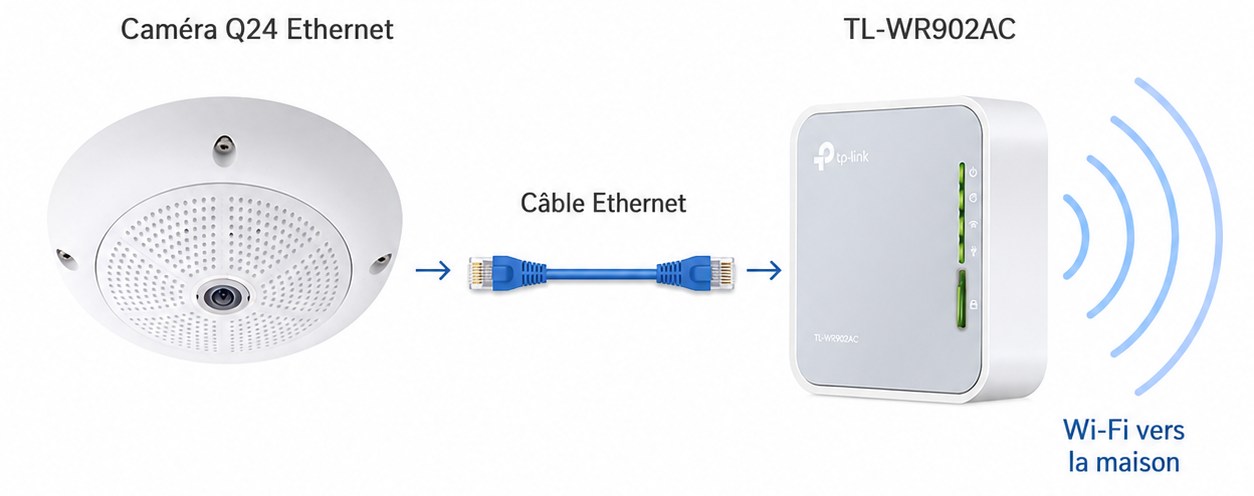
🔁 I replace my old TL-WR802N
My first montage is from 2020. At that time, I had used a TL-WR802N to give Wi‑Fi access to this Ethernet camera. In principle, this worked, but the installation was not sufficiently reliable over time.
So I chose to start from scratch with a newer model.
The TL-WR902AC I was interested for a simple reason: it also allows the use of 5 GHz, whereas my previous assembly with the TL-WR802N did not give me this possibility in this context.
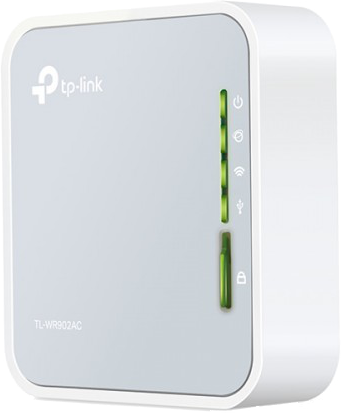
🛍 I reference the TL-WR902AC in my lab
In order to compare prices, I added the TL-WR902AC.
🧰 I prepare the material
Before I started, I met on TL-WR902AC, its power supply, an Ethernet cable for the camera and the credentials of my Wi‑Fi network.
I also kept access to my Synology router, as I already knew that I would probably have to check the IP address obtained by the box there.
🔀 I put the selector on the right position
The physical selector of the TL-WR902AC has three positions. I place it on AP / Rng Ext / Customer, which is the necessary position to then be able to choose the Client mode in the administration interface.
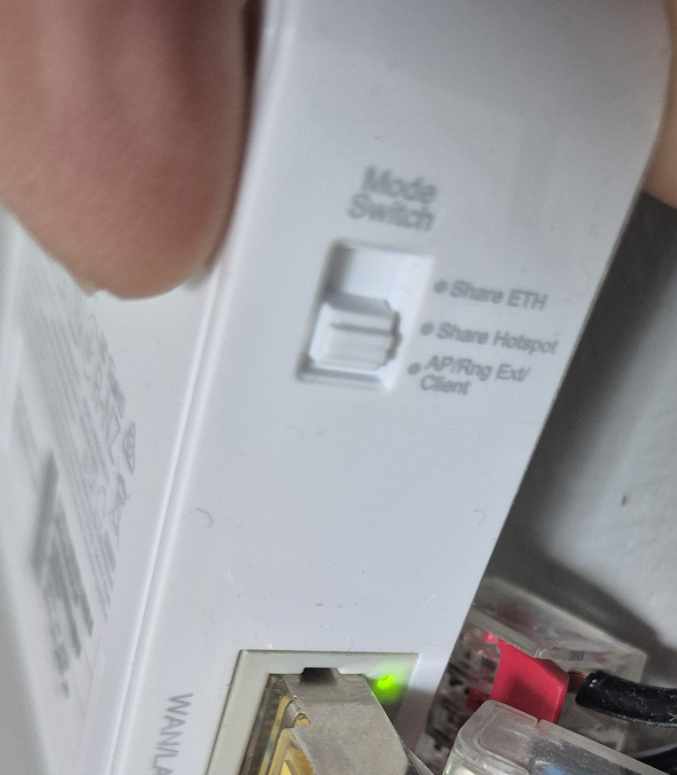
This is important because the Customer mode does not have its own dedicated notch on the selector. The physical position brings together several uses, and it is then the TP-Link wizard that makes it possible to select precisely the correct mode of operation.
🔌 I plug in TL-WR902AC wired on my network
To start the configuration, I do not go through Wi‑Fi.
I first add the following: TL-WR902AC on a switch on my network, which allows my main router to detect it and assign it an IP address. In my case, it was seen by my Synology router in 192.168.1.205.
This step is important in my feedback, as the first part of the configuration of the Client mode was not done in Wi‑Fi. The TP-Link documentation indicates that once in Client mode, the router no longer broadcasts a Wi‑Fi network and that the equipment is then accessed only via a wired connection.
🔐 I first create the administration password
Once the box is accessible on the network, I open the administration interface from my browser.
I go to http://192.168.1.205 to access the configuration. The documentation proposes to use http://tplinkwifi.net if the IP of the equipment is not known.
Before launching the wizard, I first configure the local password from TL-WR902AC, This secures access to the management interface. The TP-Link documentation specifies that at this stage it is necessary to log in to the administration page and set or use the local password depending on whether the device has already been configured or not.
I recommend doing this right away, as it avoids going back to default credentials and makes it easy to get your hands on the case afterwards.
⚙ I launch the configuration of the TL-WR902AC
Then I choose the simplest solution: the installation wizard proposed by TP-Link.
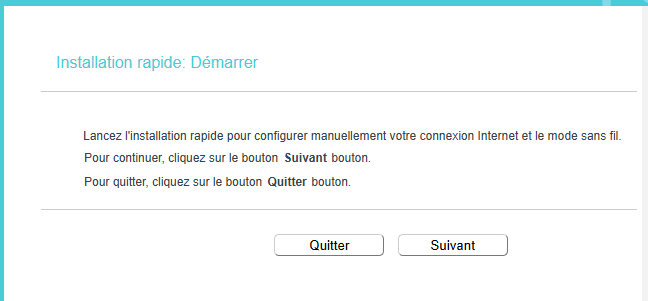
The first screen displays the launch of the quick installation, with a simple button Next to start the procedure. Right after, the wizard asks me to select the mode of operation, and I check Customer, the one who transforms the TL-WR902AC as a wireless adapter for Ethernet equipment.
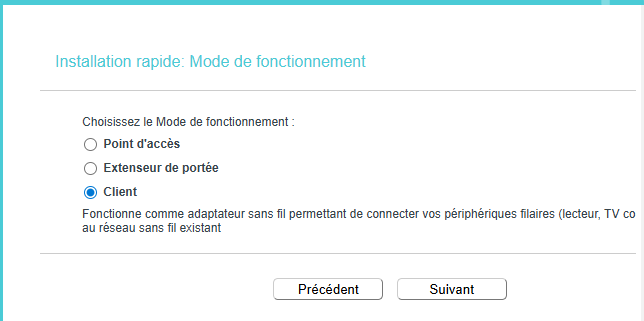
The TP-Link wizard really simplifies the procedure. The official documentation follows this logic: start the Quick Setup, choose Client, select the Wi‑Fi host network, then set the LAN address type before saving the settings.
📶 I select the best network in 5 GHz
After choosing the Client mode, I arrive at the list of access points. There, I select the Wi‑Fi network that interests me as 5 GHz, taking the one with the strongest signal from the available networks.
The TL-WR902AC allows you to choose a 2.4 GHz or 5 GHz host network in its Client configuration wizard.
In my case, this choice of 5 GHz is part of the reasons for the hardware change. This is a real step forward compared to my previous set-up, and it fits better into the current organisation of my network.
🧭 I switch the LAN to fixed IP
The next step concerns the type of LAN.
On this screen, I do not keep the default setting Smart IP : I choose Static IP, then I enter the address 192.168.1.80 with the mask 255.255.255.0, and I disable the DHCP server, since it is already my Synology router that distributes the addresses over the network.
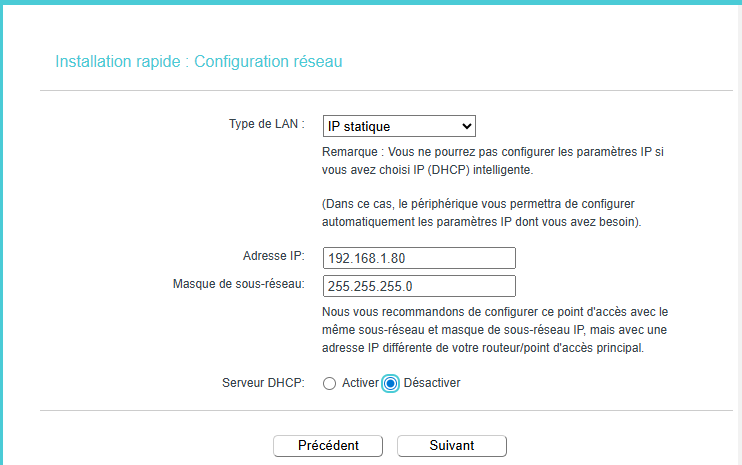
This configuration corresponds to my needs: I want the TL-WR902AC always remain reachable at the same address and do not duplicate with the main DHCP server.
The TP-Link documentation indicates that the wizard allows either to leave Smart IP by default or to choose another type of LAN addressing depending on the network context.
🔄 I finish and then let the router restart
Once the parameters have been validated, I finish the wizard. The TL-WR902AC then saves the configuration and restarts to apply the new settings, as specified in the TP-Link procedure.
From there, the case is ready to play its role as a Wi‑Fi to Ethernet client. The restart is part of the normal commissioning cycle when changing the operating mode and network parameters.
📡 I then plug in the camera
Once the configuration is complete and the TL-WR902AC restarted, I can disconnect the Ethernet switch box from my network, because this wired link was only used to make the initial configuration and easily retrieve its IP address.
From this point on, Wi‑Fi is configured and the TL-WR902AC now connects to my wireless network in Client mode.
I can then connect the camera to the Ethernet port of the TL-WR902AC. This is precisely the role of the customer mode: the enclosure receives the Wi‑Fi connection from the main network and then transmits it by cable to Ethernet equipment, such as a camera, TV or any other wired device.
The camera remains an Ethernet equipment, but it now joins the local network thanks to the bridge provided by the TL-WR902AC in Client mode.
✅ I check that everything works
I conclude by checking that the camera can be reached on the network and that access remains stable.
In my case, this complete reconfiguration allowed me to start again on a cleaner basis. Between the passage to the TL-WR902AC, the choice of 5 GHz, the fixed IP in 192.168.1.80 and the deactivation of the DHCP on the housing, the installation is much clearer to administer.
📝 I retain the essentials
With this type of enclosure, it is ultimately quite simple to add Wi‑Fi to equipment that only has an Ethernet port. The most important thing is to understand the logic: select the position AP / Rng Ext / Customer, launch the wizard, choose Customer, select the right Wi‑Fi network, then set the LAN settings cleanly.
In my feedback, the material change was mainly justified by the repeated disconnections of the TL-WR802N. With the TL-WR902AC, I got a more modern solution, better adapted to my current network and easier to maintain on a daily basis.
 English
  French
  Spanish
  Chinese
  German