

 |
|
Presentation of the plugin
This plugin will allow you to monitor your equipment, for example:
- Check that your nuts are still active
- Check that your sensors (regardless of their technology) are active
- Ensure that your network equipment is connected to the router
- …
Depending on the checks performed (automatically), you can schedule actions to be performed, modelled on a Jeedom scenario.
Installation of the Watchdog Plugin
Install the Plugin from the Market
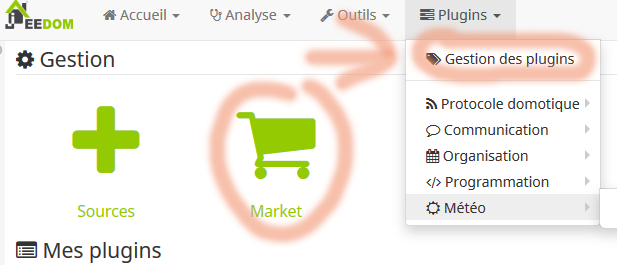 |
Then go to the Market and select the version stable from Watchdog
Then Activate the plugin
Configure each Watchdog
(First tab: Watchdog)
Note: : There are no global configuration settings so it is not useful to go to the configuration tab, each Watchdog has its own configuration and is managed independently.
Here are the fields you can find:
- Name of the watchdog
- Parent object
- Category
- Activate
- Visible
- Self-updating (cron)
This field corresponds to the self-update rate, i.e. CRON, by default this field is */5 * * * * This means every 5 minutes, click on the question mark to use another refresh rate.
To go further on the options of the crons, I invite you to browse this Site
- Last launch
This is information, this field cannot be edited by the user
- Method of operation of controls
This choice is important because it determines how the moment when actions must be launched will be calculated. Initially, use Actions on each control independently it is the easiest mode to understand, you will see later to use the other modes according to your own needs.
The three modes are:
- Actions on each control independently: This mode independently tests each control and triggers actions when that control has changed state
- Actions on all controls (with OR method): This mode tests the overall result of the controls by applying an "OR" test between each control. It triggers actions when the overall result has changed state.
- Actions on all controls (with ET method): This mode tests the overall result of the controls by applying an "ET" test between each control. It triggers actions when the overall result has changed state.
- Method of operation of the actions
This choice is important because it determines in which case the actions are triggered.
The two modes are:
- Launch an action only if the control changes its value: This mode alerts you when the control performed has changed status
- Launch an action at each check depending on the result: This mode executes at each control the action that corresponds to the result of the control.
Configure triggers
(Second tab: Equipment or Orders to be monitored)
This tab is divided into two parts:
Checks to be carried out
In this part, add all the controls you want. Each time a control is added, its result is displayed on the right in the Result column. If this result is neither True nor False, this control is poorly mapped and will be ignored.
Tempo configuration
Tempos are variables that can be used in the calculation of expressions. Look at the examples below to understand the use of tempos.
To use them, it is necessary to add #tempo1# to use the value of tempo1.
Configure actions
(Third tab: Actions)
There are three types of order:
- The orders that will be launched as to the control will pass to TRUE
- The orders that will be launched as to the control will pass to FALSE
- Orders that will be launched BEFORE control (e.g. Refresh commands)
Using the log specific to each Watchdog
To be able to follow the events of each Watchdog, a specific log has been created.

When you click on this icon, you will see the specific log of the Watchdog on which you are:

To select the actions that will be entered in the log, tick the 3rd box at the beginning of each action:
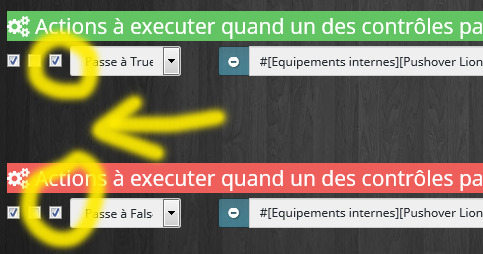
Note: :To date, only the "title" and "message" information is added to this log. If you need more information, please do not hesitate to contact Sigalou
Using a [Global Result] in Scenarios
Each Wathdog can have three modes of operation, in modes that evaluate overall results: And and OR, it may be interesting to retrieve the result of this test to use it in a scenario.
A new info command has been created for this purpose: [Global result].
Examples of the use of Watchdogs
Controlling that the Nuts are alive
I use the Nuts to find out if we are at home or not.
4 Nuts:
- 1 Nut in the glove box of Monsieur's car
- 1 Nut hanging on Monsieur's keys
- 1 Nut in the glove box of Madame's car
- 1 Nut hanging on Madame's keys
The idea is to check that the nuts have manifested themselves in the last 12 hours. Otherwise, one can imagine that they no longer have a battery.
Configuration of the Watchdog:
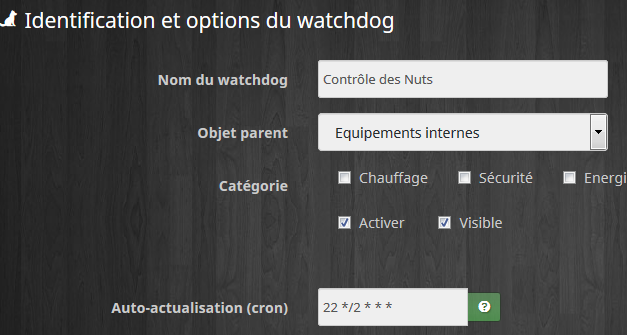
In this configuration, I launch the control every 2 hours.

I use this mode of operation because I want to control each Nut independently and the Watchdog plugin tells me which one has not responded in the last 12 hours.
Equipment to watch tab
Here, 4 nuts so 4 equipment to monitor so 4 controls.
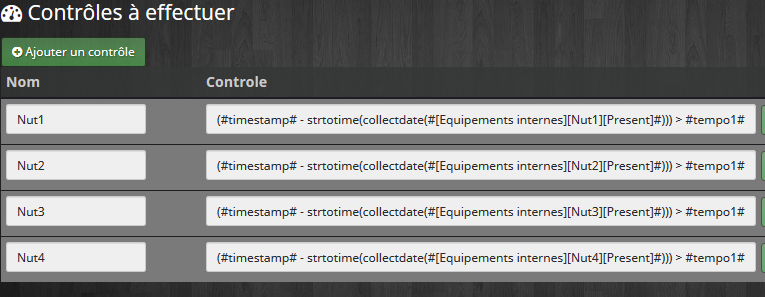
For example, I used the simple names of Nut, it’s up to you to customize.
The control is (#timestamp# – strtotime(collectdate(#[Internal equipment][Nut1][Present]#))) > #tempo1#
You can either copy this check or use the wizard by clicking on the small green icon next to the check.
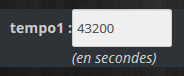
This check will check whether the last time the Nut gave a sign of life is less than 12h or 43200 seconds, do not forget to specify this in tempo 1:
Commands tab
I chose to use Pushover to inform myself but this is adaptable by everyone.
I therefore use the following commands:
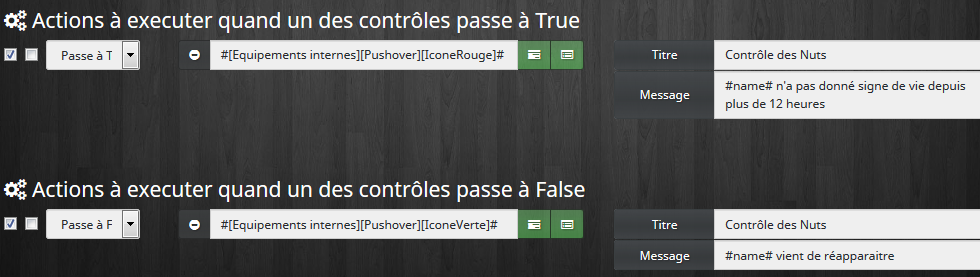
Note:, the name of the control may be used in the action: #controlname# = Name of the control that triggered the action, can also be used #title# = name of the Watchdog
Check that XIAOMI sensors are active
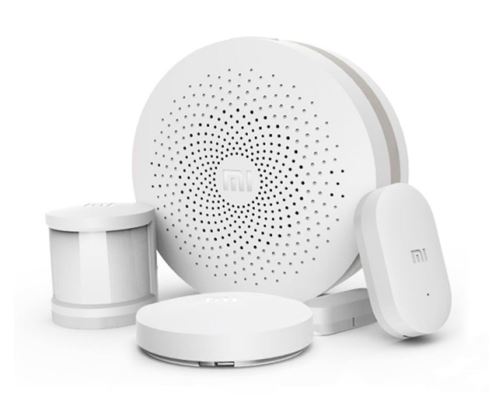
I use two Gateways, aperture detectors, presence detectors, vibration detectors, water detectors, temperature/hygro sensors, … buttons
I propose to create a Watchdog for Xiaomi equipment, the only difference between them is the duration of the tempo that controls that the equipment is active.
The Xiaomi plugin provided for the ‘refresh’ function to question the equipment and refresh the values. It should not be run every minute or the batteries will not finish the week, but for this type of equipment (unlike Nuts), it is useful to run a refresh before testing if the equipment is active.
I only run a Refresh on equipment that may not have an update on its own. For example, the windows can remain closed for several days while the presence sensors move all the time. Therefore, the window sensors will be refreshed, not the presence sensors.
Configuration of the Watchdog:
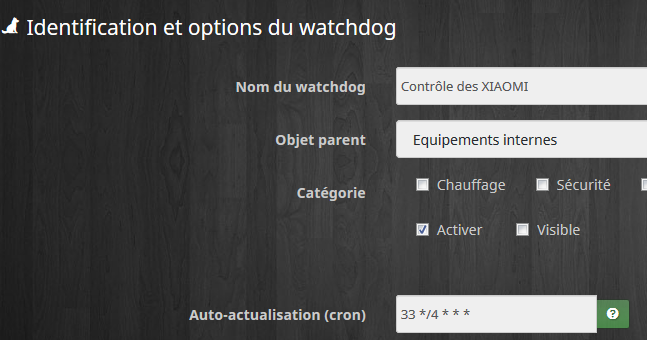
In this configuration, I launch the control every 4 hours.
I use this mode of operation because I want to control each Xiaomi independently.
Equipment to watch tab
Here, (for example) Two Gateways, a window sensor, a presence detector:
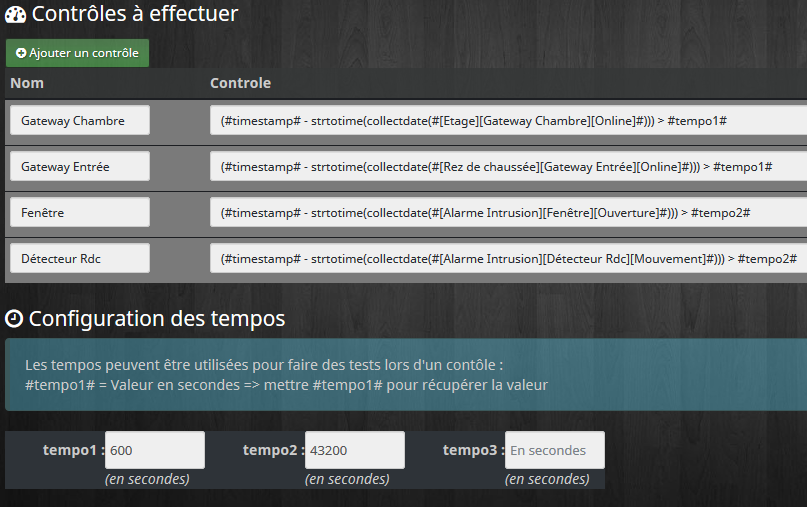
The control is (#timestamp# – strtotime(collectdate(#[Etage][Gateway Room][Online]#))) > #tempo1#
You can either copy this check or use the wizard by clicking on the small green icon next to the check.
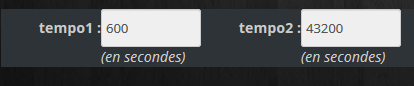
This check will check whether the last time the equipment gave a sign of life is less than 10 minutes for Gateways and 12 hours for other equipment, do not forget to specify this in tempo1 and tempo2:
Commands tab
I chose to use Pushover to inform myself but this is adaptable by everyone.
I therefore use the following commands:
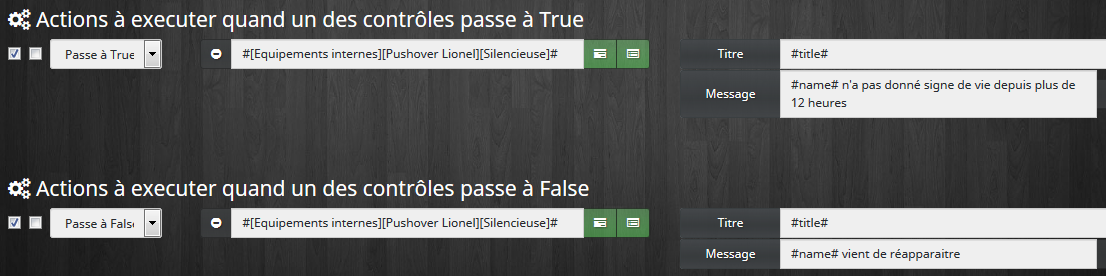
Note:, the name of the control may be used in the action: #controlname# = Name of the control that triggered the action, can also be used #title# = name of the Watchdog
Some equipment that must be refreshed because its condition does not necessarily move within the last 12 hours (for example a window or garage may remain closed). To do this, you can launch the commands Refresh which are intended to update the condition of the equipment:

Check that RFXCOM sensors are active
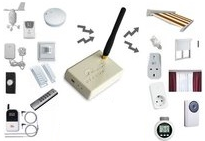
RFXCOM sensors work on the same principle as Nuts in this tutorial, so refer to the Nuts section.
Check the equipment of the local network
For this example, we will not reinvent hot water and we will rely on the plugin Network.
All the equipment looks alike and we're going to test the Status value.
If Value goes to 0 the ping did not work.
Configuration of the Watchdog:
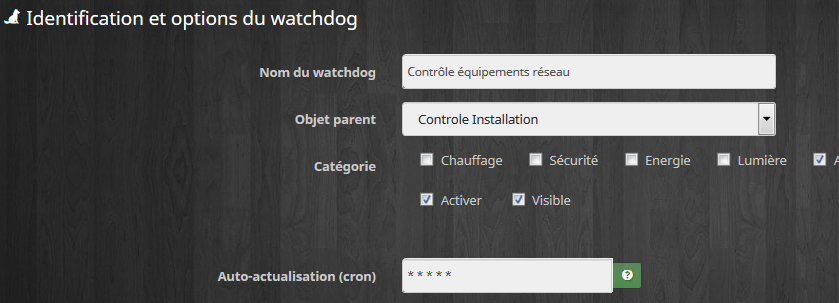
In this configuration, I run the control every minute.
I use the operating mode because I want to control each piece of equipment independently.
Equipment to watch tab
All equipment is configured in the same way since it comes from the plugin Network
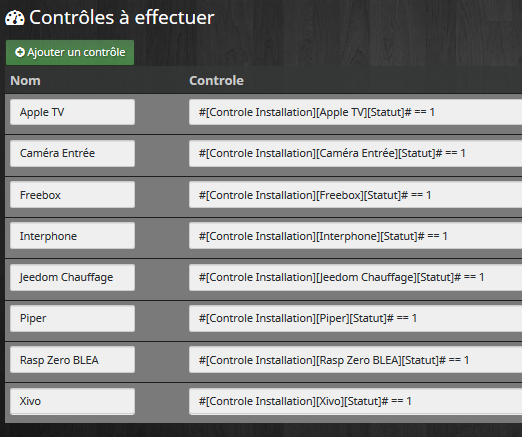
When all goes well these lines will give True as a result, if a device no longer pings, the plugin will send 0 and give False.
Note: : timers are not configured in this example.
Commands tab
I chose to use Pushover to inform myself but this is adaptable by everyone.
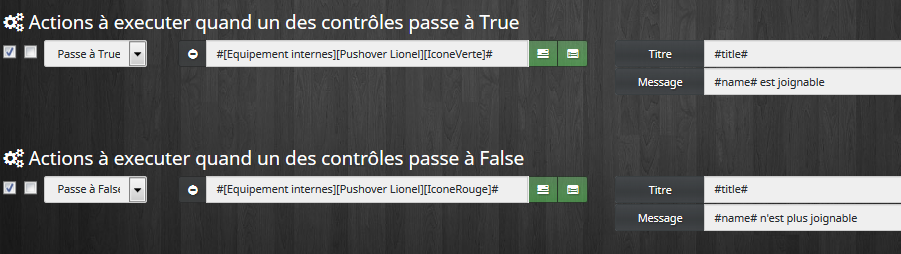
I therefore use the following commands:
 English
 French
 Spanish
 Chinese
 German