

Since April 2, 2020, Sonoff has just launched Ewelink Firmware 3.5.0 and on this occasion, the DIY protocol goes from V1.4 to V2.0
Equipment concerned:
- Sonoff-DIY MINI who slips behind an interruptor.
- Sonoff-DIY BasicR3
- Sonoff-DIY RF R3
- Sonoff-DIY D1
http://developers.sonoff.tech/sonoff-diy-mode-api-protocol.html#Supported-Device
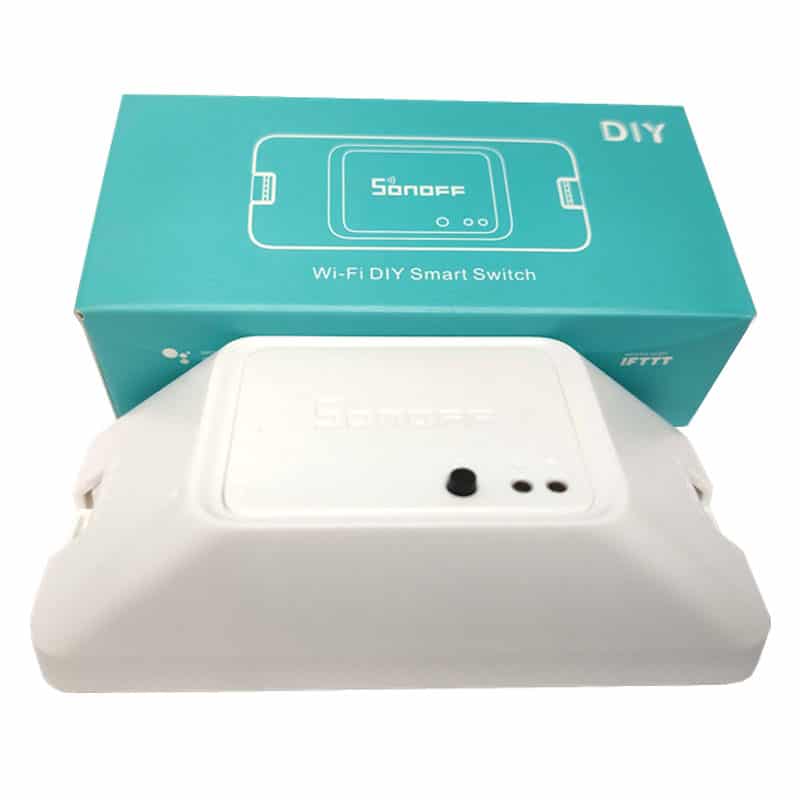 |
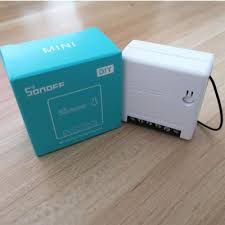 |
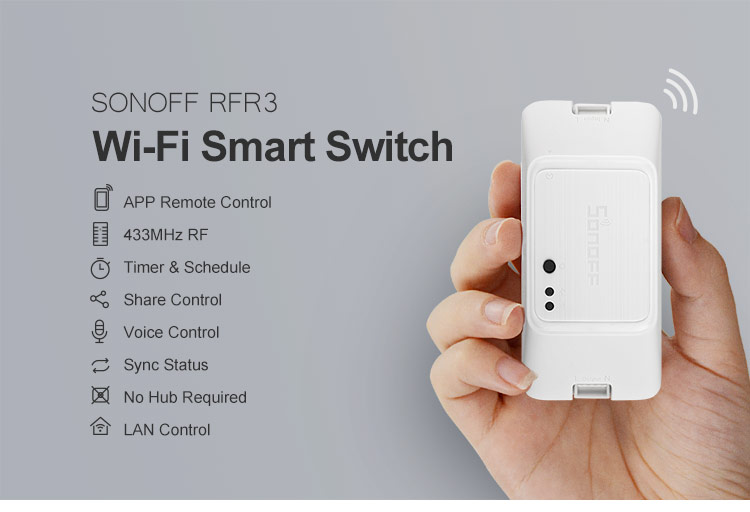 |
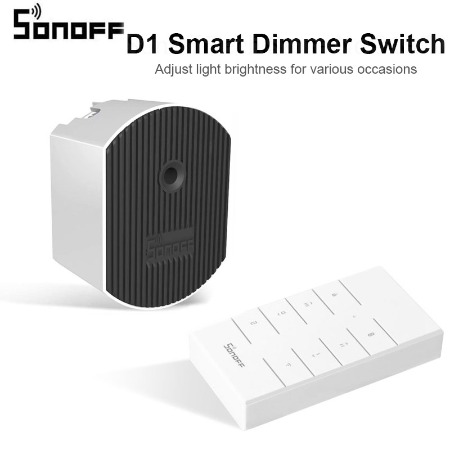 |
.
The update in Ewelink of your Sonoff DIY equipment will cause a need to reprogram the DIY mode, this tutorial is there for you.
At the time of writing, the Sonoff documentation is not complete (for me) , cf. references while in case of this tutorial, I did a lot of testing to find this procedure.
Modes of operation of Sonoff DIY
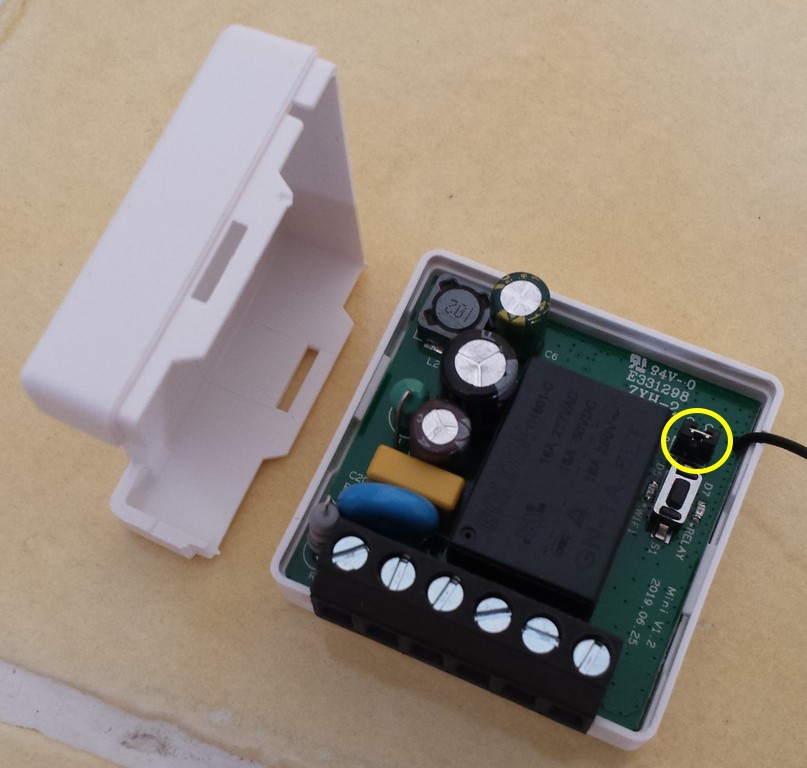
For the record, the two modes of the DIY are depending on the rider.
 |
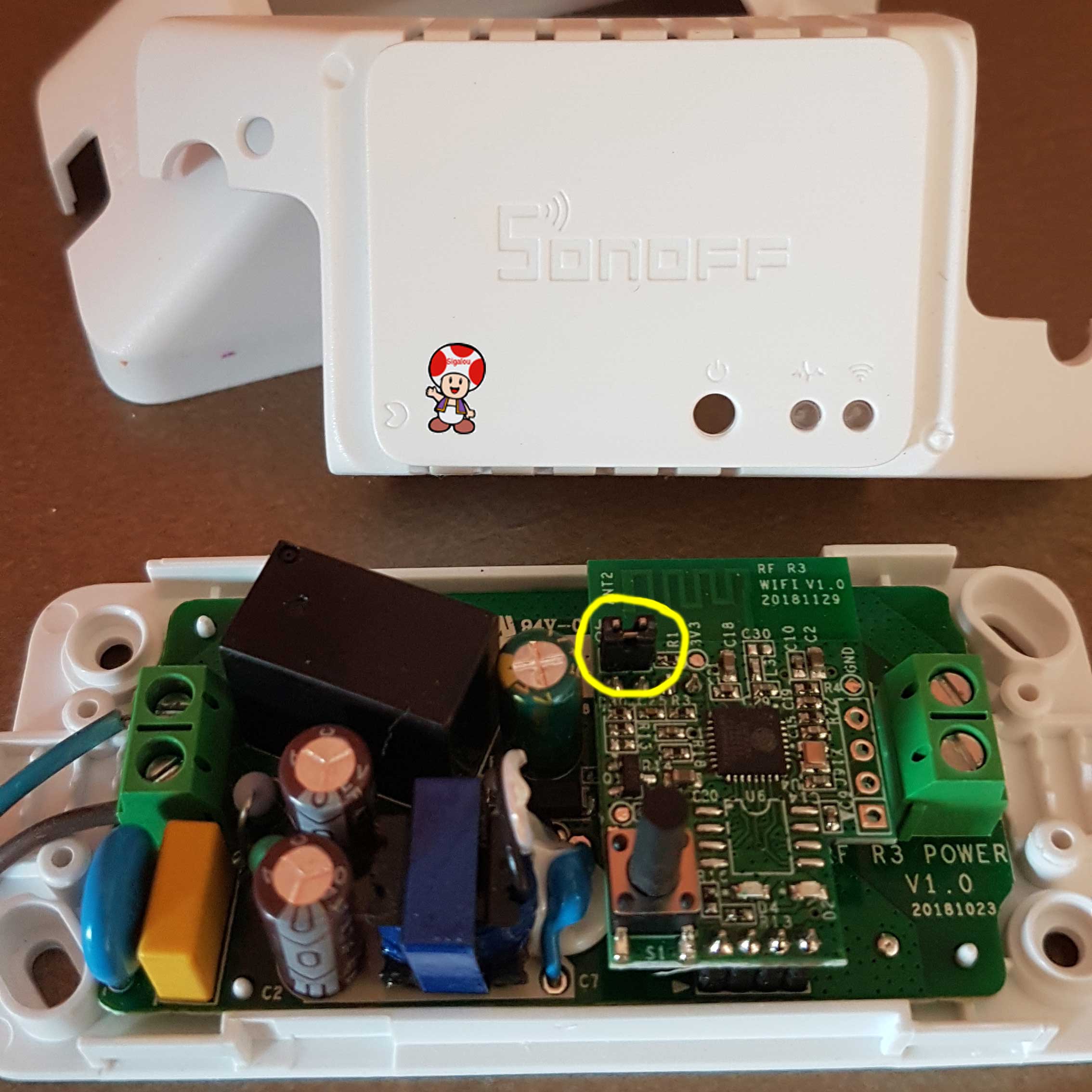 |
- Rider absent = Ewelink mode (So in the cloud). An order goes through the internet. Sonoff-DIY Plugin not compatible, use EweJee Plugin
- Rider present = DIY mode, run on a local network (i.e. off-cloud). Plugin Sonoff-DIY compatible
Switch the Sonoff to DIY mode
Here are the steps, to follow, step by step …
Unplug the Sonoff from electricity.
1. Put the rider
2. Connecting the Sonoff to electricity, the blue LED will either blink continuously (short on, long off) if no SSID is in memory or blink (two short on, 1 long off) if the Sonoff connects to a Wi-Fi network
3. Press the button for the first time to turn on the red LED
4. Press and hold the button until the blue LED flashes: two shorts, one long
5. Press and hold the button again until the blue LED blinks continuously
6. Using a smartphone or a Wi-Fi computer, search for available Wi-Fi networks
|
|
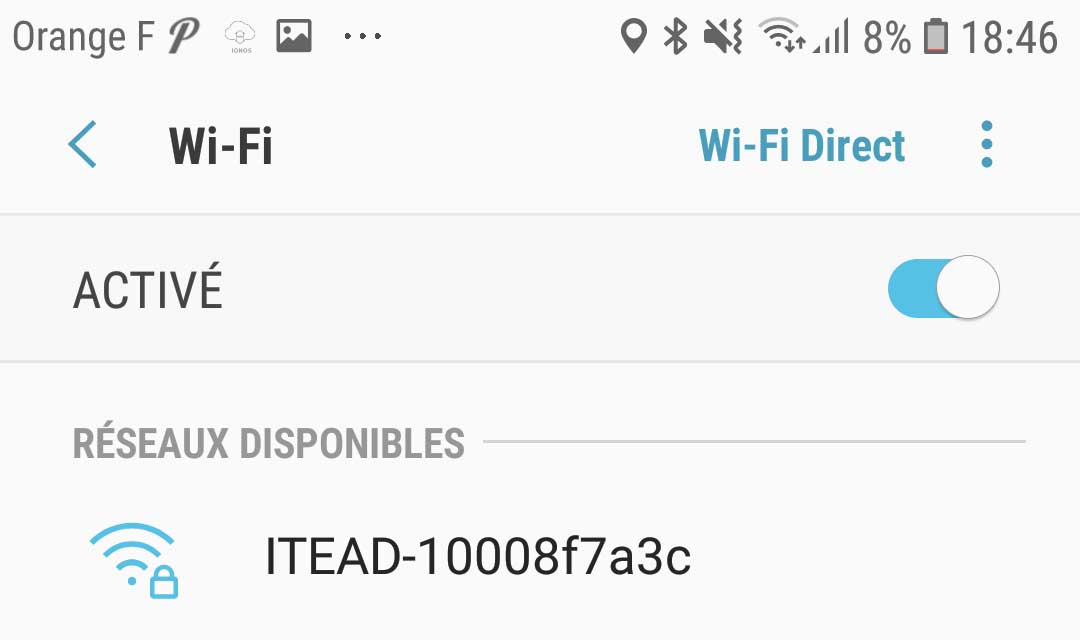
7. With a Wi-Fi computer or a smartphone, connect to the new access point: ITEAD - XXXX (password: 12345678)
8. Note XXXX for the plugin, 10008f7a3c in the example corresponds to the module ID (useful for Sonoff-DIY plugin)
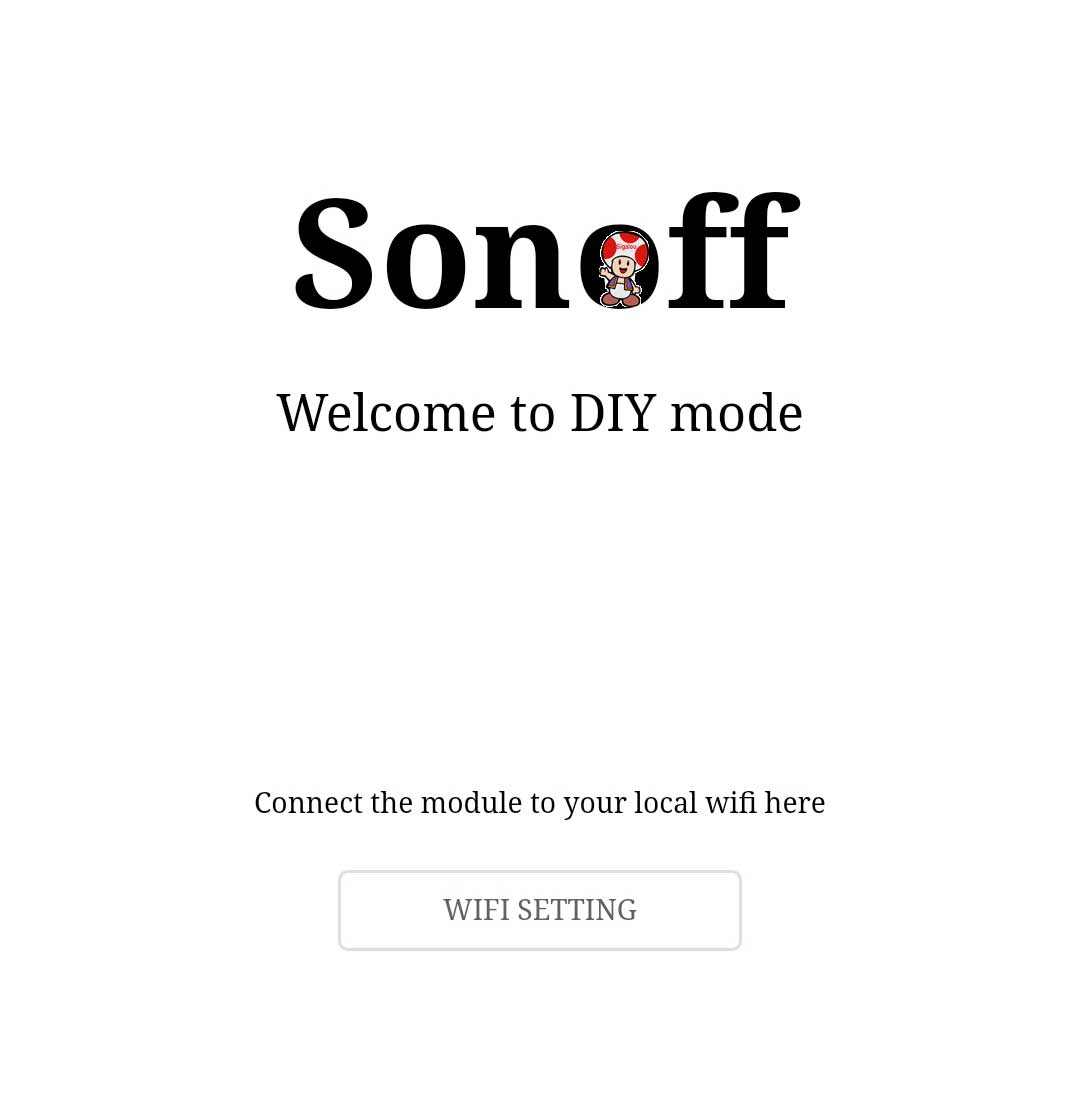
9. Once connected to the access point, go to http://10.10.7.1/ then enter your SSID and password
 |
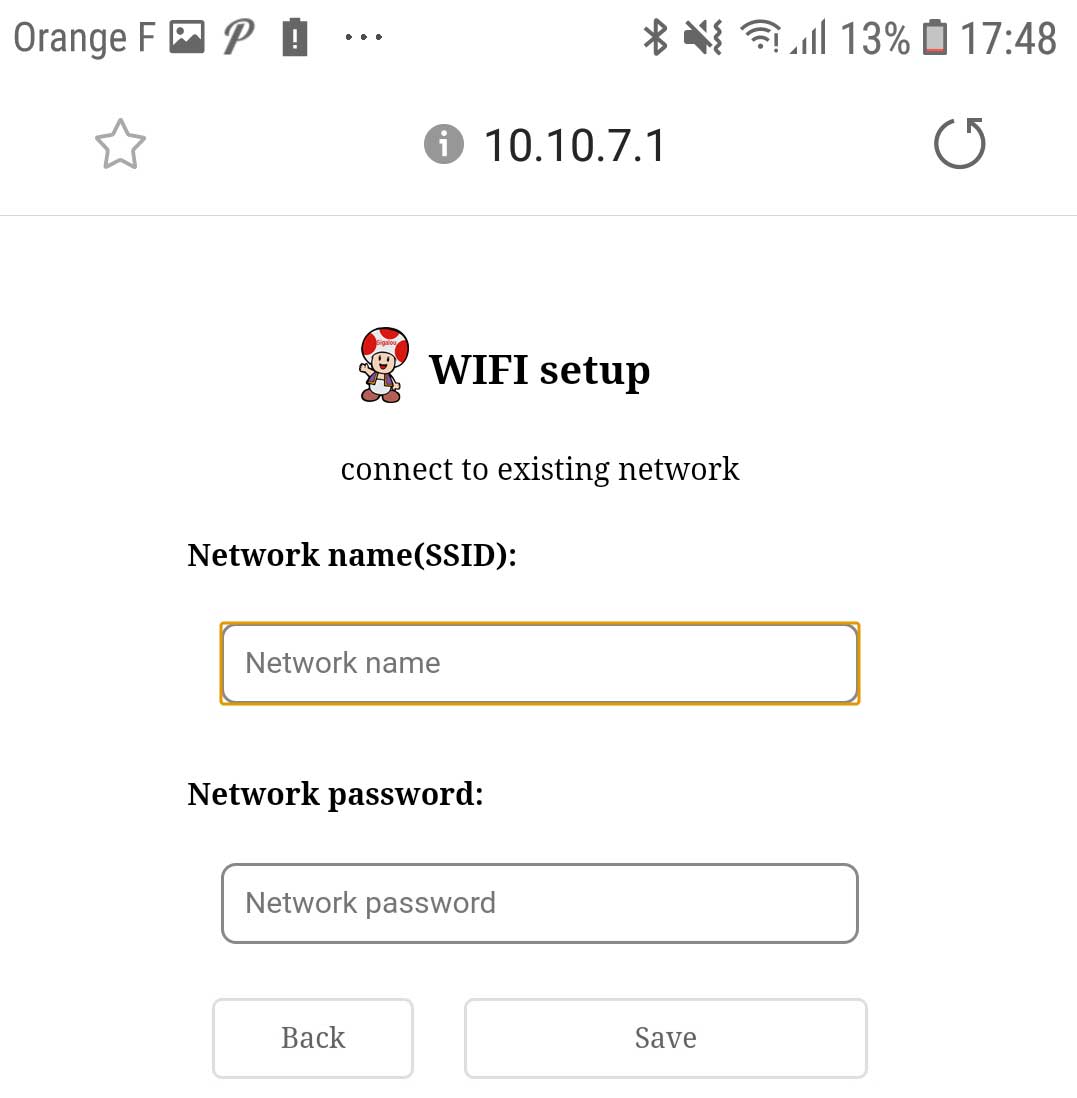 |
When you click on Save, the red LED must be cut off (we know that this is good, a reboot is carried out).
If the Red Led does not cut, start again from the beginning.
Note:
- Your WiFi network must be 2.4Ghz, 5Ghz is not compatible
 English
  French
  Spanish
  Chinese
  German