

 |
|
Presentation of the plugin
This plugin will allow you to display a photo frame on your Design or Dashboard. In this context, you will be able to see your photographs scrolling.
At this stage of the development of the plugin, you can view your photos, which are:
- Either in a dedicated folder on the same device that hosts Jeedom
- Either in a remote folder linked to Jeedom by Samba (a NAS or a Samba network disk)
- Either on your Facebook account, you will also be able in this case to choose the "albums" that you want to display or not
Installation of the Slideshow Plugin
Install the Plugin from the Market
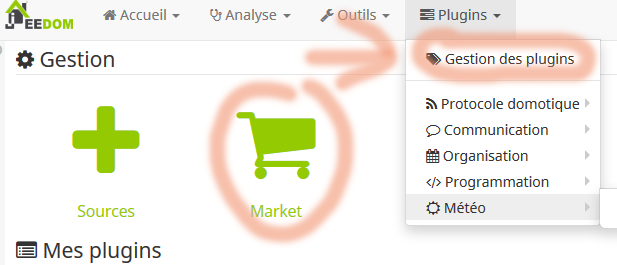 |
Then go to the Market and select Slideshow
Then Activate the plugin
Plugin configuration options
Format Date/Time
This field allows you to choose how to display the date on your slideshow.
- d-m-y H:i:s will display 30-01-2020 18:58:33
For this field, use the synthaxis of the Date command in php: https://www.php.net/manual/fr/function.date.php
Google Maps API for GPS identification
If you want the plugin to be able to find the location of the photo taken (thanks to the GPS location tags left on the photo), fill in this field.
Documentation is incomplete at this stage but here is a link explaining How do I get a Google Maps API? or this video
Token Facebook
If you want to use your Facebook account to view photos from your albums, you need a Facebook Authorisation Token
Automatically return photos
Some photos can be taken upside down or sideways, this feature correlates this by straightening the photos (thanks to the orientation tags left on the photo)
Get a Facebook User Access Token
- Go to https://developers.facebook.com/tools/explorer/
- Create an application
- Add the product "Facebook Login"
- Go to the Graph API Explorer
- On the right, allow "user_photos" (to see if there is no need for more, for the tests, I had authorised everything)
- Click on Get Access Token
- Press at the top right on Send, you should see your name appear
- In the path of test, replace me?fields=id,name by me/photos If all goes well, you should see a list of photos in JSON format
- Copy your access token to the ‘Enter … token’ field and click on Debug
- At the bottom, click on Extend the access token
- So take the new Token provided to use it on the plugin
Facebook API Limitations
Facebook appears to impose limitations on the use of its API ‘The total number of calls your app can make per hour is 200 times the number of users’
Thus, if you multiply the images and put a refresh too fast, you can get errors due to this limitation. To view your quotas, go to https://developers.facebook.com/apps/ select your application and then " Application ceiling »
Put your photos on a Design or DashBoard
A photo is an order in Jeedom.
- On the Dashboard, it will appear in a box if you tick ‘Show’ in front of the command

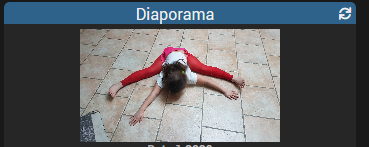
- On Design, you have to edit the design, add a command and add photo 1 for example
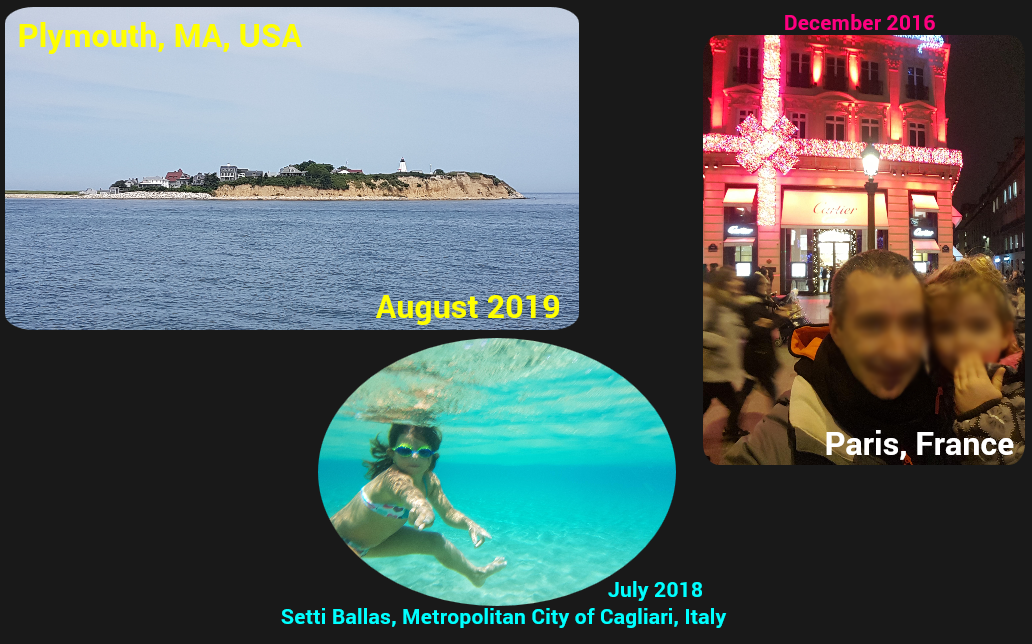
If you want to display the other fields, you must reproduce the same principle as phot1 but with the fields to add. You can write the date, place or other information on the image:
Get the photo(s) change
The change of photo(s) is achieved by means of an automatic CRON function.
This is configured in each slideshow:

The small green button on the right is an assistant that can help to find the right synthaxis of the refresh rate.
Note: Updates cannot be made faster than one change per minute.
Known problems
Syslog Samba error
On users of "home" Samba servers you can uncomment (delete the #) in /etc/samba/smb.conf on the syslog line = 0
 English
  French
  Spanish
  Chinese
  German