

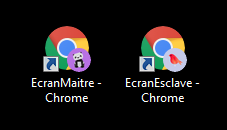
If on the same computer you want to be able to open two instances of Chrome (with two different users), you have to trick.
Either to launch Chrome you can use Launch Jeedom on two screens (dual-screen), two instances of Chrome Either we use the command line.
The syntax of the command line is: ‘ C:Program Files (x86)GoogleChromeApplicationchrome.exe"
Whether with PowerShell (so the ) Tuto or command line, add -profile-directory="Masterscreen" to have an instance with a profile and -profile-directory="Slavescreen" for another profile.
Thus, the file Ciklum-Kiosk.ps1 must look like:
######################################################
########## Kiosk Mode ############
######################################################
#
# Runs chrome and other apps in full-screen mode # on predefined screens # ---------------------------------------------------- # "C:Program Files (x86)GoogleChromeApplicationchrome.exe" $chromePath = 'C:Program Files (x86)GoogleChromeApplicationchrome.exe' $chromeArguments = '--new-window' # if Window not moved (mostly on machine start) - try increaing the delay. $ChromeStartDelay = 5 Set-Location $PSScriptRoot . .HelperFunctions.ps1 # Kill all running instances &taskkill /im chrome* /F Chrome-Kiosk 'http://192.168.0.21/index.php?v=d&p=plan&plan _id=2&fullscreen=1 --profile-directory="EcranMaitre" -MonitorNum 1 Chrome-Kiosk 'http://192.168.0.21/index.php?v=d&p=plan&plan _id=1&fullscreen=1 --profile-directory="EcranEsclave"' -MonitorNum 2
For navigation purposes between Jeedom screens, each screen must be a different "User".
I used monitor 1, user ‘admin’ and monitor 2, user ‘ecran2’. (Think of creating a second user in Jeedom, such as ecran2 in my example)
You have to identify yourself on each screen and Chrome will keep the identification.
How to change screen2 from monitor 1?
This is how easy it is to use the dual-screen configuration. You navigate on screen 1 and screen 2 also moves.
For example:
- When you want to display a plan with room temperatures on screen 1, you can use screen 2 to display a temperature table.
- When you want to display the weather of the day with all the details, you can display on screen 2 the weather for the next 7 days
- When you want to display a map with the cameras, you can display the views on screen 2
- …
To do this, you have to use the great Click Link plugin (Clink)

Note that I slightly modified the plugin to have full-screen links. I hope that the amendment will be included in a future (optional) version, perhaps a drop-down list.
Line 24 of the plugins/clink/desktop/js/event.js file
var url = window.location.origin +’/index.php?fullscreen=1&v=d&p=plan&plan_id='+cmd.configuration.link;
 English
  French
  Spanish
  Chinese
  German