


Domotiser portal Came ZL180 in 5 steps
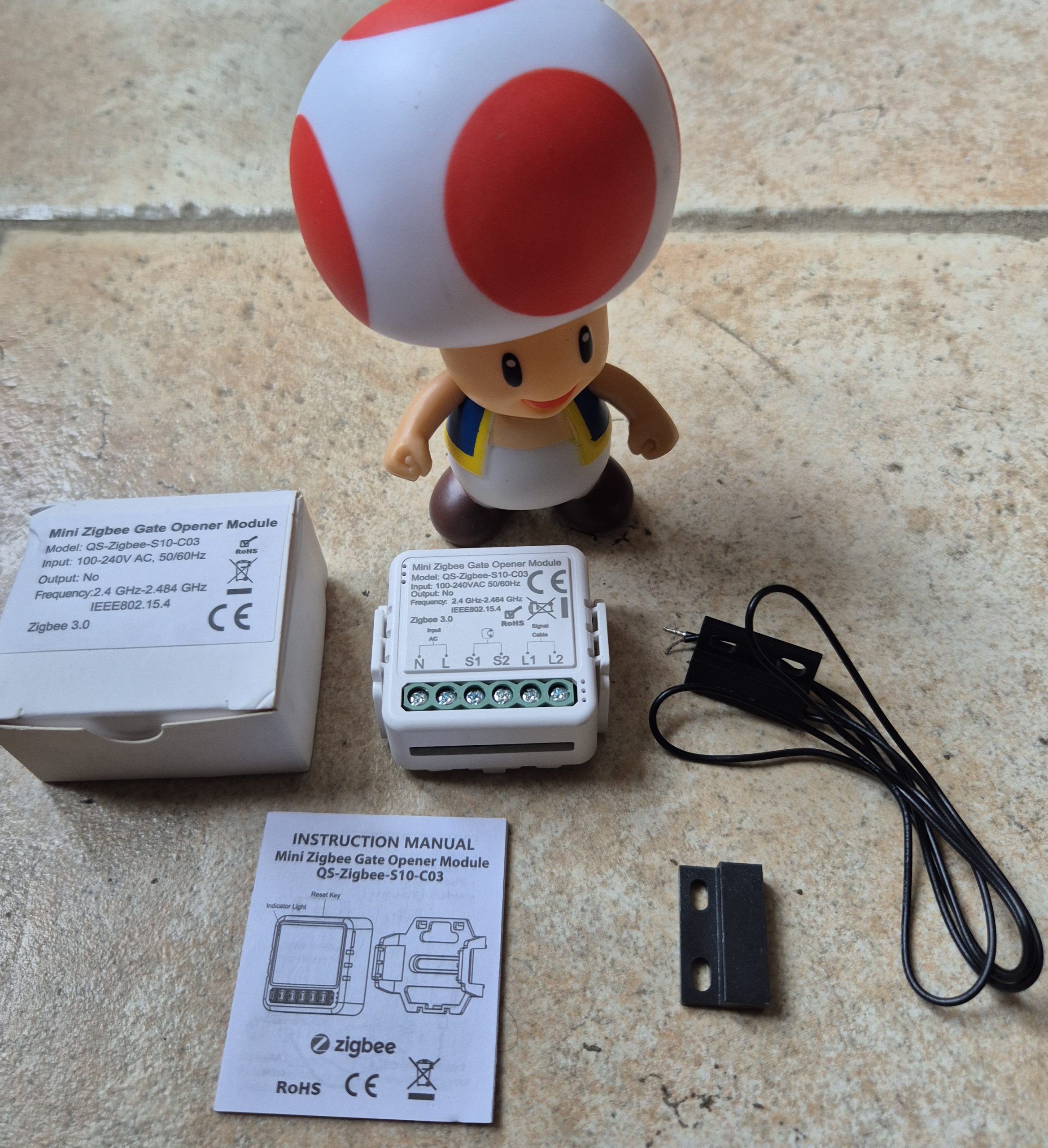
I domotise my portal beating Came with ZL180 card thanks to a Zigbee module QS-Zigbee-S10-C03. This tutorial explains wiring, Zigbee2MQTT configuration, Home Assistant and Alexa for full voice control. A dashboard button and real state feedback make use simple and reliable for everyone.
My precise objectives
- I create a dashboard button that sends the order On + pause 500ms + Off to operate the portal.
- I recover the open/closed real state return via dry contact.
- I join Alexa to order ‘Alexa, open the portal’ vocally.
Context of my installation
My beating portal Came uses a ZL180 control card. This card manages engines, race endings and safety. The full technical instructions are available here for reference:
ZL180 Came Card Technical Notice
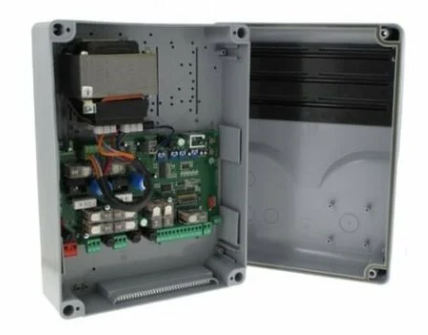
Presentation of ZL180 terminal blocks
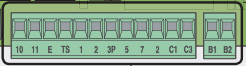
All home automation connections are done on the terminal blocks at the bottom right of the ZL180 card. These terminals allow to connect dry contacts or potentials to control and supervise the portal.
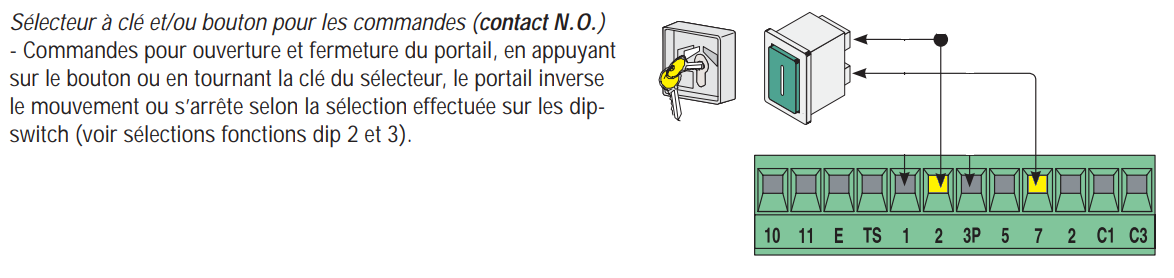
I order the opening/closing
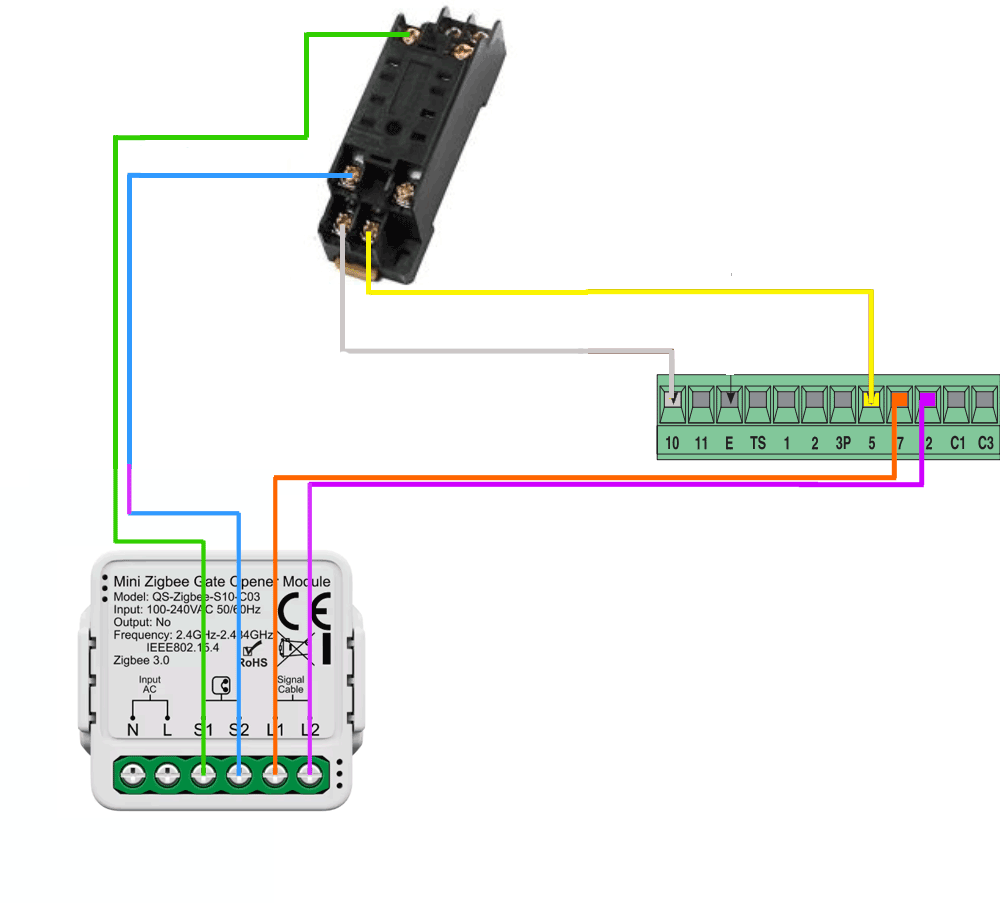
To open or close the gate, I use a dry contact between terminals 2 and 7. The exact sequence is: Contact closed 500ms then opened. This pulse reverses the direction of the portal (pulse).
- I close the contact between terminal 2 and terminal 7 (ON).
- I expect 500 milliseconds precise.
- I open the contact (OFF).
This impulse principle is detailed on page 8 of the technical leaflet Came ZL180.
I am recovering the open/closed state
The ZL180 card does not offer direct dry contact for the status of the portal. I use the ‘open gate’ signalling device, which delivers 24V between terminals 5 and 10 when the gate is closed (page 6 of the notice).

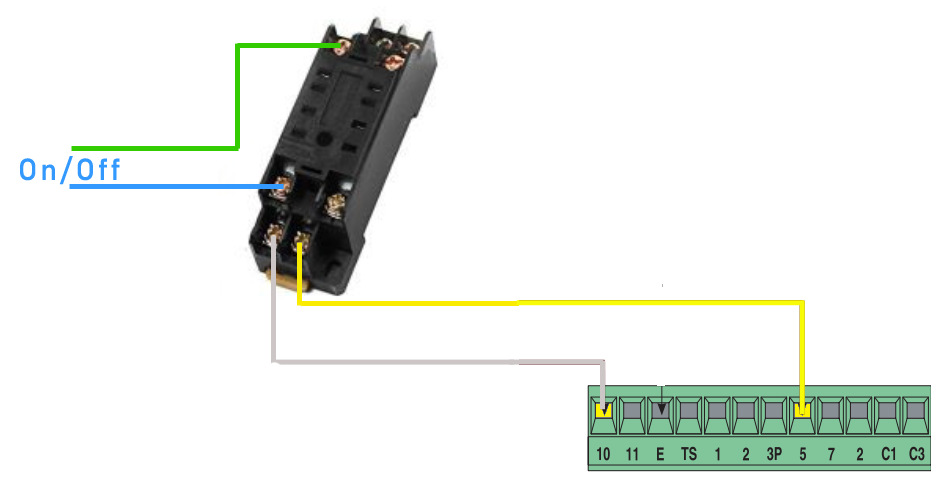
To convert this 24V to dry contact (home automation compatible), I add a 24V relay IEC255. The diagram shows the connection: coil between 5-10, NA contact to Zigbee module.
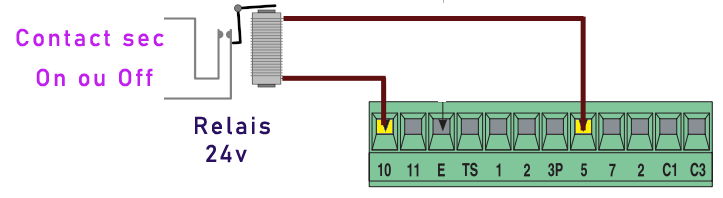
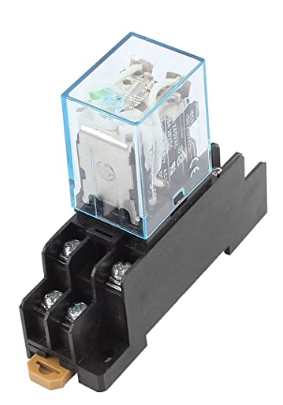
The relay is installed in the Came housing with its DIN support. Check the electrical insulation for safety.
Mandatory DIP2 configuration
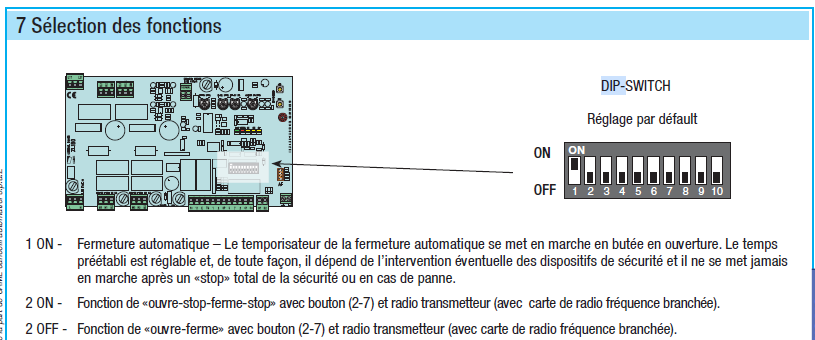
If some pulses are not taken into account, check the DIP2 of the ZL180 card. The "Stop" function (DIP2=ON) blocks the portal at each pulse. Switch DIP2 to OFF for normal impulse operation.
Choice of Zigbee home automation module
I tested several modules before choosing. The initial WiFi ESP raised reliability issues. The alternatives assessed are as follows:
- Frient IOMZB-110 : 4 inputs + 2 dry outputs, efficient but 50€.
- Tuya ZG-005-RF : 4 dry outings at 18€, excellent multi-purpose.
- Nodon SIN-4-1-20 : Powerful outputs, no state input.
- Moes ZM-102-M-MS : Specific garage, to be tested.
- Bosch BMCT-RZ : Pro quality, potential entry only.
Final choice: QS-Zigbee-S10-C03 at €9. Compact, dry input/output, built-in timer 500ms, simple pairing.
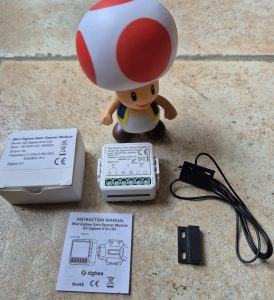
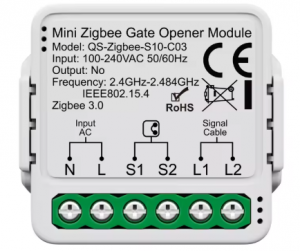
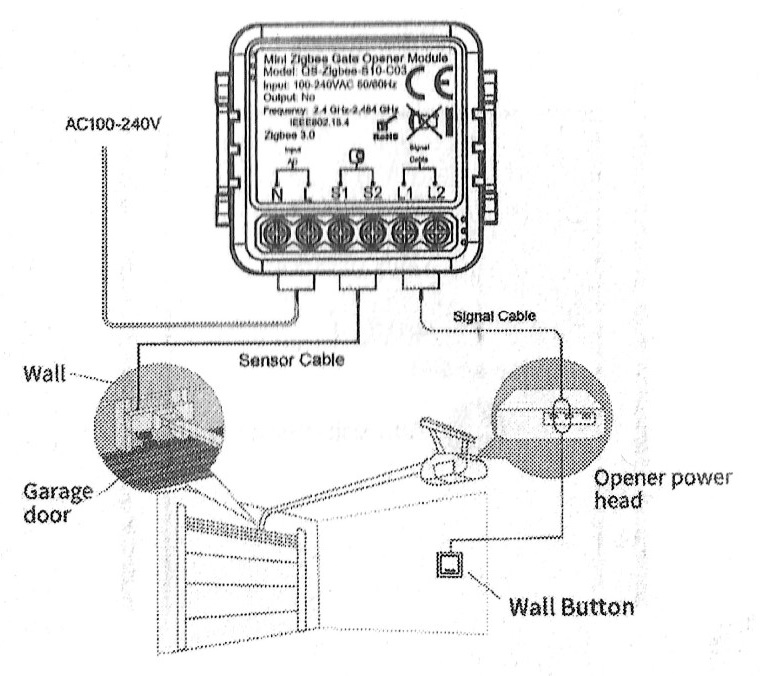
Simple and logical brochure: N (neutral), L (phase 230V), S1-S2 (state dry contact input), L1-L2 (pulse output).
Where to buy this equipment?
Here is the link to the page dedicated to QS-Zigbee-S10-C03. I referenced the sellers and prices.
Complete portal wiring diagram
I pair the Zigbee2MQTT module
Power on = auto pairing mode (green LED flashes). Physical button on the module to force if necessary. The module appears as TS0603 in Zigbee2MQTT.
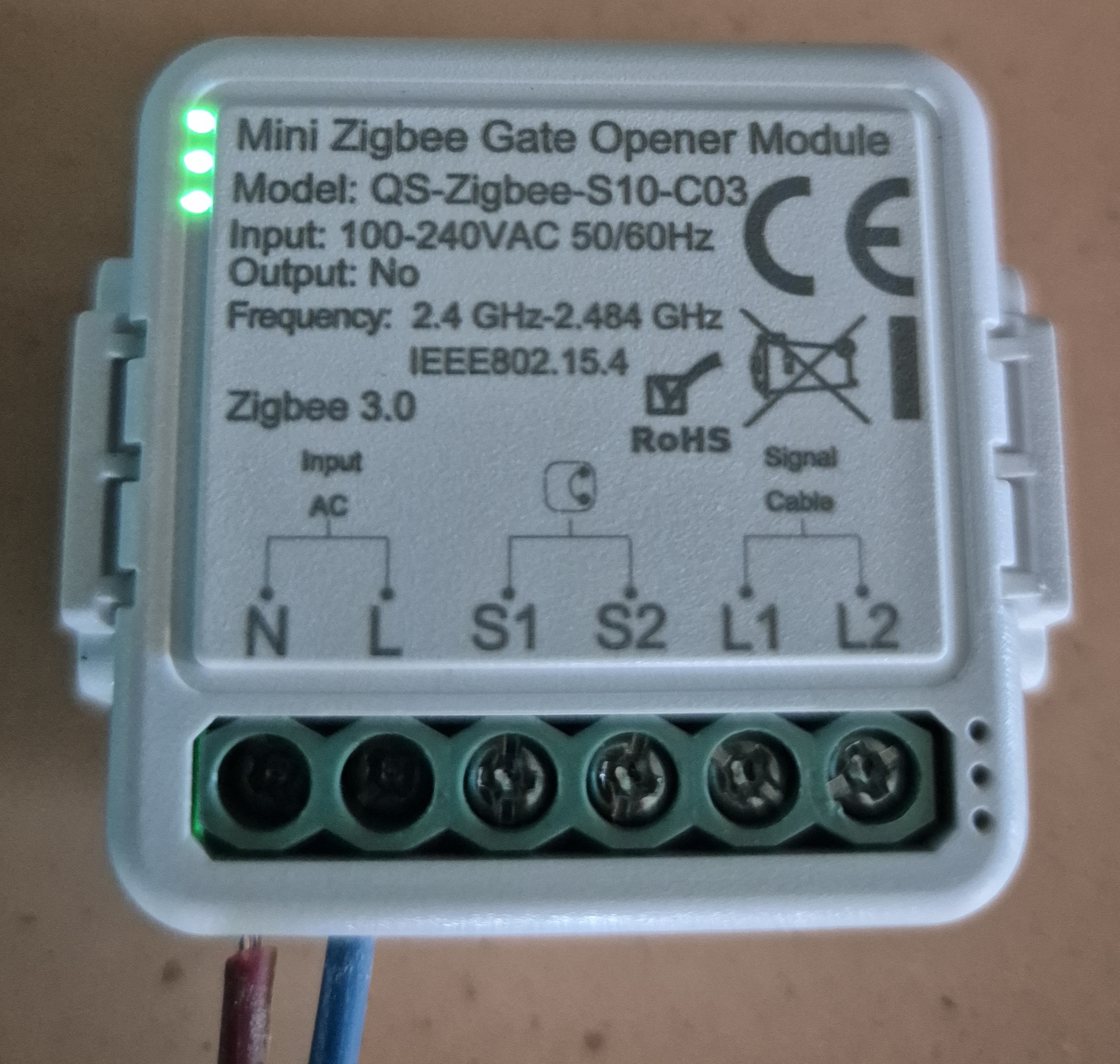
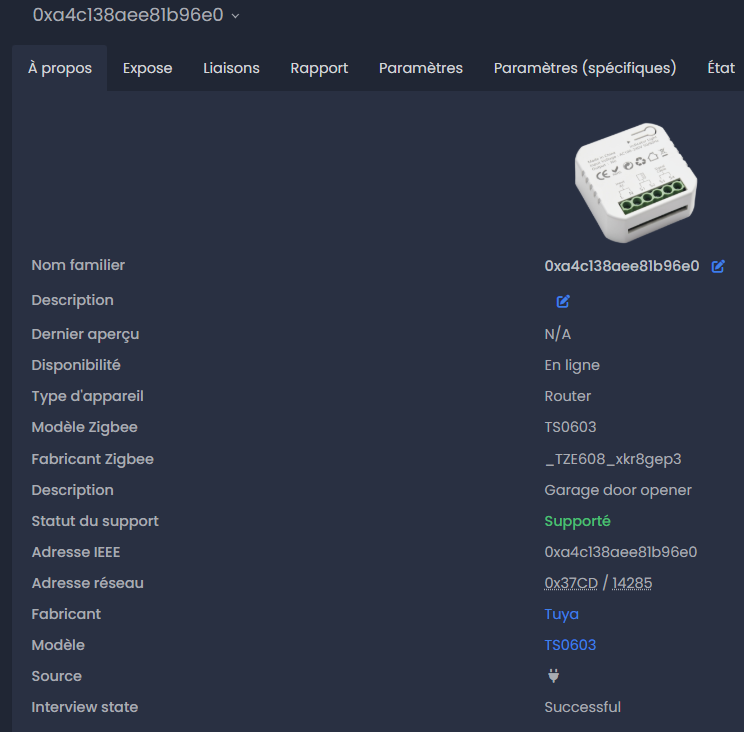
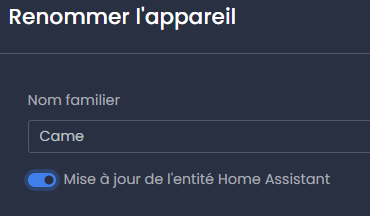
I rename it Came and test: toggle switch = pulse 500ms auto + cooldown anti-spam. Short circuit S1-S2 = binary _sensor ON (closed).
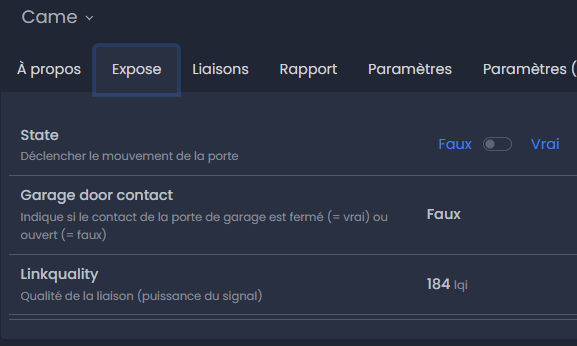
- binary_sensor.came_garage_door_contact : off=open, on=closed.
- switch.came _state : toggle = opening/closing pulse.

Configuration Cover Home Assistant
A Cover unifies state + command into an entity. value_template reads the binary_sensor, open/close toggle the switch. Icon changes according to state for clear visualization.
platform: template covers: portal: device_class: window friendly_name: Single _id "Portal": cover.portal value _template: "{{ is_state('binary_sensor.came_garage _door_contact', 'off') }}" open_cover: Service: switch.toggle target: entity_id: switch.came_state close_cover: Service: switch.toggle target: entity_id: switch.came _state icon_template: >- {% if is_state('binary_sensor.came_garage_door_contact', 'off') %mdi:gate-open {% else %mdi:gate {% endif %}device_class: window avoids the voice PIN code. File in configuration/covers.yaml, HA restart required.
Creation of dashboard portal button
Simple button-card version
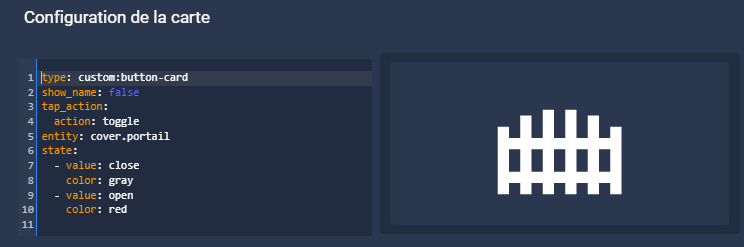
Type: custom:button-card show_name: false tap_action: Action: toggle entity: cover.portal state: -value: close color: gray - value: open color: redAdvanced version picture-elements

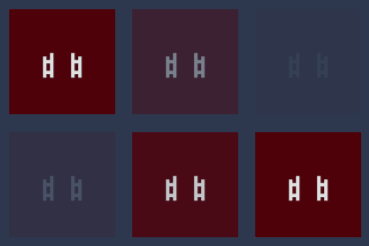
- type: custom:button-card color_type: card entity: cover.portal show_name: false tap_action: Action: toggle state: -value: open color: "#4f010a" icon: mdi:gate-open styles: card: - animation: blink 2s ease infinite - operator: default color: "#49556c" icon: mdi:gate styles: card: - height: 110px - width: 110px style: top: 93% left: 5%Alexa voice command integration
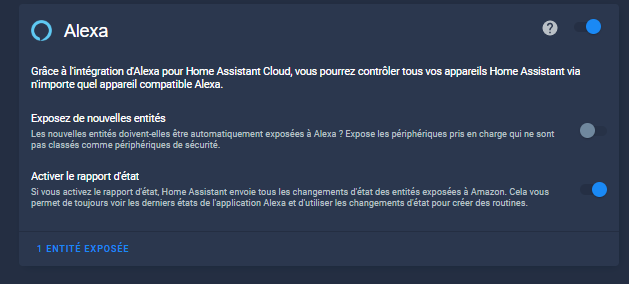
Exposer cover.portal to Alexa allows "Alexa, open the portal". No PIN code thanks to device_class window.
- Settings > Voice Assistants in Home Assistant.
- Click "x exposed entity(ies)" at the bottom left.
- Check cover.portal and validate.


Discussion and feedback forum
Exchange on this project domotisation portal Came ZL180 on the HACF forum:
HACF Forum: Domotiser portal Came
 English
  French
  Spanish
  Chinese
  German