

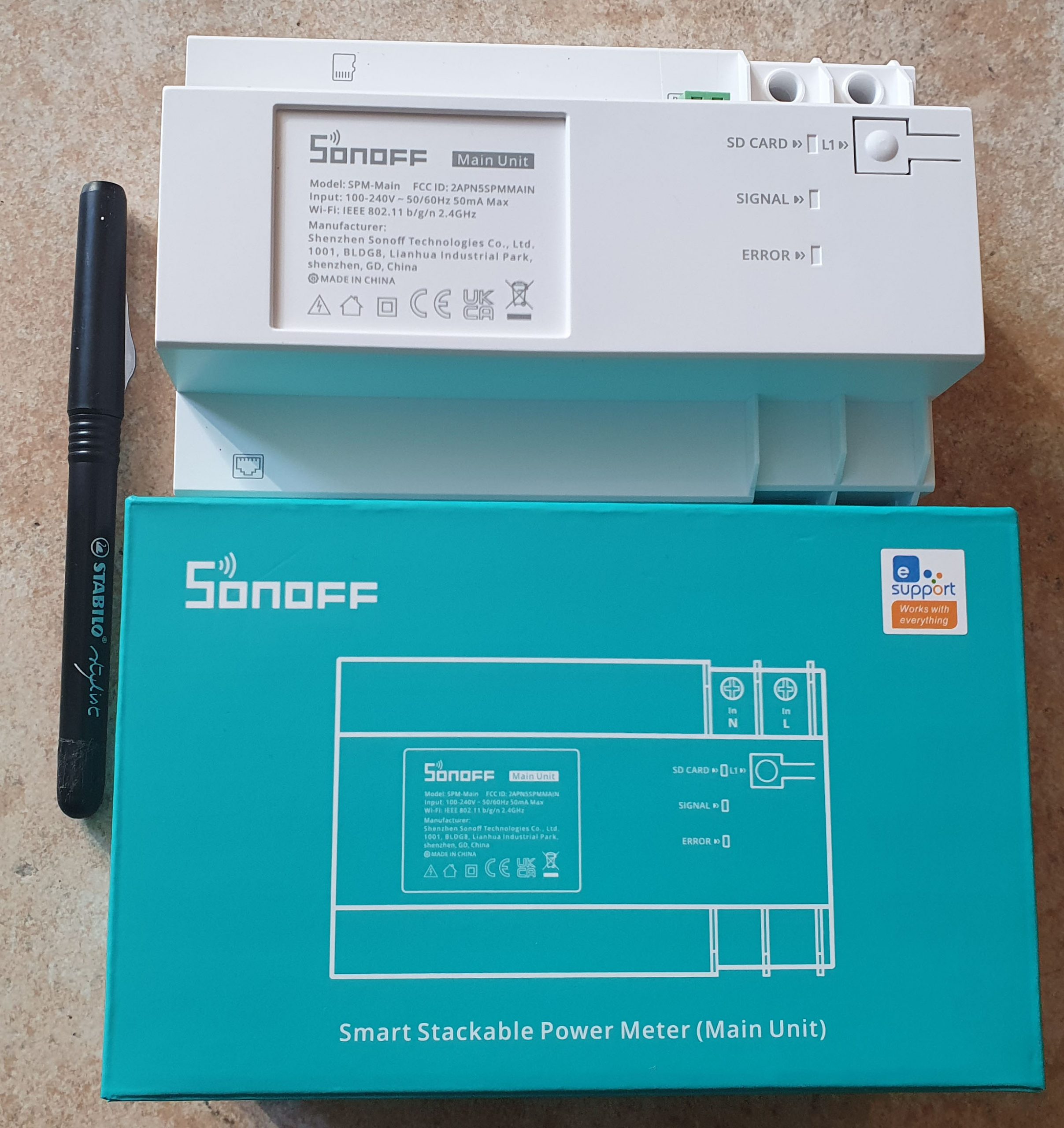
Before using the Sonoff SPM, as for all products in the range, it is worth checking the firmware version and updating it. The update is done following the integration into eWelink.

Added Sonoff SPM on eWelink
- Installing the eWelink application will update the product.

- Connect Lin and Nin to power the module
- Let’s start with theMaster Device
- After switching on, the device enters Bluetooth pairing mode during initial use. The Led Wifi flashes quickly.
- In eWelink, press + and then Bluetooth pairing and add the module
The Sonoff SPM appears well in the equipment.
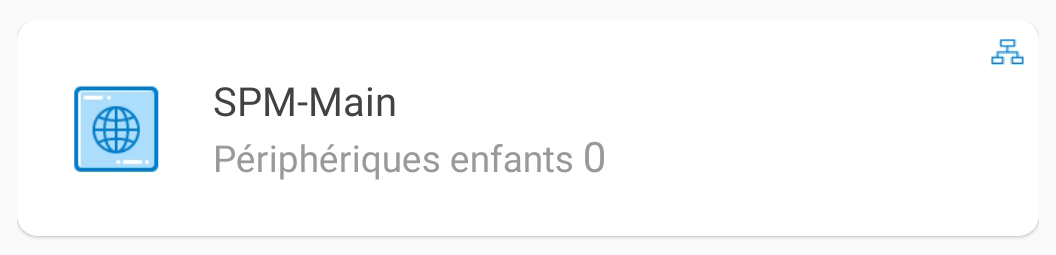
You can go into the configuration of the device to check its version.
Update it if necessary.
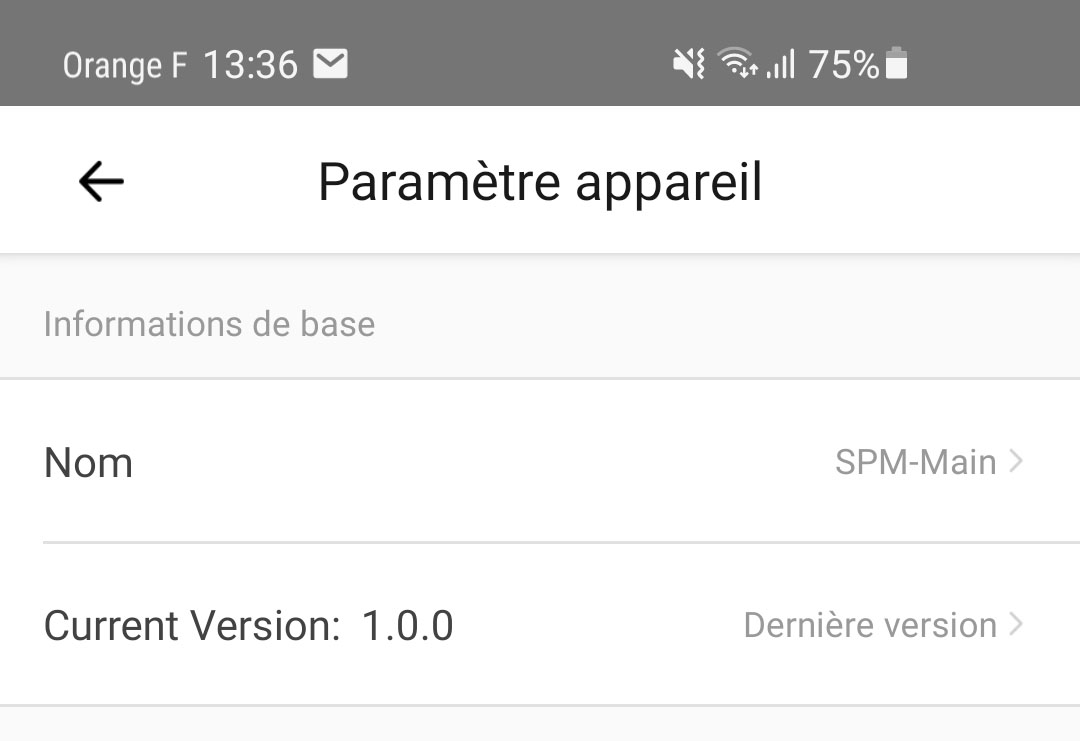
Consider raising the identification number needed for Jeedom integration
We move on to the integration of the additional module
- In eWelink, press + and then Bluetooth pairing and press the Master module button, detection is automatic.
In eWelink, we find ourselves with both equipment:
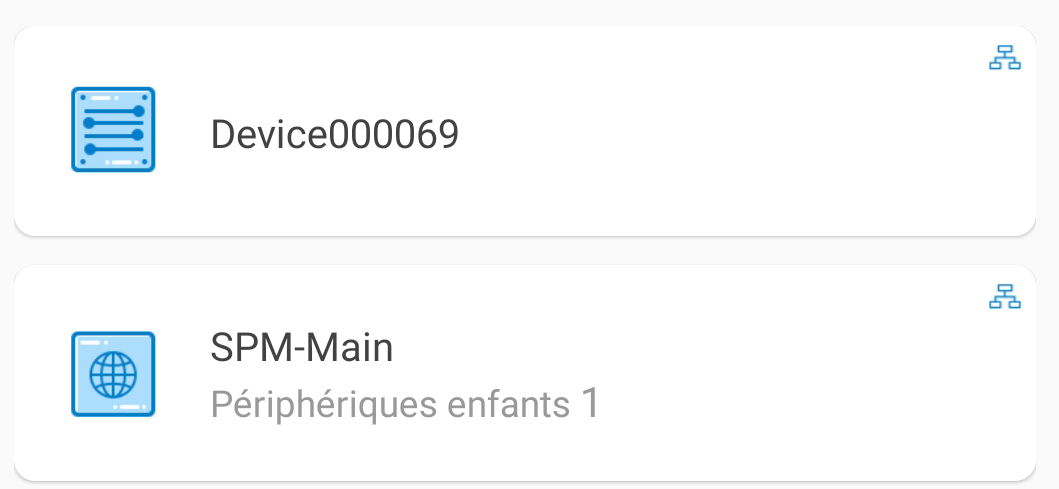
We can even change their name.
Integration of the Sonoff SPM on the local network and switching to DIY mode
It is now necessary to switch the Sonoff SPM to DIY mode and on the Wifi network. For the record, this mode loses the cloud link and becomes independent, on the lan network (via wifi), it is an excellent thing.
Connecting the SPM to the ethernet network (with a cable) is essential for DIY configuration. Here is the connection scheme given to the developers, the network cable must be plugged in in any case for configuration.
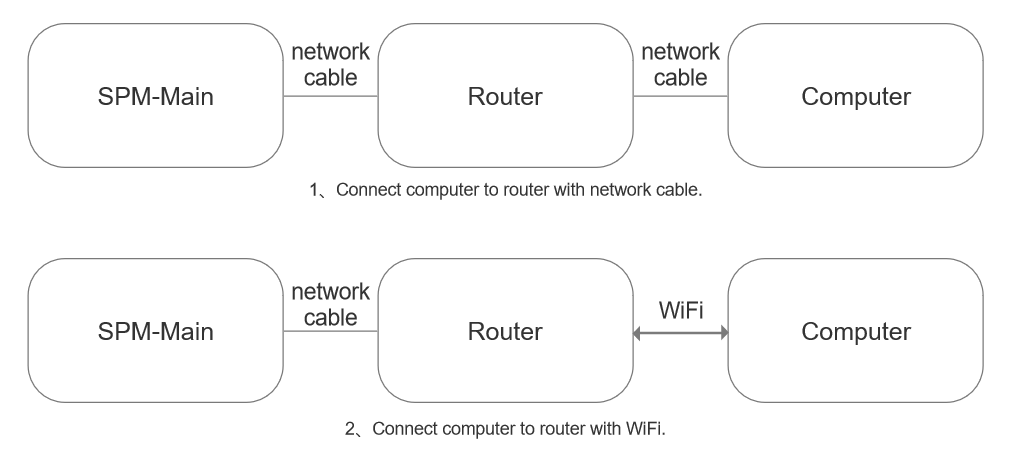
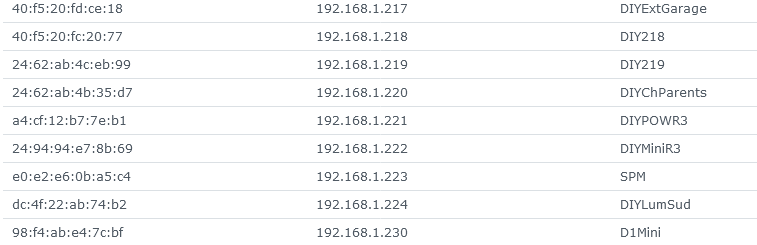
To do this go on the router look for its IP on the list of DHCP

Then you have to press the button so that the LED Signal starts flashing, go to a browser and enter the ip in the url (be careful the page is huge if you are in full screen, if you are doing it from a computer, you have to decrease the window)
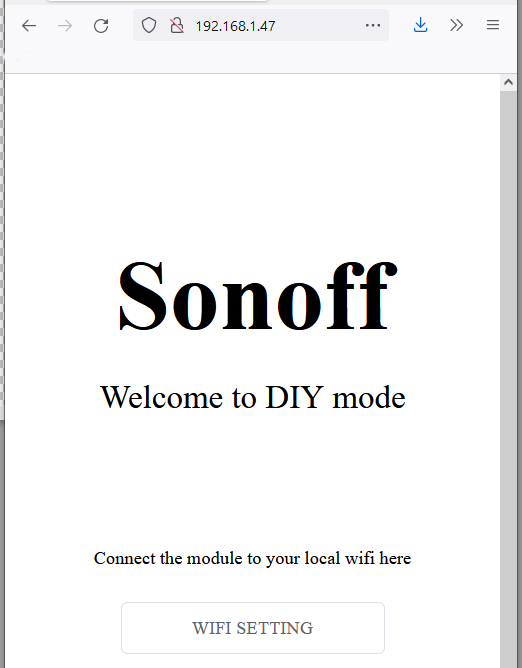
Fill out the form
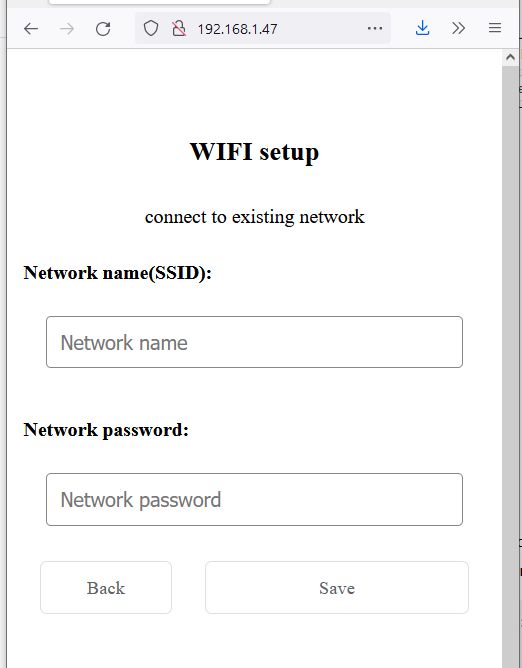
Connection is accepted
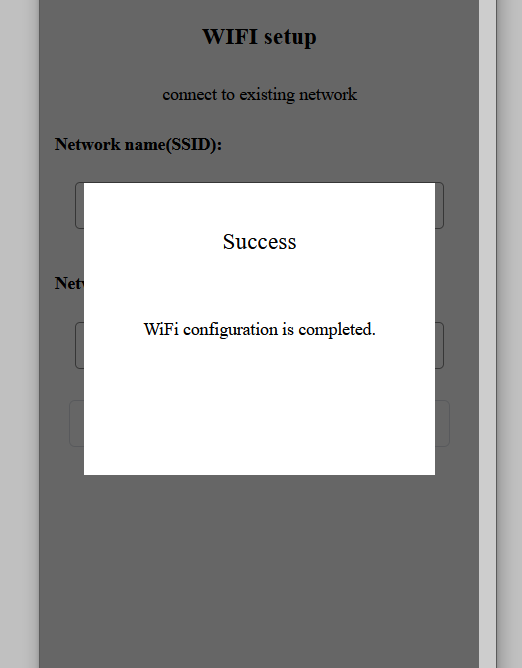
The SPM will therefore have IP address, Wi-Fi connection and ethernet connection

It’s over, the Sonoff SPM switches to DIY mode and relaunches, it immediately connects to Wifi.
I like to group the Sonoffs together and so I switch them to a static address. 192.168.1.223 and become SPM for testing.
Adding the Sonoff SPM in Jeedom via the Sonoff-DIY plugin
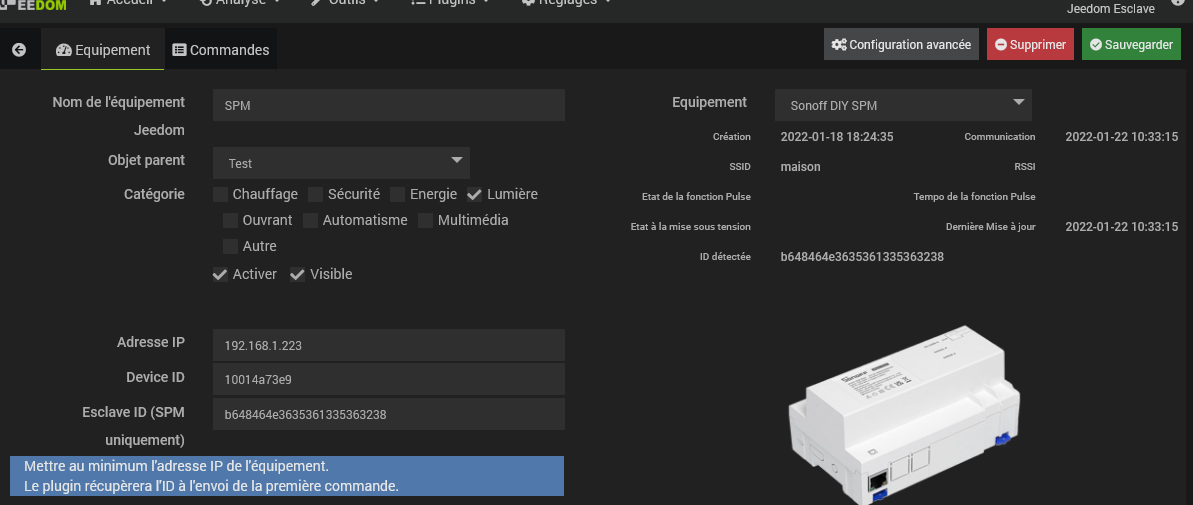
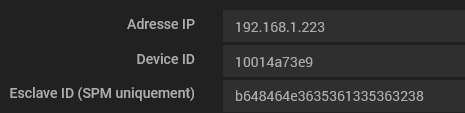
There is not much to do, it is the plugin who does all the work, it is necessary to give him what he cannot guess, it is the IP address of the module and the ID (see integration paragraph above).
Then, it is enough to operate the relay.
So it is good, the plugin has made the connection between the SPM device, its IP and its Identifier which is mandatory to order it on the local network.
The user has nothing to do, the plugin writes down the Slave ID on the device card and saves it.
As the Sonoff SPM model has been chosen, the commands are automatically added
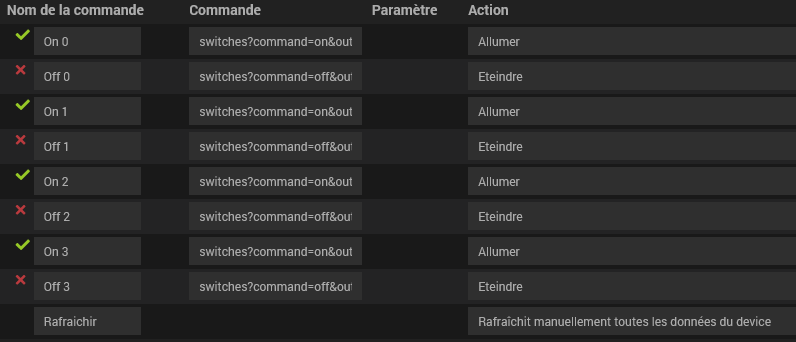
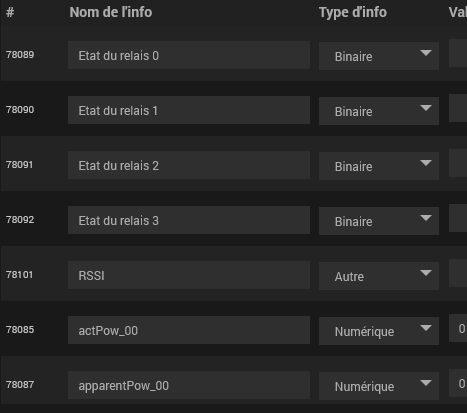
As soon as we launch a ‘Refresh’, the plugin will retrieve the module’s config
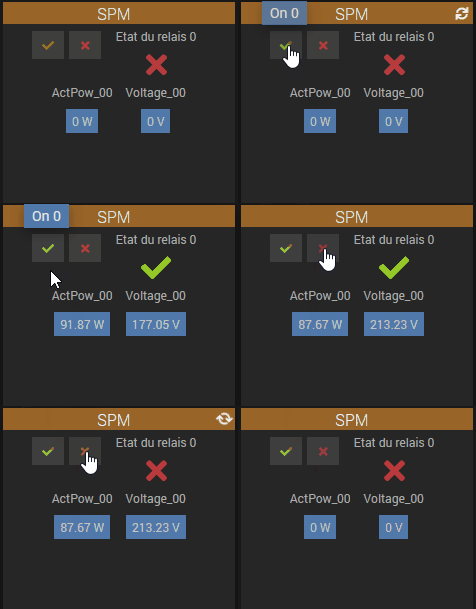
Obviously on the DashBoard, the tile of the device is generated, everyone will be able to customize it
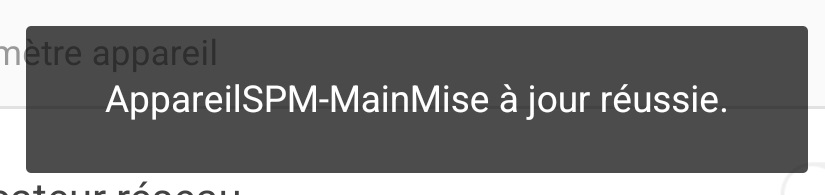
Edited on 29/01/2023, Update Firmware 1.2.0
Since my purchase and the writing of this page, the Firmware has evolved to version 1.2.0

As a reminder in its initial version (1.0.0), you could not set the start position, it was a huge concern that I had reported to Sonoff support who had promised me an update acknowledging the forgetfulness. The 4 relays started at OFF which was not possible!! The electricity grid could not be lost at the slightest power cut. Since that has been corrected, it is very good. You should still think about configuring it to ON on the 4 relays (in eWelink, it is the simplest, the parameter is kept in DIY).
I switched the Sonoff SPM to eWelink , mode, which has been possible since the last version of the plugin. The following box must be ticked:

This will generate a new command in the list of commands, just launch it (with the test button for example.

The SPM switches back to eWelink mode, it can be paired in bluetooth from the eWelink application.
Think about unchecking the box "Enable the return command to eWelink" by security.
Once on eWelink, we update and then switch to local network + DIY mode (as explained at the beginning of this page).
 English
 French
 Spanish
 Chinese
 German