

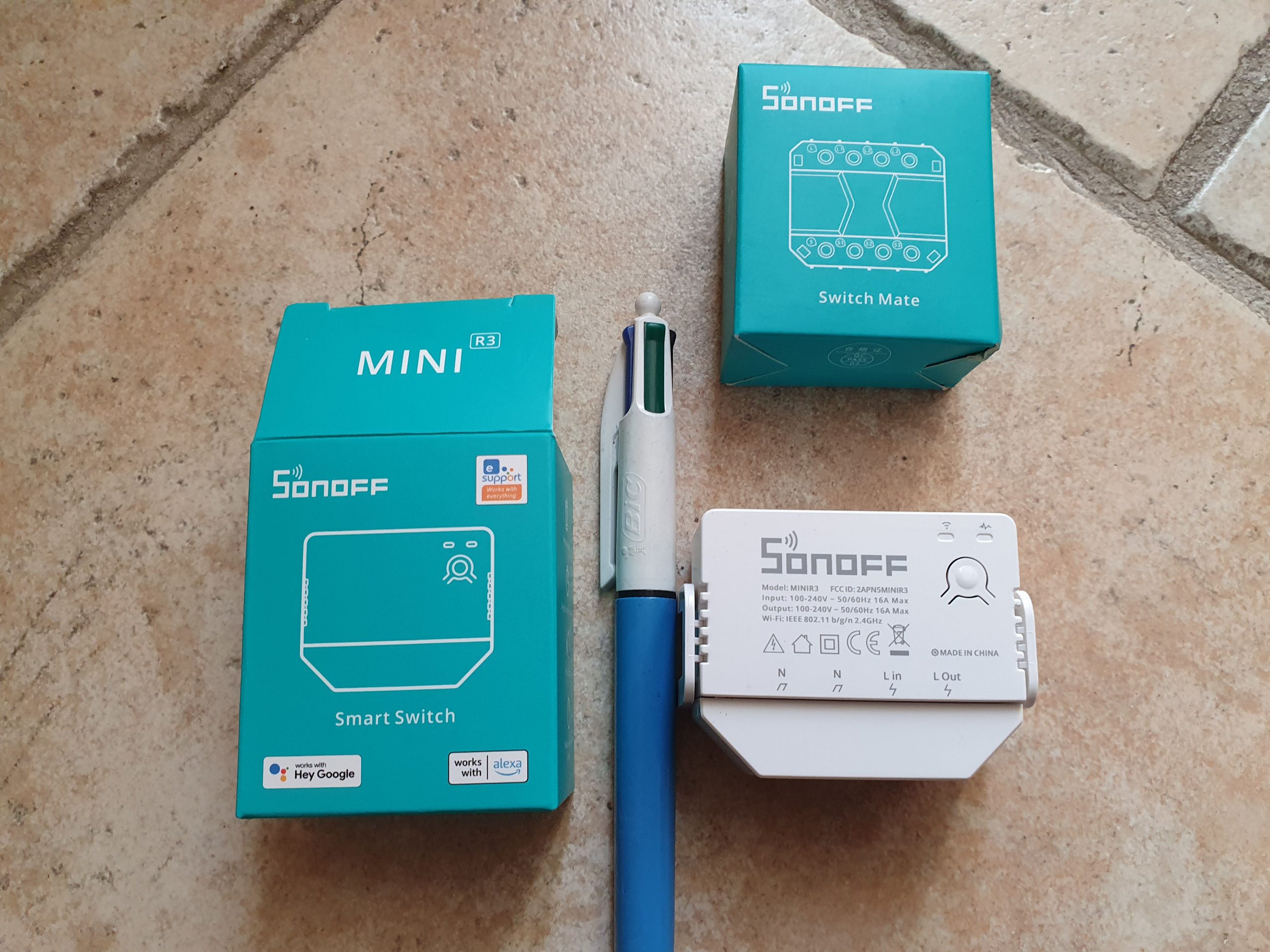
Before using the Sonoff Mini R3, as for all products in the range, it is worth checking the firmware version and updating it. This step is optional, but advised, I received a Sonoff Mini R3 in 1.2.0 and updated it to 1.4.0. The update is done following the integration into eWelink.
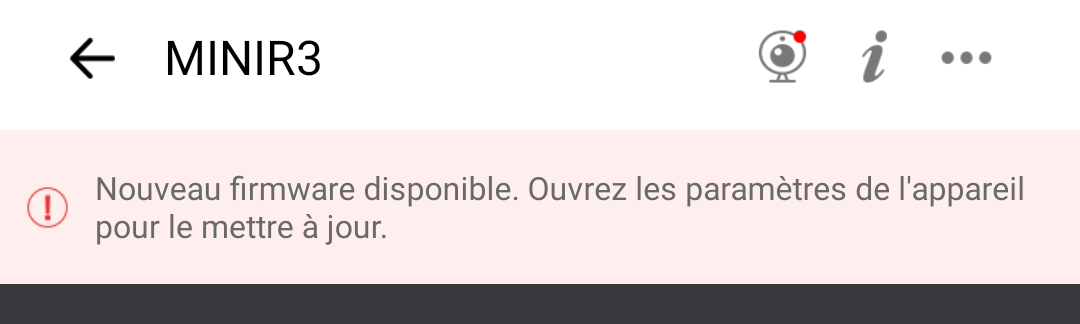
Added Sonoff Pow R3 on eWelink
- Installing the eWelink application will update the product.

- Connect Lin and Nin to power the module
- After switching on, the device enters Bluetooth pairing mode during initial use. The Led Wifi flashes 2 short - 1 long.
- In eWelink, press + and then Bluetooth pairing and add the module
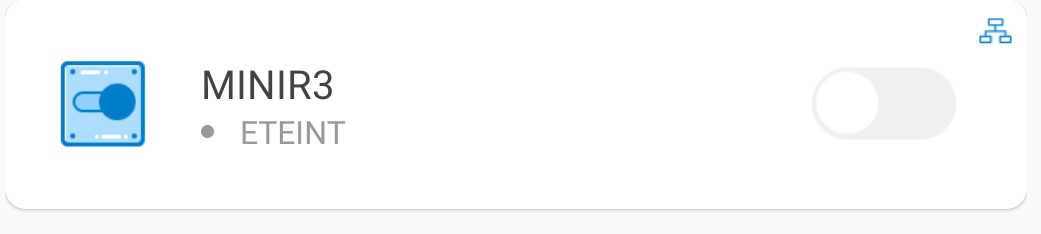
The Sonoff Mini R3 appears well in the equipment and can be switched on or off. But in this mode, we are in cloud mode, i.e. the change goes through the internet.
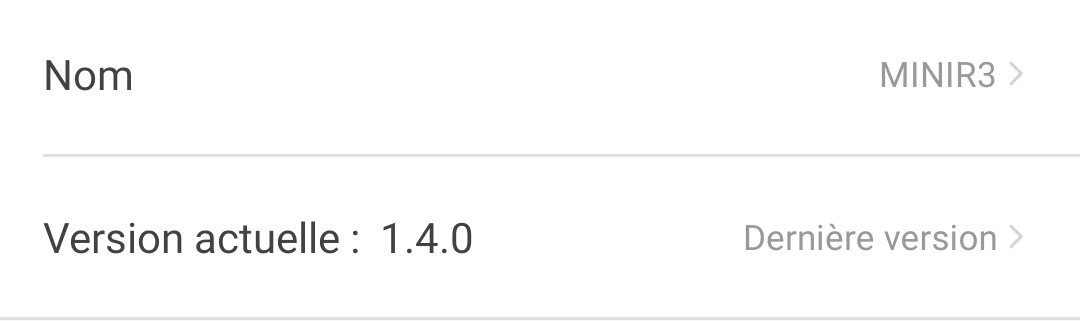
You can go into the configuration of the device to check its version.
Update it if necessary.
Integration of the Sonoff Mini R3 on the Wifi network and switching to DIY mode
It is now necessary to switch the Sonoff Mini R3 to DIY mode and on the Wifi network. For the record, this mode loses the cloud link and becomes independent, on the lan network (via wifi), it is an excellent thing.
Press the button on the Mini R3 until the LED flashes quickly and regularly. It is sometimes necessary to leave pressed twice 10s to switch to this mode.
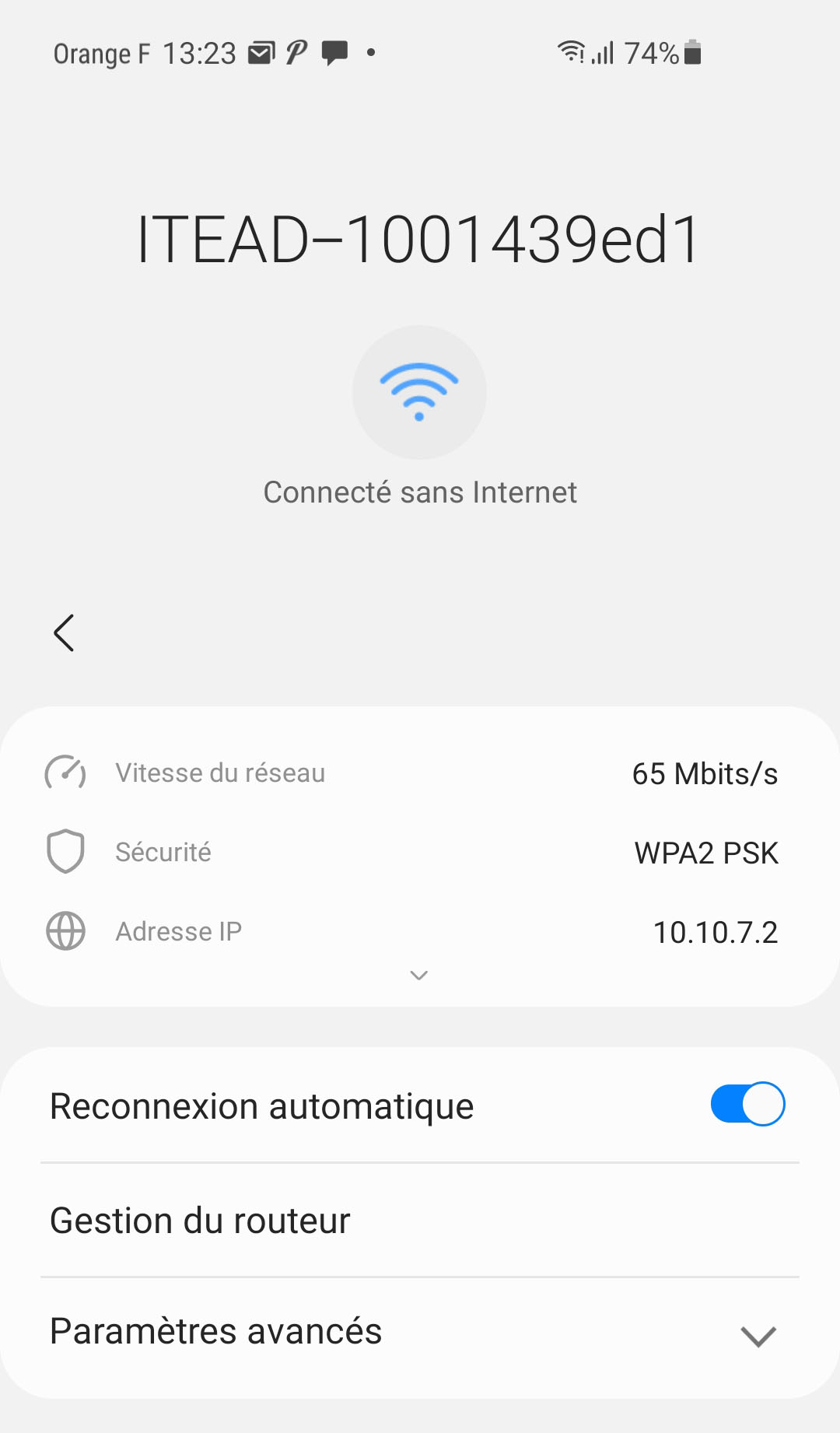
In this mode, the Mini R3 becomes a wifi access point and it is necessary to connect to its wifi (it is in ITEAD-xxxx format) with a mobile phone for example. The telephone is assigned the address lan 10.10.7.2.
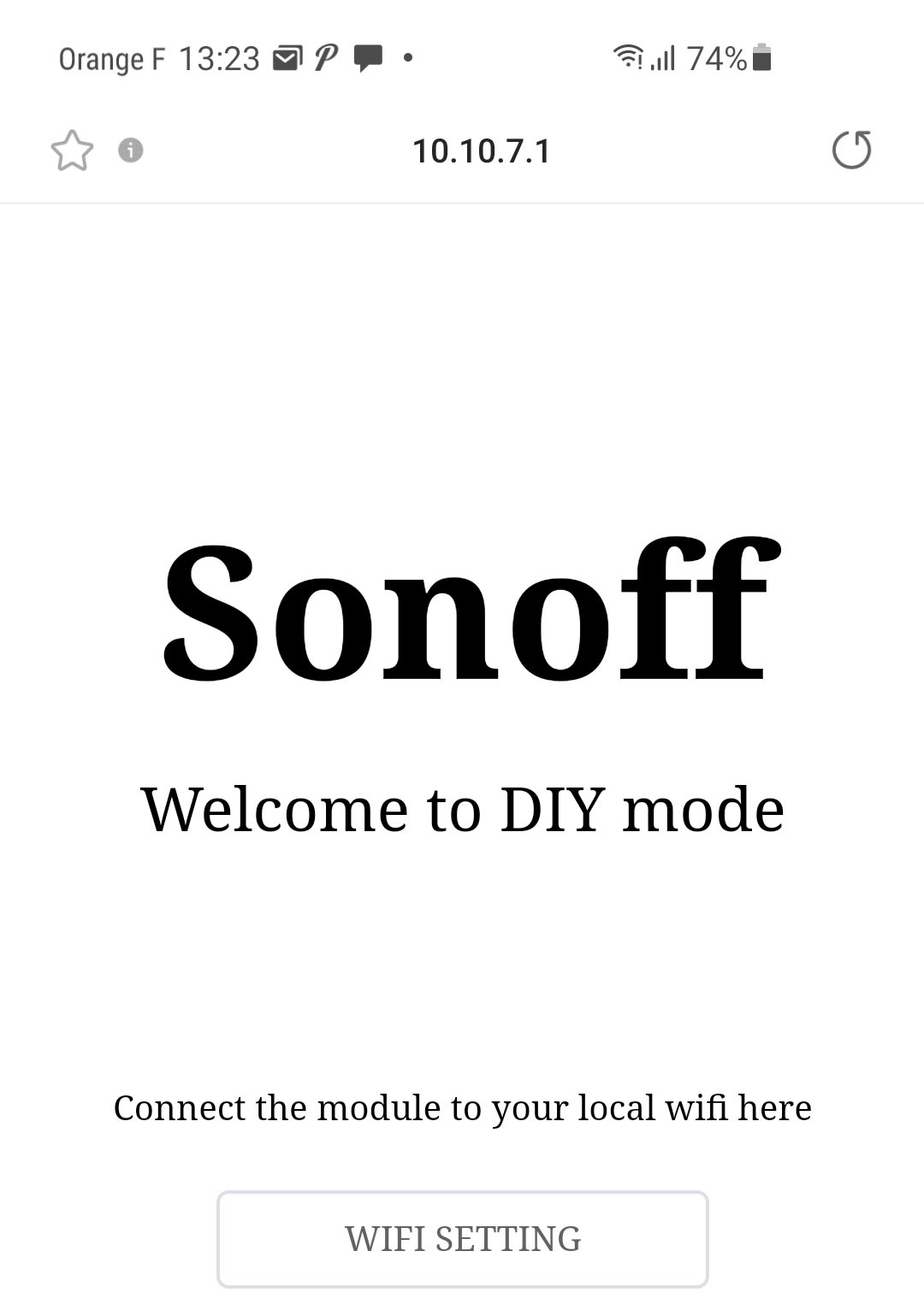
You have to open the phone's internal browser and go to 10.10.7.1, you get this screen:
Wi-Fi Setting is pressed and the information on the local Wi-Fi network is completed:
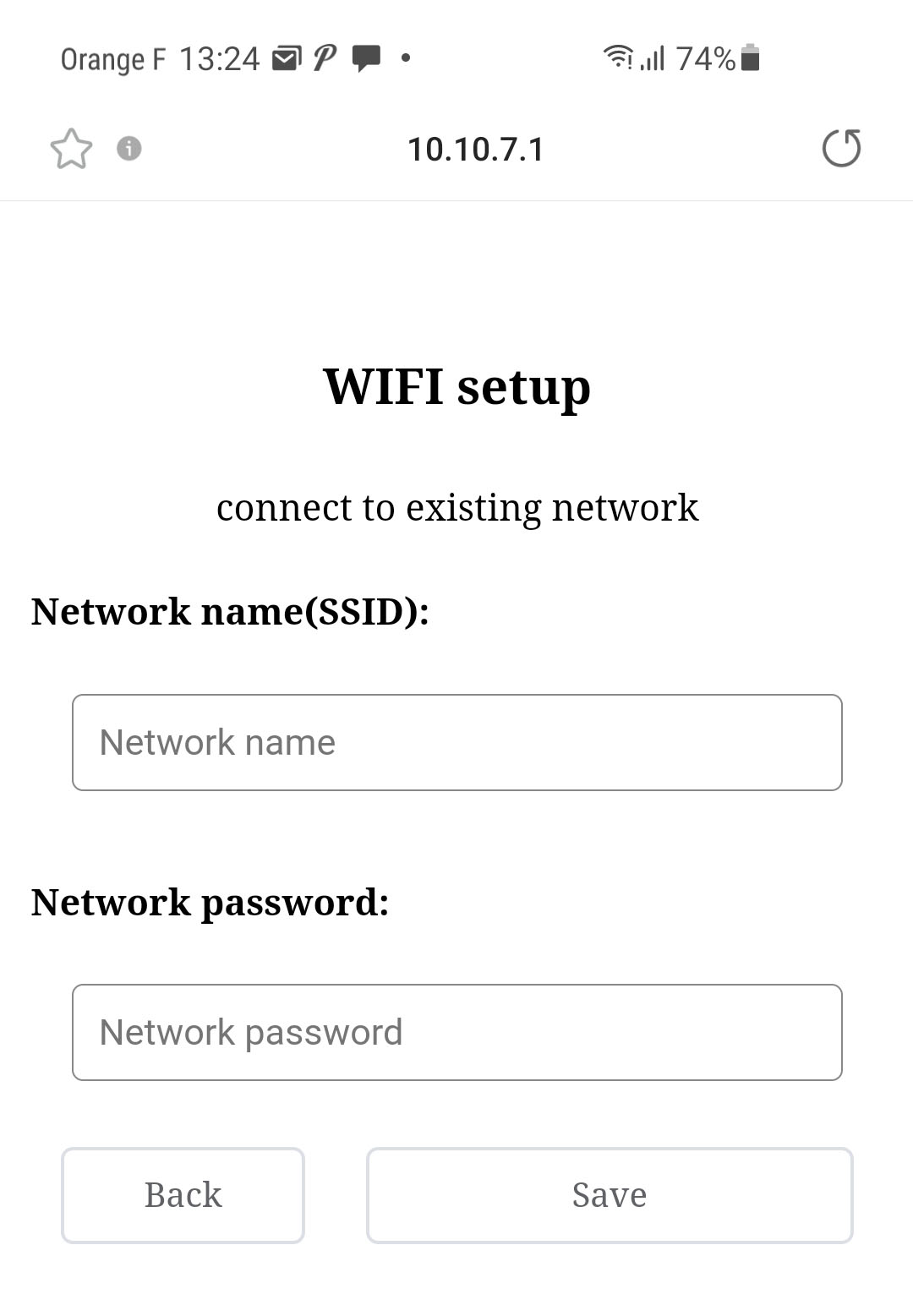
Save is valid and it is finished, the Sonoff Mini R3 switches to DIY mode and relaunches, it connects immediately to Wifi.
You have to go to your router to find the IP address.
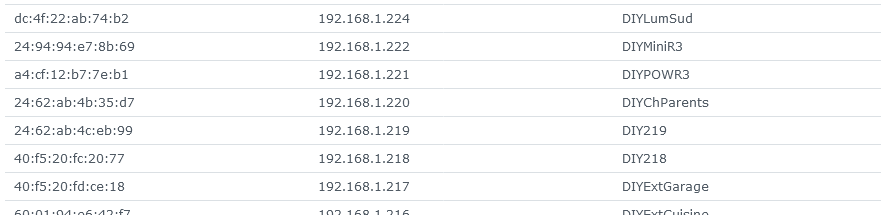
To illustrate this, I go to my Syno Router and find this:

I like to group the Sonoffs together and so I switch them to a static address. 192.168.1.222 and become DIRMinirR3 for testing.
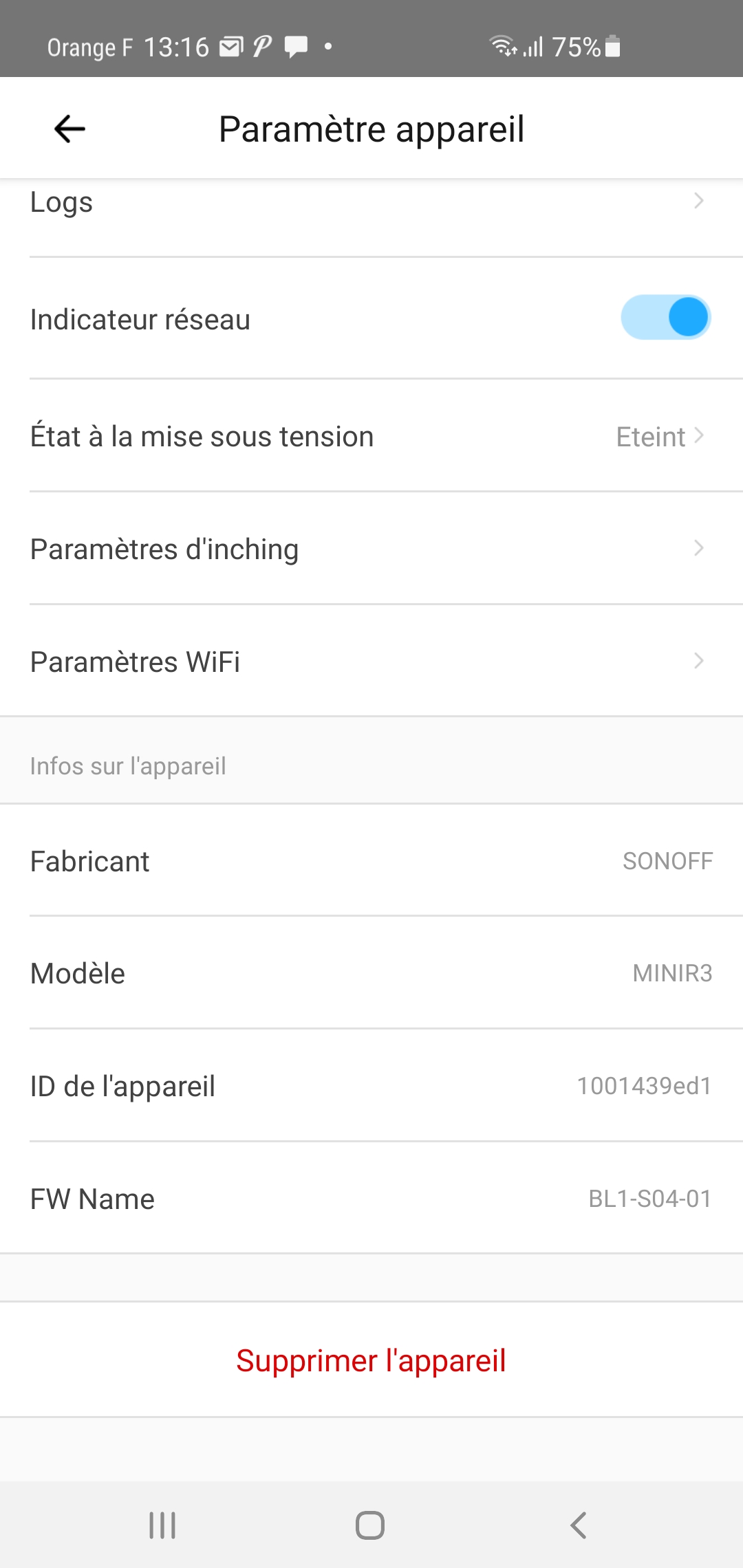
Note: we can find the device ID on the eWelink application, on this model, we are not given the Mac address, too bad:
Added the Sonoff Mini R3 in Jeedom via the Sonoff-DIY plugin
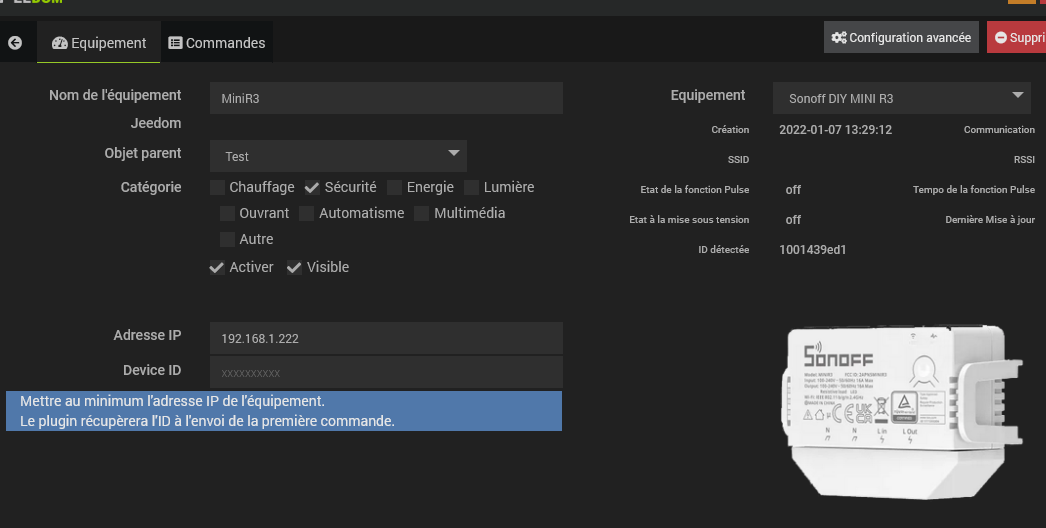
There is not much to do, it is the plugin who does all the work, you have to give him what he cannot guess, it is the IP address of the module that has just been added.
So I put 192.168.1.222 in the right box, I select Sonoff DIY Mini R3 and I'm backing up.
Then, it is enough to operate the relay, either manually or with eWelink, and if you are a little curious, you can go see the log that gives:

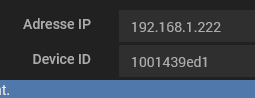
So it is good, the plugin has made the connection between the device Pow R3, its IP and its Identifier which is mandatory to order it on the local network.
The user has nothing to do, the plugin notes the ID on the device card and saves it.
Then the Sonoff Mini R3 model was chosen, the commands are automatically added
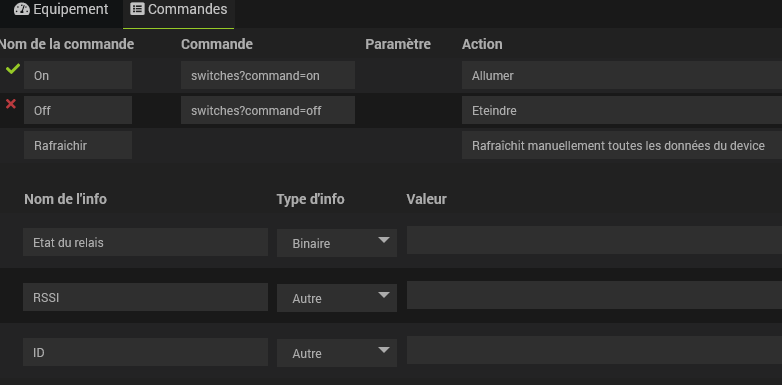
As soon as we launch a ‘Refresh’, the plugin will retrieve the module’s config
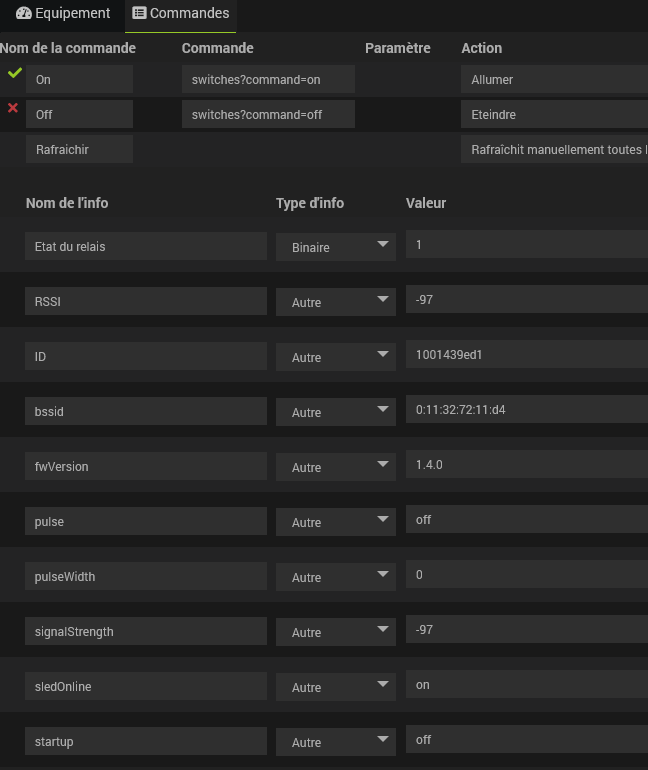
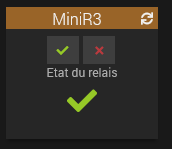
Obviously on the DashBoard, the tile of the device is generated, everyone will be able to customize it
 English
  French
  Spanish
  Chinese
  German