

I just received the 4CH Pro R2, version R2 changes the implementation of the ESP8285 chip, the method for detecting the pin 15 (to find GPIO0) changes slightly, this tutorial to save you time.
Note: 21/02/2021 : I have since tested the 4CH Pro R3, I was going to make a tutorial page for its programming. It is ultimately simpler than the R2, Sonoff learned from his mistakes and put the GPIO0 back on the button (oufff).
I did not make a tutorial page because I found a very clear and well done tutorial on the Fobul - Domotics page. Congratulations to him, go to his page and take a look at his blog.
For flashing, I used ESP_Easy_mega_20210114_normal_ESP8285_1M.bin
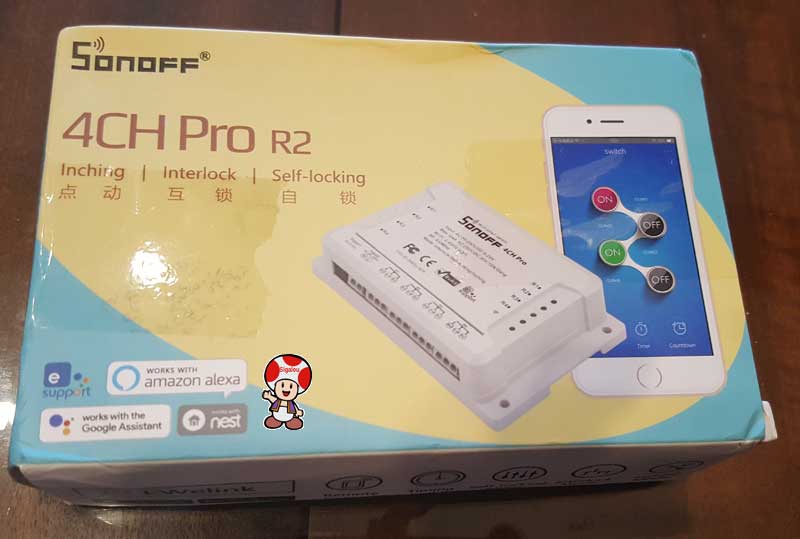
Material preparations of the Sonoff
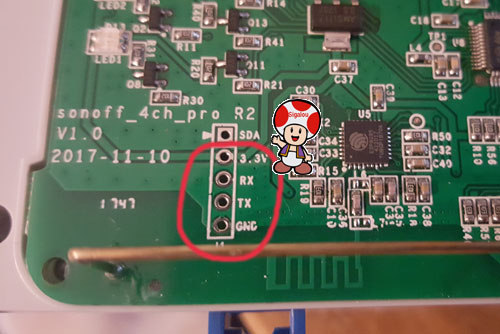
Rx/Tx connectors the Sonoff board
- It is necessary to locate the connectors Rx, Tx, GND as the card.
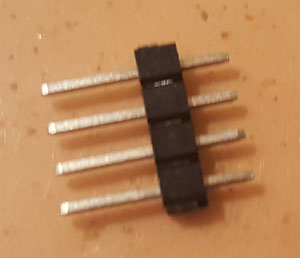
- Use a soldering connector:
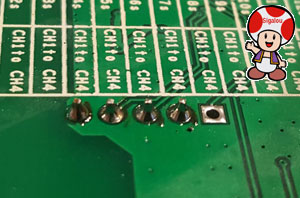
- A little bit of soldering iron after:
- I decided to power the Sonoff with an external power supply during the flash, I had difficulty using the Vcc 3.3V spindle, so I did not use this spindle in the end.
- I use 3 wires, to connect Gnd, Rx and Tx, here is the cabling:
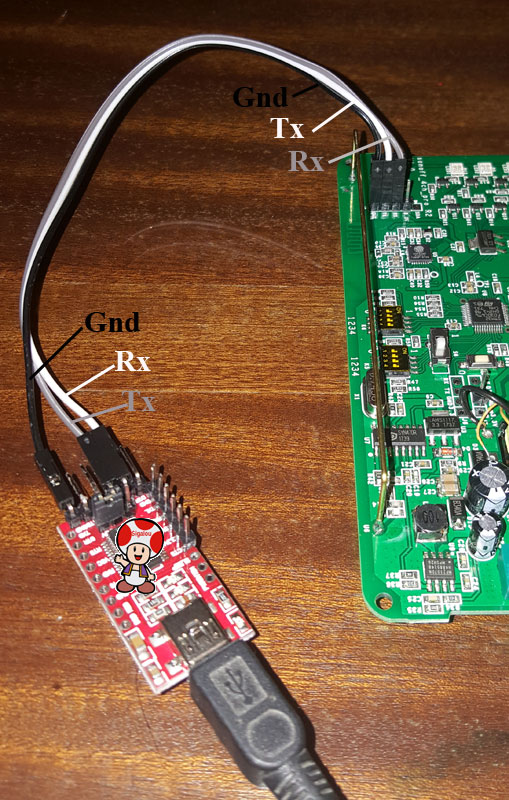
- The FTDI232 can be connected to the computer, the latter will detect it, raise its COM port number thanks to the Control Panel/Device Manager/Ports (we need it to configure the flash software)
Connector Gnd-GPIO0
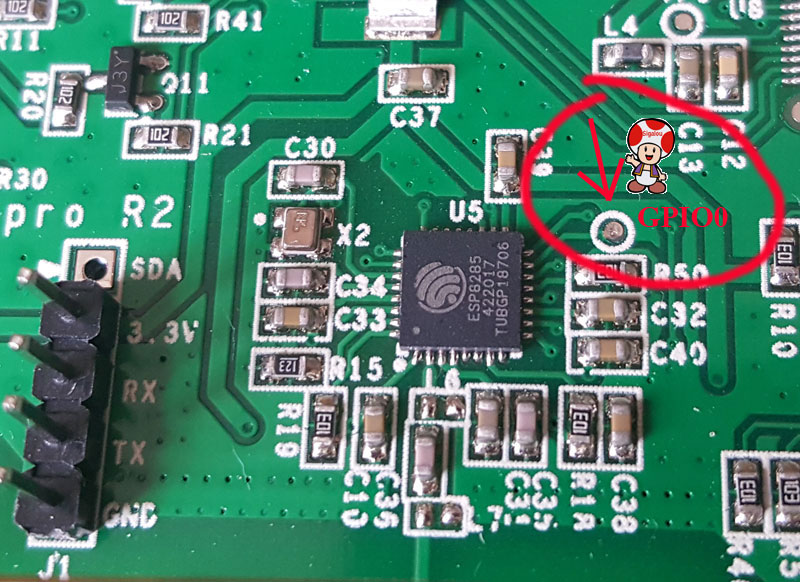
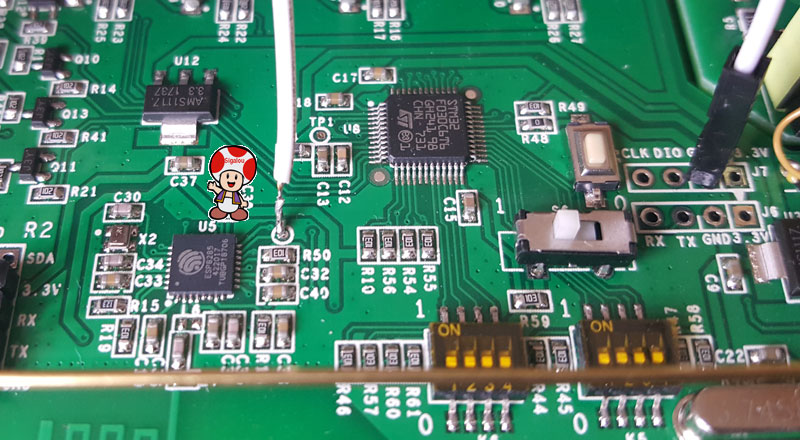
For the flashing phase of the Sonoff, it is necessary to put the box in programming mode, for this, it is necessary to connect GPIO0 (pin 15 of the ESP8285) to GND.
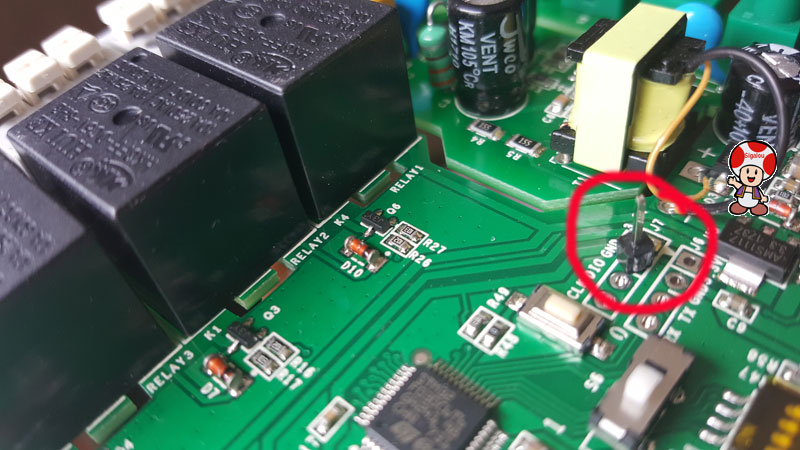
- To make it more practical, I welded a small connector on my own on the Gnd pin:
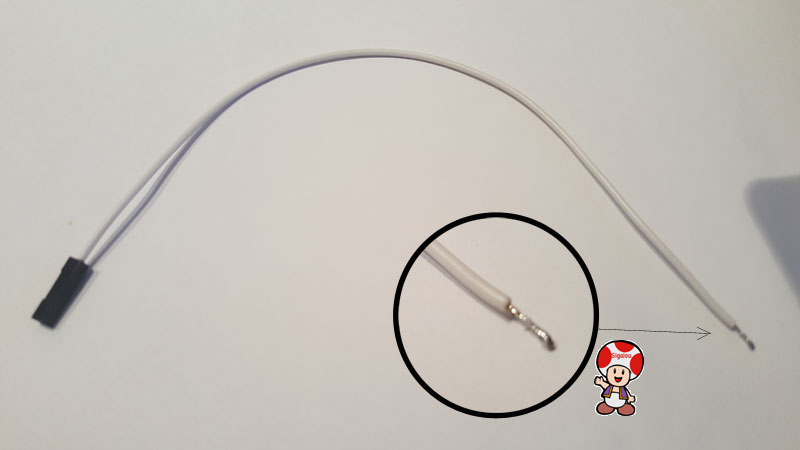
- I made a small wire that clips onto the connector on one side and is a bit rigid on the other to touch GPIO0 at the time of the Sonoff’s live msie to put it into programming mode:
- This is where GPIO0 is located:
- Here is the manipulation to do to put GPIO0 to GND
Prepare files to Flash Sonoff with ESPEasy
Download page for the latest version of ESPEasy:
https://github.com/letscontrolit/ESPEasy/releases
For this tutorial, I used this verison:
https://github.com/letscontrolit/ESPEasy/releases/download/mega-20180304/ESPEasy_mega-20180304.zip
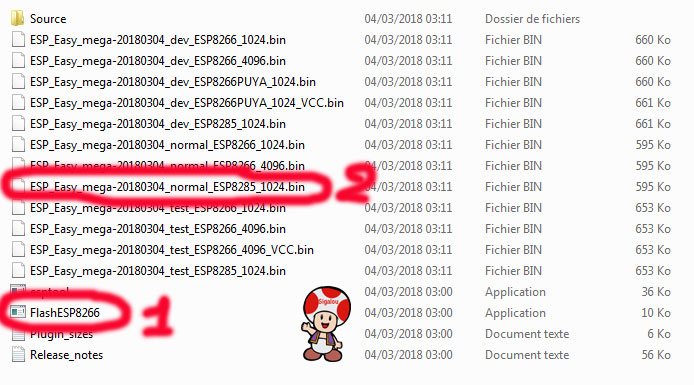
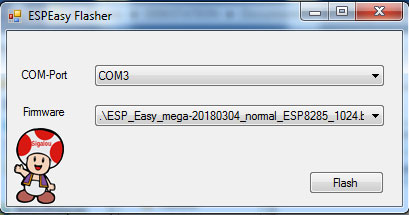
- Save the ZIP file, unzip it in a folder and in that folder, launch FlashESP8266 (Small 1 below), Select the port of the FTDI232 and the file Easyxxx_normal_ESP8285_1024.bin and launch the Flash.
Launch of the Sonoff 4CH Pro R2 Flash
At this stage:
- The ESPEasy Flasher software is ready,
- The FTDI232 is connected to the computer,
- The small cable that will connect GPIO0 to GND is ready
- You have to prepare a continuous supply (between 5 and 24v), I use a 5V, it works very well.
Flash Launch
- Power the Sonoff 4CH Pro while connecting GPIO0 to GNd with the small cable for 2s. (The box is in programming mode)
- No LED shall be switched on, if it is not the case, start again.
- Click on "Flash" on ESPEasy Flasher, wait for the Flash to finish.
Once the Sonoff is flashed, it must be connected to the WIFI network
For this, as the procedure is identical to all Sonoffs, you can look at this article: After Flashing, connect a Sonoff to the WIFI network and link to Jeedom
 English
  French
  Spanish
  Chinese
  German