


My Context and Objectives
I am to the angels, I have just received my Nabu Casa Green, the NC-GREEN, this brand new box 400% compatible with Home Assistant since designed and produced by Nabu Casa.
They have achieved the feat of offering an all-in-one product, oriented towards pre-installed Home Assistant, all for less than €100, go for the friends.
Where to buy it
Domadoo is the French distributor of Nabu Casa, so you can buy this magnificent box from them:
Be careful, as soon as a stock arrives, it is sold in a few days …
Unpacking and connection
The cardboard box is pro and avoids plastic, it is in the process and very well finalised.
The designers worked super well, you will see the details by opening the box.
Inside, it is perfect, everything is tidy and protected.
The alim block adapts to all countries and the French adapter must be connected, no worries.
The discovery of the Ethernet cable in a ugly plastic first price is a disappointment (which passes quickly) but it is surprising that they have not found a supplier capable of packaging a cable in something made of paper.
Connection tests of the Nabu Casa Green
Nothing is easier, an Ethernet cable on my switch, a 12V power connector on a power supply unit and off you go, the LEDs start to heat up, the box is initialised.
First connection
I do not know how long it takes to wait for the initialisation, I went for a coffee and I launch my favorite browser on the address:
And this is the tragedy:

Obviously, I quickly come across that I have two Home Assistants on the network, my future old HA which is on a Raspberry and the future new one which is on the Nabu Casa Green. On my future old HA, I had changed the default port, so I imagine that the address specified above should not point to the new HA.
I will fetch the IP on my Synology Server by looking at the latest equipment discovered:

Nabu Casa Green is therefore entitled to the following address: 192.168.1.58 For now, I will keep it in DHCP.
First launch
Now I'm going to launch the right address:

Bravo, the (beautiful) interface starts, in French, I do not know how she knows it.
I imagine that at this stage I could reinject a backup, but as my HA is a beautiful construction site of integrations, maps and other extensions that I have tested and not always uninstalled, I will take advantage of the arrival of this new box to start clean. It will also serve those who start ….
We start by creating the first user

Then we have to tell where the HA is installed

Then everyone chooses what they tick, I don’t tell you what I put on, it’s up to me

The following screen is the first pretty amazing Home Assistant that has already detected a whole bunch of equipment that is on the network

I finish and here is the Dashboard

In seconds, I can turn on and off the Yeelight lamp on my bedside table that was detected and configured on its own.

Update and discovery
I will update the box
At the bottom left, I have a notification in Settings, I click on it and I will immediately update HAOS.


I am surprised, the Nabu Casa Green has a very recent version, I just have to go from version 11.4 to version 11.5. I'm launching the … update
HA restarts

then

I will click on Notifications

Home Assistant continued to work and he found new equipment that was discovered.

Wow, there are some in every way, Home Assistant has improved really well since my first installation, really a lot of things have their respective integrations already integrated into the core.
I will walk around to look at the features of the Nabu Casa Green
In Settings/System, I will find all the information about the hardware

I'm going to Material

Obviously Nabu Casa has perfectly integrated its box in Home Assistant, everything is simple. With the Configure button, you can turn off the LEDS, which is a very gadget when you know what a mini led consumes, but it will please many who have not studied electronics.
I'm going to Storage

With 12.5% In terms of space used, we can consider that we have a good margin to have fun installing a lot of things. On the other hand, 10% using the eMMC lifetime is quite worrying, the box has been plugged in for less than an hour … I imagine the cursor must start at 10%, we will see if it moves in time, we do not have any hindsight on this point.
I will change the IP of the Box
On my router, I will look for the ip 192.168.1.58 and I freeze it in 192.168.1.222 it will be simpler for the future.
I will add the necessary HACS
For some reason, HACS is still not integrated into the Home Assistant Core, I will install it.
For the record, you need a GitHub account (free) and install the official Terminal & SSH add-on
I install Terminal & SSH
I'm going into /

At the end of the installation, I check what interests me, but each one chosen.

First start, failure: 502: Bad Gateway
Finally, before launching the module, I have to check the configuration, tab Configuration

Here is the default configuration:
username: hassio password: ""authorised _keys: [] sftp: false compatibility_mode: false allow_agent_forwarding: false allow_remote_port_forwarding: false allow_tcp_forwarding: false
Obviously if the pass mode is absent or too weak, the module does not start, so I will put:
username: hassio password: "B6rpeMn&&$Fcewx9@Z*hcYnhN&P@5" authorized_keys: [] sftp: false compatibility_mode: false allow_agent_forwarding: false allow_remote_port_forwarding: false allow_tcp_forwarding: false
There you go, the terminal starts ….

I install HACS
In the terminal, I launch:
wget -O - https://get.hacs.xyz | bash -

I run, I relaunch Home Assistant
I then go to Settings / Devices and Services / Add integration / HACS

Then you have to establish the link with Github and then complete the installation.

I delete items I do not need

As always and everywhere, developers think it is useful to load the default module configurations, probably the ones they find most useful or the ones they like. I delete what I do not need, see the ones crossed out above.
I will configure what can work on two HA
I add the self-entities card

The auto-entities map dynamically displays a list of entities based on specific criteria. It is particularly useful for creating dashboards that are modular and adapted to different types of devices or states.
Reference deposit: https://github.com/thomasloven/lovelace-auto-entities
I add the map layout-card

The layout card makes it possible to organise other cards in a personalised layout. It offers options for structuring maps into columns, rows or grids, improving the visual presentation of the dashboard.
Reference deposit: https://github.com/thomasloven/lovelace-layout-card
I add the button-card

The button-card allows you to create customizable buttons to control entities or perform actions. It is very flexible and allows the appearance, behaviour and actions of buttons to be defined as needed.
Reference deposit: https://github.com/custom-cards/button-card
I add the State-Switch card

The State-Switch card allows the content displayed to be dynamically changed according to the state of an entity. This allows to create responsive and contextual user interfaces, adapted to different conditions or states.
Reference deposit: https://github.com/thomasloven/lovelace-state-switch
I add the lovelace-mushroom card

The lovelace-mushroom card offers a set of visually consistent and modern cards for Home Assistant. They are designed to be aesthetic and functional, providing an enhanced user experience.
Reference deposit: https://github.com/piitaya/lovelace-mushroom
I add the mini-gauge-card

The mini-gauge card displays compact and informative gauges to visualise the values of entities, such as battery levels, temperature or humidity. It is ideal for a concise presentation of data.
Reference deposit: https://github.com/radimkeseg/lovelace-mini-gauge-card
I add the Digital Clock card

The Digital Clock card displays a digital clock on your Home Assistant dashboard. It is useful to keep an eye on the current time directly from the home automation interface.
Reference deposit: https://github.com/Villhellm/lovelace-clock-card
I add the Decluttering card

The Decluttering card reduces redundancy in Lovelace configurations by defining reusable templates for cards. This simplifies the management and maintenance of the dashboard.
Reference deposit: https://github.com/custom-cards/decluttering-card
Reference: Using the Decluttering Card
I add the Mini-media-player card

The Mini-media-player card is used to control media players in Home Assistant. It offers a compact and customizable interface to manage playback, volume and other functions of multimedia devices.
Reference deposit: https://github.com/kalkih/mini-media-player
Add Frigate Lovelace Card

The Frigate Lovelace Card is used to integrate Frigate's CCTV feeds into Home Assistant. It allows you to view the cameras in real time and access the recordings directly from the dashboard.
Reference deposit: https://github.com/dermotduffy/frigate-hass-card
I add the configure-template-card

The configure-template-card allows you to configure dynamic cards using templates. It is particularly useful for displaying customised information based on entity data or other variables.
Reference deposit: https://github.com/iantrich/config-template-card
I add the Card-mod card

The Card-mod card allows you to change the appearance and behaviour of Lovelace cards using custom CSS styles. It offers maximum flexibility to adapt the user interface to your preferences.
Reference deposit: https://github.com/thomasloven/lovelace-card-mod
I add the MJPEG IP Camera integration
The MJPEG IP Camera integration allows you to view the video stream of IP cameras directly in Home Assistant. It offers a simple solution to integrate security cameras and monitor images in real time.

I add WebRTC integration
WebRTC integration allows live video streams to be streamed with minimal latency. This integration is particularly useful for security cameras and video intercoms, providing fast and reliable transmission of images.

I add the Workday integration
The Workday integration allows you to configure working days and public holidays in Home Assistant. It is useful for automating tasks based on working days and rest days, improving calendar and routine management.

I add two pieces of equipment:

I add Tuya integration
Tuya integration makes it possible to control Tuya-enabled smart devices from Home Assistant. It facilitates the management of connected devices such as bulbs, sockets, and switches, providing seamless integration into the home automation ecosystem.

I add Kiosk Mode integration
Kiosk Mode integration in Home Assistant simplifies the user interface by hiding navigation elements and toolbars. It is mainly used to create sleek and dedicated dashboards, often on wall devices or tablets, to provide a more immersive and intuitive experience for smart home control.

I add the Ping integration (ICMP)
Ping integration (ICMP) is used to check the availability of devices on the network. It sends ping requests to devices and can be used to monitor device status and trigger automations in case of lost connection.


I add the Pushover integration
The Pushover integration allows personalised notifications to be sent to mobile devices via the Pushover service. It is useful to alert in real time important events or changes of state in the home automation system.

I add the Sonoff integration
Sonoff integration allows Sonoff devices to be controlled from Home Assistant. After installation, a restart is required to fully activate the features and ensure stable communication with the devices.


I add the File Size integration
The File Size integration makes it possible to monitor the size of specific files in the Home Assistant system. This can be useful to monitor the evolution of log or database files, and take preventive measures to avoid storage problems.

I add the file /config/home-assistant _v2.db
I add the Meteo-France integration
The Météo-France integration makes it possible to integrate Météo-France’s weather forecasts into Home Assistant. It is particularly useful for displaying accurate and current weather information, as well as for creating weather-based automations.

Then I add the meteofrance-weather card. (I have to put 1.9.2beta2 because 1.9.0 has problems).
Be careful, there are several cards, you have to take the one without dash.

I add the Asterisk integration
The Asterisk integration connects Home Assistant with an Asterisk phone server. This integration is useful for automating and managing phone calls, voice notifications and other telephony-related features.

A restart is required.

I add the Wallbox integration
Wallbox integration makes it possible to control Wallbox charging stations for electric vehicles from Home Assistant. It facilitates charging management, monitoring the status of the charging station and optimising energy use.


In the equipment, I find the different parameters and states of my Wallbox.
Add Alexa Media Player integration
The Alexa Media Player integration allows Alexa devices to be controlled directly from Home Assistant. It offers features such as music playback, notification management, and interaction with Alexa routines.

A relaunch is needed after the installation and then the addition of the integration.


At first, I will configure the integrations that will not remove them from my future ex-Home Assistant.
I add the Xiaomi integration
Xiaomi integration connects Xiaomi devices to Home Assistant. You can manage Xiaomi sensors, gateways and other devices to automate your home and monitor different settings in real time.
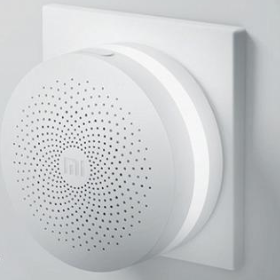
I still have two gateways from Xiaomi, they are still on my home automation network, not as a gateway but only as a light display. In this page, when I migrated from Jeedom to HA, I documented the search for proper integration.
On my brand new page, I see again and again the two automatic integrations.


I will ignore the Xiaomi Miio integration and keep the Xiaomi Gateway (Aqara) integration.

This is perfect, both walkways appear as light displays.
I add the Pronote integration
The Pronote integration enables Pronote’s school data to be integrated into the Home Assistant. You can view schedules, assignments, and notes, and receive real-time notifications for important events.
In HACS, I search for Pronote and install it. Then a restart of Home Assistant is requested.

I then go to Settings / Devices and Services / Add Integration / Pronote

To fill in the JSON of the QR Code, I am the explanation of the documentation.
It’s over, I’m now installing the Pronote cards. I'm going to HACS add the cards.

I add the ESPHome integration
ESPHome integration makes it easy to create and manage connected devices based on ESP8266 and ESP32. You can configure, program, and integrate them with Home Assistant to automate various aspects of your home.

For ESPHome, I am installing the two existing ESPHome equipment without installing ESPHome at the moment.
I will configure my equipment still under ESP Easy
I still have equipment that I have not switched to ESPHome and that is on ESP Easy. They're still 100.% compatible with the MQTT broker, I must configure a "Controller".
Attention, I searched a little to find out why the link was not made, it is good to put the login/password (mqtt/mqtt) in the configuration of the controller:

I realise that I cannot activate two controllers at the same time.

This was the case when I switched from Jeedom to Home Assistant. Probably because both controllers have the same port. So I will prepare all my equipment, leave it deactivated and when I am ready to change HA, I will activate the other controller.
I will switch my automations and scripts
It is very simple, just copy the automations.yaml file from the future old Home Assistant to the new future Home Assistant. Then you have to restart and automations appear.
I switch my screens Dashboard
Errors are, of course, to be expected, mainly on the names of entities or entities not yet created; but to copy/paste the yaml code of the screens (formerly lovelace), I use the configuration editor.

I switch access to Nabu Casa

I'm going to the future old Home Assistant to disconnect Nabu Casa and I'm going to the new Home Assistant to put my contact details there.
This enables remote access via the Nabu Casa link on the future new Home Assistant.

I install a Nabu Casa Skyconnect (Zigbee key)
For this part, I did a dedicated RetEx:
I untie the old HA to Alexa and connect the new HA

On the Alexa app, I disable the Home Assistant skill, I remove all equipment that came from the old Home Assistant.
I'm going back to Skill and I'm going to add the Home Assistant skill. I re-identify with my login/password which now points to the new Home Assistant.
By default, links to Alexa are not activated on my entities, so I will go to each one to activate the voice assistant, here is an example:

You have to wait a bit (or re-delete/add the skill) and the equipment appears in Alexa!!
I'm going to have to import the Blueprints.
Indeed, I have to re-import the Blueprints (advanced automation) that I have installed on my future ex-Home Assistant.
I will therefore identify the Blueprints that I miss, by default, I see that two Blueprints are installed:

whereas on my future ex-Home Assistant, I have four, so I will import them.

I import Timer Relay
For example, Timer Relay allows me to cut my phone charger after 5 hours.
I look at the Blueprint information and see that I am using a version that has been updated several times since then.

So I click on the Blueprint Import Button and I install the V 1.6

Once installed, I will look for my automation and I reassign the Blueprint to it

Here is the final yaml code:
alias: Turns off the phone charger after 5 hours description: "" use_blueprint: path: Blackshome/trigger-run-on-timer.yaml input: trigger_one: - switch.chargers_de_Telephones trigger_state: "on" trigger_one _time: hours: 5 minutes: 0 seconds: 0 entity_input: entity_id: switch.chargers_de_telephones
I will recreate my "_boolean input"
I have several inputs in the switch format that correspond to configuration parameters (homemade).
I cannot find where to get them back in yaml or whatever, so I will recreate them manually.
 So I go to Settings / Devices and services / Entries

Once all the switches have been created, I can display them on the Dashboard with a simple card of the type:
Type: custom:auto-entities card: Type: entities title: Assistants
  show_header _toggle: false state_color: green: '#00FF00' yellow: '#FFFF00' red: '#FF0000' filter: include: - entity_id: input_boolean.* comes out: Method: friendly_name

I do the same for my hot water deposit, which is an input _number.

 English
  French
  Spanish
  Chinese
  German