

Programming modules to interface them with the plugin
Modules are delivered as usable with the eWeLink application

Do not use this application, it is even completely unnecessary to configure it before switching to DIY mode.
The only interest to go through the application is to make an update, I have always received up-to-date modules so I have never used this feature.
Sonoff advises to use at least version 3.3.0
Updated December 2020
|
Step 1 : Switch the module to DIY mode
To switch them to DIY mode, it is necessary to open them (it is very simple) and add the small rider provided on the space provided for this purpose:
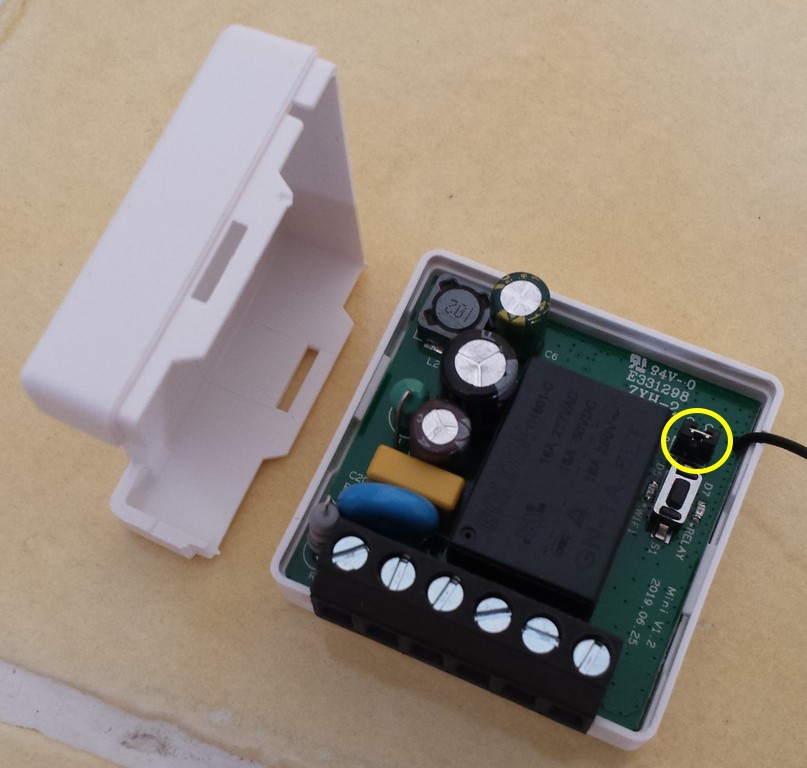
This image shows a Sonoff Mini but it is almost the same for the other modules.
Once the rider is placed, close the case, hard side (material) it is over, your module is switched to DIY mode.
Step 2: create a WIFI access point with your mobile phone
This step is very simple, use your mobile phone and activate the functionality, on a Samsung, for example:
- Settings
- Connections
- Mobile access point and modem
- Activate Mobile access point
- Press it
- Change the name of the network and put: sonoffDiy
- Change the password and put: 20170618sn
- On the … at the top right, Approved devices then Disable Only authorized devices
Step 3: connect the Sonoff to electricity
Obviously with all the precautions for use!!!
- Connecting N and Lin to a power outlet
- Connect the socket
The blue diode will blink once every second. As soon as the connection is made to the access point, it will blink twice in 1 second.
Step 4: connect a computer to the sonoffDiy access point
On a computer with a wifi card, search the list of available wifi connections
Connect to the network sonoffDiy (with code 20170618sn)
Step 5: Launch the Sonoff DIY mode tool program
Upload the latest version of the program on this page
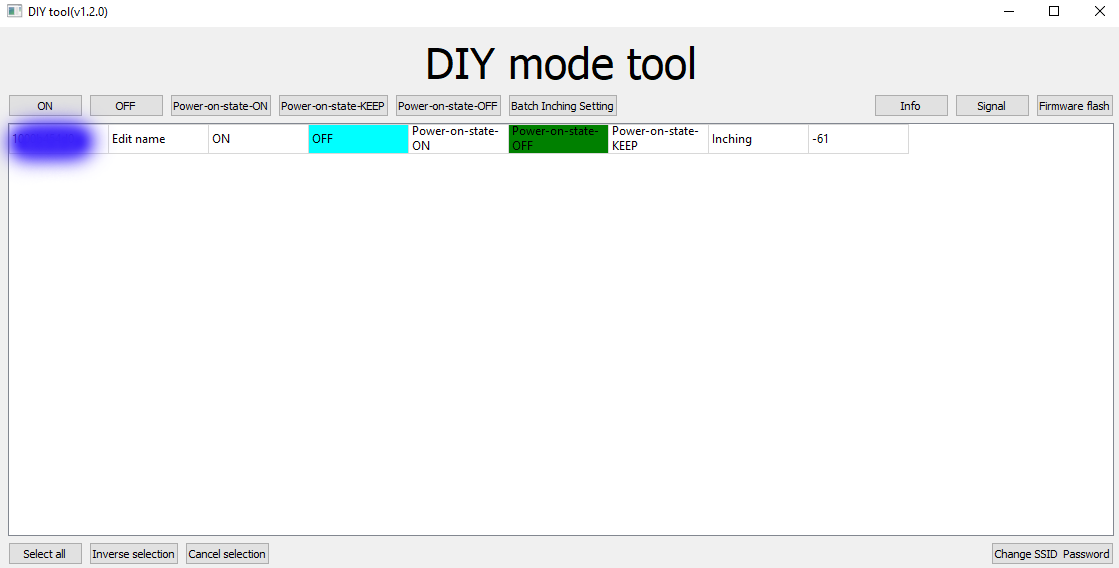
- If the list of equipment unfortunately remains empty while the access point is well created and the module blinks well with two blue pulses, we have detected (thanks ezdom) that the concern comes from a conflict between 2.4Ghz WIFI and 5Ghz. To fix this, disable 5Ghz in your wifi router (or disconnect 5Ghz antennas if you know how to do this).
- If despite disabling 5Ghz, you still have an empty list, use the Google Chrome/Advanced REST Client (ARC) method. This method is explained on this page.
- Note the number that appears in the first column, it will serve you to identify your module, (if you have forgotten, the plugin will be able to find you.)
Step 6: Change SSID Password
At the bottom right, use the Change SSID Password button to put the SSID and password of your Wifi network
Step 7: Unplug and reconnect the Sonoff module
It’s over, your Sonoff module must be on your Wi-Fi network
Step 8: Go and find the IP address of your new module
The interface of your router will give you the IP of this new module, you must have it in the latest modules detected and added by the DHCP server of your router. I advise you to assign it a fixed IP at this stage.
- Record the IP, it will be necessary for you to order the module from the plugin
Adding a Sonoff Diy Device
Just press the button + to add equipment
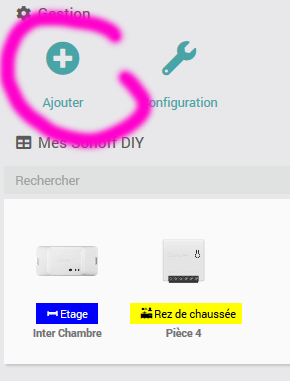
Configure new equipment

There are two parameters in the configuration of a module:
- The IP address : Mandatory parameter, this is the address of your module on the wifi network, your router will give you this information (see Step 8 of the equipment programming)
- Device ID : Mandatory parameter, this serial number is given to you when configuring the module by the DIY mode tool software.
Important : If you have not specified l‘Device ID, you will not have status change returns because the plugin will not know which device to use.
You have a very simple way to find the ID of a device:
Find the ID of a Sonoff
Note of 07/03/2021, the plugin is now able to find the ID alone if you do not have it. The ID will be detected when the first order is sent.
If you need to return the ID of a device, follow this procedure:
- Go to the configuration of the plugin, put yourself in mode " debug » (warning minimum) and for it to be simpler, open the log sonoffdiy _mDNS and click on empty to purge it
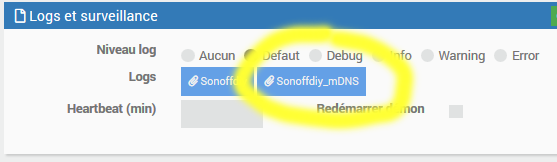
- Start a change of status of the module in question (pass it on or off)
- Go back to the plugin configuration, open the log sonoffdiy _mDNS, you will find the ID in the log:

- Copy this ID in the configuration of the equipment, you should no longer see this type of message in the log and your equipment widget will automatically change status.
Other references
- https://www.planete-domotique.com/blog/2019/10/28/sonoff-mini-diy-eedomus/
 English
  French
  Spanish
  Chinese
  German