

Purpose of this tutorial

The Informe plugin is very easy to use and powerful at the same time.
This tutorial aims to allow a new user to discover the configuration and power of the plugin.
This tutorial describes a fictitious configuration over time, but a user who follows it to the end will be able to discover all the features of the plugin.
Prepare by creating two Virtuals (in Virtual plugin)
In this first step, I propose to create two virtual ones that will simulate a change of location and a trigger (which will be the opening of a door).
Obviously, a Jeedom user will be able to use their own equipment instead of these virtual ones.
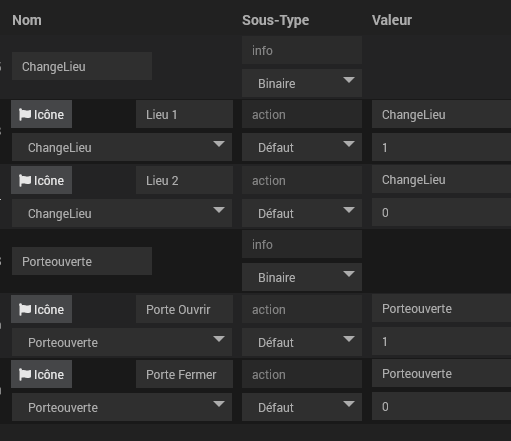
So create two virtual ChangePlace and DoorOpen on the following format:
Add a recipient in the Informe plugin

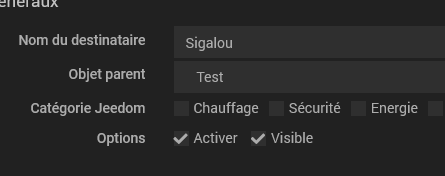
We add Sigalou who will be the recipient who will be notified in case of notification, we assign him a parent object (test here) and we check Activate and Visible.
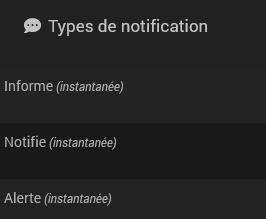
The plugin automatically adds 3 types of notification, by default, it will be considered that there are 3 levels, a non-urgent level of information, a notification and an urgent alert.
The first "Recipient" tab is completed, we move to the second
Notification channels
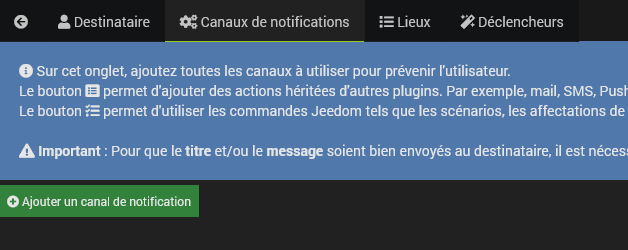
On this screen, we will add all the channels that will allow us to notify a user, it can be an SMS, an email, a scenario trigger, a lighting of lights, a Push …
For this tutorial, I will add two notification channels with the PushOver plugin, any other plugin will have the same mode of operation.
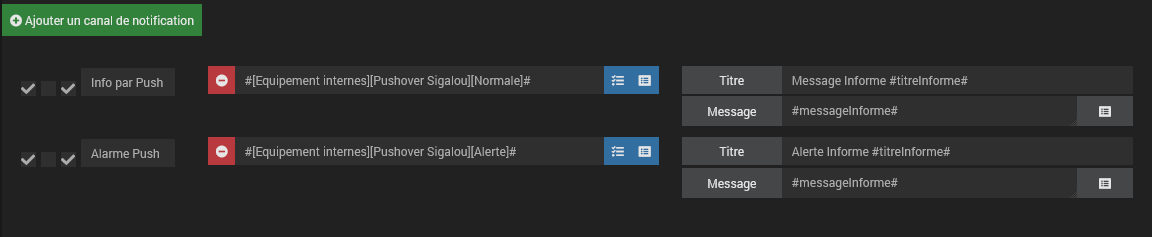
Note the use of tags #titleInform# and #messageInform# to be able to retrieve the messages sent during the notification.
Add Locations
The plugin will make it possible to inform Sigalou users according to their location, so two locations will be created: Location1 and Location2, obviously you will use Car, House, Work, …

Here, I add the two places, and use the virtual one I created in the first paragraph with a calculation. I consider that if #[Test][Test for Inform][ChangeLocation]# is 1, it is that we are in the Location1, if #[Test][Test for Inform][ChangeLocation]# It's 0, we're in Place 2.
As soon as you save, the plugin automatically adds the command info Lieu, which will have the value Lieu1 or Lieu2.
To test this, you can go and test it on the Dashboard:
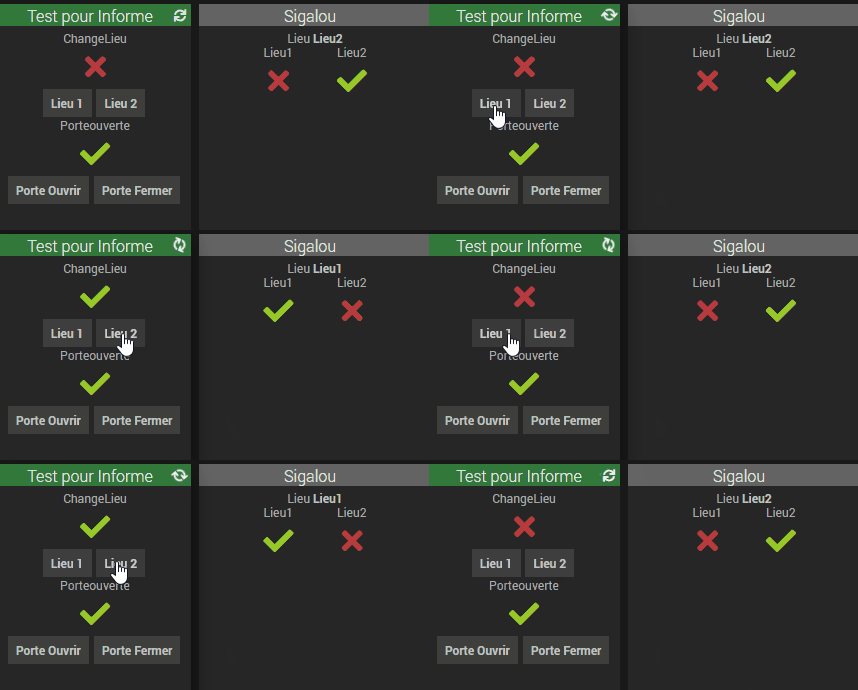
Thus, when you click on Location1 or Location2 in the Virtual created in the 1st paragraph, it changes the Location well (top right, just under the title Sigalou)
Configure Locations
At this stage, what is important is to define the way (notification channel) that will be used to prevent Sigalou.
We will therefore configure the action to be used to inform Sigalou when he is on Location1.

It is the blue button ‘Configure this place’ in front of Lieu1 that will allow us to do this, this screen opens:
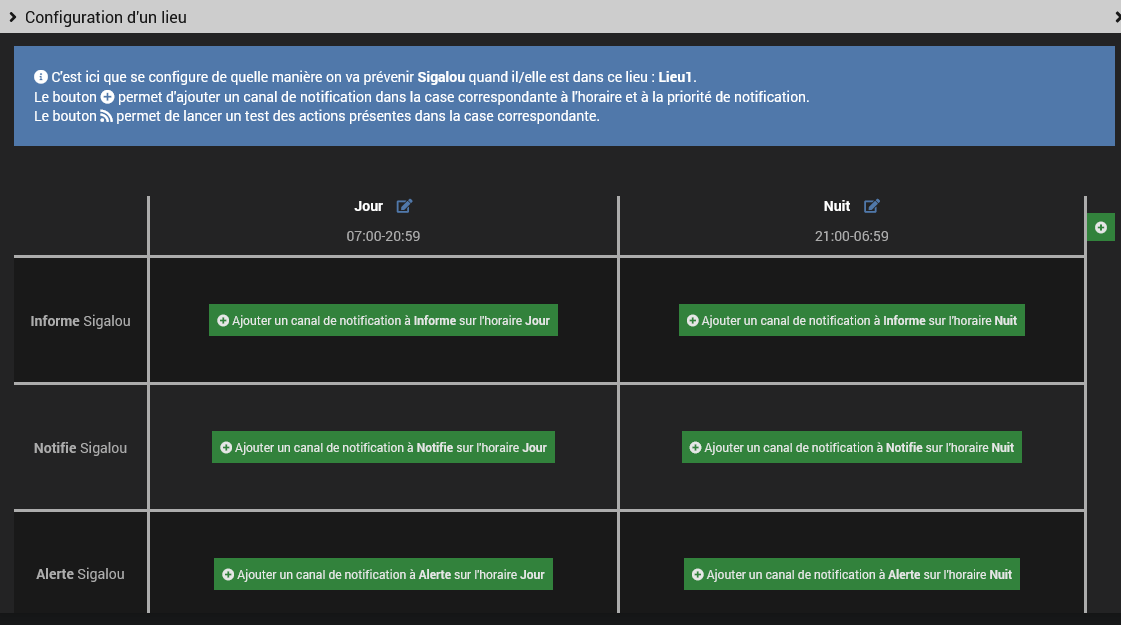
If you want to configure the notification channel when using the ‘I’ commandSigalou Shape » between 07h and 21h (slot day so), click on the green button at the top left, column Day, Line Inform.
For the example of Notify Sigalou, the ‘Info Push’ command was created earlier.
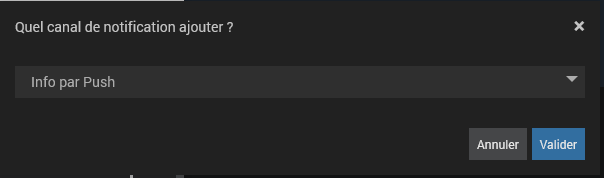
Close the window, check-in is automatic. If desired, you can put several notification channels, they will all be sent simultaneously.
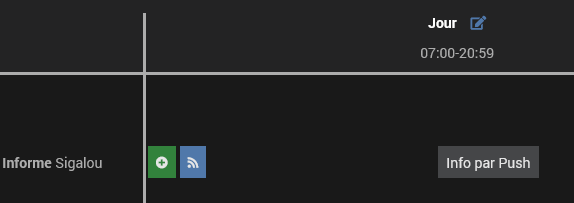
Thanks to this configuration, the Informe plugin knows that if you use the command "ISigalou Shape, he will have to use the channel. Info by Push » to send a message to Sigalou between 7 a.m. and 9 p.m..
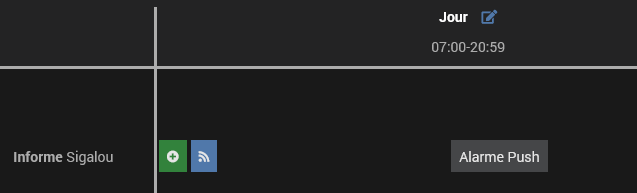
To differentiate the place1 and the place2, we will assign the notification channel " Push Alarm on the Location2
To do this, on the line of the Location2, we click on Configure this place and we assign it Push Alarm
Testing the Sigalou Informe command
We will use a scenario to test the functionality thus programmed.
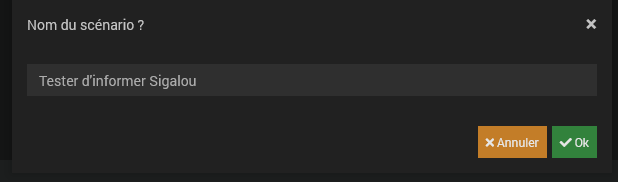
then

When you click Run, 
the plugin will inform Sigalou via PushOver either
- By sending a notification if Sigalou is on Location1,

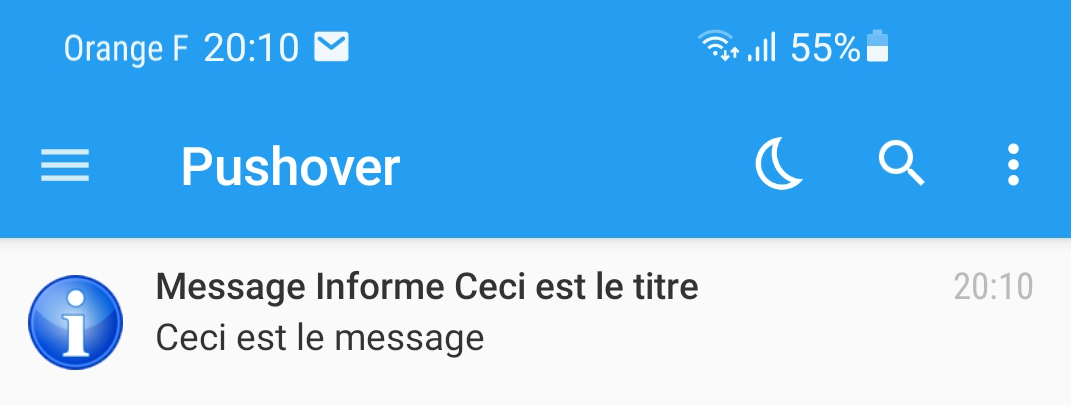
- By sending an alarm if Sigalou is on Location2

It is therefore the place that defines the channel that will be used to prevent Sigalou.
The same logic applies with timetables.

By default, the plugin adds two timetables: Day and night, but all this can be configured. The schedules are attached to the Place, so each place can have its schedules.
Use of triggers (option)
There is no need to go further for a basic use of the Informe plugin.
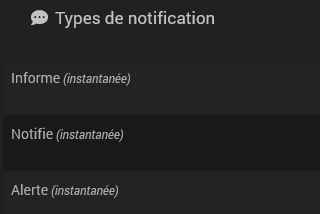
An interesting feature has been added, i.e. the possibility to choose when the notification will be sent. By default, without the use of triggers, all notifications are sent instantly. The mention (instant) is present in front of the 3 types of default notification
Creating a trigger
Example of trigger: We would like the notifications to Sigalou to be given to him when ‘the front door opens + 15s’
This is in the tab Triggers with the little magic wand that we will set up the trigger
Obviously to add a trigger:

We add a calculation that will switch to TRUE when the door opens (it is the virtual created at the beginning of this tutorial that will serve as a virtual test). We add 15 in the tempo box to shift the notification by 15s.

Adding the trigger to the notification
To make the link between notification types and triggers, add the trigger to the notification
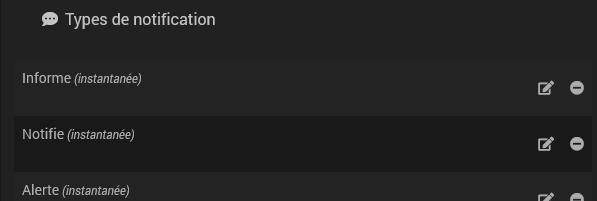
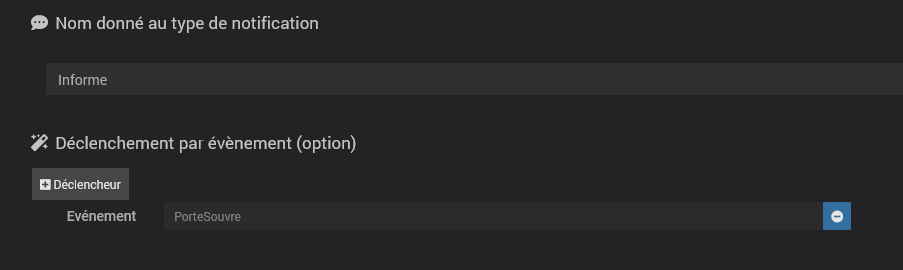
In the first "Recipient" tab, the "Inform" notification type will be changed at the bottom.
A trigger is added, and here is the result:
The plugin removed the mention (instant) and detected that the command is now subject to a trigger.
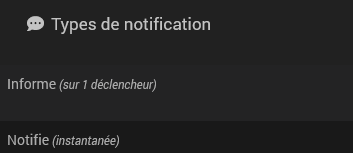
Several triggers can be used, in which case it is the first trigger that triggers the sending of queued notifications.
Note as at 16/01/2022: The purge of pending notifications does not yet work if there are multiple triggers, it is ongoing. At this stage, use only one trigger.
Test the Sigalou Inform command with trigger
First of all, make sure that the virtual simulating the door is of course 0
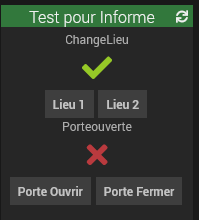
A red cross (=0) is required for the DoorOpen command, if not in this position, click on ‘Door Close’ to change DoorOpen to 0.
Go to scenario Try to inform Sigalou created before and run it 3 times, as if you wanted to send a notification 3 times. (press Run 3 times)
Notifications do not leave since the door is closed. To check this, go to the trigger
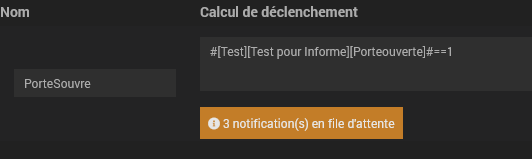
It is noted that there are 3 notifications in queue.
We're going to close the door (pass DoorOpen to 1 so).
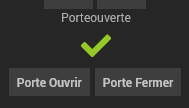
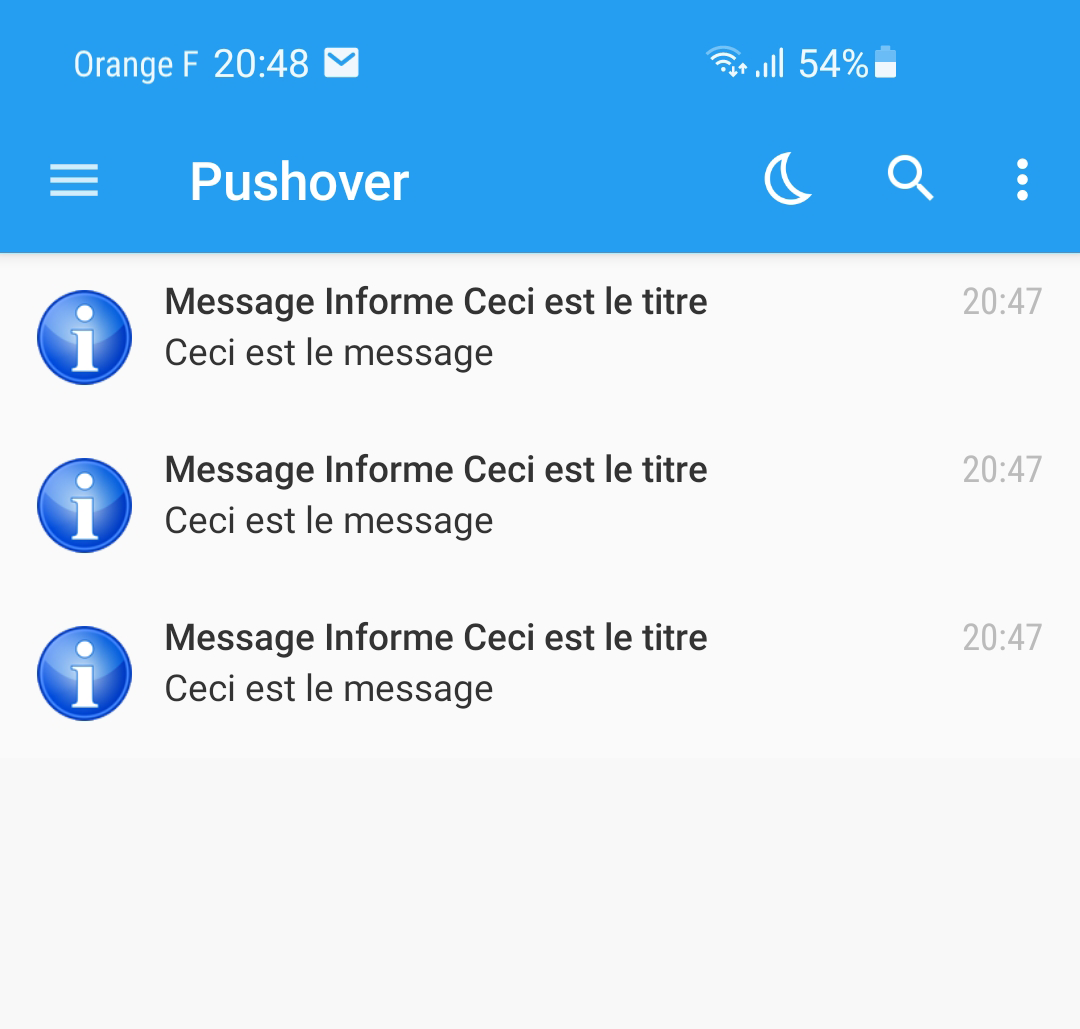
When you click Open Door, all 3 notifications leave.
 English
  French
  Spanish
  Chinese
  German