

 |
|
Presentation of the plugin
This plugin will allow you to simplify your scenarios.
To inform a user, it will be enough to ask " Informs Sigalou that the fridge door is open »
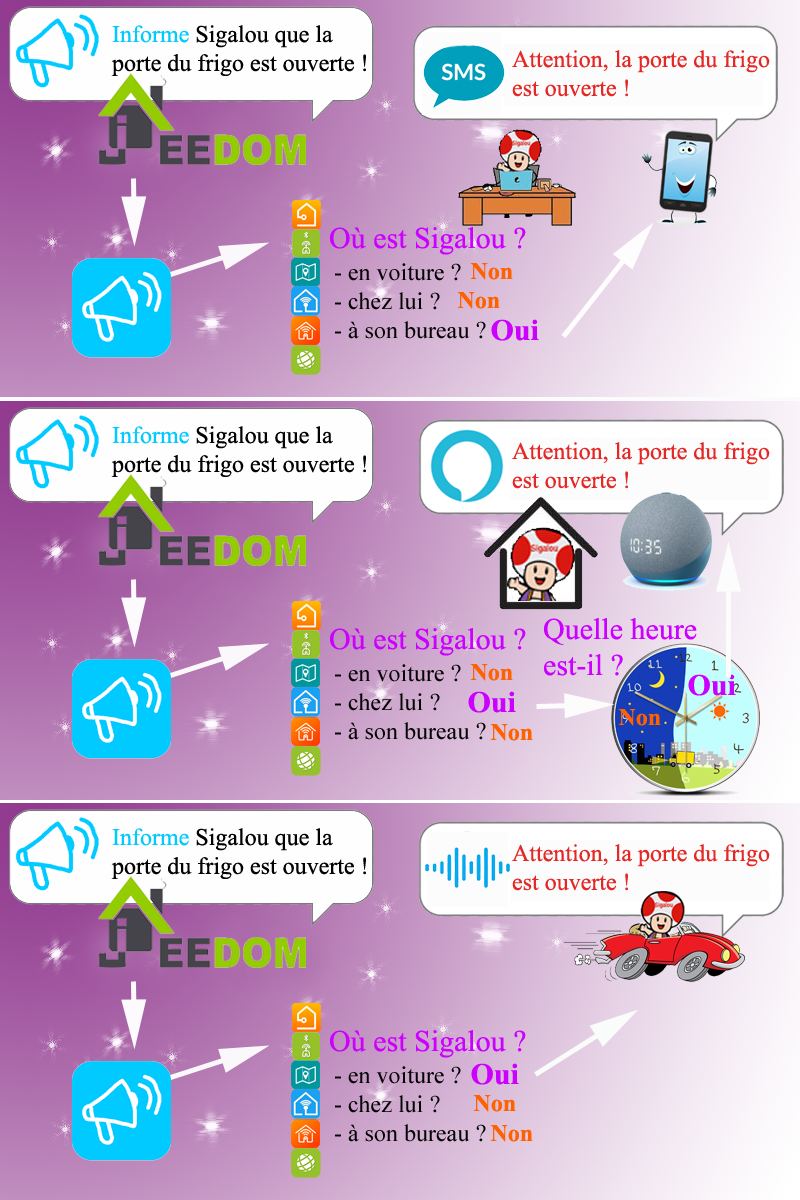
Indeed, the plugin will always know where Sigalou is (in his car, at home, outside, …), what time slot we are on (Day, Night, …) and several priority levels can be defined (for example: Inform, Notify, Alert, …)
Not all of this information is managed by Informed, but Informed recovers them from other plugins (Location, Blea, Jeemate, Presence, Alarm, …)
You will be able to program only for give information :
- If Sigalou is in his car, he mustinform by "Alexa Car"
- If Sigalou is at home,inform by "Alexa All Devices"
- If Sigalou is at work,inform by SMS
You can program only to alert (intrusion alarm, smoke detector ...):
- If Sigalou is in his car, he mustalerting by "Alexa car" + SMS
- If Sigalou is at home,alerting by "Alexa All Devices" + SMS
- If Sigalou is at work,alerting by SMS + Mail
The choices are endless and the plugin very flexible; for each user (Mr, Ms, Marcel, Denise, Jacques, Paul, Dexter, Coralie, …) you can create all the places you want, all the time slots you want, all the notification priorities you want …
Once the configuration has been completed, in the scenarios, the command to warn a user will be as simple as this:

It is the plugin that will find the right way to warn the user.
Installing the Plugin
Install the Plugin from the Market
Then go to the Market and select the version stable from Informed
Then Activate the plugin
Message to 14/01/2022: Attention, the plugin is being migrated to a new version, the screens may be different, the doc will be updated soon
Configure each User
First tab: Recipient
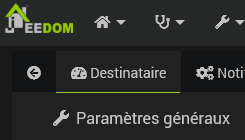
In this tab, the name of the recipient of the message is specified.
This can be the first name of the recipient for example.
In an upcoming evolution of the plugin, it is being studied to be able to use groups of people (Parents, … children) this is not yet implemented.
Configure Notification Actions
Second tab: Notifications
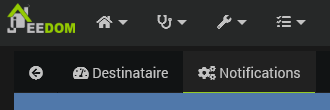
A notification is mainly an action command that will fetch the command from another plugin to launch an action.
For example:
- Sending an email via the mail plugin
- Sending a push via the PushOver plugin
- Sending an SMS via the Free SMS plugin
- Sending a voice alert via the Alexa-API plugin
- Ignition of a set-point or light
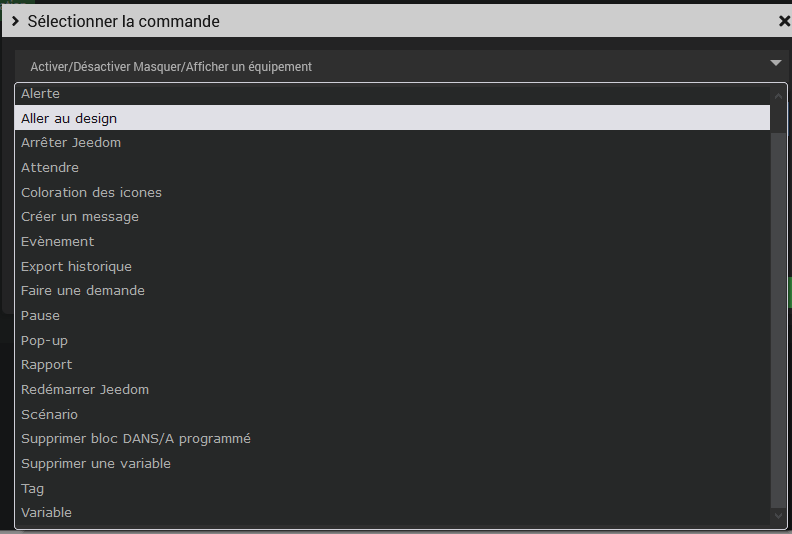
Action commands will be selected in the window that opens after pressing the button 
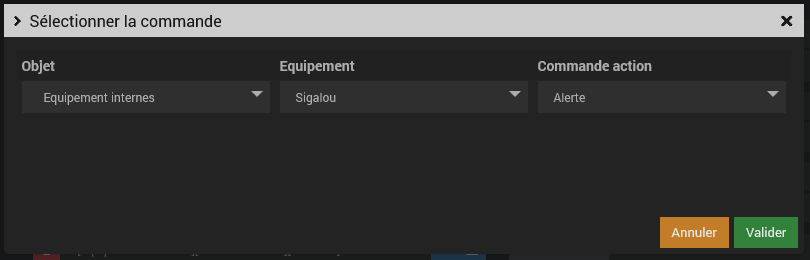
But notifications can also be light blinking commands or any sound or light means to warn a user.
A notification can also be the launch of a scenario or a change of variable (which would be tested by another plugin or scenario for example), all Jeedom commands are available by pressing the button 
Important details on the use of the Title and Message fields
Most notification plugins use fields Title and Message. But sometimes developers don't stick to this standard format and it may be that the fields are reversed or one of the two is missing. It is therefore provided for in Informed a simple way to recover values Title and Message to be sent to the addressee. They are recoverable thanks to the beacons: #titleInform# and #messageInform#.
Thus, in notification actions, you have two ways of working:
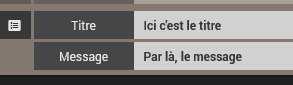
- Either you put the title and the message in the notification configuration screen, in which case it is what you have just written that will be sent to the recipient, this way of doing so does not allow the message to be personalised.
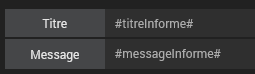
- Either, (recommended) you register #title# in the title box and #message# in the message box. With this mode, it is the title and message values that will be specified in the notification scenario that will be transmitted to the recipient.
Even stronger: If you want to use a message (so hard) and a tag (so variable), it works, for example, put:
- in the Title field: Jeedom informs you: #titleInform#, thus, ‘Jeedom informs you:’ will always be present and title will be inherited from the trigger command.
Configure Locations
Third tab: Locations
It is on this third and final tab that the configuration of the way in which the plugin Informed will contact the user is configured, this depending on the priority of notification and the time of notification.
First step, define the places
Specify for each user the places in which he can be found.
For this, there are 2 methods, you can choose one or mix them, the plugin accepts everything.
To choose the method you will use, think about how you will retrieve information about the user’s location.
1st case (manual method)
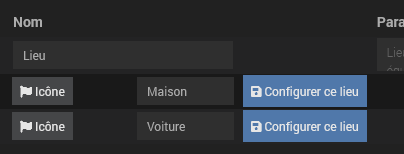
If you have a plugin or scenario that is able to send you a change of location command, you will integrate into the process of this plugin or scenario the launch of the "Car" command (which we will create) to tell to Informed that the user is in his car or you will enter the ‘Home’ command to tell Informed the user has returned home.
In this example of use, click on  then add the "Car" command and then click the same button again to add the "Home" command. At check-in, the ‘Place’ Info Order will automatically appear:
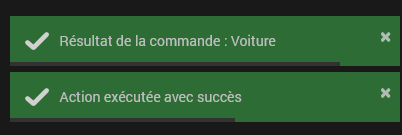
Thus the launch of the "Car" command will assign "Car" to Location.
2nd case (automatic method)
If you can find out where your user is by a calculation, it is the plugin that will automatically change the user’s location when this calculation gives the ‘true’ result.
To check the calculations, on the right, a small inch indicates whether the result is "true" or not. Warning when you are on the configuration screen these thumbs do not change on their own, you have to click on Save to refresh the page.
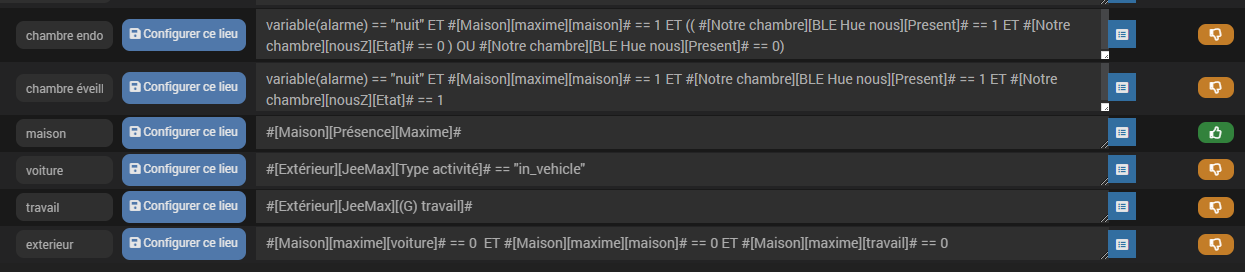
If several calculations are ‘true’, the highest place in the table will be used by Informed.
If no calculation gives the "true" result, it will be necessary to include at the bottom of the table a place that will be used in this case, and for it to be always true, it will be necessary to put 1 in the calculation box.

Second step, configure each place thus created
Once the locations are defined, it is on each location that we will define the way in which the plugin Informed will find the right way to contact the recipient.
The ‘Configure this location’ button opens the configuration screen on each line.
When first opened, the screen looks like this:
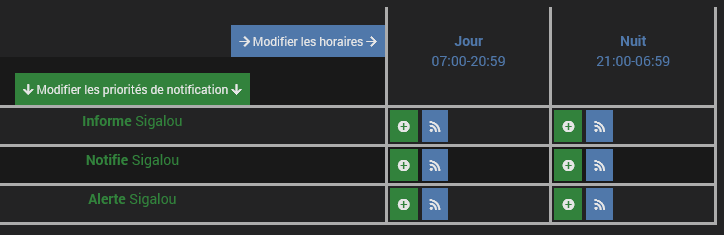
On the first column, in green, you can see the three priority levels defined by default:
- Informed
- Notifies
- Alert
These levels are editable, deleteable, and you can add your own levels. If you don't want to make a difference between places, use a single place that you can name "Everywhere."
On the first line, in blue, you can see the two hours set by default:
- Day (from 07h to 20h59)
- Night (from 9 p.m. to 6:59 a.m.)
These schedules are editable, deleteable and you can add your own schedules. If you don't want to make a difference between schedules, use a single schedule that you can name "All the Time."
 These two buttons are available, the + green button allows you to add an action, the blue button allows you to test the actions you have just added.
As an example worth all the speeches, here is an example of the configuration of a place, each of which will obviously adapt:
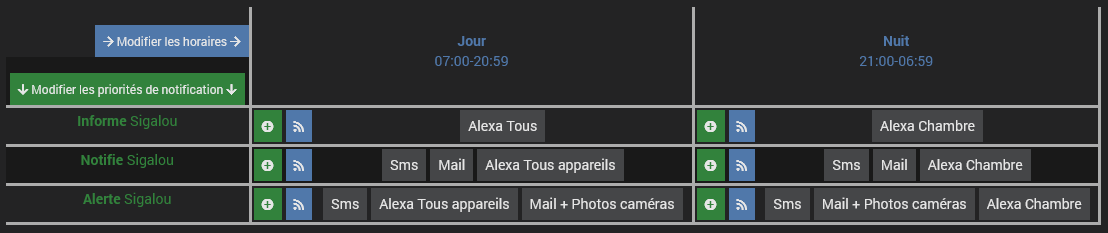
Thus, we understand that if we are the day and we ask the plugin to inform Sigalou, he will send a message about all the Alexa in the house. After 9 p.m., however, it will only trigger the Alexa of the Chamber.
- To add a new action, click on the + green button of the relevant box
- To delete an action, just click on it
Use commands in your scenarios
When everything is configured, you can use the commands Informed. These commands correspond to the notification priorities. In the configuration examples, we used as notification priority:
- Informed
- Notifies
- Alert
Thus, in this example of use, you will find 3 commands: Informed, Notifies or Alert.
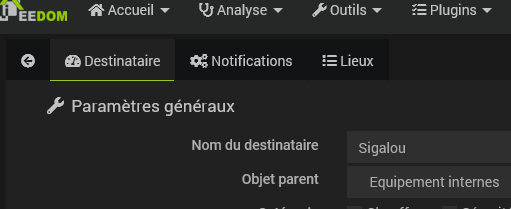
In the image above, we can therefore find:
- [In-house equipment] this is the parent object specified in the Recipient tab
- [Sigalou] this is the name of the Recipient
- [Alert] it is the command that corresponds to the Alert notification priority.
Other resources
- Tutorial: Discover the Informe plugin
 English
  French
  Spanish
  Chinese
  German