

⚠⚠ Attention, old article. ⚠⚠
⚠⚠I have since abandoned Norton Password Manager in favour of KeyPassXC ⚠⚠
This application, which is essential to securely store your passwords, is available free of charge if you know how to do it.
As explained in the tutorial Web Password Management do NOT store your passwords in your browser.
Here's a step-by-step guide on how to use NPM.
Create a Norton account
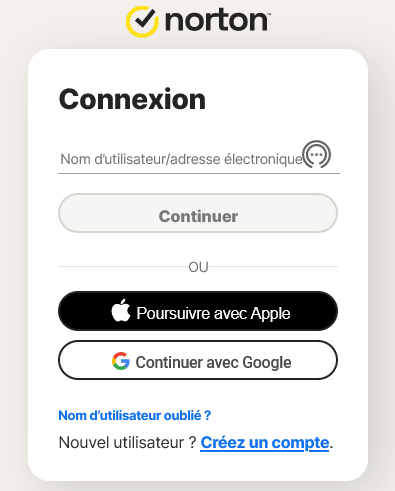
- Click on Create an account
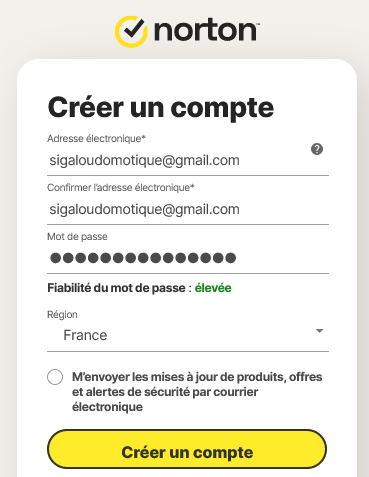
I put MMdPsNORTON123! which corresponds to "My Norton 123 Secure Password!"
IMPORTANT: The password you choose will be the ONLY one you need to remember and will validate your access to all other passwords. We must therefore not lose it and above all choose it well in order not to forget it but above all to make it quite complex.
(don't waste time trying my account, this password is an example)
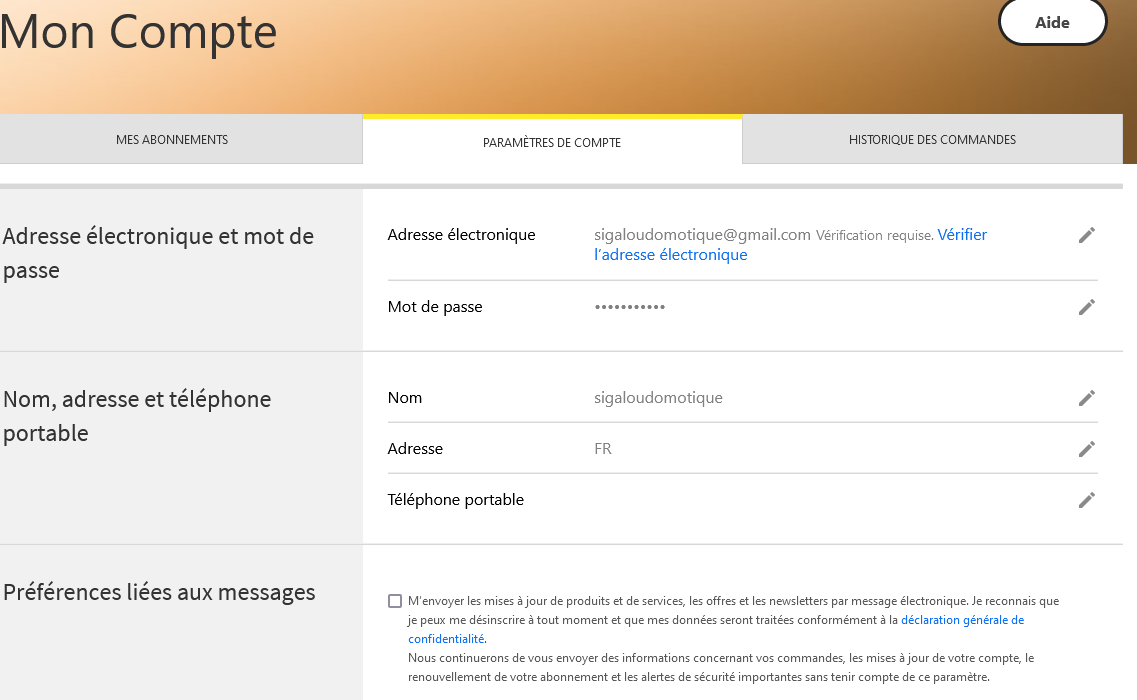
- Click on Check the email address and go to the mailbox
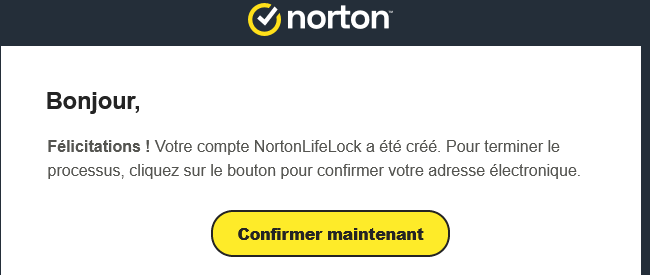
- Click on Confirm Now

The email address is now referred to as ‘verified’, and it will be necessary to return to this screen later to enable two-factor authentication.
Install Norton Password Manager on the browser
Do not look for a Windows application, this would add an unnecessary layer and therefore a potential security flaw, Norton chose to integrate its functionality directly into browsers.
You must therefore launch your preferred browser and add the Norton Password Manager extension.
I am not going to copy the doc of Symantec, a help page is already online:
To illustrate this tutorial, here is the Firefox screen that amuses me a lot, they went to write "The security of this module is not controlled by Mozilla. Make sure it is reliable before you install it.” This is ready to smile in our case.
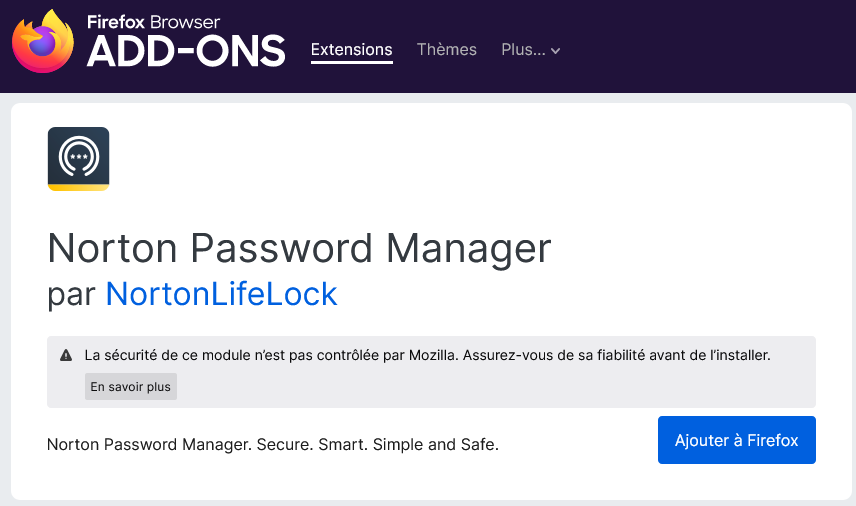
Once installed, an authorisation is requested:
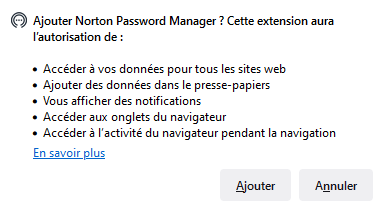
To the next question, it is you who choose according to what you do or not in your private navigations, for my part, I do not tick
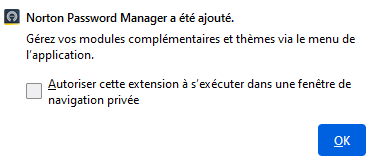
At the top right, a new small icon is added (the circle with the red dot)
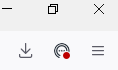
The red dot draws our attention to click on it, a new request for authorisation is requested, click on Accept
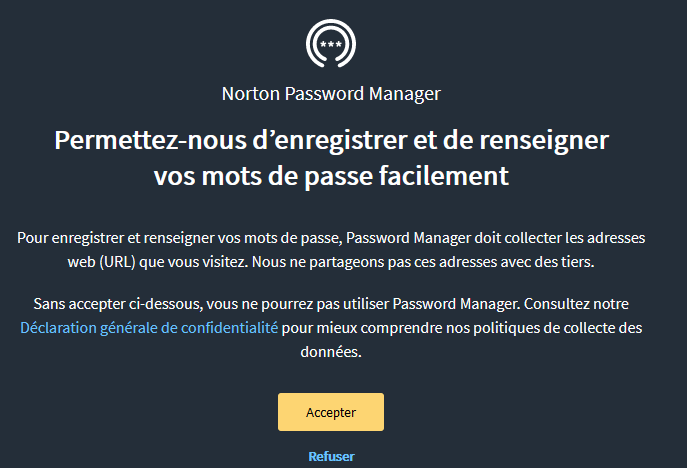
The following screen offers two ways to identify yourself:
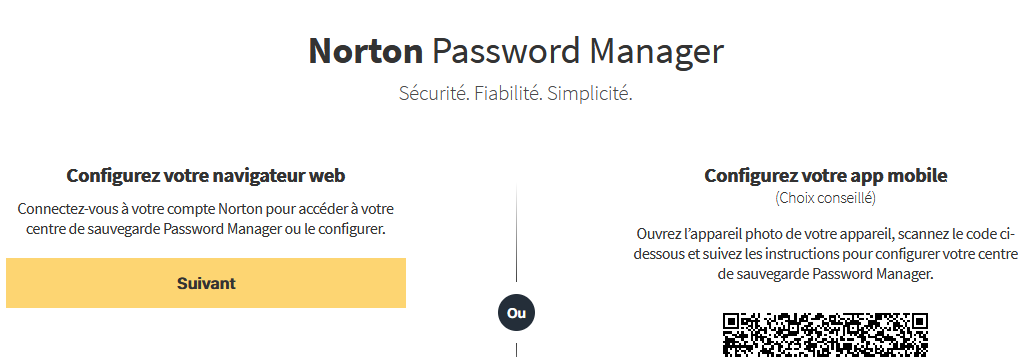
Norton advises to start with the mobile app “choice advised”, I have always done the opposite. As I am a fathead, I will continue this way, if you are a player, follow their recommendation. Otherwise, continue the tutorial and its instructions:
- Click on Next
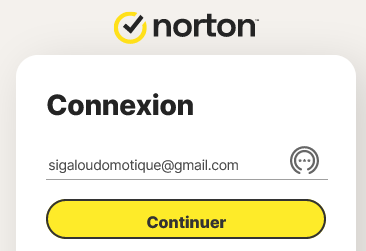
- Put the mail then Continue
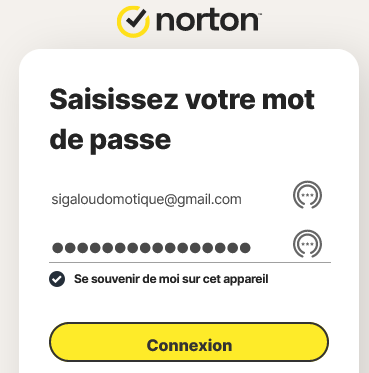
- Enter your super password then Connection
Once identified for the first time, Norton will offer you to create your own Backup Center, at first it is not clear what it is. To put it simply:
- Your login/password (which you have just entered) is equivalent to your access to your bank, your account number by analogy
- Your backup center is your dedicated safe within the bank
The backup centre (or safe) principle is useful for other (paying) applications offered by Norton, at this point we could have dispensed with Norton Password Manager but since Norton chose to put it in the safe, consider it a good thing.
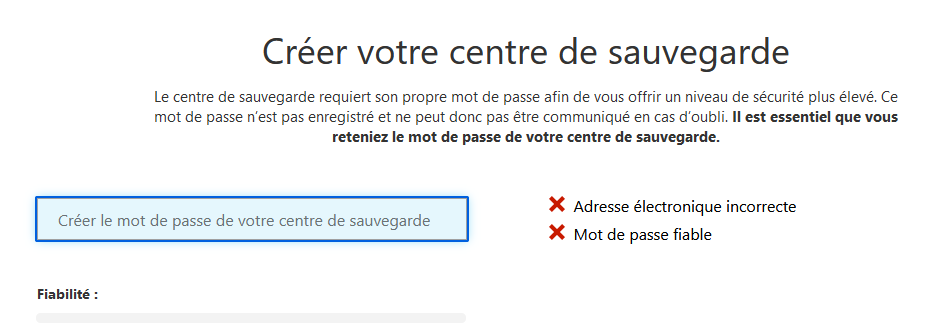
For ease of reference, I chose to put the same password in the Norton account as in the Backup Centre. Security experts would probably throw rocks at me. But everyone does what they want, so you do what you want, for my part, I give the same password: MMdPsNORTON123!

Everything turns green, so Norton does not forbid the same.
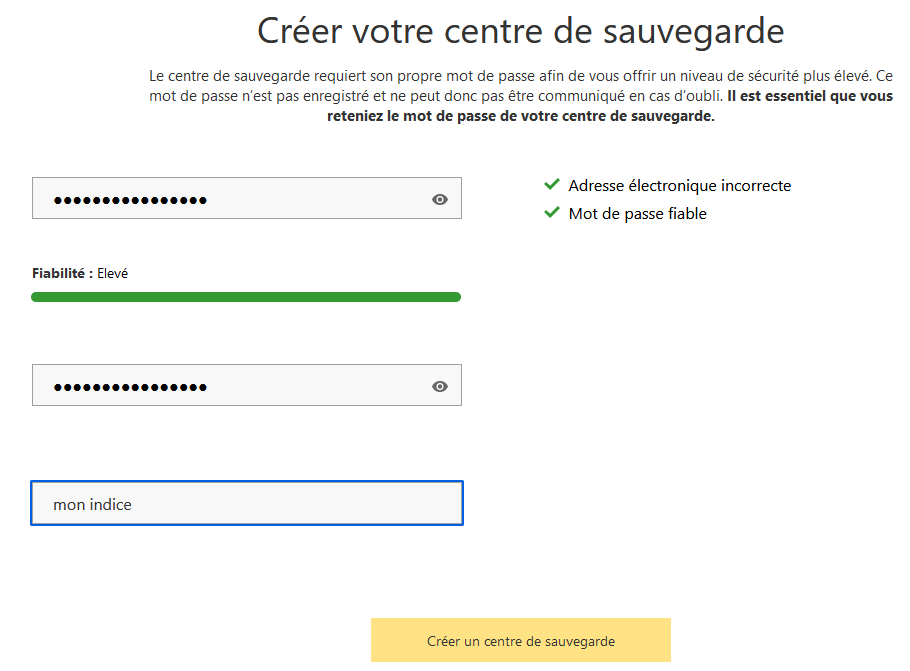
You have to enter it a second time and if you want, you can add a … index and then click on Create a backup center
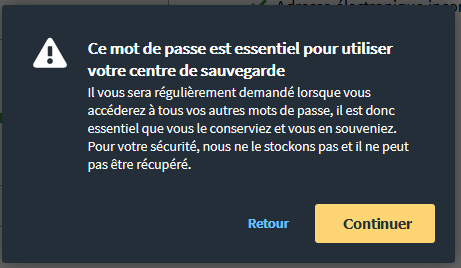
Norton then offers to use the phone to unlock the backup center, it is a very good option but we will first install the app on the phone, so choose Later
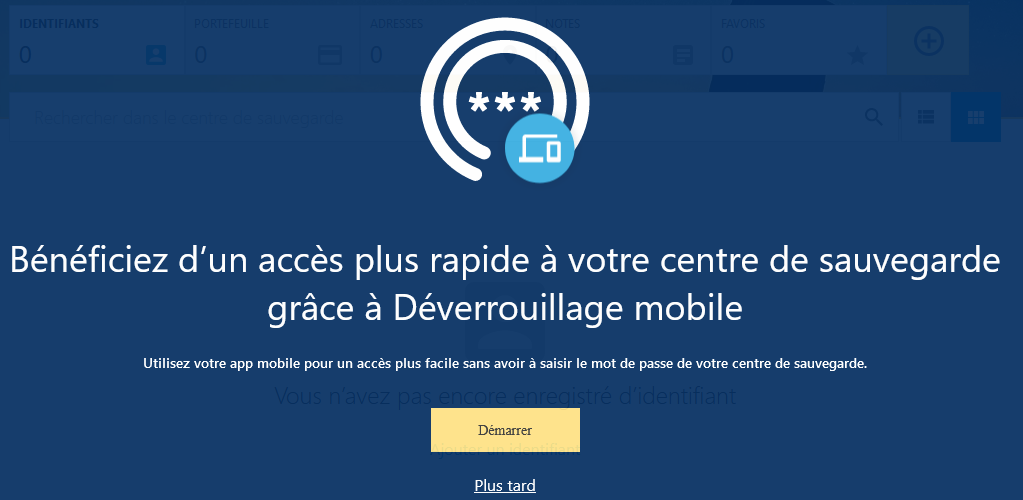
How to use Norton Password Manager on the browser?
A lot of things are automatic, it is NPM who will know which site you are on. It will detect on its own whether to enter a password, a credit card number or any confidential information. If you log in the first time on a site, it will detect it and it will record.
We finally have little access to the backup center but we can go there to see what is recorded.
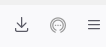
At the top right (for Firefox), click on the NPM icon
At this stage of the demonstration, my backup center is empty
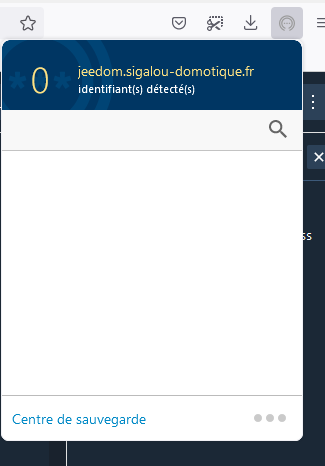
If you want to go to the page dedicated to your backup center, you click at the bottom of the small window (picture above) on "Backup Center".
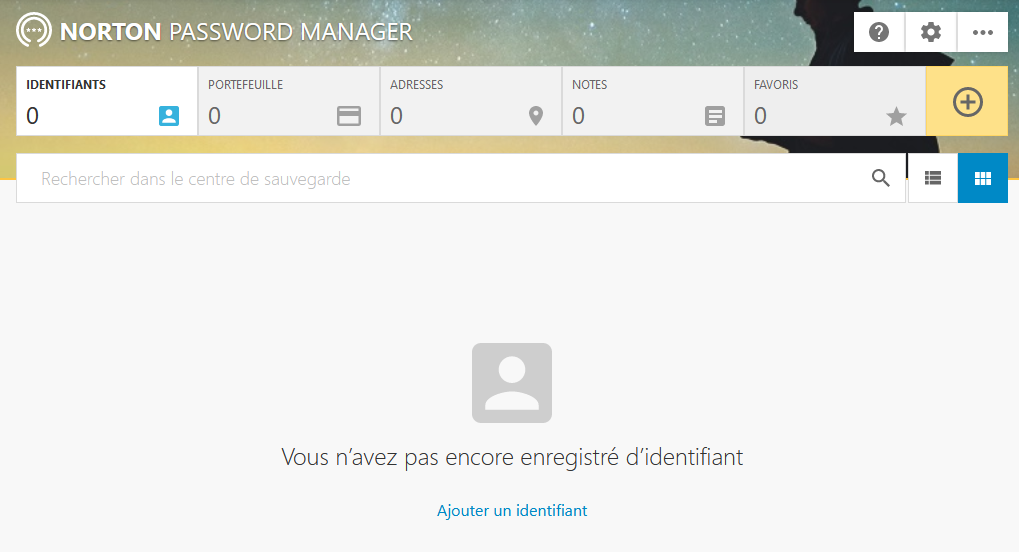
You can, of course, manually add your credentials, which is not very practical because the great advantage of having a password manager integrated into the browser is that it will automatically fill in your passwords. To do this, he must be allowed to save them on his own, in order to advance him, he will thus know on which pages he will have to return them.
I will make a demonstration with the identification of my gmail account created for the occasion.
- Go to https://mail.google.com/
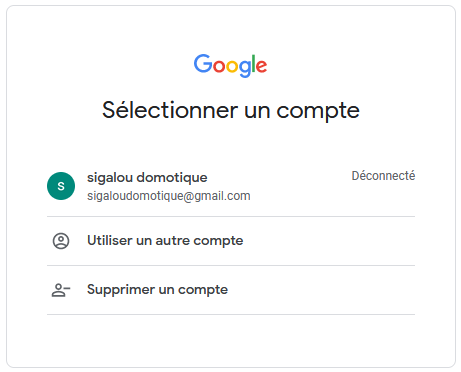
I select the gmail account I want to use, Google asks me for the password
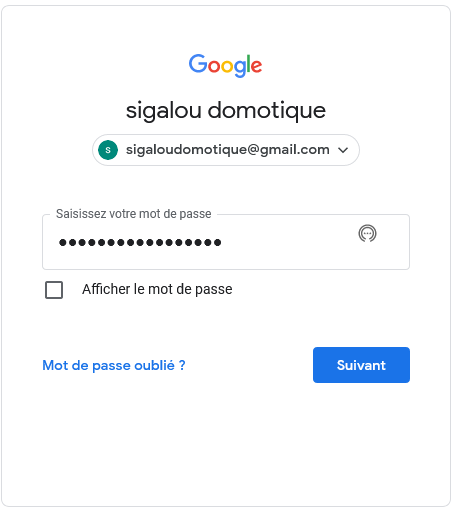
When I click Next, NPM will detect that I have just entered a password and it will offer me to save it in the backup centre
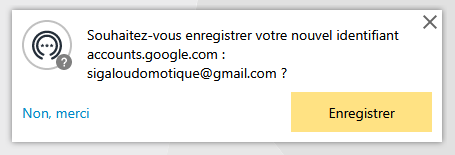
This is when you have to click on Save, This is important, and the login page address, email and password are saved in the Norton Backup Center.
A small message at the bottom right confirms the correct recording
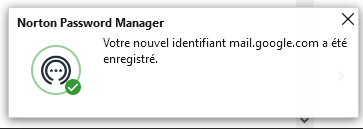
This procedure will only have to be done once, I can forget my Gmail password, it is in the backup centre.
It is possible to check in the backup centre whether the recording has worked well
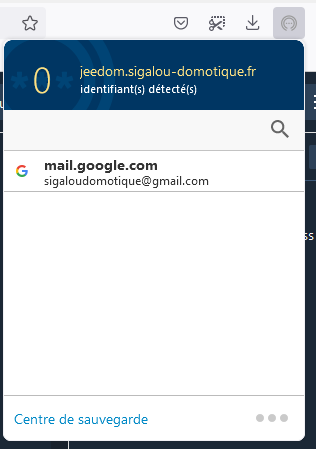
What if we go to the backup center
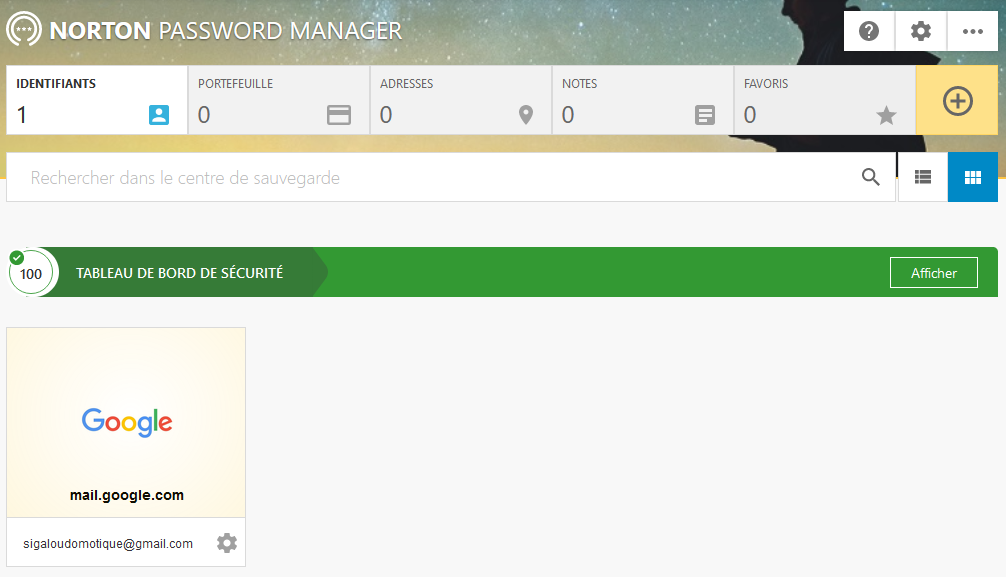
Next time we go to Gmail, it is Norton Password Manager who will fill in the form, demonstration by going to the Google ID page, we get a mini popup that shows that NPM has detected the page and offers a password
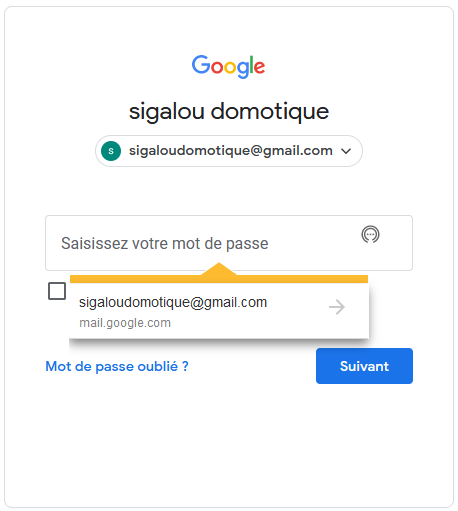
Simply click on the yellow hat popup and the password will be registered. The trick is done.
Install Norton Password Manager on the phone
Nothing good sorcerer, go to his favorite Play store and search for Norton Password Manager
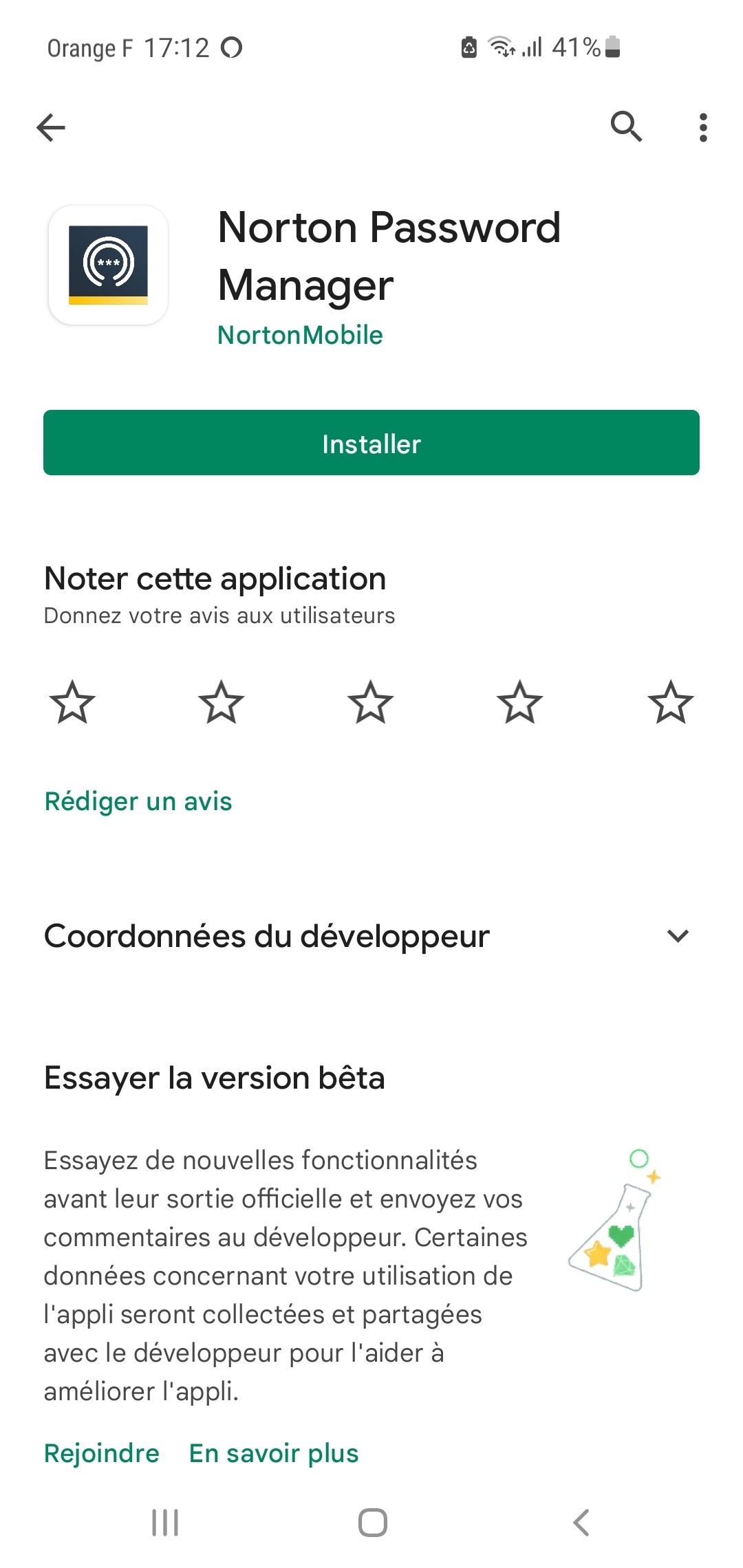
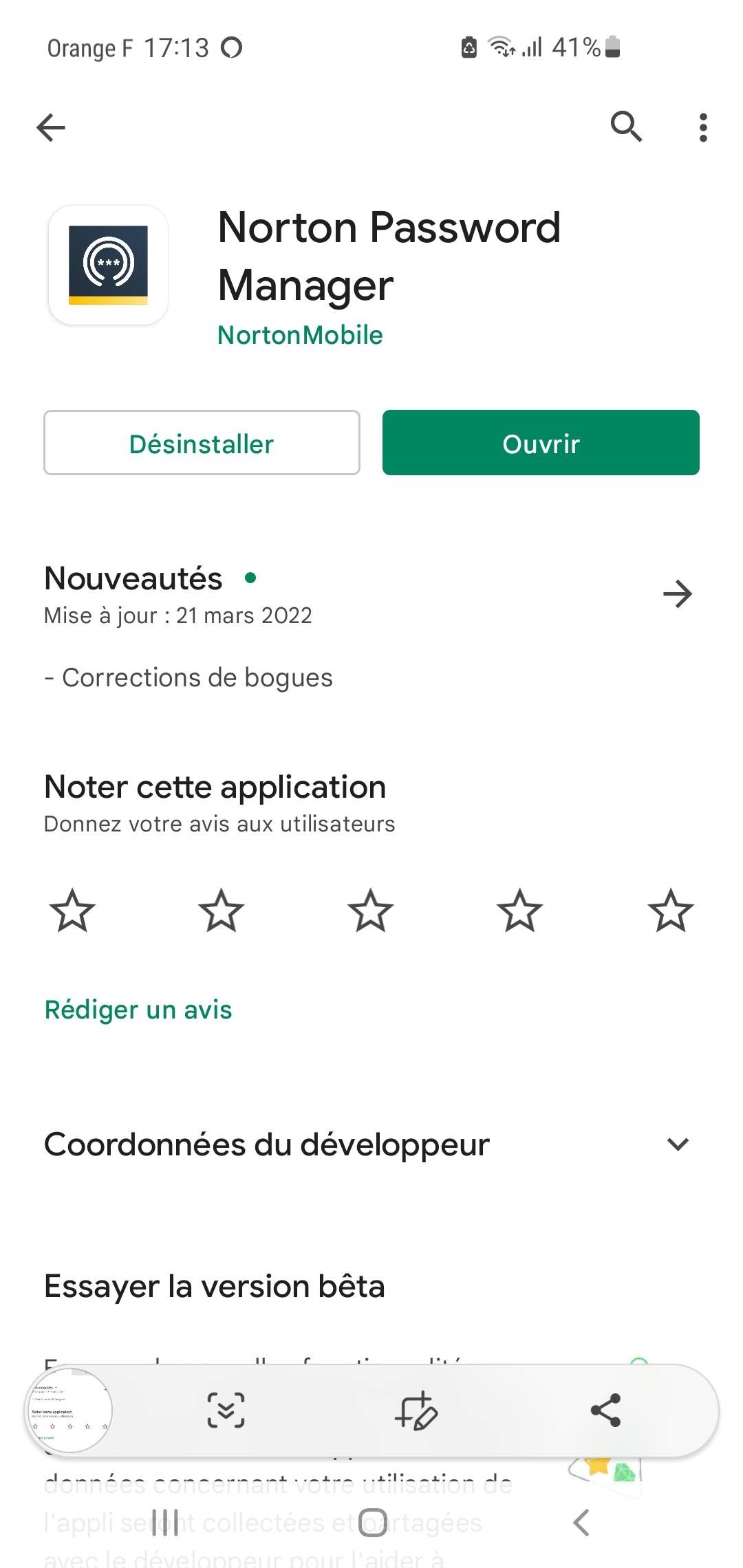
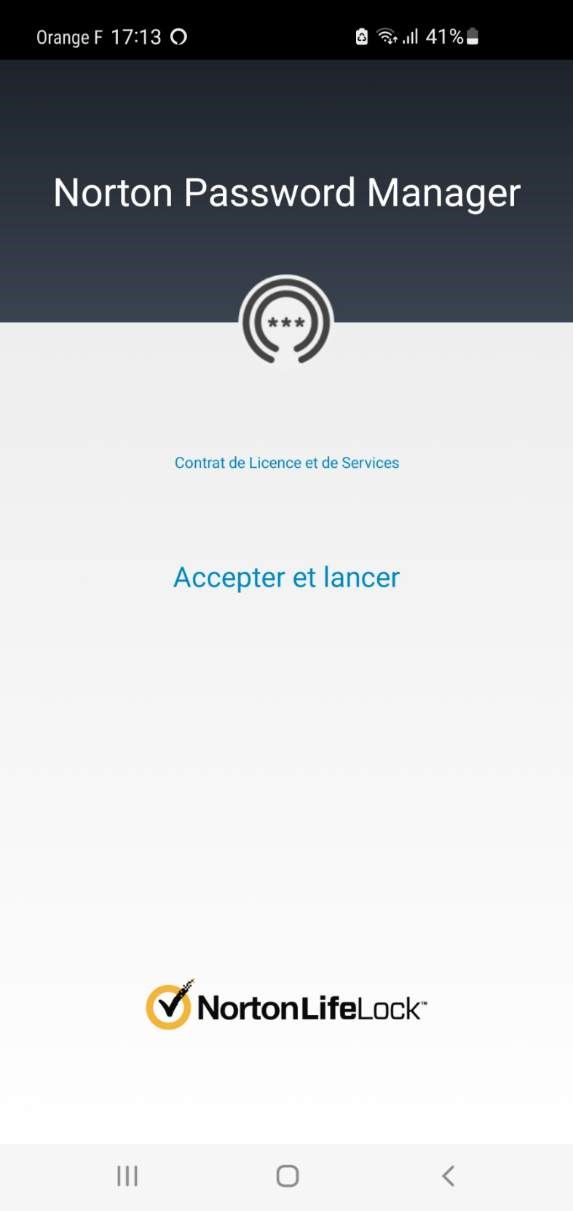
Then you identify yourself with Login/Password and enter the password of the Backup Centre (for me the same as the previous one).
And there, it is magical, you access your backup center that contains your Google password.
Use the phone to secure your access to the backup center
It is really convenient to dLock your backup center in one move from your mobile device. This avoids having to enter a password like MMdPsNORTON123! every time.
1. On the Phone
- Once identified and connected to your backup center, press the 3 horizontal bars at the top left
(Sorry, I cannot make a screenshot, Norton locks them as a security measure).
- Settings
- Backup Center
- Add this device
2. On the browser
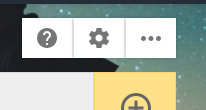
- Click on the notched wheel at the top right
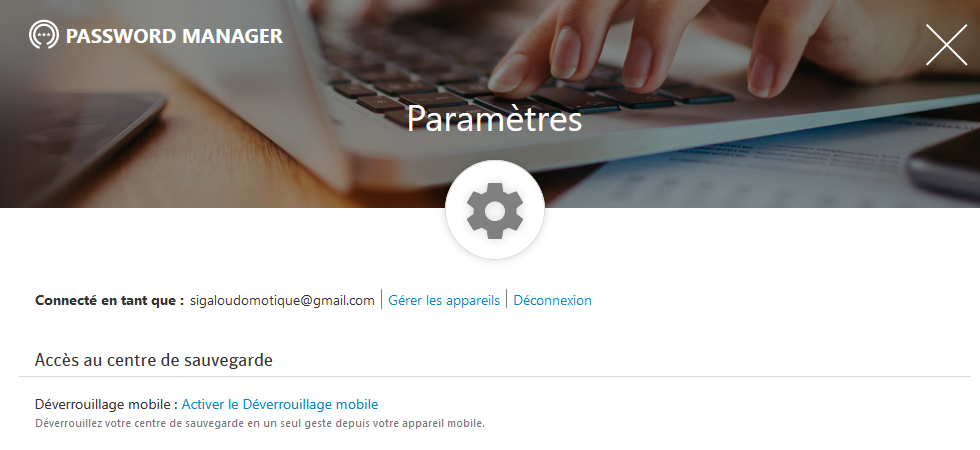
- Click on Activate Mobile Unlock
The phone is detected, leave checked "Always run Mobile Unlock when the browser starts" and Activate then Finish
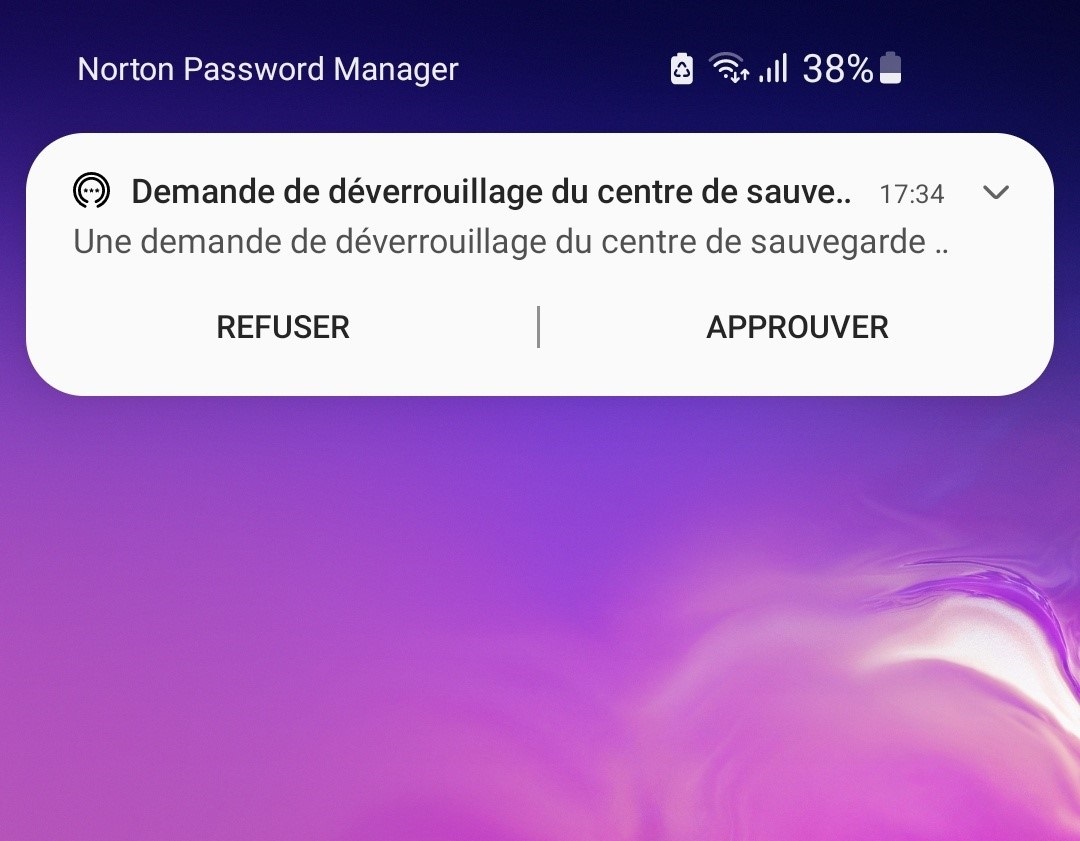
The next time you open your browser, you will receive a push notification on the phone, just approve the opening of the backup centre and that is it. No password to enter.
 English
  French
  Spanish
  Chinese
  German