

State of play on Jeedom
For now, my ESP (mostly Sonoff) is under ESP-Easy with the link to Jeedom via the plugin:
Integration in Home Assistant
At this point, I don't want to reflash ESPs (with ESPHome for example) because I would like ESPs to be able to dialogue with Jeedom. and with HA.
Adding a new controller in ESP-Easy
I helped myself with Dapolux's tutorial on https://forum.hacf.fr/t/integration-desp-sous-espeasy-via-mqtt/2326.
To add a controller, go to the ‘controllers’ tab and add a second ‘Home Assistant MQTT’ controller.
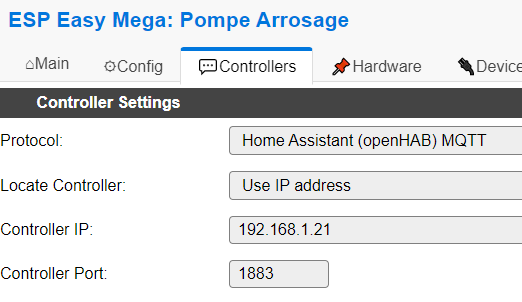
192.168.1.21 corresponds to the MQTT broker, on my config it is on the same machine as Zigbee2MQTT but depending on the configuration you can decide to have the MQTT broker elsewhere.
Note: I used to put the end of the IP address in Unit Number to make sure I didn’t have two identical Unit Numbers on my installation.
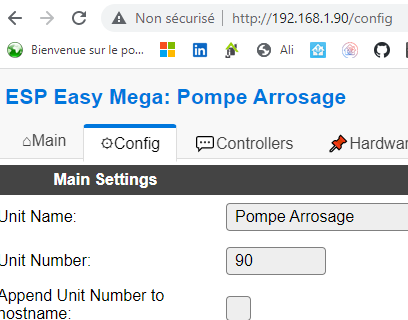
On each device on the ‘Devices’ tab, tick ‘Send to Controller 2’ so that the information is sent to controller 2 (i.e. MQTT to HA)

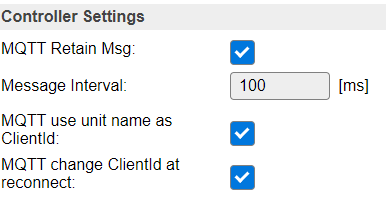
In the ‘Tools’ tab and then ‘Advanced Settings’, tick these boxes:
Checking MQTT Frames on MQTT Explorer (Invoicing)
I like to check step by step that everything works.
I launch MQTT Explorer, I connect to my broker in 192.168.1.21, I check that the frames of my equipment "Pump Watering" (in my example) appear well.
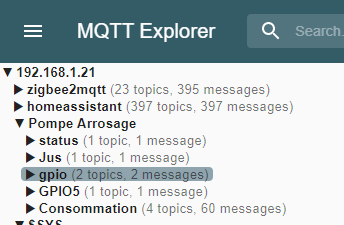
So I know that my ESP sends the information well.
Configuration on the Home Assistant side
Automatic discovery Not foreseen from ESP Easy, we're going to have to configure manually MQTT equipment in HA.
I chose this ESP as an example for this tutorial because I have 3 different pieces of equipment to recover: a switch, a binary _sensor, a sensor
The Juice Switch
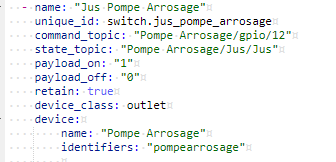
The ESP GPIO12 corresponds to the control of the relay that powers or does not power the pump.

I have often used the same word in name and in value (“Juice” in the example) to avoid confusion, be careful if you do not do this. The order to be followed in the HA configuration is [UNIT]/[NAME]/[VALUE]
- In the file /config/configuration.yaml
Check that there is this line:
mqtt: !include mqtt.yaml
- In the file /config/mqtt.yaml
switch:
– Name: Juice Pump Watering
single _id: switch.jus_pump_watering
command_topic: Pump Watering/gpio/12
state_topic: Watering/Jus/Jus Pump
payload_on: "1"
payload_off: ‘0’
retains: true
device_class: outlet
device:
name: Watering Pump
Identifiers: "Pump watering"
The binary _sensor " Floater"
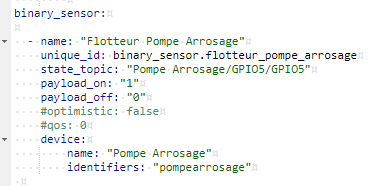
The ESP GPIO5 is an analogue input that corresponds to the position of my float in my water reserve. I switch off the pump if the float switches to 0.
[Note that “GPIO5” is the name and value in my example, I could very well have put “Floater” too]

binary_sensor:
– Name: Float Pump Watering
single _id: binary_sensor.floater_pump_watering
state_topic: Water Pump/GPIO5/GPIO5
payload_on: "1"
payload_off: ‘0’
device_class: moisture
device:
name: Watering Pump
Identifiers: "Pump watering"
The "Consumption" Sensor
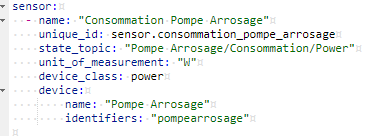
The ESP I use is equipped with a CSE7766 chip that allows me to retrieve the pump consumption information.
What interests me is the W consumption of the pump, I will recover ‘Power’

sensor:
– Name: Consumption Pump Watering
single _id: sensor.consumption_pump_watering
state_topic: Watering/Consumption/Power Pump
_of _measurement unit: W
device_class: power
device:
name: Watering Pump
Identifiers: "Pump watering"
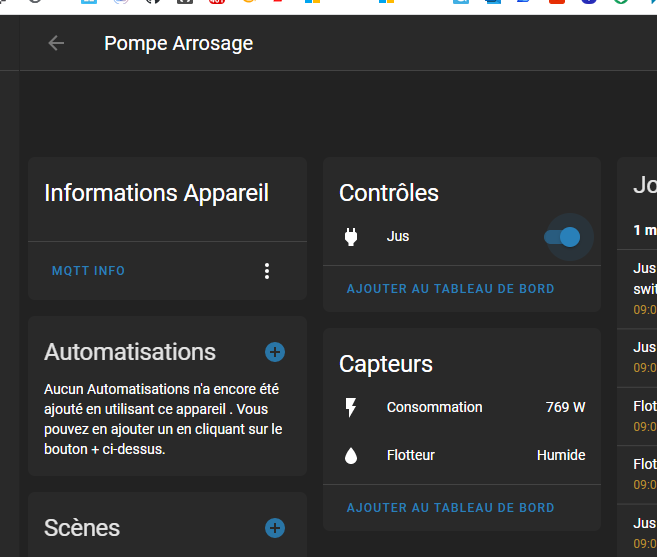
Result in Home Assistant
 English
  French
  Spanish
  Chinese
  German