

My goal
In order to raise awareness among users of the Microsoft 365 tenant I use, I looked at how to create a phishing campaign to ‘trap’ them and trigger training on this topic.
Prevention messages and digital hygiene campaigns are not enough, it takes a concrete fact to try to trigger awareness.
Disclaimer
At the risk of repeating myself, my objective is not to launch a direct mail campaign or phishing, it is a pedagogical one.
Note that the elements explained below will not work if you are not an administrator of the Tenant to attack since you must authorise the GoPhish IP, without this authorisation, the phishing campaign is blocked by Microsoft’s security systems (Thank you!!)
Tools used
- Obviously, I use the Microsoft 365 Tenant to which I will ask to authorise the sending IP of my campaign as well as the famous 5321.MailFrom (or envelope sender).

- GoPhish in version 0.12.1 on the day of writing of this RetEx
- Amazon’s AWS platform and more specifically EC2 instances

I create an Amazon AWS account
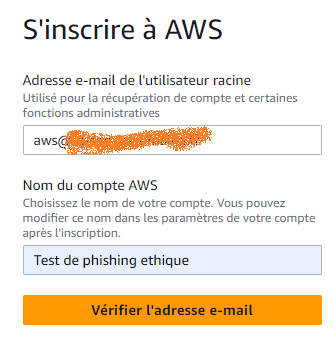
Go through the 5 steps and then:
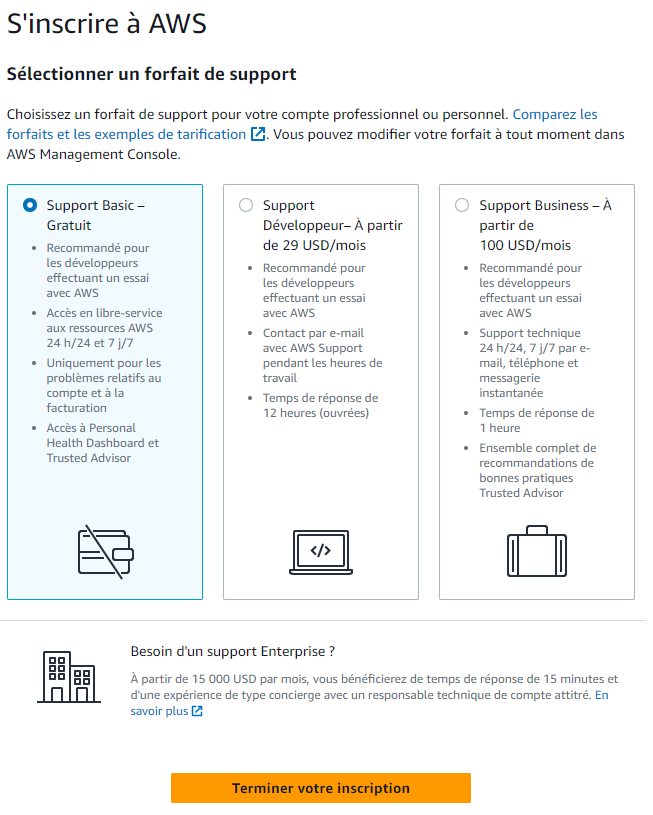
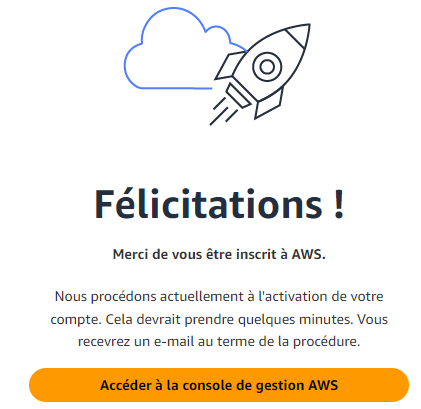
I create an instance on EC2
Everything I explain about this part is completely free, we can benefit of the 1-year tender, that is enough for my need.
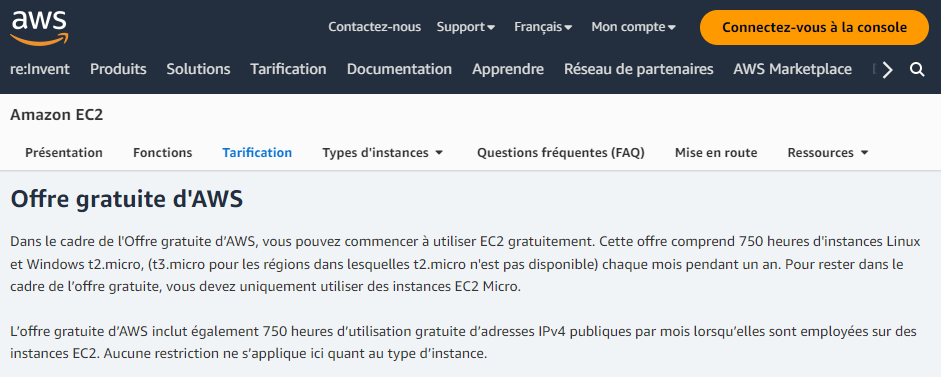
You must have created an account on AWS and then go to Amazon EC2

At the top right, check that you are in the Europe/Paris Region

then
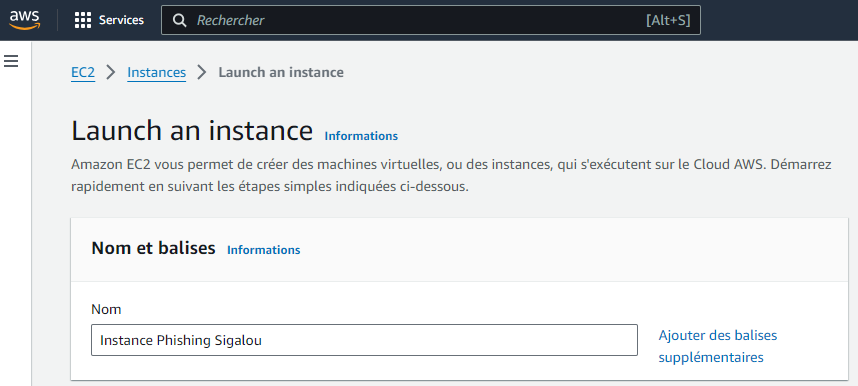
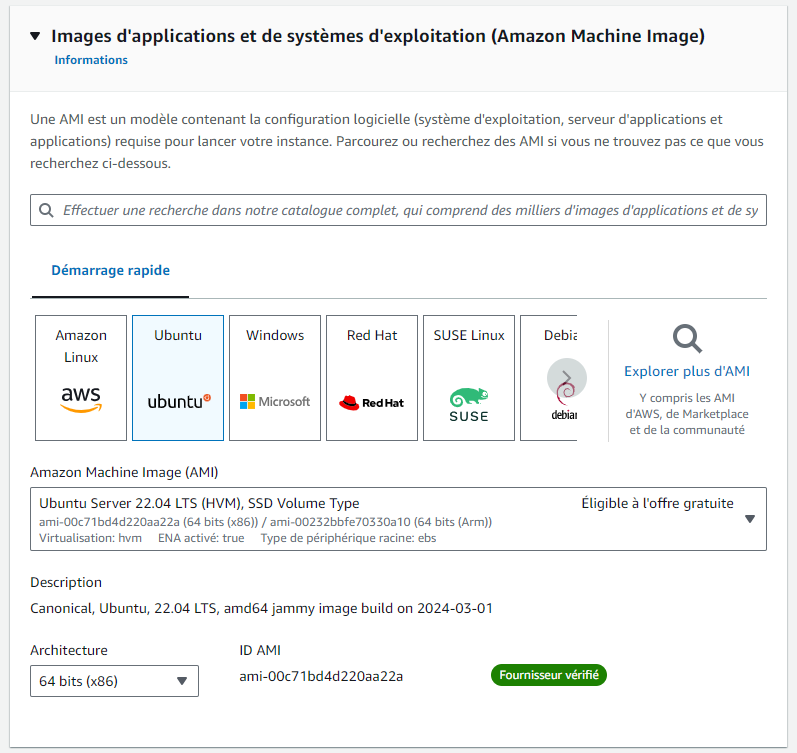
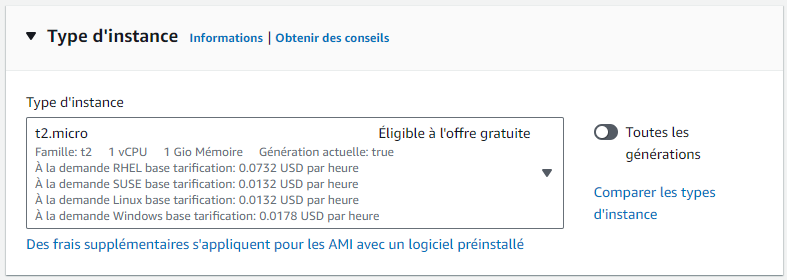
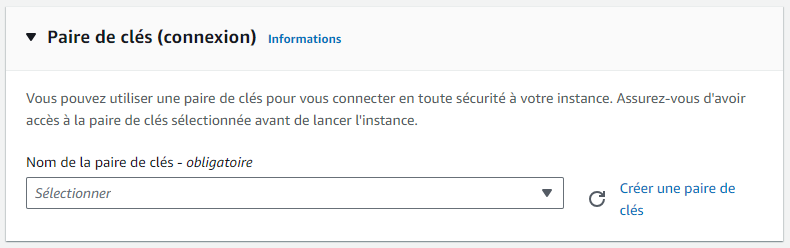
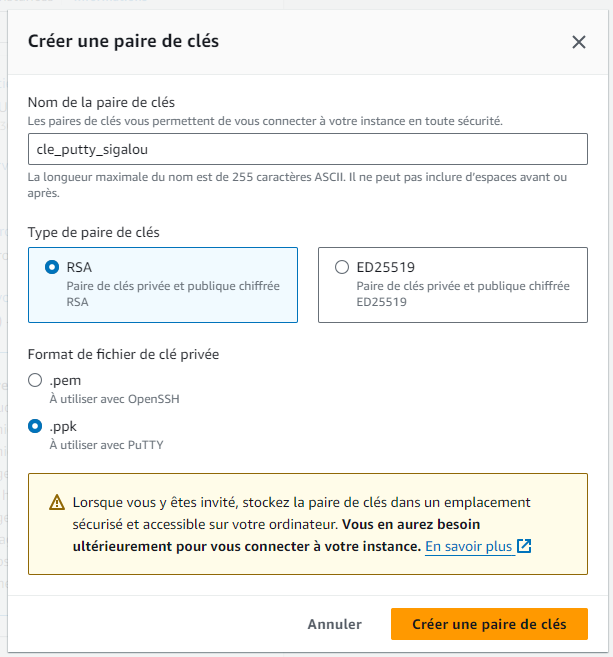
I download the key file, be careful to take a ppk file and not pem.
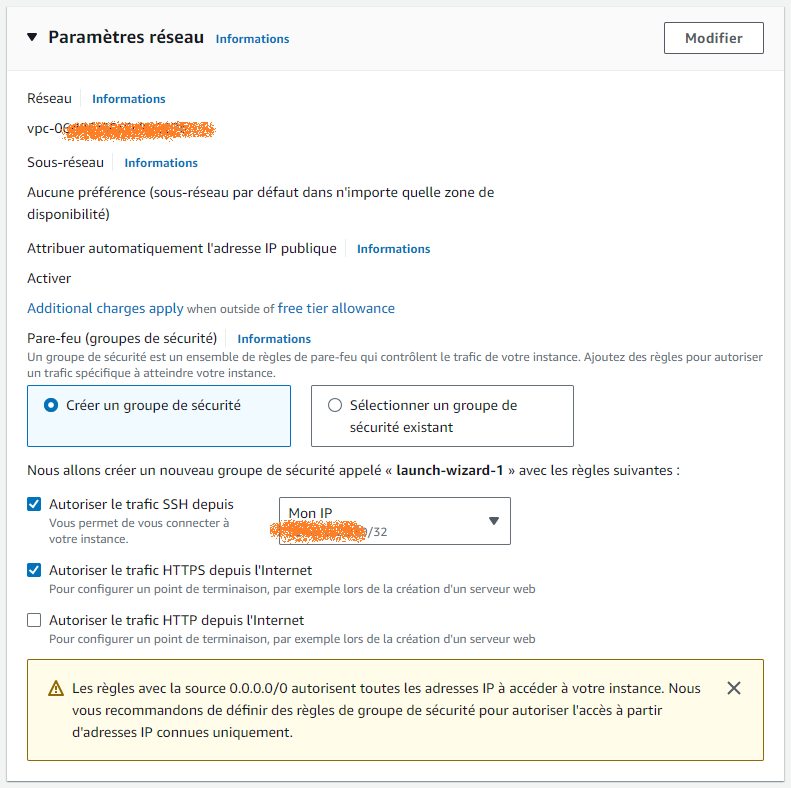
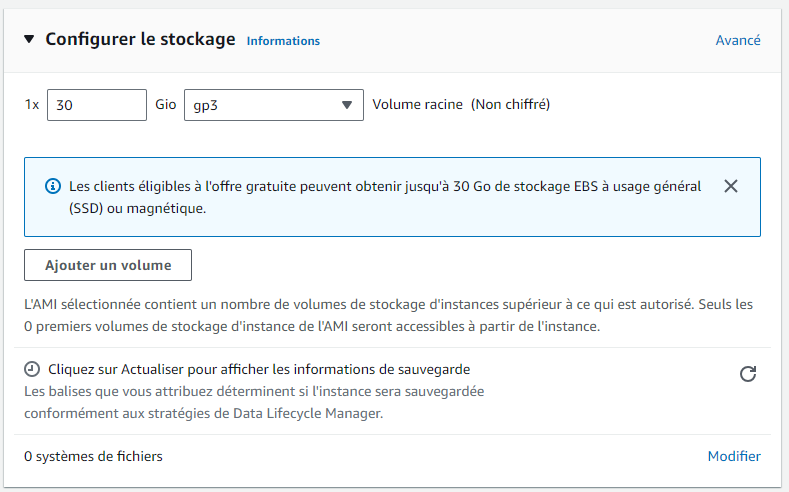

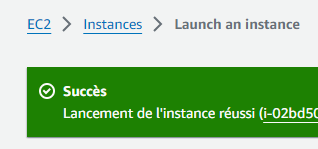
Once everything is installed and launched, I have everything green:

I configure the security group of my instance
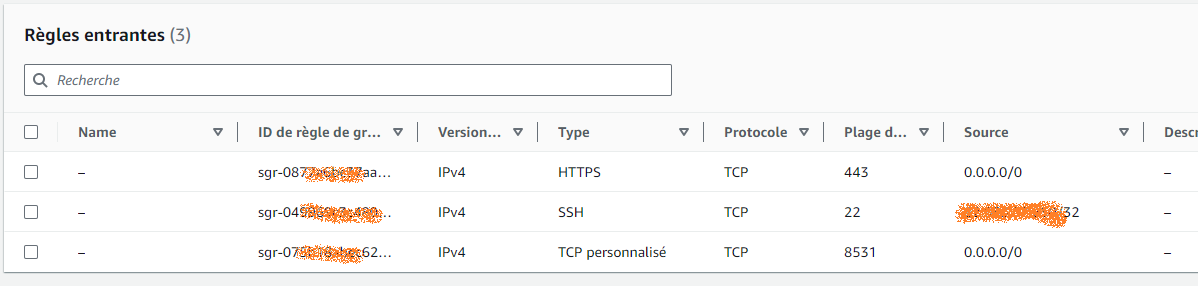
As a security measure, I have already reserved SSH access to my only IP address via the instance creation wizard, now I need to configure the ports to be used by GoPhish.
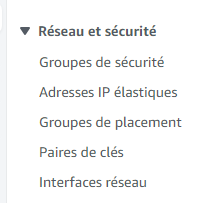
I go to Network and Security then Security Groups, I select the launch-wizard group, incoming rules, modify incoming rules
I add a custom TCP entry with a port number other than 3333 which will be the port number I will use for GoPhish, I put 8531 for example.
I use an Elastic IP address (optional)
To always have the same IP address, I use this feature.
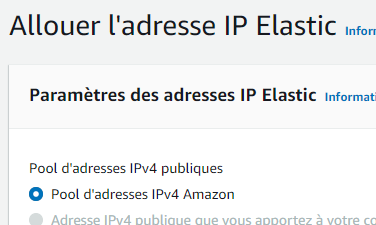
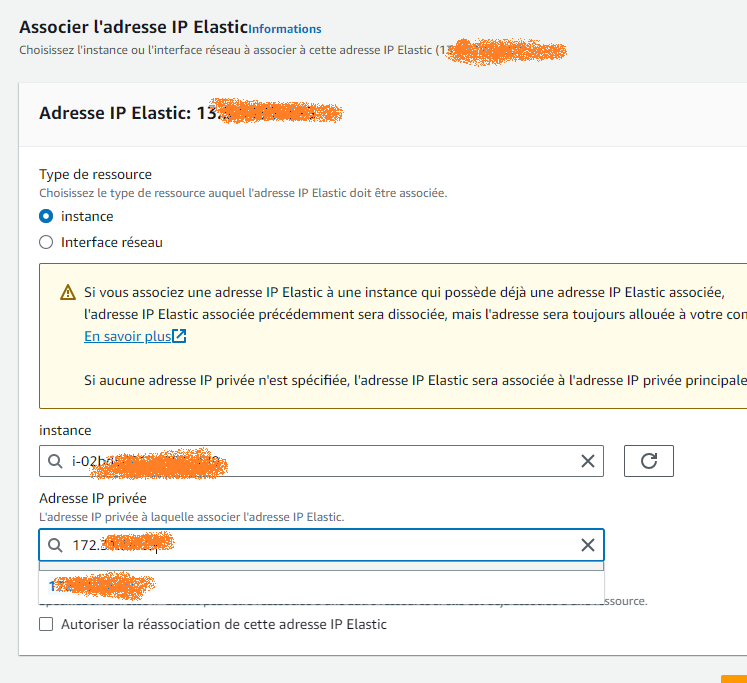
Please note that elastic IP addresses pay when they are not associated with a running instance. This means that if you book an elastic IP address but do not use it, you will be charged. However, once an elastic IP address is associated with a running instance, you will not be charged as long as the instance is running and the IP address is associated with that instance. If the instance is stopped or terminated, you can still be charged for using the elastic IP address, unless you disassociate it from the instance or release it.
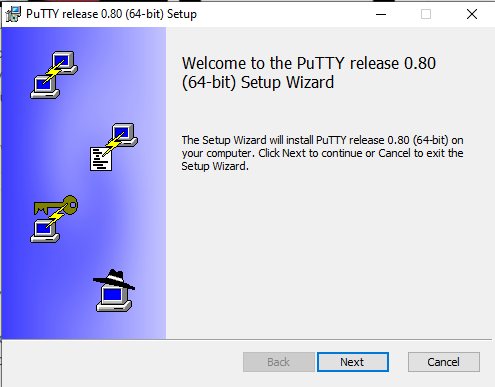
I install Putty
Putty will allow me to connect in SSH to my EC2 instance, this in a secure way with a key set (private / public).
I need to retrieve the connection settings on the instance.
To do so, I right-click on the instance and then ‘log in’ / SSH Client.
I note the public DNS that is given to me, it will serve me for Putty’s host

I launch Putty, I add the Host:
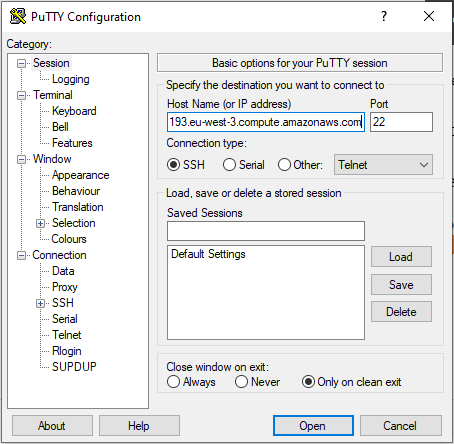
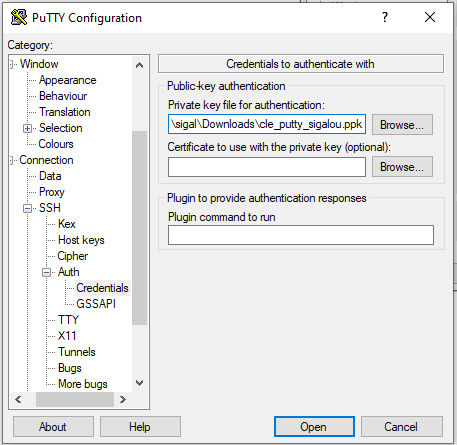
then I specify the private key file created above:
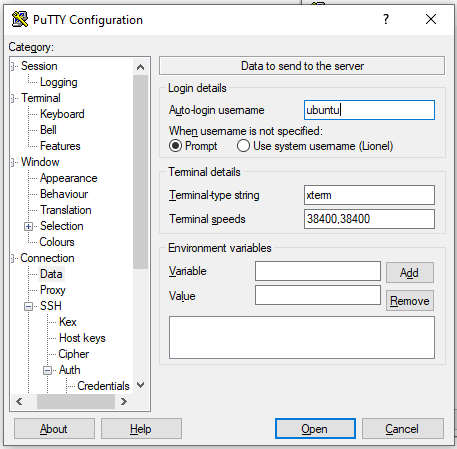
To make it simpler, I add user ubuntu as Auto-login in Connection/Data
I start the connection, it's okay, I have the Ubuntu command line.
I install GoPhish
I will look for the latest version that needs to be downloaded on the Official Github Depository.
On the day this RetEx was created, the latest version is here:
https://github.com/gophish/gophish/releases/download/v0.12.1/gophish-v0.12.1-linux-64bit.zip
On the Ubuntu command line, I load the zip file and unpack it in opt/:
wget https://github.com/gophish/gophish/releases/download/v0.12.1/gophish-v0.12.1-linux-64bit.zip sudo apt install unzip unzip gophish-v0.12.1-linux-64bit.zip -d ./gophish rm gophish-v0.12.1-linux-64bit.zip sudo chmod +x ./gophish/gophish
I will have to configure the gophish IP and its port.
To do this, I modify the config.json file
cd gophish vim config.json
I replace 127.0.0.1:3333 with 0.0.0.0:8531 on the listen_url line
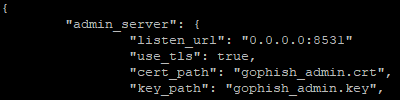
I throw gophish
./gophish
I get an error message, probably security on listening to port 80 by a non-root user, I quickly tried to fix this with ipfw but it is not on my machine and with iptables, I had nothing more satisfactory. It is rather ugly and unadvised, but as my Ec2 instance will not remain in production, I launch a:
sudo ./gophish
All right, my GoPhish is launched
in the text of the command line, I retrieve the password given to me on the line
Please login with the username admin and the password xxx
I want to use Gophish without keeping my SSH window open (optional)
I add this paragraph here for more consistency but it can be run later when Gophish will work manually.
I authorise the launch of Gophish without being root (sudo)
To avoid having to use a command sudo to launch Gophish, I will authorise the user ubuntu to interact on port 80 which is a privileged port. Indeed the order cap_net _bind _service allows this executable (gophish) to link network sockets to ports with a number less than or equal to 1024, even if it is not run as a root user.
sudo setcap 'cap_net _bind _service=+ep' /home/ubuntu/gophish/gophish
Thus, from now on, no need to type sudo to launch gophish, the command can be:
./gophish
Open gophish_admin.key error message: permission denied
If this error message appears, you must change the permissions of the gophish_admin.key file
Here are the orders:
cd ~/gophish ls -l gophish_admin.key sudo chmod 644 gophish_admin.key sudo chown ubuntu:ubuntu gophish_admin.key ls -l gophish_admin.key ./gophish
I declare gophish as a service
I'll add a file gophish.service in /etc/systemd/system/gophish.service
[Unit] Description=GoPhish Service After=network.target [Service] ExecStart=/home/ubuntu/gophish/gophish Type=simple PIDFile=/var/run/gophish User=ubuntu WorkingDirectory=/home/ubuntu/gophish [Install] WantedBy=default.target
In order not to have to type everything, I put this on a gist, to retrieve it directly:
sudo wget https://gist.githubusercontent.com/sigalou/267349eada979e07c99dc5944253169c/raw/e5d8769bb86b40e15ad0c4631629d575e440199a/gophish.service -O /etc/systemd/system/gophish.service
This can be tested by:
sudo systemctl daemon-reload sudo systemctl enable gophish sudo systemctl start gophish sudo systemctl status gophish
I relaunch my body, it’s okay, Gophish starts automatically.
I'm launching GoPhish.
Back in my browser, I note the elastic ip or public ip of the instance, I paste this address followed by:8531 which is the port defined above
So I go for example to https://13.36.81.72:8531
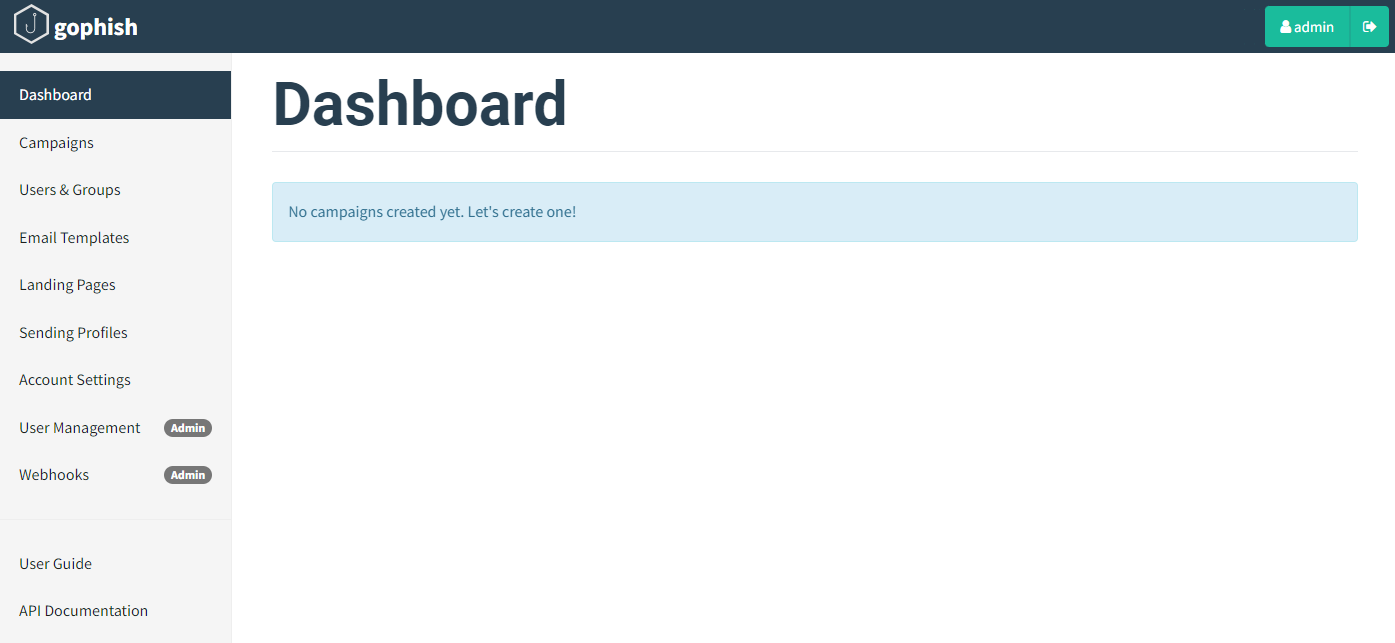
Here we use "admin" and the password recorded on the command line at the time of launch. Immediately GoPhish asks to change the password and we are connected to GoPhish.
I am adding a ‘trapper’ user to the Tenant 365
By logging in as an administrator with the right to manage users, I add a new user.
I chose to use a user I make up as if it were an official account of Microsoft Account Management.
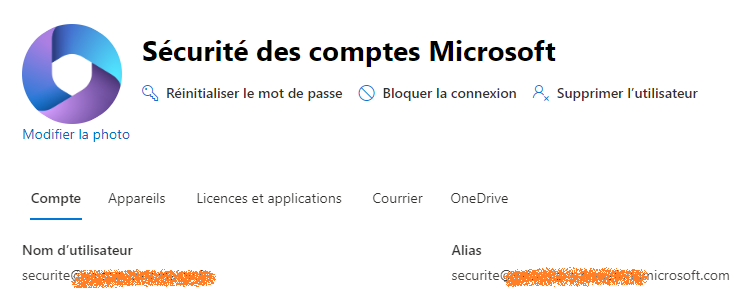
I even put a nice logo on him that's serious.
Of course, I assign him a licence that allows him to have an email account and then I go to the Mail of this user then Mail Software and I will check at least the box Authenticated SMTP.
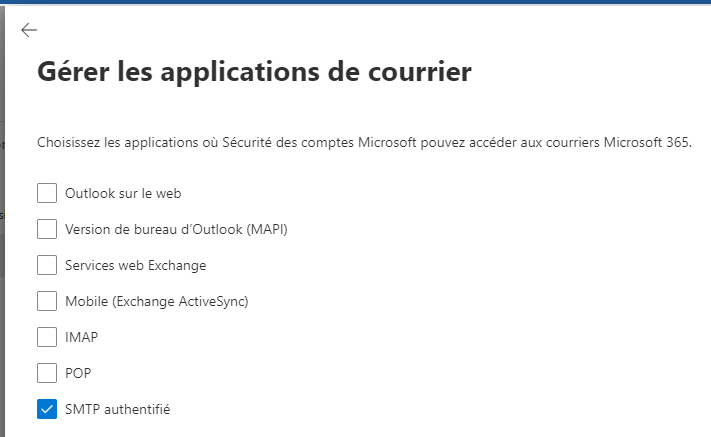
(Optional) To make my life easier and not have to add this box to the letter, I put a transfer of all the emails received on this box to my email address in Mail/Transfer mail.
I configure Microsoft Defender to allow GoPhish
Microsoft has planned everything. They thought of offering an educational phishing campaign (Defender Plan 2 license) on a paid license, but they also thought of moneyless hackers by allowing them to manually authorize this.
I'm throwing Microsoft Defender.
Then Strategies and rules
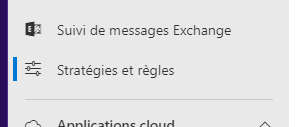
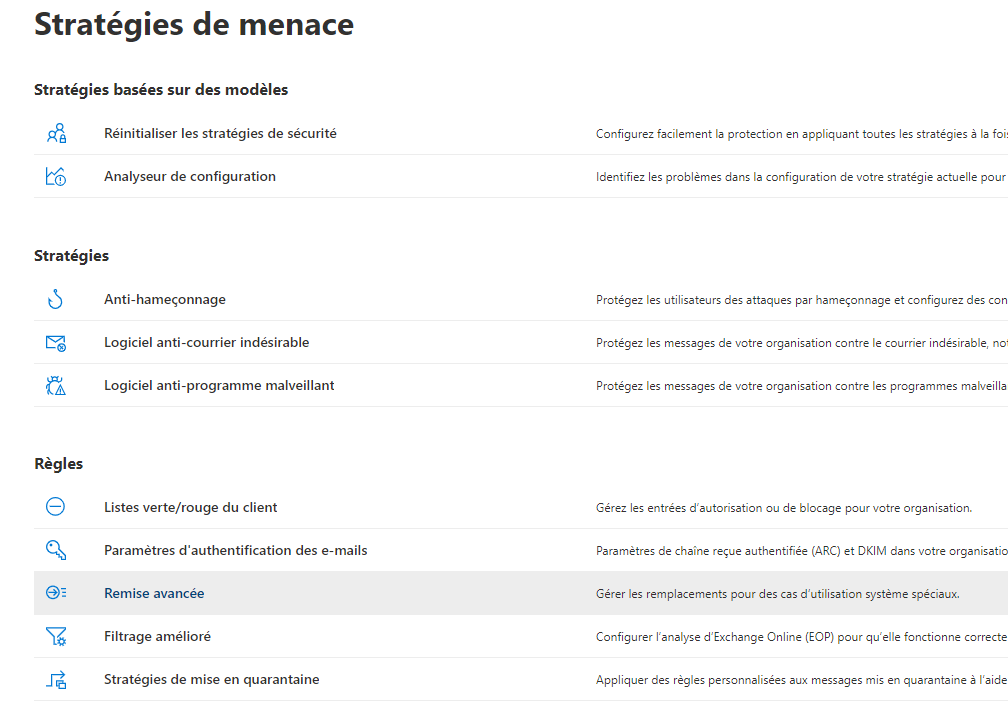
Then Threat Strategies/Advanced Discount
And finally Tab Phishing simulation
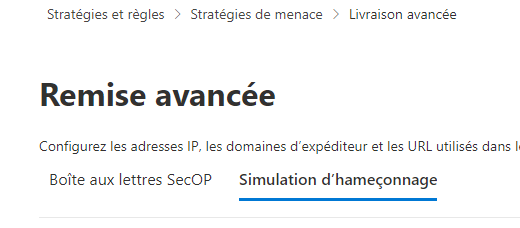
Thank you Sigalou!!! We had to find this tab
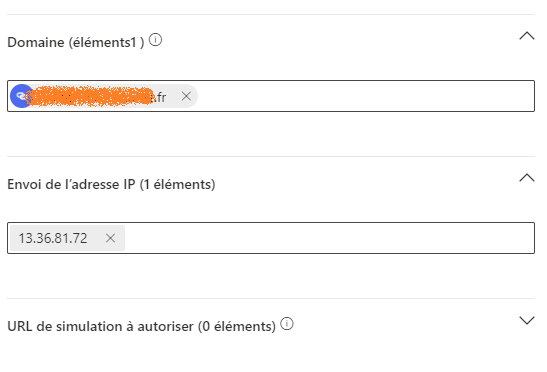
Then you have to configure the field and the PI.
The domain is the address of the domain that will send the email, this corresponds to the domain of SMTP From that I will specify in GoPhish.
The IP is the elastic or public IP of the instance.
I configure GoPhish SMTP
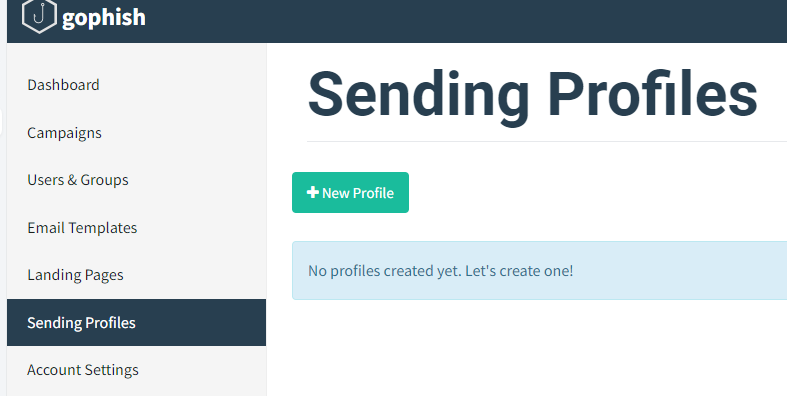
Back in GoPhish, I'm going to Sending Profiles and I will create a profile for sending messages:
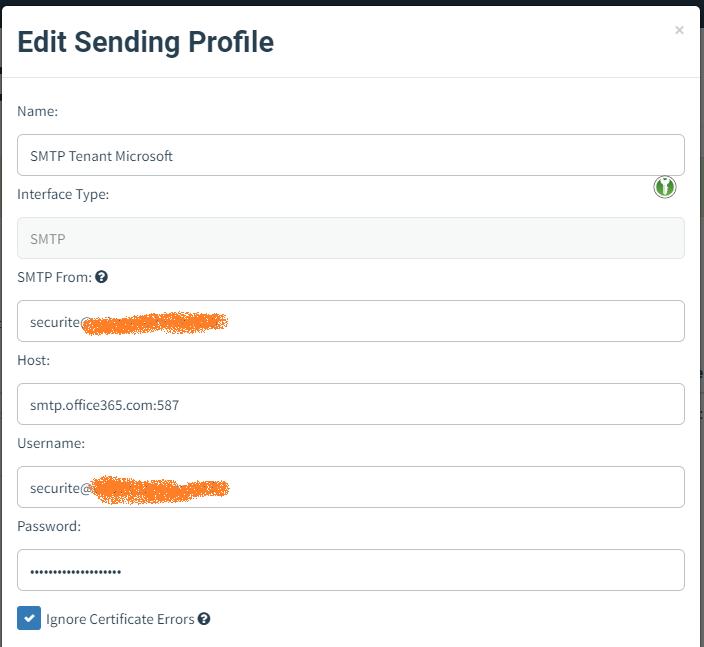
Thanks to the button Send Test Email, I can check that everything works perfectly, I get a message

At this stage, it is already a very good personal victory, I have been able to configure a virtual machine, install GoPhish, configure it, find out how not to get stuck by Microsoft’s security by allowing this manipulation and win … the test email arrives!!! For those who are discovering my RetEx, don’t imagine that it took time to write this page, it’s hours of manip (and learning).
I will recover all users of the Tenant Microsoft 365
Two ways to recover users, the simplest with the graphical interface of the M365 administration center, otherwise this can be done with a powershell command.
I'm not going to explain this second way of doing things, Florian explained it on its excellent tutorial.
I take the simplest formula, go to the administration panel and then Active users then Export users.

The export is going well, I work a bit on the file in Excel to remove unnecessary columns and rows that are not users. So I have a perfect Excel file with 4 columns, I start a CSV record with a comma in separator to be able to import into GoPhish.

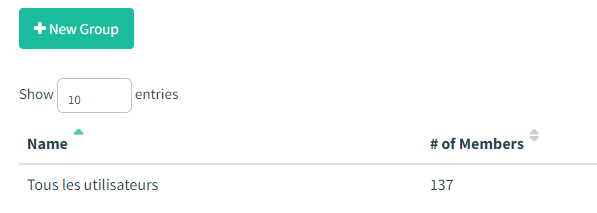
I inject users into a GoPhish group
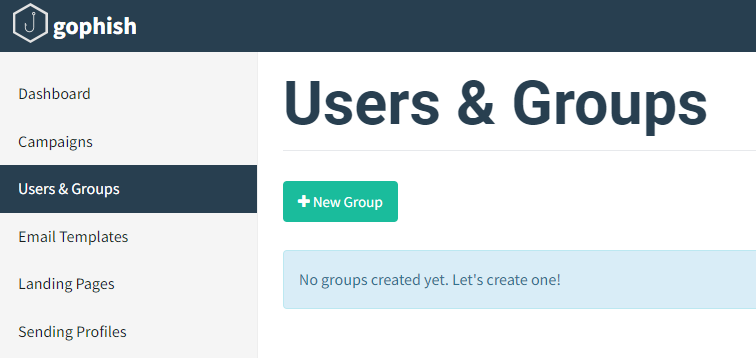
I add a new group, I start importing my CSV file.

I now have a new group ready!
I configure the phishing mail
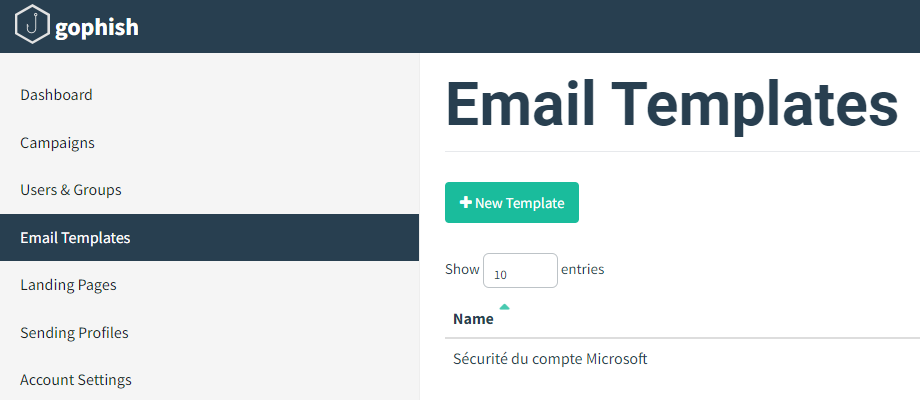
This is the email that the recipients of the campaign will receive.
To do this, I asked Microsoft to send me a message, so I kept the message format. In the end, this gives:
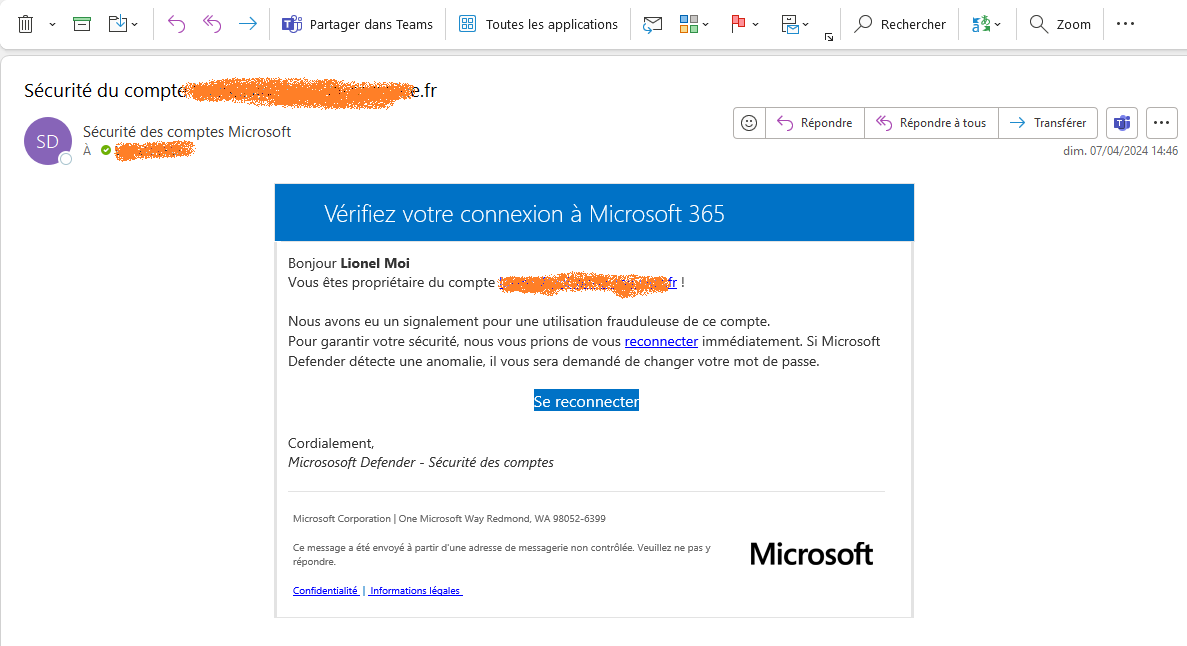
I would point out that it is pedagogical, do not ask me the HTML code of the page, I consider that it is up to everyone to do the work.
I configure the phishing page
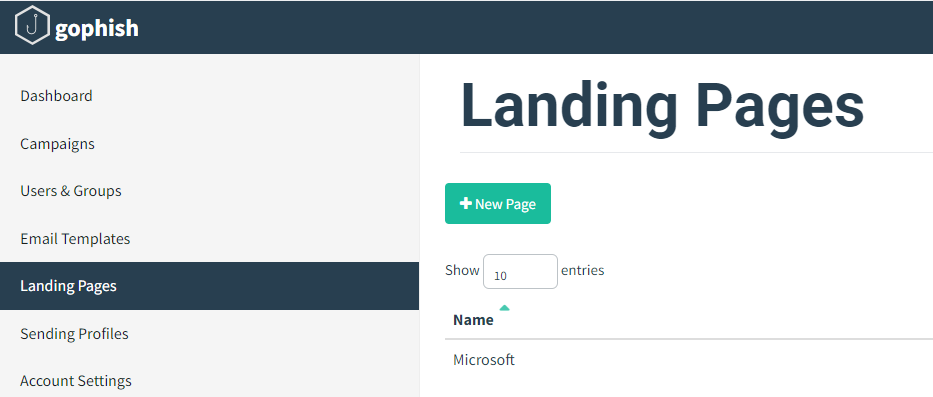
Called Landing page, this phishing page is the page on which the user you want to trap will land when they click on the link offered to them in the email they received.
I went looking for models not to reinvent hot water (thanks souleiman)
Here is the best link I could use to make the M365 login page as realistic as possible.
I am thinking of the end of the configuration of the landing page to check the recovery of the email and password. I have the idea of being able to display the first two characters, for example, and the last of the ‘stolen’ passwords during user training/awareness-raising. Note that the recovered passwords are given in clear, so I will trigger a change of all passwords of all users a few days after the educational phishing campaign.
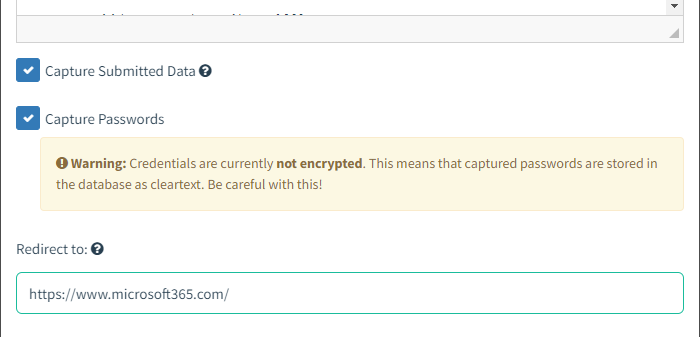
When the user clicks on the link reconnect or on the blue button Reconnect, it lands on:
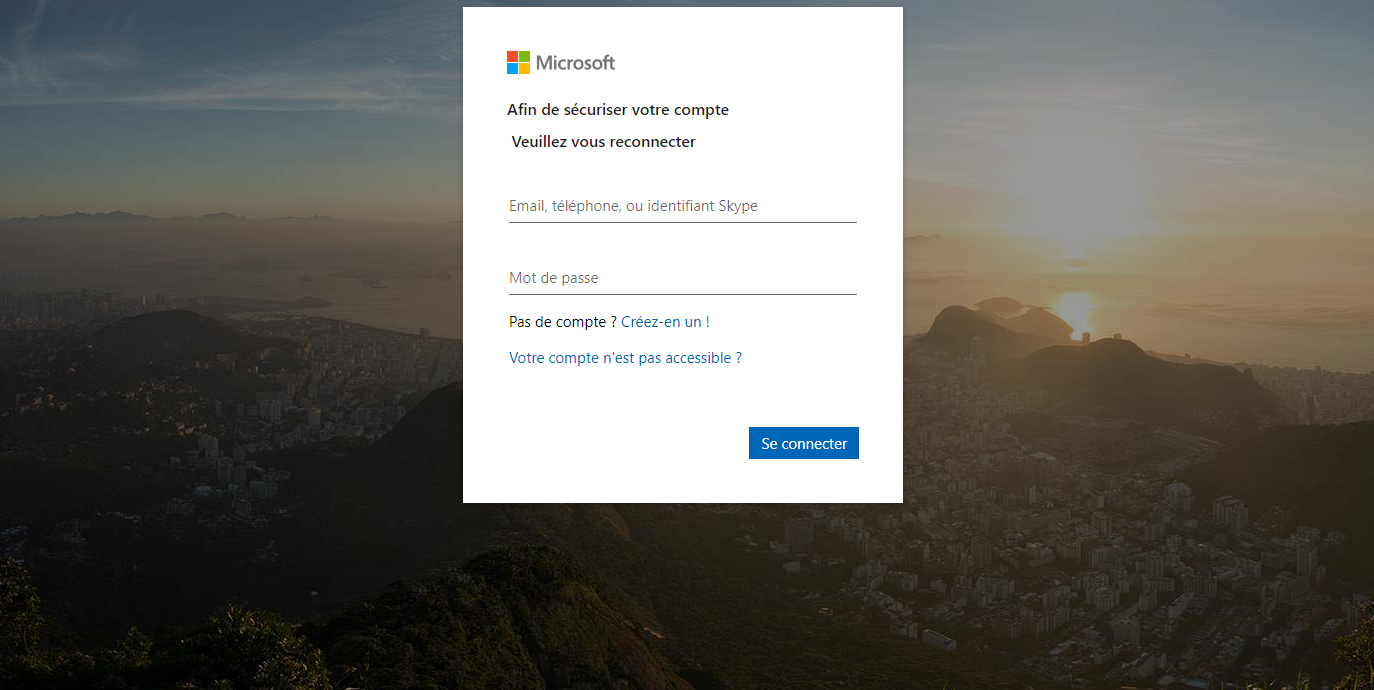
Do not ask me for the HTML code of this page.
I launch the phishing campaign
To sum up, I have created a user group, an email template, a phishing page, so I can go to Campaigns to launch the campaign.
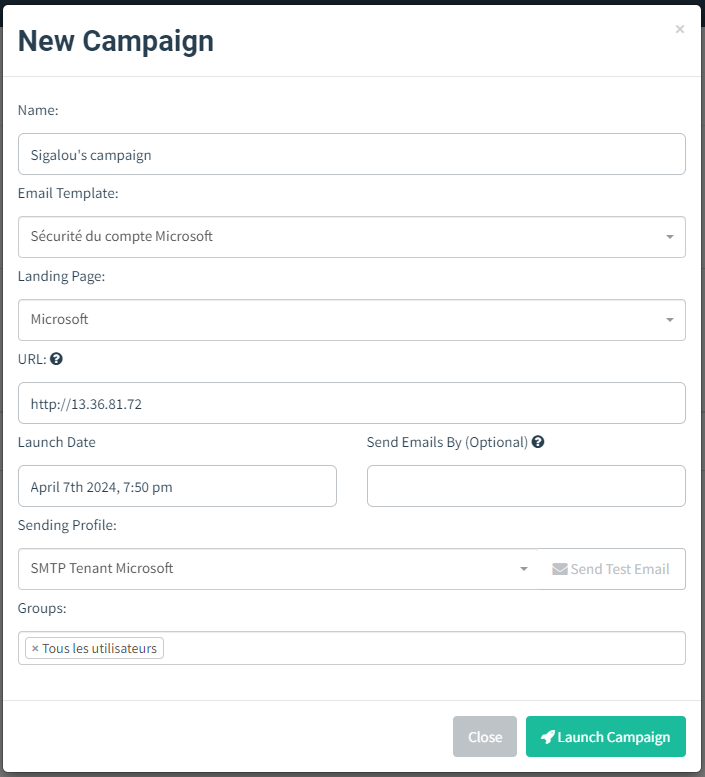
When I press Launch Campaign, emails leave …

I'll be back in a while to give news of the campaign here …
Bibliography
- https://www.it-connect.fr/comment-creer-une-campagne-de-phishing-avec-gophish
- https://dazzyddos.github.io/posts/Automating-Phishing-Infrastructure-with-terraform-on-AWS/
- https://clement-bouder.fr/Creer-une-infrastructure-de-phishing/
- https://www.youtube.com/watch?v=Tdpzi8M3Vtw
- https://medium.com/@immure/setting-up-gophish-on-aws-c2f2fd78b7e9
 English
  French
  Spanish
  Chinese
  German