

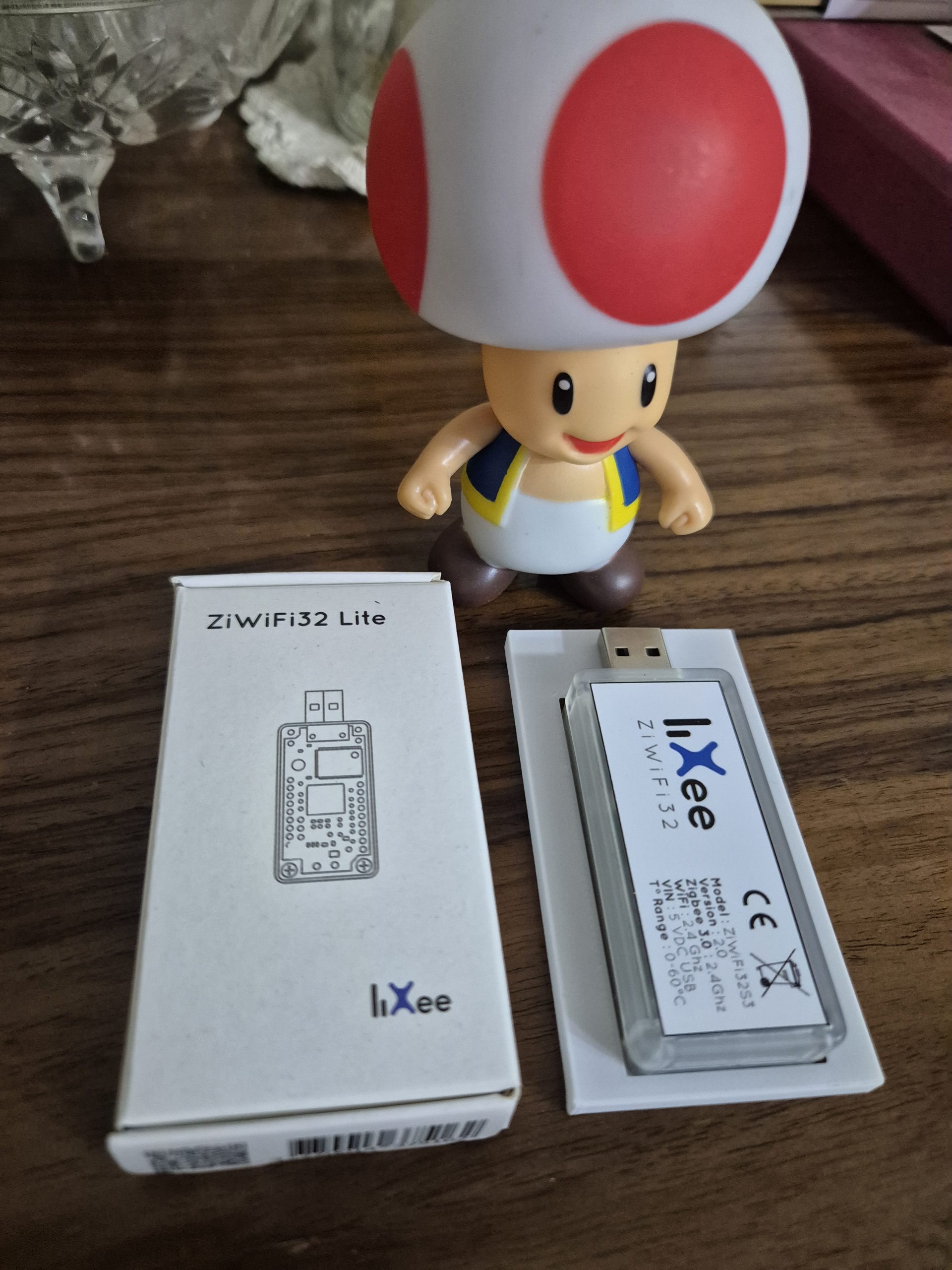
5 steps for an independent Zigbee shed network
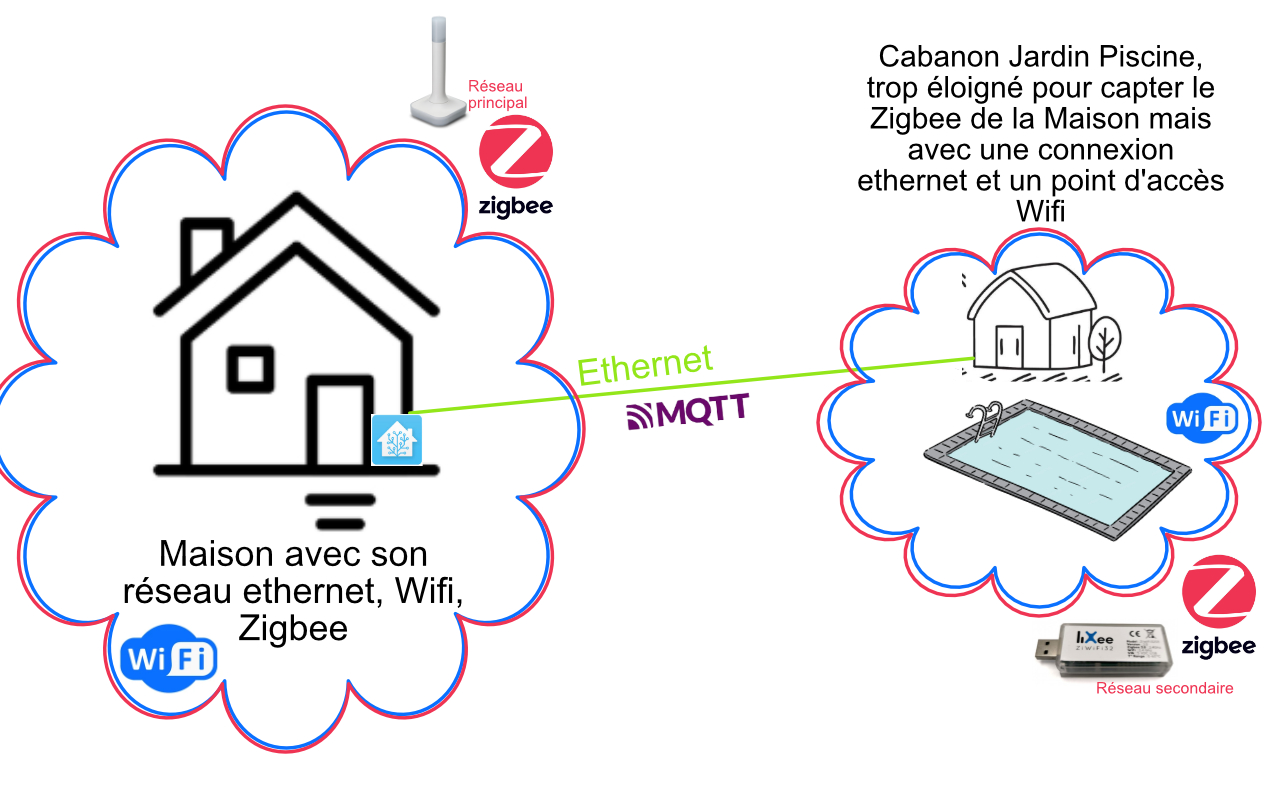
Creating an independent Zigbee network for my pool shed solves distance issues with my main house. LiXee's ZiWiFi32 Lite connects sensors and actuators locally via Zigbee, then transmits data to Home Assistant via MQTT. This method ensures stability, autonomy and smooth integration without extending the main network.
Why I chose a dedicated Zigbee network
The pool shed is too far from my house to integrate its equipment into the main Zigbee network. A long-distance network causes latency and packet losses, especially with obstacles like thick walls or vegetation. An independent network avoids these problems by limiting the reach to the shed area.
The autonomy remains total: in the event of a main network failure, the pool and watering equipment shall continue to operate locally. Flexibility makes it possible to adjust the parameters of the shed without affecting the rest of the home automation. MQTT simplifies interconnection, as with my flashed Sonoff or ESPHome modules.
The ZiWiFi32 Lite is the ideal solution. This compact module acts as an autonomous Zigbee coordinator, manages up to 200 devices, and publishes directly to MQTT. It supports Home Assistant’s MQTT Discovery for automatic equipment detection.
Material needed for the project
Here is the complete list of equipment used to create this independent Zigbee network:
- ZiWiFi32 Lite (LiXee) : Zigbee 2.4 GHz coordinator who creates the network and provides the MQTT gateway.
- Synology MR2200ac : Router in Wi-Fi access point mode with USB 3.2 Gen1 port (5V/0.9A) to power ZiWiFi32.
- Active USB extension : length 1-2m to position the ZiWiFi32 at the optimal location, away from the router’s Wi-Fi interference.
- Zigbee Equipment : Sonoff SNZB-02 (TH01) sensor, irrigation solenoid valves, swimming pool plugs, pH/chlorine probes.
- Broker MQTT : installed on my Nabucasa Green Box with Home Assistant (Mosquitto addon).
Where to buy this equipment?
Here is the link to the page dedicated to ZiWiFi32 Lite. I referenced the sellers and prices.
Step 1: I physically plug in the ZiWiFi32 Lite
I connect the ZiWiFi32 Lite to the Synology MR2200ac USB port via the USB extension. Positioning counts: place the module in the center of the shed, high (1.5-2m), away from noisy metals and electrical appliances. The green LED lights up immediately, confirming the stable 5V power supply.
The active USB extension prevents signal loss and isolates the ZiWiFi32 from electromagnetic interference from the router. The USB port of the MR2200ac delivers 900mA, largely sufficient for this low power module (less than 500mA).
Step 2: I install LiXee-Assist for the initial configuration
I download the LiXee-Assist app (Android/iOS) on my smartphone. It automatically detects ZiWiFi32 via mDNS on the shed's Wi-Fi network. Check the firmware update: Latest version at 27/10/2025 recommended for MQTT Discovery optimized.
Set up the Wi-Fi connection: Synology MR2200ac SSID, password. The module restarts and automatically connects to the boot. Web access possible via mDNS (https://lixeebox-08e8.local) or fixed IP (192.168.1.xx).
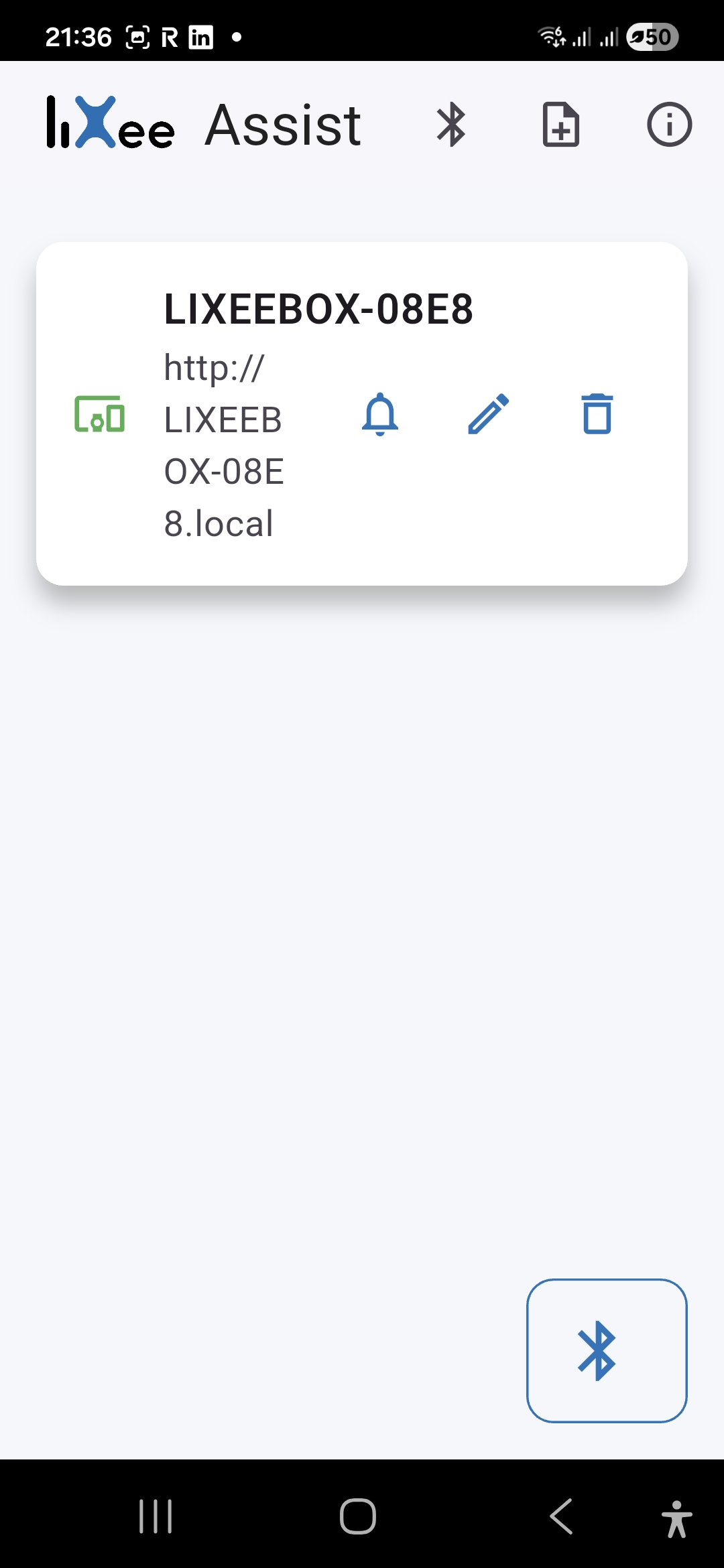
Access via mDNS https://lixeebox-08e8.local/ or direct IP 192.168.1.xx
Step 3: I create the independent Zigbee network
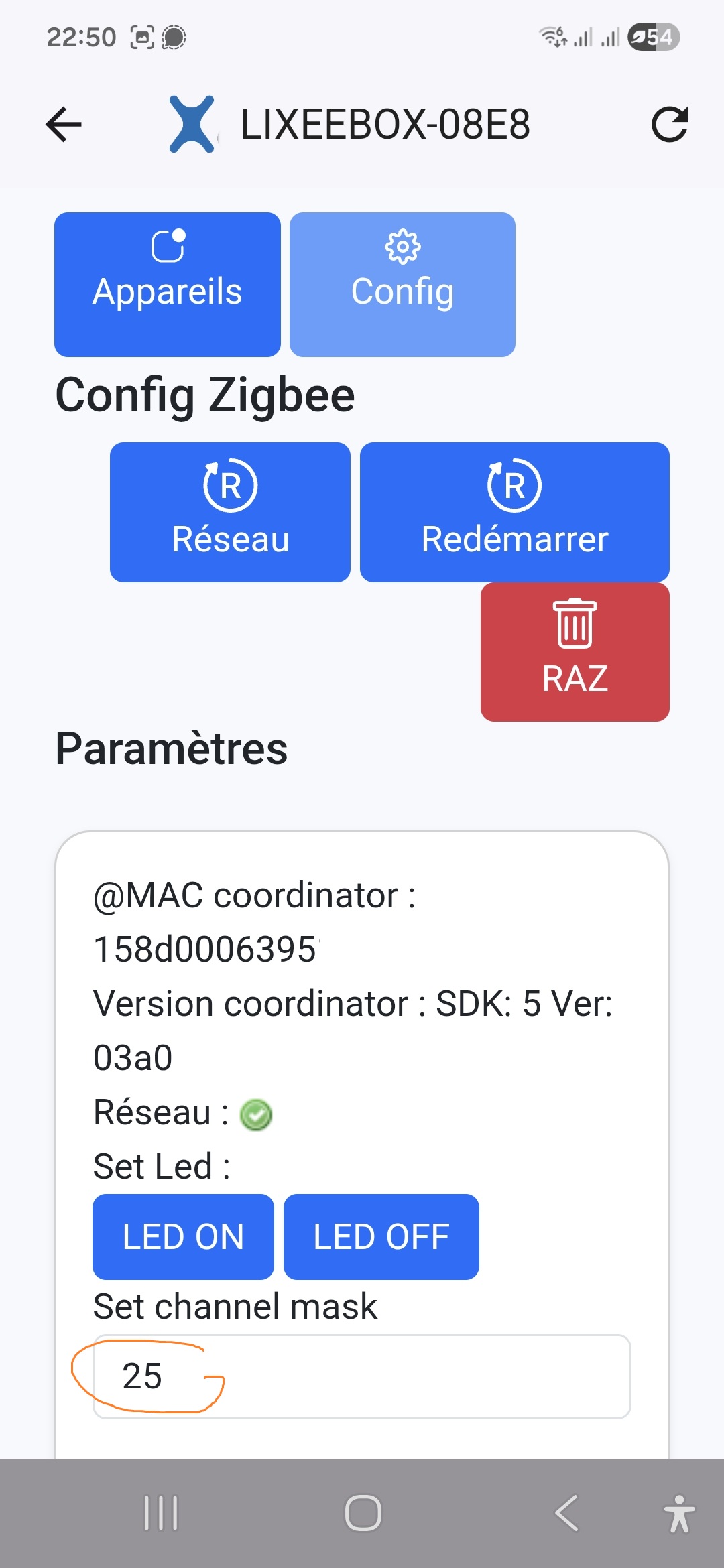
In LiXee-Assist or web interface, enable mode Zigbee Coordinator. Create a new network with channel 25 (avoid 2.4GHz Wi-Fi interference and home network on channel 11-15). Generate a new network key for total isolation.
The Zigbee channel impacts the range: Channel 25 offers good reach/stability compromise. Check the Zigbee LED flashing green: network ready to pair.
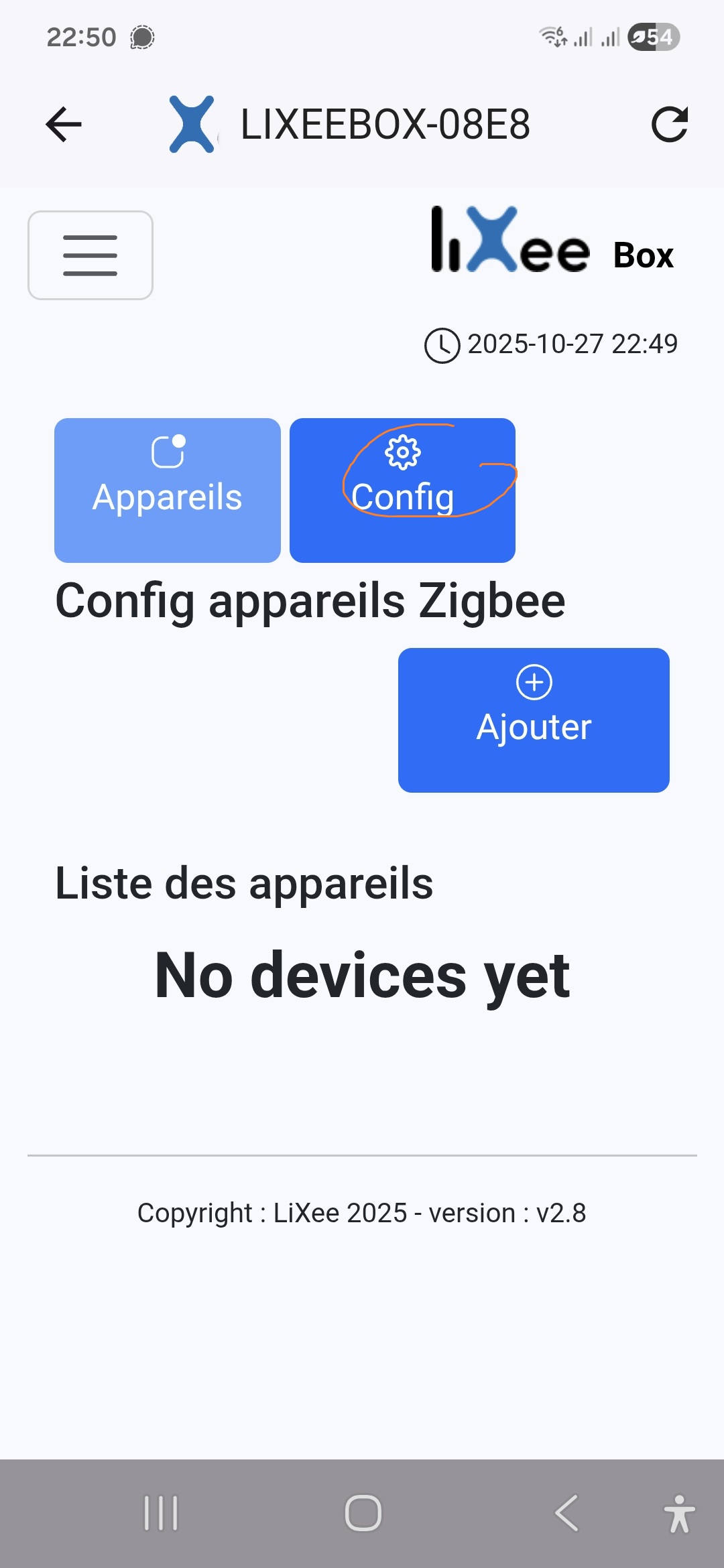
Step 4: Jconfigure MQTT to Home Assistant
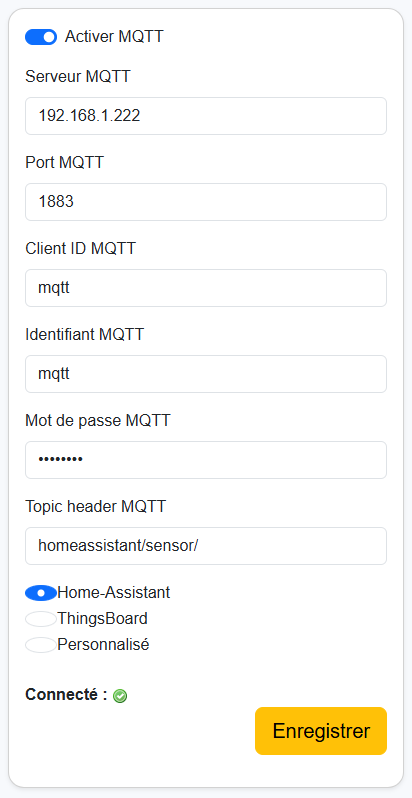
In the Gateway > MQTT menu, fill in:
- MQTT server : IP of Home Assistant (ex: 192.168.1.10)
- Port : 1883
- User/Password : Dedicated MQTT account (not root)
- Topic root :
homeassistant/(self-completed) - MQTT Discovery : activated for HA self-detection
Save: the MQTT icon turns green. The ZiWiFi32 now publishes on the remote broker.
Step 5: I pair Zigbee equipment
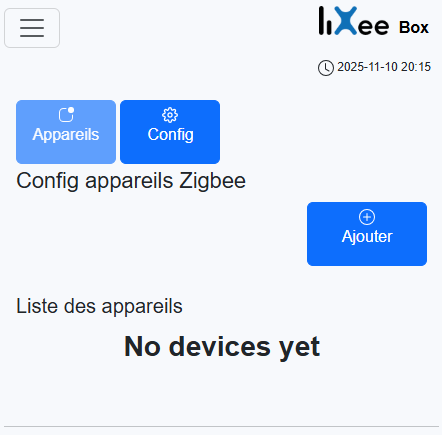
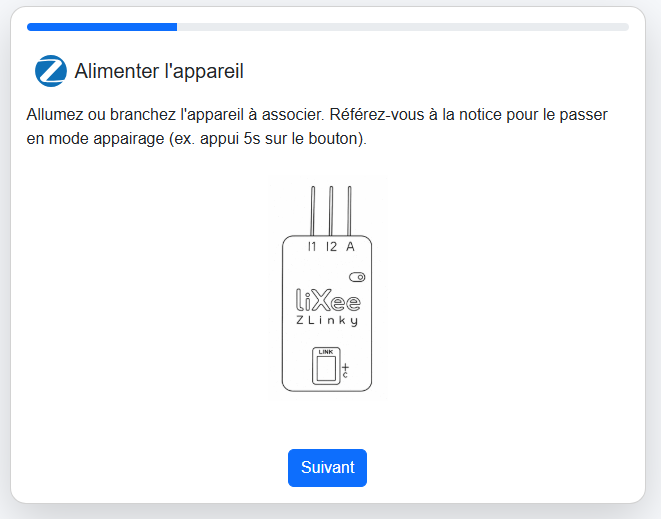
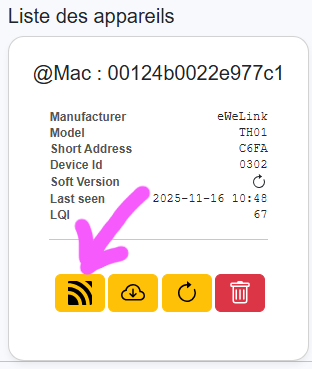
Network Menu > Zigbee > Add. Activate pairing mode (5s button on equipment). The ZiWiFi32 scans and detects (Sonoff SNZB-02 Device ID 0x0302 = 770 decimal).
Name the equipment. Check Measurements/Devices: temperature, humidity, battery go up. Battery >100% normal on some sensors (sensor display).
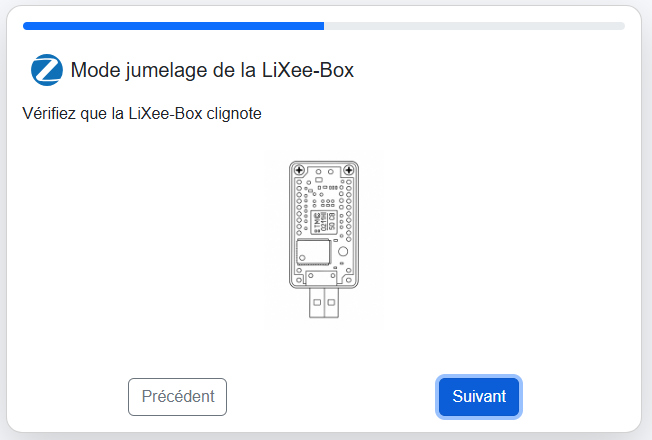
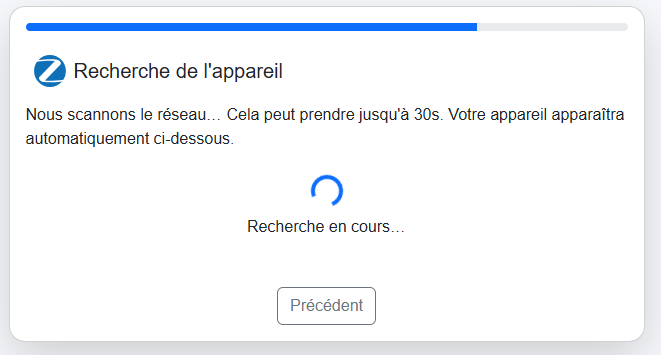
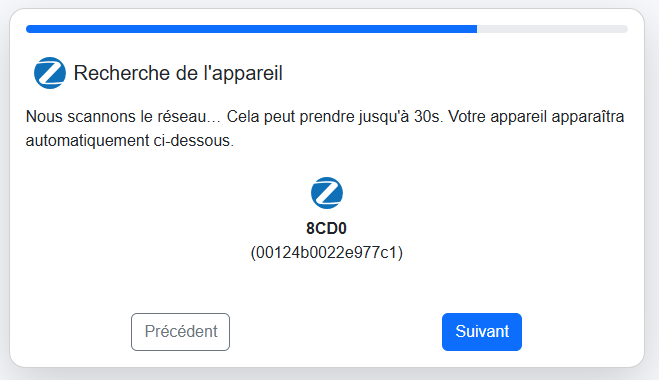
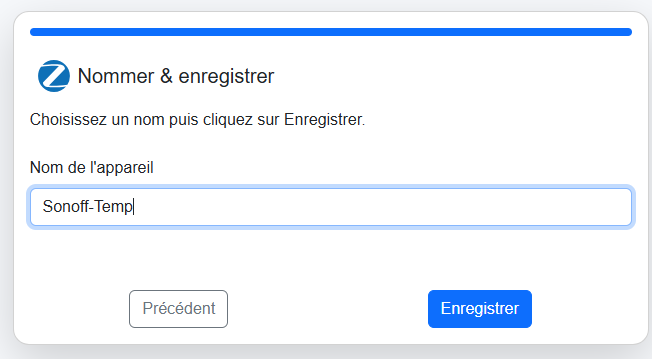
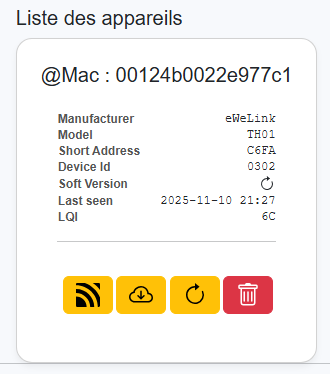
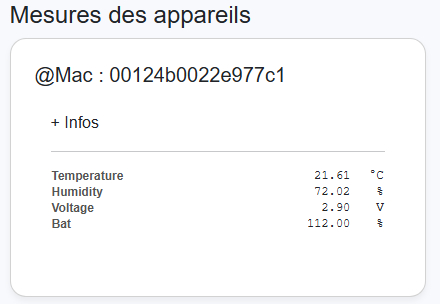
Battery 112% : Normal Sensor Display, Non-Critical
Step 6: I optimise templates for Home Assistant
Enable Developer Mode (Config > General). Tools > JSON Templates > Edit 770.json (Sonoff SNZB-02).
This template defines:
- Clusters/Attributes : 0402(temp), 0405(humidity), 0001(voltage/battery)
- MQTT classes : device_class, state_class, icon for native HA display
- Reporting : 60s intervals, delta 0 for immediate changes
- Bind : clusters for HA commands
{ "default": [ { "status": [ { "name": "Temperature", "cluster": "0402", "attribute": 0, "mqtt _device _class": "temperature", "mqtt _icon": "thermometer", "mqtt _state _class": "measurement", "type": "float", "coefficient": 0.01, "unit": "°C", "visible": 1, "leg": "gauge", "min": -20, "max": 50 }, { "name": "Humidity", "cluster": "0405", "attribute": 0, "mqtt _device _class": "humidity", "mqtt _icon": "water-percent", "mqtt _state _class": "measurement", "type": "float", "coefficient": 0.01, "unit": "%", "visible": 1, "leg": "gauge", "min": 0, "max": 100 }, { "name": "Voltage", "cluster": "0001", "attribute": 32, "mqtt _device _class": "voltage", "mqtt _icon": "flash", "mqtt _state _class": "measurement", "type": "float", "coefficient": 0.1, "unit": "V", "visible": 1 }, { "name": "Battery", "cluster": "0001", "attribute": 33, "mqtt _device _class": "battery", "mqtt _icon": "battery-70", "mqtt _state _class": "measurement", "type": "numeric", "unit": "%", "visible": 1, "leg": "battery", "min": 0, "max": 100 } ], "bind": "1026;1029;1", "postponement": [ { "cluster": "0405", "attribute": 0, "type": 33, "min": 60, "max": 61, "timeout": 0, "change": 0 }, { "cluster": "0402", "attribute": 0, "type": 33, "min": 60, "max": 61, "timeout": 0, "change": 0 }, { "cluster": "0001", "attribute": 32, "type": 33, "min": 60, "max": 61, "timeout": 0, "change": 0 }, { "cluster": "0001", "attribute": 33, "type": 33, "min": 60, "max": 61, "timeout": 0, "change": 0 } ] } ] }
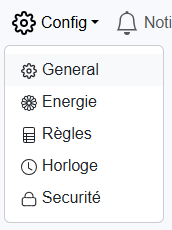
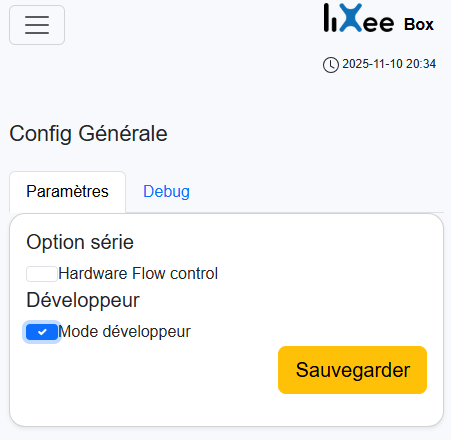

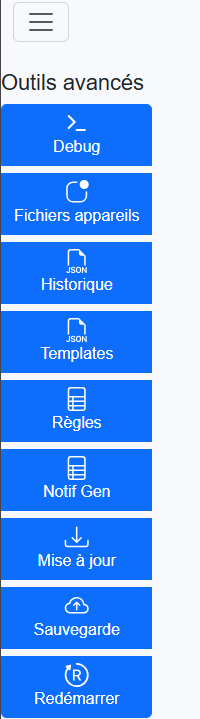
Restart ZiWiFi32. Network > Zigbee > MQTT (open link broker). In Home Assistant > Developer Tools > States, search for lixee: 4 TH01 entities (temp, hum, volt, bat) appear automatically.
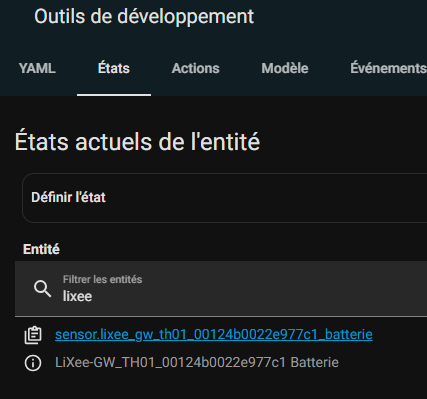
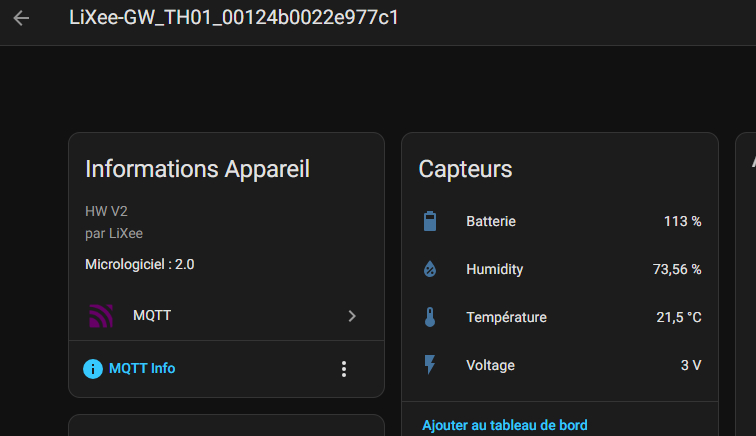
Network Zigbee cabanon operational and integrated Home Assistant. Next step: watering solenoid valves and pool probes.
 English
  French
  Spanish
  Chinese
  German