

The security of home networks has become a real concern.
Between connected objects, voice assistants, IP cameras, NAS, smartphones and home automation equipment, our local networks increasingly resemble small corporate networks.
And we will not escape mass attacks by cybercriminals.
After several years of upgrading my home automation system, I wanted to add a passive network monitoring layer:
- without impacting performance;
- without changing traffic;
- and without turning the grid into a gas plant.
🔍 Why do I monitor my local network?
Most connected equipment constantly communicates with the Internet:
- Connected TVs;
- voice assistants;
- home automation sockets;
- cameras;
- IoT objects;
- mobile applications;
- etc.
The problem:
- it is not always clear what they are sending;
- nor to whom;
- and how often.
Network monitoring makes it possible in particular to:
- detecting unknown devices;
- identify suspicious behaviour;
- to see which equipment speaks outwards;
- identify network scans;
- identify abnormal flows;
- or simply to better understand your network.
🎯 My goal with this installation
The objective was simple:
- observe network traffic;
- detecting abnormal behaviour;
- centralise alerts in Home Assistant;
- while remaining 100 % local.
To do this, I chose an architecture based on:
- a manageable switch with mirroring port;
- a Raspberry Pi dedicated to network analysis;
- and Home Security Assistant integration for Home Assistant.
But I wanted a solution:
- passive;
- discreet;
- reliable;
- local;
- and independent of the router.
The principle adopted is that used in many professional environments.
🌐 My Network Architecture
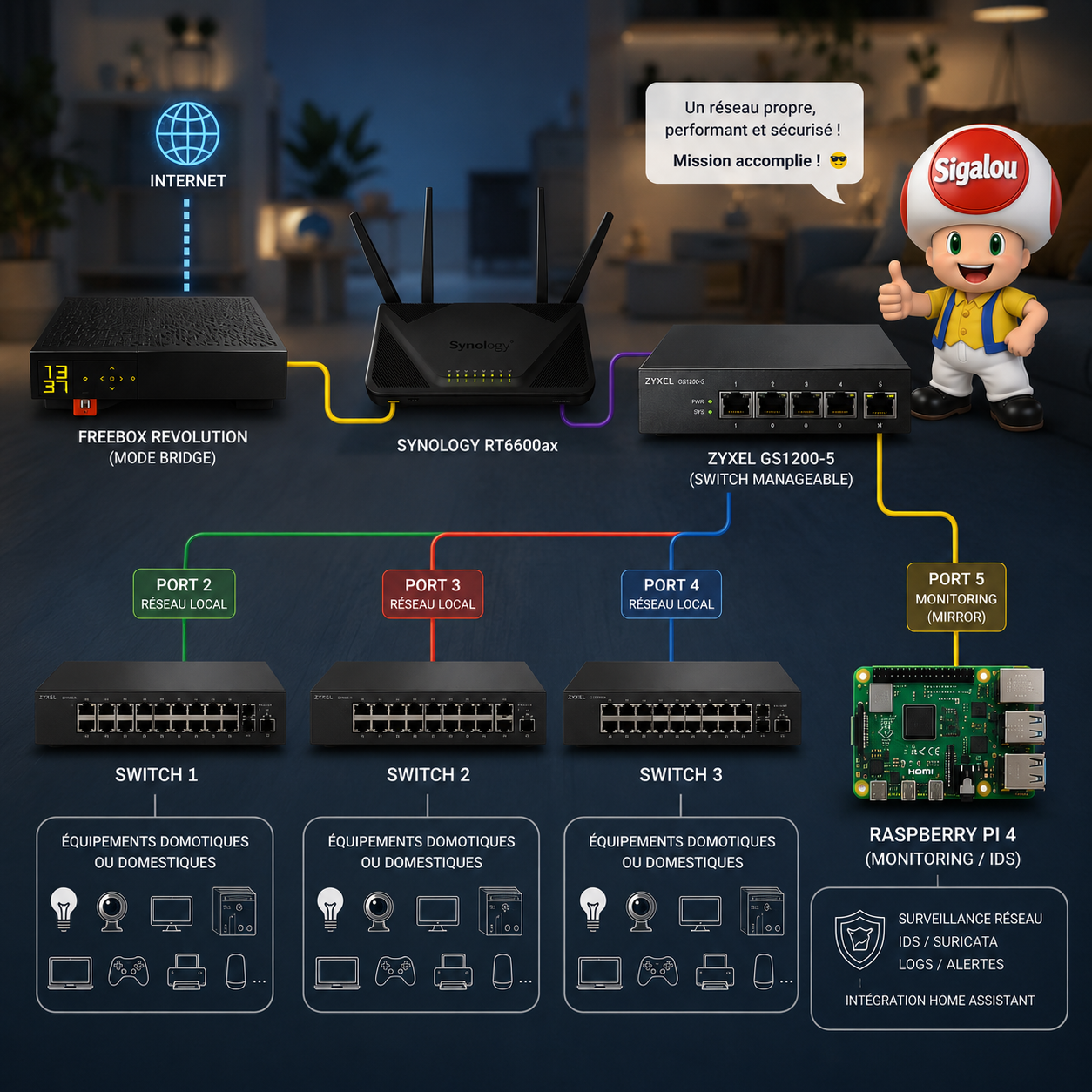
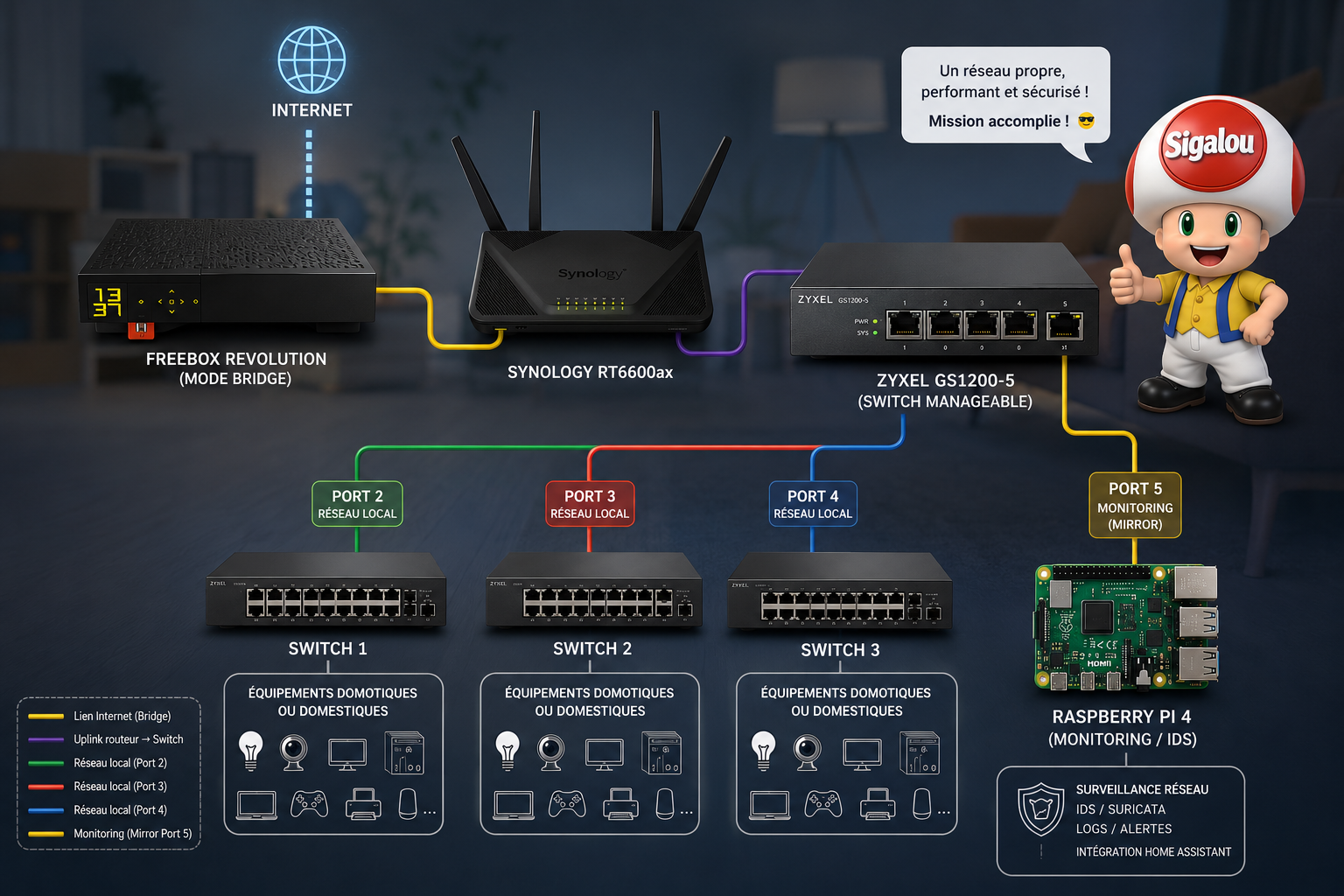
My network is organised as follows:
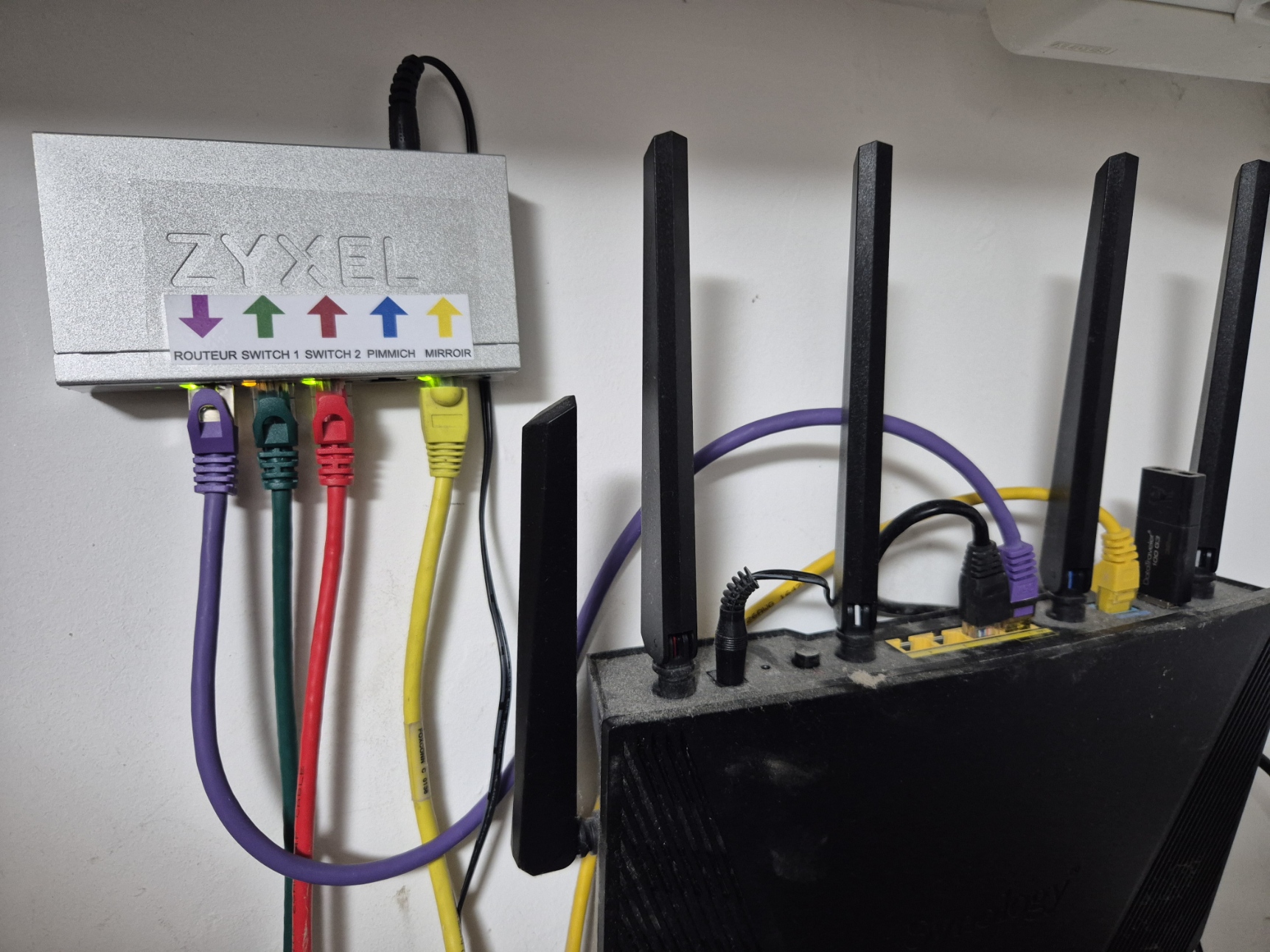
Internet ↓ Freebox (bridge mode) ↓ Router Synology ↓ Switch manageable Zyxel GS1200-5 ├── other switches └── port mirror → Raspberry Pi IDS

🪞 I set up port mirroring
The switch duplicates network traffic from a specific port and sends it to another port dedicated to analysis. We usually talk about Mirroring Port, or SPAN.
For example:
- the Raspberry Pi receives a copy of the packages;
- without being visible on the network;
- without changing traffic;
- and without becoming a critical point of the infrastructure.
And honestly, if he falls, if he burns, if he is tired of working for me, it will have no impact on the home automation installation of the house.
And for the good health of my relationships with the rest of my small family, my crafts should not prevent the lights from turning on or the watering from going off.
💸 How much did it cost me?
Setting up a security probe in my home was not going to cost me much, as the family budget had many other priorities.
Thus, the only financial investment was the addition of a manageable switch that I detail just after. It cost me: 17,36 €.
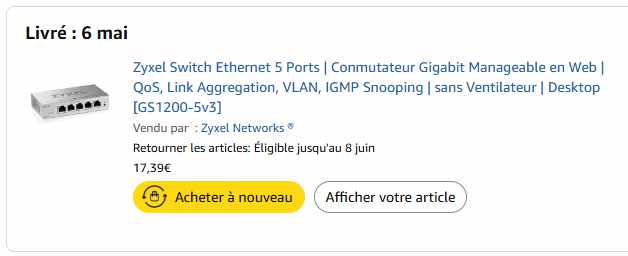
I already had the Ethernet cables and an old Raspberry Pi 3B+ in a drawer.
If you need to buy a Raspberry Pi 3B+, you will find it used for around €40. I would take no less than: 3B+ seems to me to be the minimum for this type of use. And if you have a choice, directly prefer a Raspberry Pi 4.
So we arrive at an overall budget of around 60 € if you have to buy the switch and the Raspberry.
And if you replace the SD card with a SATA SSD, there is no need to take huge: a model of 20 to 32 GB is more than enough. In USB via a small box, it is convenient and easy to use.
🧰 The equipment I use
🔌 I choose the Zyxel GS1200-5 manageable switch

I chose:
Why this model:
- compact;
- silencer;
- low consumption;
- simple web administration;
- support for the mirroring port;
- really very reasonable price.
This is an excellent compromise for a home automation laboratory or an advanced residential network.
🥧 I prepare the Raspberry Pi
The Raspberry Pi will serve as a network probe.
The Raspberry:
- does not drive anything;
- does not filter anything;
- does not serve as a firewall;
- it simply listens to the mirror traffic sent by the switch.
I recommend:
- Raspberry Pi 4 with a minimum of 4 GB, even though I used a Raspberry Pi 3B+ that I already had;
- Ideally with a USB SSD.
Why avoid the SD card:
- IDS tools write a lot of logs;
- SD cards wear out quickly.
🧠 Why do I prefer a mirror switch over an IDS firewall?
Some solutions such as:
- pfSense;
- OPNsense;
- or Suricata directly on the router;
They are very powerful.
But in my case I wanted to:
- separate the analysis from the main network;
- avoid any network outages linked to the IDS;
- keep a modular architecture;
- be able to stop the analysis without impacting the Internet.
Passive mode brings several advantages:
- no latency;
- no impact on traffic;
- no network dependencies;
- simplicity;
- security.
Even if Raspberry plants:
→ the network continues to function normally.
🔧 I configure the Zyxel GS1200-5 switch
🚀 I make the first start of the switch
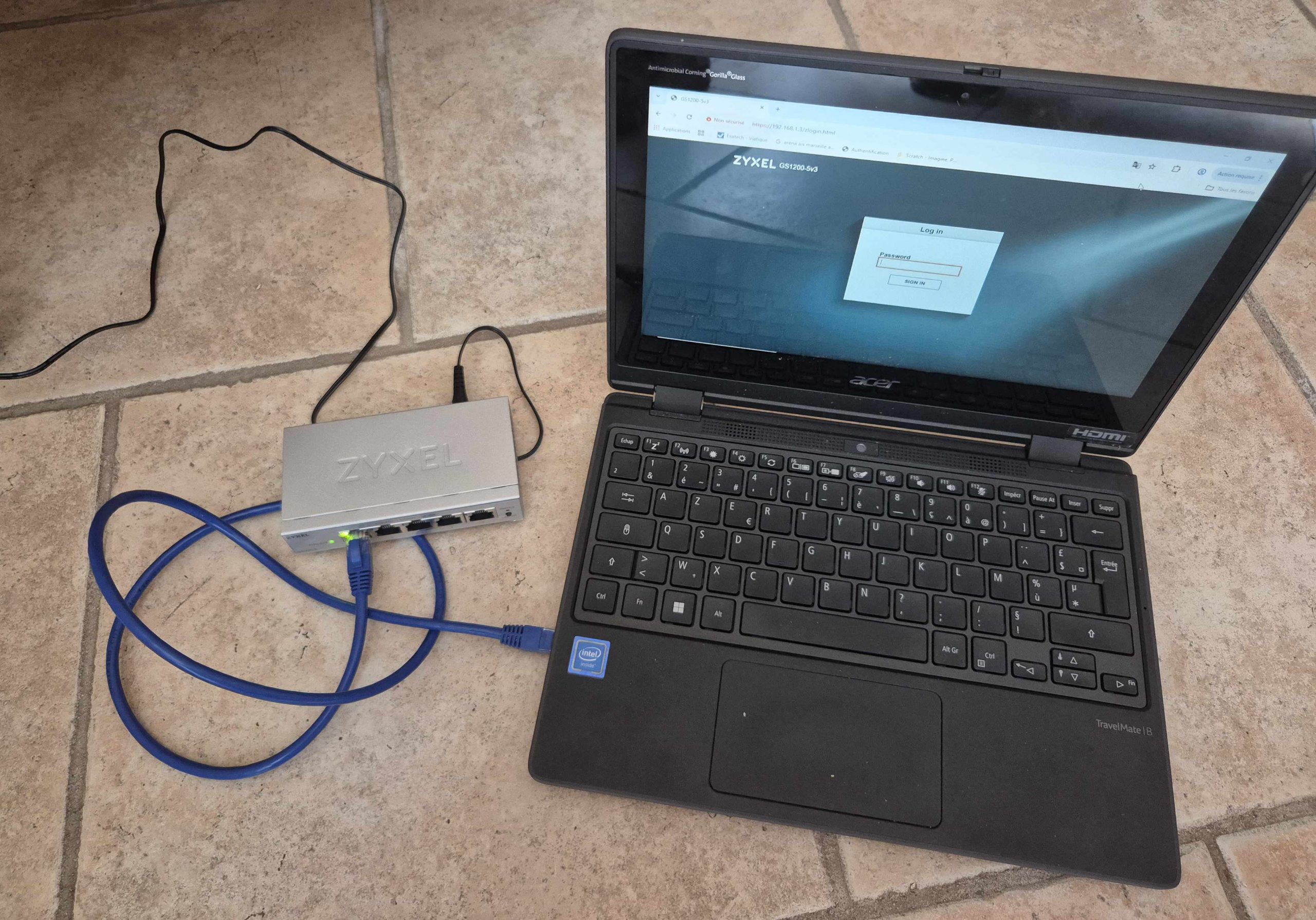
Before integrating the switch into the main network, I started by making an initial configuration with a direct connection to a laptop.
This method makes it possible to:
- to configure the switch quietly out of production;
- avoid any network conflict;
- immediately secure administrator access;
- and prepare the mirroring port before integration into the real network.
After unpacking:
- connection of the power supply;
- connection of the laptop to port 1 of the switch;
- temporary deactivation of Wi-Fi on the computer;
- and configuration of a static IP address on the Ethernet network card.
By default, the Zyxel switch uses the address:
192.168.1.3
I have therefore temporarily configured the PC with:
| Parameter | Value |
|---|---|
| IP address | 192.168.1.50 |
| Mask | 24 |
| Gateway | 192.168.1.1 |
Once both devices are in the same subnet, the switch immediately responds to the ping.
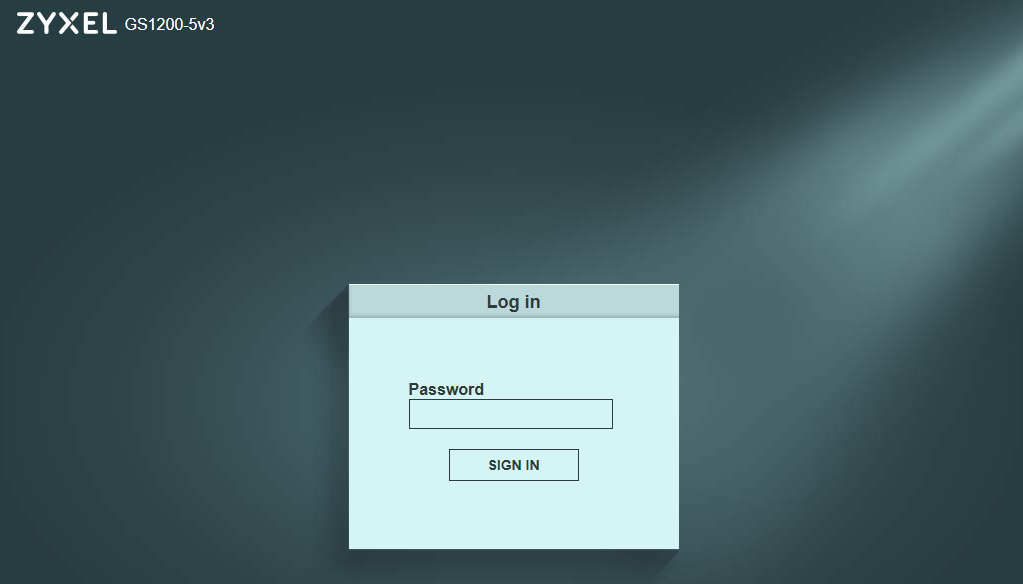
Web administration only works in HTTPS on recent firmwares. The connection is therefore made via:
https://192.168.1.3
The browser then displays a self-signed SSL certificate warning, which is perfectly normal on this type of equipment.
On first connection:
- the switch immediately asks for the administrator password to be changed;
- then access to the configuration interface becomes available.
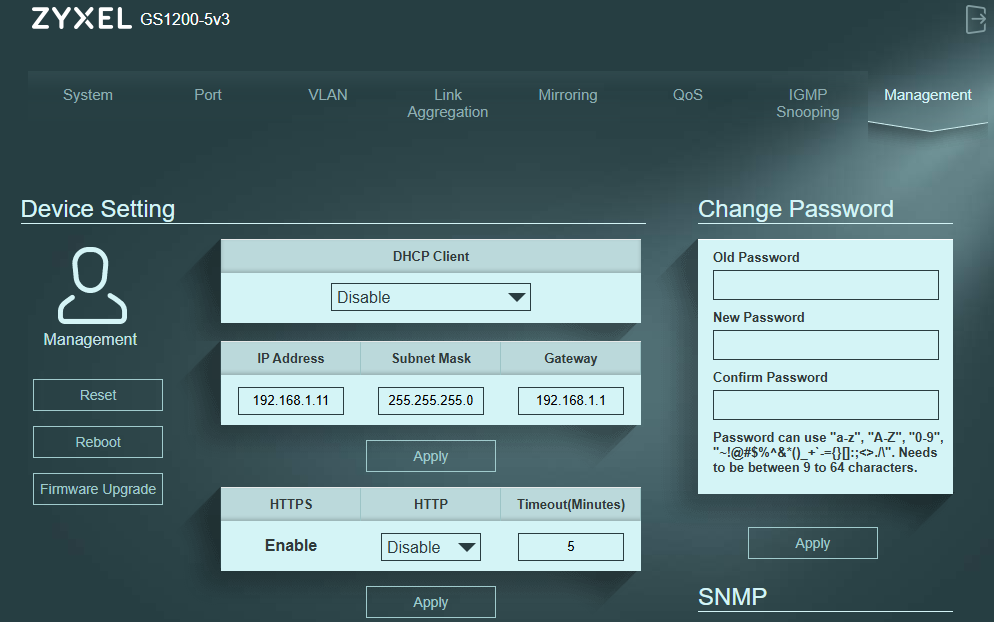
I then:
- disabled the DHCP client of the switch;
- assigned a fixed IP address, optional but I put
192.168.1.11; - and saved the configuration before integration to the main network.
This preparation stage makes it possible to have immediately:
- a properly configured switch;
- a known administrative address;
- and a stable configuration before going into production.
🌐 I access the switch on the local network
The switch is now accessible via HTTPS:
https://192.168.1.11
I can stay on my laptop live or connect it to the local network. The switch now has its fixed IP, so no conflict.
🔀 I configure ports
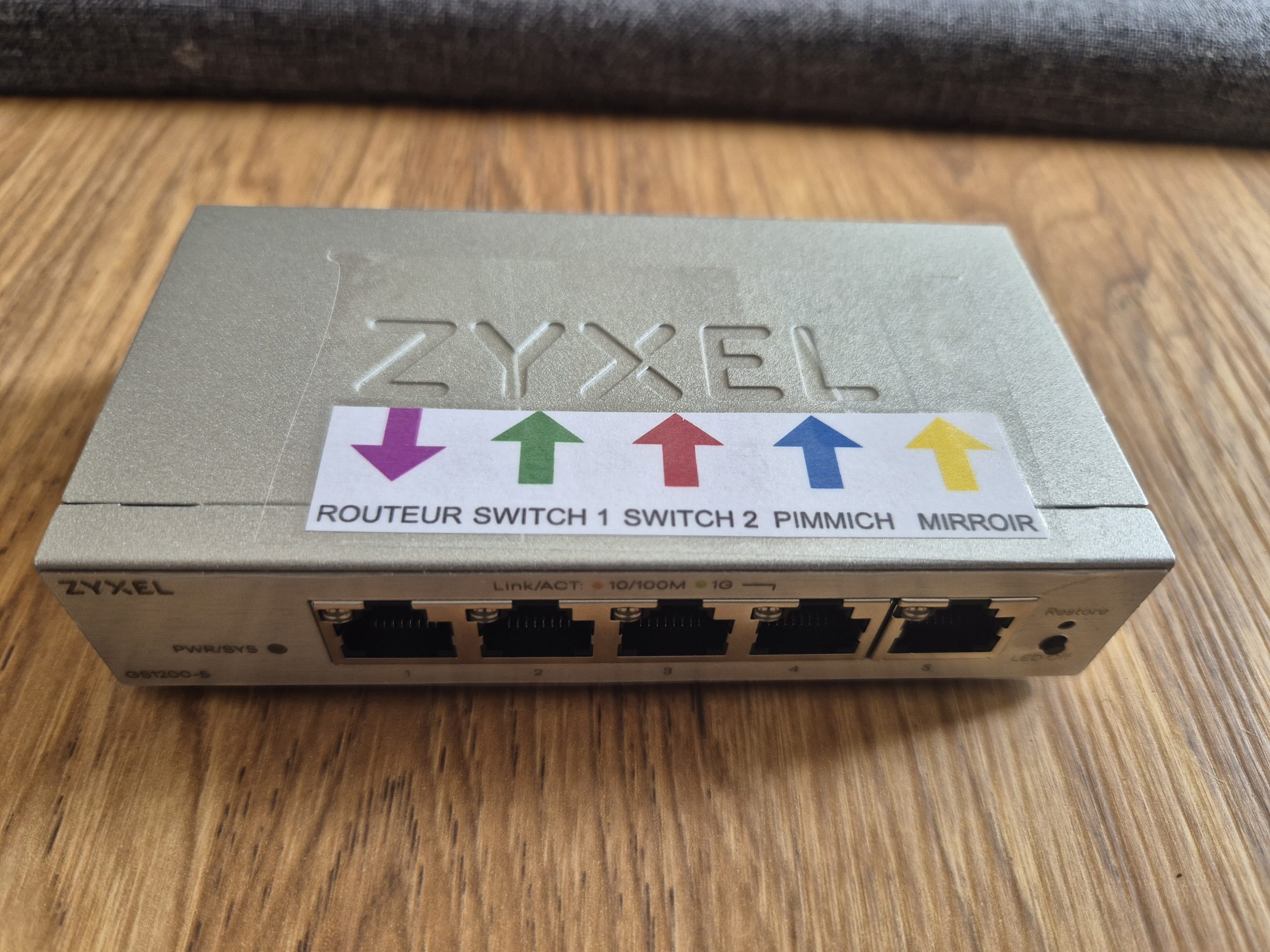
Configuration chosen:
| Port | Use |
|---|---|
| Port 1 | Synology Router |
| Port 2 | Local network |
| Port 3 | Local network |
| Port 4 | Local network |
| Port 5 | Raspberry Pi IDS |
I prepare a small label that I will stick on the switch.
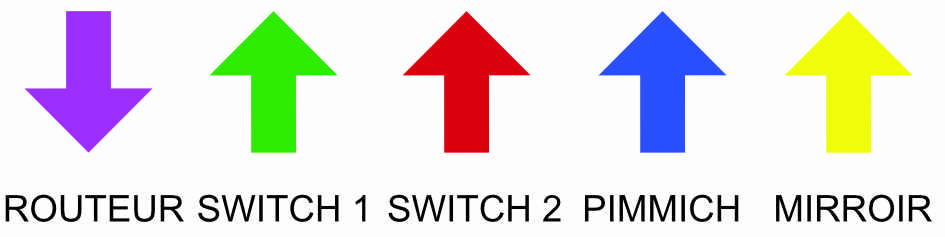
and here is the result:
🪞 I configure the Port Mirroring
The principle:
- copy traffic from the port connected to the router;
- towards the port of the Raspberry Pi.

Parameters configured:
| Parameter | Value |
|---|---|
| Port Mirroring | Enable |
| Mirror Direction | Both |
| Mirrored Port | Port 1 |
| Monitor Port | Port 5 |
The ‘Both’ mode is important: it allows you to see incoming AND outgoing traffic.
❓ Why don't I mirror all the ports?
This is a question that often comes up.
In practice:
- monitoring the port of the router is more than enough;
- this already makes it possible to observe all internet traffic;
- without unnecessarily overloading the Raspberry Pi.
Mirror all ports:
- greatly increases the volume of traffic;
- generates duplicates;
- and can saturate the analysis system.
For a home network, the mirroring of the router port is largely sufficient.
🏷 I leave VLANs by default
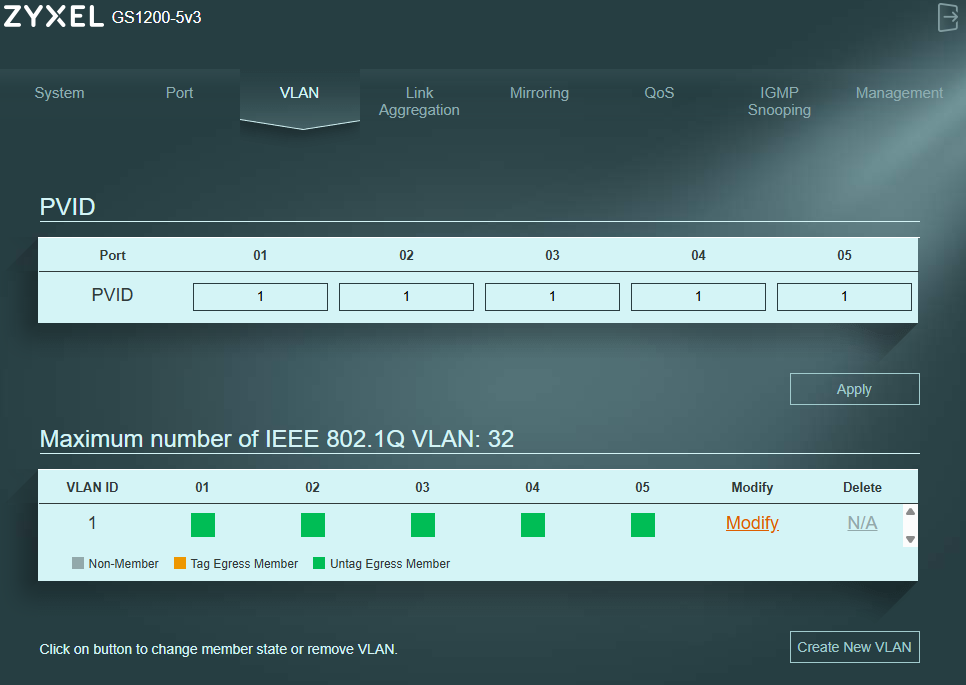
No particular VLAN configuration was needed, I left everything by default.
All ports remain:
- in VLAN 1;
- in untagged mode.
For a classic residential installation, it works perfectly.
⚙ I leave QoS, LAG and IGMP almost by default

The other advanced functions of the switch have been left by default:
- no Link Aggregation;
- no specific QoS;
- IGMP Snooping activated;
- EEA disabled.
The aim is to keep:
- simple behaviour;
- stable;
- predictable.
🥧 I install the Raspberry Pi network monitoring
Once the manageable switch was configured and the mirroring port was operational, it was now necessary to set up the network sensor capable of analysing the traffic of the home network.
The aim was not to block traffic or replace the router, but simply to set up a fully passive monitoring system capable of observing what is happening on the local network.
The idea is simple: the Zyxel switch duplicates network traffic with the mirroring port, then sends this copy to a Raspberry Pi dedicated to analysis.
The Raspberry then becomes a kind of ‘network surveillance camera’, capable of observing connected equipment, external connections, DNS exchanges, TLS flows, suspicious behaviour or certain known attacks.
🤔 Why do I use a Raspberry Pi?
The Raspberry Pi is perfect for this type of use:
- low power consumption;
- completely silent operation;
- reduced cost;
- compact format;
- perfect for 24-hour operation.
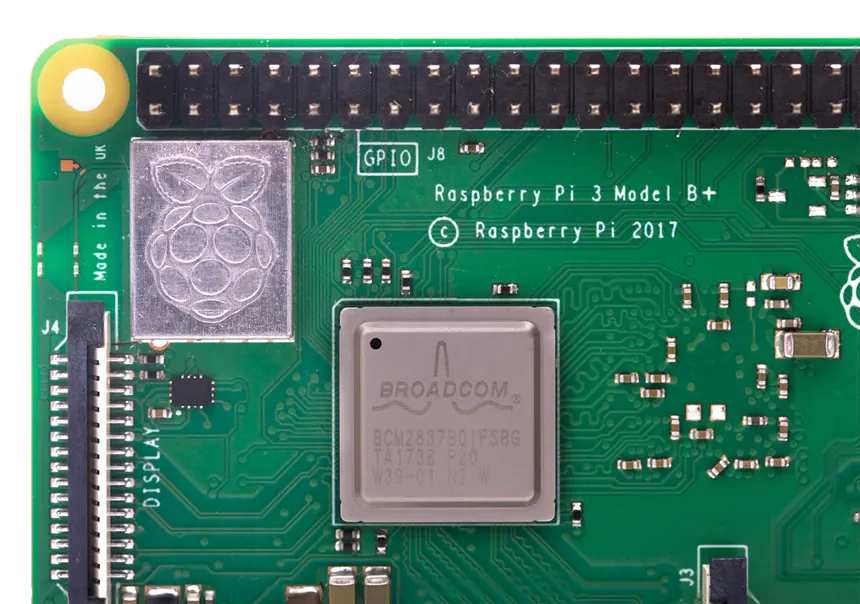
I had several models available at home: Raspberry Pi 3, 3B and 3B+.
The choice was ultimately a Raspberry Pi 3B+ which offers a good compromise between power, stability and consumption.
💾 I choose storage
I wanted to avoid classic microSD cards.
Even if they work very well for simple projects, they do not support long-term intensive writes, especially when it comes to generating network logs continuously.
I have therefore chosen to use:
- a 2.5 SATA SSD;
- a USB to SATA adapter;
- Raspberry Pi OS Lite 64-bit.
The objective was to obtain an installation:
- more reliable;
- faster;
- more sustainable;
- and more stable over time.
🧰 I install the system
The system was installed with Raspberry Pi Imager directly on the SSD.
I have chosen:
- Raspberry Pi OS Lite 64-bit;
- pre-configured Wi-Fi connection;
- SSH activated upon installation;
- personalised host name;
- Automatically update the system after the first boot.
As soon as it started, the Raspberry immediately appeared on the home Wi-Fi network.
It was then assigned a fixed IP from the Synology router to facilitate remote administration.
At this point, I set the IP address, each its own method, I do it on the Synology router but this can be done on the Raspberry, note that from here, every time I use 192.168.1.222, it will be the IP of the Raspberry.
🩺 I check that the system base is healthy
Before installing Suricata, I preferred to check that the system base was sound.
The idea was simple: before converting the Raspberry into a 24-hour network probe, it was necessary to ensure that the system started well on the SSD, that the power supply was stable, that the temperature was correct and that the network interfaces were in the expected state.
📦 Complete system update
sudo apt update && sudo apt full-upgrade -yAfter the update, a restart makes it possible to restart on a clean basis:
sudo reboot💽 I check that the Raspberry starts well on the SSD
lsblkExpected result:
sda ├─sda1 /boot/firmware └─sda2 /The important point here is to see that the root partition / has been well-mounted since /dev/sda2.
This confirms that the Raspberry boots well on the USB SSD and not on a microSD card.
📊 I check the available disk space
df -hExpected result:
/dev/sda2 29G 3.0G 25G 11% / /dev/sda1 505M 65M 440M 13% /boot/firmwareIn my case, the 32 GB SSD offers plenty of space for the system, Suricata and logs, provided that the files are rotated automatically.
🌐 I check network interfaces
ip aExpected result before connecting the mirror port:
eth0: <NO-CARRIER,BROADCAST,MULTICAST,UP> wlan0: <BROADCAST,MULTICAST,UP,LOWER_UP> inet 192.168.1.22/24In this architecture, Wi-Fi is used to administer the Raspberry in SSH.
The Ethernet interface eth0, it will be reserved for the capture of network traffic from the mirror port of the switch.
🌡 I check the temperature
vcgencmd measure_tempResult achieved:
temp=40.8'CA temperature around 40 to 60 °C is perfectly correct for this type of use.
The Raspberry will therefore be able to work continuously without any particular problem.
🔌 I check feeding and throttling
vcgencmd get_throttledExpected result:
throttled=0x0This is a very important point.
Value 0x0 means that the Raspberry does not detect:
- nor undervoltage;
- nor frequency limitation;
- no feeding problems.
🧠 I check that the system is 64 bits
uname -aExpected result:
aarch64 GNU/LinuxThe presence of aarch64 Confirms that Raspberry Pi OS Lite 64-bit is installed.
🛡 I install Suricata
Once the Raspberry was fully operational, I installed the Intrusion Detection System (IDS) engine, which will analyse network traffic: Suricata.
Suricata’s choice was quite natural:
- open source;
- widely used in the professional world;
- advanced protocol analysis;
- support for JSON logs;
- Home Assistant compatibility;
- detection of network anomalies;
- fingerprints JA3 and JA4;
- automatic updating of the rules.
📦 Suricata Installation
sudo apt install suricata -yOnce the installation was complete, I checked the version and the compiled functionalities:
suricata --build-infoExpected result:
This is Suricata version 7.x AF_PACKET support: yes eBPF support: yes JA3 support: yes JA4 support: yesThis step makes it possible to confirm:
- Suricata is well installed;
- Linux network support is active;
- JA3/JA4 prints are available;
- that the engine is working properly on Raspberry Pi.
✅ I check the Suricata service
sudo systemctl status suricataExpected result:
Active: active (running)The service starts automatically at the Raspberry boot.
📚 I install the detection rules
By default, Suricata contains almost no active rules.
It is therefore necessary to download a database of network signatures.
I chose the Community rules Emerging Threats Open.
📦 Installation of suricata-update
sudo apt install suricata-update -y✗ ✗ Downloading the rules
sudo suricata-updateExpected result:
Loaded 65950 rules Writing rules to /var/lib/suricata/rules/suricata.rulesMore than 50,000 detection signatures were installed automatically.
🔧 I configure the Raspberry network
At this stage, an extremely important point had to be addressed:
The Raspberry should never communicate over the network via its capture interface.
The port connected to the switch's mirror port must only listen for network traffic, without ever sending packets.
For this purpose:
- no IP address should be present on
eth0; - no DHCP;
- no gateway;
- no outbound traffic;
- mandatory PROMISC mode.
🔎 I identify the network operator used
nmcli device statusResult achieved:
eth0 ethernet connected netplan-eth0 wlan0 wifi connected netplan-wlan0This confirms that the system uses NetworkManager.
🚫 I disable IPv4 and IPv6 on eth0
sudo nmcli connection modify netplan-eth0 ipv4.method disabled sudo nmcli connection modify netplan-eth0 ipv6.method disabled🔄 I restart the network connection
sudo nmcli connection down netplan-eth0 sudo nmcli connection up netplan-eth0👂 I am constantly activating PROMISC mode
The promiscuous mode allows the network card to receive all packets copied by the switch.
Creation of a systemd service:
sudo nano /etc/systemd/system/promisc-eth0.serviceContent of the file:
[Unit] Description=Enable promiscuous mode on eth0 After=network.target [Service] Type=oneshot ExecStart=/usr/sbin/ip link set eth0 promisc on [Install] WantedBy=multi-user.target▶▶ I activate the service
sudo systemctl enable promisc-eth0 sudo systemctl start promisc-eth0✅ I check the network interface
ip aExpected result:
eth0: <BROADCAST,MULTICAST,PROMISC,UP,LOWER_UP>Very important:
- no IP address;
- no line
inet; - mode
PROMISCactive.
The Raspberry then becomes a real passive network probe.
🔌 I plug in the mirror port
Once the Raspberry was ready, port 5 of the Zyxel switch configured as a mirror port was connected directly to the Ethernet port of the Raspberry Pi.
From this point on, the Raspberry starts receiving a copy of the network traffic.
📡 I do a first network capture test
Before launching Suricata, I preferred to check that the mirroring actually worked.
📦 Installation of tcpdump
sudo apt install tcpdump -y🧪 Test Capture
sudo tcpdump -i eth0 -nn -c 20Result achieved:
IP 192.168.1.x > 192.168.1.x UDP, length 70 ICMP echo request HTTPS traffic DNS trafficNetwork traffic immediately started to scroll:
- DNS queries;
- HTTPS traffic;
- IoT communications;
- internal flows;
- ICMP;
- Various network connections.
This confirmed that:
- the Zyxel mirror port worked perfectly;
- the Raspberry did receive a copy of the traffic;
- Passive capture was operational.
⚙ I configure Suricata
The main configuration file can be found here:
/etc/suricata/suricata.yaml🏠 I declare the local network
I adapted the local network to my installation:
HOME_NET: "[192.168.1.0/24]"This improves:
- the accuracy of the alerts;
- performance;
- detection of internal and external flows.
🧬 I activate fingerprints JA3 and JA4
The JA3/JA4 fingerprints make it possible to identify certain TLS behaviours very precisely.
Activation in the TLS block:
ja3-fingerprints: yes ja4-fingerprints: yes✅ I validate the configuration
sudo suricata -T -c /etc/suricata/suricata.yamlExpected result:
Configuration provided was successfully loadedThis command is extremely useful:
- detection of YAML errors;
- validation of rules;
- control of roads;
- global configuration check.
🚀 I start Suricata
🔄 I'm restarting the service
sudo systemctl restart suricata📊 I check the status
sudo systemctl status suricataExpected result:
Active: active (running)📜 I validate network logs
The core of the system is based on the JSON file generated by Suricata:
/var/log/suricata/eve.json👀 Real-time visualization
sudo tail -f /var/log/suricata/eve.jsonBy generating some network traffic (YouTube, web browsing, … connected objects), the first events appear immediately:
"event _type":"flow" "event _type":"dns" "event _type":"tls" "event _type":"http"This confirms that:
- Suricata analyses packets correctly;
- protocols are decoded;
- JSON logs are usable;
- Network supervision actually works.
🗂 I set up an automatic log rotation
A network monitoring system generates a lot of logs.
It is therefore essential to set up an automatic rotation in order to avoid filling the SSD.
⚙ Configuration logrotate
sudo nano /etc/logrotate.d/suricataConfiguration used:
/var/log/suricata/*.log /var/log/suricata/*.json { daily rotate 14 missingok notifempty compress delaycompress copytruncate sharedscripts postrotate /bin/kill -HUP $(cat /var/run/suricata.pid) 2>/dev/null || true endscript }This configuration:
- keeps 14 days of history;
- compresses old logs;
- avoids errors if Suricata restarts;
- severely limits the wear of the SSD.
📡 I export network flows to Home Assistant with softflowd
Once Suricata was operational in passive IDS mode, the next objective was to transmit network metadata to Home Assistant in order to be able to create smart dashboards, activity charts and alerts.
To this end, I added: softflowd, a lightweight NetFlow exporter perfectly suited to a Raspberry Pi 3B+.
The idea is simple:
- Suricata inspects the packages;
- softflowd observes network flows;
- Home Assistant centralises and visualises the activity.
This approach allows for advanced network supervision without turning the Raspberry into an active router or firewall.
📦 I install softflowd
Installation is very simple:
sudo apt install softflowd -yOnce installed, it was necessary to identify which network interface received mirror traffic from the Zyxel switch.
As before, the following command is used to check the network status:
ip aObserved result:
2: eth0: <BROADCAST,MULTICAST,PROMISC,UP,LOWER_UP> 3: wlan0: <BROADCAST,MULTICAST,UP,LOWER_UP>The interface eth0 is therefore good:
- connected;
- active;
- in PROMISC mode;
- without an IP address.
This is exactly what I was looking for:
- eth0 receives only mirror traffic from the switch;
- wlan0 is used to administer the Raspberry and send the data to Home Assistant.
🧪 I do a first manual test
Before any automation, I started softflowd manually to check the operation:
sudo softflowd -i eth0 -n 192.168.1.222:2055The Raspberry returns almost no messages to the screen, which is normal.
The program launches directly in the background.
To verify that the flows were indeed exported to Home Assistant, I opened a second SSH session and then launched:
sudo tcpdump -i wlan0 udp port 2055Result:
IP Suricata.42399 > 192.168.1.222.2055: UDPThis line confirms several important points:
- softflowd works;
- NetFlow flows are well generated;
- Home Assistant receives the packages;
- routing via Wi-Fi is correct.
🛠 I create a dedicated systemd service
The Debian service provided with softflowd proved unreliable in this specific context.
So I preferred to create my own systemd service.
Creation of the file:
sudo nano /etc/systemd/system/softflowd-ids.serviceConfiguration used:
[Unit] Description=softflowd NetFlow export for IDS mirror interface After=network-online.target promisc-eth0.service Wants=network-online.target [Service] Type=simple ExecStart=/usr/sbin/softflowd -d -i eth0 -n 192.168.1.222:2055 Restart=always RestartSec=5 [Install] WantedBy=multi-user.targetThen activation of the service:
sudo systemctl daemon-reload sudo systemctl enable softflowd-ids sudo systemctl restart softflowd-ids✅ I check the correct functioning
To confirm the correct functioning:
sudo systemctl status softflowd-idsResult:
Active: active (running) softflowd v1.1.1 starting data collection Exporting flows from eth0 to [192.168.1.222]:2055At this stage, the network architecture is fully operational:
- the Zyxel switch duplicates the traffic;
- the Raspberry receives copies of the packages;
- Suricata analyses traffic;
- softflowd exports flows;
- Home Assistant centralizes data.
The most interesting thing is that this monitoring remains completely passive:
- no impact on the network;
- no modification of the equipment;
- no possible interruption of traffic;
- extremely low power consumption.
The Raspberry thus becomes a real home network probe capable of offering very advanced visibility over the entire home automation and IT installation of the house.
🏠 I integrate Home Security Assistant into Home Assistant
Once Suricata was up and running and NetFlow flows were properly exported to Home Assistant via softflowd, the next step was to actually exploit all this data.
The aim was no longer merely to capture network traffic, but to:
- correlate security events;
- identify active equipment;
- detecting abnormal behaviour;
- view the home network in real time;
- transform Home Assistant into a real security supervision center.
For this, I installed the excellent integration Home Security Assistant by domo-monster.
This integration makes it possible to centralise:
- Suricata logs;
- NetFlow flows;
- network statistics;
- suspicious events;
- vulnerability detections;
- unusual network behaviour.
In my case, HACS was already installed in Home Assistant, which greatly simplifies the installation.
➕ I add the custom repository in HACS
In Home Assistant:
HACS → Integrations → ⋮ (top right menu) → Custom DepositsAddition of the GitHub repository:
https://github.com/domo-monster/HomeSecurityAssistantThen selection of the category:
IntegrationFinally:
Add
📦 I install the integration
Once the deposit has been added:
HACS → IntegrationsSearch for:
Home Security AssistantThen install the latest version available.
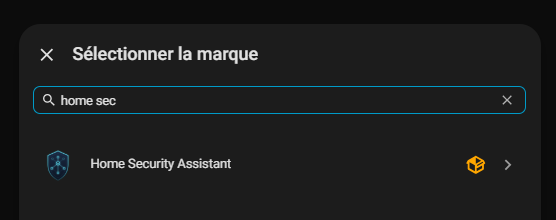
After downloading, Home Assistant requests a full restart.
🔌 I add integration in Home Assistant
After restarting:
Settings → Devices and services → Add integrationThen search for:
Home Security Assistant⚙ I configure Home Security Assistant
After the integration is installed, Home Assistant automatically opens the Home Security Assistant configuration window.
This configuration shall remain accessible at all times:
Settings → Devices and Services → Home Security Assistant → Configure (scratched wheel)Most of the proposed settings can be left by default.
Integration is already designed to work effectively in a standard home environment.
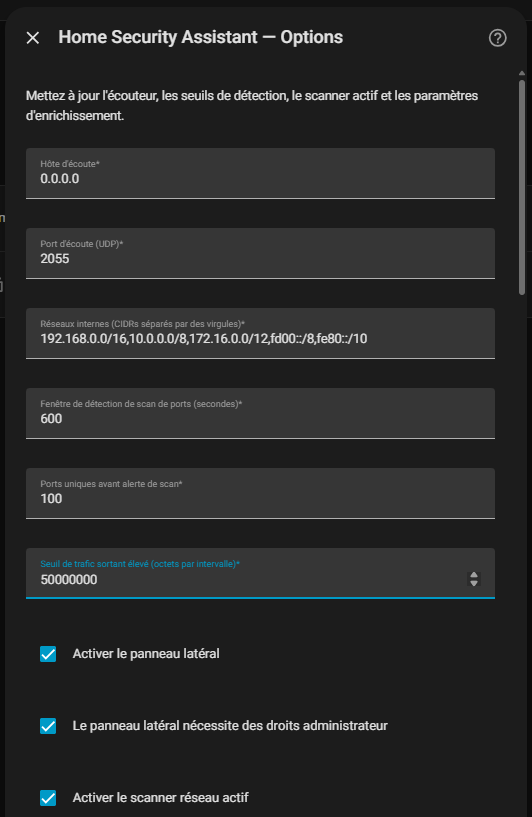
In my case, only a few parameters really required special attention.
🌐 Listening Host
0.0.0.0This value must be retained.
It allows Home Security Assistant to listen to NetFlow streams on all network interfaces of the Home Assistant server.
This is particularly useful when:
- Home Assistant has several network interfaces;
- flows arrive from other equipment;
- telemetry is exported by a remote IDS probe as here with the Raspberry.
📡 UDP listening port
2055This port must correspond exactly to the one previously configured in softflowd:
softflowd -i eth0 -n 192.168.1.222:2055Port 2055 is a very common standard for NetFlow.
🏠 Internal Networks
192.168.0.0/16,10.0.0.0/8,172.16.0.0/12,fd00::/8,fe80::/10I voluntarily kept this default configuration.
Even though my current network works mainly by:
192.168.1.0/24The default configuration remains more flexible and scalable.
In particular, it makes it possible to:
- the future addition of VLANs;
- separation of IoT objects;
- management of guest networks;
- IPv6 compatibility;
- the future development of the infrastructure.
In a modern home environment, it is usually best to keep this extensive configuration.
🕵 Port Scanning Detection Window
600 secondsThis value corresponds to:
- 10 minutes of slippery surveillance;
- good detection sensitivity;
- a reasonable charge for Home Assistant.
The aim is to avoid:
- false positives that are too aggressive;
- unnecessary warnings;
- the overloading of the analysis engine.
For a home network, the default value is very correct.
🚪 Unique Ports Before Scan Alert
100This value determines from how many different ports a device will be considered potentially performing a network scan.
Again, the default value is suitable for domestic use.
Too low a value could cause a lot of false positives with:
- Chromecast;
- Apple TV;
- connected objects;
- mDNS;
- UPnP;
- Automatic network discovery.
📈 High outbound traffic threshold
50000000This parameter defines the volume of data considered to be abnormally high over a given period of time.
In my case, I kept the default value.
The main objective is to detect:
- compromised equipment;
- an unusual massive upload;
- data exfiltration;
- an extremely talkative IoT device.
📋 Activate Side Panel
Option left on.
This directly adds Home Security Assistant to the Home Assistant sidebar.
This is extremely convenient.
🔐 Admin rights for the side panel
Option also kept enabled.
This limits access to sensitive network information only to Home Assistant administrators.
In a multi-user environment, it is a good security practice.
🔎 Active Network Scanner
I left the scanner active.
This component allows Home Security Assistant to:
- discover network equipment;
- identify the active hosts;
- correlate IP addresses;
- enrich network information.
This feature perfectly complements the passive analyses performed by Suricata.
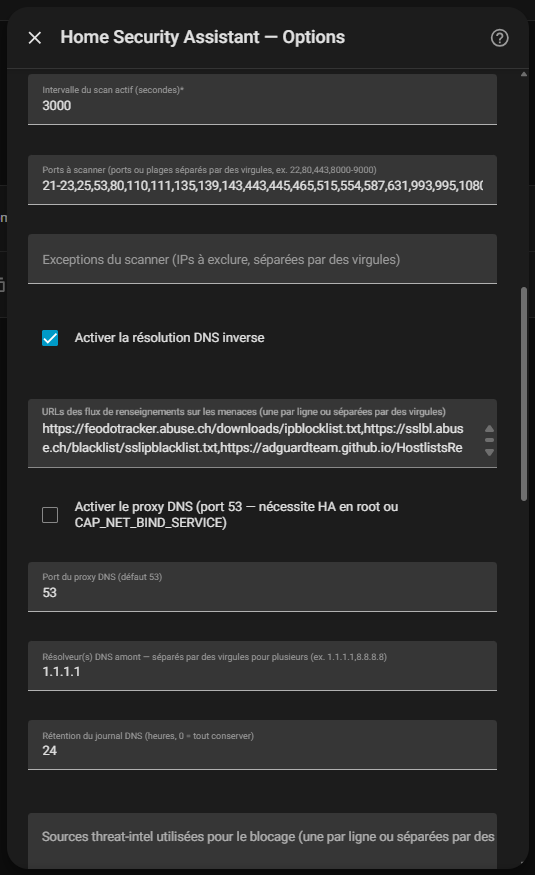
⏱ Active Scan Interval
3000 secondsThis value corresponds to approximately:
50 minutesTherefore, the active scanner does not run continuously.
This is a great thing in a domestic environment.
This makes it possible to:
- limiting network load;
- avoid aggressive scans;
- not to disrupt certain sensitive IoT objects;
- to maintain a discreet approach.
For a very dynamic laboratory or professional network, this value could be reduced.
But for a connected home, the default is very reasonable.
🚪 Ports for Scanning
The list provided by default can be kept.
It contains the most common ports.
The purpose of the scanner is not to perform a comprehensive offensive security scan, but rather to:
- identify the equipment;
- to detect the services exposed;
- mapping the network;
- feed into the safety correlations.
In my case, I did not change anything.
🚫 Scanner Exceptions
This field allows to exclude some IPs from active scans.
By default, it can remain empty.
However, this feature can become useful for:
- fragile equipment;
- certain printers;
- unrobust IoT objects;
- industrial equipment;
- devices that are very sensitive to network scans.
In my environment, no equipment required exclusion.
📛 Enable Reverse DNS Resolution
This option clearly deserves to be activated.
It makes it possible to transform low-sounding IPs into much more readable host names.
For example, instead of displaying:
192.168.1.42The Home Security Assistant may sometimes display:
nas.maison.local printer.local apple-tv.localThis greatly improves:
- legibility;
- analysis of events;
- rapid identification of equipment.
🧠 Threat Intelligence Flow
The URLs offered by default can be retained.
Home Security Assistant automatically downloads several reputation and blocking lists from recognised sources:
- Abuse.ch;
- SSLBL;
- AdGuard;
- other Community flows.
These flows are used to:
- identify malicious IPs;
- identifying suspicious areas;
- detect certain known behaviours;
- feed security alerts.
This is one of the most interesting aspects of integration: it automatically enriches locally collected network data with external intelligence.
🌍 Proxy DNS
In my case, this option remained disabled.
The DNS proxy would allow the Home Security Assistant to:
- intercept DNS requests;
- journaling the domains consulted;
- apply DNS blocking;
- carry out further analysis.
But this implies:
- higher network privileges;
- a more intrusive architecture;
- additional dependence.
For a first domestic deployment, I preferred to remain simple and stable.
🔢 DNS Proxy Port
53Standard value of the DNS protocol.
As the DNS proxy remains disabled, this parameter has no impact.
☁ Upstream DNS resolvers
1.1.1.1Cloudflare is used here as an upstream DNS resolver.
This value can be replaced according to preferences:
- Google DNS;
- Quad9;
- AdGuard DNS;
- Pi-hole;
- Local unbound.
In my case, I kept the proposed value.
🗃 DNS Log Retention
24 hoursThis value defines how long DNS logs remain stored.
For a domestic environment:
- 24 hours already provide good visibility;
- this limits memory consumption;
- this avoids unnecessary accumulation of data.
Longer conservation could be relevant in a professional or forensic context.

🚫 Sources threat-intel used for blocking
This field allows to define which intelligence sources will be used to feed the blocking mechanisms.
In my case, I left it empty. I always prefer to start in observer mode before automating countermeasures.
⛔ Blocked DNS Categories
This field makes it possible to block certain categories of domains:
- adults;
- gambling;
- malware;
- tracking;
- phishing;
- etc.
Again, I left it empty for this first deployment.
This feature can be activated later, once the normal behavior of the network is understood.
I already use Safe Access built into my Synology router to filter equipment used by my daughters.
It does this via a very nice graphical interface. We'll see later if I also come here to do DNS blocking.
↪ Local DNS Redirects
This feature allows some domains to be redirected to specific IPs.
For example:
monservice.local=192.168.1.10or:
ads.example.com=0.0.0.0In my case, no redirection was necessary. The field has therefore remained empty.
🦠 I create a VirusTotal account and get my API key
VirusTotal enriches security information with reputation data on suspicious IPs, domains, URLs or files.
To use it with Home Security Assistant, you must create a free account on:
https://www.virustotal.com

Once connected:
User profile → API keyVirusTotal indicates that the public API key is available in the user account menu once logged in. This key must remain private and must obviously never be published in an article, a screenshot or a Git repository.

In Home Assistant:
Settings → Devices and Services → Home Security Assistant → ConfigureThen I fill in the field:
VirusTotal API KeyI then kept the proposed daily budget:
500For my domestic use, this is more than enough.
The aim is not to constantly query VirusTotal, but only to enrich suspicious elements in order to better understand what Home Security Assistant detects.
🚨 I create an AbuseIPDB account and get my API key
AbuseIPDB complements VirusTotal very well.
Where VirusTotal gives a global reputation, AbuseIPDB is particularly useful for identifying known IP addresses for:
- network scans;
- attempts at brute force;
- abusive conduct;
- malicious activities reported by the community.
I am therefore creating a free account on:
https://www.abuseipdb.com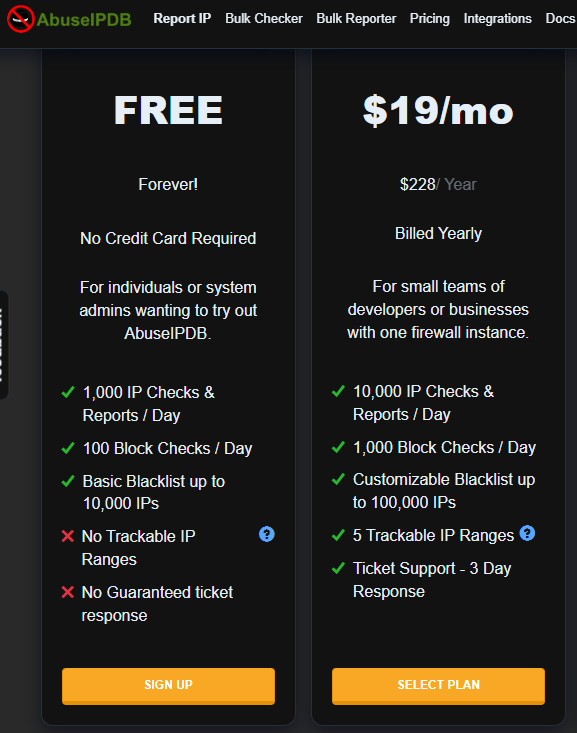
Once connected:
Account → API → Create Key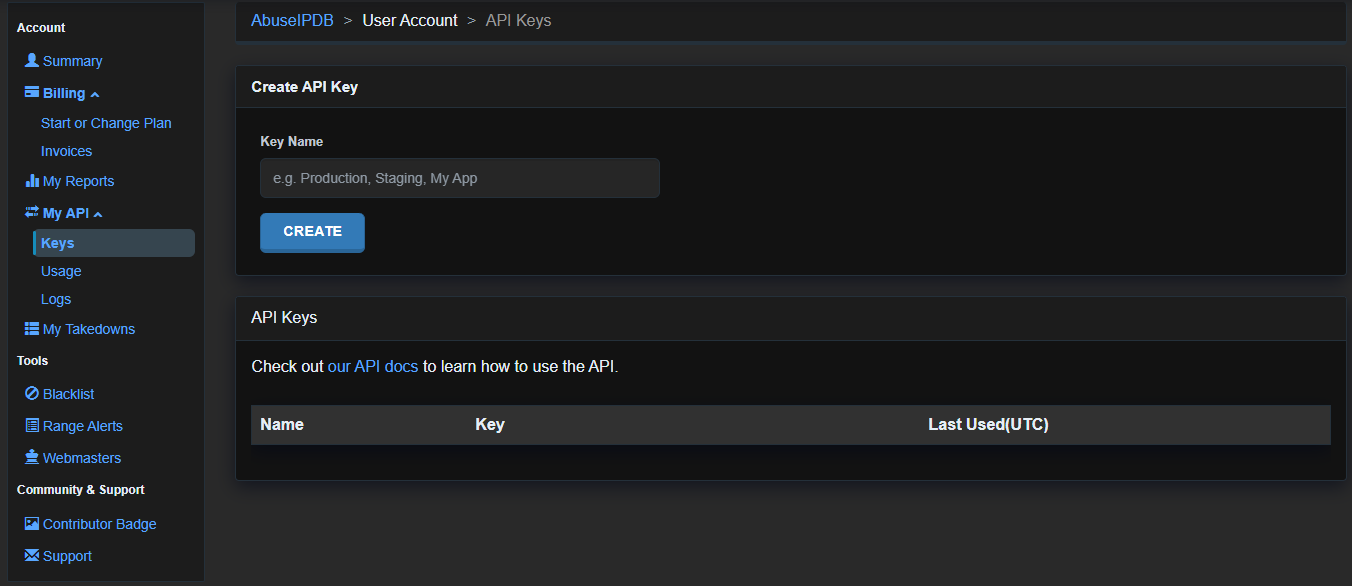
I give the key a name, for example:
Home Security AssistantThen I copy the generated API key.
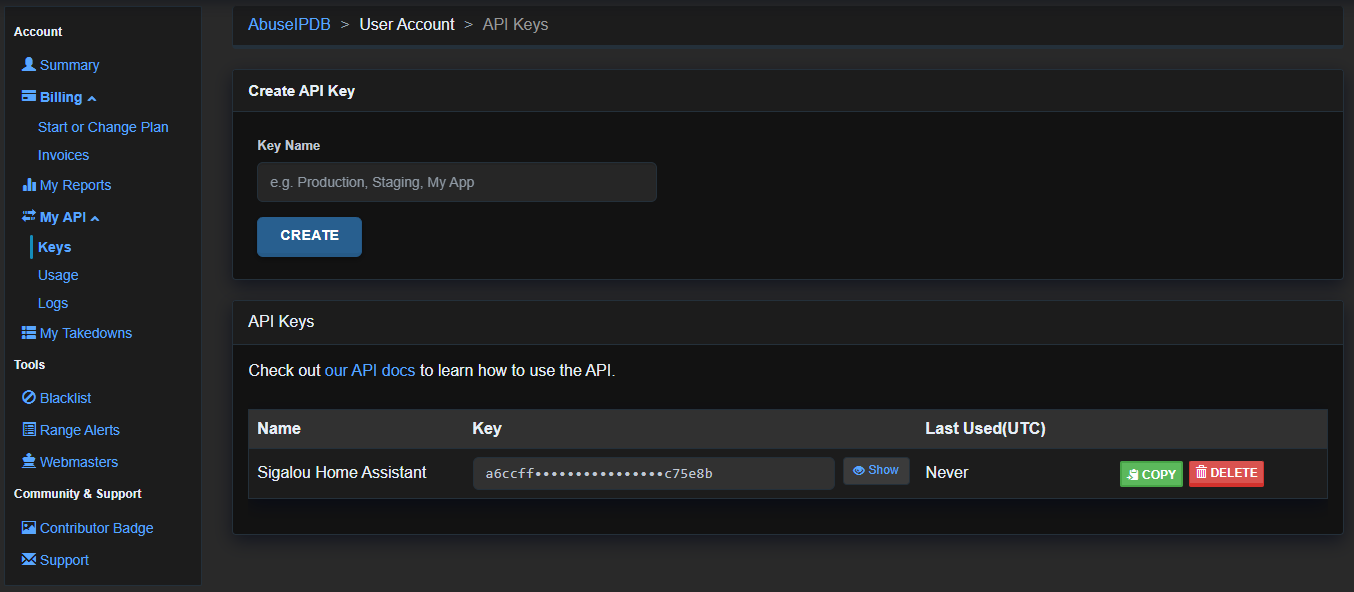
As with VirusTotal, this key must remain strictly private. AbuseIPDB also points out that API keys must not be publicly disclosed.
In Home Assistant:
Settings → Devices and Services → Home Security Assistant → ConfigureThen I fill in the field:
AbuseIPDB API KeyI kept the daily budget:
1000And I left the AbuseIPDB confidence threshold before querying VirusTotal on a reasonable value.
The principle is interesting: If AbuseIPDB considers a sufficiently suspicious IP, Home Security Assistant can then enrich the analysis with VirusTotal.
This avoids:
- unnecessary API calls;
- excessively rapid consumption of quotas;
- and enrichments on perfectly banal IPs.
🧠 Why do I add these two services?
Initially, Home Security Assistant mainly sees:
- IPs;
- flows;
- traffic volumes;
- network behaviour.
With VirusTotal and AbuseIPDB, this information becomes much more readable.

Instead of simply having:
Suspicious IP: 185.xxx.xxx.xxxHome Security Assistant can enrich information with reputational elements:
- IP already reported;
- confidence score;
- threat category;
- history of alerts;
- security context.
For a domestic installation, this allows a better understanding of what is observed, without immediately automating blockages.
And that is exactly the approach I prefer:
- observe first;
- understand next;
- Automate only if it is really necessary.
🎯 Confidence AbuseIPDB before query VirusTotal
This slider defines from which AbuseIPDB score an IP will be considered suspicious enough to trigger a VirusTotal query.
The principle is intelligent:
- avoid unnecessary calls;
- reduce API consumption;
- Prioritize genuinely suspicious IPs.
🧹 Retention of own IPs
5 hoursIPs considered normal are kept for a short time.
This is consistent:
- the legitimate traffic is extremely large;
- there is no need to keep it for too long;
- it saves memory and storage.
⚠ Retention of suspicious IPs
48 hoursSuspicious IPs remain visible for longer in order to:
- facilitate analysis;
- identify repetitive behaviour;
- correlate certain events.
This value seems to me particularly relevant for domestic use.
☠ Retention of Malicious IPs
168 hoursEither:
7 daysIPs identified as genuinely malicious are kept much longer.
This makes it possible to:
- identify repeated attacks;
- follow up on certain persistent attempts;
- to maintain an exploitable history.
For a domestic Raspberry Pi, this value remains reasonable.
Enrichment Cache TTL 🧠
1440 minutesEither:
24 hoursThis parameter avoids re-examination of external intelligence services at all times.
This makes it possible to:
- limit API calls;
- reduce the load;
- make integration more fluid;
- avoid certain blockages related to quotas.
Again, the default value is very well thought out.
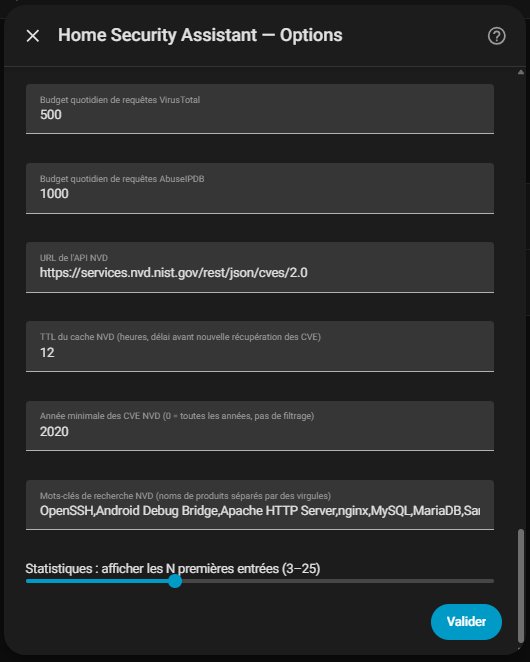
📊 Daily Virus query budgetTotal
500This setting limits the number of daily requests sent to VirusTotal.
📈 Daily budget of AbuseIPDB requests
1000Same logic here. This parameter sets the maximum number of queries to AbuseIPDB.
🗃 URL of the NVD API
https://services.nvd.nist.gov/rest/json/cves/2.0This URL points to the official NVD database:
National Vulnerability Databasemanaged by the American NIST.
It is one of the global benchmarks for:
- CVE vulnerabilities;
- CVSS scores;
- security references;
- follow-up of public flaws.
Home Security Assistant can use this database to:
- identify vulnerable products;
- correlate certain equipment;
- identify potential risks.
The default URL is obviously to be retained.
NVD Cache TTL ⏳
12:00This setting defines how often CVE information is refreshed.
Too frequent an update:
- would unnecessarily increase traffic;
- consume more resources;
- would not bring any real benefit.
The proposed value represents an excellent compromise.
📅 Minimum VEC year
2020This option is particularly interesting.
It limits the analysis to recent vulnerabilities.
Why is it useful?
Because the CVE database contains tens of thousands of historical entries.
However, in a domestic environment:
- very old vulnerabilities are often less relevant;
- recent equipment is more affected by modern VECs;
- This greatly reduces noise.
The 2020 value is therefore consistent:
- it retains several years of history;
- without unnecessarily overloading the system.
🔍 Search keywords NVD
This field contains a list of products and services to be monitored in the CVE databases:
OpenSSH Android Debug Bridge Apache HTTP Server nginx MySQL MariaDB ...This list allows Home Security Assistant to:
- identify certain technologies present on the network;
- look for associated vulnerabilities;
- to raise contextualized alerts.
It brings Home Assistant closer to a logic of:
- vulnerability management;
- attack surface inventory;
- cyber-domestic hygiene.
In my case, I kept the list proposed by default.
It already covers many services frequently present in domestic laboratories and self-hosted environments.
📉 Statistics: display the first N entries
The cursor allows you to choose how many items will be displayed in the statistics and dashboards.
For example:
- top active IPs;
- Suspicious sources;
- most used ports;
- vulnerabilities detected;
- Important network activities.
The default intermediate value proposed is very well balanced:
- enough information to be useful;
- without overloading the Home Assistant interface.
✅ Final configuration validation
Once this last page is validated, Home Security Assistant becomes fully operational.
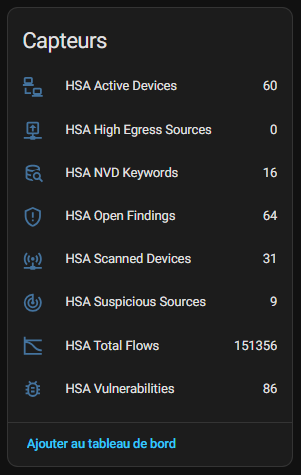
A few minutes after starting, the first indicators are already starting to appear in Home Assistant.
This is probably one of the most satisfying moments of the project:
finally see the home network come to life as usable security data.
After:
- configuration of the mirror port;
- the installation of Suricata;
- collection of network flows;
- the softflowd configuration;
- integration into Home Assistant;
the system is finally starting to produce a coherent view of home network activity.
Here are, for example, the first sensors that appeared a few moments after starting up:
- HSA Active Devices : number of active equipment detected on the network;
- HSA High Egress Sources : sources generating an unusually high volume of outbound traffic;
- HSA NVD Keywords : keywords and technologies monitored in the NVD vulnerability database;
- HSA Open Findings : alerts and security features currently open;
- HSA Scanned Devices : number of items of equipment analysed by the active scanner;
- HSA Suspicious Sources : network sources considered suspicious according to detection rules and intelligence flows;
- HSA Total Flows : total number of network flows observed;
- HSA Vulnerabilities : vulnerabilities detected or correlated from the information collected.
In my case, the numbers started to climb very quickly. Before writing this page, I let the system run overnight:
- more than 150 000 network flows detected;
- more than 60 active equipment;
- dozens of vulnerabilities identified;
- several sources considered suspicious.
And this is precisely where the project becomes exciting.
We suddenly realise how much activity a modern home network generates:
- connected objects;
- voice assistants;
- smartphones;
- NAS;
- cloud services;
- Connected TVs;
- streaming services;
- containers;
- home automations.
Even in a personal environment, the network surface quickly becomes very complex.
And that is what Home Security Assistant finally makes visible.
I rename all the sensors by giving them titles in French.
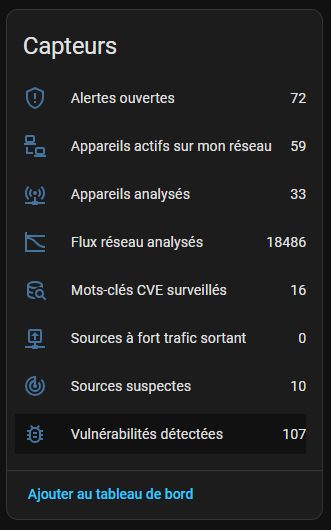
👀 First impressions after start-up
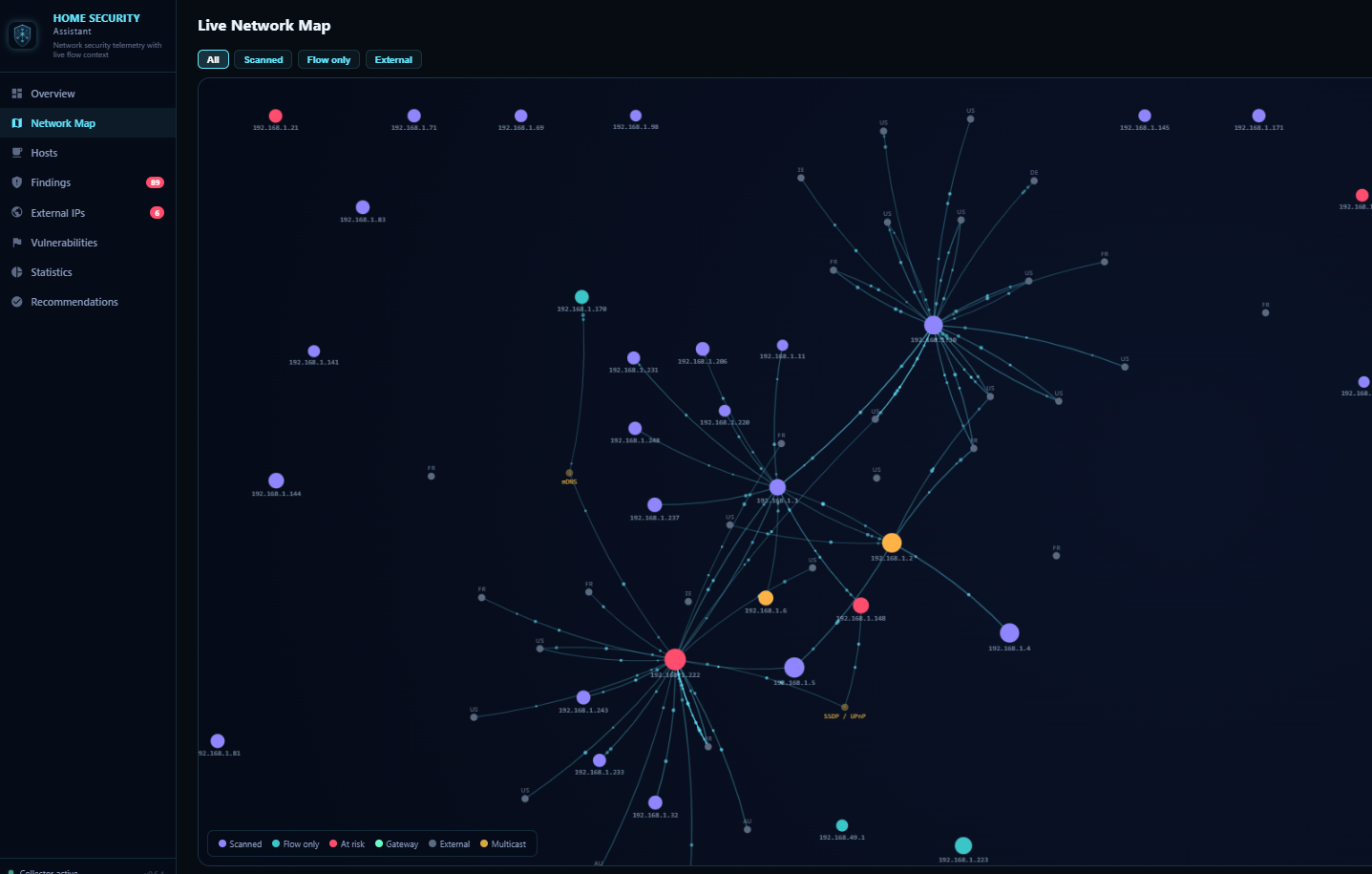
For now, the information in HA is limited to numbers, so I went to the HSA interface.
What struck me immediately was the amount of information available without any additional complex configuration.
Very quickly, Home Assistant displayed:
- active appliances;
- traffic volumes;
- suspicious IPs;
- important network exchanges;
- legible safety statistics;
- the beginnings of threat correlation.
Most importantly, all this is directly integrated into the existing home automation ecosystem.
This is probably what makes this project particularly interesting: bring advanced cybersecurity mechanisms into a Home Assistant environment, without having to deploy a heavy and complex professional infrastructure.
The result is both:
- pedagogical;
- visual;
- useful;
- evolutionary.
At this stage, I am both very happy and extremely curious to continue the discovery of Home Security Assistant.
I can’t even imagine how much time domo-monster spent doing this work, which, once configured, lights up and comes to life almost on its own.
The screen Map is alive, legible and really impressive to observe.
Frankly: Congratulations.
🎯 Conclusion
This architecture provides a real layer of network visibility:
- without complicating the installation;
- without changing traffic;
- without depending on the router.
The couple:
- manageable switch + mirroring port + Raspberry Pi
provides an excellent basis for building a high-performance, fully local domestic SDI.
And above all:
- the analysis remains completely passive;
- This ensures excellent network stability.
For an advanced home automation laboratory or a modern residential network, it is a particularly elegant solution.
I now have plenty of fun for a few … weekends or nights of insomnia 😄
I honestly did not think that this RetEx would become so long and dense …, but in the end I did.
So if you have read so far: Bravo 😅
I will stop at this point for this article, but it is very likely that I will publish the rest with other RetEx around Home Security Assistant and its day-to-day operation.
And of course, I end with a huge thank you to domo-monster, which brings us here on a silver platter the fruit of probably very many years of experience and investment in the field of cybersecurity.
The result is really impressive.
Question? Need help?
I have posted a message on Home assistant’s forum de la communaté francophone, do not hesitate to use it to ask me questions or provide your experience:
 English
  French
  Spanish
  Chinese
  German