


I spend a lot of time monitoring, securing and understanding what is happening on my home network. Between the internet box, the unintentionally exposed equipment and the permanent scans from the internet, I once wondered one simple thing: Is my public IP known as “noisy” or suspicious on the internet?
That is, malicious tools use my network (pc, NAS, router, HA, …) ??
That’s how I came across GreyNoise, a really interesting service that makes it possible to know whether an IP address is part of the “noise” of the Internet, i.e. whether it is observed in scanning, polling or malicious traffic activities.
GreyNoise rightly describes its approach as a way to qualify the background noise of the Internet and contextualise an observed IP.
And as often with me, after a few tests, I thought: “Well, it would still be convenient to have this directly in Home Assistant”.
Initially, I thought I would do something very simple with a classic HTTP request. On paper, it seemed trivial. In practice, the most obvious method did not work for me as I had hoped. So I changed my approach and finally switched to a command line sensor. In this article, I tell you all this step by step, as I actually set it up at home, with the Lovelace cards for the final display.
🎯 My goal
My objective was simple: integrate in Home Assistant a sensor capable of querying GreyNoise to find out the status of my public IP, and then display the result in a clear and readable dashboard.
The idea was not to turn Home Assistant into an advanced cybersecurity centre, but rather to add a small context indicator.
A quick glance was to let me know if my IP was seen as benign, unknown, or possibly related to more suspicious activity.
GreyNoise sets out precisely this type of information via its public verification endpoint.
I also wanted something understandable for a beginner: a sensor, some useful attributes, and nice cards to make all this readable without having to open a terminal and obviously without taking a subscription of anything and without registering me no.
What is 🧠 GreyNoise?
When you discover GreyNoise for the first time, you may wonder what exactly it's for.
In a very simple version, GreyNoise constantly observes the background noise of the Internet: automated scans, IP address surveys, repetitive login attempts, all these behaviours that are not necessarily visible to the naked eye but that exist permanently on the global network.
GreyNoise presents its service as a means of distinguishing between substantive activity and genuinely significant traffic.
GreyNoise’s interest is that it makes it possible to contextualise an IP address. Basically, it is possible to know whether this IP is known to participate in this Internet noise, whether it is considered legitimate, or whether it is simply not known to their systems. Their public verification service returns this context in the form of JSON.
When I understood this, I found the idea excellent for the house. We often have an internet box, sometimes port redirects, a VPN, remotely accessible equipment, and we don’t always know how our IP is “viewed” from the outside.
Without being a complete security tool, GreyNoise gives an interesting clue.
🆓 Free tools GreyNoise
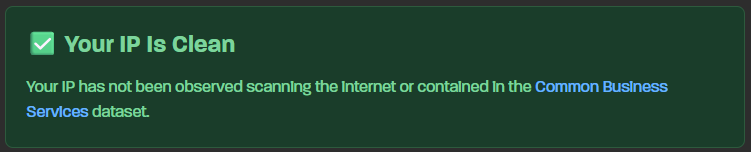
What I liked is that you can already test things for free, without getting into a complicated integration right away.
The first practical tool is their online verification page. The page is opened, and it directly indicates how the public IP used for navigation is viewed by GreyNoise.
It is very convenient to do a first quick test, without installing anything.
The other very interesting point is that there is a simple API to query. And it is precisely this API that I wanted to use in Home Assistant. At the command line, this amounts to making a request such as:
curl -s -H "Accept: application/json" https://check.labs.greynoise.io/api/v1/check
In my case, the answer looked like this:
{ "ip": "82.65.xxx.xxx", "status": "not _found", "classification": null, "noise": false, "common _business _services": false, "trust _level": null, "error": "ip not found" }
This format corresponds well to the documented operation of the GreyNoise public service, which returns in particular the IP, the status, the classification, the indicator noise, the indicator common_business_services, the level of confidence and a possible error message.
Simply put: my IP was not known by GreyNoise, which is rather reassuring in this context.
🧪 My first try in Home Assistant
As is often the case, I started with the solution that seemed to me the most ‘clean’: use a REST sensor in Home Assistant.
In principle, this was logical. I had an HTTP URL that returned JSON, so I figured a REST sensor would do just fine. The Home Assistant REST documentation allows precisely to define an HTTP resource, to read the JSON with value_template and retrieve fields as attributes with json_ Attributes.
I thought I would directly retrieve the status and attributes like IP, classification or trust level.
Except that in my case, this approach did not work properly. The sensor remained in an unusable state. Rather than wasting time on a method that did not give a stable result in my installation, I decided to switch to another solution.
And honestly, this is often how it happens in home automation: We leave with an idea, then we adjust according to reality.
⌨ _ Why I left on command line
I finally chose to rely on a command line sensor. It is not necessarily the most “elegant” method on paper, but in my case it has been much more reliable.
The principle is simple: Home Assistant executes a command curl, retrieve the JSON response, then extract the main state and several attributes. Integration _line Command Home Assistant supports a shell command, a value_template and JSON attributes.
In other words, I started from a test that was already working in my terminal and then I simply transposed it into Home Assistant.
This is often a good strategy for beginners: When something is already working by hand, it's easier to figure out what's going on in Home Assistant.
⚙ Configuration in Home Assistant
In my file configuration.yaml, I started by including a dedicated file for my command line sensors:
command_line: !include command _line.yaml
Then, in command_line.yaml, I added this sensor:
- sensor: name: "GreyNoise IP Check" unique _id: greynoise _ip _check icon: mdi:shield-search command: 'curl -s -H "Accept: application/json" https://check.labs.greynoise.io/api/v1/check' command_timeout: 20 scan_interval: 100800 value_template: "{{value _json['status'] }}" json _ attributes: - ip - classification - noise - common_business_services - trust_level - error
I will detail this very simply:
- command : this is the command actually executed by Home Assistant.
- _timeout Command : I allow up to 20 seconds before giving up.
- scan_interval : this is the frequency of execution, in seconds. Here I chose 100800 seconds, so every 28 hours.
- value_template : this recovers the main value of the sensor, here the field
statusJSON. - json_ Attributes : this allows other useful fields to be stored as sensor attributes.
Why 28 hours? Simply because I did not need to interview GreyNoise every hour. And I want to avoid 24 hours because a lot of sensors are on 24, so it will be 28 hours today. It is not something that is constantly changing in me, so I prefer a spaced execution.
🧾 What the Sensor Gets Me Back
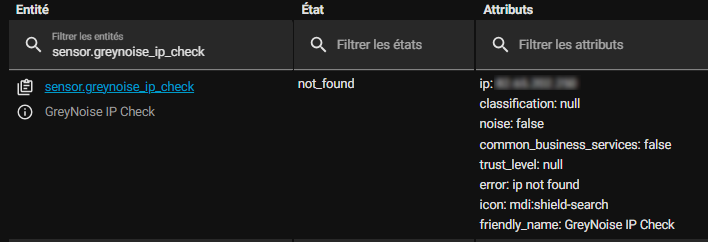
Once the sensor is operational, I recover a main state and several attributes.
The main state is the field status. At home, for example, I get not_found. It is this value that becomes the sensor state in Home Assistant. The public endpoint GreyNoise returns this status field in its JSON response.
Next to that, I have several useful attributes:
- ip : the public IP address detected.
- classification : the classification, if any.
- noise : indicates whether the IP is considered to be part of the Internet noise.
- common_business_services : indicates whether the IP is linked to known corporate services.
- _level Trust : an additional indicator when available.
- error : an information message, e.g. “ip not found”.
📊 My Lovelace Cards
Once the sensor was created, I especially wanted a nice display in the dashboard. So I made a small dedicated page with several cards to test the renders.
I used both Mushroom, Button Card and a Markdown card. This allowed me to compare a more “sober” style, a more “visual” style, and a more “informative” style.
🍄 Map Mushroom
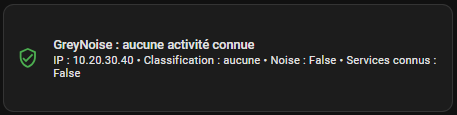
The first card I made was a Mushroom card based on the actual sensor:
Type: custom:mushroom-template-card entity: sensor.greynoise_ip_check primary: > {% set c = state_attr(entity, 'classification') %} {% if c == 'malicious' %GreyNoise: malicious activity {% elif c == 'suspicious' %GreyNoise: suspicious activity {% elif c == 'benign' %GreyNoise: legitimate service {% elif states(entity) in ['not _found', 'unknown', 'unavailable'] %GreyNoise: no known activity {% else %GreyNoise: {{ states(entity) }} {% endif %} secondary: > {% set ip = state_attr(entity, 'ip') or 'IP unknown' %} {% set classif = state_attr(entity, 'classification') or 'none' %} {% set noise = state_attr(entity, 'noise') %} {% set cbs = state_attr(entity, 'common_business_services') %} IP: {{ ip }} • Classification: {{classif }} • Noise: {{ noise }} • Known services: {{ cbs }} icon: > {% set c = state_attr(entity, 'classification') %} {% if c == 'malicious' %mdi:shield-alert {% elif c == 'suspicious' %mdi:shield-search {% elif c == 'benign' %mdi:shield-check {% else %mdi:shield-check-outline {% endif %} icon_color: > {% set c = state_attr(entity, 'classification') %} {% if c == 'malicious' %} red {% elif c == 'suspicious' %} orange {% elif c == 'benign' %} teal {% else %} green {% endif %Multiline _secondary: true fill_container: true tap_action: Action: more-info
I really like this card because it is easy to read. At a glance, I see a clear message, a suitable icon and a consistent colour.
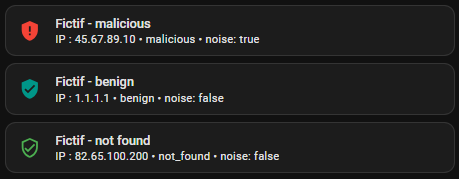
🧪 Fictitious Cards
To compare the states visually, I also created a few purely fictitious maps. This makes it possible to see what the different cases would look like without waiting for them to actually happen.
Type: vertical-stack cards: - type: custom:mushroom-template-card primary: Fictif - mainly secondary: "PI: 45.67.89.10 • noise • noise: true" icon: mdi:shield-alert icon_color: red multiline _secondary: true - type: custom:mushroom-template-card primary: Fictif - benign secondary: "PI: 1.1.1.1 • benign • noise: false" icon: mdi:shield-check icon_color: teal multiline _secondary: true - type: custom:mushroom-template-card primary: Fictif - not found secondary: "PI: 82.65.100.200 • not_found • noise: false" icon: mdi:shield-check-outline icon_color: green multiline _secondary: true
It is stupid, but very useful when you build an interface: you can choose the style before you even have a real case.
🎨 Button Card
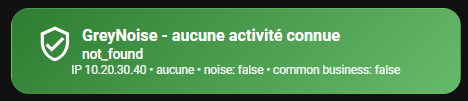
Then I wanted something more visual, almost like an alert card. So I used Button Card.
Type: custom:button-card entity: sensor.greynoise_ip_check name: | [[const c = entity?.attributes?.classification; if (c === 'malicious') return 'GreyNoise - malicious activity'; if (c === 'suspicious') return 'GreyNoise - suspicious activity'; if (c === 'benign') return 'GreyNoise - legitimate service'; return 'GreyNoise - no known activity'; ]]] icon: | [[const c = entity?.attributes?.classification; if (c === 'malicious') return 'mdi:shield-alert'; if (c === 'suspicious') return 'mdi:shield-search'; if (c === 'benign') return 'mdi:shield-check'; return 'mdi:shield-check-outline'; ]]] show _state: true state_display: | [[[ return entity?.state || 'unknown'; ]]] Label: | [[ const ip = entity?.attributes?.ip || 'IP unknown'; const c = entity?.attributes?. || classification 'none'; const noise = entity?.attributes?.noise; const cbs = entity?.attributes?.common _business _services; return `IP ${ip} • ${c} • noise: ${noise} • common business: ${cbs}“; ]]] show_label: true tap_action: Action: more-info styles: card: - padding: 18px - border-radius: 20px - color: white - background: | [[const c = entity?.attributes?.classification; if (c === 'malicious') return 'linear-gradient(135deg, #b71c1c 0%, #e53935 100%)'; if (c === 'suspicious') return 'linear-gradient(135deg, #ef6c00 0%, #ffa726 100%)'; if (c === 'benign') return 'linear-gradient(135deg, #00695c 0%, #26a69a 100%)'; return 'linear-gradient(135deg, #2e7d32 0%, #66bb6a 100%)'; ]]] grid: - grid-template-areas: "\"i n\" \"i s\" \"l l\" - grid-template-columns: 60px 1fr - grid-template-rows: min-content min-content min-content icon: - width: 42px - color: white name: - justify-self: start - font-size: 18px - font-weight: 700 state: - justify-self: start - font-size: 15px - font-weight: 500 label: - justify-self: center - text-align: center - width: 100% - font-size: 13px - opacity: 0.92
This card is very nice, especially when you want something that is a little more eye-catching. I have also adjusted the bottom line so that it is centred, which really improves the rendering.
📝 Markdown Map Summary
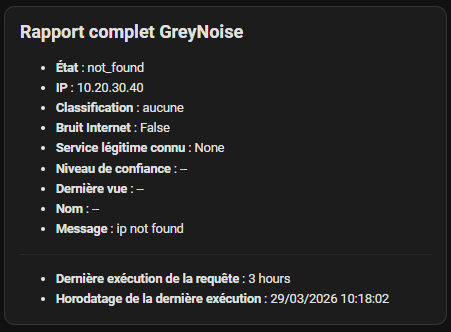
Finally, I added a Markdown card to display all the information in a legible way:
Type: markdown content: >- {% set e = 'sensor.greynoise _ip _check' %} ## Full GreyNoise report - **Status**: {{ states(e) }} - **IP**: {{ state_attr(e, 'ip') or 'unknown' }} - **Classification**: {{ state_attr(e, 'classification') or 'none' }} - **Internet noise**: {{state_attr(e, 'noise') }} - **Known services**: {{ state_attr(e, 'common_business_services') }} - **Trust level**: {{ state_attr(e, 'trust _level') or '--' }} - **Information message**: {{ state_attr(e, 'error') or 'none' }} --- - **Last execution of the request**: {{ relative _time(states[e].last _updated) }} - **Horodatage of last execution**: {{ as_local(states[e].last _updated).strftime('%d/%m/%Y %H:%M:%S') }}
I like this card because it is very clear, especially for diagnosis.
In addition, I added the concept of time elapsed since the last update, which is useful to know when the request was actually executed.
Properties last_updated and last_changed are well available in the Home Assistant template engine for this type of use.
🧩 What I have learned from this integration
This small project reminded me of something important: in home automation, the most important is not always the theoretically most elegant method, but the one that actually works reliably at home.
Initially, I wanted to go on REST. Finally, it was the command-line sensor that allowed me to achieve a stable, readable and easy-to-maintain result. And frankly, for domestic use, that is exactly what I was looking for.
I also realised that this type of integration has real pedagogical value. You learn how to retrieve JSON, create a Home Assistant sensor, exploit attributes, format a dashboard, and turn raw information into something visual and understandable.
In the end, I used the Mushroom Card in a small corner of my dashboard, at a glance, I will see if the icon turns red.
If the heart tells me, I can add the change of state of sensor.greynoise_ip_check in the triggers of any SMS or visual notifications …
✅ Conclusion
With GreyNoise, I added in Home Assistant a small brick of network context that I find really interesting. It is not a miracle tool, nor a complete SDI, but it is a good indicator of how my public IP is perceived from the outside.
I started by testing the online verification page, then the API query in terminal, then I tried the integration in Home Assistant. As the REST sensor was not conclusive in my case, I left on _line Command, and it was ultimately this method that did the job. The approach described is consistent with the documented capabilities of Home Assistant’s REST and command_line integrations.
In the end, I get a simple sensor, some useful attributes, and above all Lovelace cards that are pleasant to read. For me, this is exactly the kind of integration I like: a somewhat technical subject at first, but transformed into something concrete, visual and accessible on a daily basis.
 English
  French
  Spanish
  Chinese
  German