

Edit: Attention, a different solution has been written since the writing of this page, but the information here remains valid:
I chose KeepassXC + Keepass2Android with Yubikey authentication
My specifications
- Choose a free and secure password manager (even better certified ANSSI)
- Allow to share a password change instantly on all my devices, smartphone included, avoid file replications
- Don't use proprietary (non-open source) solutions that could host my data somewhere in the world
- Do not have a super strong opening password of 30 special characters to be typed 5 times a day
- Secure database opening via a single Yubikey on all devices
- If the Yubikey is lost or broken, have a backup solution
- That the user in the browser is no login or password to enter and even better, that the dual authentication based on TOTP (time-based single-use password) is calculated and completed on the same principle.
- That new login/passwords are added to the database easily and updates detected and corrected in the database.
Addendum to my specifications
- Have 3 bases: Mine, my wife's, the one common to both
- That my wife also has a Yubikey and that with her can open the bases
- Of course, the two previous points do not complicate the automatic retrieval of logins in the browser
How to save passwords in the database in Keypass format
The whole security of Keepass is based on the fact that, in the absence of an opening password, it is currently impossible to read the passwords contained in the database.
To date, Keepass is the only password manager to have received ANSSI certification in France. Of course, ANSSI only validated a portable version (KeePass Version 2.10 Portable) but it was the principle of this way of coding the database that was rewarded.

So to make it simple, Keypass software exploits a database file in mabasedemotsdepase format.kdbx
The strength of this file is that it is portable. You can either keep it with you, share it via a cloud or a … file server The recovery of this file by a hacker "should" not be able to be read. On this principle and admitting it, we can continue this page.
My choice of KeePass for Windows desktop and laptop computers: KeePassXC

KeePassXC is one of the best-known versions of KeyPass, I tried several of them, but the arch-simple support for securing by Challenge-Response (we see this in detail below) is great. The use of a Yubikey and the Challenge-Response means that you do not have to enter an arch-fort password, the principle of the physical key is sufficient with KeePassXC.
Note that KeepassXC is available on all platforms

My choice of Keypass for Android: Keepass2Android
As on PC, there are a multitude of Android apps that claim to be KeyPass compatible. Assuming that you entrust all your credentials to an app, it is better to use one that has a pinion on the street and that the whole geek community monitors. Do not randomly take a little-known application, yet the blinds are full of it.

Keepass2Android makes it possible to use yubikey and the Challenge-Response principle to open the database. Principle and Challenge-Answer identical to that of KeypassXC, so it is wonderful, even Yubikey key for both.
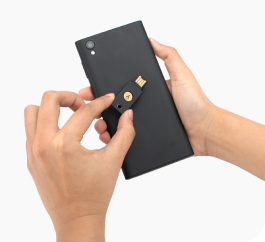
Obviously on the smartphone, you will have to choose a Yubikey that can be connected to the USB port or an NFC key (my choice).
Presenting the key at the back will be enough to unlock the database.
My choice of a cloud dedicated to the single data file: kDrive
I easily did the first tests on OneDrive Pro and then on OneDrive Perso, it worked well. But my idea is to avoid making the Keypass database available to a potential hacker who has entered my OneDrive Pro or Perso. I thought to myself, you might as well use a mini cloud dedicated to the sole use of the Keypass database. Under a wacky name and no personal information.

I have an account with Ionos that offers a basic free HiDrive solution if you have an account with them, otherwise it is €1.80/month. I tested with HiDrive, I had problems with synchronization and corrupted file when I tried changes on several machines at the same time, synchro on Android (even with the offline option) does not seem to me at the top, but I admit that I did not look for more. I also discarded HiDrive because it was the Drive linked to my Ionos account.

After reviewing all the offers available on the market, I stopped on the product proposed by Infomaniak. Infomaniak is a Swiss cloud provider that has been developing web hosting, streaming, marketing and online event solutions since 1994. The company favours local renewable energy and builds its own data centres and solar power plants in Switzerland, without relocating. They offer a free discovery offer with 15 GB of storage (kDrive) and a free email address for life. So I opened an account with a wacky name, and a storage is attached to that account. Without any connection to me outside of security settings. Note that the account is security in double authentication with choice between Yubikey or OTP.
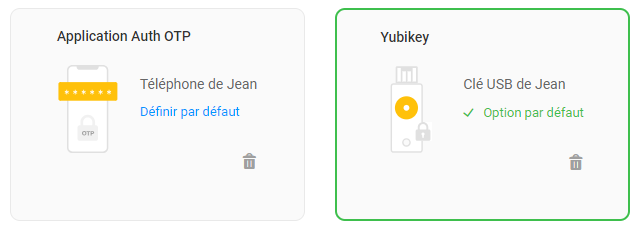
The data is stored in Switzerland, it suits me very well.
On computers

You have to install the kDrive synchronization application, which works in the same way as other Drive software that everyone knows. A folder shared on disk in sync with a folder in the cloud.
This is the green icon in the image above, between HiDrive and OneDrive described above.
I have always chosen to dedicate a disk partition to my cloud synchro, this is disk O: at home, it is organised as follows:
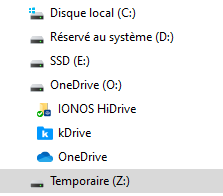
So I will create a folder in kDrive to put my KeyPass database file there, so it will be in O:/kDrive
On SmartPhones
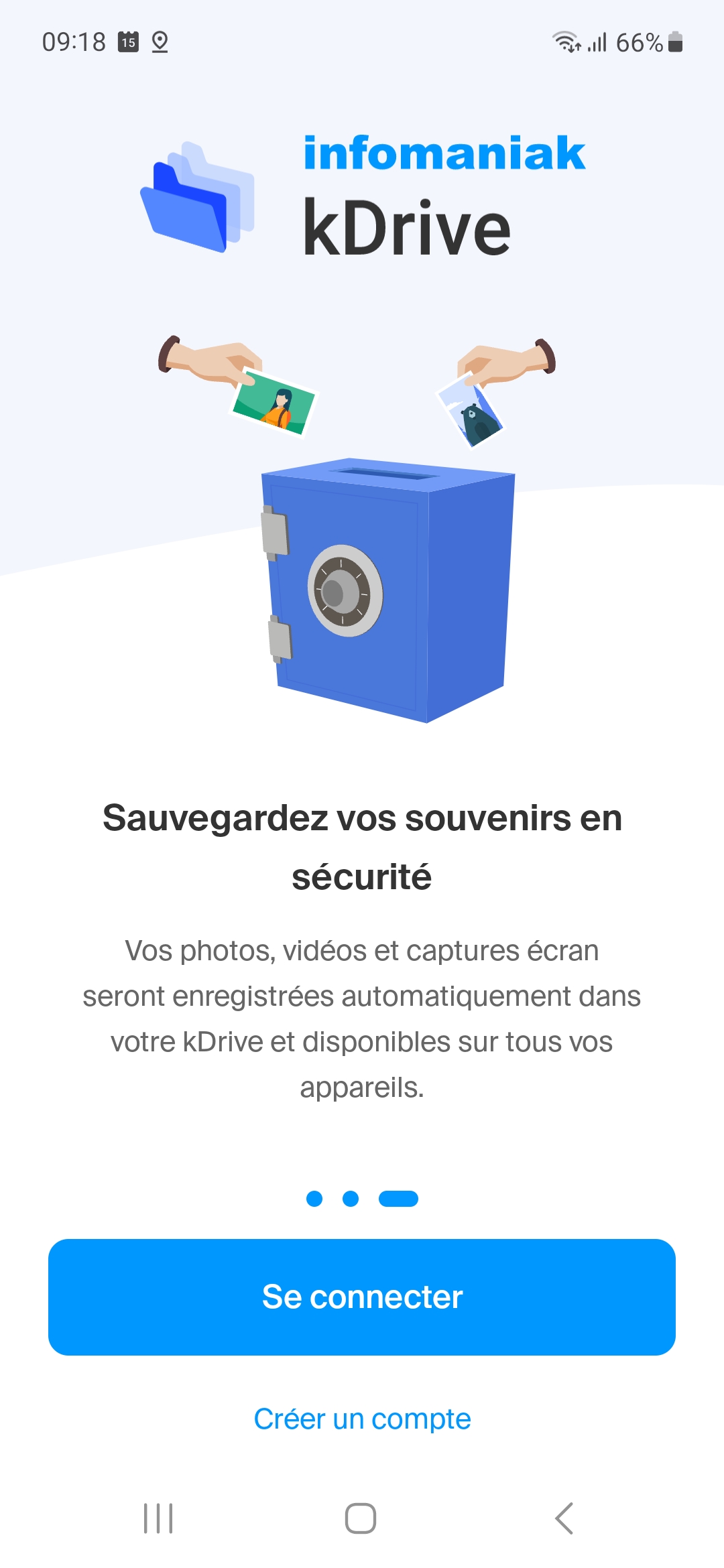
The dedicated kDrive application is used. We will find the folder created on computer that will contain the KeyPass database.
My choice of physical security key: Yubikey
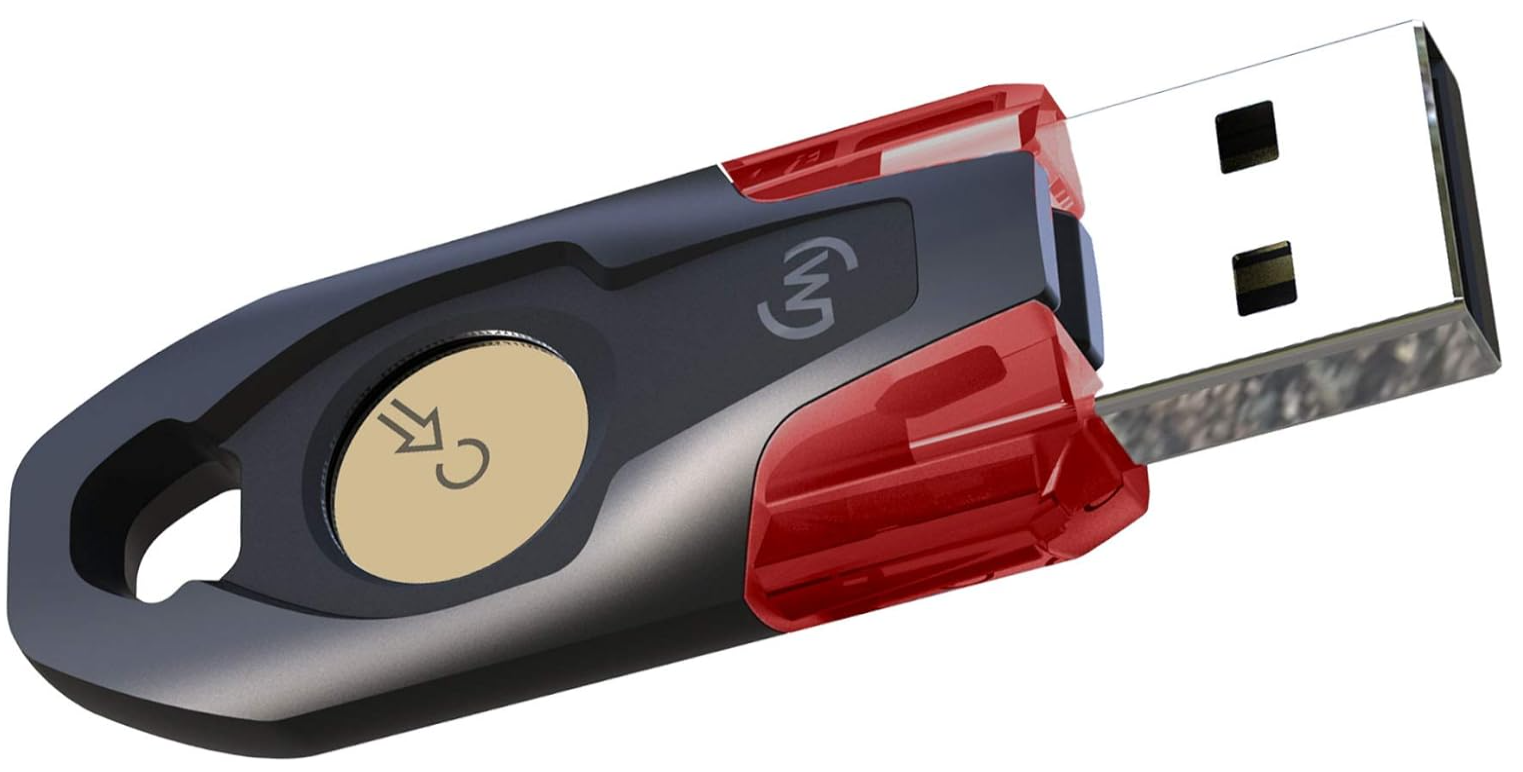
I had set my sights on the Winkeo-A from NeoWave, a French company made in France. But the absence of NFC made me backtrack because I wanted to be able to unlock the password database on my smartphone as well.
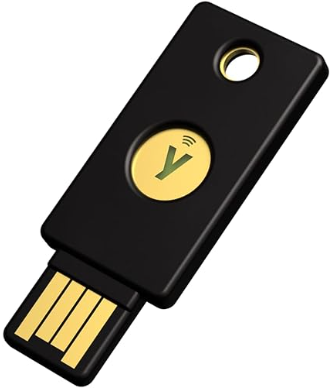
In the end, like everyone else, I opted for the most popular key, the Yubikey. Everyone can choose their version according to their use.
I interconnect all equipment via the cloud
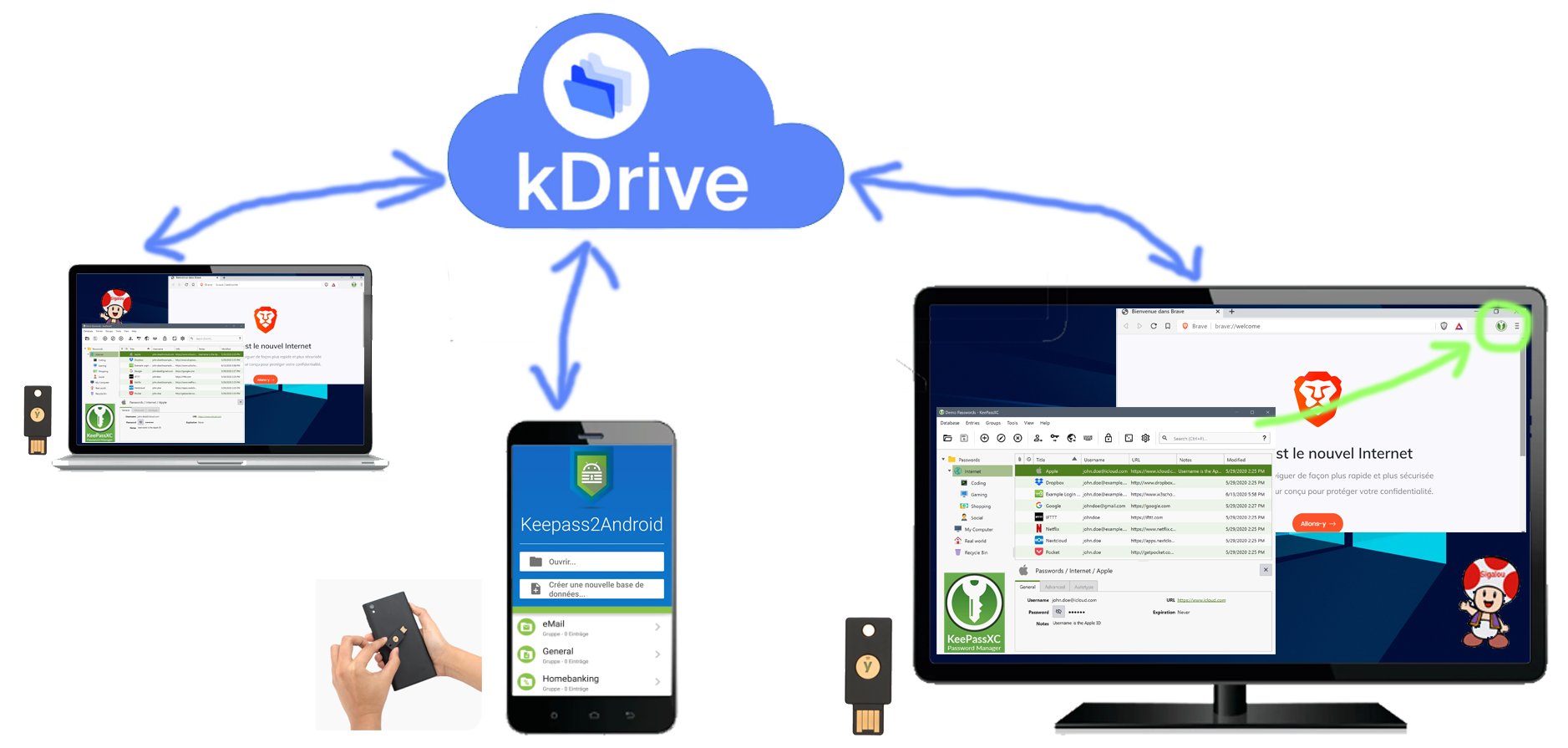
As a good schema is worth all speeches, here is an overview.
Each database can only be unlocked with a Yubikey (the same).
I implement this solution step by step
I create an account at Infomaniak and install kDrive

At Infomaniak, I accept the proposal for a free email address and 15GB, once everything is set up, I activate multi-factor authentication and then install the kDrive application on my PC.
This application offers me a synchronization folder, it will be O:/kDrive, in this folder, I then add a folder that will be used to place my KeyPass database file.
I create a Keypass database that will contain all my credentials
I start on PC, I download the application KeyPassXC.
Be careful to take the original version on the site of KeypassXC !!
I install KeyPassXC and add a new database.
Don’t worry if necessary, there are a lot of possible imports of old data.
There is no particular problem with the installation.
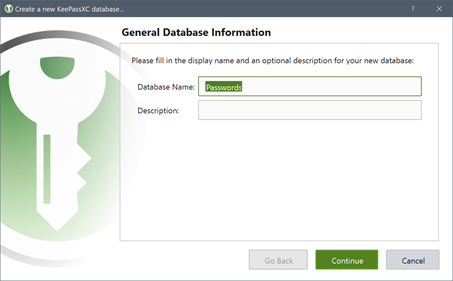
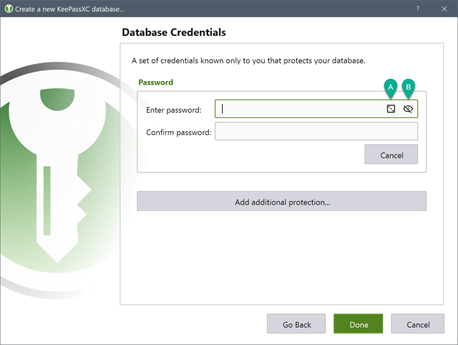
For the strong password, I do not take too much of my head, in a few steps, I will delete it to keep only the identification with the Yubikey.
I save the database in the specific folder I created on my O:/kDrive drive
At this point, I can close or open the database, it asks for the strong password defined at the installation.
I secure the opening of the database with the Yubikey
The dialogue between KeyPassXC and Yubikey takes place through what is called a Challenge-Response.
So I'm going to start by defining the key to the Challenge-Response in Yubikey Personalization Tool.
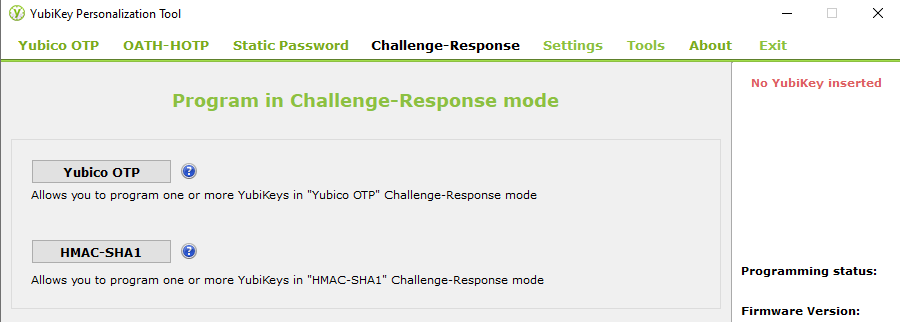
On the Challenge-Response tab, I click on HMAC-SHA1.
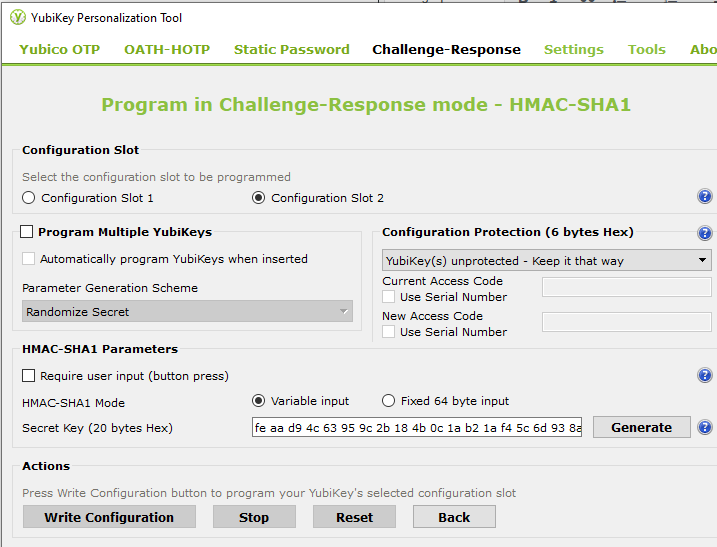
On this screen, I check the slot2, In HMAC-SHA1, I click Generate to generate a secret key.
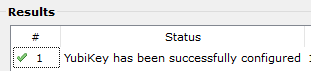
I don’t want to have to press the Yubikey on every call, I don’t tick ‘Require user input’ but it’s my choice, everyone is free to decide. And finally, I click on Write Configuration to save the secret key in the Yubikey.
Important: Note somewhere the secret key, indeed, in case of failure or loss of the Yubikey, I will simply put the same key in another Yubikey and I will not lose your access.
I go back to KeyPassXC open my database then I go into database security.
Then Add another protection.
Then Add a question and answer.
The key is detected, just validate and close.
First test, I close the database and reopen it. I have to type the password and insert the Yubikey key.
I will delete the password to keep only the identification with the Yubikey, I will go to database security then I click on Delete the password.
The database now opens only if the Yubikey is inserted and without an additional password. That was my goal.
I securely interconnect KeypassXC and the browser
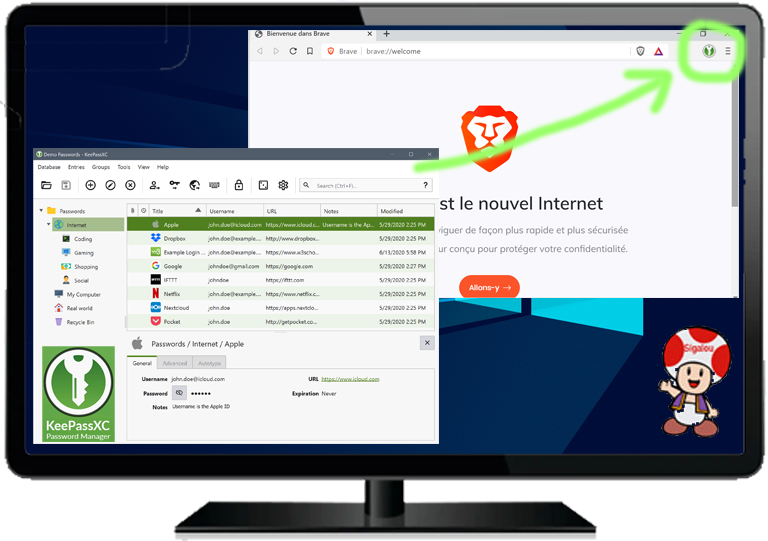
Everything is well planned, I go back to the KeyPassXC website and I go to Download / Browser extension


My browser is Brave, so I will take the Chrome version of the extension.
A link is established between Brave and KeypassXC, a name can be given to this link. This remains active and allowed in the database.
To check these links, I go to Database / Database settings / Browser Integration tab
Of course, for security reasons, in the future, remove any KeyPassXC/Browser links that become useless.
I reproduce all this installation on my laptop
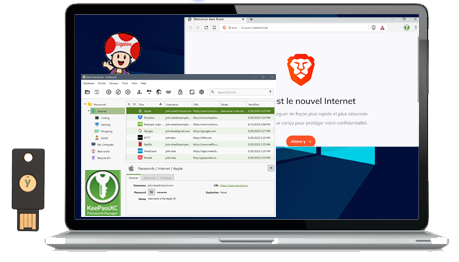
Similar to the previous paragraph, I do the whole installation again on my laptop.
The database is retrieved from the well-synchronised kDrive folder.
I open without worry with the same Yubikey on the laptop.
I install kDrive on my SmartPhone
The kDrive application provided by Infomaniak is very simple to install.
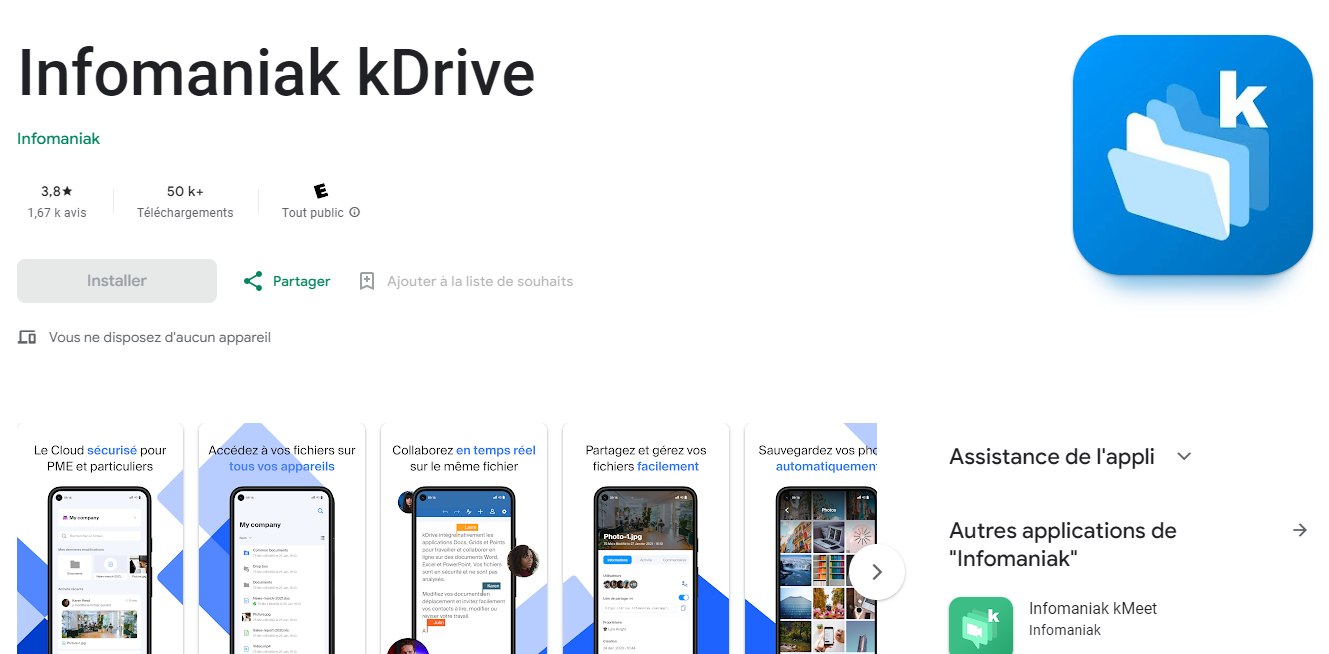
Once I am identified with my email/worddepass and the second authentication, I have access to the KeyPass database file that has been registered on my phone.
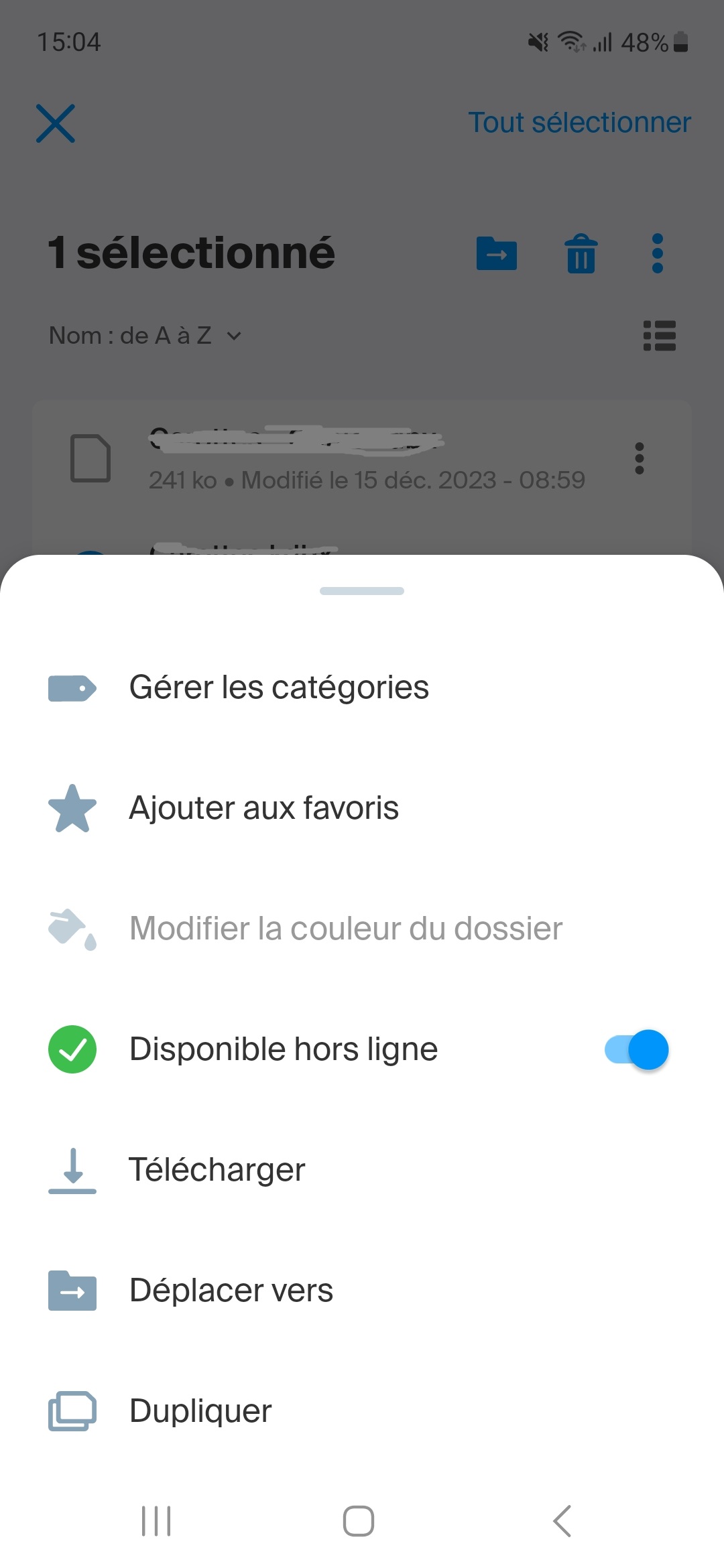
The only small manipulation I make is to check ‘Available offline’ to always have the latest version on my phone. I do not know if this is necessary, but in doubt it is a plus.
I install Keypass2Android on my SmartPhone
Once the installation is complete, I can open the database.
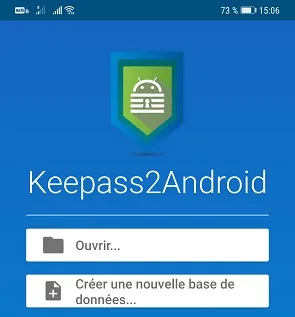
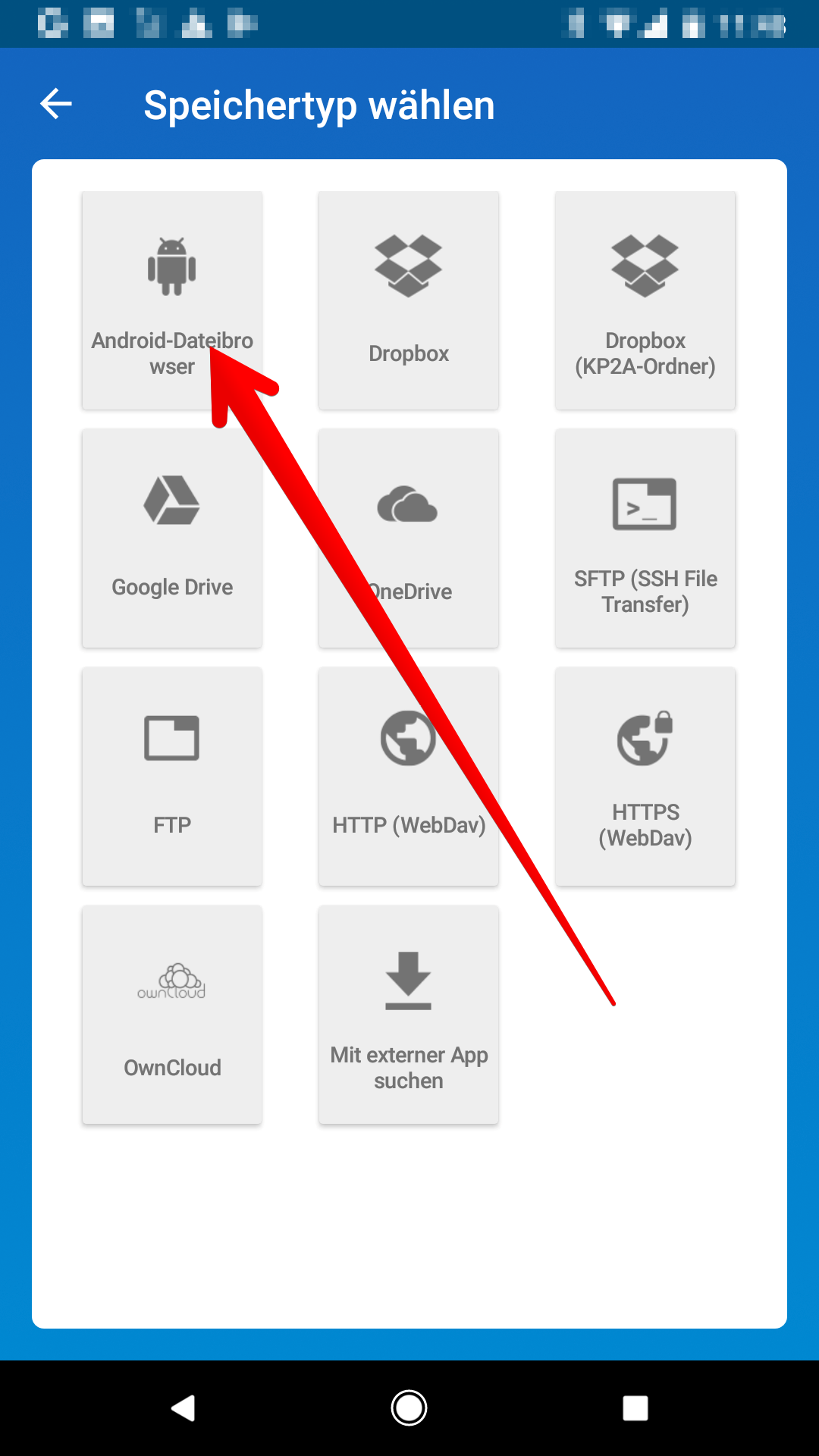
I will go to Open, select at the top left ‘System file selector’, because kDrive is not in the services integrated in the wizard (which is no problem).
When the selection window opens, I click on the 3 bars at the top left and select my kDrive from the list.
I then navigate in my kDrive and I will select my base xxxx.kdbx
To open my database, I must then select the way in which I will identify myself, so I take: ‘ Password + Answer Challenge for KeepassXC‘
When I click on " Unlock‘, a small overprinted window is displayed with the words ‘ Please attach or swipe your Yubikey now.
I put the Yubikey on the back of my phone, the NFC reacts and the base opens.
Note: : For now, I have to pass the key twice, I don’t know why, it’s not very annoying but I wonder why it happens. If anyone knows, I am a taker.
There are a lot of settings in Keepass2Android, everyone is free to choose their options.
Debate, questions, requests for clarification
I deactivated the comments on this blog, the ad bots saturated everything.
I suggest you ask your questions or simply give me feedback if you have followed this tutorial on:

- The Forum of Jeedom

- The Forum of HACF
 English
  French
  Spanish
  Chinese
  German