

This comprehensive tutorial explains the precise wiring, Zigbee2MQTT configuration, Home Assistant integration and Alexa. A single dashboard button + real status feedback + voice command ‘Alexa opens the portal’.
My three objectives domotisation portal
I have set three specific objectives to domotise my Came beating portal equipped with a ZL180 control card.
- A single button on the Home Assistant dashboard activates the portal via a precise impulse sequence: dry contact ON for 500 ms, break 500 ms minimum, then OFF.
- Actual status return showing whether the gate is open or closed at any time, using a position sensor.
- Simple voice control with Alexa: "Alexa, open the portal" or "Alexa, close the portal".
This tutorial replaces the old one using the QS-Zigbee-S10-C03 module which caused frequent disconnections from the Zigbee network. Obsolete article: Domotisation QS-Zigbee-S10-C03.
My order card Came ZL180
My beating portal works with the Came ZL180 electronic card that handles all movements, safety and race ends.
Full official technical information sheet: Download PDF ZL180.
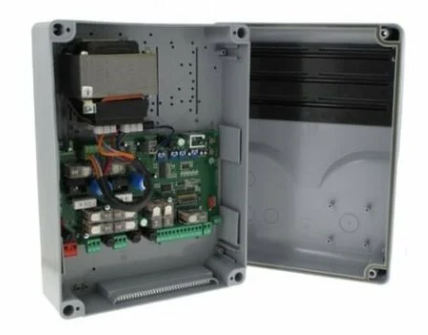
ZL180 card order terminals
All home automation connections connect to the terminal blocks at the bottom right of the ZL180 card. These 10 terminals allow the control of the portal and the reading of the states.
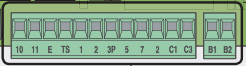
Control opening/closing portal
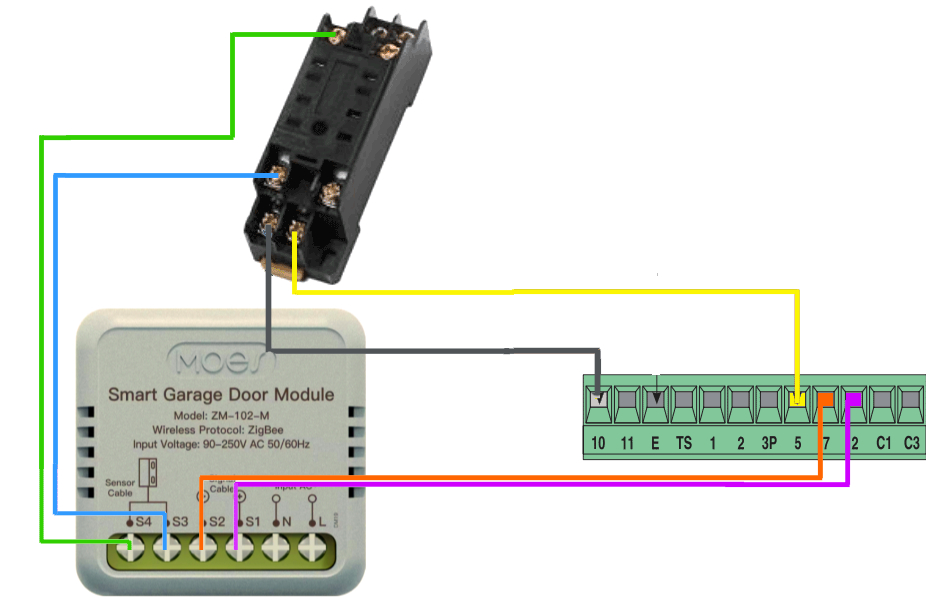
The ZL180 card controls the opening/closing by a dry contact (without voltage) between terminals 2 (COM) and 7 (IMP). Dry contact simply means closing the electrical circuit without applying voltage.
- Close the terminal contact 2-7 for exactly 500 milliseconds (0.5 seconds).
- Maintain a break of at least 500 ms before re-ordering.
- Open the contact (OFF) to complete the pulse.
This pulse sequence is mandatory and described on page 8 of package leaflet ZL180.
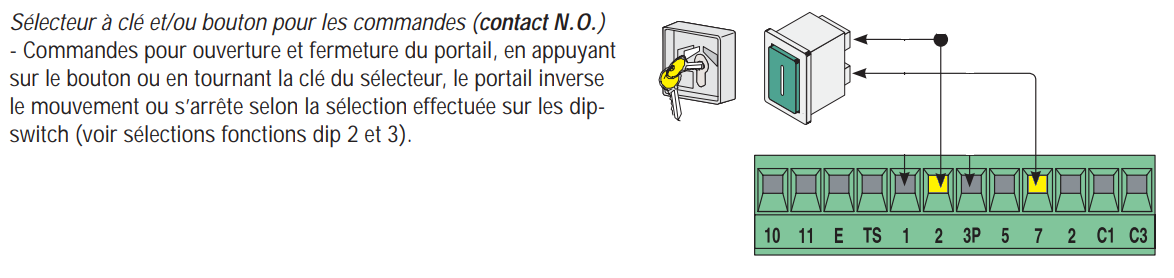
Open/closed portal status return
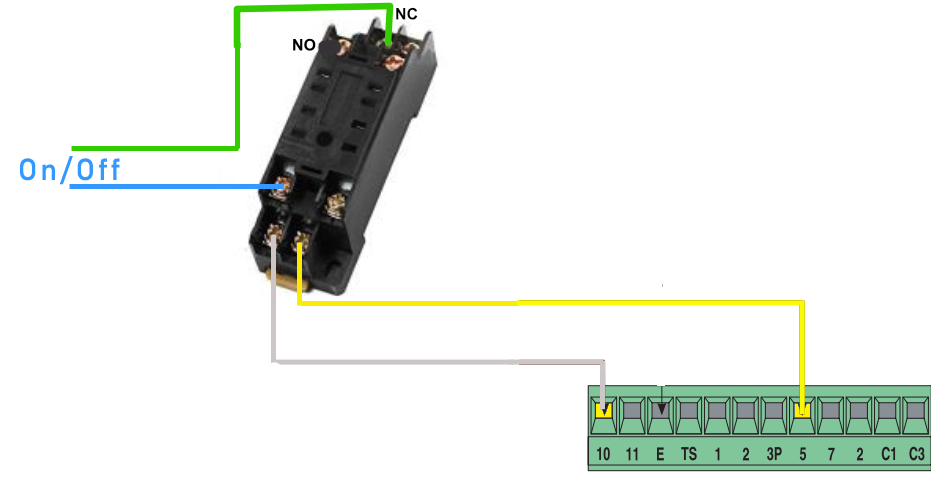
The ZL180 card does not provide direct dry contact for the status of the gate. It delivers a 24V signal between terminals 5 (COM) and 10 (OUV) when the portal is fully open.

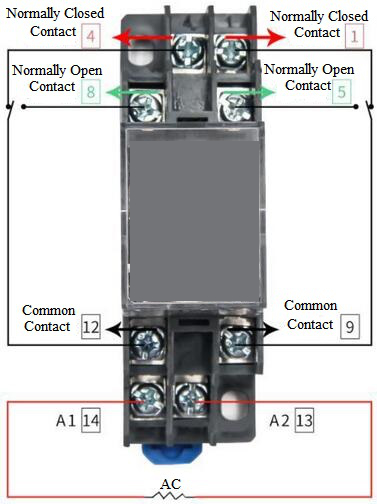
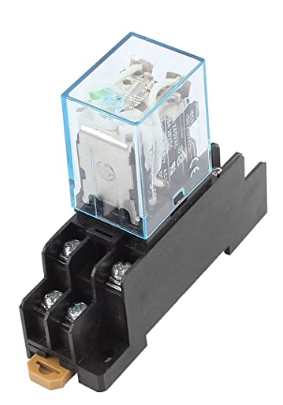
To convert this 0/24V signal to home automation-compatible dry contact, I install a 24V IEC255 relay in the Came housing. The relay electrically insulates the circuits and creates a simple open/closed dry contact.
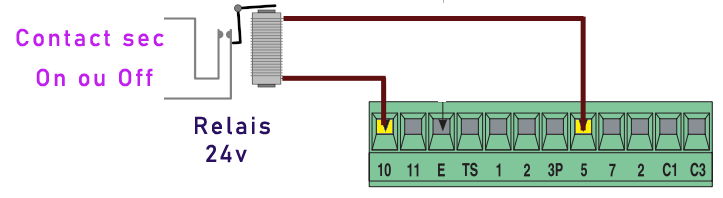
Here is my IEC255 relay mounted on DIN support in the Came housing:
DIP configuration switches crucial
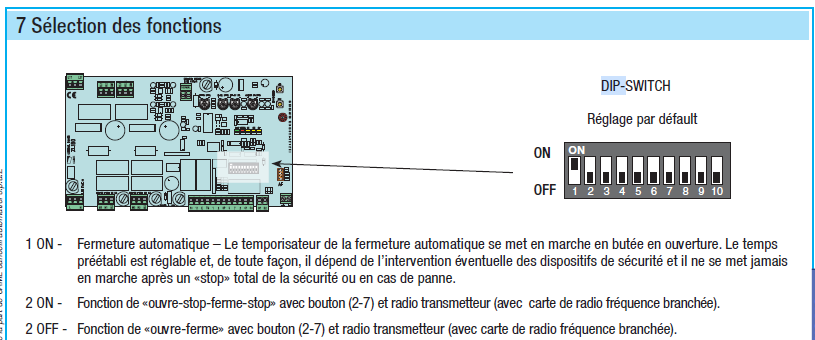
Frequent problem: some impulses are not taken into account. The cause is often the "Stop" function activated on the DIP switch 2 of the ZL180 card. This function stops the portal at each impulse received.
Solution: position the DIP2 on OFF to allow partial controls (normal opening/closing).
My choice module Zigbee MOES
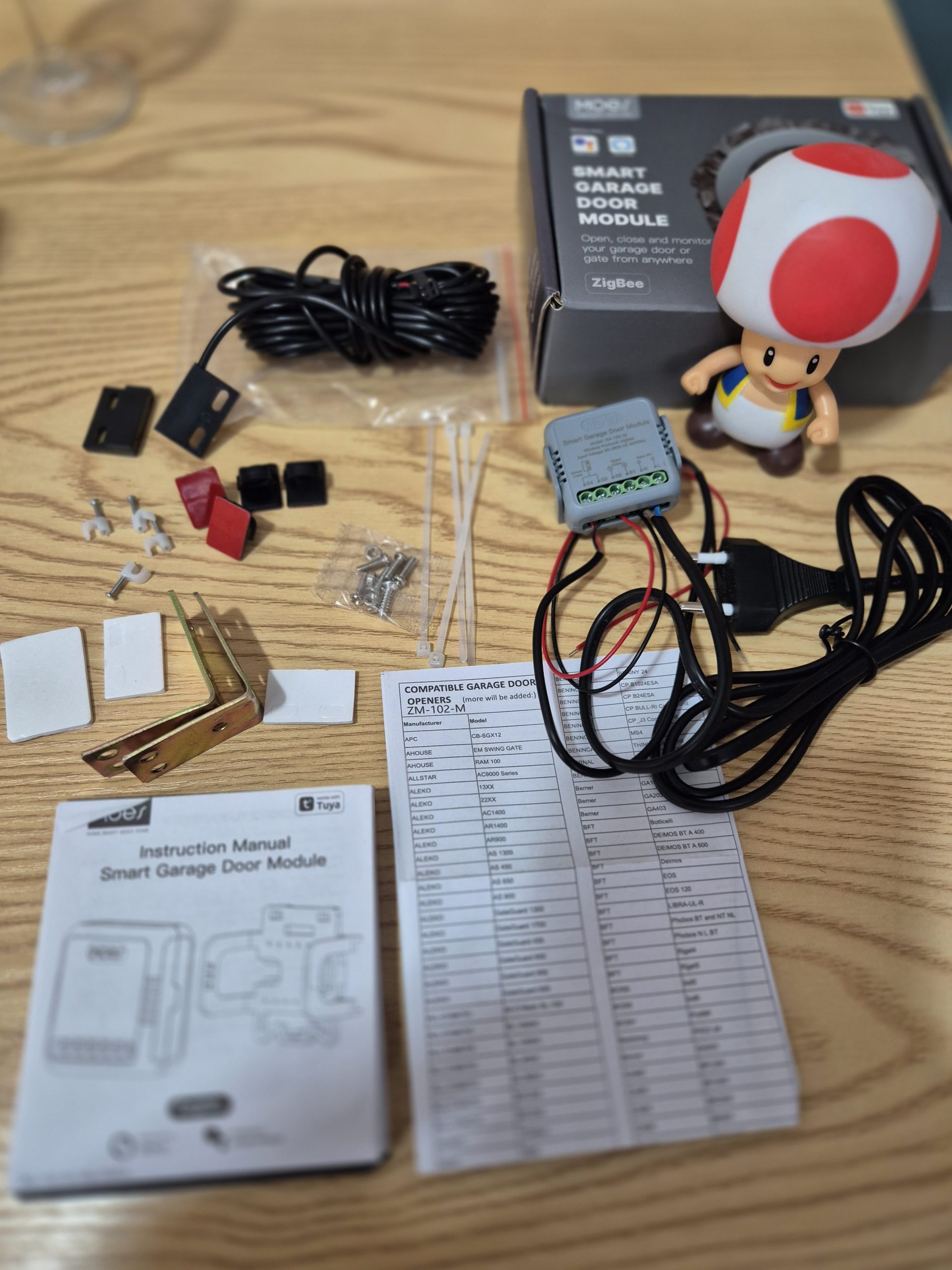
I tested several modules but chose the MOES ZM-102-M for its Zigbee stability, affordable price and full gate functions.
- IOMZB-110 FRIENT : Excellent but 60€.
- Smart Switch ZG-005-RF : 4 exits at €18 but no entry.
- NODON SIN-4-1-20 : No dry contact entry.
- MOES ZM-102-M chosen at 17,90€.
- QS-Zigbee-S10-C03 : Frequent disconnections, abandoned.
The MOES ZM-102-M-MS includes 230V power supply, pulse output, dry contact input and magnetic sensor. Version ZM-102-M = single module without sensor.
Where to buy this equipment?
Here is the link to the page dedicated to ZM-102-M. I referenced the sellers and prices.
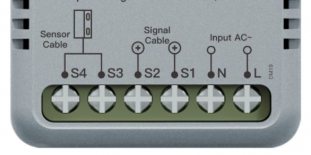
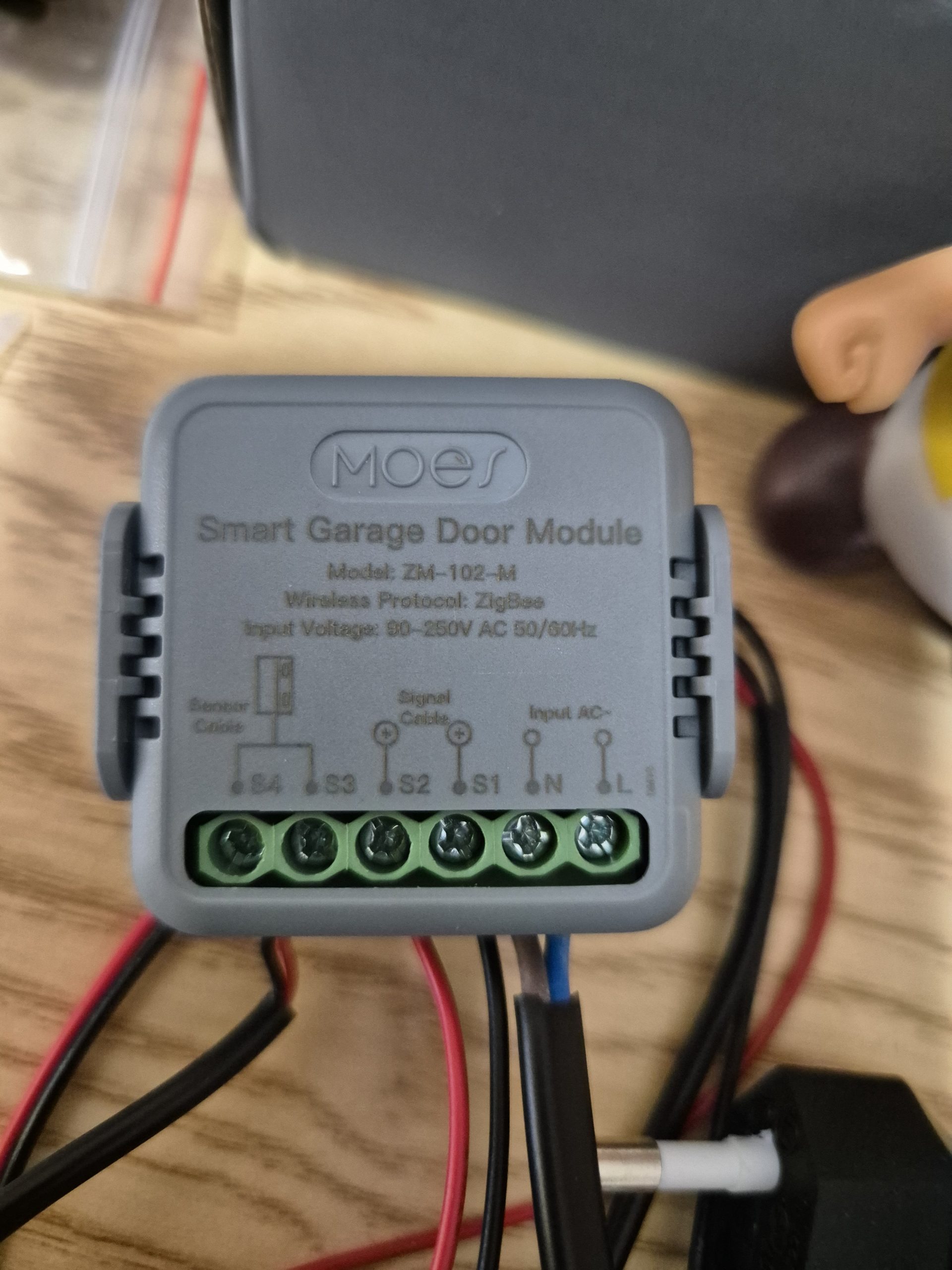
Precise pinning MOES ZM-102-M
- L and N : 230V phase + neutral power supply.
- S4-S5 : Dry contact input (connected to IEC255 relay for portal state).
- S1-S2 : Pulse output to terminals 2-7 card ZL180.
Complete portal wiring diagram
I pair the Zigbee2MQTT module
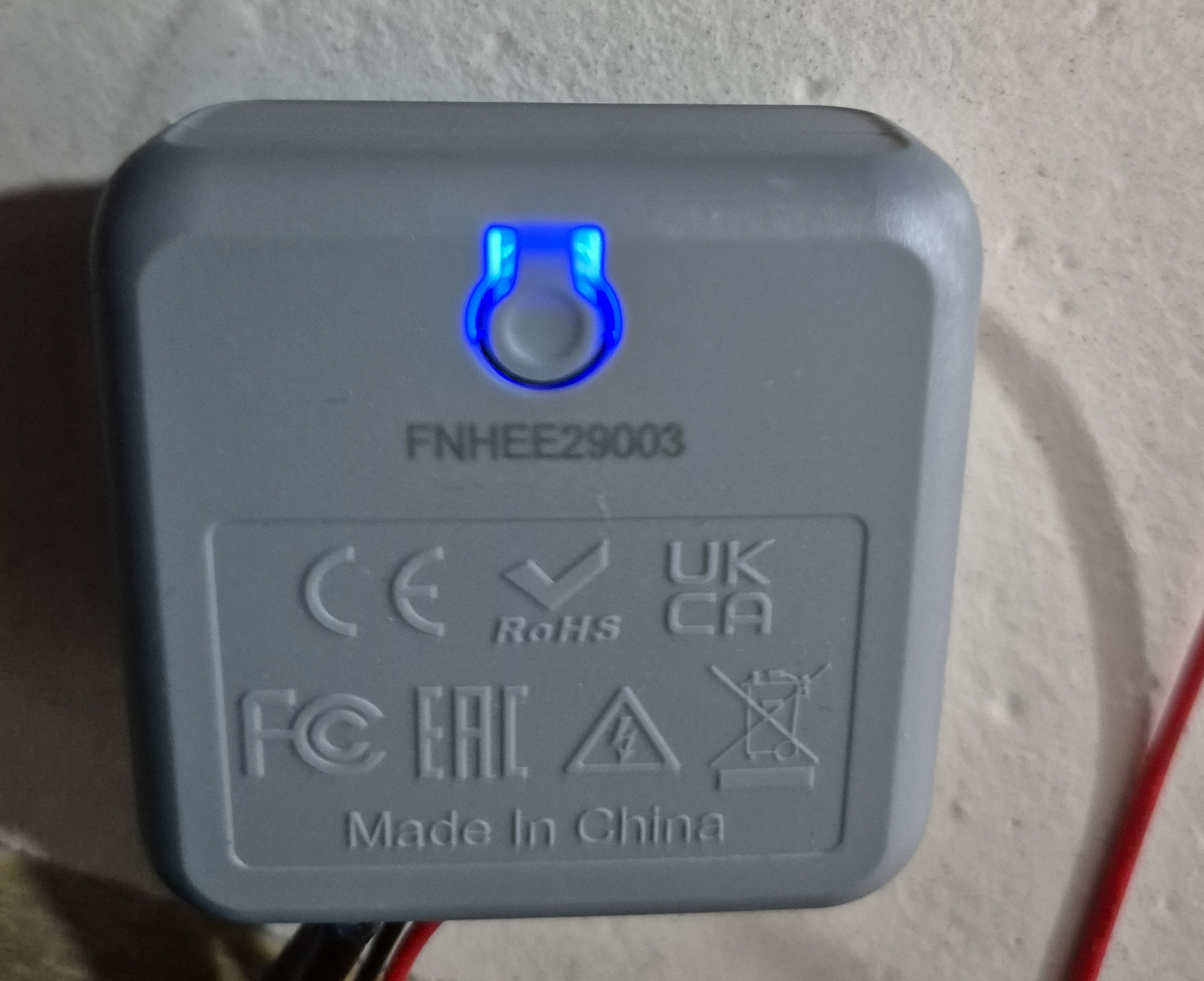
Power on = automatic pairing mode (blue LED flashes 10 min). Pair button behind the module. Place temporarily near the Zigbee coordinator if significant distance.
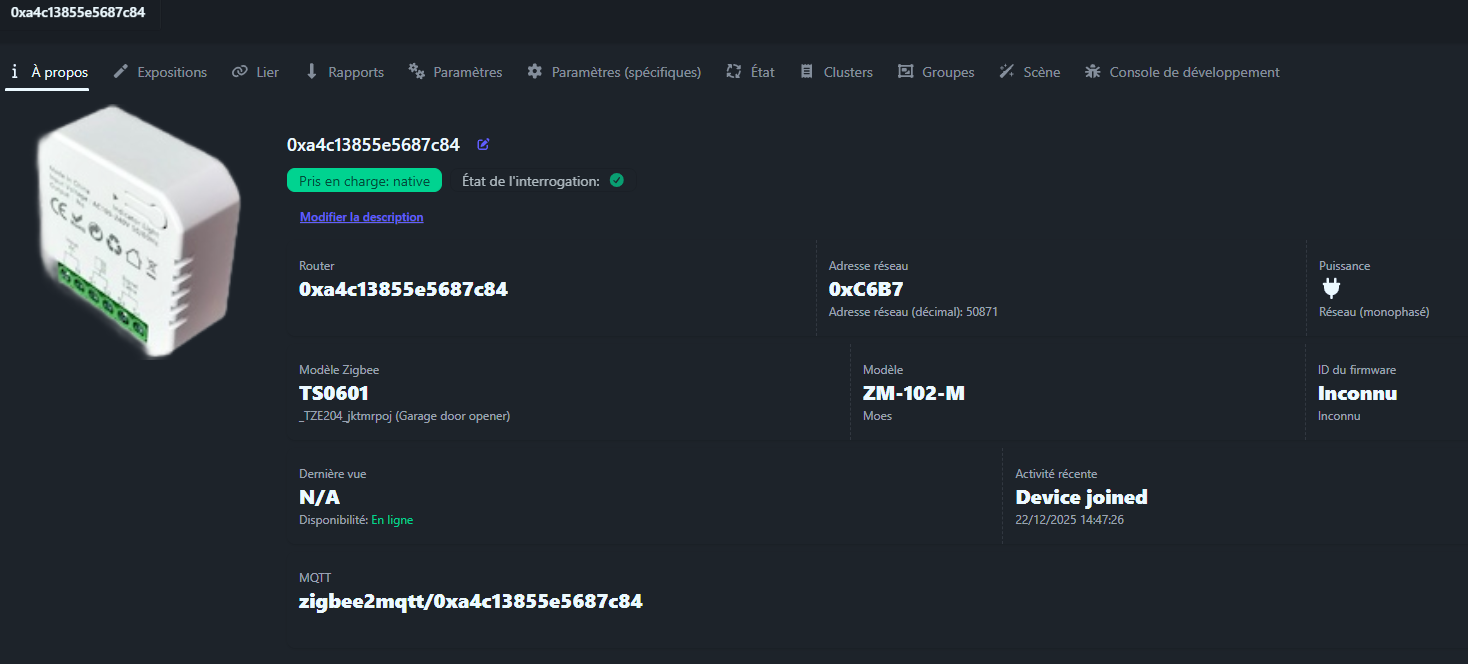
In Zigbee2MQTT in "Permit Join" mode, the module appears as _TZE200 _fabuwqzo _ts0601. I call it "Came Portal".
Features exposed MOES
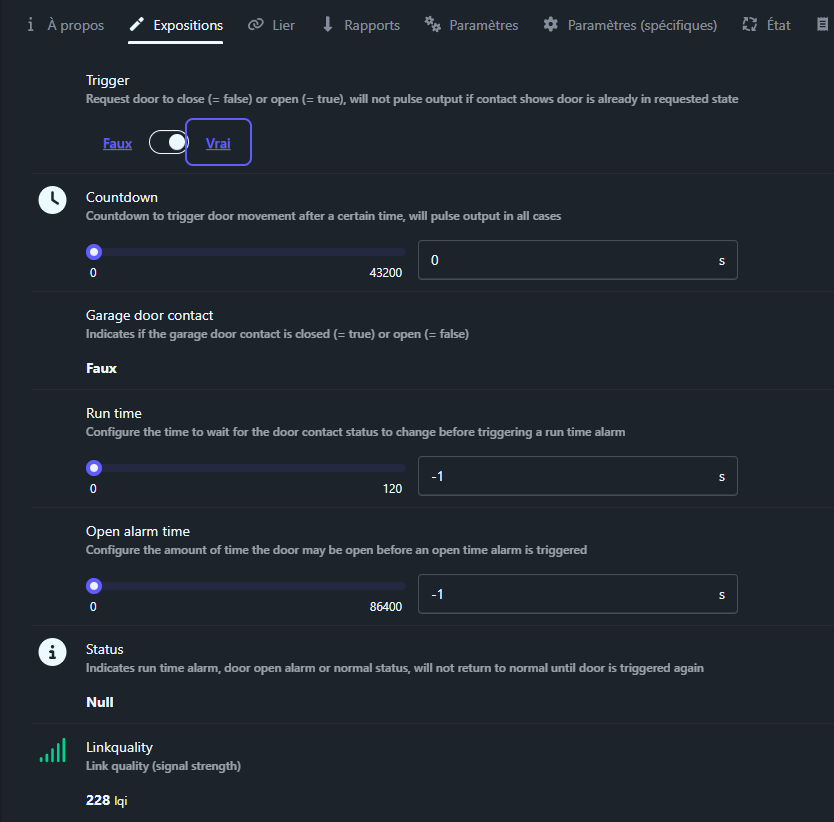
The module sets out these essential properties:
- trigger (binary): Sends pulse S1-S2. true=open, false=close. Intelligence: does not send if state already correct.
- _door _contact Garage (binary): State S4-S5. true=closed, false=open.
- countdown (0-43200s): Forced impulse after delay.
- run_time (-1 to 120s): Timeout movement. Alarm if overwhelmed.
- status : Normal / RunTimeAlarm / OpenTimeAlarm.
Automatic integration Home Assistant
Entities automatically appear in Home Assistant after restarting or refreshing Zigbee2MQTT.
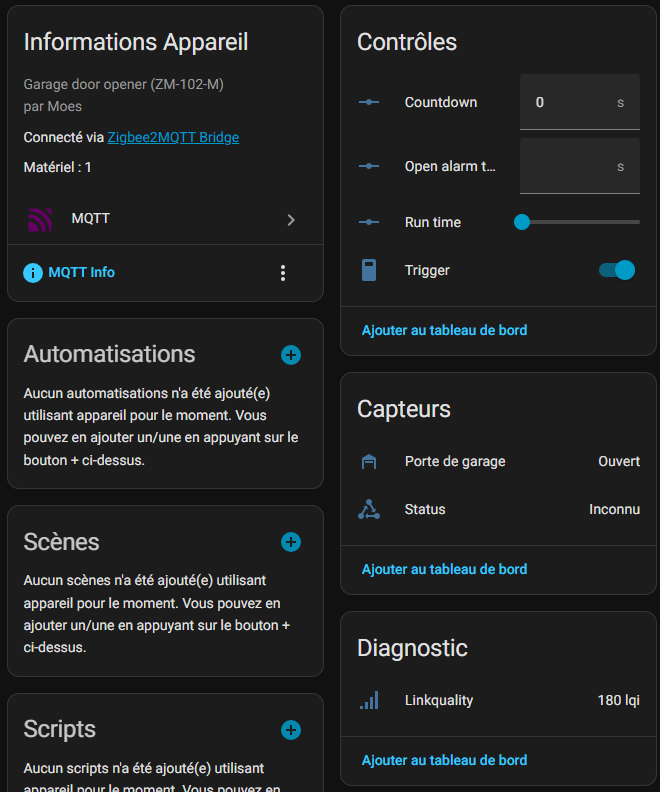
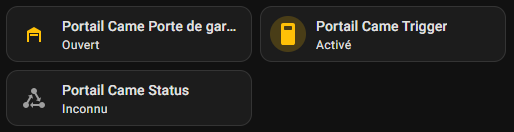
- binary_sensor.portal_came_garage_door_contact : Real state (off=closed, on=open).
- switch.portal_came_trigger : Pulse button (ON 500ms then auto-OFF).
- sensor.portal_came_status : Module status.
My configuration Cover Portal
I create a unified Cover entity combining the real state (binary _sensor) and the command (switch). A Cover Home Assistant represents any workable element: gate, door, roller shutter.
Add in configuration.yaml under template → cover:
- cover: - name: _id Single Portal: cover.portal device_class: gate icon: > {% if is_state('binary_sensor.portal_came_garage_door_contact', 'off') %mdi:gate {% else %mdi:gate-open {% endif %} state: > {% if is_state('binary_sensor.portal_came_garage_door_contact', 'off') %} closed {% else %} open {% endif %} open_cover: - service: script.actionne_le_portal_toggle close_cover: - service: script.actionne _le _porttail _toggle
My dashboard portal buttons

Simple button-card version
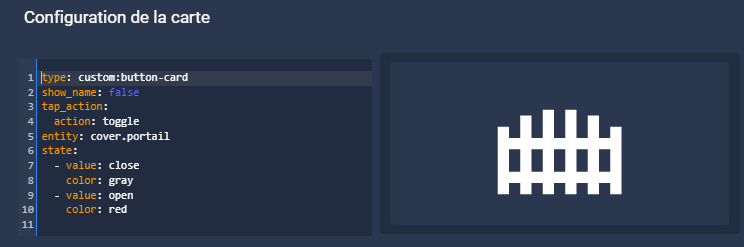
Type: custom:button-card show_name: false tap_action: Action: toggle entity: cover.portal state: -value: closed color: gray - value: open color: red
Advanced version picture-elements

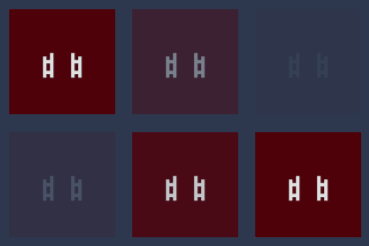
- type: custom:button-card color_type: card entity: cover.portal show_name: false tap_action: Action: toggle state: -value: open color: "#4f010a" icon: mdi:gate-open styles: card: - animation: blink 2s ease infinite - operator: default color: "#49556c" icon: mdi:gate styles: card: - height: 110px - width: 110px style: top: 93% left: 5%
Alexa Voice Control Portal
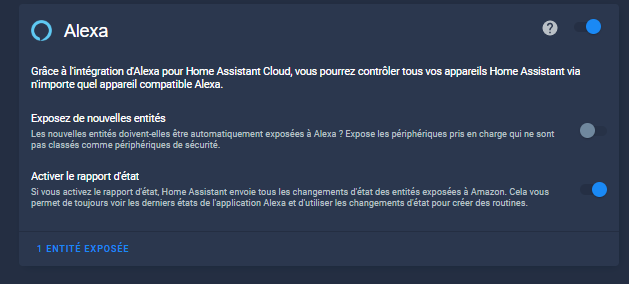
Expose the cover.portal entity to Alexa for voice control.
- Settings → Voice Assistants → "x entity(ies) to expose".
- Select
cover.portal. - Orders: "Alexa, open the portal", "Alexa, close the portal".


Visual pulse bonus

Immediate visual confirmation of pulse sending by flashing icon. Create input_boolean.pulse_portal via Settings → Devices & Services → Helpers → Switch.

Type: custom:button-card entity: input_boolean. impulse_portail name: Impulsion Portal show_state: false show_name: false icon: mdi:access-point styles: icon: - color: | [[ if (entity.state === 'on') return '#39FF14'; 'transparent' return; ]]] - animation: | [[[ if (entity.state === 'on') return 'blink 0.4s linear infinite'; return 'none'; ]]] card: - width: 150px - height: 150px - border-radius: 12px - background-color: transparent - box-shadow: none
Script operates _le _portal _toggle (to be created in scripts.yaml):
sequence: - service: switch.turn_on target: entity_id: switch.portal_came_trigger - service: input_boolean.turn_on target: entity_id: input_boolean. impulse_portal - delay: second: 1 - Service: input_boolean.turn_off target: entity_id: input_boolean. impulse_portal alias: Operates the portal
Bonus Rustine Opening
I have found, for a reason which still eludes me, that approximately once in every twenty, the order to open the portal is triggered correctly: the pulse is sent to the module, no errors appear … but nothing happens.
Everything suggests that the module is in standby mode at the time of ordering and simply does not react.
On the other hand, if I return a second pulse within seconds, the portal opens immediately.
Usually I am rather allergic to “rustines”. I like to understand and correct the problem at the source. But in this case, the most pragmatic solution seemed to me to be to add a catch-up mechanism.
The idea is simple:
if, after an opening command, the portal is still detected as closed after a few seconds, then the script automatically returns a second pulse.
At worst, we lose two seconds.
At best, an unseen hazard is corrected for the user.
I therefore set up the following script:
sequence: - alias: Saves the state of the portal before pulse variables: etat_portal_avant: "{{states('binary_sensor.portal_came_garage_door_contact') }}" - alias: Sends the impulse to the action portal: switch.toggle target: entity_id: switch.portal _came _trigger data: {} - parallel: - alias: Blinks the pulse sending on Dashboard sequence: - action: input_boolean.turn_on target: entity_id: input_boolean. impulse_portal data: {} - delay: second: 1 - Action: input_boolean.turn_off target: entity_id: input_boolean. impulse_portal data: {} - alias: Rustine only if the portal was closed sequence: - if: - condition: template value _template: "{{ etat _porttail _avant == 'off' }}" then: - alias: Maximum wait 2s for the portal to open wait_template: >- {{ is_state('binary_sensor.portal_came_garage_door_contact', 'on') }} timeout: second: 2 continues _on _timeout: true - if: - condition: template value _template: "{{ not wait.completed }}" then: - alias: Restarts the impulse if the portal has not reacted action: switch.toggle target: entity_id: switch.portal _came _trigger data: {} alias: Operates the description portal: ""
This script sets up a simple verification mechanism after sending a pulse to the portal, with a catch-up logic in case of problems.
The first step is to remember the status of the portal before any action. It is recorded whether it is open or closed at the time the order is sent (binary_sensor.portal_came_garage_door_contact). This information is important because it then makes it possible to know whether or not to activate the backup logic.
Once this state is saved, the script sends the pulse to the portal via the module (switch.portal_came_trigger), exactly as in normal operation. In parallel, a small visual indicator is activated for one second (input_boolean.pulse_portal), simply to materialise the sending of the pulse to the dashboard.
It is then that “rustine” comes into play, but only in a very specific case: if the gate was closed at the time of ordering. This precaution avoids undesirable effects, especially if the portal is closing, because in this case it can take several seconds to react and it is important not to return an impulse.
If the portal is closed, the script waits up to two seconds to see if it goes into the open state (binary_sensor.portal_came_garage_door_contact). This expectation is active: If the change happens quickly, the script detects it immediately and stops there.
On the other hand, if nothing happens during those two seconds, it is considered that the initial impulse was not taken into account, probably because of a module still in standby mode. The script then automatically sends a second pulse via the module (switch.portal _came _trigger).
In the end, this mechanism acts as a safety net. In the majority of cases, it is useless and remains invisible. But in the rare situations where the portal does not react, it allows to correct the problem without manual intervention, with a simple delay of two seconds.
Full technical documentation
Forum Exchanges Feedback Experience
Questions, feedback, additional diagrams: HACF Forum Discussion.
 English
  French
  Spanish
  Chinese
  German