

It is sometimes complex to be able to receive in a Dedicated Teams channel an email from outside.
For example, I would like all emails sent to me by the Prefecture to go to a channel Prefecture who is in a team Group mails.
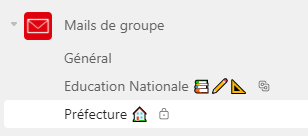
Obviously, I have asked the Prefecture to always use the email prefecture@mydomain.fr to write to me, it is an email that is dedicated to this use.
Note: : since we are going to use Outlook rules, we could filter on other criteria, I chose to dedicate an email to this use for simplicity.
All Teams channels are accessible via ecf2ec2e.mondomaine.fr@fr.teams.ms, it is this use that I would like to avoid, giving this email to a contact may seem strange (but this is possible for an automatic mailing list if you are the one who registers, so this tutorial is not useful for you).
Creating a Microsoft 365 shared box
We will use a shared box M365, to create it, we will go to the administration of the platform, section Teams and groups then Shared mailboxes
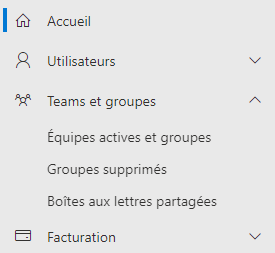
Note: : Creating a shared mailbox does not cost anything as a licence, they are free of charge.
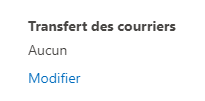
Once the box is created, one could think of using the function of transferring mail to the mail of the channel but this feature would make a transfer and not a redirection, that is not the objective sought.
Temporary allocation of an Exchange license
For configuration, you have to go to Outlook on line and add a rule.
I couldn't figure out how to do this without an Exchange license, so we're going to add a license, set up the rule and remove the license.
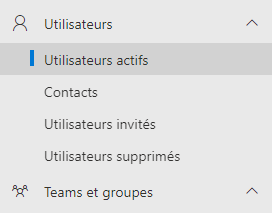
For this, always in the administration interface, we go to Active users search for our user (identical to the shared mailbox created at the moment). Then Manage product licenses in the user’s 3 small points.
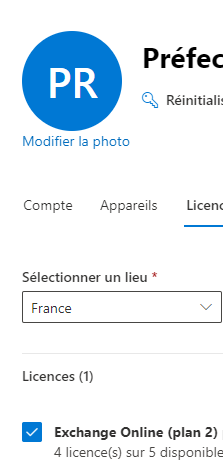
Give him an Exchange license, any one of them.
Add a rule in Outlook on Line
In order to access the user prefecture@mydomain.fr, you must have your password, in the administration of active users, reset the password and change it, the new one will be used to connect to Outlook on line.
- Getting to https://outlook.office.com/mail/
- Log in with the new user created
- Getting to Settings, Mail, Rules
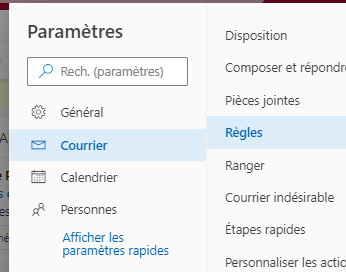
- Adding a redirect rule will give:
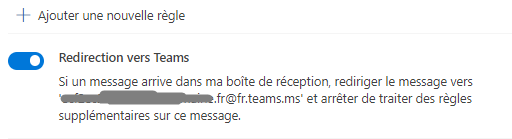
Removing the Exchange License
The license has become useless, it can be withdrawn.
Testing, validation of the method
Simply send an email to prefecture@mydomain.fr to see it appear (and not transferred) in the Teams channel. Attachments are also attached, everything works perfectly.
Bonus: Add the shared mailbox in Outlook on line of your main account
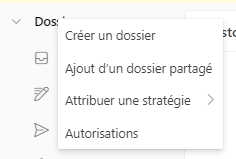
If you want to transfer this email in question, you can add the shared mailbox in your main Outlook account. To do this, you must be a member of the shared box. Then with a right click on Files, use the functionality Add a shared folder, enter the shared mailbox.
/
 English
  French
  Spanish
  Chinese
  German