

Several articles on this site explain how to flash Sonoff, each model has its own procedure for setting to ‘programming’ mode, but once ESP_Easy is installed, the configuration of the Wifi network and the creation of the link to Jeedom is identical. Here it is:
Manually allow SSH connection

Putty

PuTTY is a program to connect remotely to servers using the protocol SSH This will allow us to intervene on the Raspberry.
Jeedom

Jeedom is an open-source home automation solution, which therefore guarantees a great support of the various current home automation protocols such as Z-wave, RFXcom, … It is possible to add them through a market.
It is also possible to install Jeedom on raspberry pi and add modules.
Finally, access to the software is via a web interface or smartphone application. The server is directly on the box, it is not managed in a cloud which does not make it dependent on the company that manages it and avoids problems related to private life.
Raspbian

Raspbian is a GNU/Linux operating system specially designed and optimised for the Raspberry Pi.
https://www.raspberrypi.org/downloads/raspbian/
For Jeedom and the Raspberry, it is advisable to take the version Lite
Win32 Disk Imager
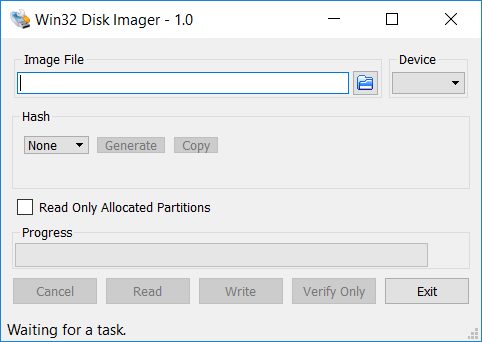
Win32 Disk Imager is a utility for transferring the disk image of an operating system to an SD memory card. Ideal in case you are looking to create an installation memory card for your Raspberry Pi, Win32 Disk Imager is extremely easy to use.
To create your SD card, launch the Win32 Disk Imager utility on your computer, then select the disc image in ISO format that you want to transfer to the card and the drive containing the card. Then click on the ‘Write’ button to start the process of writing the disk image to the memory card.
The latest version must be found HERE
Ask the Rasp Pi3 to boot on the PIDrive disk?
On the Raspi3 (with an SD card) you have to tell the Raspbpi3 to boot on the USB drive:
sudo echo program _usb _boot _mode=1 | sudo tee -a /boot/config.txt
sudo reboot
To verify that this has worked, type:
sudo vcgencmd otp _dump | grep 17:
The answer must be:
17:3020000a
The following shall be switched off cleanly:
sudo halt
Unplug the alim, remove the SD and replug the alim.
WD PiDrive Foundation Edition 250GB
I use this hard drive, specially designed for Raspberry on my Raspberry Pi 3
The use of this hard drive makes it possible to avoid ‘cracking’ SD cards.
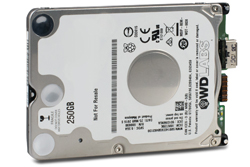
I ordered this disc on WDStore on 02 December 2017 (€25.52 in total)
Order of the WD PiDrive Foundation Edition 250GB
I use this SSD disk on the Raspberry Pi3 which hosts Jeedom Master
| Order on WDStore (02 December 2017) | ||
| WD PiDrive Foundation Edition 250GB Unit price: €31.90 Ordered Qty: 1 |
 |
25,52€ |
| WD PiDrive Foundation Bundle Edition Unit price: €0.01 Ordered Qty: 1 |
 |
0,00€ |
| Subtotal: 21,27 € Delivery: 0,00 € Tax: 4,25 € Total: 25,52 € |
Raspberry PI 3 (Jeedom Master)
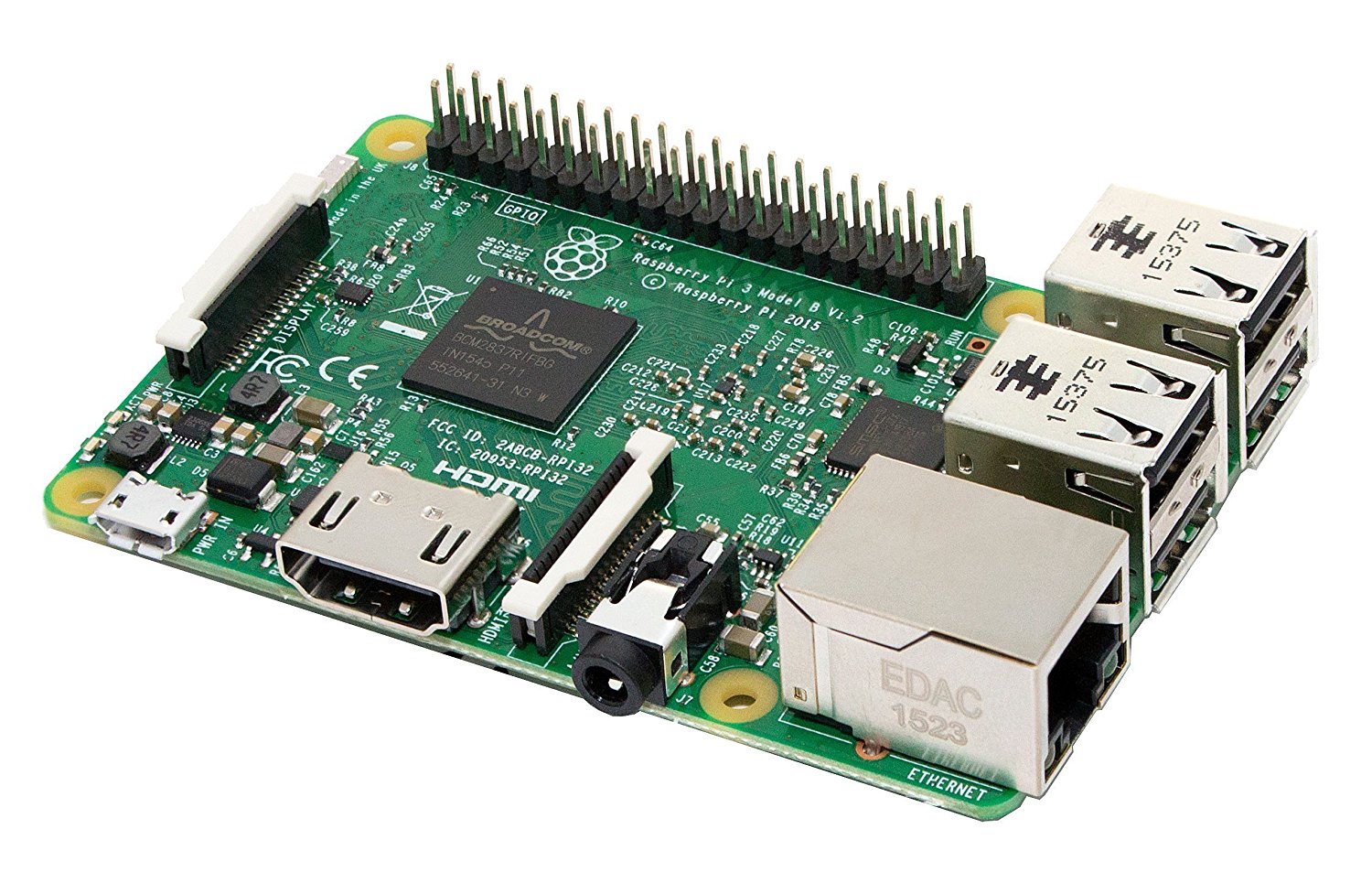
I use the Raspberry PI 3 as a support to host Jeedom (Maitre).
I use it without an SD card, with a "External" disc (a WD PiDrive Foundation Edition 250GB)WD PiDrive Foundation Edition 250GB)
 English
  French
  Spanish
  Chinese
  German