

 |
|
Presentation of the plugin
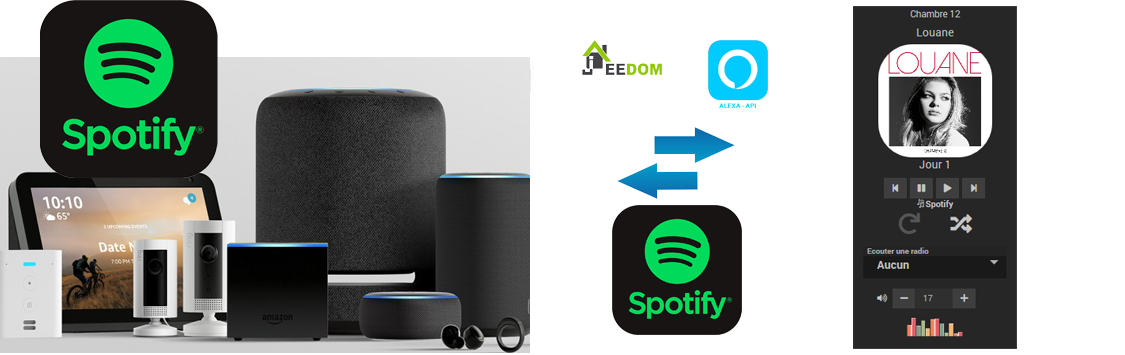
Plugin that complements Alexa’s possibilities by linking to Spotify.
This fully multimedia-oriented plugin is under development, to date, the launch of playlists and music tracks is not yet operational, Alexa will have to be asked to launch them. On the other hand, the reading of the radios works.
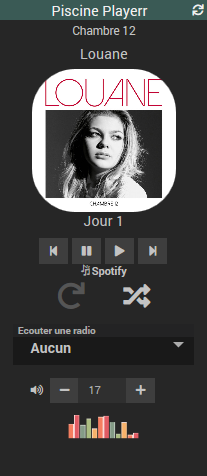
Player widgets make using Spotify very simple and user-friendly.
The multiroom is taken into account and the broadcast can be simultaneous on several Alexa
The TODOList and ChangeLog are the subject of a special page.
A comparison between Alexa-AmazonMusic, Alexa-Spotify and Alexa-Deezer is available.
Installing the Alexa-Spotify Plugin
Very important, Alexa-Spotify needs the Alexa-API plugin (free) to talk to your Alexa:
Step 1: Install the Alexa-API plugin
Step 2: Install the Alexa-Spotify Plugin
from the Market, Multimedia category or by typing its name in the search field
You have the choice between the version Stable or version beta.
Many new features are always more present on the Beta than on the Stable but they are in test.
If you are a gamer and curious, you can install the Beta version.
Note: You do not need to install Jeedom en Beta (this is not recommended for that matter) to install the Beta plugin.
You can quite easily switch from a Beta version to a Stable version and vice versa, just reinstall over the other version.
Step 3: Activate Plugin

Step 4: Go back to the Alexa-API plugin
Step 5: Relaunching the SCAN
Multimedia devices will be generated automatically
Go to Alexa-Spotify to view them

Update or Change Version (from Beta to Stable or from Stable to Beta)
What to do?
Since the plugin and its API are alive (Amazon has not documented the API and allows it to change its protocols over time), updates make it possible to make corrections in the links between the plugin and the Amazon server.
Please note that it is always advisable to update Alexa-API when updating multimedia plugins (Alexa-AmazonMusic, Alexa-Deezer, Alexa-Spotify or Alexa-smartHome)
Two solutions to have an operational installation:
- Remove all Amazon devices and their orders and recreate them
- Force update of all commands
- Launch a SCAN that detects new equipment or commands
The choice between these three solutions depends on the number of scenarios you have developed thanks to them. Indeed, the first solution removes all devices and all commands, so it will delete these in your scenarios. The second solution is more respectful of your scenarios because it will update your orders without removing them and therefore your scenarios will be intact.
Solution 1: Remove all equipment and their controls and recreate them
This is the most important mode clean and the most optimised since you leave with an installation like new devices and their commands.
To do so, use the button (in the configuration screen of the Alexa-API plugin)
Attention, this function removes all equipment and their commands, so you lose all links in your scenarios.
Solution 2: Force update of all commands
This is the most important mode simple and risk-free since your equipment and their orders are not deleted. This forcing therefore does not impact your scenarios.
To do this, you have to use the button 
If you do not want to start the update focing on all the Orders of all equipment, you can launch it on a single equipment (and therefore on all its orders). To do so, go to the equipment concerned and click on:

Solution 3: The SCAN
Finally, note that the scan can be launched at any time, it does not impact the equipment already detected or the existing commands, on the other hand, it recreates all the new Devices or Devices removed. It also recreates all the news orders or orders deleted.
The tiles
Multimedia player tile
 English
  French
  Spanish
  Chinese
  German