

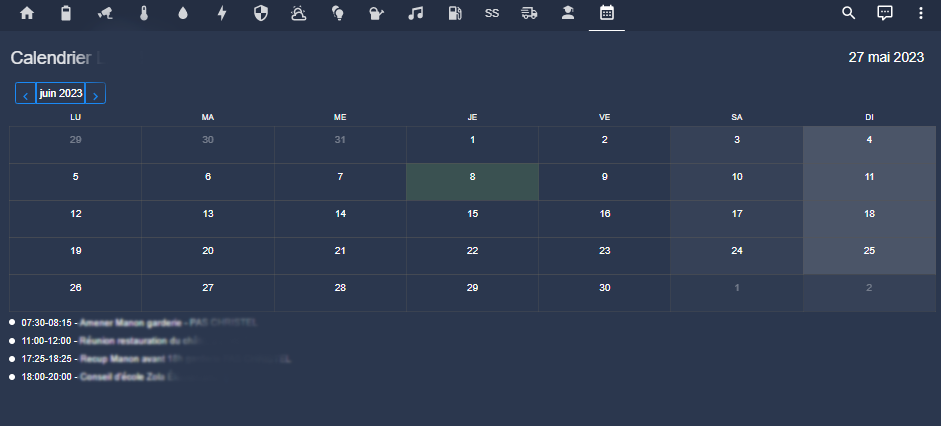
My objectives:
- Recover my O365 calendar
- Display it on a full-screen Home Assistant view
Attention, change of integration HA
 |
This is the new version of the page dedicated to the integration of MS365 calendars after a change in the integration of its author, for all intents and purposes, here is the previous version: |
Install HACS integration
Be careful, you need version 2024.6.0!!

It is this integration that I will use:
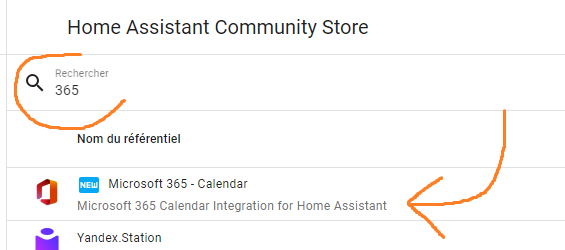
So I go to HACS, now we no longer use the button at the bottom right to add an integration, we go to the search line, I type 365 and I find the new integration:
[This page is not finished, I am waiting for HA version 2024.6.0 to continue]!!
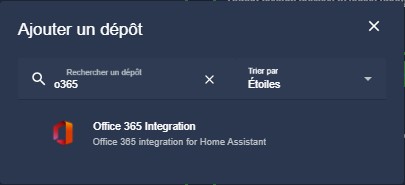


I'm relaunching Home Assistant.
I create the link between Azure Microsoft and Home Assistant
I connect to the Azure portal (application records)
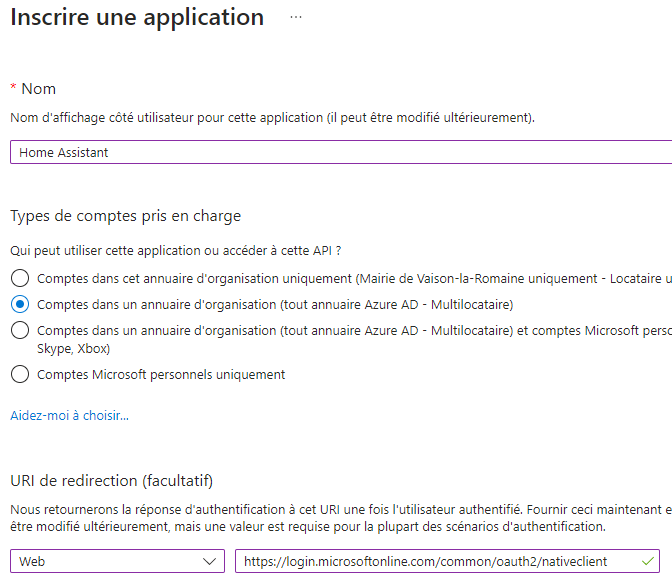
I add a new application registration, I choose the 2nd account type and I put a web redirect URL which is https://login.microsoftonline.com/common/oauth2/nativeclient
 |
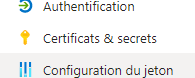
Once the record is created, I will generate a Secret client access, left column, I click on:
To do so, I click on:
I take the longest duration proposed and click on Validate. I note the value thus generated.
The documentation indicates that you have to configure the API authorisations, I do not need them to consult the calendar, if I want to do something else with this API, I will come back to change that here.
On all these screens, I noted two pieces of information that I retrieved:
- Application ID (customer) in the Overview
- The value customer secrecy that was generated at the time of its creation. If I forgot to write down this value, don’t worry, I delete the created customer secret and recreate one by not forgetting to write down the value.
Manual configuration of Home Assistant
There is no automatic configuration, we must add section o365: in configuration.yaml
As usual, to find my way around, I will create a file o365.yaml in the config folder and then I add the line
o365: !include o365.yaml
I add these lines in o355.yaml
accounts: - account_name: moncalendar # Do not use email address or spaces client_id: !secret o365-client_id client_secret: !secret o365-client_secret alt_auth_method: False enable _update: False
I fill in the two lines of secrets.yaml with the values noted in the previous paragraph.
o365-client_id: xxxxxxxxxxxxxxxxxxxxxxx o365-client _secret: xxxxxxxxxxxxxxxx
I relaunch Home Assistant
Validate link O365 <=> Home Assistant
In the settings, I find a notification
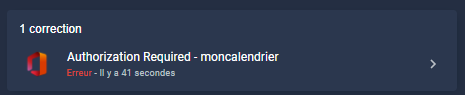
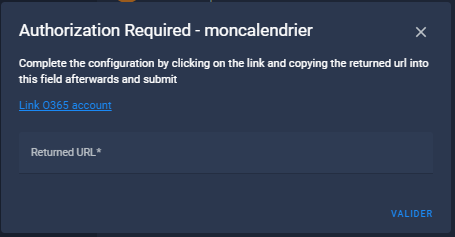
I click on Link O365 account
I log in to my Microsoft 365 account
Once identified, the page becomes blank and it is the URL that is in the URL bar that should be noted, it looks like https://login.microsoftonline.com/common/oauth2/nativeclient?code=xxxxx
I copy the whole url so displayed, I close the window.
I paste the copied URL into the Returned URL field and then validate
The link is established.
Select calendars to display
At this point, I go to Development Tools/States to check if my calendar is correctly detected.
To filter, I type calendar, here is the result:
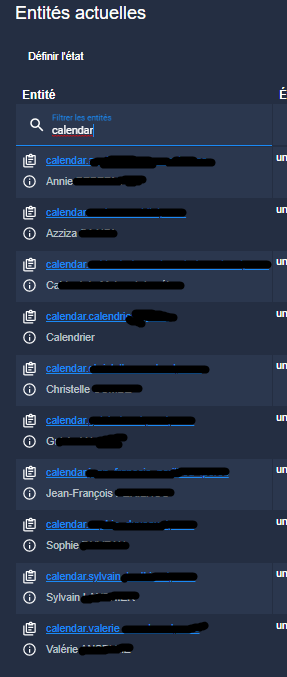
So I see that my calendar but also all those who are shared with me go up.
I'm not going to use resources to keep entities up to date that I'm not going to use, so I'm only going to keep my calendar.
For this, I disable all entities that I do not want to see in my calendar.
I relaunch Home Assistant
Check that the calendar is working
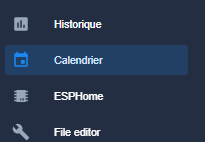
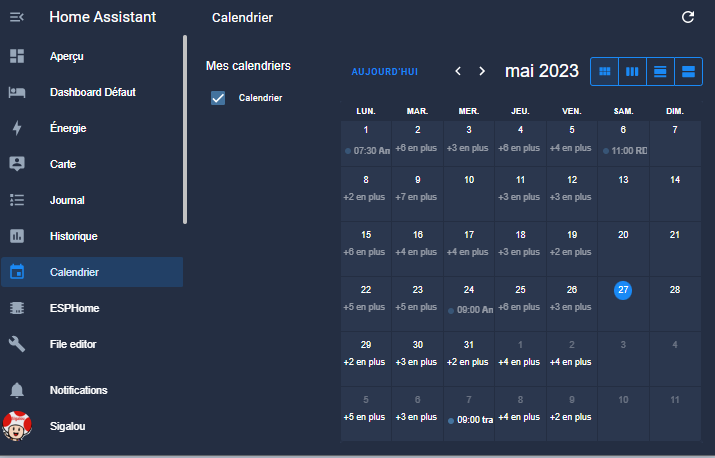
I notice that on the left, a link has been added, I click on it and after a few seconds, magical, my appointments appear.
For the sake of confidentiality, I reduce the size of the screen to post this image:
Show calendar on a view
At this stage, I have not found how to display this beautiful calendar in a view, I find it a pity, I hope that if someone knows how to do it, they will inform me.
So I looked for a map to display my calendar in full screen on my dashboard.
There are several maps, I think I have tested them all, but there is only one that made me see a calendar that is properly displayed in full screen, rather well thought out and simple to implement.
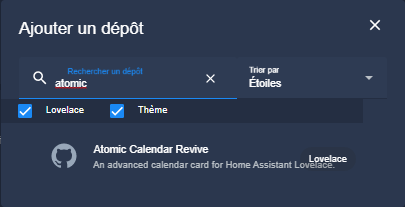
This is the custom:atomic-calendar-revive card
Installing the Atomic Calendar Revice card
To install it, I go to HACS

Adding a Calendar view
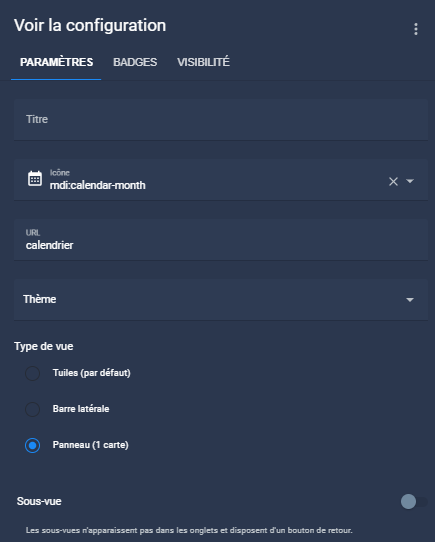
I am therefore adding a panel view with the calendar-month icon, which has a calendar url.

The code of the new card is:
Type: custom:atomic-calendar-revive name: Calendar Lionel enableModeChange: true defaultMode: Calendar entities: - calendar.calendrier _moncalendrier refreshInterval: 14400 showDate: true disableCalLink: true dimFinishedEvents: true
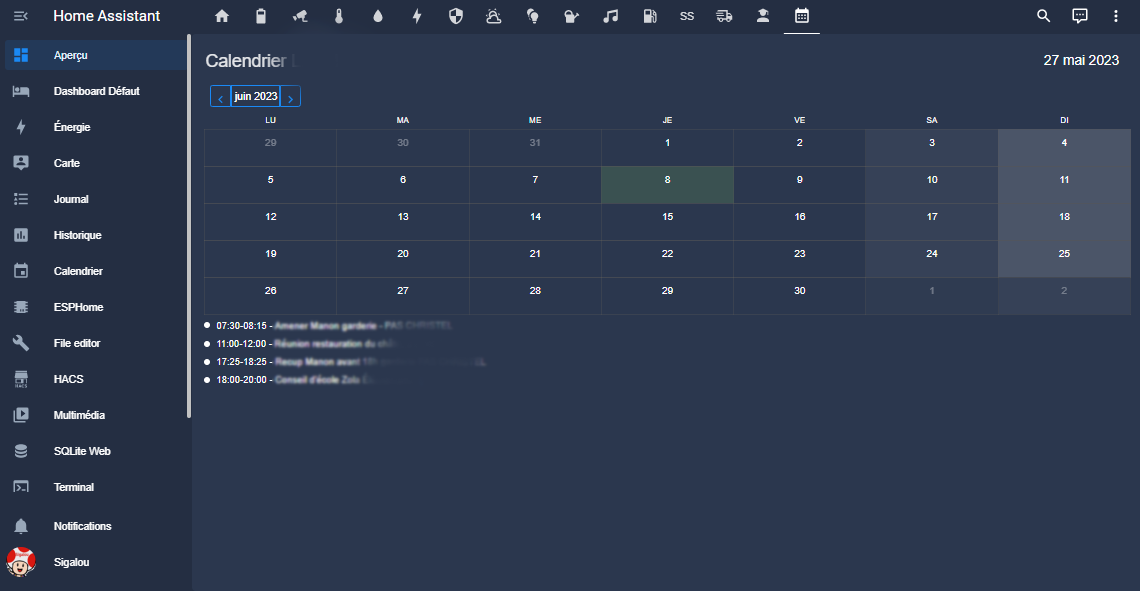
The result is rather nice:
 English
  French
  Spanish
  Chinese
  German