


If like me you synchronize your Repository GitHub with your Jeedom development, you encounter since August 13, 2021 a new error.
Error message
remote: Support for password authentication was removed on August 13, 2021. Please use a personal access token instead.
remote: Please see https://github.blog/2020-12-15-token-authentication-requirements-for-git-operations/ for more information.
fatal: Authentication failed for ‘https://github.com/xx/’
Explanation
As of 13 August 2021, Github no longer accepts account passwords when authenticating Git operations on GitHub.com.
They require the use of token-based authentication. as a personal access token (for developers) or an OAuth or GitHub App installation token (for integrators) for all Git operations authenticated on GitHub.com. You can also continue to use SSH keys if you prefer.
How do we get out of this?
I initially tried to create private/public SSH keys that are configured on Github, all this is accepted but the difficulty is that the SSH link, it is between your Jeedom and Github and not between your computer and Jeedom. I gave up this lead. If someone finds it like making an SSH link between Jeedom and Github on the command line, I am a taker of the info.
So I tried to find out how the Tokens worked and found that using the Token instead of the password on the command line the Push worked!!! Eureka !!
Here is the manip:
Generate access token
Personal access tokens are an alternative to using passwords for authentication with GitHub when using the GitHub API or the . command line
As a security measure, GitHub automatically removes personal access tokens that have not been used in a year. To provide additional security, GitHub strongly recommends adding an expiration to your personal access tokens (which I do not)
- Check your email address , if it has not yet been verified.
- In the top right corner of any page, click on your profile picture and then on Settings.
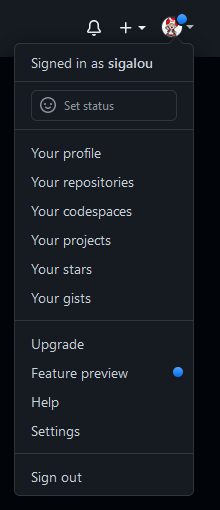
- In the left sidebar, click Developer settings
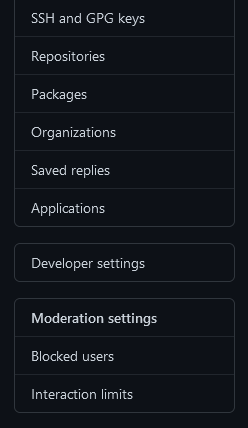
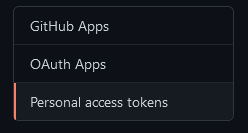
Then Personal access tokens
- Click on Generate New Token

- Give your token a descriptive name.
- To assign an expiry date to your token.
- Select the scopes or permissions you want to grant to this token. To use your token to access repositories from the command line, select repo .

- Click on Generate.
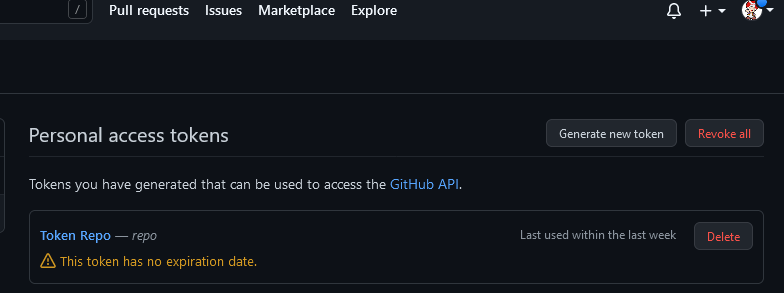
Retrieve the Access Token
At the end of the generation, Githug gives the access token, if you have failed to copy it at the right time, you can generate another one:

Use of Access Token
It is very simple, it is used instead of the password (login has not changed).

Info Bonus
To avoid having to constantly retype your passwords, here are two commands that you can include in your MobaXtrem scripts:
git config credential.helper store– stores the credentials indefinitely.git config credential.helper 'cache --timeout=3600'– Shops for 60 minutes
 English
  French
  Spanish
  Chinese
  German